One subject across a series
Reuse one reference for every shot and review the results side by side for a consistent likeness.
VideoAny AI Photoshoot
Build a photo series around one subject. Start with a portrait, then direct the location, styling, and camera angle for each shot in VideoAny.
Add your reference photos, choose a scene, and prepare one or more variations for the image workspace.
Creating a recurring subject? Set up a reusable character.
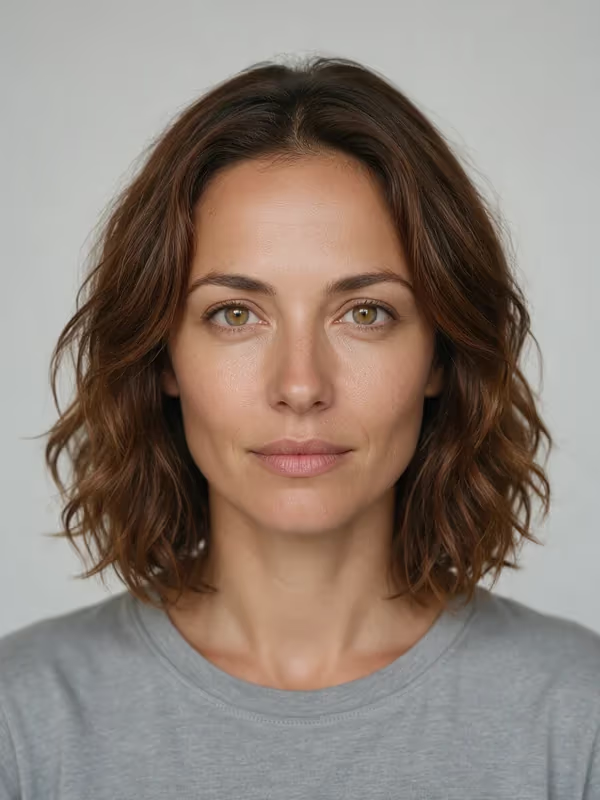
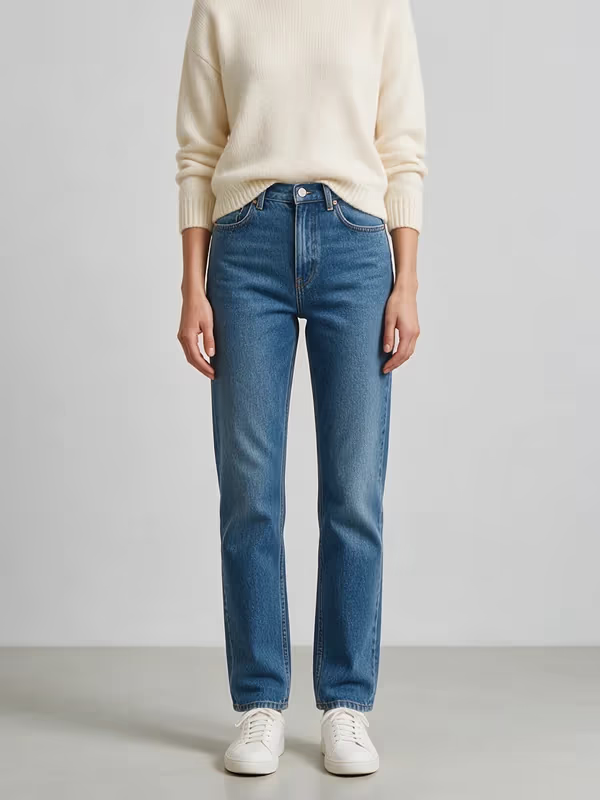
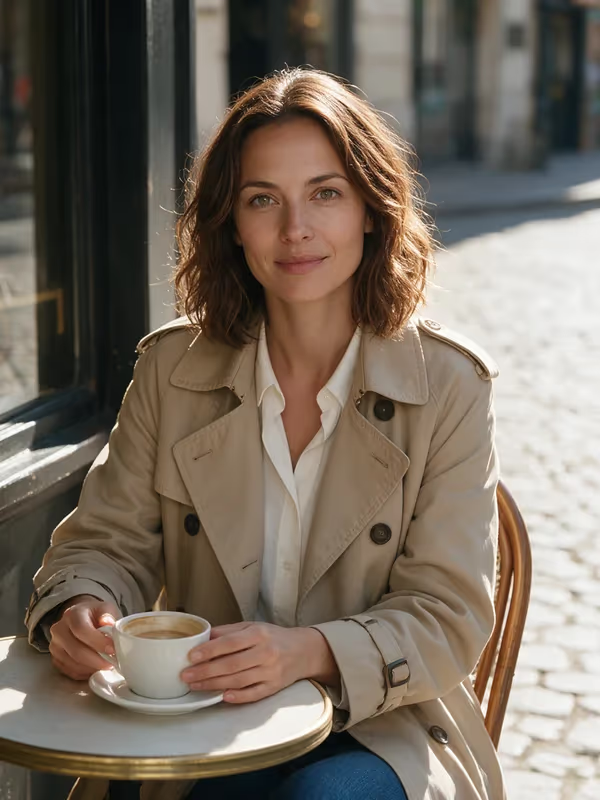
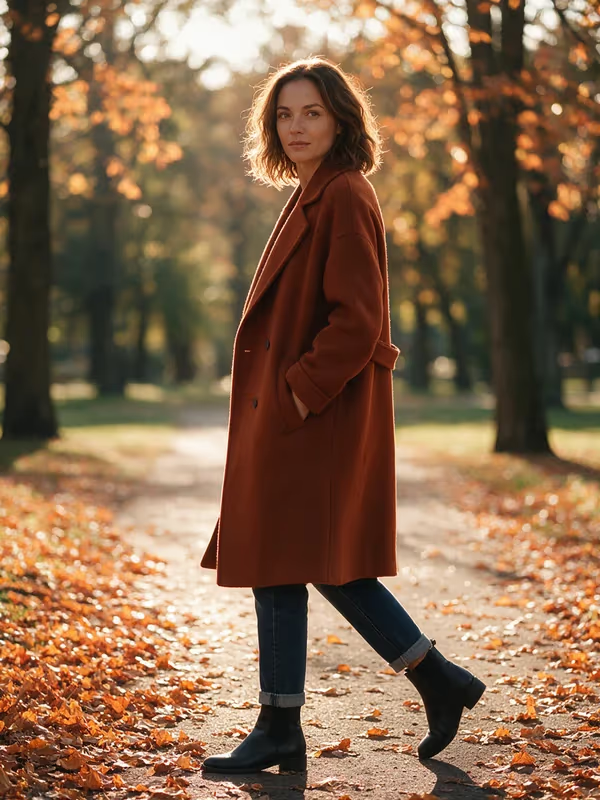
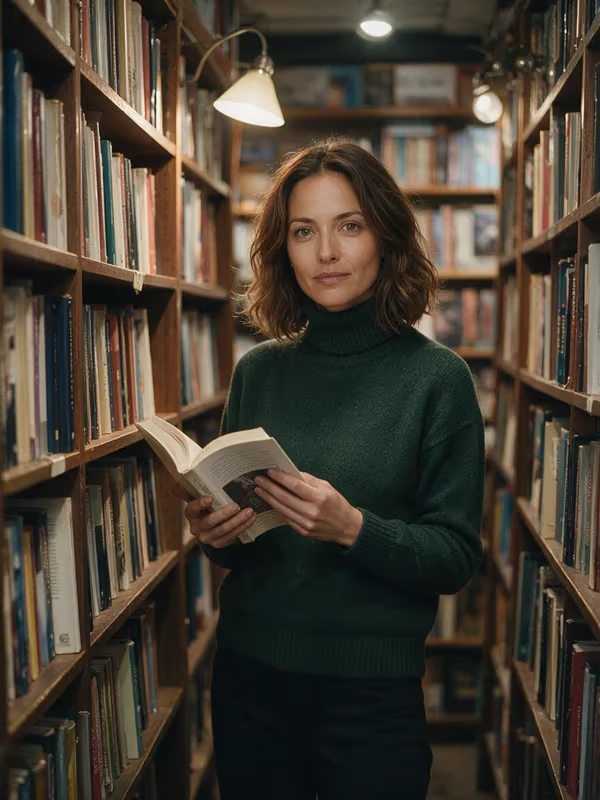
An AI photoshoot uses a reference image and a written direction to create variations of a subject across different scenes. In VideoAny, keep the same source portrait as you refine each shot so the set has a consistent starting point.
See how the same subject can carry across different scenes and crops. Use the examples below as direction for your own shoot.
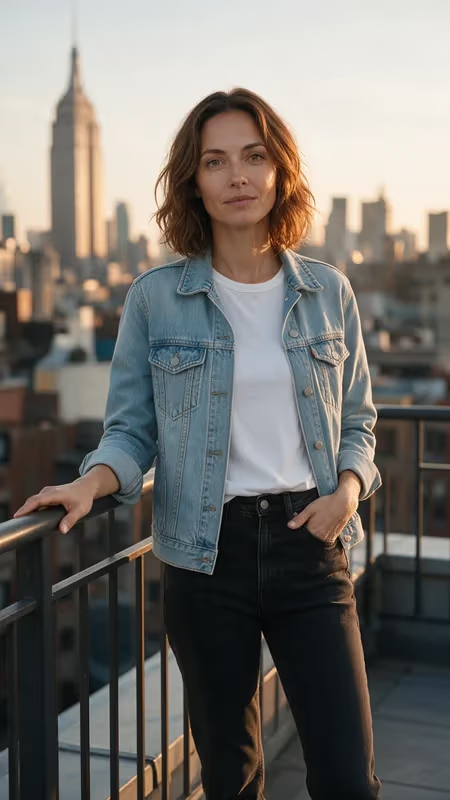
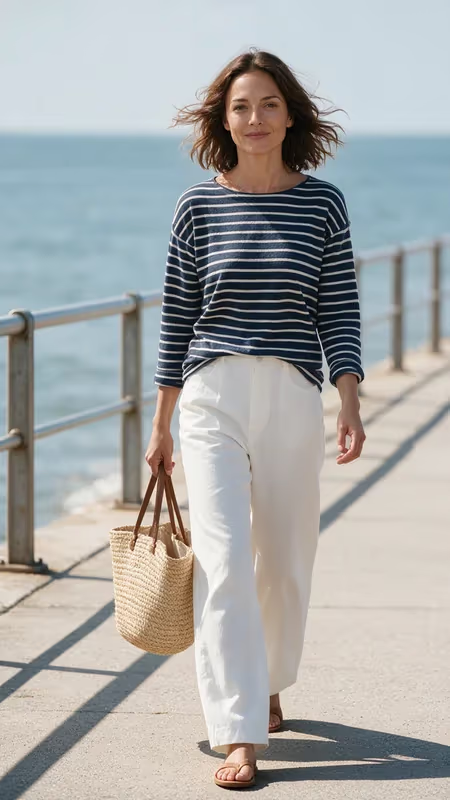
Use a tall crop when the pose and location both need room in the frame, such as for Stories or full-screen social posts.
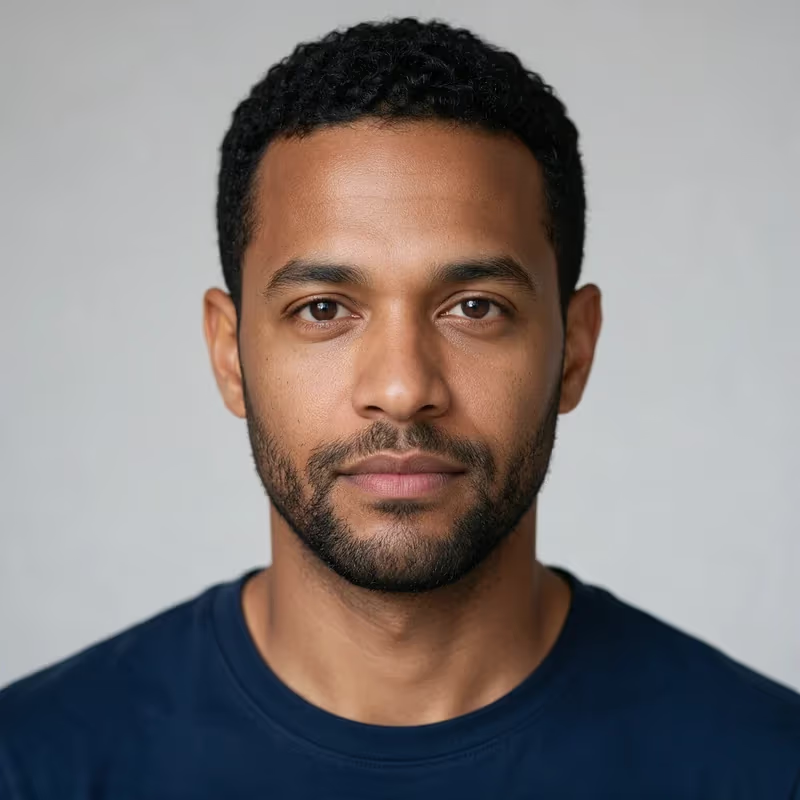
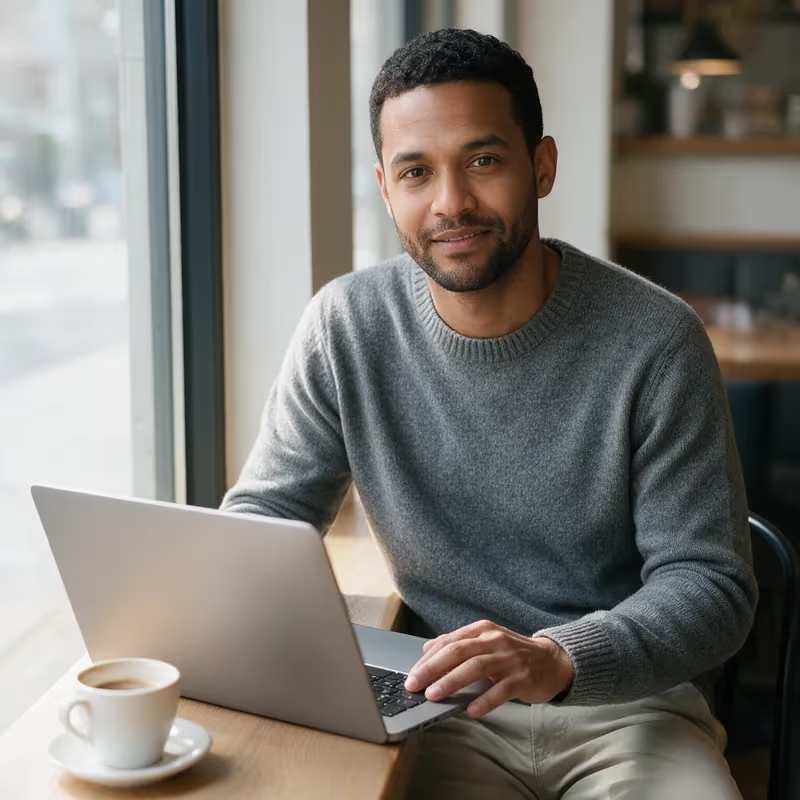
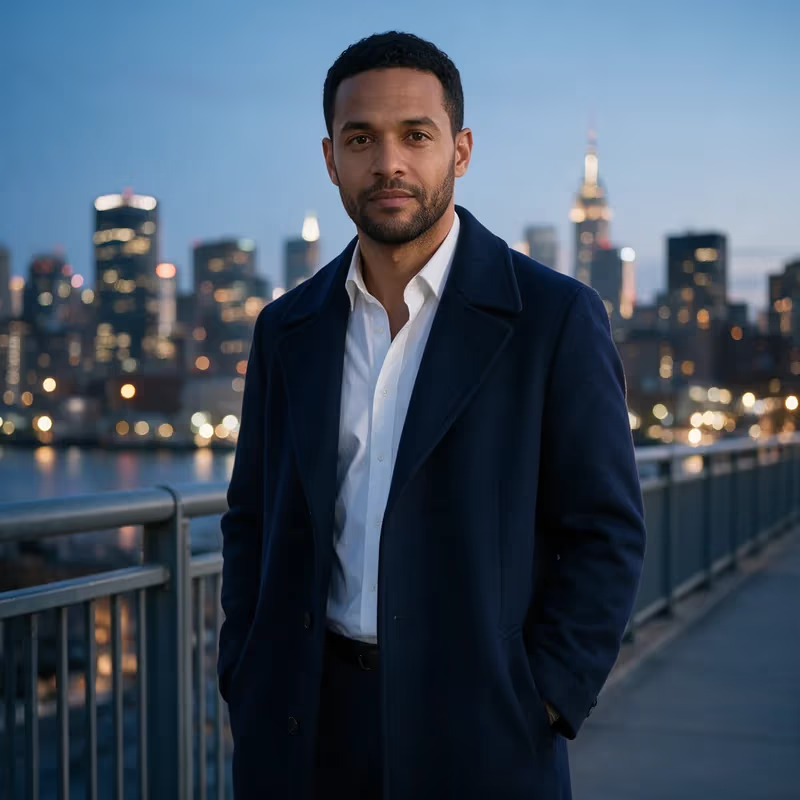
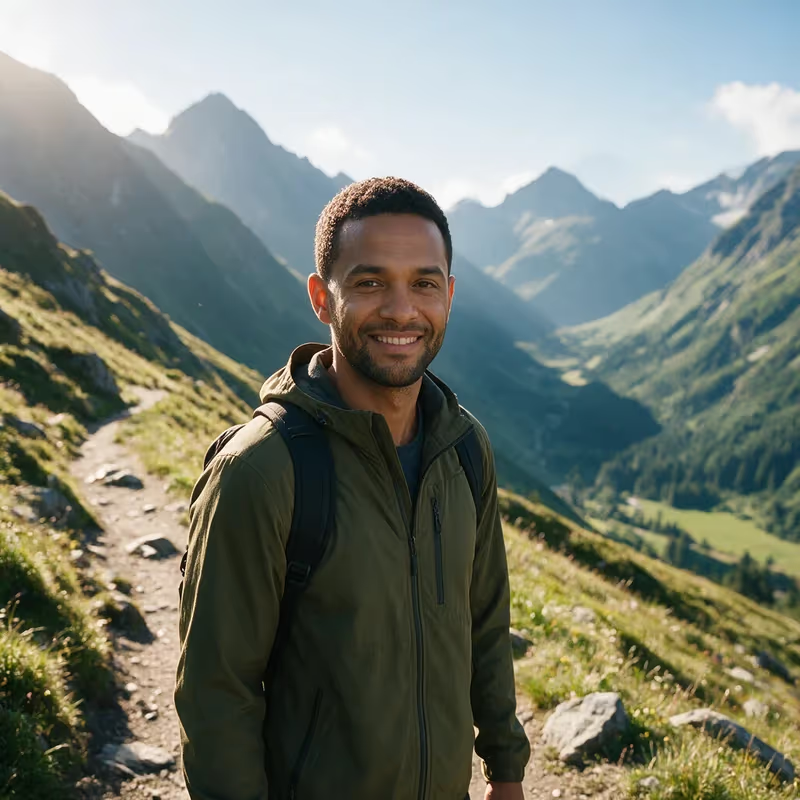
Start with a face reference and vary the setting while keeping a consistent crop for a grid or carousel.
Open Image to Image and add a well-lit photo with the face visible. Reuse this same file when you create the next shot.
Describe the location, outfit, pose, and lighting. Include details you want to preserve, such as the hairstyle and facial features.
Choose an image model and a supported aspect ratio. Frame the image for where it will appear, from a square grid to a vertical Story.
Check whether the likeness, hands, and clothing match your brief. Adjust the prompt and try again when a detail needs work.
Repeat with a new setting or camera angle, keep your strongest results, and download the finished images from the workspace.
Reuse one reference for every shot and review the results side by side for a consistent likeness.
Try a studio backdrop, a city street, or window light by changing the prompt for each scene.
Use your chosen model's aspect-ratio controls to plan a portrait crop, a square tile, or a wider composition.
Keep the reference and refine one part of the brief at a time when a shot needs a different angle or light.
Open a finished frame in Image to Video to add a camera move or subtle motion for a short clip.
Bring it into the VideoAny image workspace and direct your first shot.
Create a few profile photos and feed images with shared styling, then use different crops for each placement.
Keep one original character reference and create a series around a location, season, or recurring storyline.
Plan a consistent look for announcements and campaigns around an approved brand character or portrait.
Create a set of related stills, then animate a selected frame for a Story, Reel, or teaser.
| Your goal | Start with | Create | VideoAny tool |
|---|---|---|---|
| A coordinated photoshoot | A reference portrait and a scene brief | A set of portraits in different settings | AI Photoshoot |
| Professional headshots | A clear photo with the face visible | A focused portrait for profiles or bios | AI Headshot Generator |
| Wardrobe variations | A portrait and an outfit brief | Different clothing looks on one subject | AI Clothes Changer |
| Product or catalog imagery | A clean product reference and scene brief | Product images styled for different placements | Image to Image |
Use your own portrait, an original character, or photos that you have permission to upload and edit.
Get consent before creating or sharing realistic new images of someone else.
Check the final photos for accuracy and follow the disclosure and usage rules of the platform where you share them.
It helps you create a series of new images from a reference portrait and written directions. In VideoAny, you can describe a new setting, pose, or outfit for each shot in the Image to Image workspace.
Yes. Start with one clear portrait and reuse it across the series. If you want a specific body pose or outfit, describe it in the prompt or add another reference when your selected model supports multiple images.
A consistent reference and a clear brief can help preserve the likeness, but details may vary across generations. Review each image and refine the prompt or regenerate as needed.
Choose a supported aspect ratio in the workspace. Vertical framing gives a full-length portrait more space, while square framing works well for grids and profile images.
Yes. Create an original portrait with Text to Image, then reuse it as your reference in Image to Image while you create new scenes for the same character.
Use the image model and its available output settings to generate each shot. Repeat with a new prompt for each scene you want and curate the results into your own set.
Yes. Download a finished image or bring it into VideoAny’s Image to Video workspace, then describe the movement you want for the subject or camera.
Start with one portrait and plan the settings, angles, and crops that belong in your series.