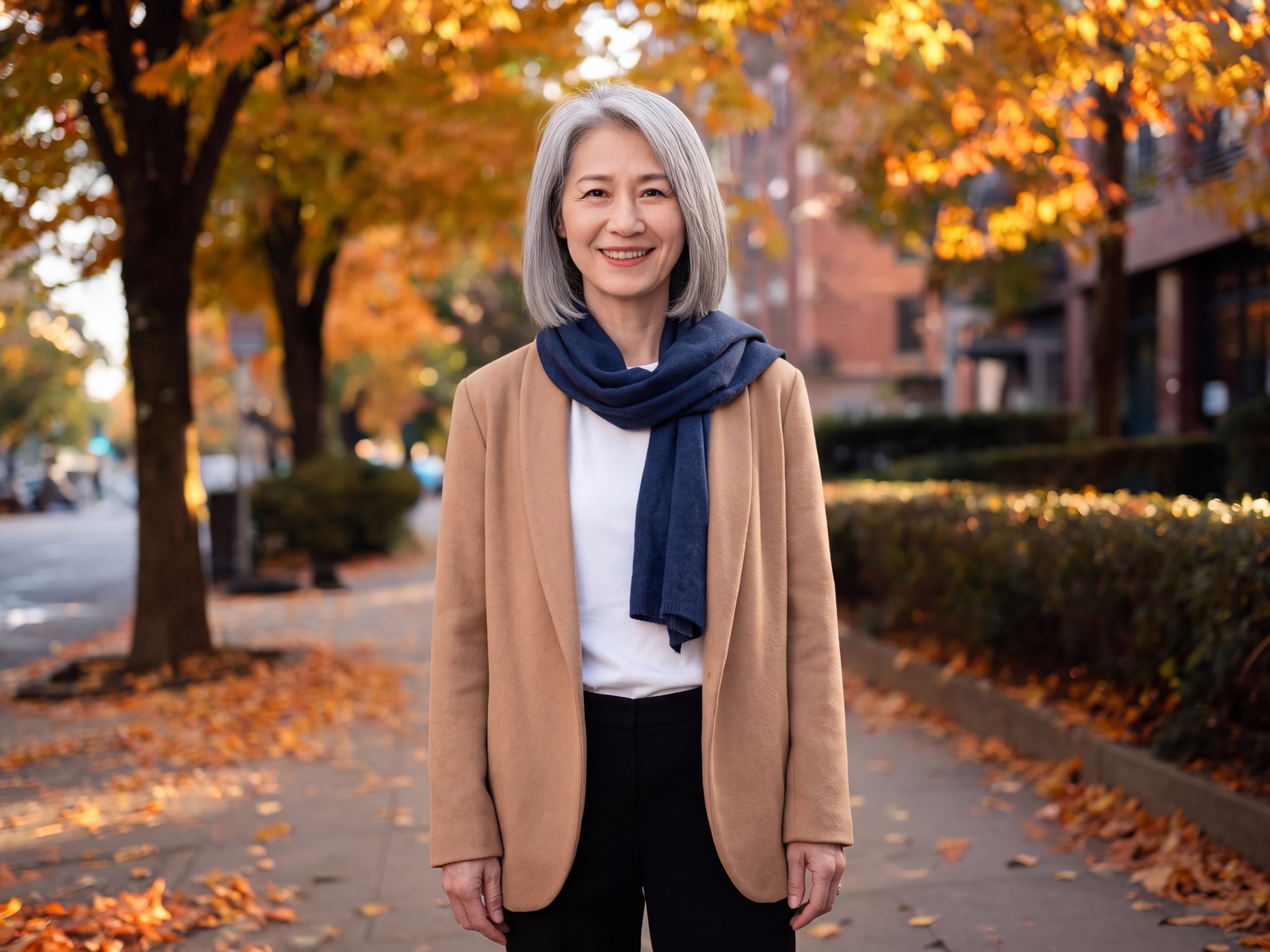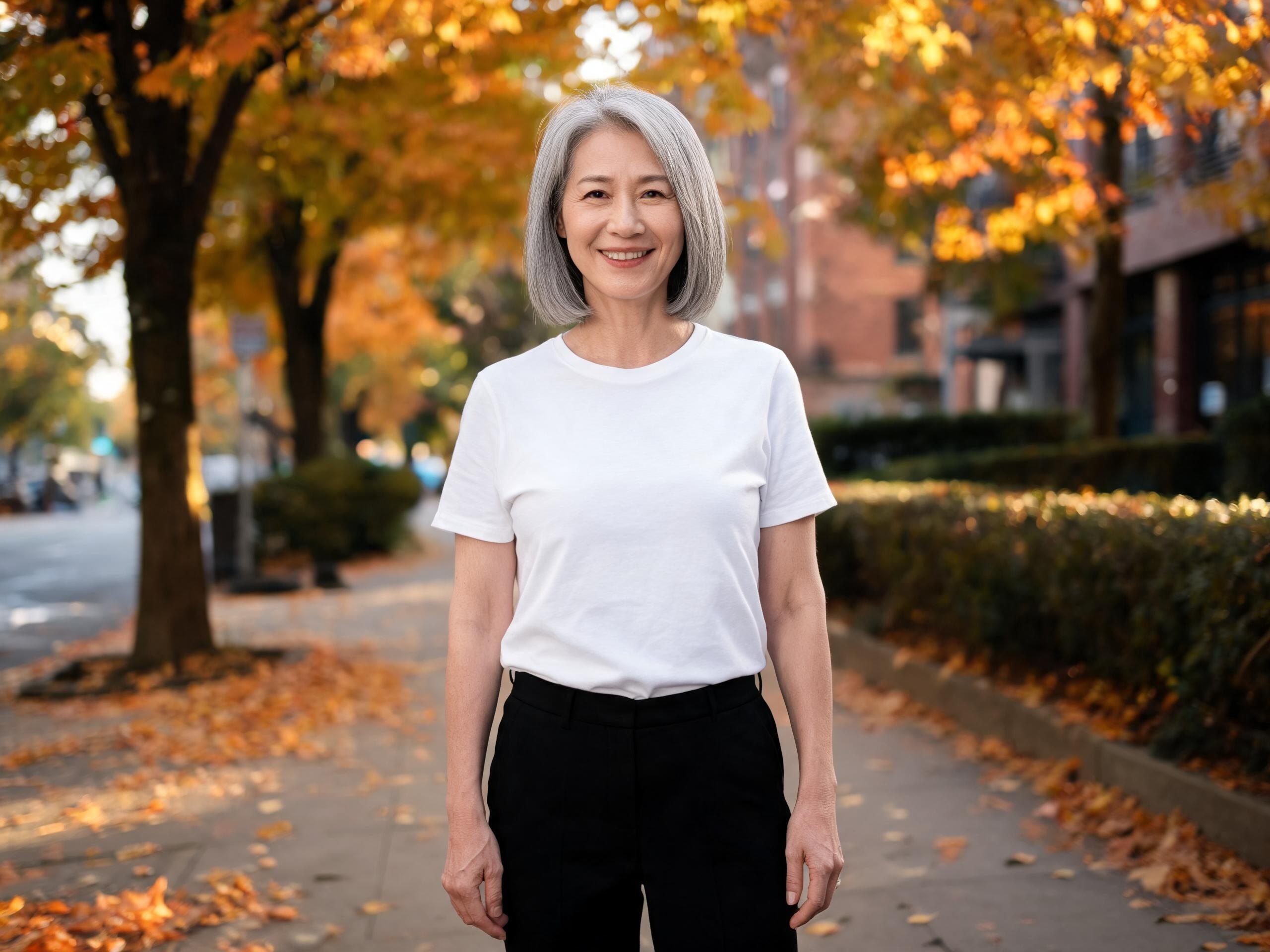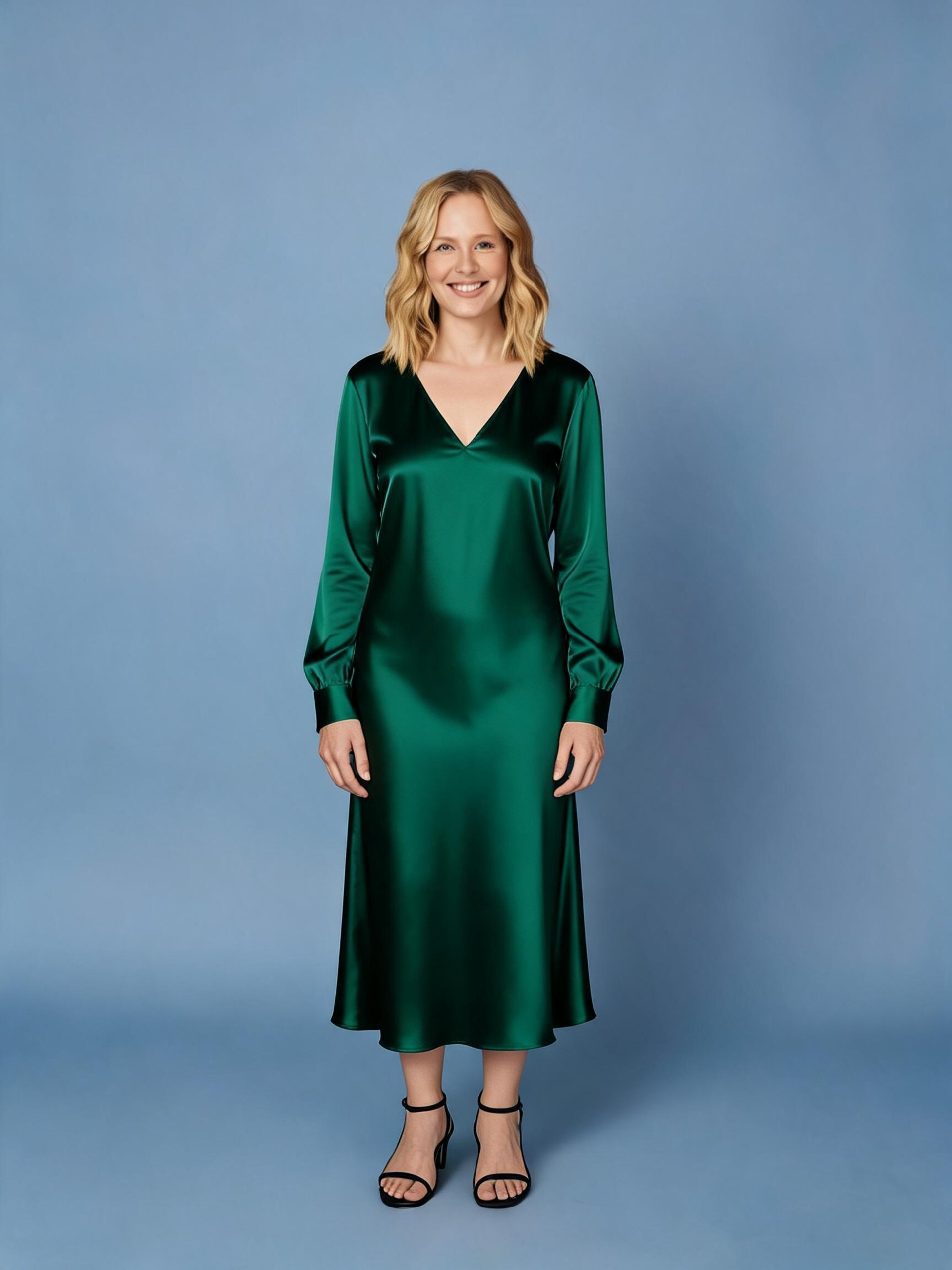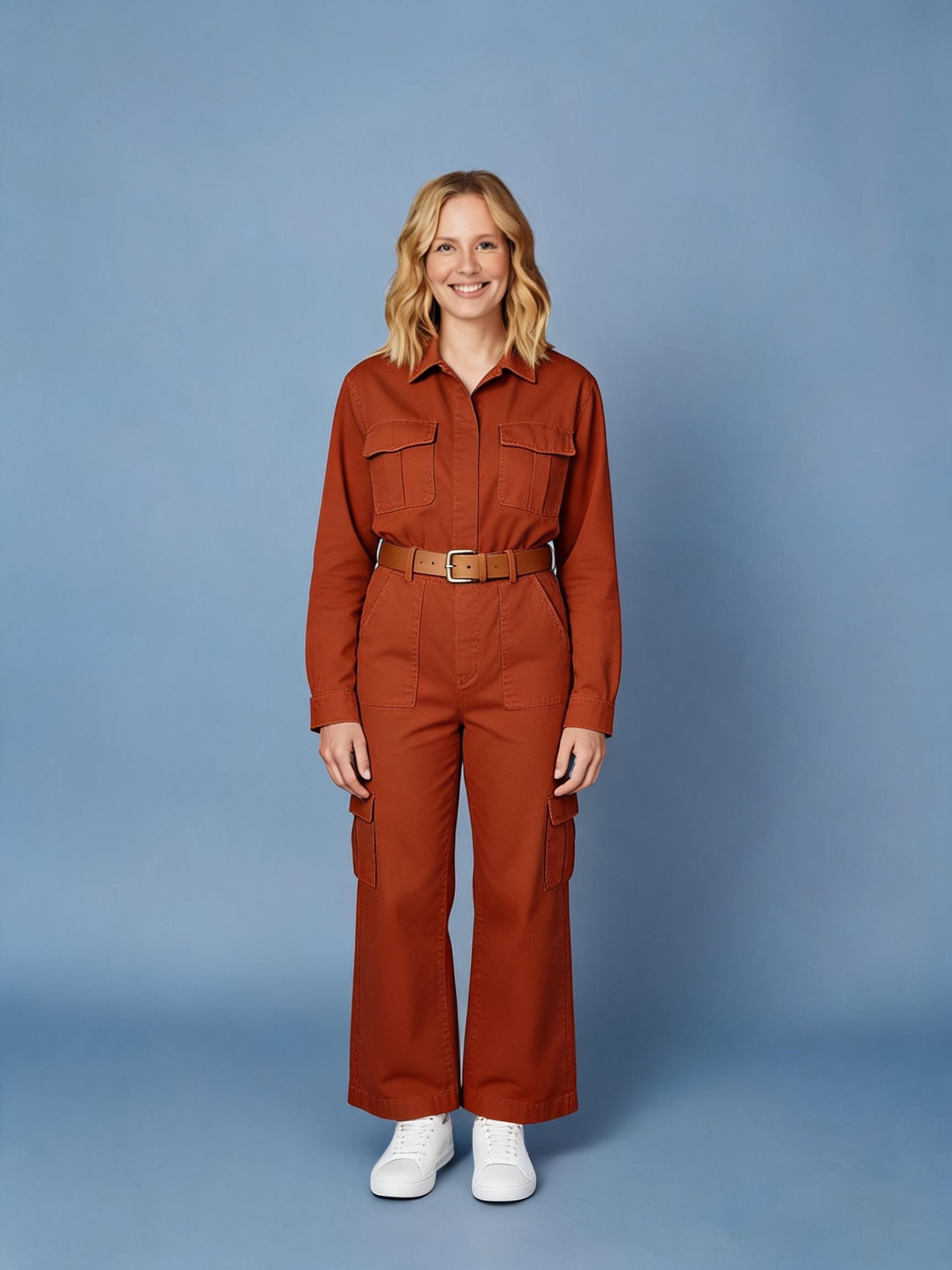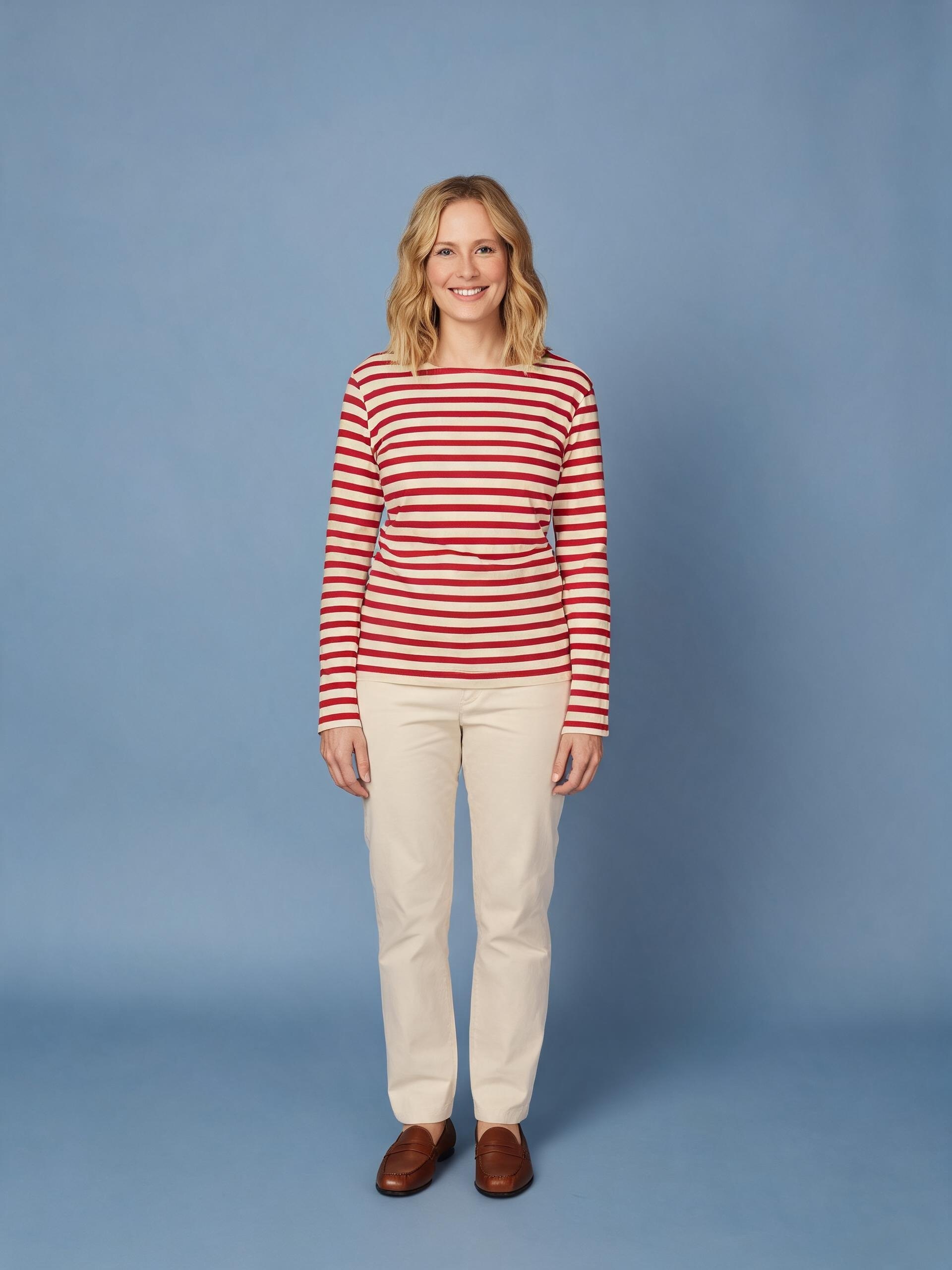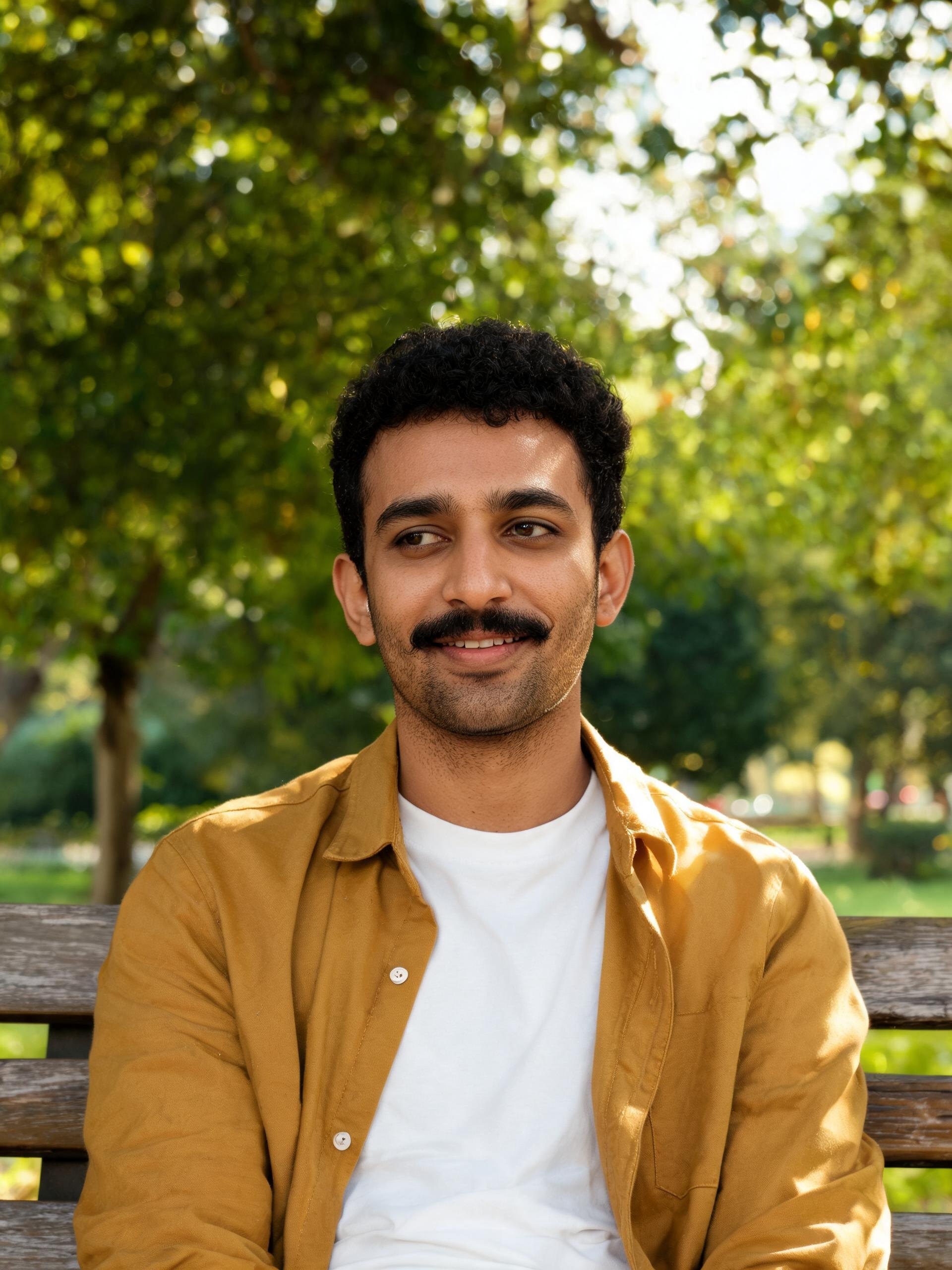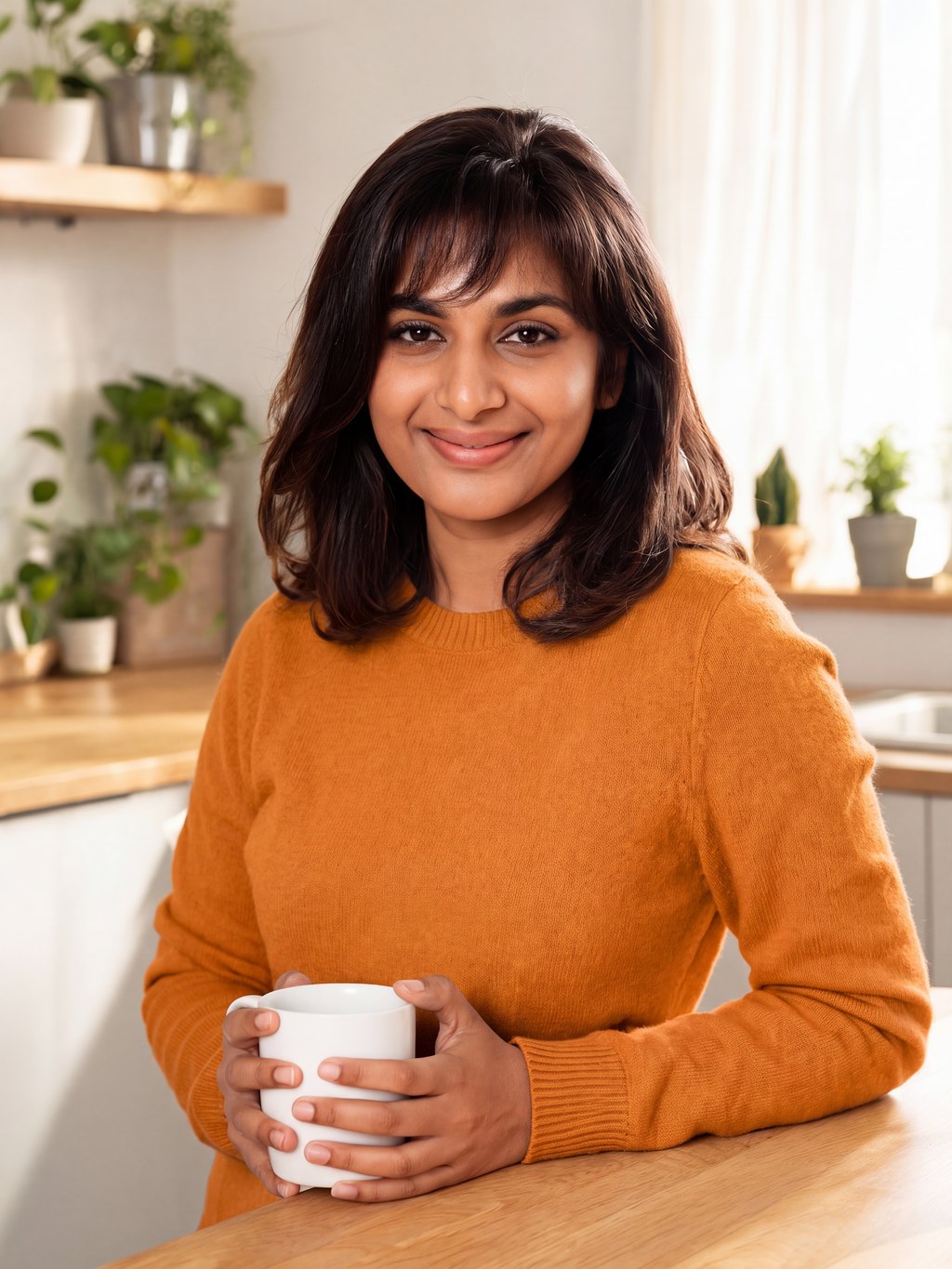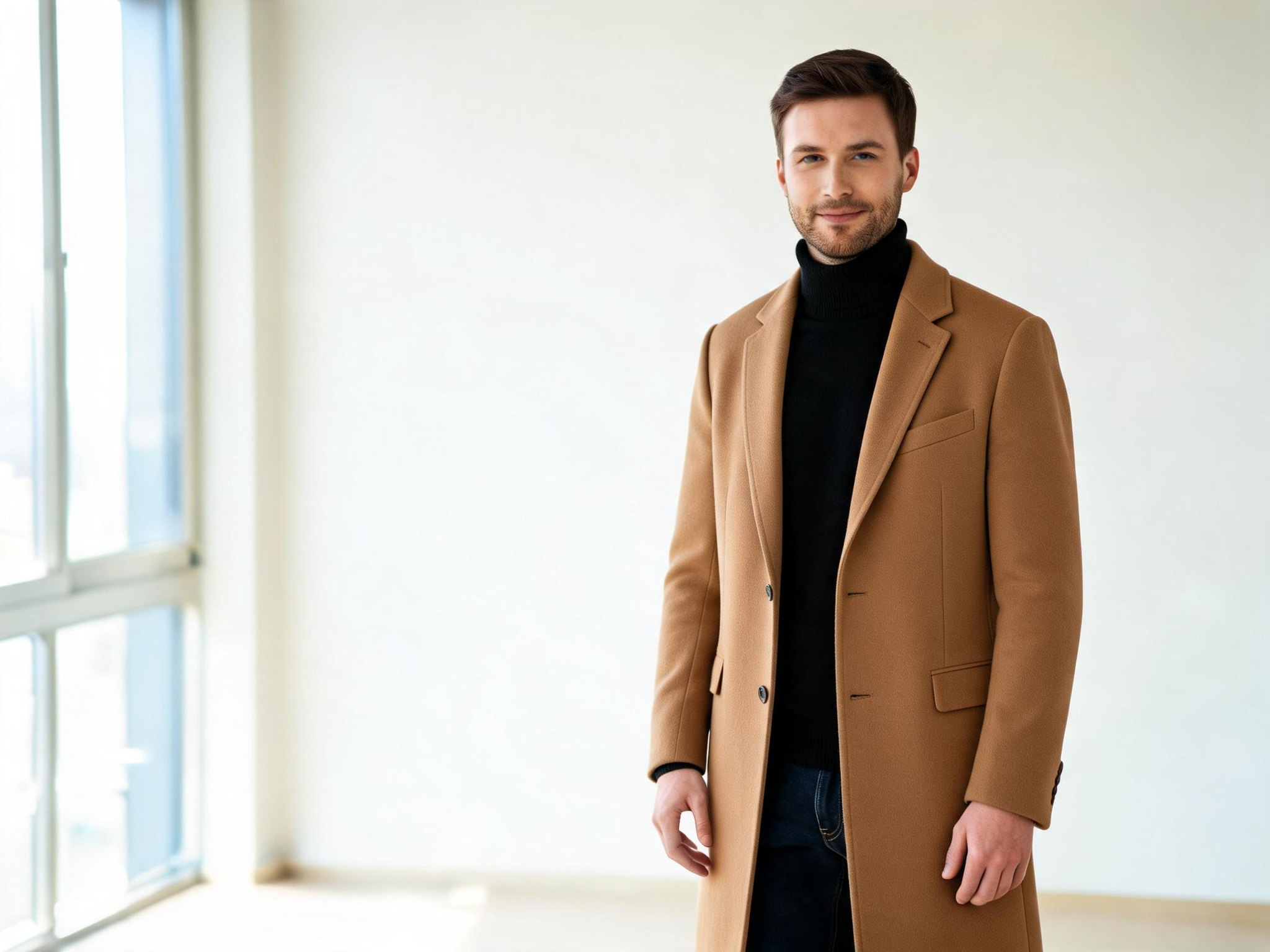
AI CLOTHES CHANGER

Build the wardrobe for your next visual.

Explore an outfit for a creator portrait, character, or campaign frame. Describe the clothes or add a garment reference, then style the image with ImageAny V3 or V2 inside VideoAny.

  • Text or garment reference
  • ImageAny V3 & V2
  • Create in your browser
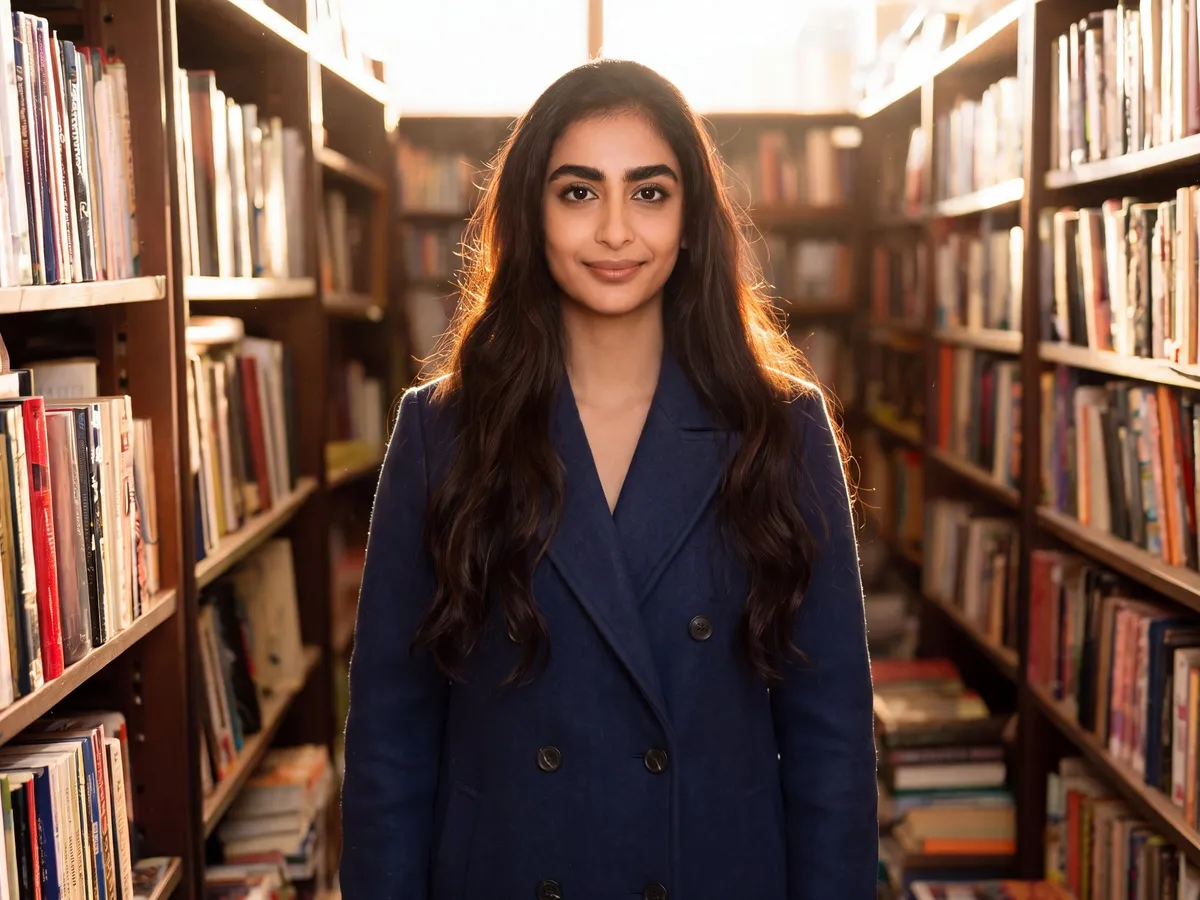
The same portrait restyled with a navy coat
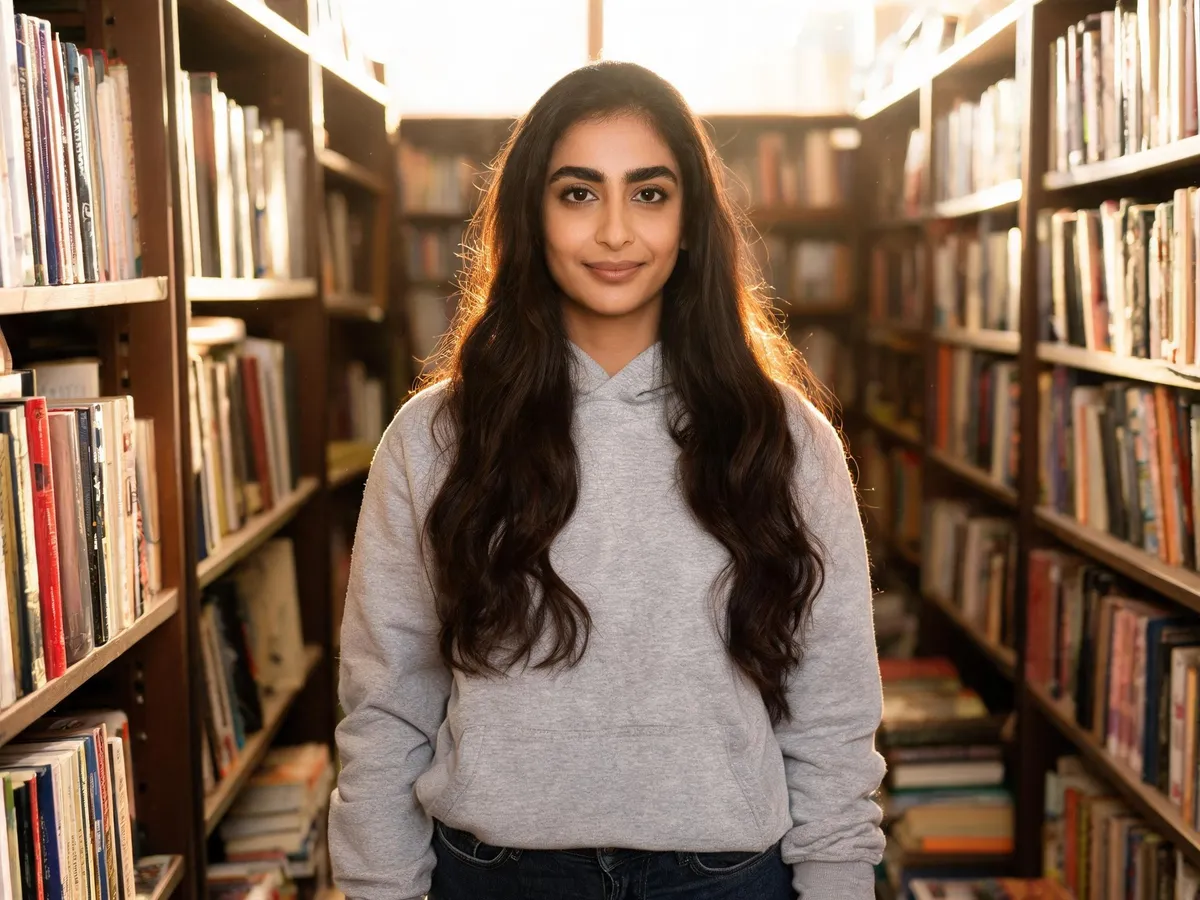
Woman wearing a grey hoodie in a bookshop
OriginalNew outfit

Compare the original photo and new outfit

Style the still before you direct the scene.

An outfit can establish a character, set a campaign palette, or give a familiar portrait a new context. Make that decision in the image stage of your VideoAny workflow.

Start with a photo that shows the area you want to restyle. A head-and-shoulders portrait gives the model information for collars and jackets; a full-length photo provides the body position needed for trousers and shoes. Describe fabric, color, shape, and layering, then name the facial features, pose, and scene elements you want to retain.

ImageAny accepts up to four references for one edit. Use image 1 for the person and image 2 for a particular garment, with a clear instruction for their roles. Review the generated fit, seams, hands, and likeness before selecting a result. Once the look works as a still, download it and bring it into image to video to explore a natural turn, a walking moment, or a subtle camera move.

Two ways to build your next look.

Use the route that best communicates the styling decision: words for a visual direction, a reference for an existing piece.

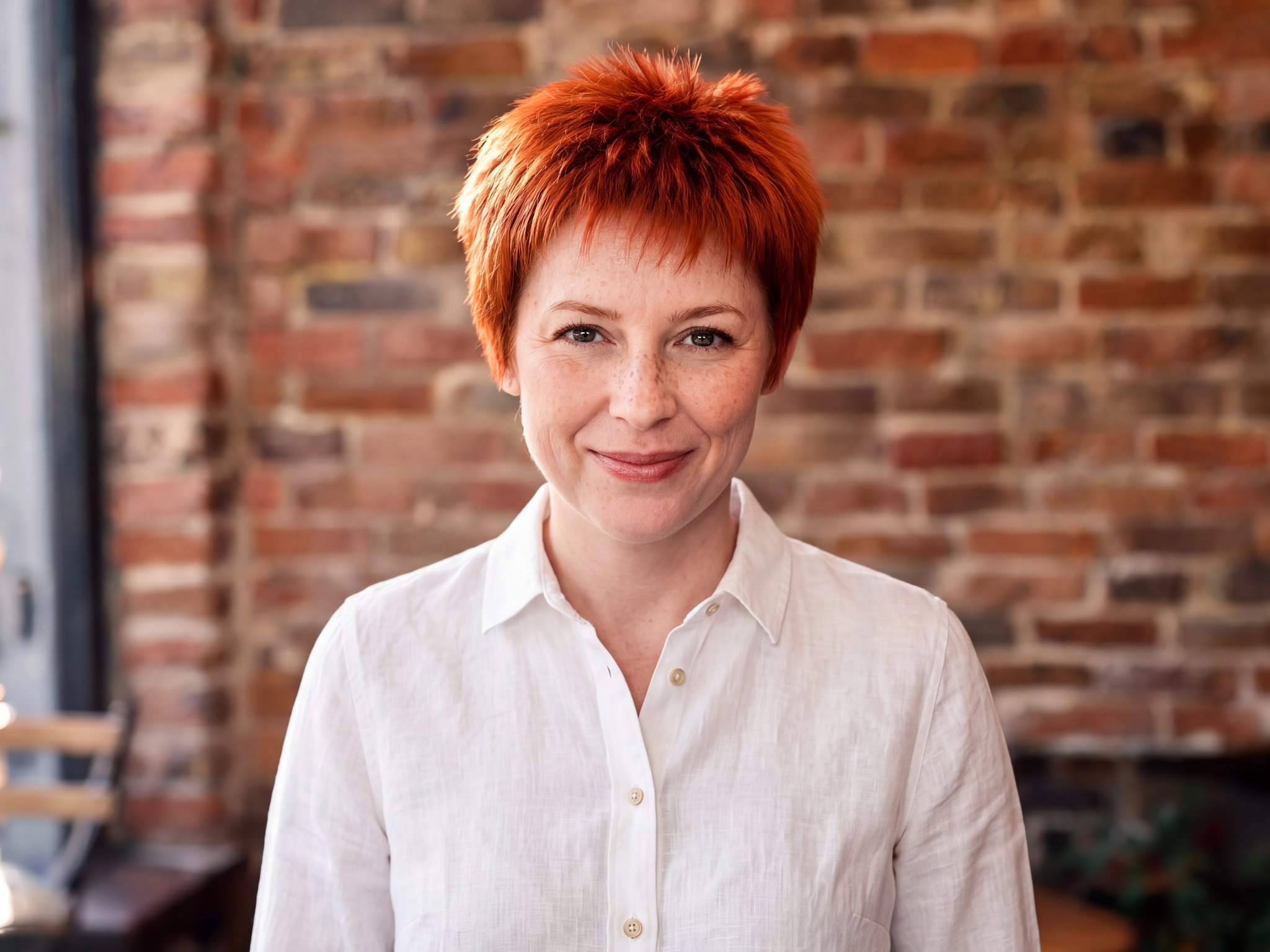
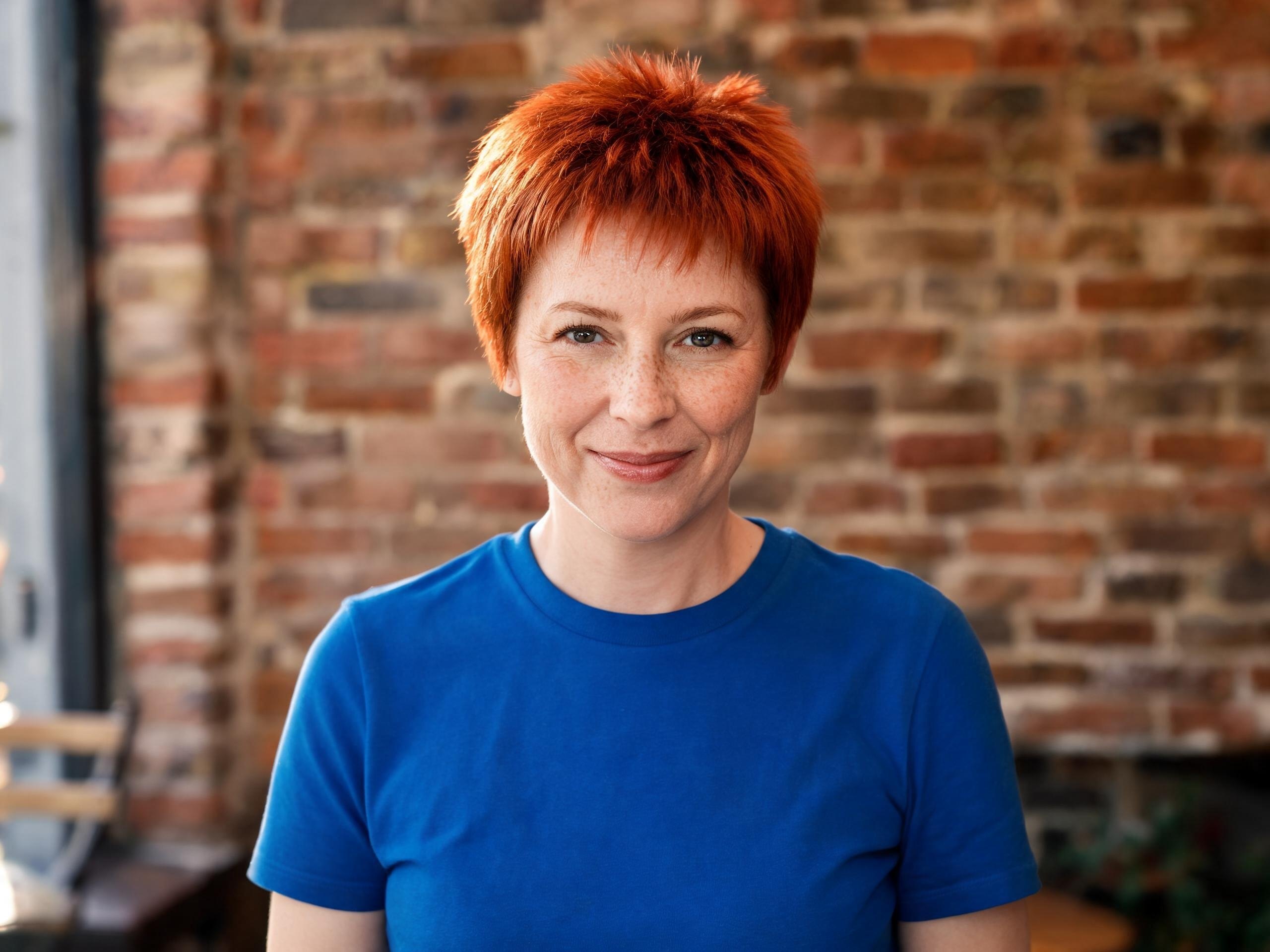
Edited photo: Blue T-shirt restyled as a white linen shirt
Original photo: Blue T-shirt restyled as a white linen shirt
OriginalNew outfit
01

Describe the new outfit

Use one portrait and write a precise clothing change. Include the garment, material, color, and any details that matter.

  • A useful starting point for colors and styles you want to explore.
  • Keep your request focused on the clothing, with a separate instruction for what should remain.
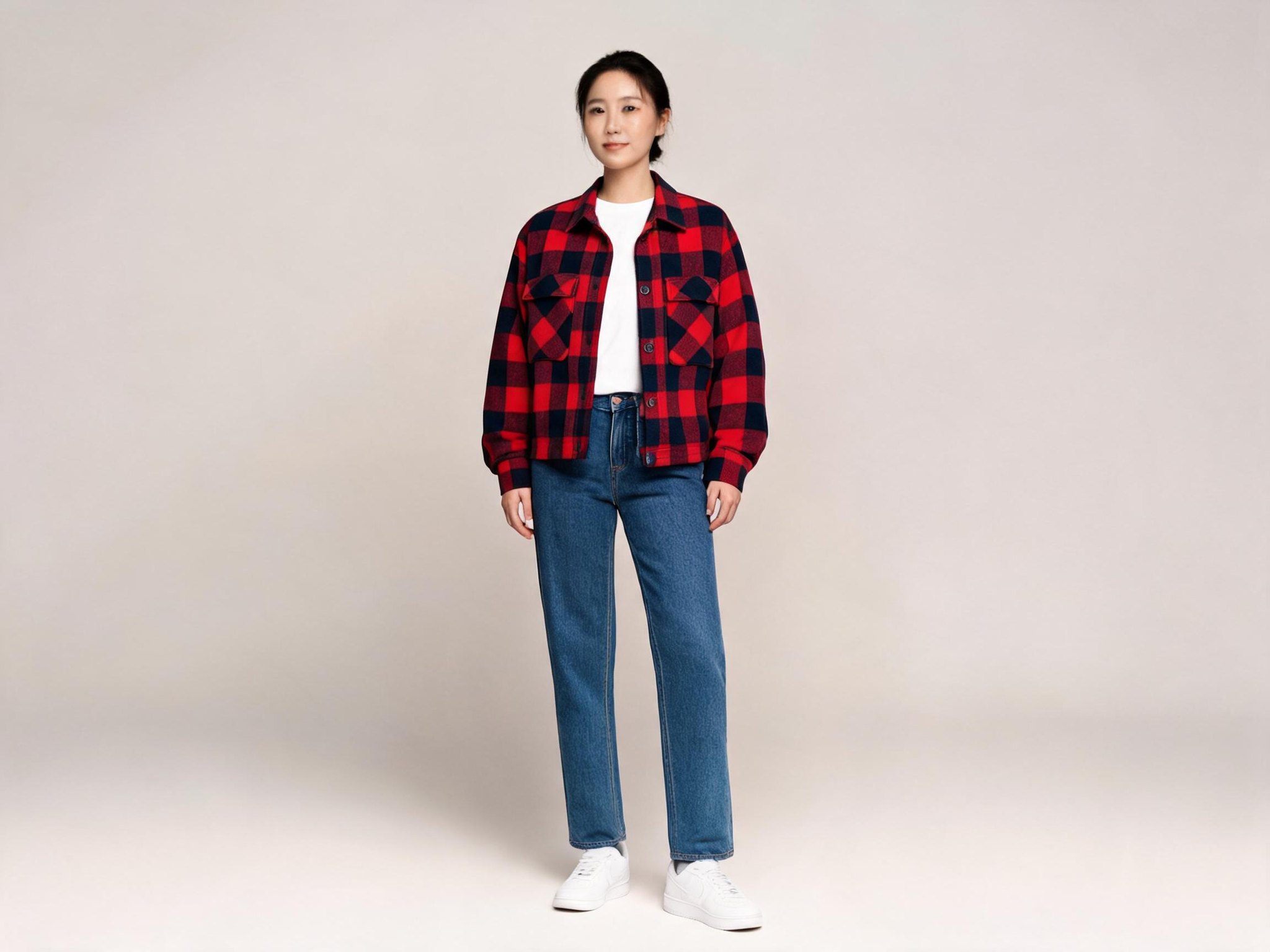
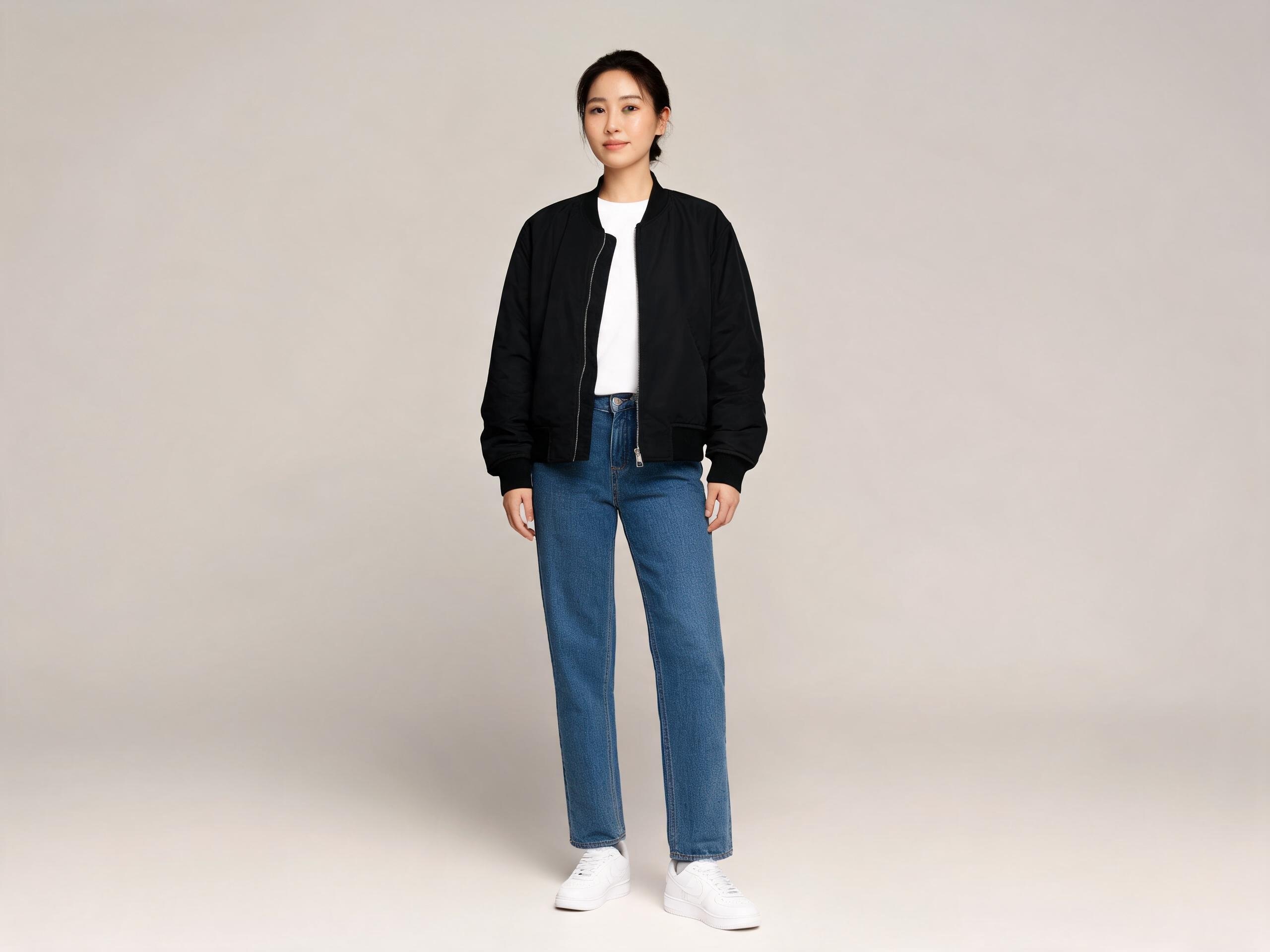
Edited photo: Checked jacket applied to a portrait
Original photo: Checked jacket applied to a portrait
OriginalNew outfit
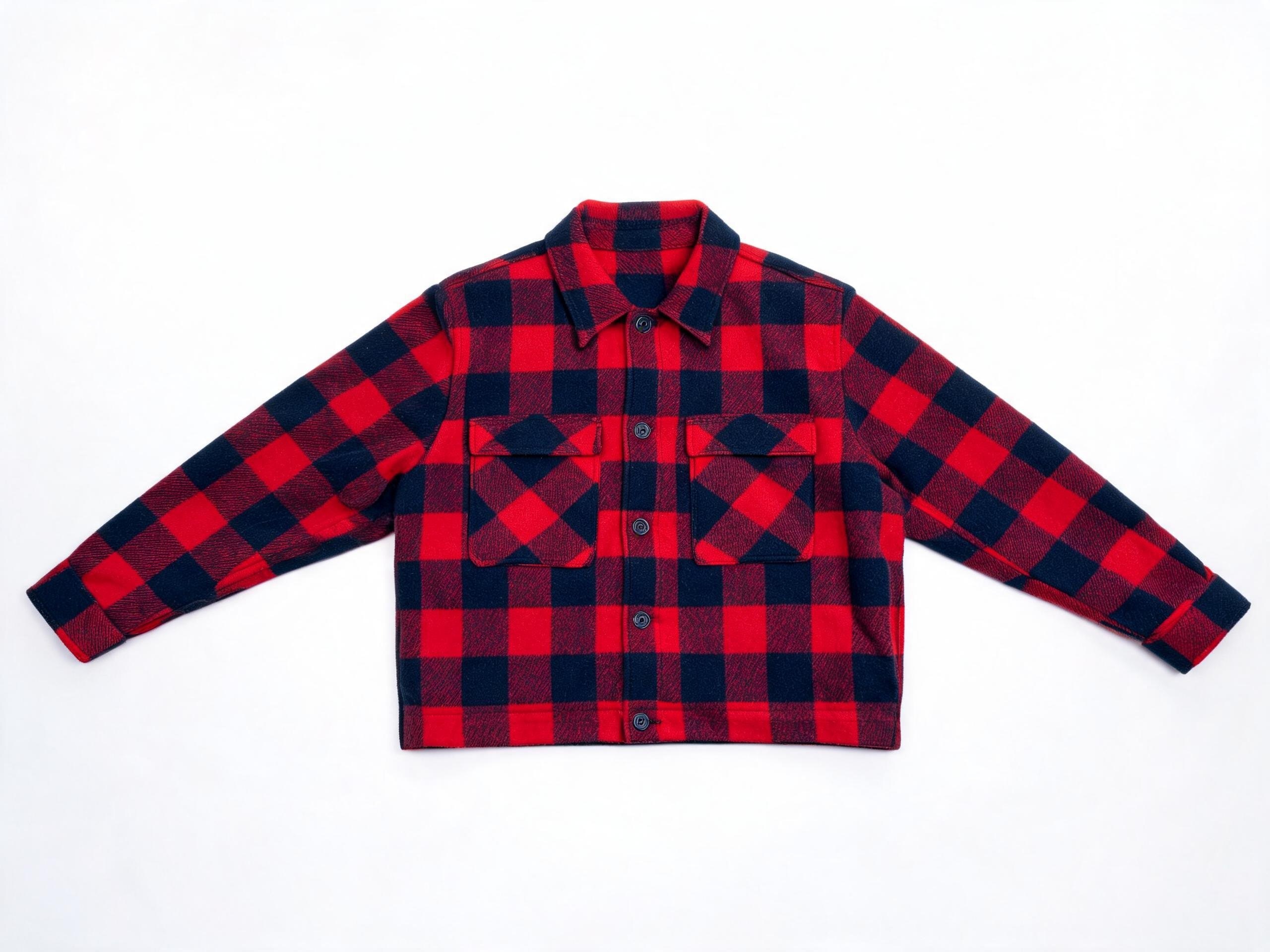
Garment reference: checked jacket
02

Bring a garment reference

Add a second image of the clothing you want to try. Identify the person image and garment image clearly in your prompt.

  • Choose an unobstructed reference with visible fabric and shape.
  • Explain whether the item replaces existing clothing or adds a new layer.

A wardrobe for portraits, campaigns, and characters.

Build looks around the story and compare separate edits from the same starting photo.

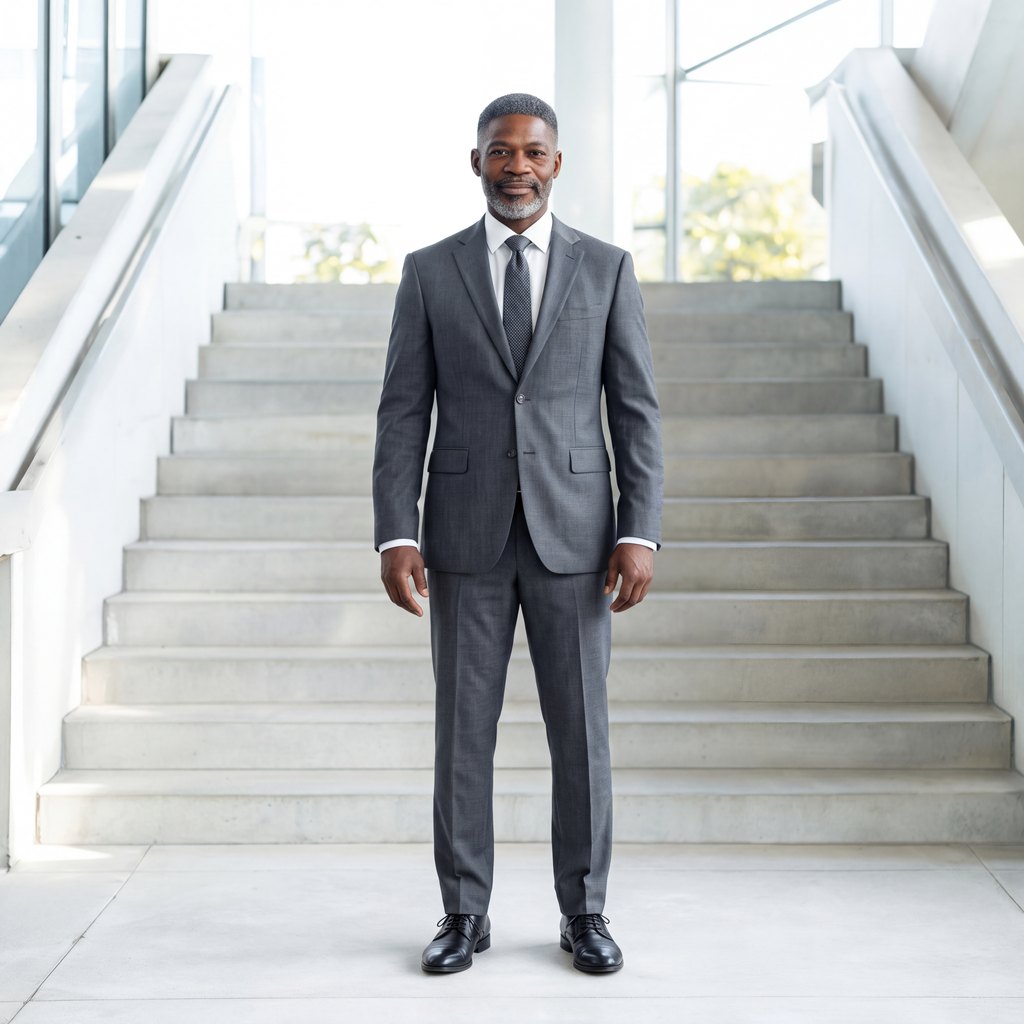
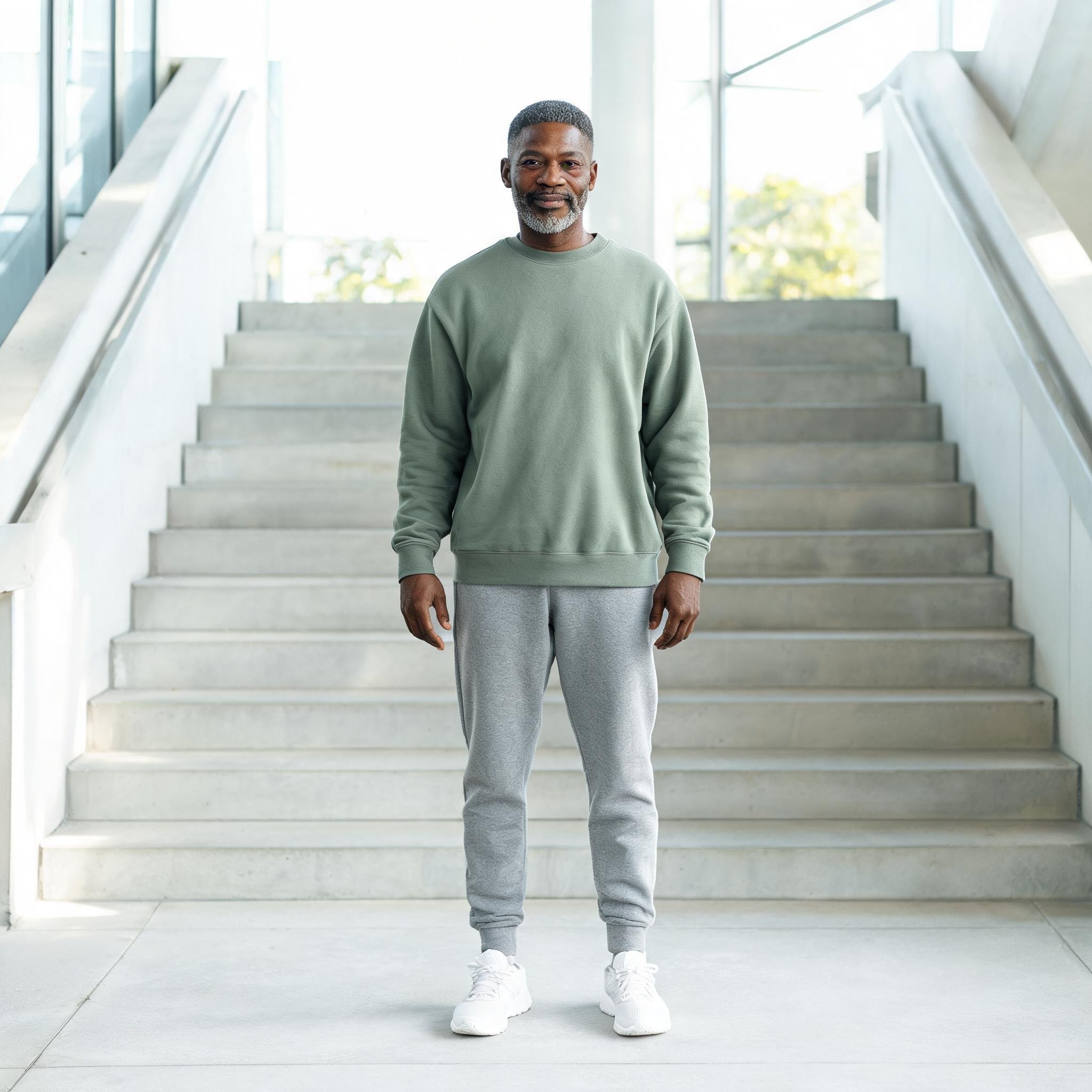
Edited photo: Casual clothes restyled as a business suit
Original photo: Casual clothes restyled as a business suit
OriginalNew outfit

Build a complete outfit

Coordinate a jacket, trousers, and shoes in a single description for an entirely different look.

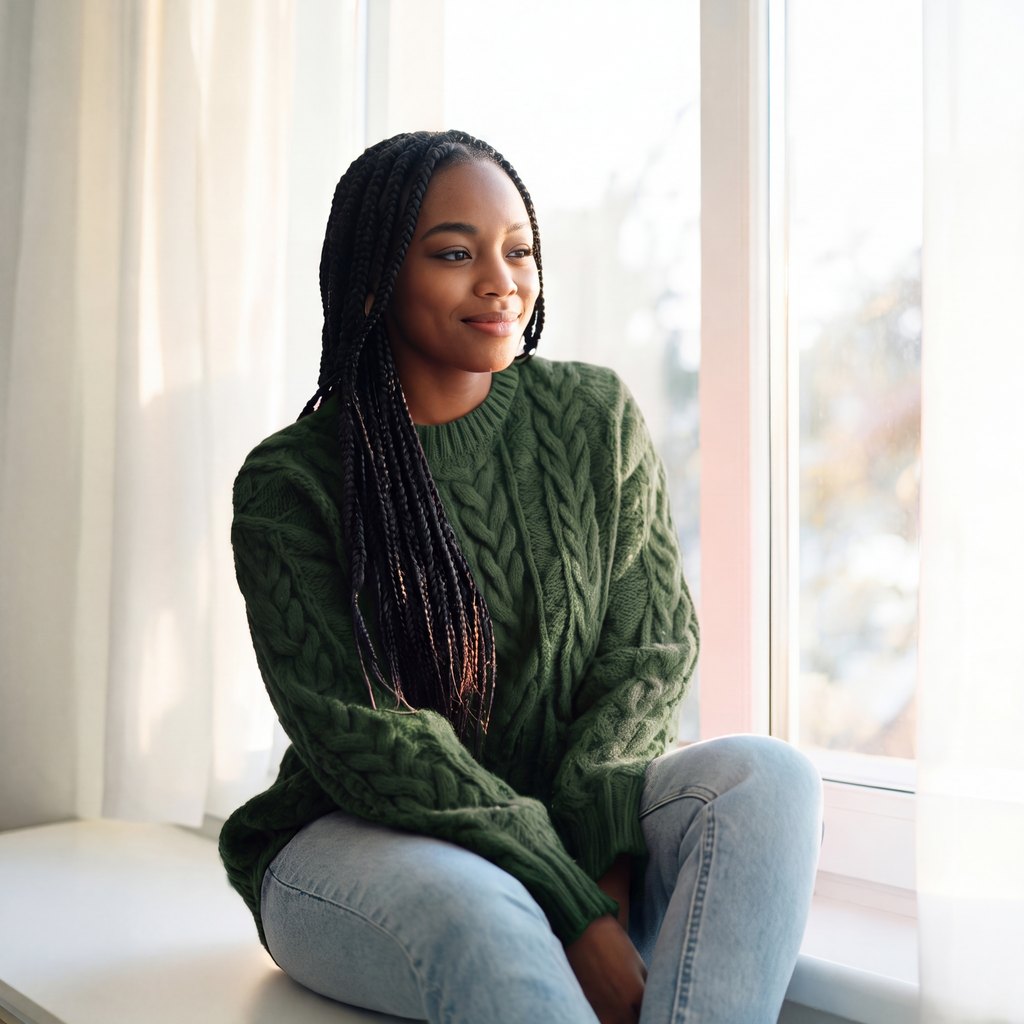
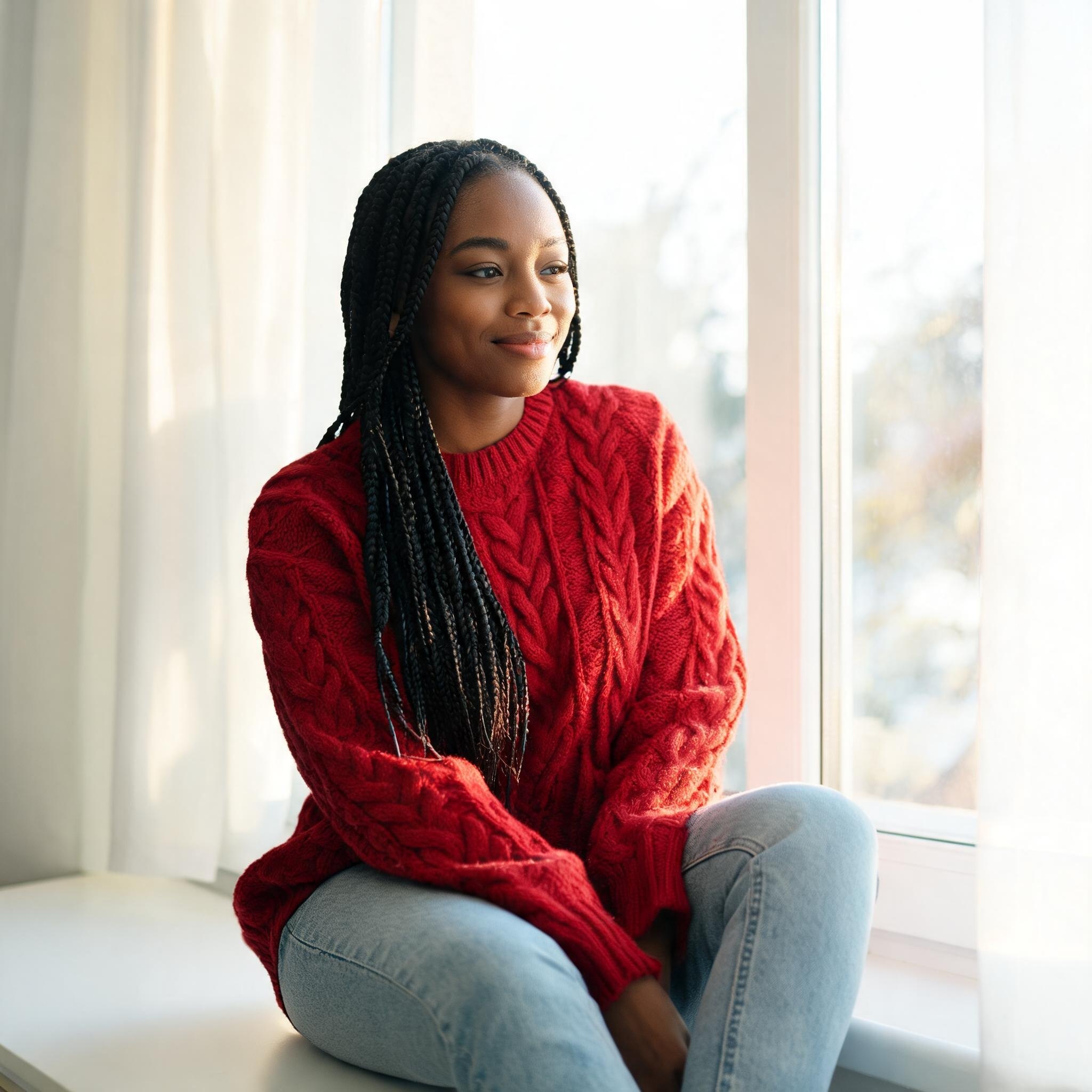
Edited photo: A sweater changed from red to green
Original photo: A sweater changed from red to green
OriginalNew outfit

Explore another color

Experiment with a new palette while asking the model to retain the shape, texture, and folds.

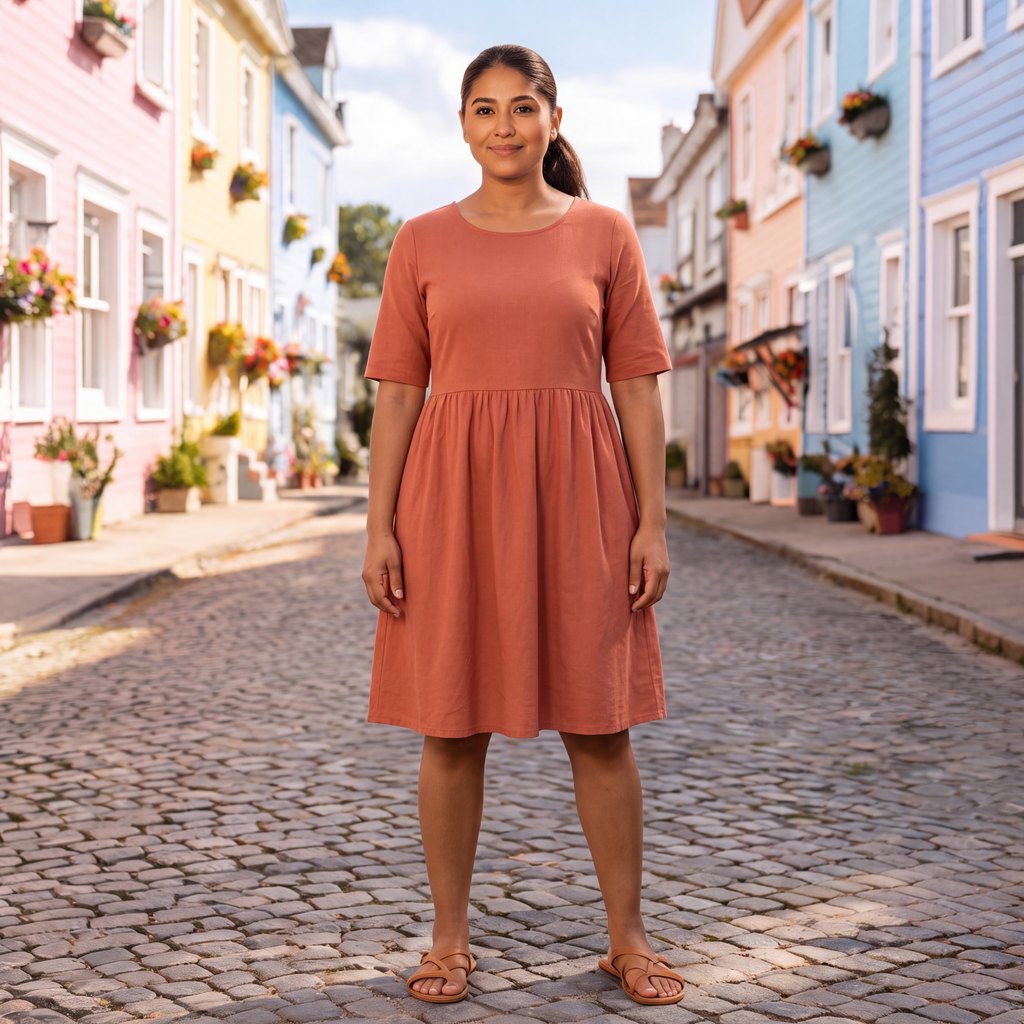
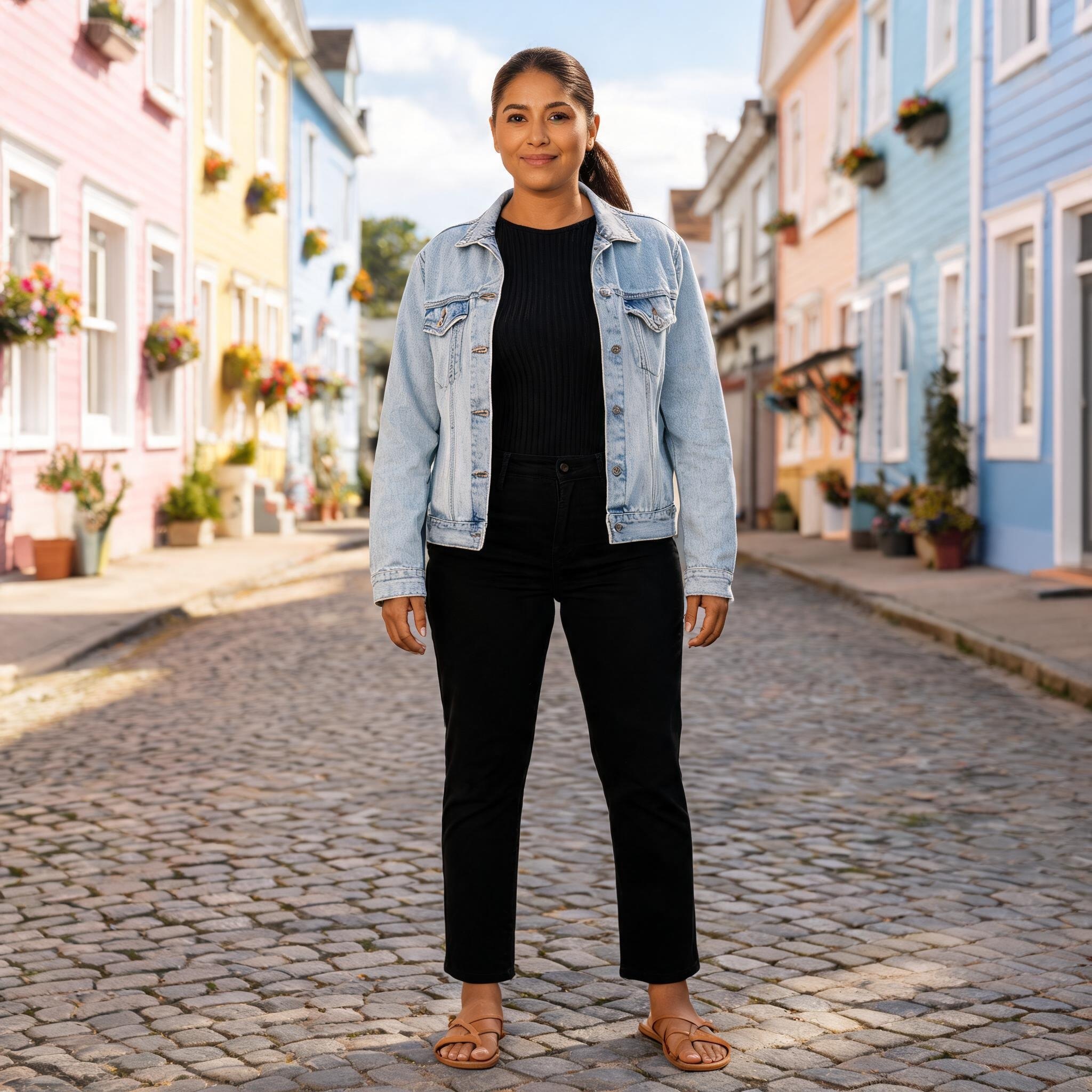
Edited photo: A denim outfit restyled as a summer dress
Original photo: A denim outfit restyled as a summer dress
OriginalNew outfit

Replace a key piece

Try a different dress, shirt, or outer layer without asking for a completely new scene.

Edited photo: Scarf and blazer added to an outfit
Original photo: Scarf and blazer added to an outfit
OriginalNew outfit

Work with layers

Explore how a blazer, scarf, or coat changes the visual balance of an existing outfit.

Edited photo: A plain shirt changed to a striped pattern
Original photo: A plain shirt changed to a striped pattern
OriginalNew outfit

Refine fabric and pattern

Give a plain garment a new texture or pattern, then inspect edges and seams at full size.

Edited photo: Two clothing directions for a fashion portrait
Original photo: Two clothing directions for a fashion portrait
OriginalNew outfit

Develop alternative looks

Create separate versions from the same source photo to compare styling directions side by side.

From photo to outfit idea in five steps.

The editor below uses the same account, credits, and generation flow as VideoAny’s image workspace.

  1. 1

    Open the clothes editor

    Start with ImageAny V3 or switch to ImageAny V2. You can use the editor here or open a preset in the full image-to-image workspace.

  2. 2

    Add your references

    Upload a clear photo or provide its image URL. Add a garment reference if the edit depends on a specific piece.

  3. 3

    Write your clothing direction

    Use a preset as a starting point, then name the new outfit and the elements you want to preserve.

  4. 4

    Review settings and credits

    Choose your output format and review the credit amount shown by the editor. Sign in when you are ready to generate.

  5. 5

    Generate, inspect, and download

    Start the edit, review the returned image, and download a result you are happy with. Refine the prompt for another attempt if needed.

MAKE IT YOUR OWN

Try your next outfit here.

Choose a starting prompt and add your photo. Edit with ImageAny V3 or ImageAny V2, then adjust your references and output settings before generating.

Choose a starting prompt

Presets update the editing prompt. Your uploaded images and current result stay in the editor.

Prefer the full ImageAny workspace?

Open the selected starting prompt with either model. Add your photos in the workspace to begin your edit.

Choose a starting prompt and add your photo. Edit with ImageAny V3 or ImageAny V2, then adjust your references and output settings before generating.

Each run uses your VideoAny credits. Multiple uploaded images act as references for one edit; they are not separate batch jobs.

FROM OUTFIT TO MOTION

Take the outfit from a still to a shot.

Download the clothing edit you want to keep and upload it in image to video. Direct a small movement or a camera push with VideoAny V5, V4, V3, or V2; review fabric and facial details throughout the clip.

Animate with VideoAny V5

Make styling part of the creative process.

Use the clothing edit where a wardrobe choice helps establish the subject, then check the image at the level your project requires.

Catalog styling portrait

Product and catalog teams

Explore styling directions before a shoot. Compare the generated garment with the real product before treating an image as a product representation.

Recurring character styling reference

Creators and recurring characters

Build a wardrobe for a character across posts. Review every result for consistent facial features and distinctive details.

Campaign outfit concept

Campaign designers

Try different color palettes and clothing styles for a concept while keeping your starting composition as a reference.

A coat style preview

Personal style exploration

Picture a different look on your own photo. This is a visual experiment and does not measure garment sizing or physical fit.

Choose the workflow that matches your idea.

Different editing tasks benefit from different starting points.

Choose the workflow that matches your idea.
Your goalWorkflowWhat to expect
Change an outfitClothes ChangerA prompt-guided edit based on your person and optional garment references.
Edit the broader sceneImage to ImageA general workspace for backgrounds, objects, style, and composition.
Swap a facePhoto Face SwapA dedicated workflow with a source face and target photo.
Animate the resultImage to VideoUse the finished still as a reference for a motion sequence.

Give the model a clear brief.

A useful prompt specifies the change, describes the important details, and names what should stay.

Name a concrete garment

Use visible qualities such as a navy wool coat or a cream linen shirt instead of a vague mood.

Replace the jacket with a cream linen blazer, worn open over the existing shirt.

Call out details to preserve

Include facial features, hair, pose, composition, and lighting when those matter to the result.

Keep the same face, hairstyle, camera angle, and background.

Match the source to the request

A full outfit needs visible legs and shoes. A close portrait is a better starting point for a collar or upper-body change.

Review one change at a time

Start with the main garment. Refine patterns, accessories, and small details in a later edit if needed.

Questions about changing clothes with AI

Can I try it without installing an app?

Yes. Open the editor on this page in your browser. Upload your own image or enter an image URL, choose your settings, and sign in to generate.

Can I use a photo of a specific garment?

Yes. Add the person photo and garment image as references, then explain which image supplies the person and which supplies the clothing. Generated fabric, logos, and fine details may differ from the reference.

Will the face and background stay identical?

They are not guaranteed to remain identical. Ask the model to preserve them and use a clear source image. Check each output and refine the prompt if the likeness or scene changes.

How much does an edit cost?

The cost depends on your chosen model and settings. Review the credits shown in the editor before starting a generation; current plans and credit options are available on VideoAny’s pricing page.

Does uploading several photos create a batch?

No. In this workflow, uploaded images are combined as references for the same edit. To restyle different people or photos separately, run each edit separately.

How long does generation take?

Timing depends on the selected model and service load. The editor shows the generation state. A specific completion time is not guaranteed.

What should I check before using the result?

Use photos you have permission to edit, and obtain the relevant consent for images of other people. Inspect faces, hands, garment details, and any visible branding. Commercial use also depends on the applicable service terms and your source-image rights.

Find the look that belongs in your next frame.

Bring a portrait and a clothing direction to ImageAny. Develop the still here, then continue the story with VideoAny video.

Start a clothing edit