AI Image to Video Generator
Convert photo to video with an AI image to video generator. Upload an image, write a motion prompt, and start free with VideoAny credits.
Image to Video AI FAQ
Our AI video generator supports JPG, PNG, WebP, and HEIC formats. Images should be at least 512x512 pixels for best results.
Standard outputs are short clips for fast creation, with longer durations available on select plans.
Describe simple camera motion (pan, zoom, dolly) and subtle subject movement. Start with small changes, then iterate on your prompt and motion strength.
Standard output is HD. Higher resolutions may be available on select models and plans.
Batch generation is supported on select plans. Upload multiple images and generate sequentially.
Yes. Use our video to image tool to extract frames, then animate them with image to video.
You can start free with credits. Paid plans include more credits and higher limits.
It means we aim for minimal filtering to support creative freedom while enforcing our content policy. Illegal content is prohibited, and you must have rights to the content you upload.
Solve image puzzles for reward credits
Play the daily VideoAny puzzle, invite friends, and claim credits for more generations.
Create Better Image to Video Results
Use this AI image to video generator to turn a photo into a short video with a clear motion prompt. Upload an image, choose a video model, describe camera movement or subject action, and start with free credits before exporting a shareable clip.
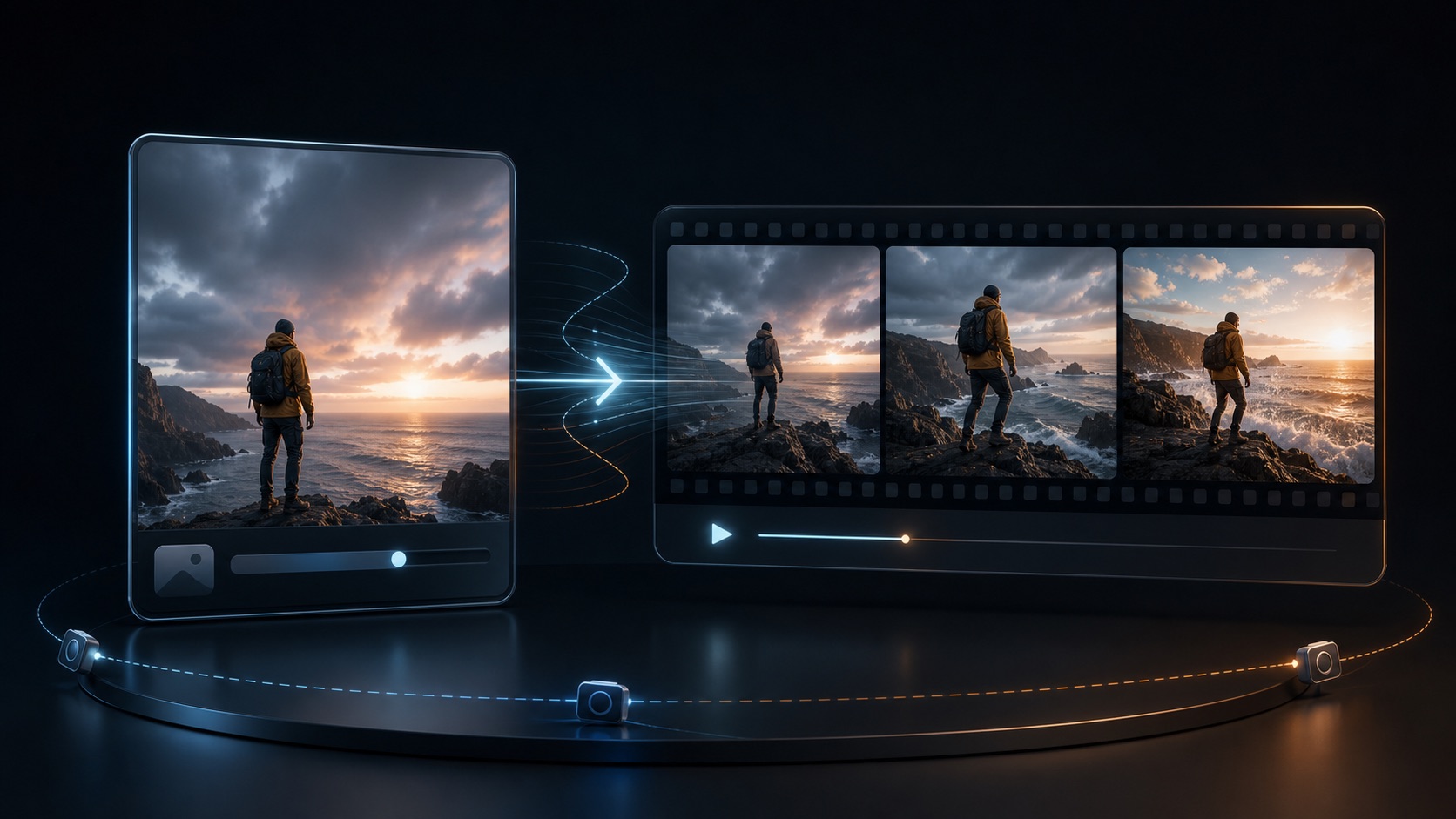
Still image
Source frame
Cinematic output
Motion sequence
Best uses for photo to video
- Animate product images for short ads, listings, and social posts.
- Turn portraits, artwork, or character concepts into motion tests.
- Create camera moves from still frames for reels and storyboards.
- Build quick image to video variations before committing to a longer edit.
Motion prompt tips
- Describe one main action first, then add camera movement such as pan, zoom, dolly, or orbit.
- Keep subject, setting, lighting, and style consistent with the uploaded image.
- Use short prompts for subtle motion and more specific prompts for cinematic movement.
- If the output changes too much, reduce motion strength or simplify the instruction.
Upload guidance
- Use sharp JPG, PNG, WebP, or HEIC images with the main subject clearly visible.
- Avoid heavy blur, cropped faces, unreadable text, or cluttered backgrounds when possible.
- Match the image aspect ratio to your final platform, such as 9:16 for shorts or 16:9 for YouTube.
Choose the right image-to-video workflow
Start with the workflow that fits your project: test with free credits, animate a photo, guide motion from an image prompt, or review the rules for responsible NSFW image-to-video use.
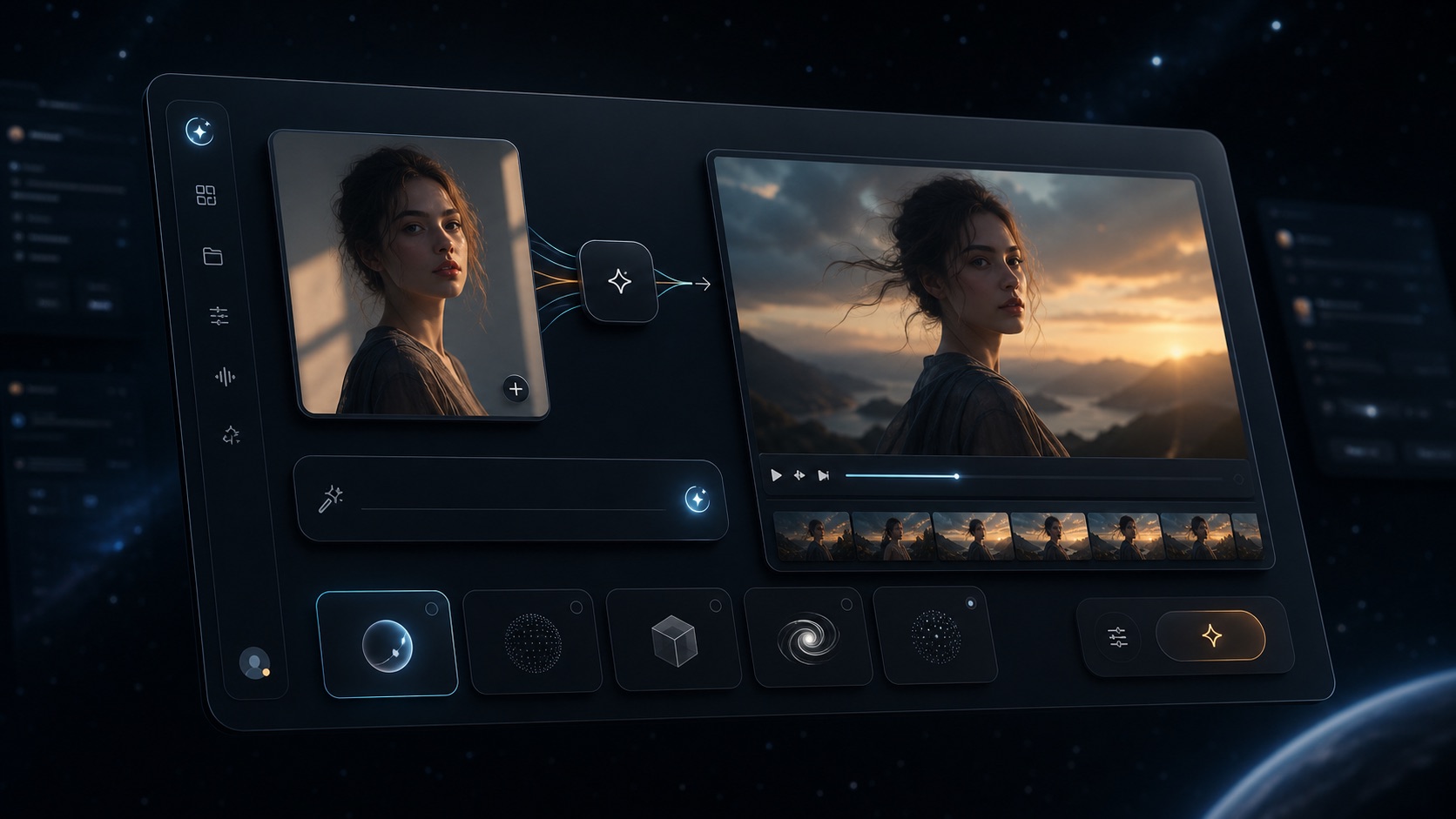
Prompt-driven image to video workflow
Upload a source image, add a motion prompt, choose a model, and review the generated clip in one place.
Free image to video generator
Start with free credits to test image to video AI before committing to a larger plan. This is the best path for creators who want to validate motion, framing, and model choice first.
Photo to video workflows
Use photo to video for portraits, product shots, concept art, anime images, and social posts. A clear source image and one main motion idea usually produce the most stable result.
AI video generator from image
When you already have the visual direction, image to video is faster than text to video because the uploaded image controls subject, composition, and style from the first frame.
NSFW image to video boundaries
VideoAny supports creator-friendly workflows with minimal unnecessary filtering, but illegal, non-consensual, deceptive, or harmful content remains prohibited.
How to animate a picture
Describe one primary action, then add camera movement such as zoom, pan, dolly, or orbit. If the result drifts, reduce the motion scope and keep the subject description closer to the image.
How to animate a picture with VideoAny
- Step 1
Upload an image
Choose a JPG, PNG, WebP, or HEIC image with a clear subject for the image to video generator.
- Step 2
Write a motion prompt
Describe the camera move, subject action, and style you want for the photo to video result.
- Step 3
Generate and refine
Pick a model, generate the clip, then simplify the prompt or adjust motion if the output changes too much.
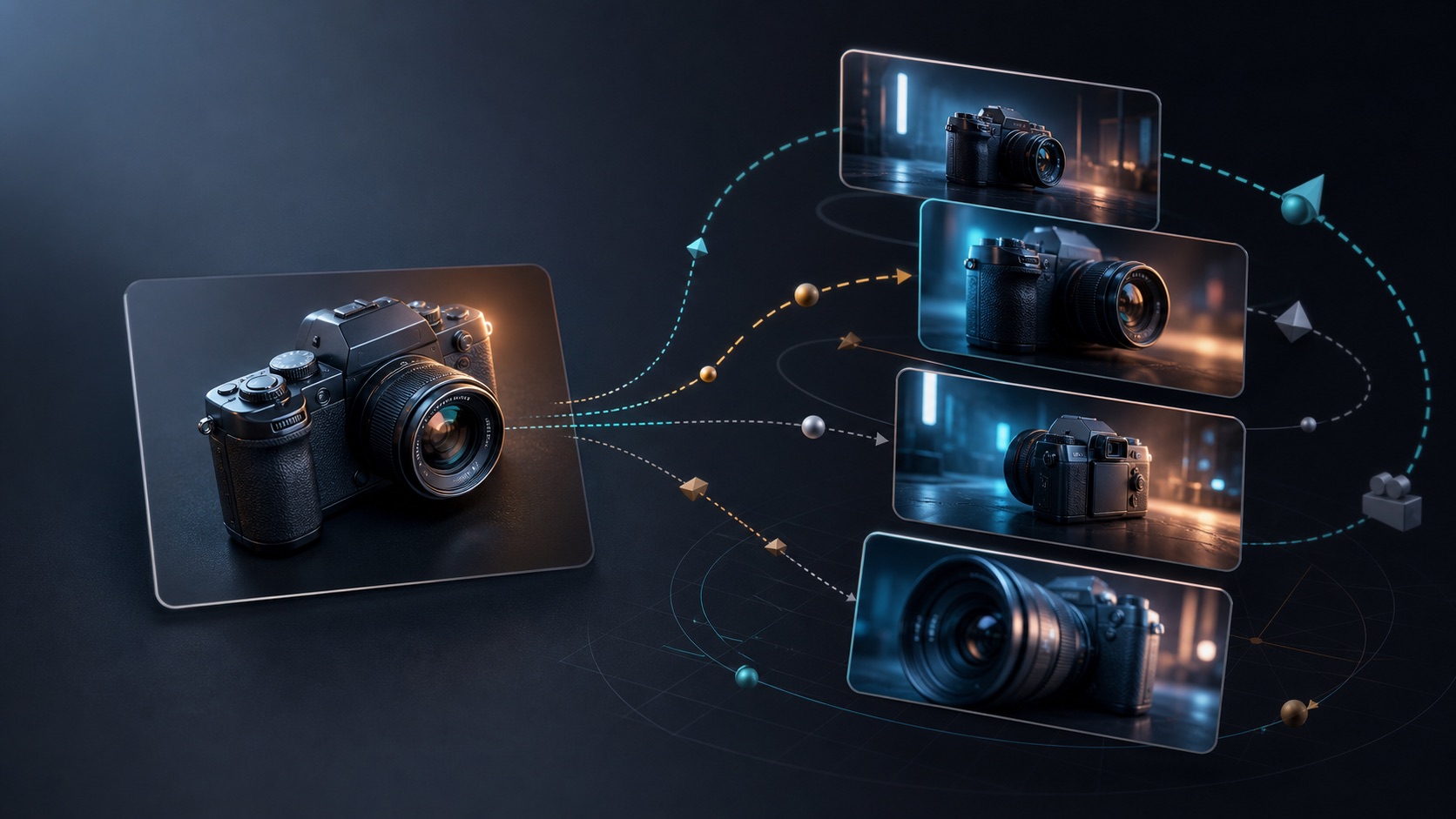
Camera movement from one source image
Use orbit, zoom, pan, and dolly as practical starting points for turning a still image into motion.
Responsible use
Only upload images you own or have permission to use. Follow the content policy, respect privacy and consent, and avoid deceptive or harmful uses.
Ready to create your next release?
Upgrade for faster queues, higher resolutions, and expanded usage options.