Change the setting
Move a subject from a plain backdrop into a garden, an interior, or another location. Describe the new surroundings and how the light should match.
AI PHOTO EDITOR
Change a setting, restyle a subject, or rebuild a product scene with ImageAny V3 or V2. Bring your references into VideoAny and direct the edit with words before taking the finished still into motion.
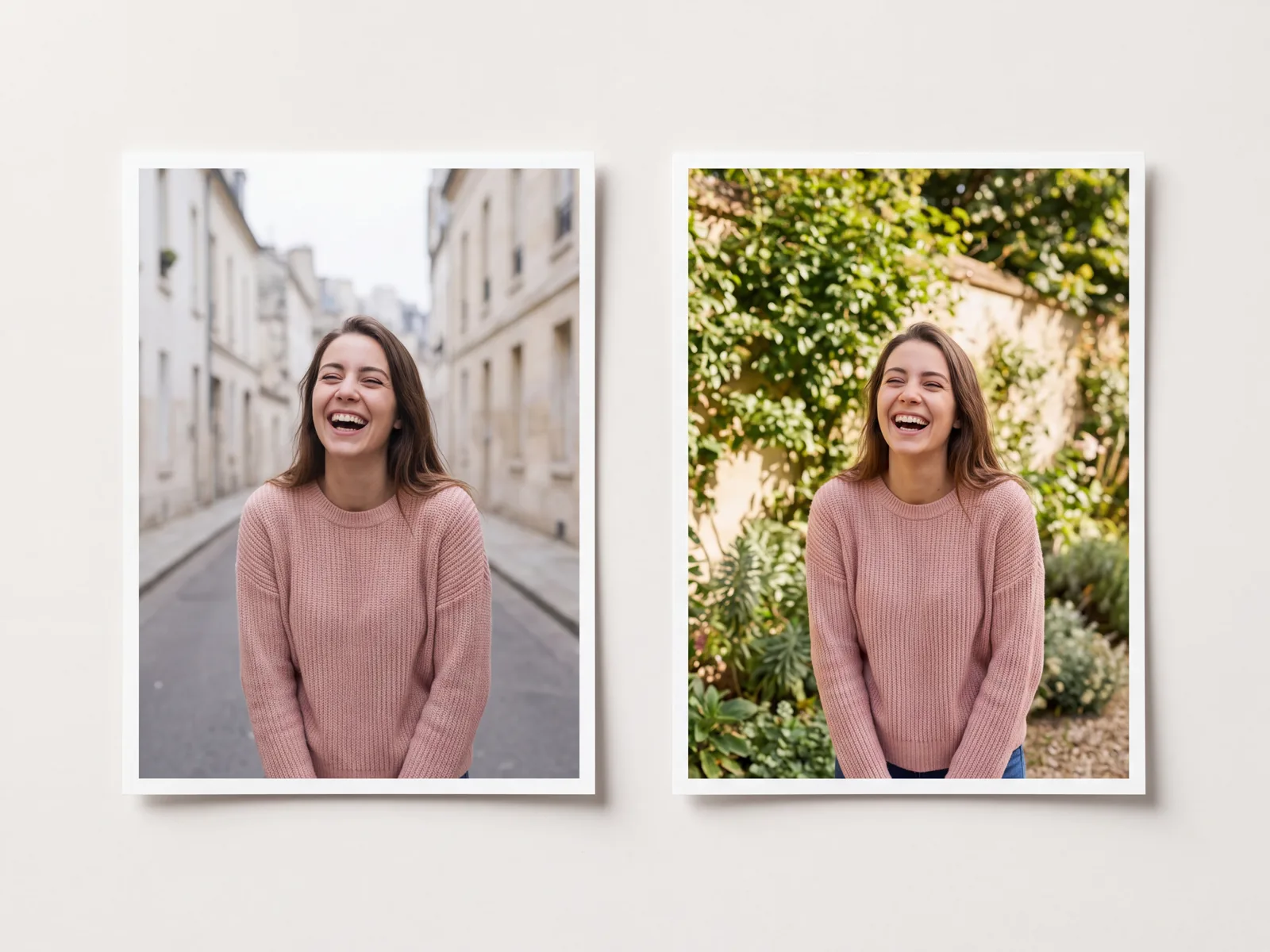
ImageAny gives an existing photo a new direction through a specific editing instruction and the references that matter.
Campaigns and creator projects rarely stop at the first image. A portrait may need a calmer backdrop, a product may need a different setting, or an interior may need warmer light. Start with that concrete change. Name the elements that should remain recognizable, then describe the replacement in terms of visible objects, materials, and lighting. Up to four references can guide one edit in the image-to-image workspace.
The editor generates a new version of the scene; it does not expose a layer stack or lock the original pixels. Keep exact logos, faces, seams, and product shapes on your review list. Once the still serves the brief, use it as the starting frame for image to video. That sequence keeps the image decision and the motion decision separate while staying within the same VideoAny production workflow.
Work on the change that moves the image closer to your final post, product visual, or video frame.
Move a subject from a plain backdrop into a garden, an interior, or another location. Describe the new surroundings and how the light should match.
Name the unwanted object and say what should fill its place. Keep the instruction specific enough to distinguish it from nearby objects.
Describe the garment, fabric, and fit. Add a clothing reference when a particular item matters, then review the generated seams and proportions.
Use additional images to guide a subject, an object, or a style. Tell the model which role each reference plays in the final image.
Try warm evening light, a softer background, or another color treatment. Explain which shapes and subjects should remain recognizable.
Upload a selected output for another focused edit. Review each stage before adding a new change so small errors do not accumulate.
These reference examples show the range of scenes an editing brief can address. They are visual inspiration, not a promise that ImageAny will reproduce the same result.
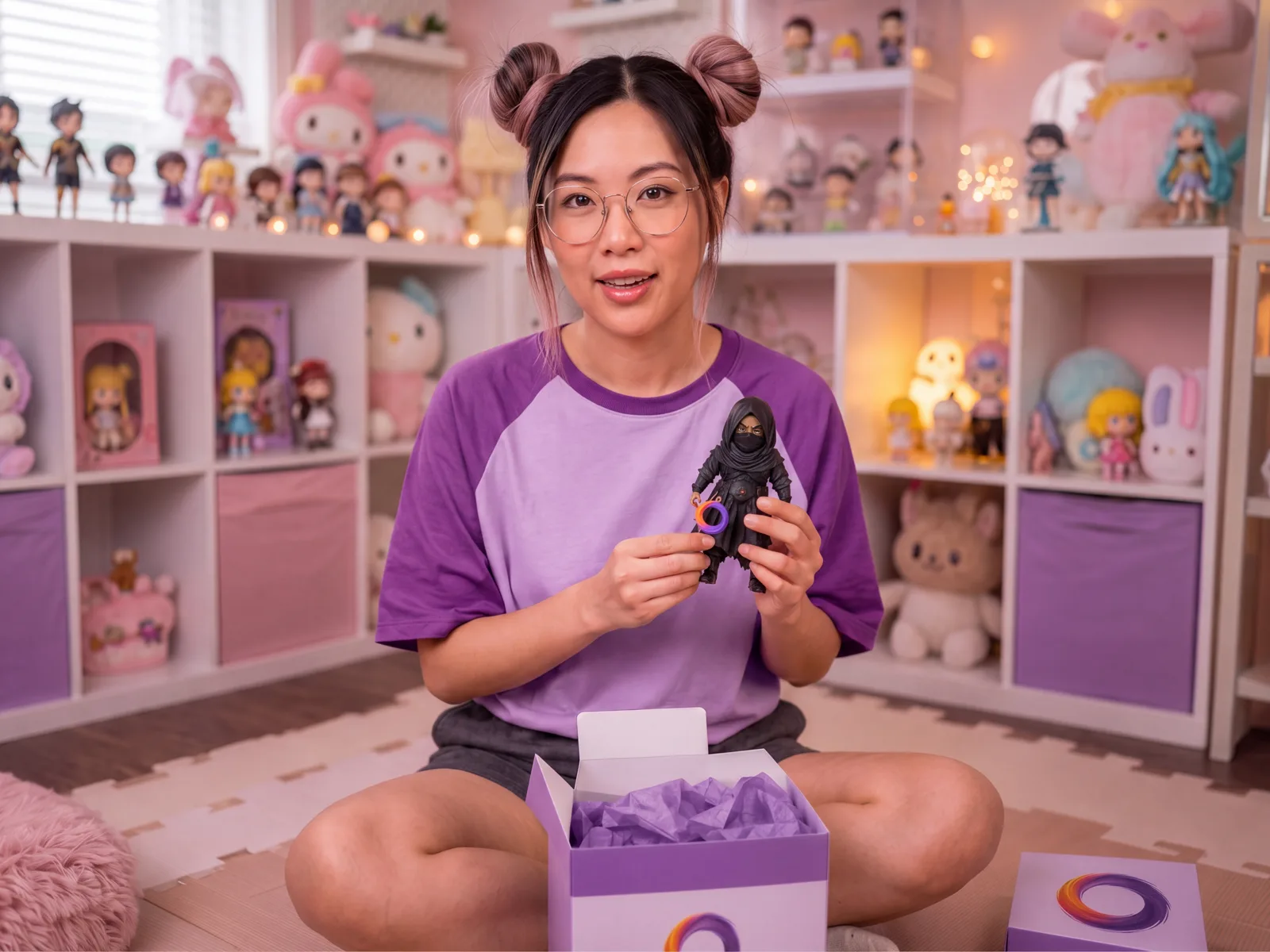
Keep the relationship between the person, hands, and object clear when planning an edit around a product moment.
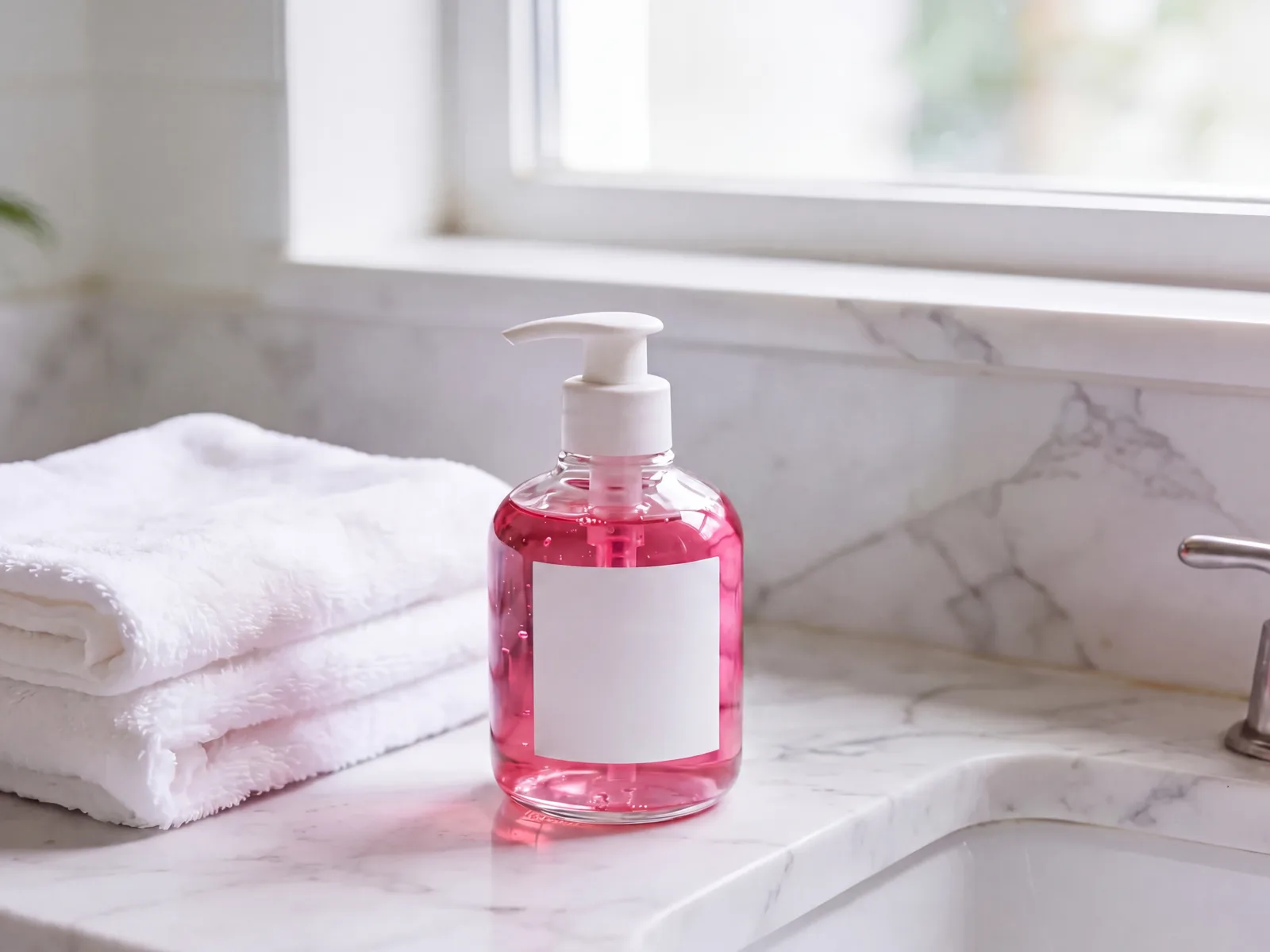
Name the surface, background, and lighting while checking that the product still matches its reference.
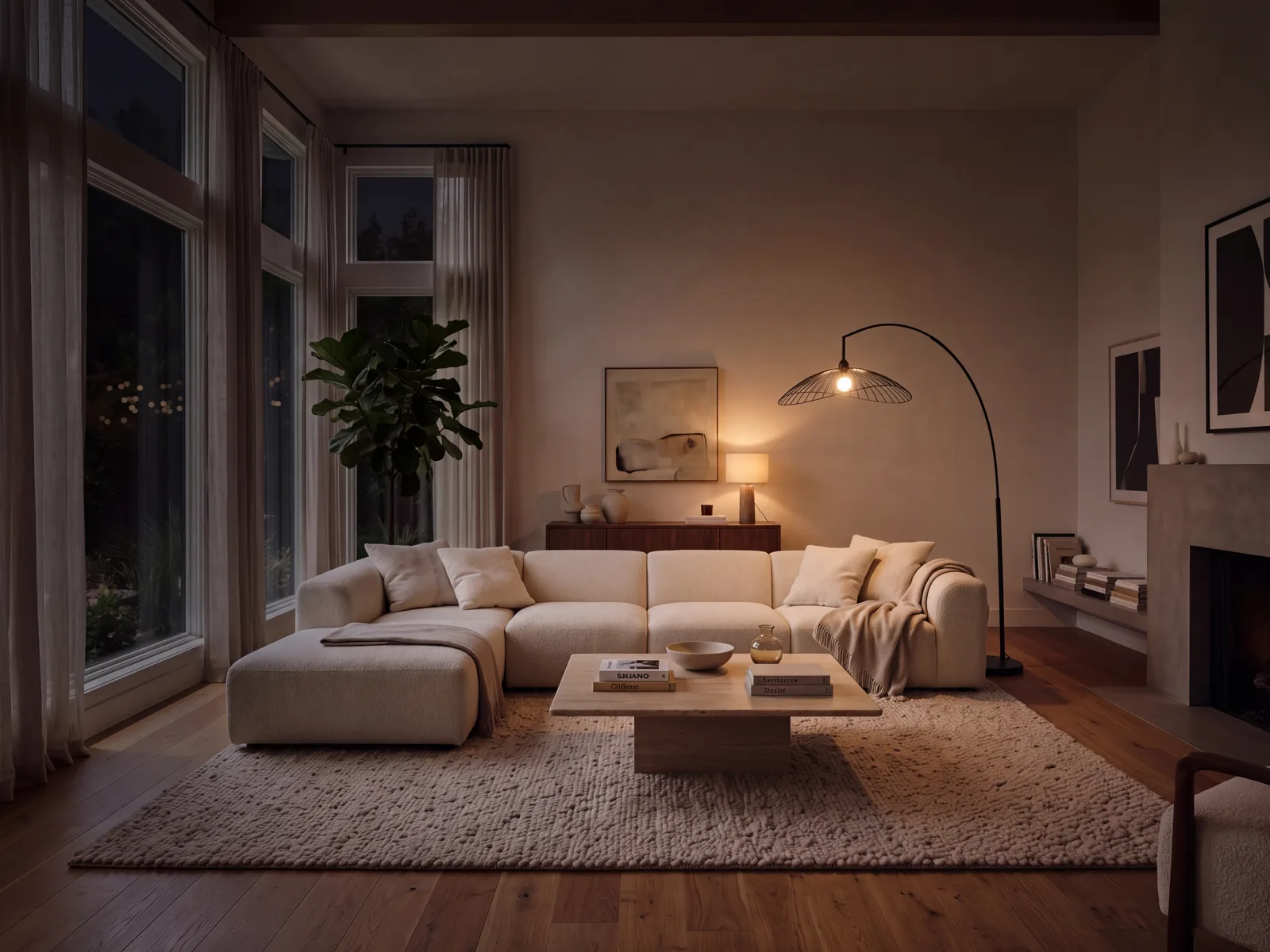
Describe the light sources and mood you want, with a separate instruction for the furniture and room layout.
Prepare the instruction here, then add your images in the full editor.
Decide which change matters most. Separate a new outfit, a new background, and a new pose into stages when they compete with each other.
Select V3 or V2 below. Say what should change, then name the visible details you want to retain.
Open image to image and upload the source photo. Add other references if needed, review their order, and check the output options and credit amount.
Sign in to run the edit. Compare the result with the source at full size before downloading it or preparing another pass.
Pick a starting instruction and adapt it to your image. The next step opens the image editor, where you can upload your references.
Choose the process that gives you the kind of control the task requires.
| Editing need | ImageAny editing | Manual photo editing |
|---|---|---|
| Describe a new scene element | Generate a replacement from words and references. | Build the change using selections, layers, and source material. |
| Keep exact source pixels | Details may be regenerated, even with preservation instructions. | Offers direct control over which pixels change. |
| Explore a different visual idea | Try a new background, outfit, or lighting direction. | Compose and adjust the result by hand. |
| Refine the outcome | Adjust the prompt or references and generate another version. | Adjust a specific selection, layer, or parameter. |
A good editing instruction explains both the new idea and the parts of the source that matter.
Point to the object by its location and appearance when the image contains several similar elements.
Replace the red mug on the right side of the table with a plain white ceramic cup.
Name the important features instead of relying only on a broad instruction to keep everything else.
Preserve the person's face, hairstyle, pose, and navy jacket.
When using more than one image, explain which one defines the person, object, or setting.
Use image 1 for the room and image 2 for the chair; place the chair beside the window.
Choose a model and instruction on this page, then select Open image editor. Upload the source photo in the image-to-image workspace. The page prepares your prompt; it does not upload or generate an image itself.
Yes. ImageAny V3 and V2 accept up to four input references in the image-to-image workspace. Use image 1 for the starting scene, then identify what each extra image contributes. All references guide one generated image; they are not four separate editing jobs.
A clear reference and preservation instructions help guide the edit, but an exact match is not guaranteed. Inspect distinctive facial features, lettering, materials, and product proportions before deciding the result is suitable.
It is useful for changes you can describe, including new content and different settings. For an exact crop, precise color correction, or pixel-level retouching, a manual editor gives more direct control. Choose according to the specific change you need.
The model generates a new version of the image. Reduce the number of requested changes, state the details to preserve, and use a clear source photo. If a result is close, a separate focused pass can be easier to direct than a longer prompt.
Yes. Download the image you want to use, then upload it in image to video. Choose a VideoAny model and describe a simple motion. Review the still first because unwanted details can carry into the animation.
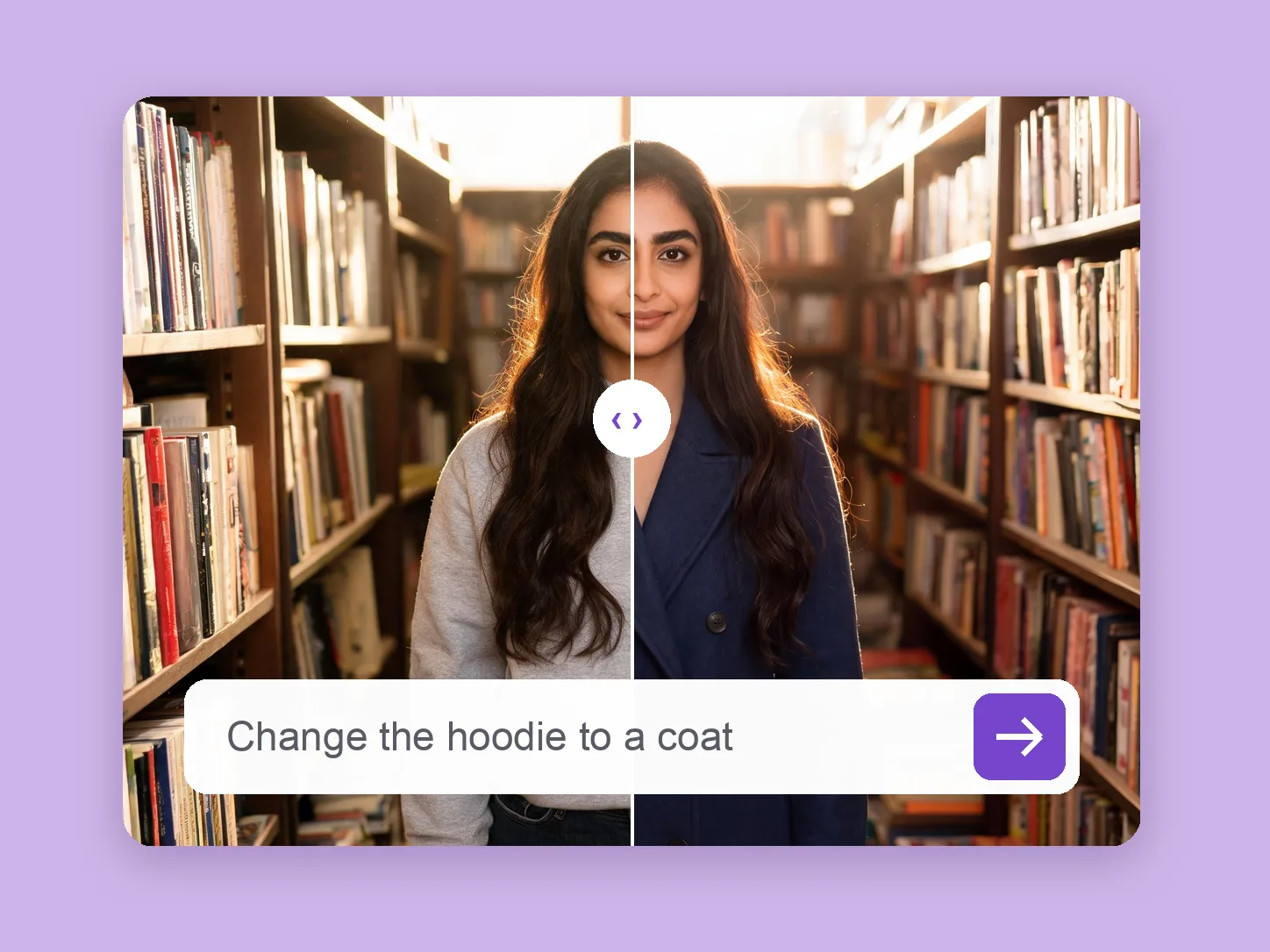
Develop a wardrobe for a portrait, character, or campaign frame using a clothing prompt or garment reference.
Explore solution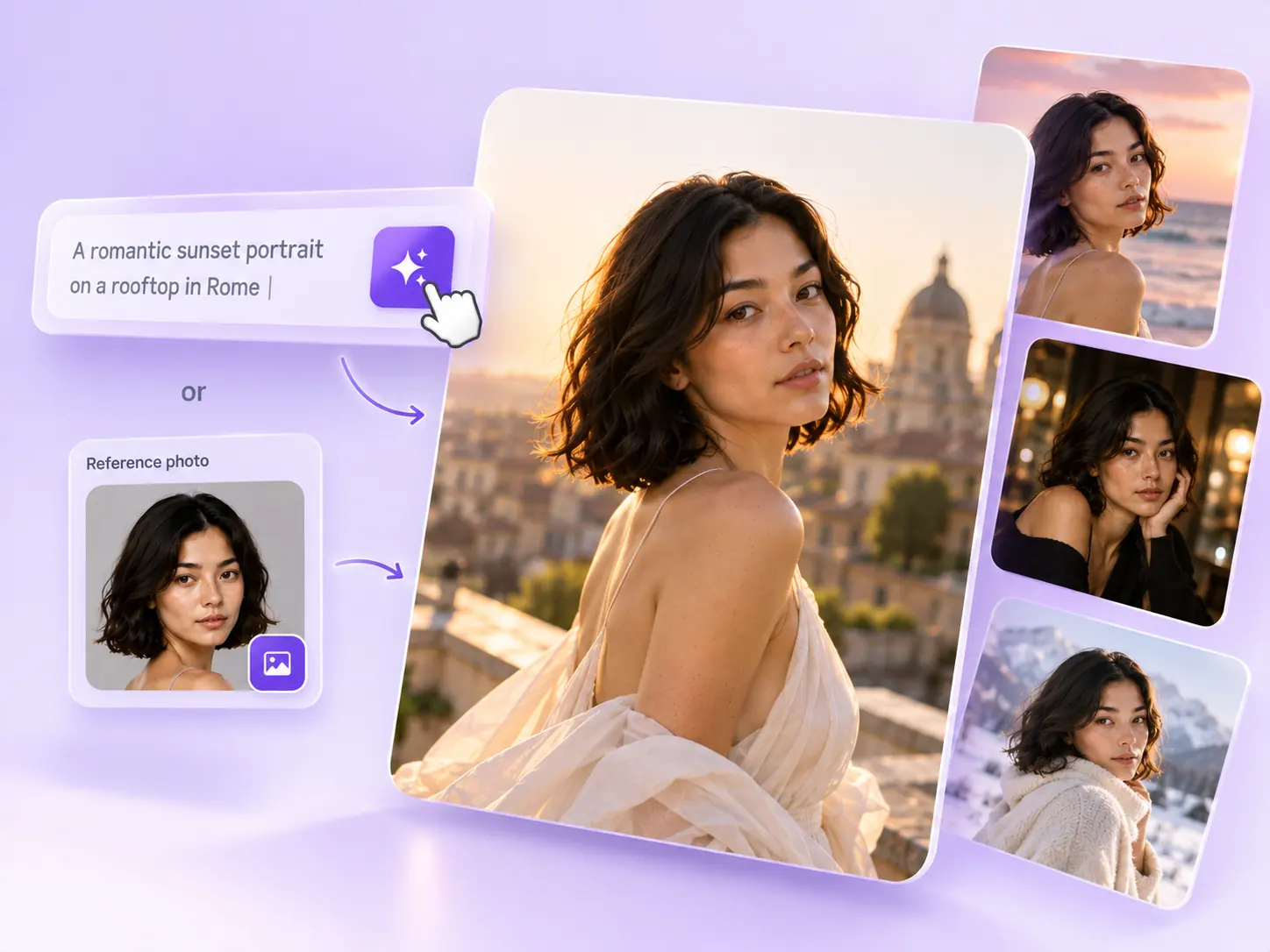
Create the still that starts the story: product concepts, portraits, and campaign photos from a written ImageAny brief.
Explore solution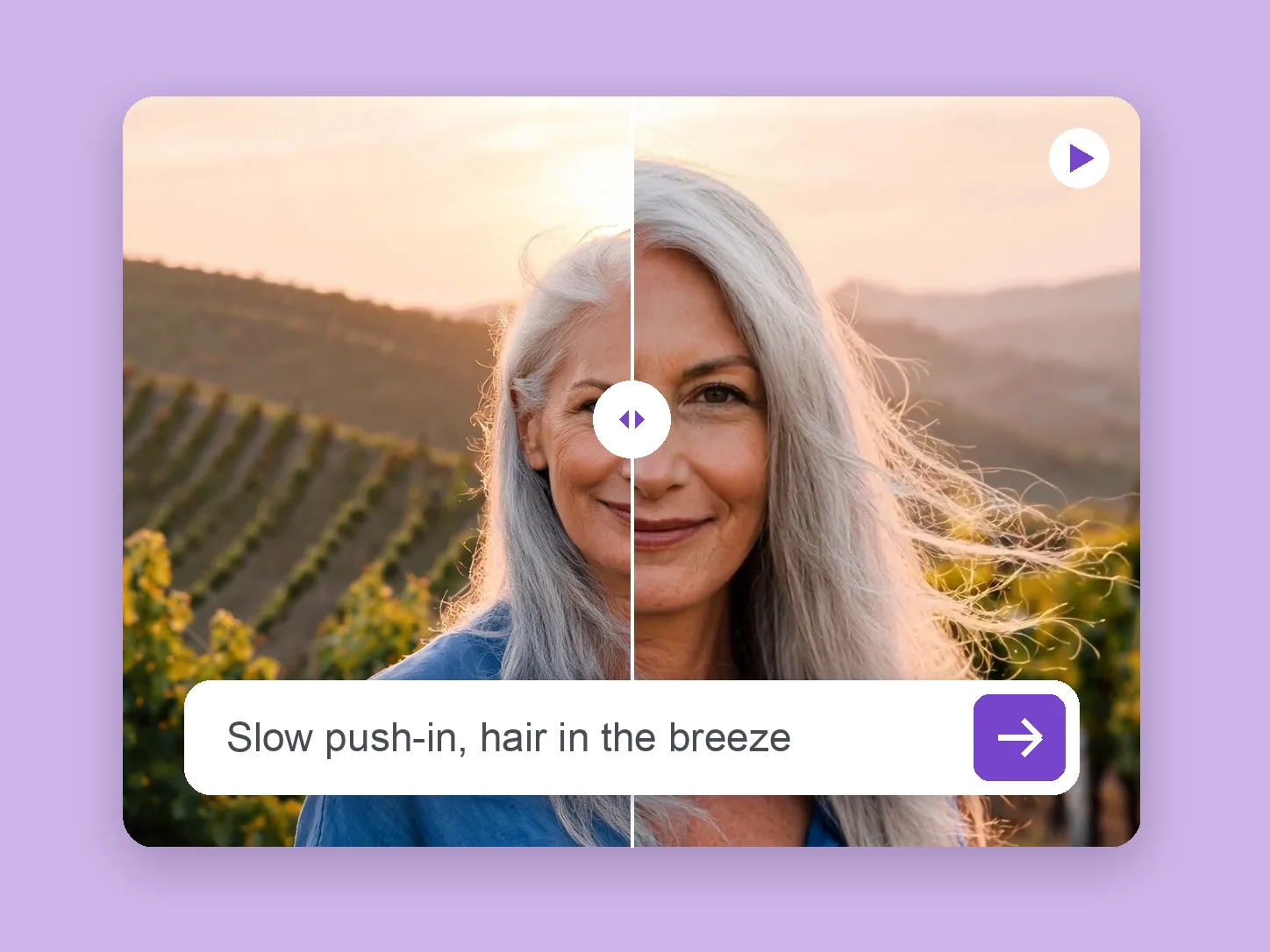
Bring a chosen still into motion. Direct the subject and camera with VideoAny V5, V4, V3, or V2.
Explore solutionChoose an ImageAny model and write one focused change. Open the editor, add your references, and shape the next version.
Prepare my edit