Simple studio backgrounds
Replace visual clutter with a neutral wall or a softly graded backdrop. Choose a tone that separates the subject clearly without pulling attention from the face.
AI HEADSHOT GENERATOR
Restyle a clear photo with considered lighting, clothing, and background. ImageAny V3 and V2 help you develop a professional headshot direction inside VideoAny.
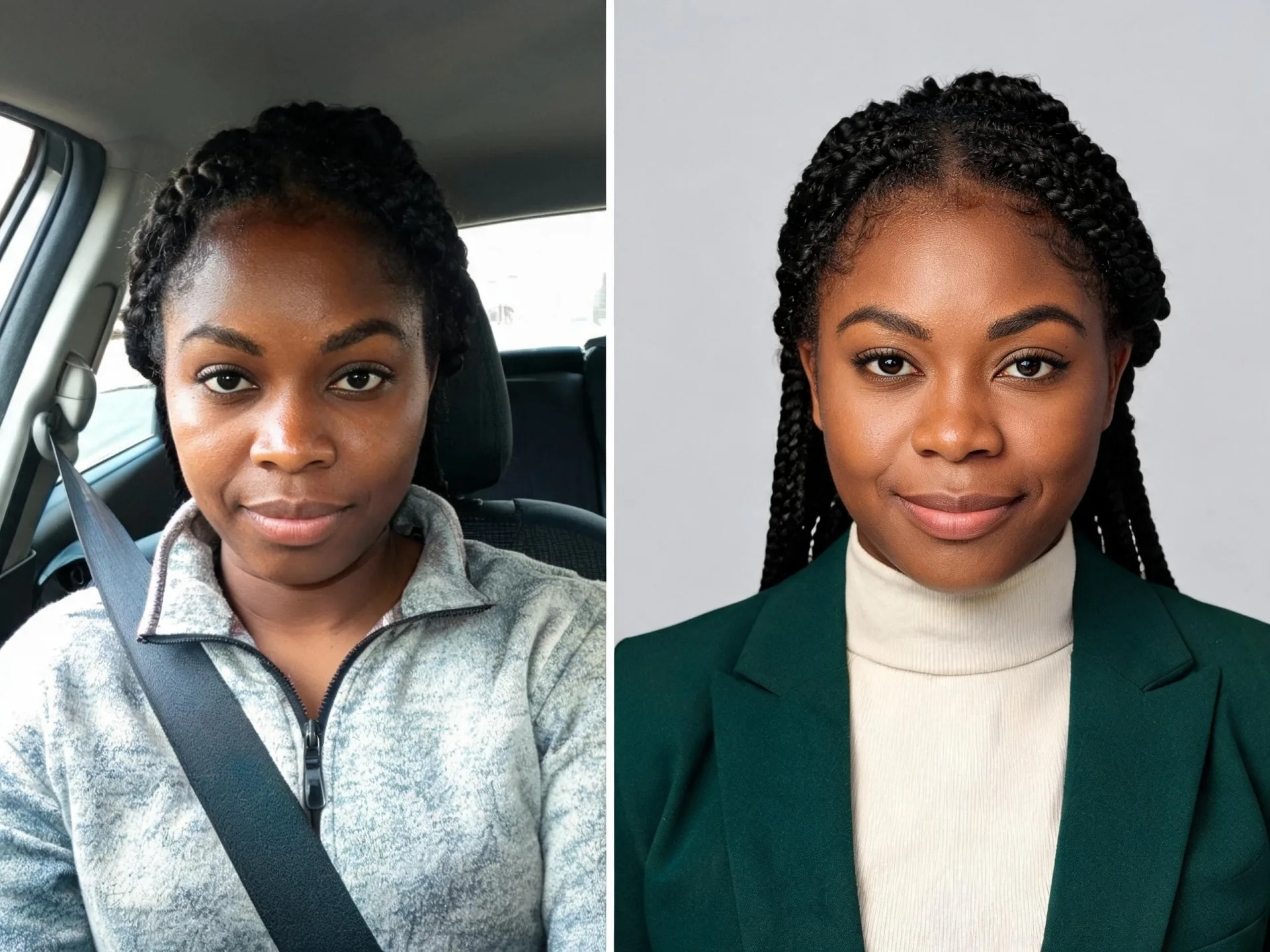
The expression, outfit, light, crop, and background should support the context in which someone will see your profile.
Start with a recent, clear portrait that already resembles how you want to present yourself. A useful headshot brief can ask for a simple background, soft frontal light, and a jacket appropriate to your role while retaining your facial structure and expression. Keep the result specific to its destination: a small profile avatar needs a readable face, while a speaker page may benefit from more space around the subject.
ImageAny creates a generated portrait from your reference; it does not train a personal identity model in this workflow. Likeness can change, so compare the eyes, mouth, face shape, and distinctive features before selecting a result. VideoAny’s connected workspaces also let you develop the still for a creator introduction or other video concept afterward, with a separate motion step rather than an automatic talking-head claim.
Make a small number of deliberate changes while keeping likeness central.
Replace visual clutter with a neutral wall or a softly graded backdrop. Choose a tone that separates the subject clearly without pulling attention from the face.
Try a blazer, knitwear, or another outfit suited to the role. Describe material and fit, then inspect collars, lapels, and seams in the returned image.
Ask for soft, balanced illumination and believable skin texture. A polished headshot does not need an overly smooth face or dramatic contrast to feel considered.
Plan a head-and-shoulders or chest-up composition with enough space for the intended crop. Check how the face reads in a small circular avatar as well as the full image.
Apply a shared background and lighting direction to separate portraits for a project. Each person still needs an individual source, edit, and likeness review.
Develop a portrait that can anchor a profile, presentation concept, or starting video frame. Download the selected still before taking it into a separate video workflow.
Source reference examples for planning your brief; these are not presented as ImageAny-generated outputs.
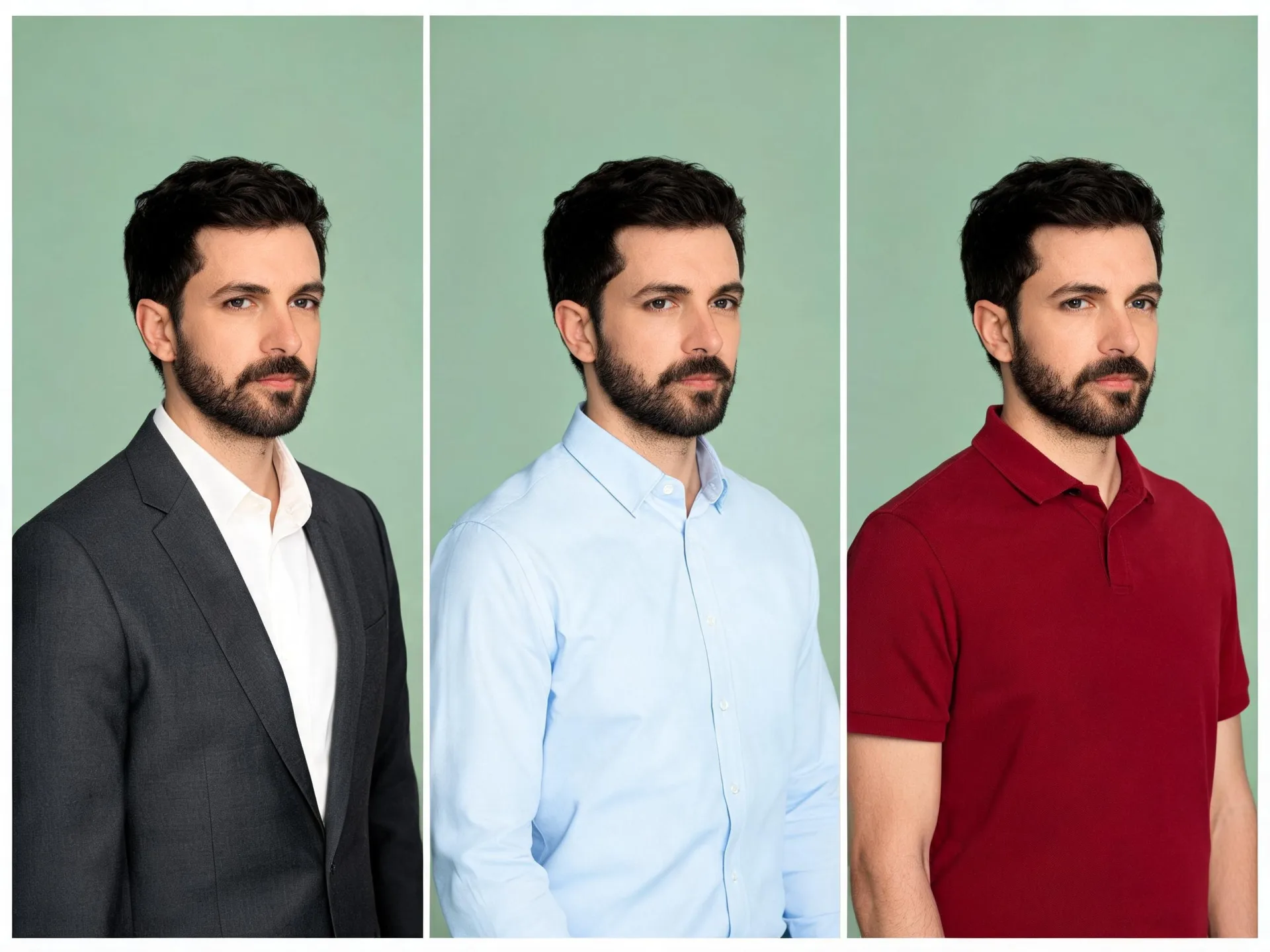
A jacket, shirt, and polo communicate different professional contexts. Choose the outfit around the role while keeping likeness central to the review.
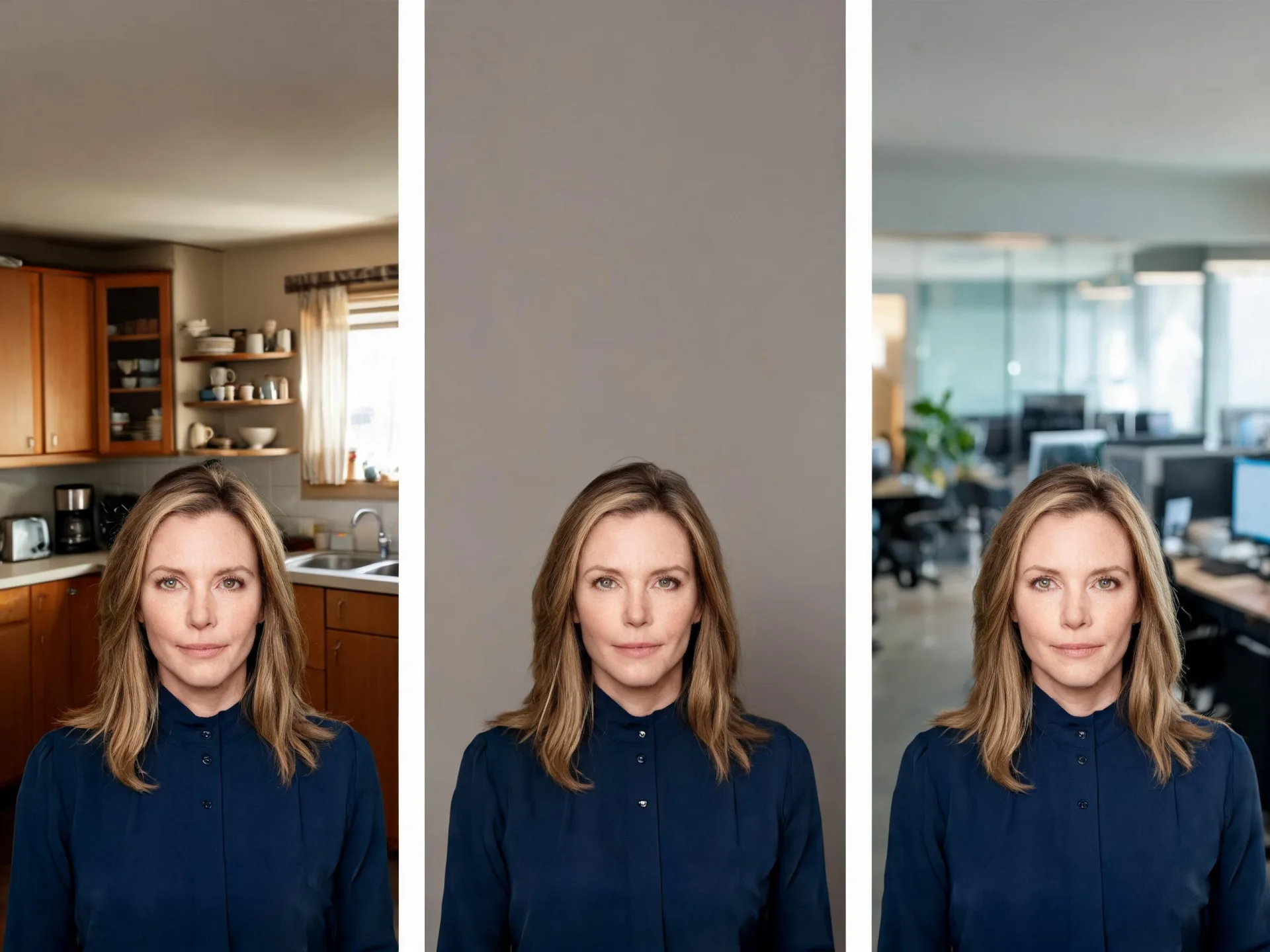
Kitchen, studio, and office settings frame the same person differently. Select a backdrop that supports the profile without competing with the face.
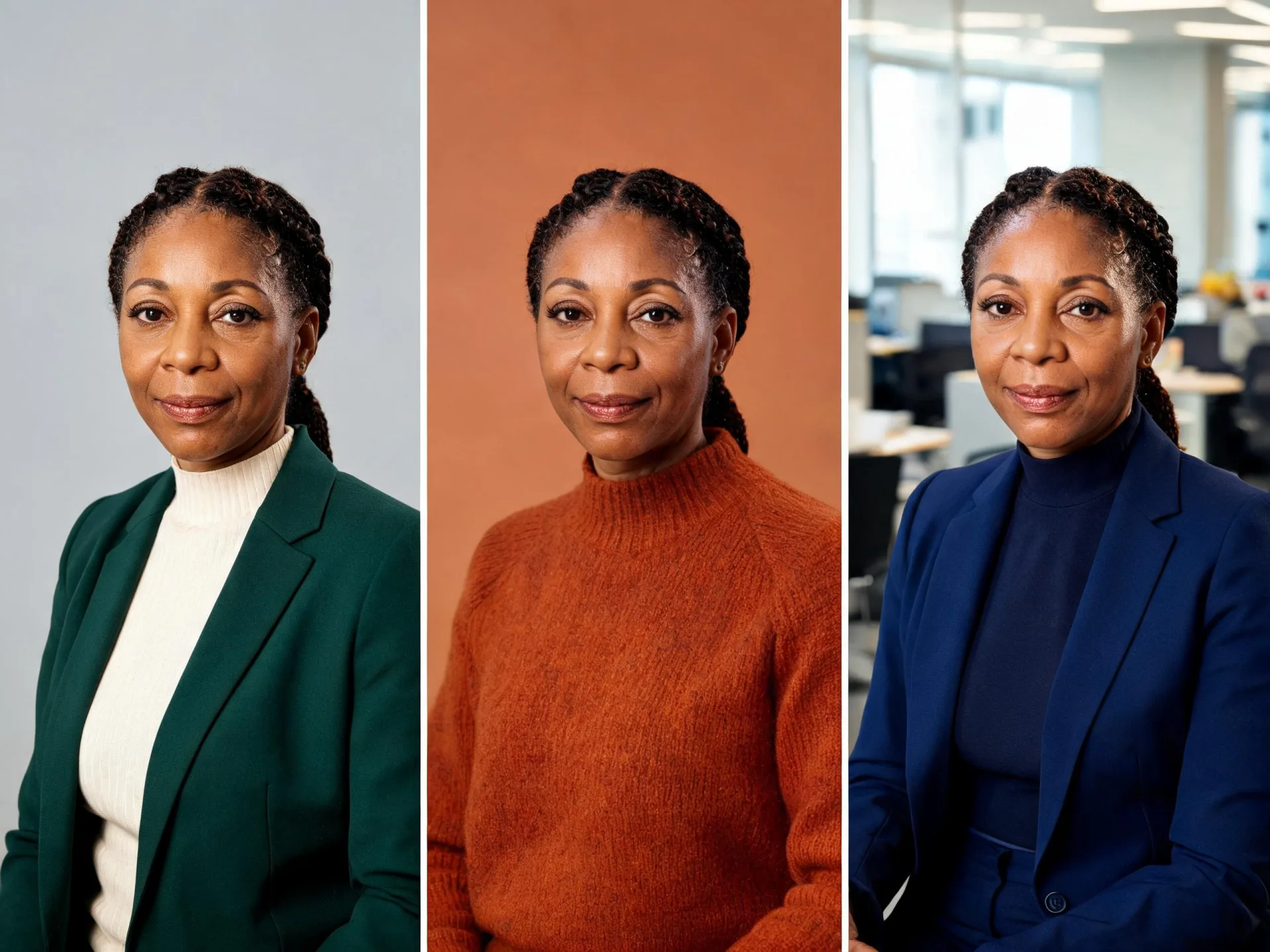
Several outfits and backdrops make the styling choices visible. Keep the final display size in mind when choosing a portrait from your own edits.
Prepare your direction, then continue in the workspace.
Use a photo with visible eyes, a readable expression, and enough detail in the face. Avoid starting from a tiny crop or heavily filtered image.
Select ImageAny V3 or V2 and describe the outfit, background, light, and framing that fit the intended profile.
Open image to image, upload the source, and review the selected model’s output settings and credit amount before generating.
Compare facial proportions, expression, and distinctive features with the original. Check the crop at its final display size before downloading the chosen image.
Choose a starting direction and adapt the clothing, background, and framing. Keep the instruction to preserve your recognizable features explicit.
Match the workflow to your source and final requirements.
| Your goal | Suggested workflow | What to expect |
|---|---|---|
| Explore a new profile presentation | ImageAny headshot editing | Restyle an existing portrait with a focused visual brief. |
| Document exact current appearance | A conventional portrait session | Photograph the person under controlled lighting and direction. |
| Generate a fictional character | AI face generator | Create a new person from a description rather than an existing identity. |
| Develop an introduction shot | Headshot first, then image to video | Review the still before asking for a separate motion sequence. |
Adapt these directions to your image and intended use.
A clear destination helps determine how formal the wardrobe and background should feel.
A friendly creative-professional portrait for a portfolio profile.
Ask for recognizable proportions and expression instead of generic beautification.
Keep the same smile, face shape, eye spacing, and natural skin texture.
Specify framing that gives your final layout enough room without making the face too small.
Head-and-shoulders composition with clear space above the hair and both shoulders visible.
No personal model training step is part of this workflow. ImageAny uses the uploaded reference and prompt to generate a new portrait. A clear reference helps guide the result, but you still need to inspect the likeness carefully.
Start with one clear portrait that shows the face well. You can add relevant references, with up to four inputs in the image-to-image workspace, and explain their roles. Multiple uploads guide one edit rather than creating a separate headshot for each person.
You can reuse a background, lighting, and wardrobe brief across separate individual edits. Each person should have an appropriate source photo and their own result review. This page does not provide an automatic team batch or guarantee identical framing across outputs.
Use the relevant issuing organization’s actual photo requirements. A generated portrait can alter facial details and should not be assumed to meet requirements for factual identity photographs. This solution is intended for creative profile and presentation use.
Yes, but keep the brief coherent and review both changes alongside likeness. A simple outfit and neutral background are often easier to compare than many simultaneous changes. If a result is close, refine the remaining issue in a focused second edit.
Download the selected portrait and upload it in image to video to explore a natural movement or camera direction. That is a separate generation step. For speech synchronized to audio, choose the dedicated lip-sync workflow rather than assuming a motion prompt will provide exact spoken delivery.
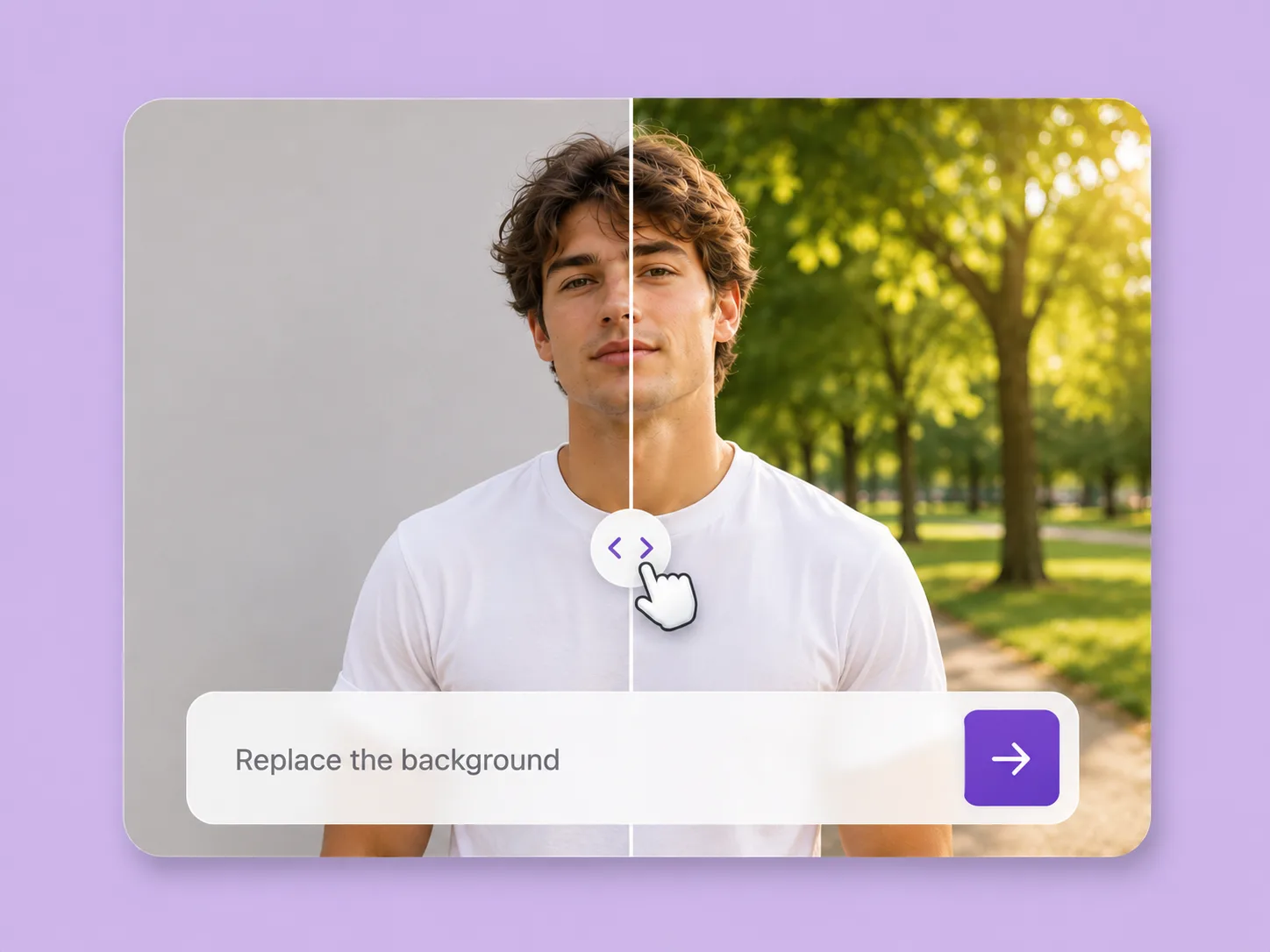
Make an existing image fit the next idea. Direct backgrounds, styling, objects, and light with ImageAny V3 or V2.
Explore solution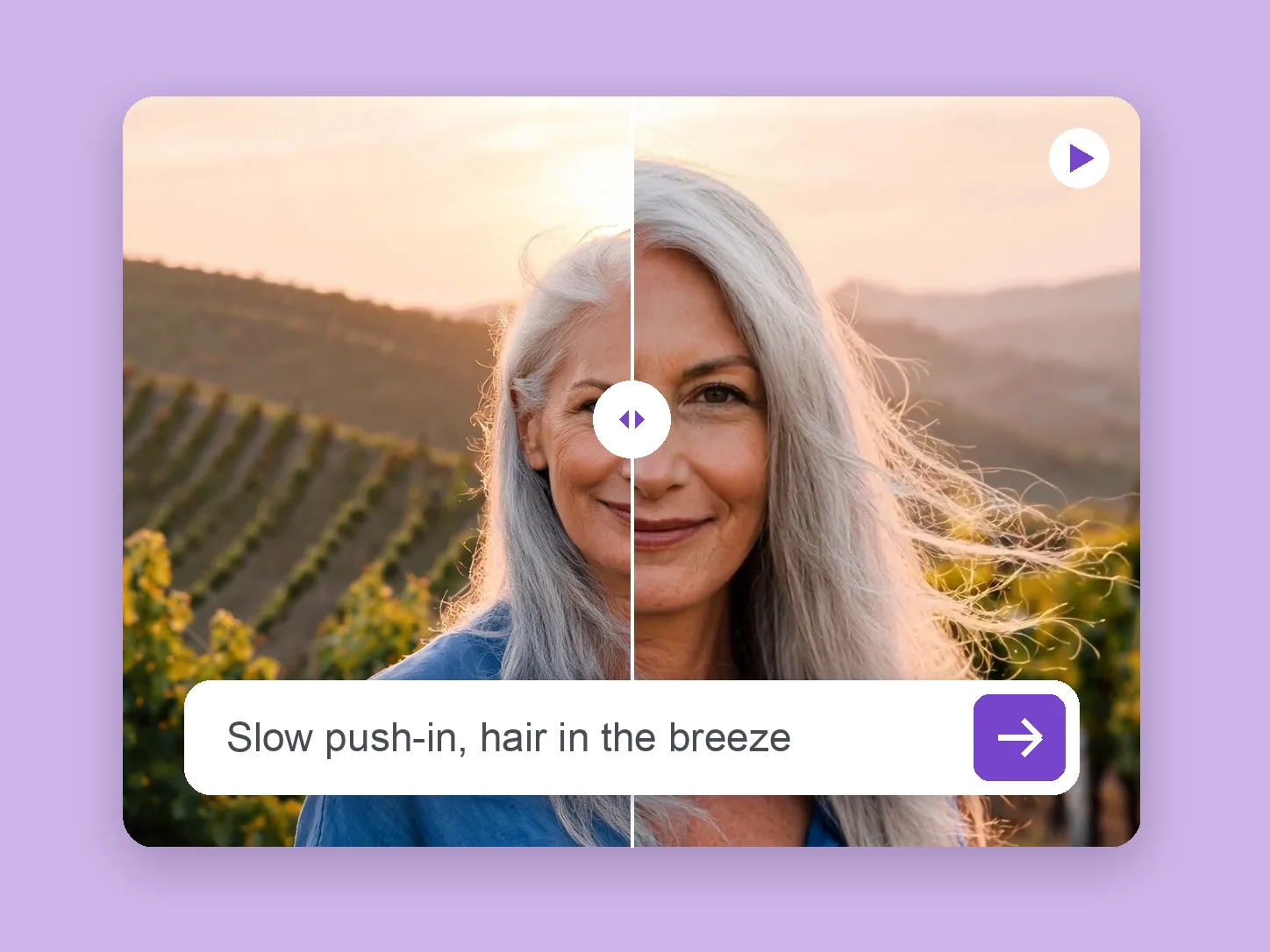
Bring a chosen still into motion. Direct the subject and camera with VideoAny V5, V4, V3, or V2.
Explore solution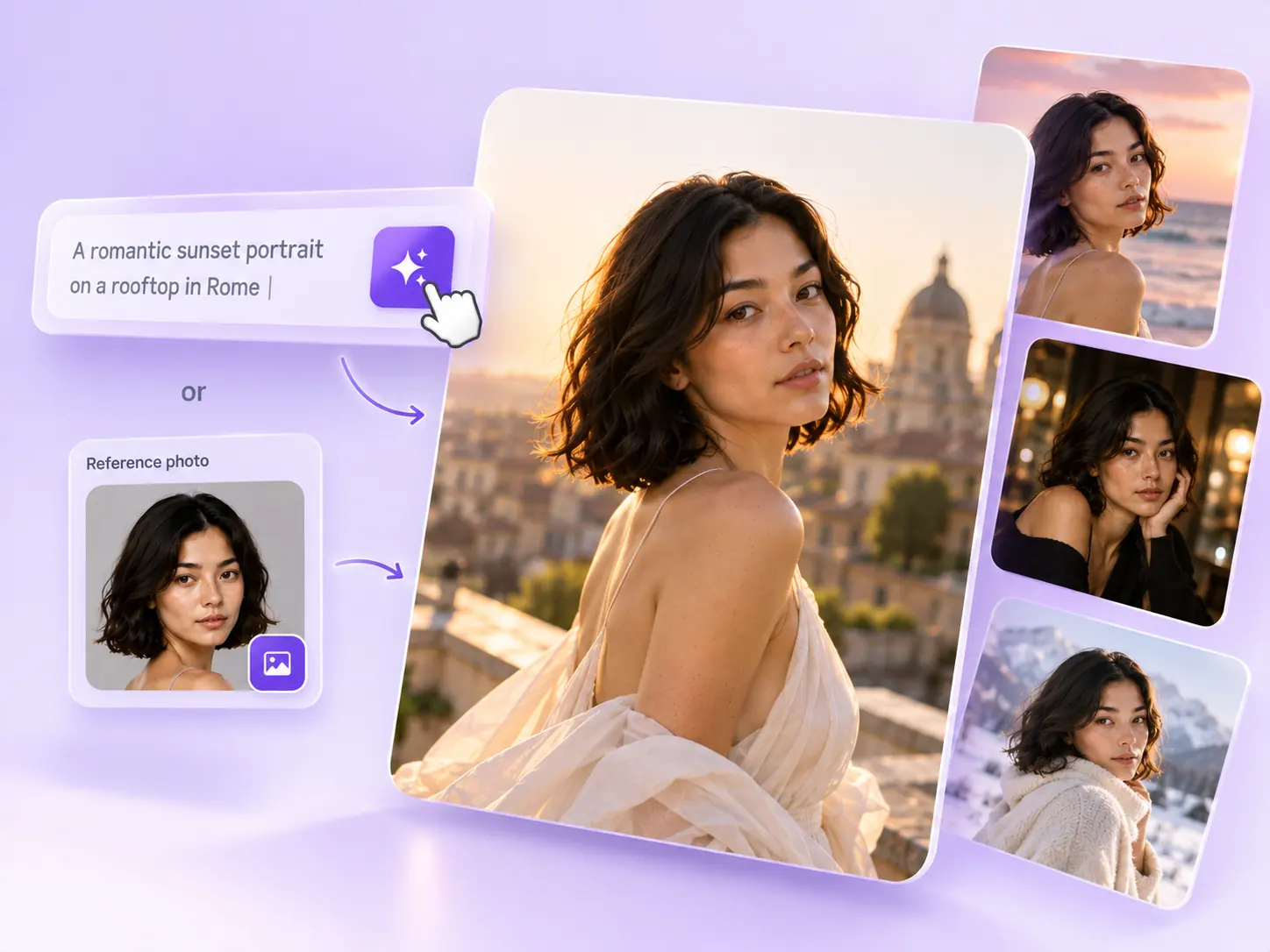
Create the still that starts the story: product concepts, portraits, and campaign photos from a written ImageAny brief.
Explore solutionBring a clear photo, choose the professional context, and use ImageAny to develop a headshot direction you can review.
Prepare my edit