Create from a written idea
Set out a scene without uploading a photo. Include the subject, environment, framing, and lighting so the first result has a clear direction.
AI PHOTO GENERATOR
Make campaign photos, product concepts, and character portraits from a written brief. ImageAny V3 and V2 turn your visual direction into an image you can refine or animate in VideoAny.
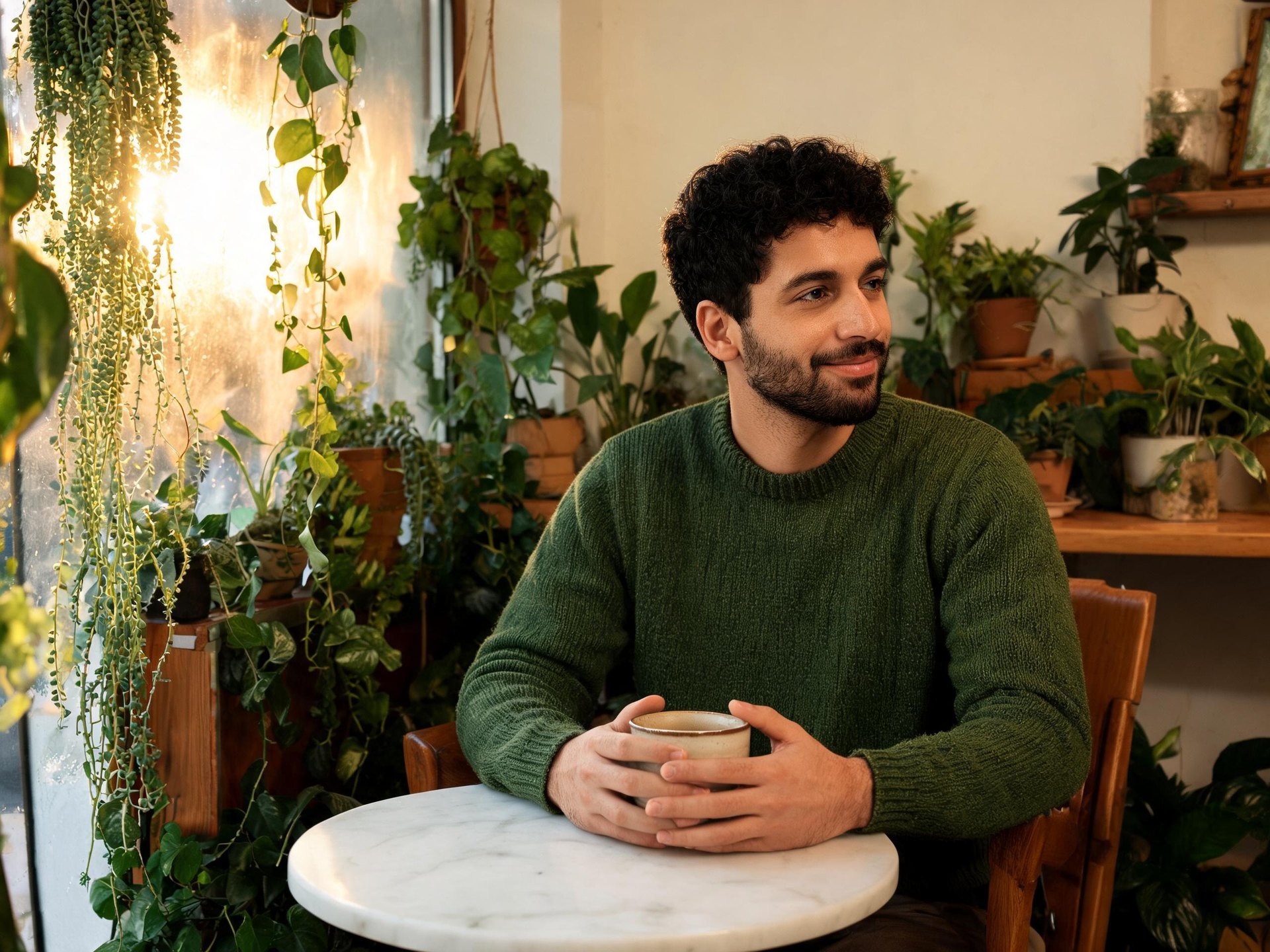
A useful AI photo starts with a purpose: a product scene, a thumbnail, a portrait, or the first frame of a shot.
Use text to image when you are inventing the visual. Describe a subject, its setting, the direction of light, and the framing the final asset needs. A simple product composition may need space for a headline; a character study may need a clear face and readable silhouette. Those concrete decisions give ImageAny a stronger brief than a long list of quality adjectives.
VideoAny connects that still-image stage with the rest of your project. Generate a direction with ImageAny V3 or V2, make a focused revision in image to image, then upload the selected still to image to video when you want motion. The result is generated artwork, even when it looks photographic. Review faces, lettering, object geometry, and the intended crop before making it part of a campaign or shot.
Plan the visual around the place it will appear and the story it needs to support.
Set out a scene without uploading a photo. Include the subject, environment, framing, and lighting so the first result has a clear direction.
Plan a still life or a lifestyle context around an object. Use the reference workflow when a real product needs to guide the appearance.
Describe wardrobe, pose, background, and light. For an existing person's likeness, bring an appropriate reference into the image editor.
Try a restrained palette, a soft window-lit scene, or a direct-flash treatment. Change one visual decision at a time to compare directions.
Use ImageAny V3 or V2 for your starting brief. Review each version's output options and credit amount in the destination workspace.
Download a chosen image for your project, or upload it to image to image for an edit or image to video for a motion study.
Use these visual references to think about subject, setting, and composition. They illustrate creative possibilities rather than guaranteed ImageAny output.
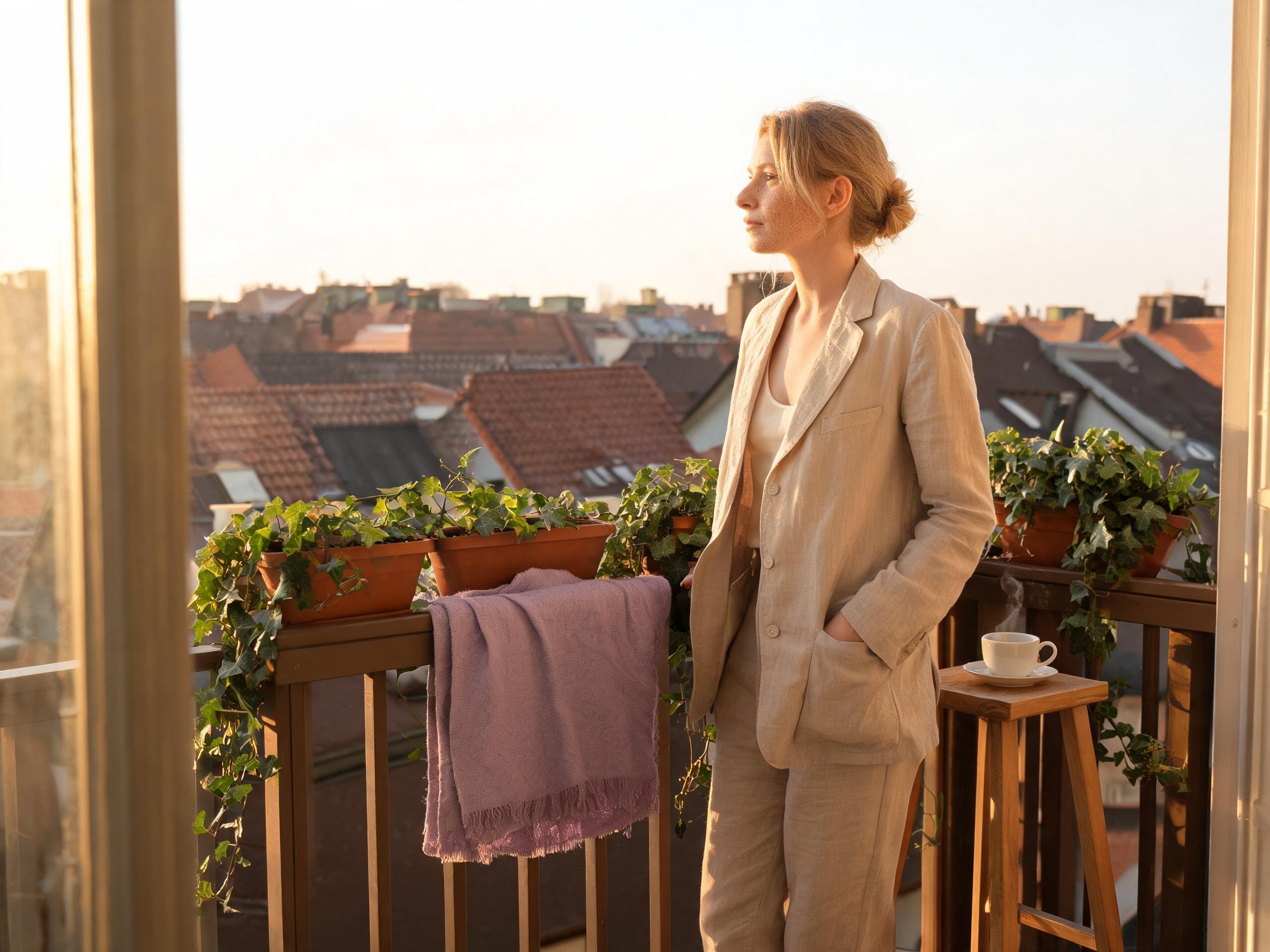
A linen suit, balcony setting, and daylight give this portrait concept a coherent direction.
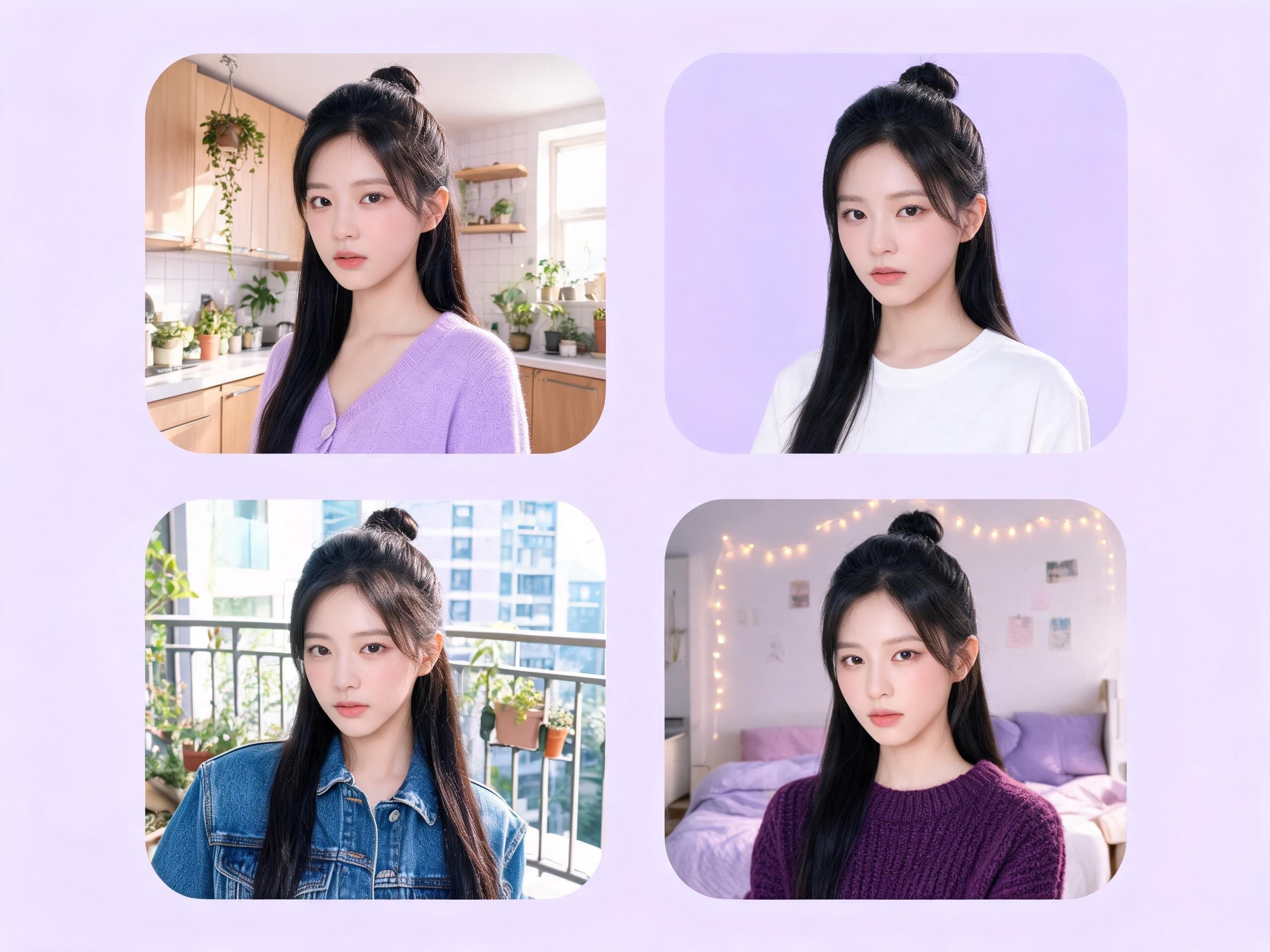
Compare visual directions for a subject, then develop the individual look that fits the brief.
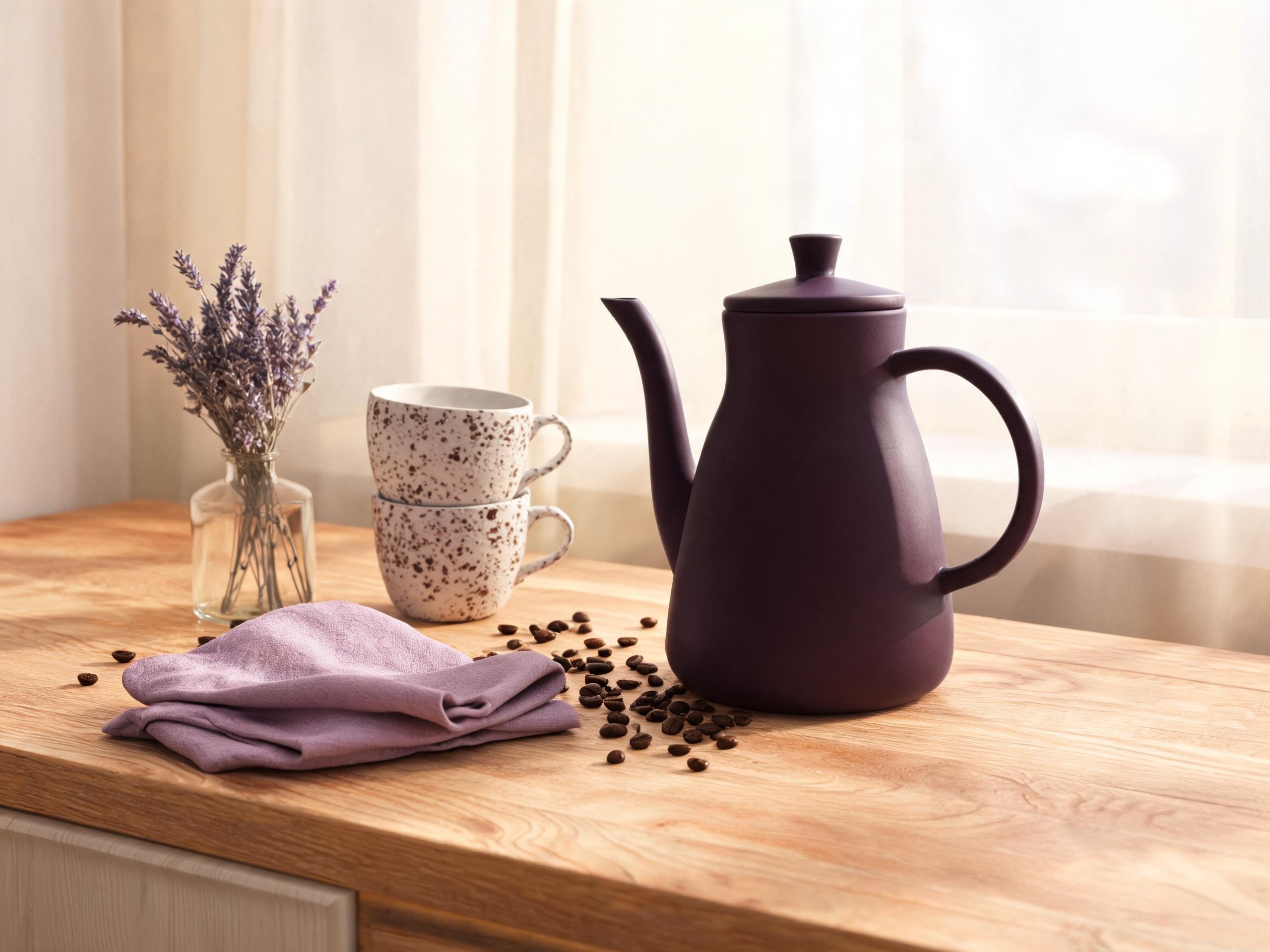
A distinctive object and a simple kitchen setting show how color can organize a product-style composition.
Keep the first generation focused enough that you can tell what worked.
Choose the main subject and where the picture will be used. This helps you decide the framing and how much background belongs in the shot.
Select ImageAny V3 or V2. Adapt a preset below with your subject, setting, lighting, and composition.
Open text to image and check the options and credit amount. If you chose the reference route, upload your image in image to image.
Sign in and start a generation. Inspect the image, download a useful result, or adjust the detail that missed your brief.
Start from a prompt, choose an ImageAny model, and continue into text to image. Use the reference route when you already have a photo to work from.
Choose based on how much of the subject has already been decided.
| Decision | Text to image | Image to image |
|---|---|---|
| Starting material | A written scene description. | An uploaded image plus instructions. |
| Best starting task | Invent a scene, mood, or subject. | Develop a subject or composition you already have. |
| How you direct the look | Describe visible details, light, and framing. | Explain each reference's role and what should change. |
| What to review | Whether the image matches the brief. | Whether important reference details remain convincing. |
A short set of compatible instructions is more useful than a long list of unrelated styles.
Lighting establishes depth and mood. Say where it comes from and whether the shadows should be soft or defined.
Soft light from a large window on the left, gentle shadows on the table.
State whether the subject fills the frame or sits inside a wider environment. Keep the intended use in mind.
Waist-up portrait, subject slightly right of center, simple background.
Concrete visual details give a still life a consistent look without adding unnecessary complexity.
Amber glass, cream linen, pale limestone, warm neutral palette.
No. The text-to-image route starts from a written description. If your idea depends on an existing person, object, or composition, use the reference-image route and upload a photo in that workspace.
You can choose ImageAny V3 or ImageAny V2, with V3 selected initially. The model and your prompt open in the destination workspace, where you can review the available output options before generating.
Text to image creates a new image from words. Image to image creates a new result guided by an uploaded reference and your instructions. Neither workflow guarantees the exact pixels or details of an original photograph.
Review the output controls in the selected ImageAny model's workspace. Use the supported options that fit your project. Avoid relying on a requested pixel size written in the prompt as a substitute for the actual output settings.
Use a clear reference in image to image and say which visible details matter. Compare the result with the reference at full size. Repeating a description or uploading a reference can guide similarity, but it cannot guarantee an exact match.
Download a result you want to keep. To change its content, upload it in image to image with a focused edit instruction. To explore motion, upload it in image to video and describe a simple action or camera move.
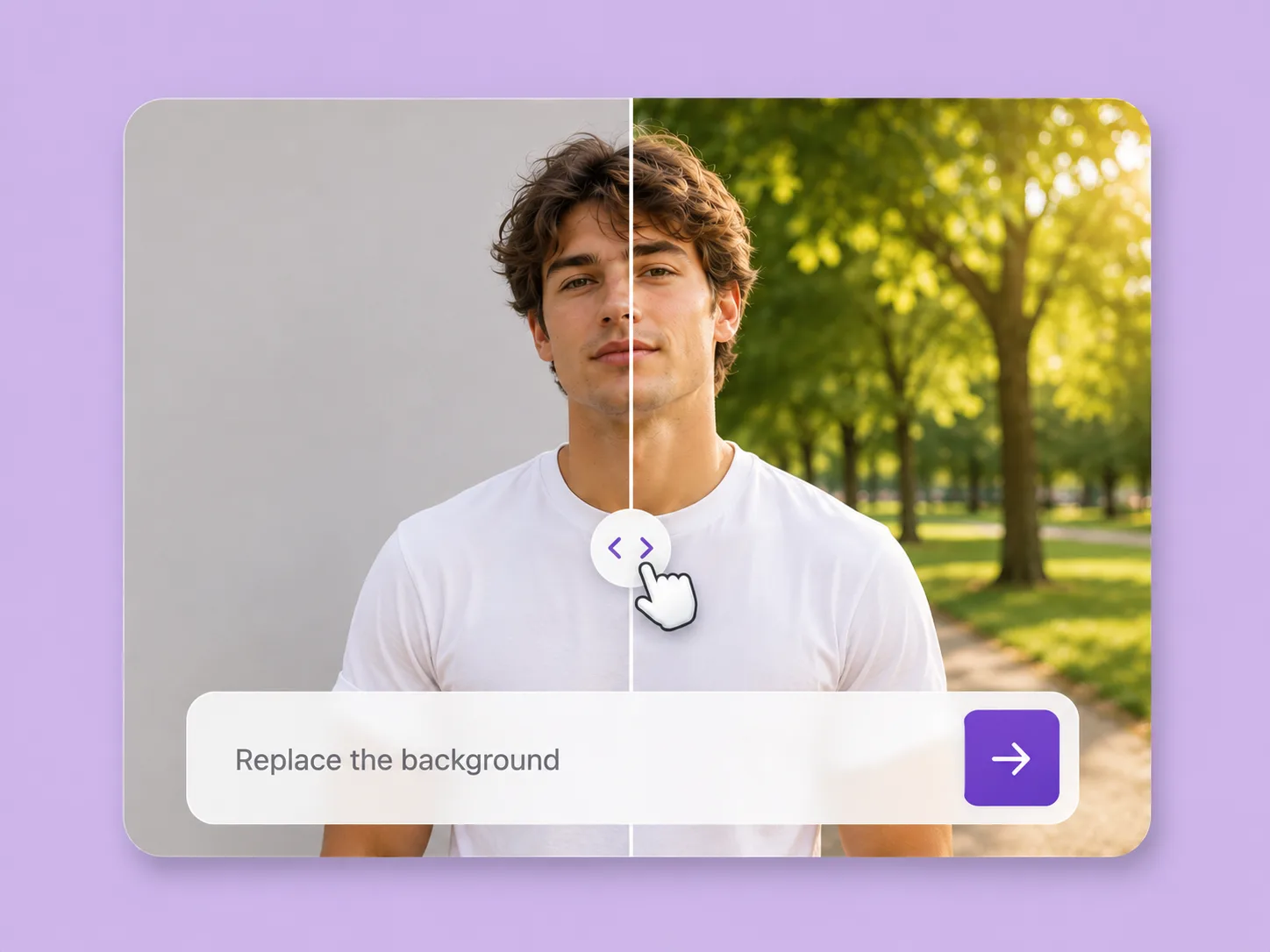
Make an existing image fit the next idea. Direct backgrounds, styling, objects, and light with ImageAny V3 or V2.
Explore solution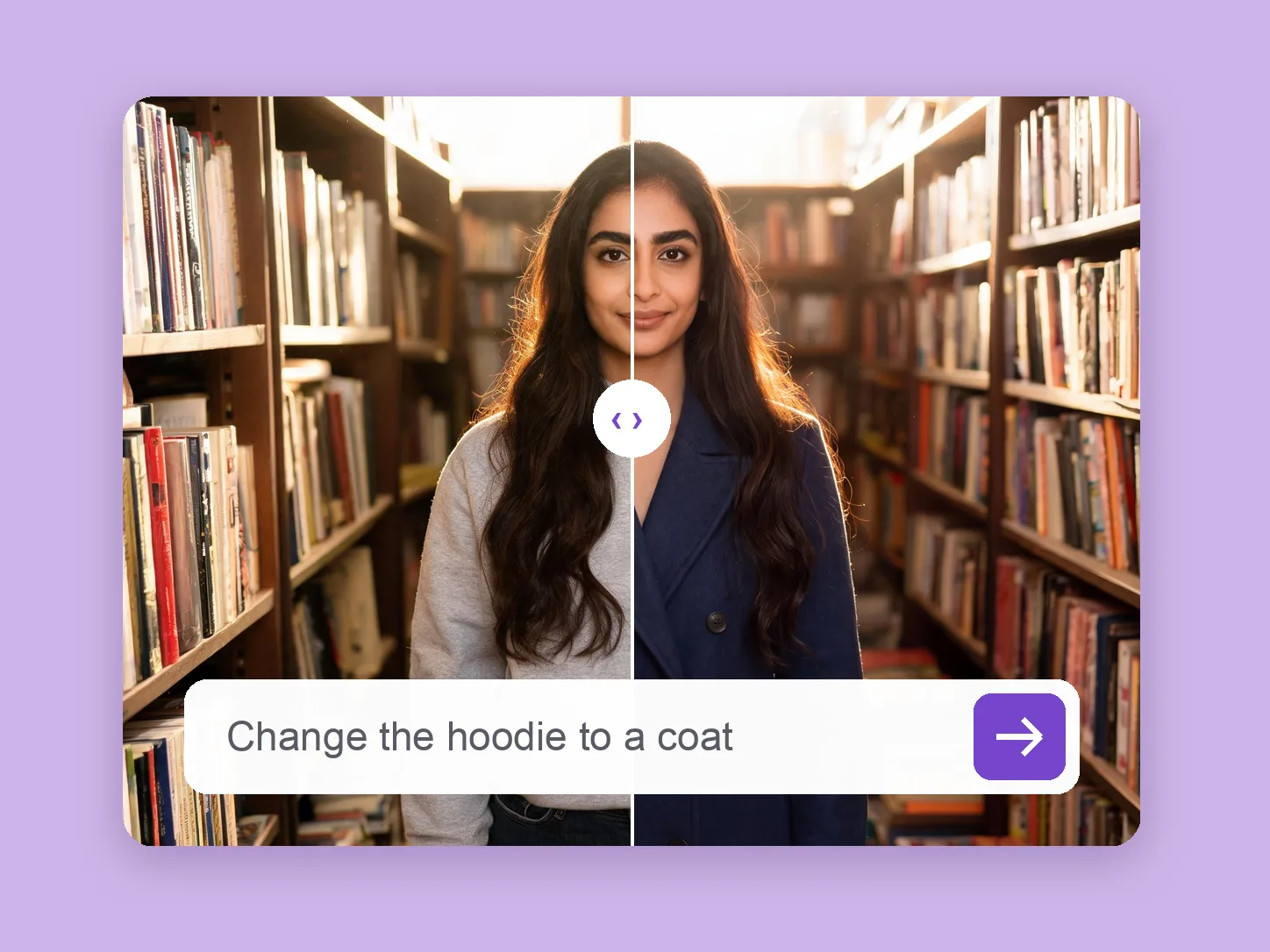
Develop a wardrobe for a portrait, character, or campaign frame using a clothing prompt or garment reference.
Explore solution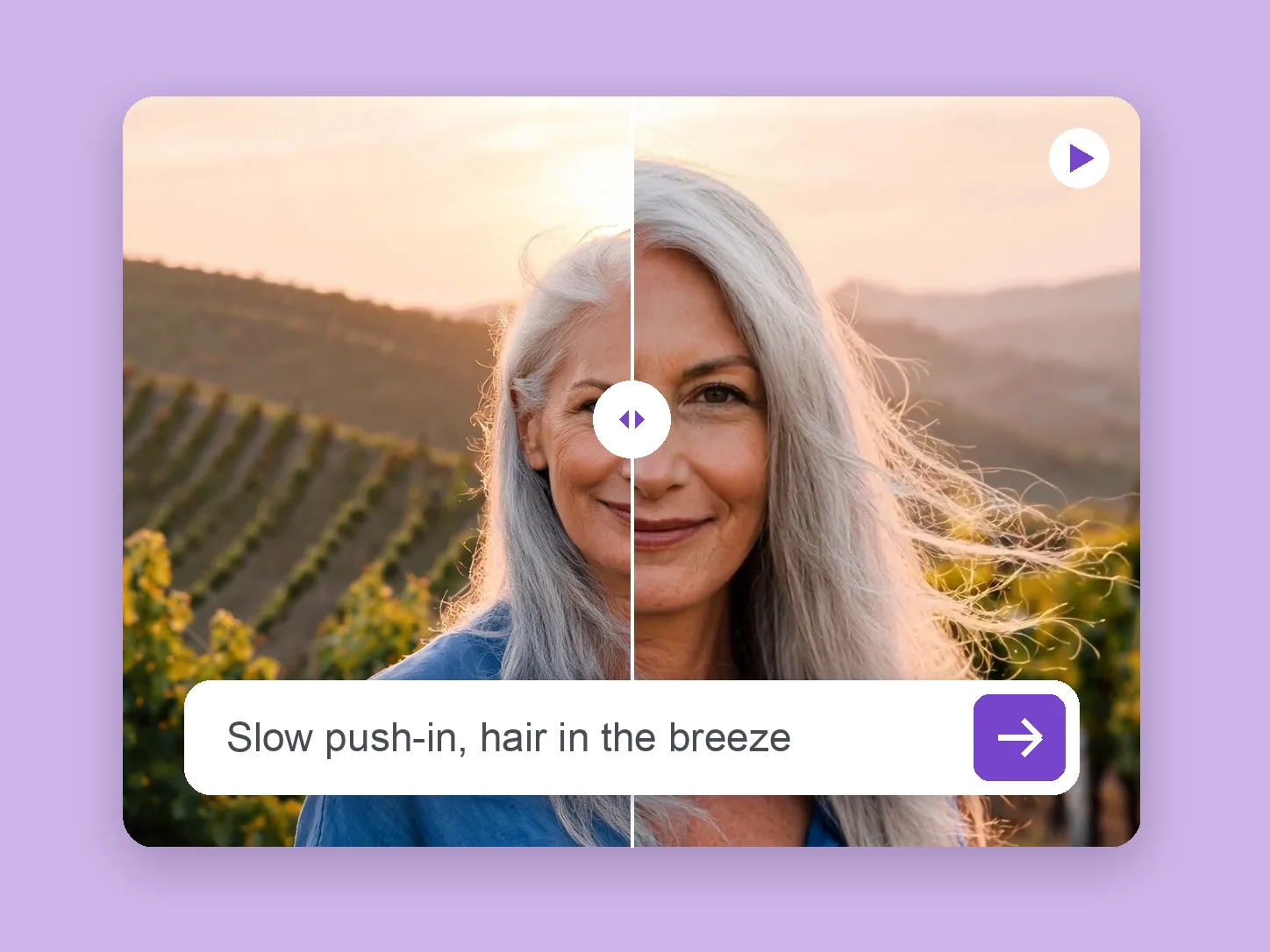
Bring a chosen still into motion. Direct the subject and camera with VideoAny V5, V4, V3, or V2.
Explore solutionChoose ImageAny V3 or V2 and describe the subject, light, and composition. Open the image workspace to bring the idea into your project.
Prepare my photo