Choose the right path
Generate a brand-new AI Christmas photo or add Santa to an existing picture
Holiday photo requests usually fall into two different image jobs. When you want a brand-new winter cabin scene, holiday card background, or fictional festive portrait with no personal photograph involved, start in Text to Image. When you want to place Santa beside your own Christmas tree, add festive lighting to a living room you photographed, or restyle a portrait you have permission to edit, start in Image to Image.
VideoAny does not offer a single-click 'Add Santa' filter button. Instead, you get real prompt-guided editing in Image to Image—including Seedream 5.5 (1–10 reference images via upload or URL, 1K/1.5K/2K output, explicit aspect ratios, and PNG/JPEG export) alongside other studio image models. That gives you control over Santa's placement, lighting match, and camera framing, while requiring a careful visual inspection before sharing.
What to prepare before uploading a real photo
- Leave physical space in the frame where Santa should stand or kneel—beside the tree or fireplace works better than a tightly cropped room.
- Use an even, sharp photograph taken at the same eye level you want Santa to appear from.
- Only upload photos of people and spaces you own or have clear permission to edit.
- Plan to add card text, family names, and dates later in a design app rather than generating lettering inside the photo.
Real VideoAny routes
Match your Christmas photo goal to the right VideoAny page
Use this guide for still images and Santa photo composites. If you specifically want a waving Santa greeting video or a holiday product ad, jump straight to the dedicated existing pages linked below.
| What you want to make | Best VideoAny route | Practical note |
|---|---|---|
| Original Christmas scene or holiday card backdrop | Text to Image (e.g., Seedream 5.5) | Pick aspect ratio (such as 4:5 or 16:9) and 1K–2K resolution; request uncluttered margin space for real greeting text. |
| Add Santa into your living room or fireplace photo | Image to Image (e.g., Seedream 5.5) | Upload your room photo as the main reference, describe where Santa stands and how warm tree light hits his coat, then verify furniture stayed accurate. |
| Add Santa beside a person or restyle a portrait | Image to Image (1–2 clear references) | Ask to preserve faces, clothes, and pose, then zoom in 100%—generative edits re-render the frame and never guarantee exact pixel or identity lock. |
| Instant festive border / winter collage from one portrait | Winter Christmas Collage effect | Dedicated existing effect page for automatic snowflakes, trees, and holiday ornaments around a portrait. |
| Short animated Santa greeting video or holiday product ad | AI Santa Video guide / Christmas Product Commercial guide | Separate existing guides cover portrait-to-video Santa animation and commercial tabletop shots. |
Step-by-step composite workflow
How to add Santa to an existing photo cleanly in four steps
Step 1 — Pick a photo with breathing room and clear lighting. A living-room tree shot with warm string lights turned on gives the image model obvious shadow direction and color temperature. For a portrait composite, choose a medium shot with open space to the left or right of the person.
Step 2 — Open Image to Image and select Seedream 5.5 (or another available image model in the studio). Upload your base photo. If you want a very specific Santa coat texture or illustration look, you can optionally attach a second reference image and clearly state which image is the base room and which is only a style cue—never overload all 10 reference slots with conflicting photos.
Step 3 — Describe Santa's exact position, scale, and lighting first, then list what should stay unchanged. Mention floor contact shadows, matching warm lamp glow, and realistic scale relative to the tree or doorway so Santa does not look pasted on top of the room.
Step 4 — Check the live credit quote, generate, and inspect at full size. Zoom into faces, hands, ornaments, fireplace lines, and room furniture. If the room warped too much, simplify the prompt to focus only on inserting Santa in the open space and run one targeted revision.
Untested starting prompts
Practical prompts for AI Christmas photos and adding Santa
These are illustrative starting prompts, not guaranteed outputs. Adapt subject placement, lighting, and room details to match your actual photograph.
Image to Image · Add Santa to a room photo
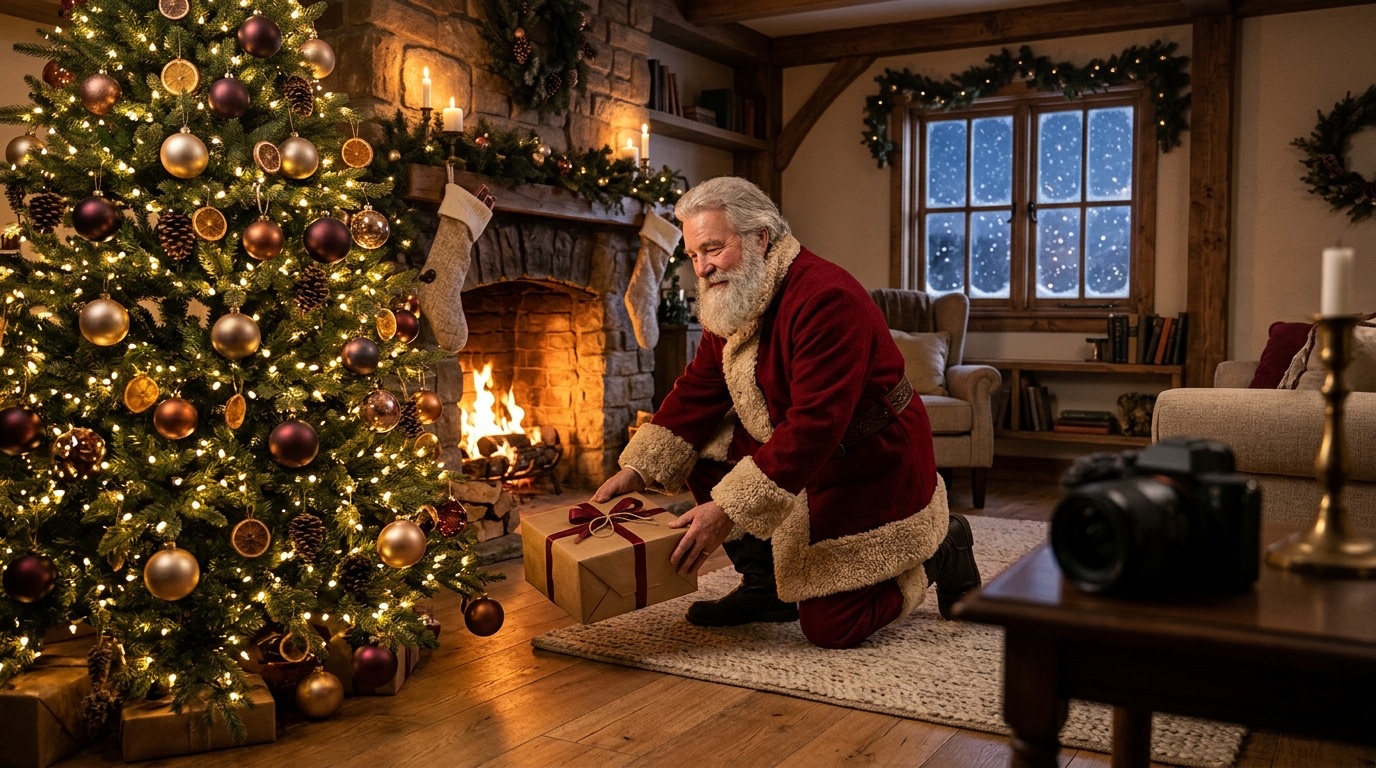
Insert Santa placing gifts beside your Christmas tree
Upload a sharp photo of your decorated living room with open floor space next to the tree.
Add a friendly, realistic Santa Claus kneeling on the open floor beside the Christmas tree in this uploaded living-room photo, gently placing a wrapped gift box under the branches. Classic red wool coat with white fur trim and soft warm glow from the existing tree lights casting natural shadows on the floor. Preserve the room layout, furniture, tree decorations, wall color, and camera angle as closely as possible. Natural candid photography, no text or watermarks.
- Inspect the rug, sofa edges, and tree ornaments against your original photo.
- If Santa looks too large or bright, mention natural evening room shadows and medium scale relative to the tree.
Image to Image · Add Santa to a portrait
Place Santa beside an adult portrait with matching light
Upload a clear, rights-cleared portrait with open space on one side.
Keep the adult person, pose, clothing, and background of this uploaded photograph as recognizable as possible, and add a cheerful traditional Santa Claus standing slightly behind and to the right in the open space, smiling warmly toward the camera. Match the exact indoor lighting direction, skin texture, depth of field, and color tone of the original photo. Natural photograph, no added text or logos.
- Always check eye detail, teeth, and fingers at full resolution—identity preservation is never locked.
- Avoid crowded group photos with partially hidden faces for your first composite test.
Text to Image · Original Christmas card photo
Cozy cabin Christmas scene with clean space for card copy
Generate an original seasonal still without uploading a personal photo.
Photographic winter holiday still of a warm timber living room at twilight with a decorated spruce tree, soft golden fairy lights, wrapped kraft-paper gifts on a braided rug, and snow falling gently outside a wooden window. Leave quiet, uncluttered warm wall space on the upper left for greeting text to be added later. Soft natural depth of field, realistic textures, no words or typography.
- Select 4:5 for vertical cards or 16:9 for desktop banners in the studio controls.
- Add final holiday greetings and family signatures in your design tool.
Honest expectations
Limitations to keep in mind before printing or sharing
Prompt-guided image editing regenerates the scene rather than masking pixels on a Photoshop layer. Even when you ask to keep faces, room furniture, or ornaments unchanged, subtle shifts can appear in eyes, hand anatomy, wallpaper patterns, or reflections. Always inspect prints or holiday cards at full size before ordering physical copies.
If you want to turn an approved holiday portrait into a short animated clip afterwards, remember that image studios and video studios are separate on VideoAny: download and inspect your finished Christmas still first, then upload it manually into Image to Video—or check our separate AI Santa Video and AI Elf Photo & Video guides.
Quick pre-print quality checklist
- Check faces and hands of every person in the photo against the source image.
- Verify Santa's scale, eye direction, and floor shadow match the room.
- Confirm there is no garbled AI text on gift tags, picture frames, or stockings.
- Use 1.5K or 2K PNG export in Seedream 5.5 when you plan to crop or add typography in a separate editor.
Common questions
AI Christmas photo and Santa editing questions
Does VideoAny have a one-click 'Add Santa to Photo' filter?
No. Instead of a fixed sticker filter, VideoAny uses prompt-guided Image to Image editing (such as Seedream 5.5) where you upload your own room or portrait photo and describe Santa's pose, placement, and lighting match.
Which model should I use to add Santa into an existing photo?
Seedream 5.5 in Image to Image is a strong starting option because it supports 1–10 reference images, explicit aspect ratios, 1K/1.5K/2K resolution, and PNG or JPEG export. You can also test other image-editing models available in the studio.
Will my family's faces stay 100% identical when I add Santa to a portrait?
No exact identity lock is guaranteed. Generative image editors redraw the frame, so inspect every face and hand closely against your original photo and only keep results that look natural and accurate.
How is this page different from VideoAny's AI Santa Video guide or Winter Christmas Collage?
This guide focuses strictly on still Christmas photos and prompt-based Santa photo composites. Use Winter Christmas Collage for a quick portrait collage effect, the AI Santa Video guide for animating a waving Santa portrait clip, and the Christmas Product Commercial guide for product videos.
Should I ask the AI to write 'Merry Christmas 2026' directly on the photo?
It is usually cleaner to leave quiet negative space in your generated photo and add greeting headlines, names, and dates in a regular card or design editor so spelling and alignment stay sharp.
Start your holiday photo
Create a Christmas scene or add Santa to your own photo
Open Text to Image for fresh holiday artwork or Image to Image with Seedream 5.5 to insert Santa into a room or portrait photo you own.
- 1–10 references and 1K–2K export with Seedream 5.5
- Visible credit quote before generating
- Leave clean space for real holiday card typography