Plan the character first
Why seasonal elf projects work best as a two-stage photo-then-video flow
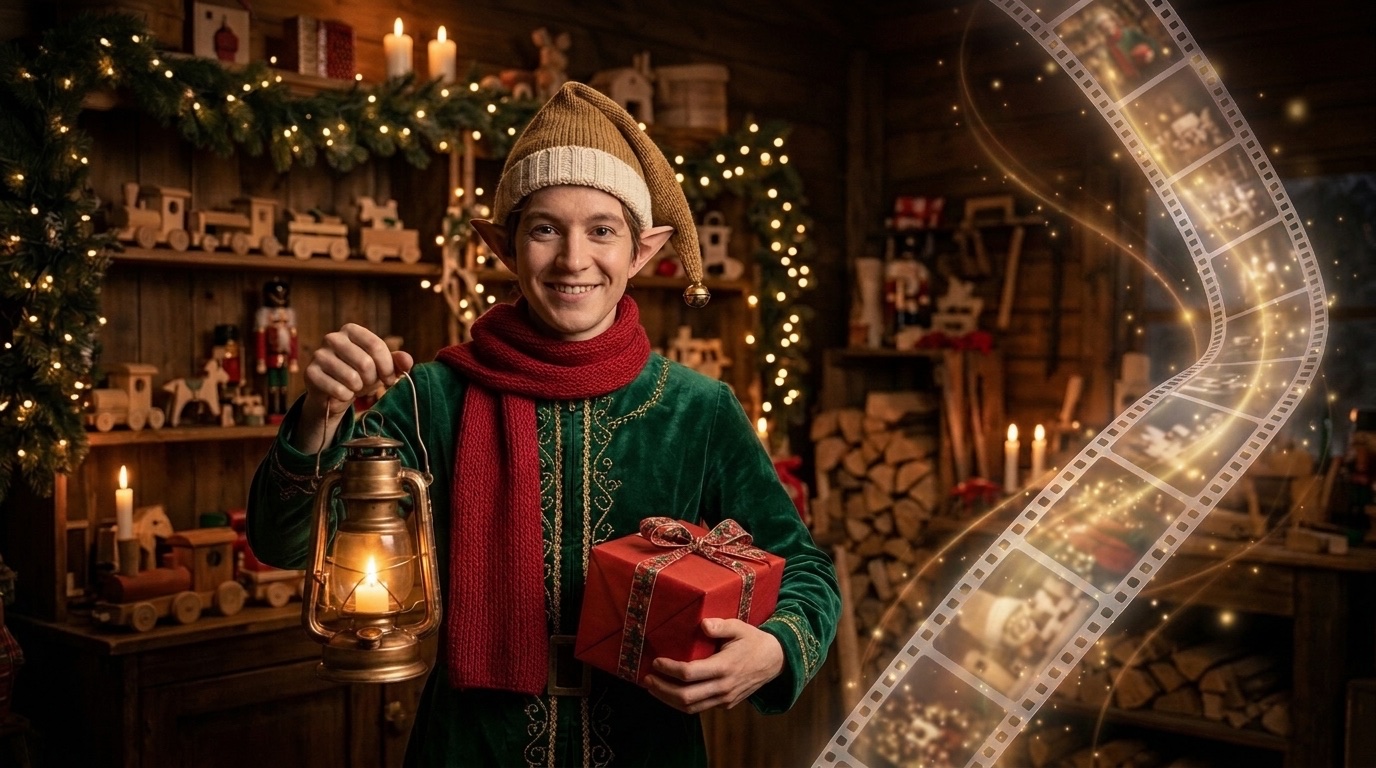
Holiday elf scenes include tricky visual details—pointed knit hats, jingle bells, emerald velvet tunics, wooden toy benches, and expressive hands holding wrapped gifts. VideoAny does not have a dedicated one-click 'AI Elf' filter effect. Instead, separating still-image creation from video animation lets you lock in costume charm, lighting, and clean proportions before spending video credits.
Start in Text to Image when you want an original illustrated or photographic holiday elf character in a cozy toy workshop. Start in Image to Image when you want to dress a clear, rights-cleared adult portrait in festive elf attire. Once you download and inspect a still you genuinely like, upload that saved file manually into Image to Video for a gentle 4–10 second seasonal clip—or skip the still altogether and draft a fictional elf vignette straight in Text to Video.
Prep tips that prevent elf costume glitches
- Leave extra headroom above the subject so a tall pointed elf hat is not cropped off.
- Keep props simple: one wrapped gift box or one warm lantern animates much cleaner than a cluttered toy table.
- Use only original concepts or portraits of adults you have permission to edit—avoid copying trademarked elf characters.
- Keep hands relaxed and clearly visible if you plan to animate a small wave or gift presentation.
Choose your real VideoAny tools
Match each elf photo or video step to an integrated studio
| Stage & Goal | VideoAny Tool & Model | Key Controls to Set |
|---|---|---|
| Original elf character photo or storybook still | Text to Image (e.g., Seedream 5.5) | Choose 1K, 1.5K, or 2K, target aspect ratio (9:16 for Reels/Shorts or 4:5 for cards), and PNG or JPEG. |
| Turn a portrait into a holiday elf costume photo | Image to Image (e.g., Seedream 5.5) | Upload 1 clear adult reference photo (Seedream 5.5 supports 1–10 refs), state costume changes and details to preserve. |
| Animate the saved elf still with optional sound or 4K | Image to Video — Seedance 2.5 | Manually upload the saved elf still (optional last frame), pick 4–30s, 480p–4K (default 720p), and audio on/off. |
| Animate the saved elf still with audio up to 1080p | Image to Video — Wan 3.0 | Upload first frame, pick 2–30s, 480p/720p/1080p (15/30/60 credits/s), audio included, optional Thinking Mode. |
| Short elf animation with an optional end frame | Image to Video — MiniMax H3 | Upload starting elf still + optional end frame, pick 3–15s at 480p or 768p with native audio. |
| Fictional elf workshop scene without a starting still | Text to Video (Seedance 2.5, Wan 3.0, or MiniMax H3) | Set 9:16 or 16:9 directly in the studio and describe one simple workshop action. |
Four practical steps
From elf still to finished short elf clip
Step 1 — Generate or edit the elf still. Open Text to Image for a fictional elf or Image to Image to restyle an uploaded adult portrait into a green velvet elf tunic, buckled belt, and knit hat with warm workshop bokeh. Pick the exact orientation your final video needs (9:16 vertical for social stories, 16:9 wide for landscape greetings) so Image to Video does not have to invent missing edges.
Step 2 — Inspect and download the still locally. Zoom in on the hat pom-pom, collar seams, fingers, eyes, and background props. If a hand has extra fingers or a facial portrait drifted too far from the source, revise the image before moving on—animating a flawed still only amplifies those defects.
Step 3 — Open Image to Video and manually upload your saved elf image. There is no automatic file handoff between the image and video studios. Choose a model that matches your duration, resolution, and audio goals—Seedance 2.5 for 4–30s and selectable audio/4K, Wan 3.0 for 2–30s up to 1080p with audio, or MiniMax H3 for 3–15s at 480p/768p—and check the live credit quote.
Step 4 — Request one restrained action and review full playback. Ask for a gentle smile, warm twinkling workshop lights, and a subtle turn or small nod while keeping the camera steady or doing a very slow push-in. Watch from opening frame to final second, listen to generated audio if enabled, and add any holiday greetings or background music in a separate video editor.
Untested starting prompts
Starting prompts for AI elf photos and elf video animation
These examples are untested creative templates, not guaranteed results. Adjust wardrobe colors, framing, and motion intensity for your own shot.
Image to Image · Elf costume portrait
Festive holiday workshop elf portrait edit
Upload one sharp, well-lit adult portrait with generous headroom.
Restyle the uploaded adult portrait into a cheerful holiday workshop elf wearing a forest-green velvet tunic with gold stitching, a soft knit pointed elf hat with white trim, and a cozy red scarf. Place the subject in a softly lit wooden toy workshop with warm golden fairy lights and out-of-focus wrapped gifts behind them. Keep one adult, clear eyes, relaxed hands, and preserve the facial features of the reference as closely as possible. Natural warm portrait lighting, no text or logos.
- Check hat edges, collar symmetry, and facial resemblance before downloading.
- Reminder: asking to preserve facial features guides generation but does not lock identity.
Text to Image · Original elf scene
Whimsical elf checking a gift list by lantern light
Generate an original seasonal character still ready for 9:16 vertical animation.
Medium portrait of a cheerful fictional holiday elf in a tailored emerald coat, pointed knit cap with a small brass bell, holding a neatly wrapped red gift box inside a cozy candlelit wooden workshop. Warm golden light, soft pine garlands and blurred ornaments in the background, clear headroom above the hat, crisp realistic fabric texture, vertical 9:16 composition, no text or brand marks.
- Set 9:16 aspect ratio in the studio controls alongside the prompt.
- Keep the hands holding one solid box rather than intricate tiny tools.
Image to Video · Animate the saved elf photo
Gentle elf smile and twinkling workshop lights
Manually upload your reviewed elf still before submitting.
Animate the holiday elf in this uploaded image with subtle natural breathing, a warm smile, and a gentle slow head tilt while holding the gift box steady. Soft warm background fairy lights twinkle gently and tiny dust motes drift in the lantern glow. Very slow steady camera push-in, one continuous shot, keep the elf's face, hat, and costume consistent, no scene cuts, no text overlays.
- If audio is enabled on Seedance 2.5, Wan 3.0, or MiniMax H3, describe soft cozy room ambience and faint sleigh-bell chime without spoken dialogue.
- Check the final second carefully for melting gift ribbons or drifting hat shapes.
Troubleshooting & limits
Common elf animation pitfalls and realistic expectations
Complex holiday props and fast gestures are the two quickest ways to break an elf clip. Asking an elf to juggle toys, dance rapidly across a crowded room, and speak synchronized lyrics in one shot usually produces warped fingers, morphing hats, and inconsistent audio.
Stick to one calm action per clip. If you need spoken greetings or singing, do not expect a basic image-to-video prompt to produce exact lip-synced speech—record or edit audio separately, or explore dedicated audio/lip-sync tools where appropriate. And keep every personal photo strictly rights-cleared.
Quick fixes when an elf shot drifts
- Hat tip bends or stretches → give more headroom in the still and slow down camera movement.
- Fingers distort around gifts → keep hands still on the box or switch to a shoulder-up portrait with a gentle smile.
- Background toys morph → simplify the still so background decorations stay softly out of focus.
- Want Santa instead of elves? → visit our separate AI Santa Video guide or AI Christmas Photo Generator guide.
Common questions
AI elf photo and video questions
Does VideoAny have a one-click AI Elf video template?
No. Instead of a locked elf template, you create or restyle an elf still in Text to Image or Image to Image and then upload your approved still to Image to Video (or generate a fictional elf directly in Text to Video).
Does my elf photo transfer automatically from Image to Image into Image to Video?
No. Download your finished elf still, inspect it at full size, and manually upload the saved image file inside Image to Video.
Which video model should I choose to animate an elf photo?
Seedance 2.5 offers 4–30s clips, selectable 480p–4K output, optional generated audio, and an optional last frame. Wan 3.0 offers 2–30s clips up to 1080p with audio included and optional Thinking Mode. MiniMax H3 offers 3–15s clips at 480p or 768p with native audio and an optional end frame.
Can I make an elf video without uploading any photo?
Yes. Open Text to Video with Seedance 2.5, Wan 3.0, or MiniMax H3, choose 9:16 or 16:9, and describe a fictional holiday elf scene and single clear movement.
How is this guide different from the AI Santa Video guide or Winter Christmas Collage?
This guide focuses specifically on holiday elf characters, elf costume stills, and elf workshop animations. The AI Santa Video guide covers waving Santa greetings, and Winter Christmas Collage is a separate portrait collage effect.
Start your elf scene
Approve one festive elf photo, then bring it to life
Create or edit your elf still with Seedream 5.5 first, inspect every detail, and animate your favorite frame in Image to Video.
- Lock costume and lighting in the still stage
- Manual quality check before spending video credits
- Choose 9:16 or 16:9 for social sharing