AI Santa greeting video generator
Make a Christmas portrait, then animate it into a short greeting with a small wave. These are two separate studio steps: you review and transfer the image yourself.
The prompts below are starting points, not tested outputs. Opening a studio only fills the model and prompt. Uploading and generating are separate actions; review the displayed cost before generating.
Open portrait editor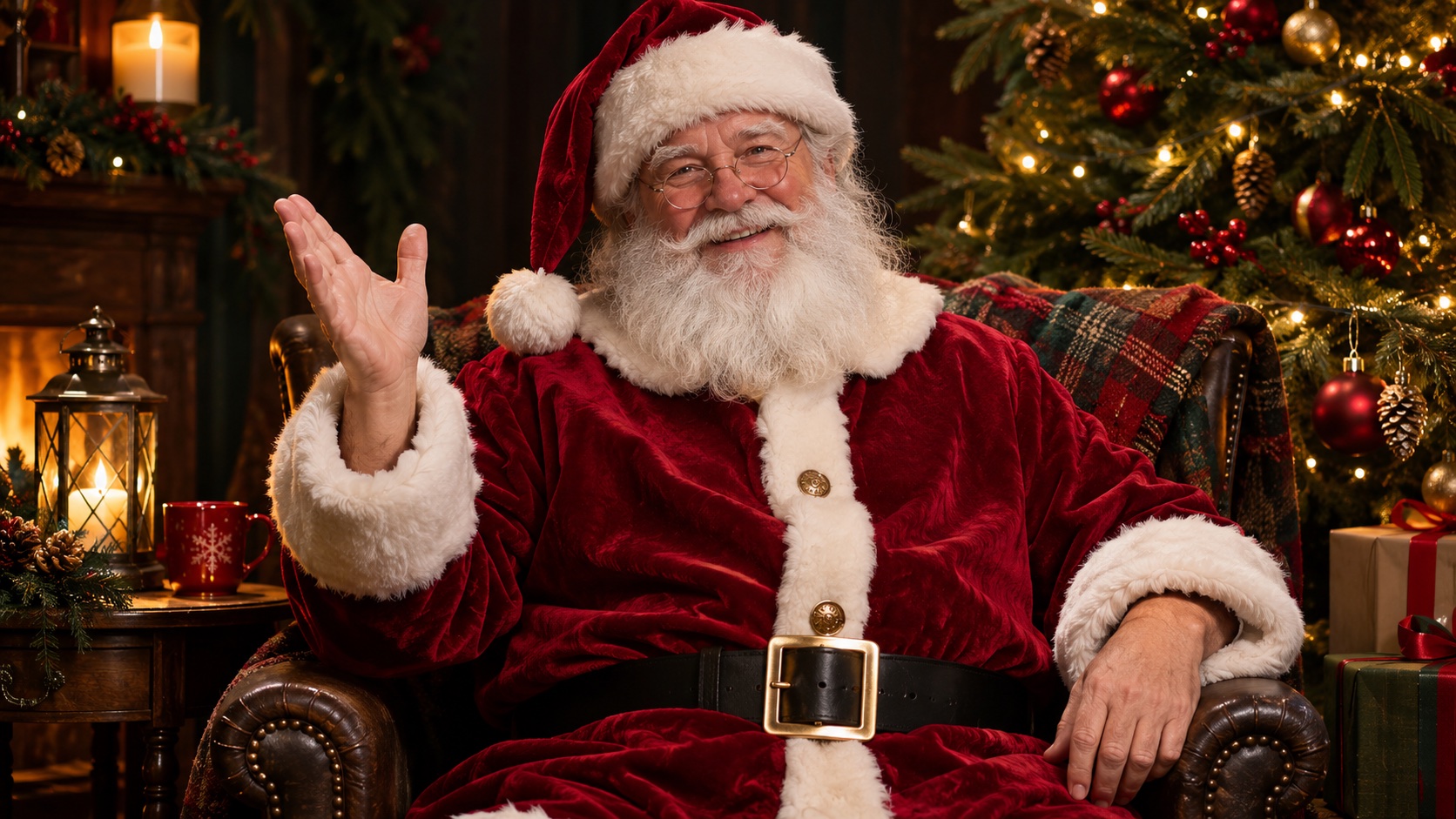
Prepare your input
- Use one clear adult portrait with an unobstructed face and room around the shoulders and hands. Use a photo you have permission to edit.
- Image editing: JPG, PNG, WEBP or BMP, up to 4 MB. The selected Nano Banana Pro editor supports references; one portrait is enough for this workflow.
- For animation, save your chosen portrait and upload it yourself in image-to-video (up to 10 MB). No image is transferred automatically.
1. Create the Christmas portrait
Open the image editor, upload your portrait, inspect the prompt, then generate if you accept the cost. Check the face and hands before saving your chosen image.
Preset: Nano Banana Pro (model pro) and the English prompt below. Image size and other settings stay under your control in the editor.
Edit the uploaded adult portrait into a warm Christmas portrait: red Santa coat and hat, softly lit Christmas tree, natural skin texture. Keep one adult, a clear face and visible relaxed hands in a medium shot. Try to retain the facial features of the reference. No text or logos.2. Add light motion
Open image-to-video and upload the saved portrait. Try one small wave with a fixed camera. Inspect the whole clip before downloading it.
Preset: Wan 2.5, the English motion prompt, 5 seconds and 480P. Review these settings before generating; you can change to 10 seconds, 720P or 1080P in the studio. The image is not attached.
Animate the single adult in this Christmas portrait with subtle breathing, a gentle smile and one small, slow hand wave. Keep the camera fixed and the background calm. One continuous shot, no scene cuts, no speaking.Move your finished image to video
- Download the finished image from the image editor and check the face, hands, framing, and any text.
- Optionally check that downloaded file below. Then open the video tool and upload the file yourself; this page does not attach an image.
- Review the prefilled motion prompt, model, duration and resolution in the video tool before starting a generation.
This check stays in your browser and does not upload or store the file. The link carries text and supported settings only. The video tool uses its existing upload flow after you select a file there.
Open video tool, then upload the imagePrefer an invented character without a reference photo? Create a fictional Santa from text
Limits and troubleshooting
- A Santa hat or beard may change the face. Identity preservation is not guaranteed. Reduce the costume changes if resemblance matters.
- If fingers warp or the arm moves too far, replace the wave with a small nod and keep both hands still. A simpler prompt may still fail.
- This workflow does not provide speech or lip-sync. Do not assume the clip contains usable audio; review it and add your own greeting or sound in a separate editor.
- The stages do not run automatically. No stitching, subtitles or guaranteed consistency between separate generations is included.
Before you start
Is this the Christmas collage tool?
No. The collage page makes a still-image layout. This workflow creates a portrait and then a separate video from the image.
Is the Santa portrait a tested result?
The portrait is an AI-generated concept still. The studio prompts have not been tested by generating a result, so review your own output.