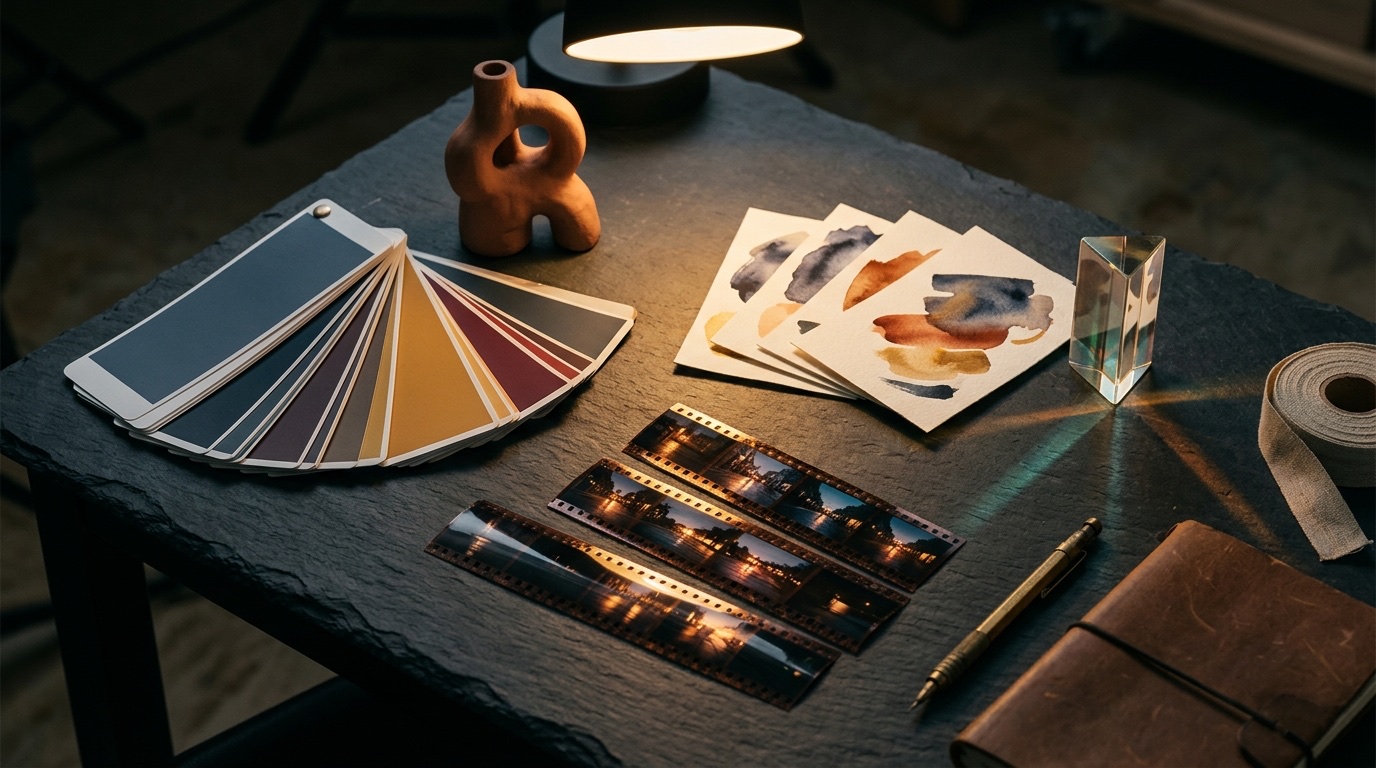
Core framework
Build a video-to-video prompt around four visible decisions
Unlike text-to-video, you do not need to invent every motion beat from scratch because your uploaded clip already carries the base action. Lead with the visual change you want, then describe lighting, name the visual anchors worth keeping recognizable, and exclude distracting additions.
Treat wording such as 'keep the subject silhouette and general walking direction' as a creative request rather than a strict motion lock. Similarly, do not rely on prompt text to pick 4K, alter clip length, or force aspect ratios—set resolution, size, duration, and framing in the studio controls instead.
Four-part prompt formula
- Visual treatment: specify medium, surface texture, and palette (for example, matte clay, hand-painted watercolor, or cool twilight film grain).
- Lighting and mood: state light direction, contrast, and time of day instead of vague buzzwords.
- Recognizable anchors: identify the main subject, wardrobe color, or camera framing you want retained.
- Clear exclusions: note no added logos, subtitles, or competing style shifts.
Illustrative templates
Four starting prompt templates to adapt
These examples are untested illustrations for structuring your own brief. They do not guarantee identical outputs or represent paid-generation results.
Illustrated restyle · VideoAny or Wan 2.7
Hand-painted editorial illustration
Works as a starting point when shifting live footage into a consistent illustrated texture without overcrowding the scene.
Restyle this clip as a hand-painted editorial illustration with soft dry-brush texture, warm paper grain, and a muted palette of slate blue, ochre, and cream. Use gentle diffused daylight from the side. Keep the main subject, clothing colors, general movement, and camera framing recognizable across the clip. No added text, logos, or abrupt style switches.
- Set output size in VideoAny (such as 1280x720 or 720x1280) or resolution and aspect ratio in Wan 2.7 before submitting.
- If brush strokes flicker between frames, simplify texture adjectives on the next attempt.
Atmosphere shift · Grok Imagine Video or VideoAny
Rainy twilight street relight
Focuses on lighting and weather mood while keeping the core action straightforward for shorter clips.
Transform the lighting and atmosphere of this scene into rainy twilight on wet pavement, with soft amber storefront glow and cool blue ambient shadows. Keep the subject silhouette, main action, and camera angle readable throughout the shot. Avoid extra crowds, lens text, or sudden color shifts.
- Grok Imagine Video truncates input clips at 8 seconds and offers auto, 480p, or 720p at 20 credits/s.
- Start with a well-exposed clip rather than dark, noisy night footage.
Material study · VideoAny or Wan 2.7
Tactile matte clay aesthetic
Separates surface material rules from scene movement so the model has one clear visual transformation to follow.
Reinterpret this scene using handcrafted matte clay surfaces with softly rounded edges, subtle sculpted fingerprints, and studio tabletop lighting with soft shadows. Keep the primary subject placement, general motion sequence, and framing recognizable. Keep the clay material consistent from start to finish with no overlaid graphics.
- Avoid mixing two different materials (such as glass and clay) in a single first trial.
- Check the middle and closing seconds to verify the surface style holds steady.
Reference-guided · Wan 2.7 or Happy Horse 1.0
Style and palette guided by reference images
Pairs a short clip with an optional reference image on Wan 2.7 or up to five reference image URLs on Happy Horse 1.0.
Apply the color palette, soft side lighting, and clean matte visual style from the attached reference image to this source video. Keep the source clip's subject placement, general pacing, and framing readable. Do not copy unrelated background objects or text from the reference image.
- Wan 2.7 accepts 1 optional reference image (JPG, PNG, BMP, or WEBP up to 20MB, or URL) with 2–10s MP4/MOV clips.
- Happy Horse 1.0 accepts up to 5 reference image URLs (one per line) and supports 720p (50 credits/s) or 1080p (100 credits/s).
Model-specific details
Pair your prompt with each model's visible studio controls
| Model | Prompt & reference inputs | Controls to set outside the prompt |
|---|---|---|
| VideoAny | Written prompt + uploaded or URL clip (MP4/MOV/AVI up to 50MB). | Choose duration (6, 8, 10, 12, 14, 16, or 18s) and one of the six fixed sizes (up to 1280x720 or 1024x1024). |
| Wan 2.7 | Written prompt up to 5,000 characters + 2–10s MP4/MOV clip (up to 100MB) + 1 optional reference image. | Choose 720p or 1080p, Match input or 2–10s duration, and aspect ratio (auto, 16:9, 9:16, 1:1, 4:3, 3:4). |
| Happy Horse 1.0 | Written prompt up to 2,500 characters + MP4/MOV clip (up to 100MB, source up to 60s) + up to 5 reference image URLs. | Choose 720p (50 credits/s) or 1080p (100 credits/s); billing uses detected source length capped at 15s. |
| Grok Imagine Video | Written prompt + MP4/MOV/AVI clip (up to 50MB, truncated to 8s). | Choose resolution (auto, 480p, or 720p); billed at 20 credits/s. |
Iteration
Fix prompt drift one variable at a time
When a test clip misses the mark, avoid rewriting every sentence at once. Save your previous prompt and model settings, identify the single biggest defect, and adjust only that element on the next pass.
If textures flicker aggressively, dial back heavy brushwork or complex patterns. If the subject drifts away from your source clip, shorten competing background descriptions and state one clear lighting direction. If a clip includes fast cuts or severe motion blur, trim the source down to a steadier single shot before changing the wording.
Quick fixes for common issues
- Busy flicker: replace stacked style adjectives with one primary medium and lighting setup.
- Subject loss: remove extra props or secondary characters from the prompt.
- Wrong shape or crop: match the studio aspect ratio or output size control to your source framing.
- Unwanted text or marks: state 'no overlaid text or logos' and add campaign titles later in a video editor.
Common questions
Video-to-video prompt questions
Can a prompt force exact frame-by-frame motion preservation?
No. Asking to retain movement and framing communicates intent, not a strict motion lock. Always watch the full clip from start to finish to confirm whether subject details and motion remain acceptable.
Can I ask for 4K or a 30-second output inside the prompt?
No. Prompt wording does not override studio limits. None of the four models in Video to Video currently lists a 4K option, and duration follows each model's visible selector or source-length rules.
How long should a video-to-video prompt be?
Usually two to four concrete sentences are easier to evaluate than a long wall of adjectives. Wan 2.7 allows up to 5,000 characters and Happy Horse 1.0 up to 2,500 characters, but shorter, focused instructions make troubleshooting much clearer.
How should I describe an attached reference image on Wan 2.7 or Happy Horse 1.0?
State clearly what to borrow from the reference—such as color palette, material finish, or lighting mood—and tell the model not to copy unrelated objects or text from the reference frame.
Should I reuse the exact same prompt across all four models?
Start with the same core brief when comparing models so your evaluation stays fair, then record any small wording or reference adjustments needed for a specific model's controls.
Put it into practice
Test one focused prompt in Video to Video
Adapt one template above to your own trimmed clip, keep your settings logged, and revise a single detail after reviewing the full output.
- Lead with one clear visual treatment
- Use studio controls for size and length
- Change one variable per retry