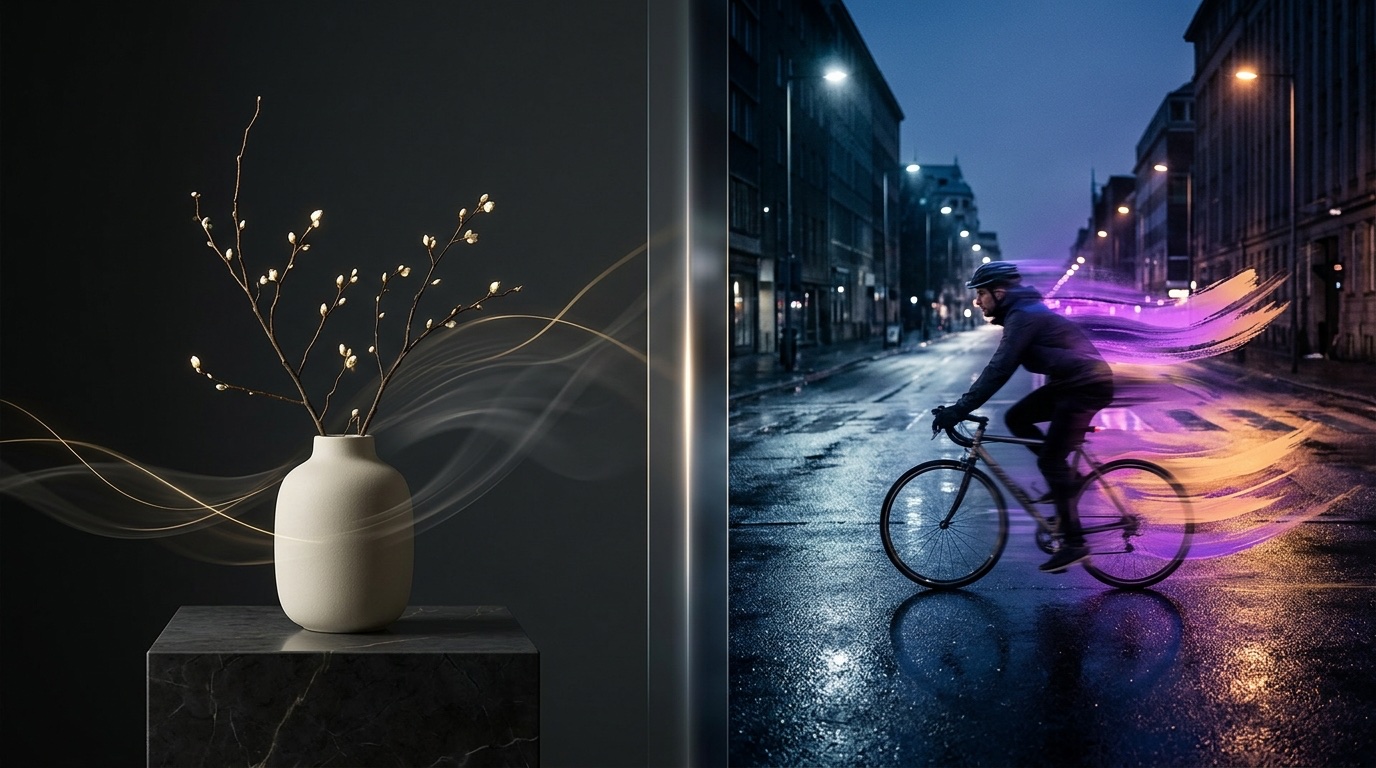
Quick answer
Start with the asset you already have
The cleanest way to decide between Image-to-Video and Video-to-Video on VideoAny is to look at your starting file. If you have a photograph, product still, or approved illustration and need AI to invent motion from that frame, open Image-to-Video. If you already have filmed footage or an animated clip and want a new visual treatment guided by that clip, open Video-to-Video.
Neither workflow is a deterministic frame lock. Image-to-Video can alter fine details as the subject starts moving, and Video-to-Video can shift motion, timing, or geometry while reinterpreting the clip. Picking the studio that matches your input gives you a clearer baseline to test and evaluate.
Two-second rule of thumb
- Have a still image and need motion? Start in Image-to-Video.
- Have an existing clip and want a new style or atmosphere? Start in Video-to-Video.
- Have a rough image that needs layout edits first? Revise it in Image-to-Image before animating.
- Have neither an image nor a clip yet? Start in Text-to-Image or Text-to-Video.
Direct comparison
Image-to-Video vs Video-to-Video on VideoAny
| Dimension | Image-to-Video | Video-to-Video |
|---|---|---|
| Starting material | A still photograph, illustration, or generated frame (plus an optional end frame on supported entries). | An existing video file uploaded locally or provided as a direct video URL. |
| Primary job of the prompt | Describe subject motion, camera intent, and scene evolution starting from the image. | Describe the new style, lighting, surface material, or atmosphere while naming details to retain. |
| Models in VideoAny's studio | Separate image-to-video lineup, including entries such as Seedance 2.5 and MiniMax H3. | Dedicated four-model lineup: VideoAny, Wan 2.7, Happy Horse 1.0, and Grok Imagine Video. |
| Resolution & duration options | Depends on the chosen entry (for example, Seedance 2.5 lists 480p/720p/1080p/4K and 4–30s; MiniMax H3 lists 480p/768p and 3–15s). | Up to 1080p across these four models (no 4K option): VideoAny 6–18s in six sizes; Wan 2.7 720p/1080p 2–10s; Happy Horse 1.0 720p/1080p (billed max 15s); Grok Imagine Video auto/480p/720p (truncated to 8s). |
| Best starting scenarios | Product hero stills, key art, portraits, and shots where opening composition matters most. | Restyling filmed movement, changing lighting or texture on existing footage, and exploring alternate visual moods. |
| What to inspect in review | Whether motion emerges naturally without distorting faces, hands, or product shape. | Whether style holds steady across frames without flicker or unwanted drift in action. |
Still-first path
When Image-to-Video is the stronger choice
Choose Image-to-Video whenever visual composition is already settled in a still frame. For e-commerce products, editorial key visuals, or character concepts generated in Text-to-Image and refined in Image-to-Image, starting from the approved image prevents you from having to film or render motion first.
Image-to-Video is also the route to check when specific model options matter to your delivery format—for instance, selecting 4K and 4–30 seconds on Seedance 2.5, or using MiniMax H3's 3–15 second range and optional end frame. Always confirm the exact options displayed in the Image-to-Video studio before submitting.
Clip-first path
When Video-to-Video is the stronger choice
Choose Video-to-Video when you already have recorded footage—such as a person walking, a tabletop product turn, or a street pan—and want to reimagine its appearance without throwing away the source shot.
Inside VideoAny's video-to-video studio, you can pick among four distinct models: VideoAny (6–18s across six fixed sizes up to 1280x720 or 1024x1024, MP4/MOV/AVI up to 50MB), Wan 2.7 (720p/1080p, 2–10s MP4/MOV up to 100MB, aspect ratios auto/16:9/9:16/1:1/4:3/3:4, optional reference image, 25 credits/s), Happy Horse 1.0 (720p at 50 credits/s or 1080p at 100 credits/s, MP4/MOV up to 100MB, source up to 60s with 15s billing cap, up to 5 reference image URLs), and Grok Imagine Video (auto/480p/720p, truncated to 8s, 20 credits/s).
You can also combine both studios in sequence: generate a clean moving shot from a still in Image-to-Video, download the result, and later test an alternate visual treatment in Video-to-Video—just inspect each stage separately so defects do not compound.
Common questions
Choosing between Image-to-Video and Video-to-Video
Can I upload a still photo directly into Video-to-Video?
No. Video-to-Video expects a video file (MP4/MOV/AVI or MP4/MOV depending on model) or direct video URL. If you are starting from a photograph or illustration, use Image-to-Video instead.
Are Seedance 2.5 4K and MiniMax H3 available inside Video-to-Video?
No. Video-to-Video has its own dedicated four-model lineup: VideoAny, Wan 2.7, Happy Horse 1.0, and Grok Imagine Video. Seedance 2.5 and MiniMax H3 live in VideoAny's text-to-video and image-to-video studios.
Which workflow preserves subject details more reliably?
Both routes are generative and can alter details over time, so neither guarantees exact preservation. Image-to-Video starts directly from your exact first frame, while Video-to-Video uses your moving clip (and optional reference images on Wan 2.7 or Happy Horse 1.0) as guidance. Test one short clip and review every section before committing.
Should I edit my photo in Image-to-Image before using Image-to-Video?
Yes, whenever the background, lighting, or crop needs cleanup. Fixing a still image first is usually faster and easier to verify than asking a video model to both correct the image and invent motion at once.
How do credits compare between the two studios?
Credit costs depend on the specific model, duration, and resolution you select. Check the live credit counter shown in either studio before clicking Generate, and include test retries in your comparison.
Start from your asset
Open the studio that matches what you have today
Bring a clean still image to Image-to-Video or a trimmed source clip to Video-to-Video, check the displayed settings, and review the complete result.
- Still image → Image-to-Video
- Existing clip → Video-to-Video
- Compare settings and credits before submitting