Illustrated treatments
Try an illustrative surface or animated appearance while asking to retain the main movement. Review edges and detail consistency from frame to frame.
AI VIDEO TO VIDEO
Restyle an existing clip in VideoAny. Upload a source video, describe the visual change, and use the video-to-video workspace to generate and review a new version.
Use video to video when an existing shot already contains motion or framing you want to build on.
Describe the visual change in relation to the clip: a different material, atmosphere, color palette, or illustrative treatment. Name the movements and composition you want to retain. This creates a new interpretation of the video, so compare the output over time instead of assuming every frame will match the source.
VideoAny’s video-to-video workspace has its own model list and input limits. The VideoAny option is separate from the V5–V2 selectors used for text-to-video and image-to-video generation. Prepare the editing direction here, then inspect the actual upload, duration, and output controls in the workspace.
Give the source motion a clear role in the new visual brief.
Try an illustrative surface or animated appearance while asking to retain the main movement. Review edges and detail consistency from frame to frame.
Explore a warmer, cooler, brighter, or more dramatic treatment. Describe the light and color directly rather than asking for a vague cinematic improvement.
Use a selected source shot to investigate an alternative campaign mood. Check that products and key visual elements remain suitable for the intended use.
Describe how a surface should look, such as paper, clay, or brushed metal. Keep the requested material treatment distinct from the motion instructions.
Use an existing clip as a movement reference for a visual concept. Start with a short, readable action before attempting complex interactions.
Compare the source and output at several points in time. Refine the prompt when an object shifts shape or the edit becomes inconsistent.
Reference examples help you plan the subject, setting, and intended use of your result.
Compare how a shared movement can inform different visual treatments. A reference does not guarantee identical timing in generated results.
Use the setting and action to evaluate a new character direction across the clip.
Describe the appearance you want and check how both composition and motion change over time.
Prepare a clip and a focused direction before starting the edit.
Start with an unobstructed subject and a motion you can describe. Check the workspace’s current upload and duration limits.
Choose a preset below or write your own instruction. Separate the new appearance from the movement and framing you want retained.
The link carries your prompt into the workspace with the VideoAny option selected. Add the source clip and review output settings and credits.
Check the first, middle, and last portions, then download the version that best fits the brief. Keep the source for comparison.
Write a visual treatment, then upload your existing clip in video to video.
The input determines which workflow gives you useful guidance.
| Starting material | Video to video | Other generation routes |
|---|---|---|
| An existing moving shot | Use a clip to guide the new visual treatment. | Text to video starts from a written scene. |
| A finished still image | A video source is needed for this route. | Image to video animates a still reference. |
| Exact cuts or source pixels | Generated frames can differ from the source. | Use a conventional editor for deterministic cuts and pixel-preserving adjustments. |
| A new look for existing motion | Describe the appearance to change and movement to retain. | Generate a new scene when you do not need the source motion. |
A focused instruction is easier to evaluate across the entire clip.
State the new treatment first, then identify the action that should remain.
Apply a watercolor illustration style; retain the walking pace and fixed camera framing.
Materials, light direction, and palette communicate more than broad quality words.
Matte paper textures, soft side lighting, and muted blue and cream colors.
Combine a few compatible details instead of changing every element at once.
Change the lighting mood while keeping the subject, clothing, and room arrangement recognizable.
The video-to-video workspace has a dedicated set of editing models and uses its VideoAny option for this page’s primary link. It does not accept every version used by the text-to-video and image-to-video generators.
The source guides the result, but generated motion, shapes, and timing can change. Describe the movements you want retained and review the whole output. Use a conventional editor when exact preservation is required.
Use image to video for a still photograph or generated image. Video to video expects an existing clip. Choosing the correct input route avoids trying to turn an image into a video upload.
The primary link opens the video-to-video workspace and preloads the instruction you prepared here. You can edit it there after adding the source clip and choosing supported output settings.
Video restyling is a generative operation, not a timeline editor. Use the video merger solution to combine prepared clips, and make any exact cuts before submitting them to a generative workflow.
Watch each result at normal playback speed and inspect a few matching moments from the source. Check facial details, product shapes, camera motion, and consistency before selecting a version for further production.
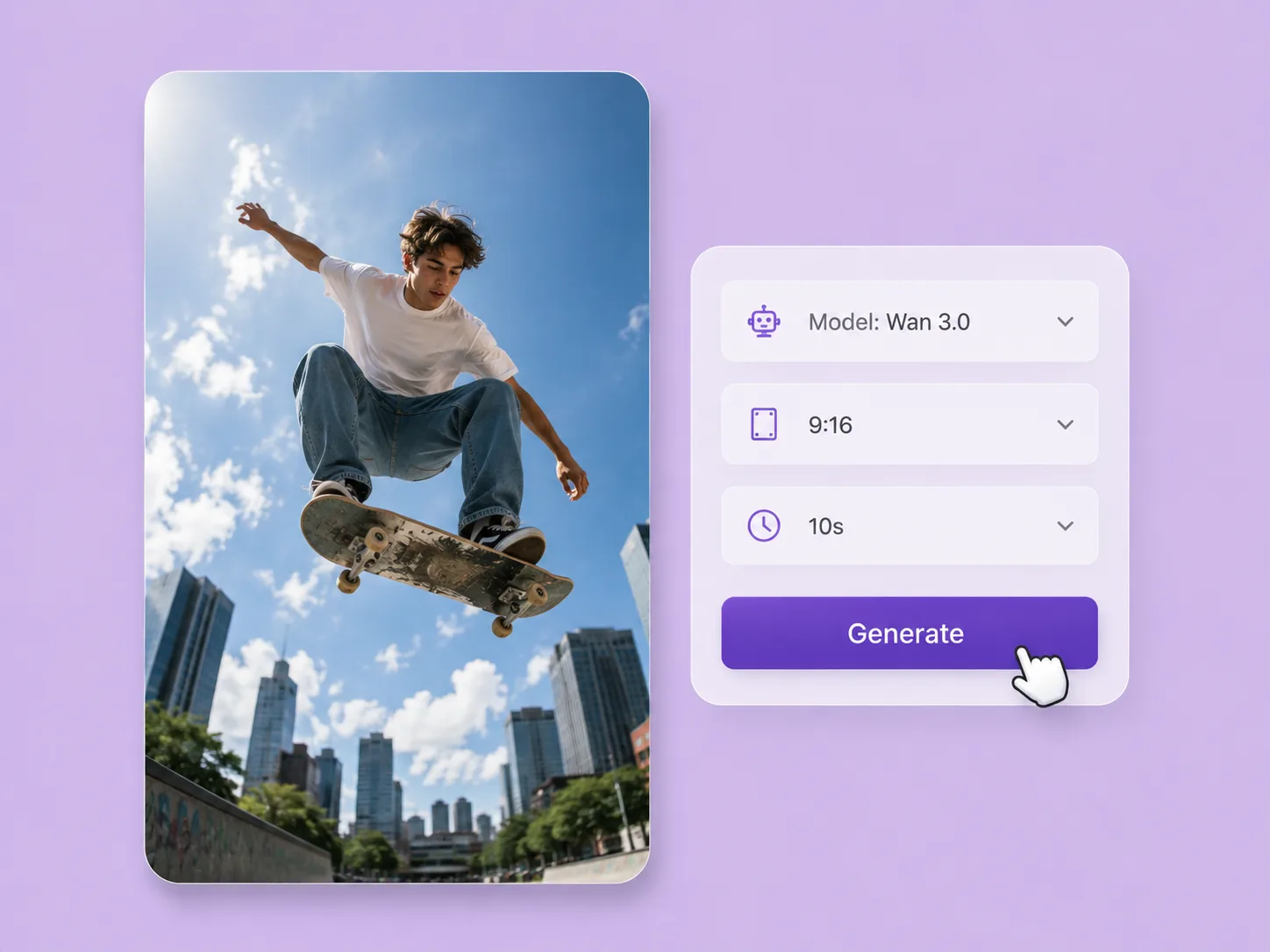
Turn a creative brief into a shot. Start with words or an image and direct motion with VideoAny V5, V4, V3, or V2.
Explore solution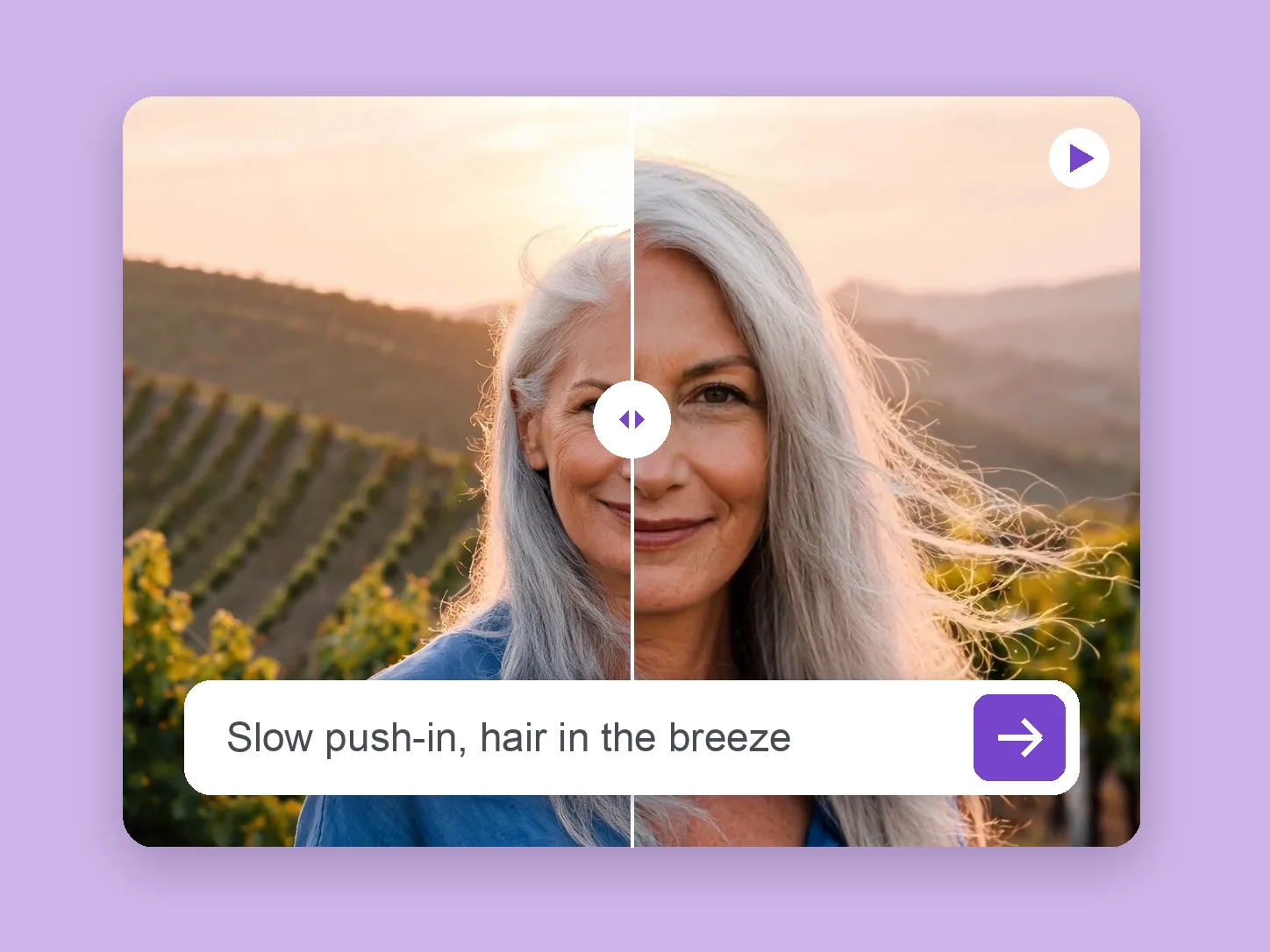
Bring a chosen still into motion. Direct the subject and camera with VideoAny V5, V4, V3, or V2.
Explore solution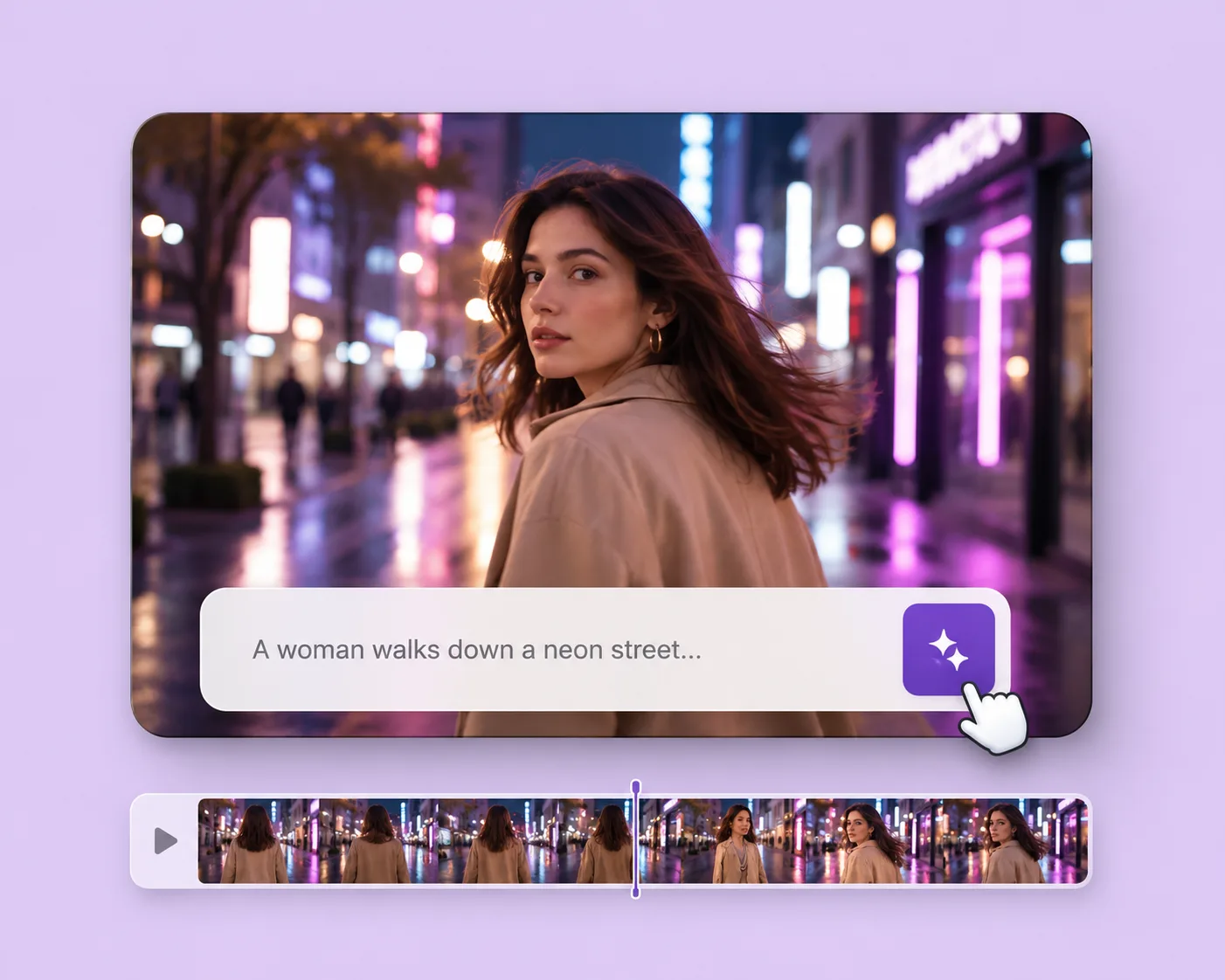
Write the subject, action, setting, and camera movement. Direct an original shot with your selected VideoAny version.
Explore solutionChoose an editing direction and take your existing clip into VideoAny’s video-to-video workspace.
Open video to video