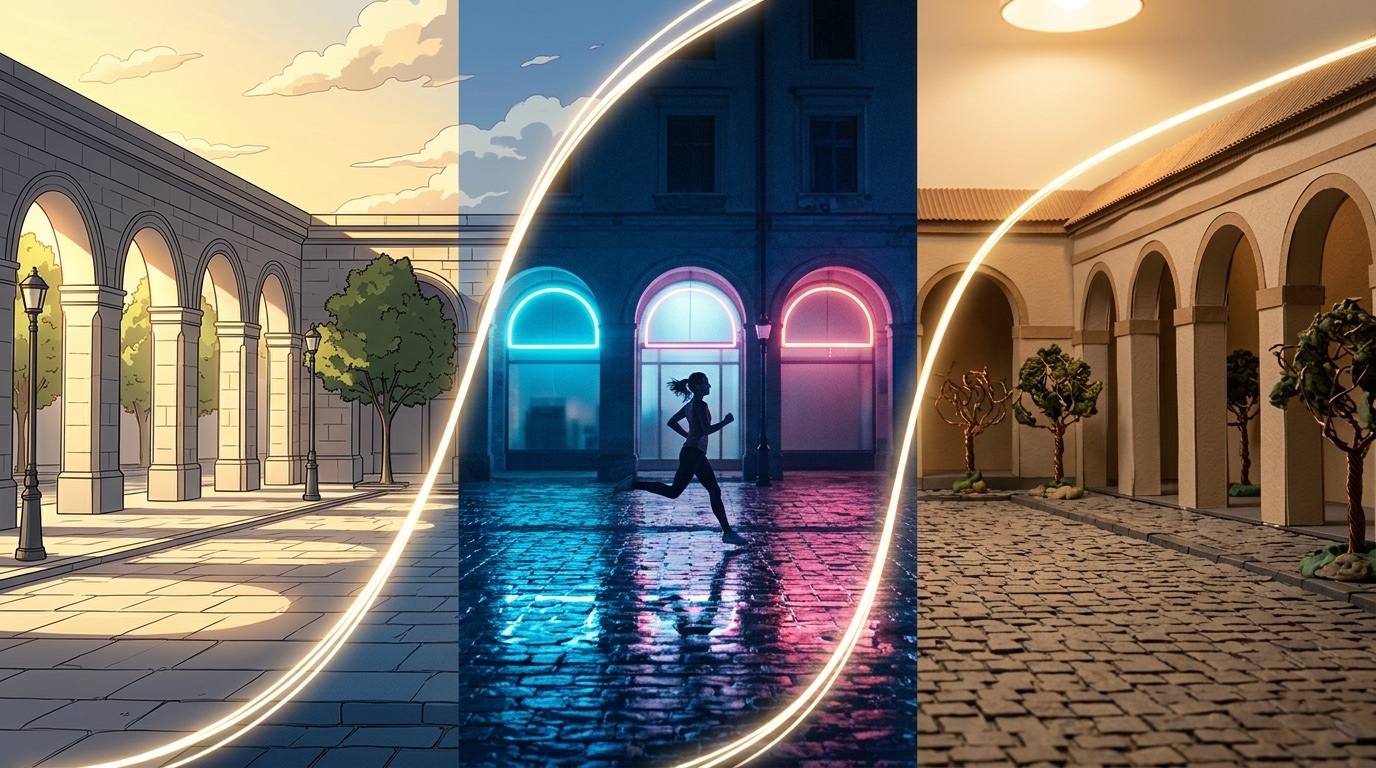
Set expectations
What AI video restyling changes—and what it does not lock
Restyling a video with AI means feeding an existing clip and a style instruction into a generative model so it produces a reinterpreted version with a new surface, lighting, palette, or mood. Unlike a lookup table or color filter in a traditional editor, AI restyling redraws textures and details across the frame.
Because every frame is newly generated, do not expect a guaranteed frame-for-frame motion lock or unchanged pixel geometry. Fine facial features, small product logos, and subtle hand movements can shift. Plan to watch the complete result and treat restyling as a creative reinterpretation pass.
Where AI restyling shines
- Testing illustrated, anime, or painterly treatments on live footage.
- Exploring warmer, cooler, or twilight lighting moods from a single shoot.
- Creating tactile material variations such as matte clay or paper cutouts.
- Building visual variants from an approved base clip for campaign concepts.
Choose your engine
Match your restyle goal to one of the four studio models
| Restyle goal | Studio model | Key settings & limits to check |
|---|---|---|
| Longer stylized clip (6–18s) with explicit pixel size | VideoAny | MP4/MOV/AVI up to 50MB; durations 6, 8, 10, 12, 14, 16, or 18s; six fixed sizes (Landscape 4:3 1024x768, 16:9 1280x720, Portrait 4:3 768x1024, 16:9 720x1280, Square HD 1024x1024, Square 768x768). |
| 720p or 1080p restyle of a 2–10s clip, optionally guided by a style still | Wan 2.7 | MP4/MOV up to 100MB, 2–10s input; 720p/1080p; aspect ratios auto, 16:9, 9:16, 1:1, 4:3, 3:4; 1 optional reference image (up to 20MB or URL); 25 credits/s. |
| Multi-reference style guidance at 720p or 1080p | Happy Horse 1.0 | MP4/MOV up to 100MB, source up to 60s (billing capped at 15s); up to 5 reference image URLs; 50 credits/s at 720p or 100 credits/s at 1080p. |
| Quick restyle test on clips up to 8 seconds | Grok Imagine Video | MP4/MOV/AVI up to 50MB, input truncated to 8s; resolutions auto, 480p, or 720p; 20 credits/s. |
Source preparation
Prepare cleaner footage before uploading
The fastest way to reduce flicker and distortion in a restyled clip happens before you open the studio. Trim your video down to one continuous shot without jump cuts, heavy compression blocks, or rapid whip-pans, and export within your chosen model's format and size cap (50MB MP4/MOV/AVI for VideoAny and Grok Imagine Video; 100MB MP4/MOV for Wan 2.7 and Happy Horse 1.0).
Keep subjects evenly lit and clearly separated from busy backgrounds. If a clip contains overlaid titles or corner watermarks on footage you own, export an unmarked master from your original editor first; VideoAny's existing Video Watermark Remover page routes to Video to Video with the VideoAny model as generative regeneration rather than pixel-accurate overlay removal.
Pre-upload clip checklist
- Single continuous shot with no mid-clip scene cuts.
- Trimmed to fit 2–10s (Wan 2.7), up to 8s (Grok Imagine Video), or 6–18s (VideoAny).
- Clear lighting and readable subject silhouette.
- Unmarked master file whenever available.
Starter directions
Three illustrative restyle directions to test
These are untested creative briefs designed to show how to structure a restyle request; they do not claim verified paid outputs.
Illustrated · VideoAny or Wan 2.7
Clean cel-shaded anime look
Emphasizes crisp outlines and flat color regions, which are easier to evaluate for frame-to-frame stability.
Restyle this clip into a clean cel-shaded anime look with crisp dark linework, simplified shadow planes, and warm afternoon sunlight. Keep the main subject proportions, clothing colors, general action, and camera framing recognizable across the shot. Avoid heavy grain, overlaid captions, or abrupt shifts in art style.
- Keep the background description restrained so the subject remains the visual anchor.
- Review hair edges and hands at normal speed and by scrubbing mid-clip frames.
Lighting mood · Grok Imagine Video or Wan 2.7
Golden hour warmth to cool neon night
Shifts atmosphere and color grading while letting the existing movement carry the scene.
Reinterpret this scene at night under soft cool blue street lighting with warm magenta and amber reflections on nearby surfaces. Keep the subject silhouette, primary movement, and original camera angle clear throughout the clip. No added signs, logos, or competing weather effects.
- Grok Imagine Video (20 credits/s, up to 8s) is handy for a quick lighting mood check before testing 1080p on Wan 2.7.
- If shadows crush facial detail, ask for softer key light on the subject.
Material look · VideoAny or Happy Horse 1.0
Stop-motion paper and felt craft
Replaces realistic surfaces with tactile layered paper and soft felt textures.
Restyle this scene as a handcrafted miniature made of layered matte paper and soft felt, lit by warm studio lamps with gentle shadows. Keep the subject position, general pacing, and framing readable from beginning to end. Maintain consistent craft textures across the clip with no text overlays.
- On Happy Horse 1.0, you can add up to 5 reference image URLs showing the paper texture and palette you want.
- Remember none of the four video-to-video models lists 4K; choose 720p/1080p or the matching fixed size.
Common questions
AI video restyling questions
Will AI restyling keep every face and frame identical to my original clip?
No. Restyling regenerates the footage, so facial details, hand shapes, textures, and timing can shift. Always review the entire clip from start to finish before publishing.
Which video-to-video models support 1080p restyling?
In the current video-to-video studio, Wan 2.7 (25 credits/s, 2–10s MP4/MOV) and Happy Horse 1.0 (100 credits/s at 1080p, 50 credits/s at 720p) both list 1080p alongside 720p. None of the four video-to-video models currently lists 4K.
Can I use a reference image to steer the restyled look?
Yes, on two of the four studio models. Wan 2.7 supports one optional reference image (upload JPG/PNG/BMP/WEBP up to 20MB, or URL), and Happy Horse 1.0 accepts up to five reference image URLs, one per line.
Why should I remove scene cuts before uploading a video for restyling?
A sharp edit cut forces the model to reconcile two completely different compositions inside one pass, which often increases flicker or inconsistent styling. Restyle one continuous shot at a time, then assemble the finished shots in your video editor.
When should I use a conventional video editor instead of AI restyling?
Use a traditional editor whenever you need exact color grading, unchanged faces or product labels, precise timeline cuts, or lossless pixel preservation.
Try a restyle pass
Test one clean clip with a focused restyle prompt
Trim a single continuous shot, pick one of the four models in Video to Video, and compare the full output against your original clip.
- Start from one continuous shot
- Choose one clear visual treatment
- Watch start, middle, and end before scaling