Disable a caption track
Turn off a separate subtitle track or editor layer before exporting the clean master.
VIDEO SUBTITLE REMOVER
If captions are a separate track, turn that track off or re-export the original project. For text burned into the image, VideoAny can help create a new visual version, but it cannot promise exact subtitle removal from every frame.
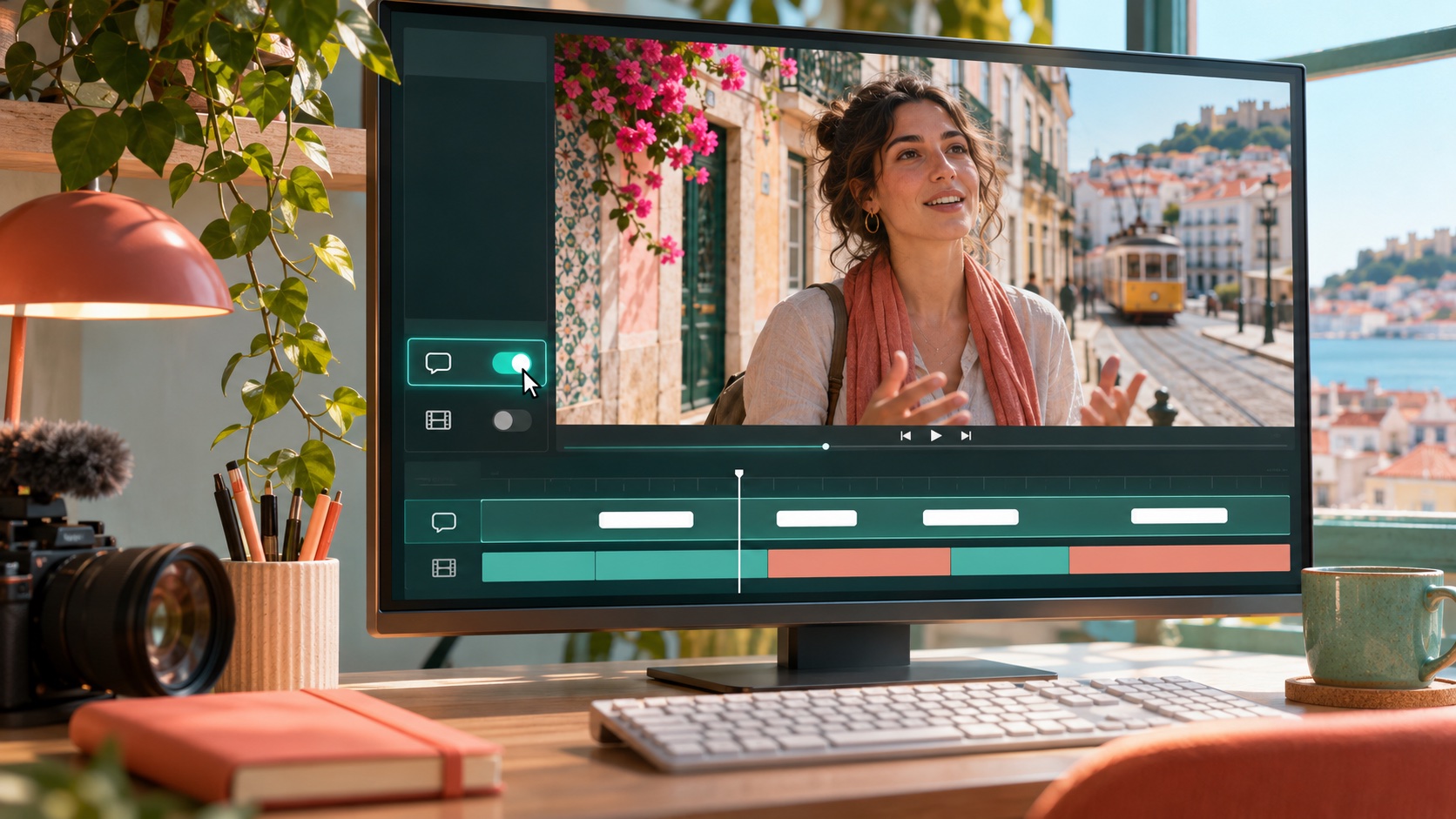
Open video to video with your prompt, then upload an owned source clip in the workspace.
A separate caption track and text burned into video pixels call for different workflows.
When subtitles are a selectable track or editor layer, disable that layer and export a clean file. This retains the original footage and avoids generative changes. When the text is baked into every frame, look for the source project or clean master first. Cropping may be possible if the text sits in a border, but it changes the composition.
For creative footage you own, video to video can produce a new interpretation without requested on-screen text. This is useful when a fresh look is acceptable. It is not a dedicated subtitle eraser: small lettering may persist, and faces, objects, and motion can change. Review the full output before using it.
Start with reversible source changes and use generation only when a new shot is acceptable.
Turn off a separate subtitle track or editor layer before exporting the clean master.
Ask the footage owner or editor for the project file or version without burned-in text.
Use video to video on authorized footage to explore a clean visual treatment. Compare detail over time.
Keep space in the composition and add revised subtitles in a timeline editor after the visuals are final.
Talking-head reference frames illustrate clear compositions for planning captions, not automatic subtitle deletion.
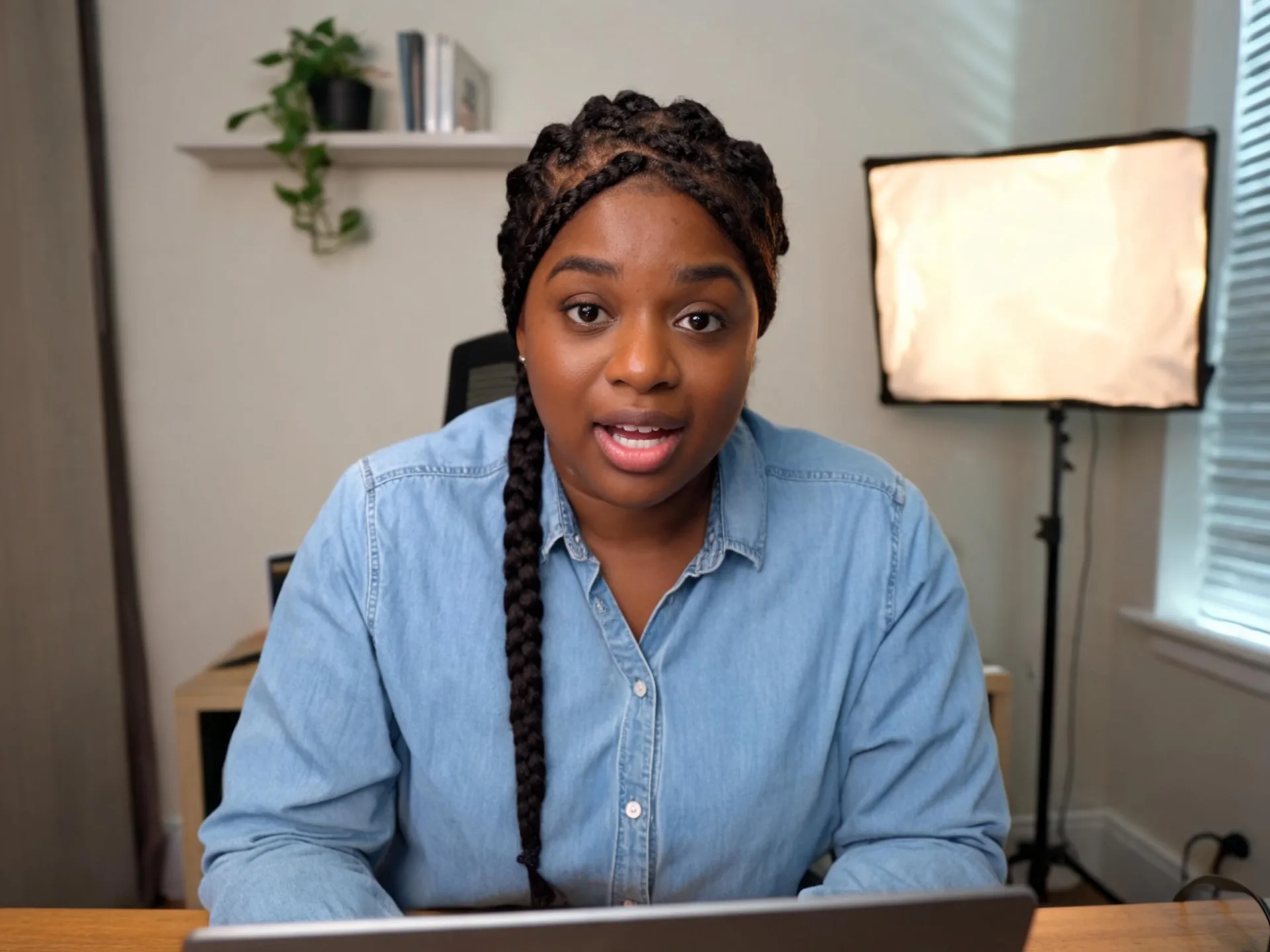
Leave room for readable captions around an on-camera speaker.
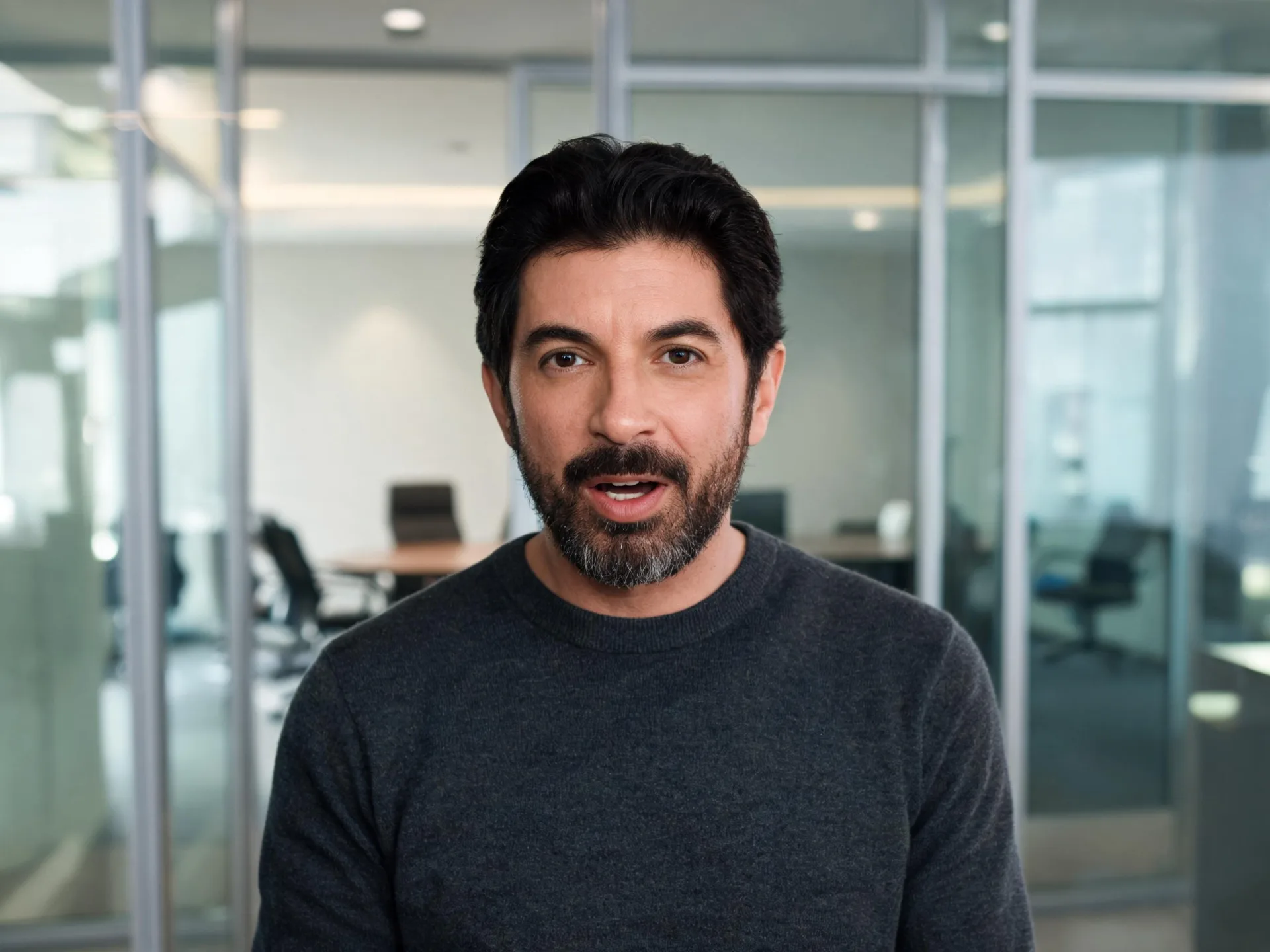
Keep the speaker and important scene details clear when planning a new caption layer.

Plan caption placement for an illustrated or generated presenter.
Then choose whether a new interpretation is appropriate for burned-in text.
Check whether subtitles can be toggled in the player or removed from the editing timeline.
Use the original footage when it exists. It is the only reliable way to keep every pixel intact.
For burned-in text, write a prompt for a clean interpretation of footage you own.
Watch every generated frame, then add any replacement captions in your editor.
Use the simplest route that retains the visual information you need.
| Situation | Recommended route | What to expect |
|---|---|---|
| Selectable subtitle track | Disable the track or export without it. | The underlying video remains unchanged. |
| Editable text layer | Hide or delete the layer in the project. | Export a clean master from the source timeline. |
| Text burned into footage | Find the original or consider generative recreation. | Generated details may differ from the source. |
| Need exact preservation | Use an authorized source edit. | A generative interpretation is not pixel-exact. |
Treat the scene as a new visual take rather than asking for invisible pixel repair.
Identify the subject and movement that make the shot useful.
A speaker turns toward the camera and smiles; stable medium framing.
Leave a clear lower area if new captions will be added later.
Uncluttered lower third with no objects or on-screen text.
Generative rebuilding can change details as well as text.
Keep the person recognizable; review facial shape and gestures over time.
A selectable subtitle track is controlled by its source player or editor. VideoAny does not currently provide a dedicated switch to erase text burned into video frames.
No. It creates a new interpretation using the source as guidance. Motion, faces, objects, and text may change.
Disable that track or remove the text layer in your editing project, then export a clean version.
Yes, use a timeline editor to place the final captions as a separate layer after you approve the clean visual clip.
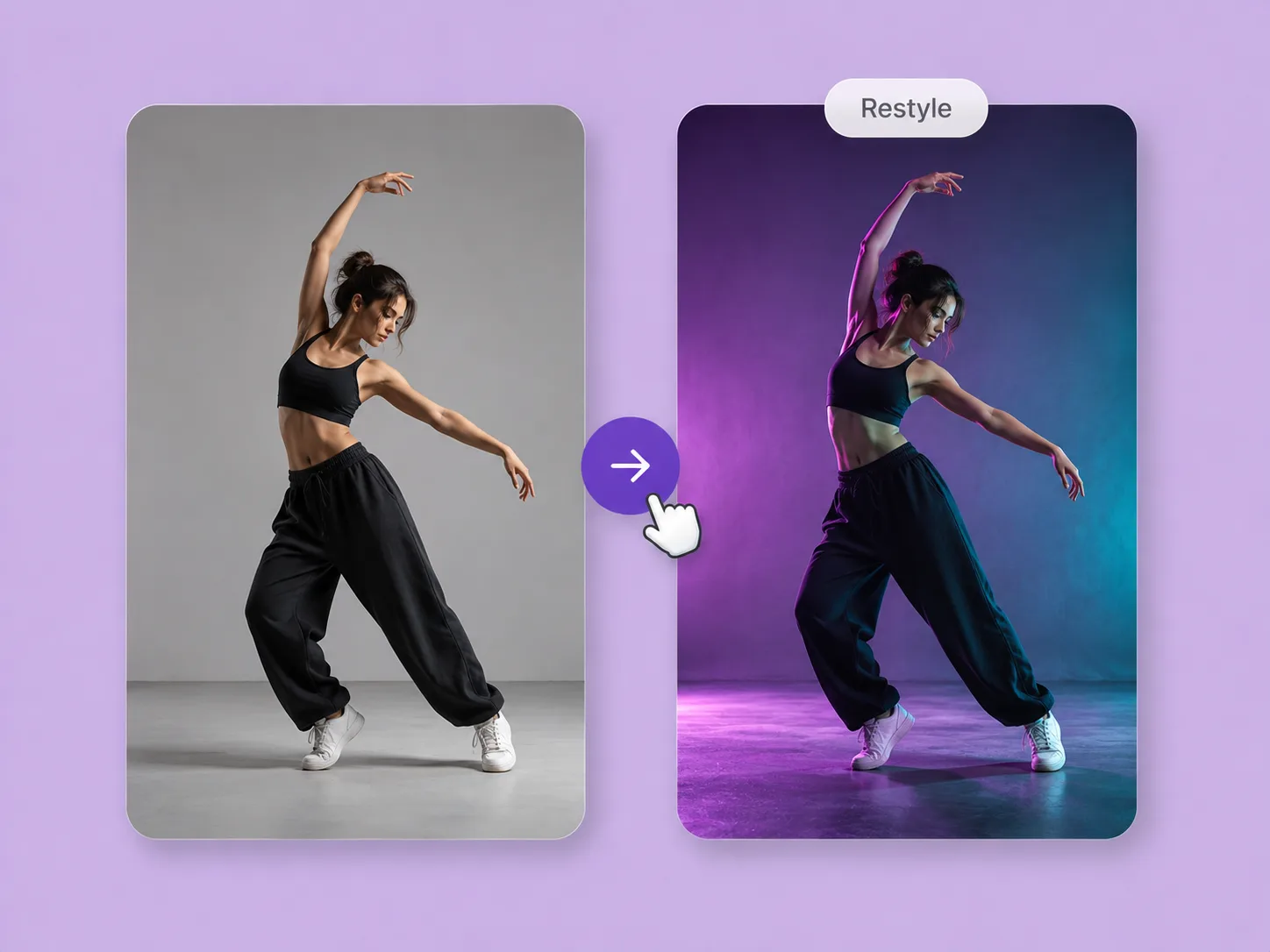
Give an existing clip a new visual treatment while using its motion as the starting point for the edit.
Explore solution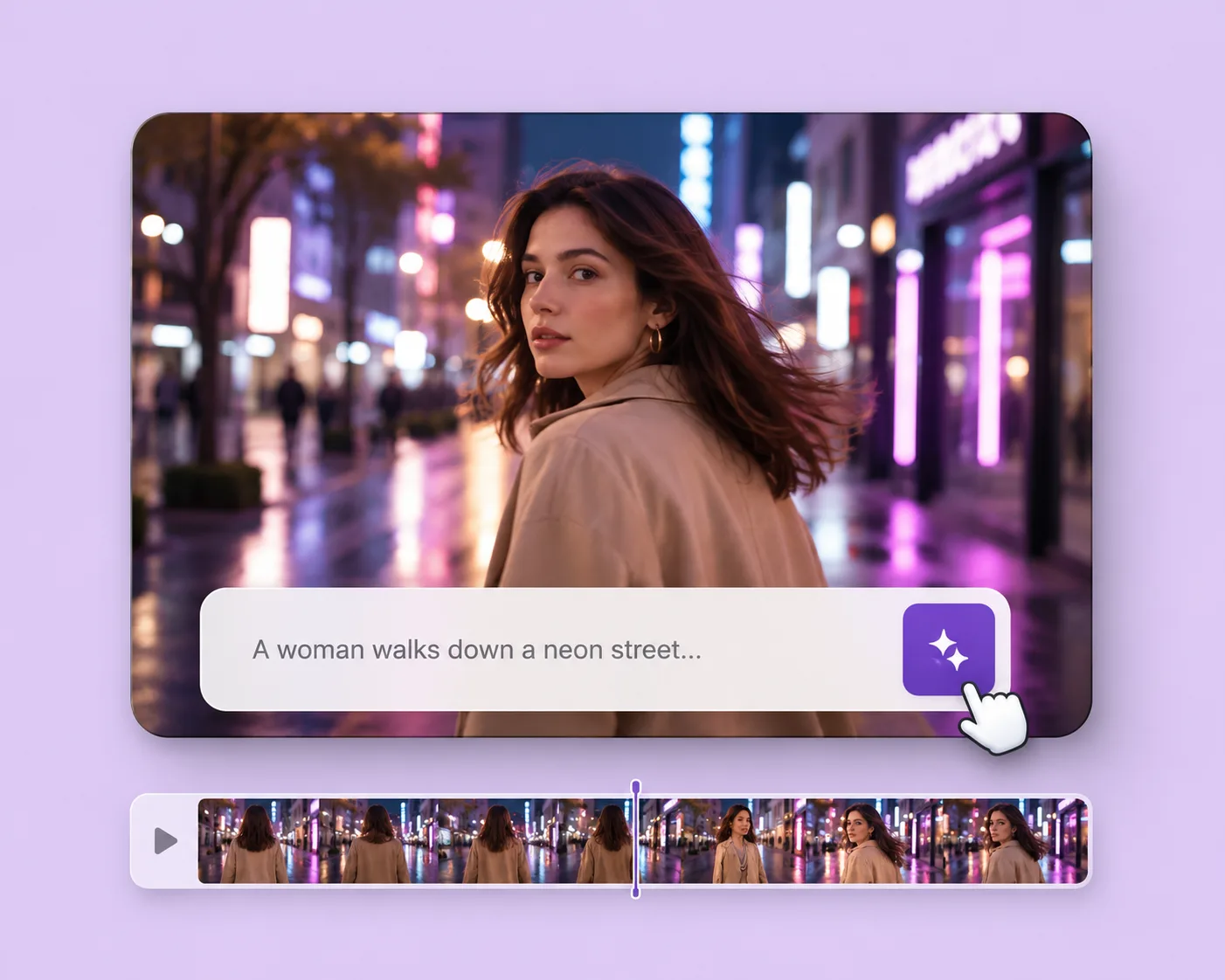
Write the subject, action, setting, and camera movement. Direct an original shot with your selected VideoAny version.
Explore solution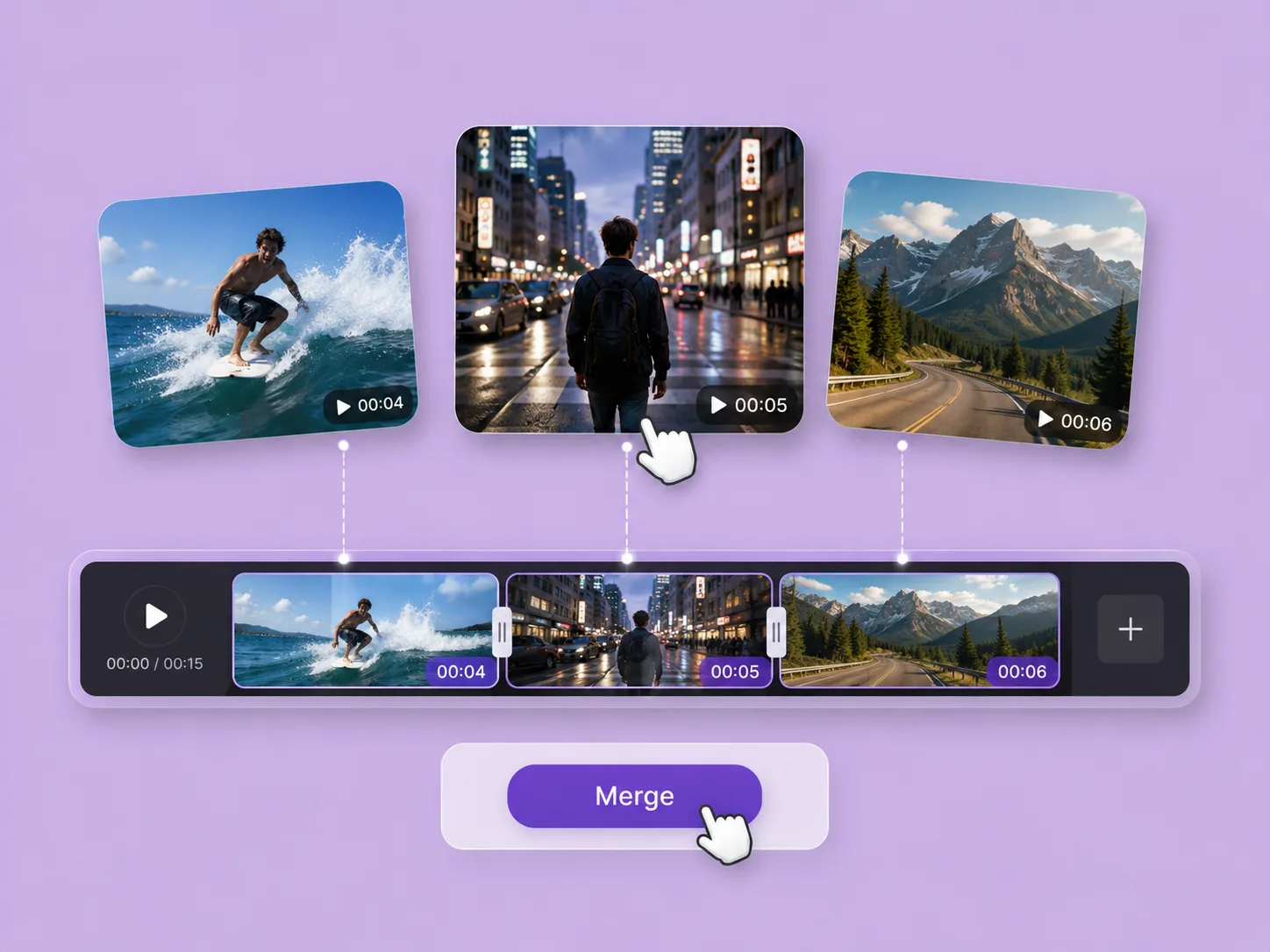
Arrange two to five prepared MP4 clips and combine them into one landscape video after reviewing the processing quote.
Explore solutionStart with the source track when available, or explore a generated version of footage you own.
Prepare a clean version