Hook and payoff
Combine an opening moment with the reveal that follows it. Review where the first clip ends and the second begins before choosing the order.
VIDEO MERGER
Combine prepared MP4 clips into one video in VideoAny. Upload two to five shots, arrange their order, choose a landscape output size, and review the credit quote before merging.

A hook, a product detail, and a closing shot can become one downloadable file.
VideoAny’s merger joins existing clips in the order you choose. It is useful after generating several shots with VideoAny or preparing footage elsewhere: bring the finished clips together, inspect the sequence, and export a combined video. The merger does not generate missing scenes or write a story on your behalf.
This workspace is a focused assembly step. Prepare exact trims, captions, sound mixing, and transitions before merging when your project needs them. Each input must be a supported MP4, with no more than five clips and sixty seconds in total. The output uses a landscape 720p or 1080p frame, so prepare matching compositions for the most predictable presentation.
Choose shots that already work on their own and give each one a place in the final piece.
Combine an opening moment with the reveal that follows it. Review where the first clip ends and the second begins before choosing the order.
Arrange a product introduction, a close view, and a usage moment into one sequence. Keep framing and lighting coherent across the selected clips.
Bring downloaded VideoAny generations together after reviewing each result. Remove unsuitable shots before sending the final selection to the merger.
Move clips up or down in the upload list. The submitted order determines the order in the combined file, making the sequence visible before processing.
Choose 1280×720 or 1920×1080 output. Preparing the clips in the same aspect ratio helps avoid unexpected framing differences between shots.
Preview the combined video after processing and download it. Review the entire sequence, including the joins, before sharing or using it in another production stage.
Reference examples help you plan the subject, setting, and intended use of your result.
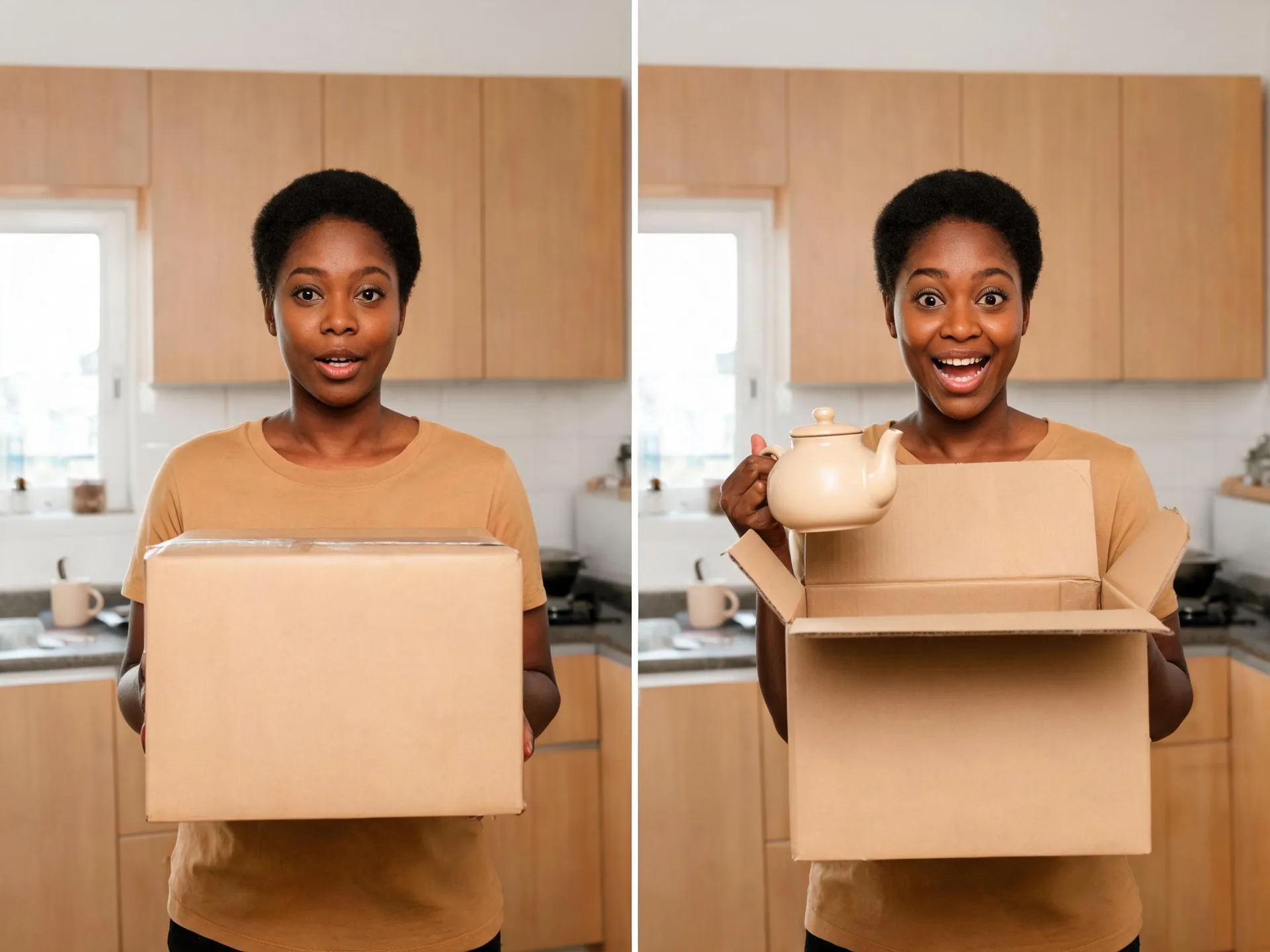
Two prepared moments can become the start and payoff of a short sequence.

Arrange the selected stages in the order that tells the story you intend.
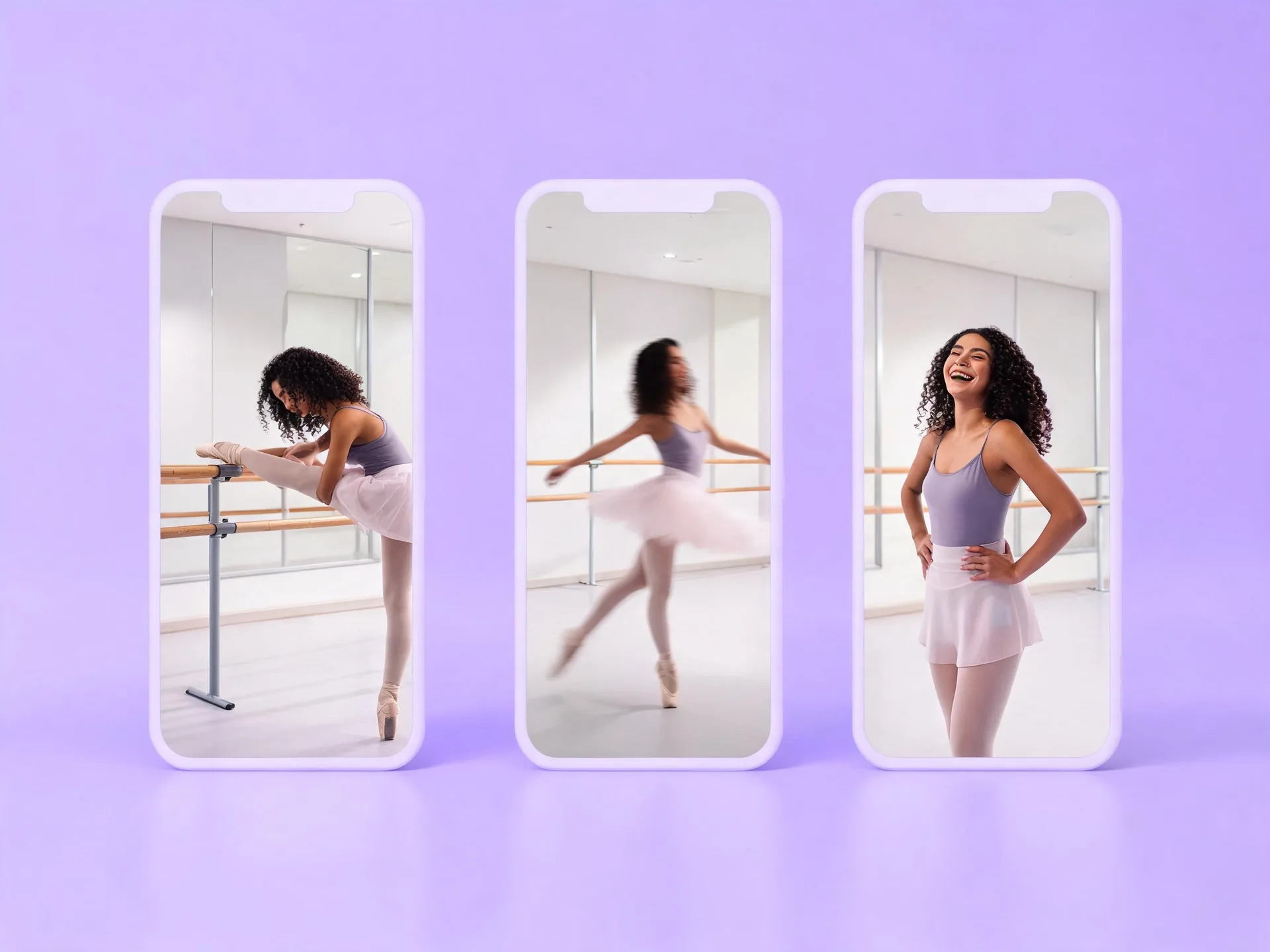
These vertical reference frames illustrate shot sequencing. The current merger exports landscape output, so prepare a matching composition before upload.
You can upload and merge directly in the workspace below.
Use supported MP4 footage no larger than 50 MB per file. Keep the total running time within sixty seconds and inputs within the displayed size and frame-rate limits.
Upload the files and move them into the intended order. Remove any clip that does not belong in the final assembly.
Select landscape 720p or 1080p. The workspace validates the uploaded files and shows the credit amount before you submit the merge.
Start processing, follow the task status, and play the complete result. Download the file after checking the ordering and joins.
Sign in, add your MP4 files, set their order, and get a quote before processing.
Add 2–5 MP4 clips, arrange their order, and choose a landscape output. Each clip can be up to 50 MB, 1080p and 30 FPS; the combined duration must be 60 seconds or less. Use standard H.264 or H.265 MP4 files.
720p: 5 credits per started 10 seconds. 1080p: 8 credits per started 10 seconds. Clips are fitted to the selected landscape size. Check the exact price before starting. Checking files does not spend generation credits.
Checking your saved request…
Choose the workflow according to what is missing from the production.
| Need | Video merger | Another tool |
|---|---|---|
| Several finished clips in one file | Upload and arrange the prepared files. | A generation tool creates new content rather than joining existing clips. |
| A missing opening or closing shot | Create that clip first, then add it to the sequence. | Use text to video or image to video for the new shot. |
| Exact edits and transitions | Prepare those edits before using this focused merger. | Use a timeline editor for trimming, transitions, captions, and mixing. |
| A larger final file | Choose one of the available output dimensions. | AI video upscaling is a separate process with its own input limits and credit quote. |
A short review before upload can save an unnecessary second merge.
Know why the clip appears at that point in the sequence.
Opening: reveal the product. Middle: show the material. Ending: show it in use.
Matching frame shapes and prepared audio make a sequence easier to watch.
Export the selected shots at the same landscape aspect ratio before uploading.
Remove unwanted lead-in or trailing footage in your editor first.
End the opening clip after the action resolves, then begin the next shot at its intended entry point.
This workspace accepts two to five supported MP4 clips with a combined duration of up to sixty seconds. Each file can be at most 50 MB. Inputs must fit the size and frame-rate limits shown by the upload validation.
Yes. Move them up or down in the list before requesting the quote and submitting the merge. The order displayed at submission is the order used for the combined video.
No. It joins the prepared files. Make exact cuts, captions, transition effects, and audio-mixing decisions in an editor before upload when your project needs them.
The current workspace offers landscape 1280×720 and 1920×1080 output at 30 frames per second. It does not offer vertical or square export controls. Prepare matching landscape inputs when the framing matters.
No. Joining clips and selecting output dimensions is not AI detail enhancement. If a suitable short clip needs AI enlargement, use the separate video upscaler and check its input limits.
After upload validation, request a quote in the workspace. Review the displayed credit amount before confirming processing. The task status and final preview stay associated with the request so you can check progress without submitting a duplicate merge.
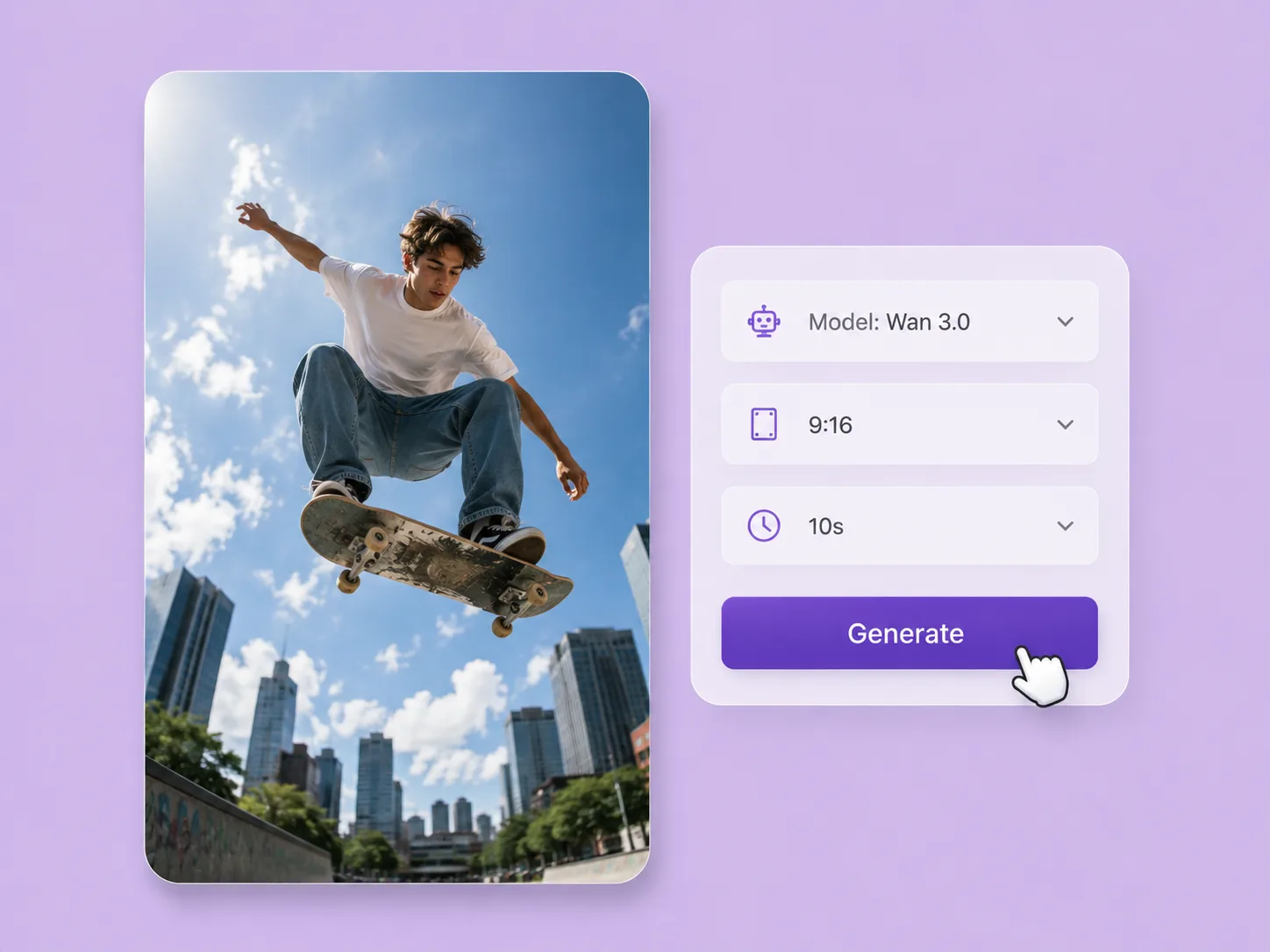
Turn a creative brief into a shot. Start with words or an image and direct motion with VideoAny V5, V4, V3, or V2.
Explore solution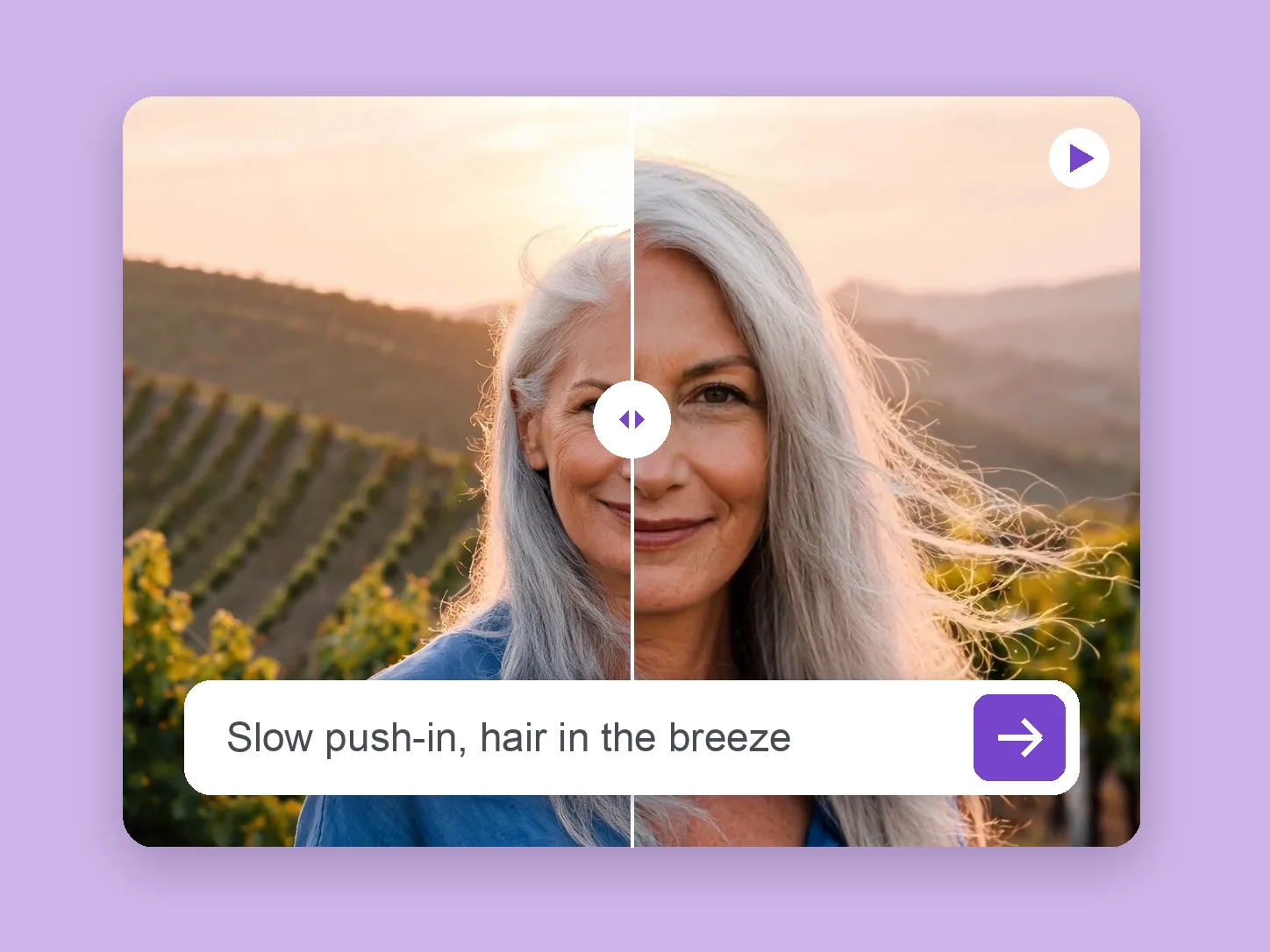
Bring a chosen still into motion. Direct the subject and camera with VideoAny V5, V4, V3, or V2.
Explore solution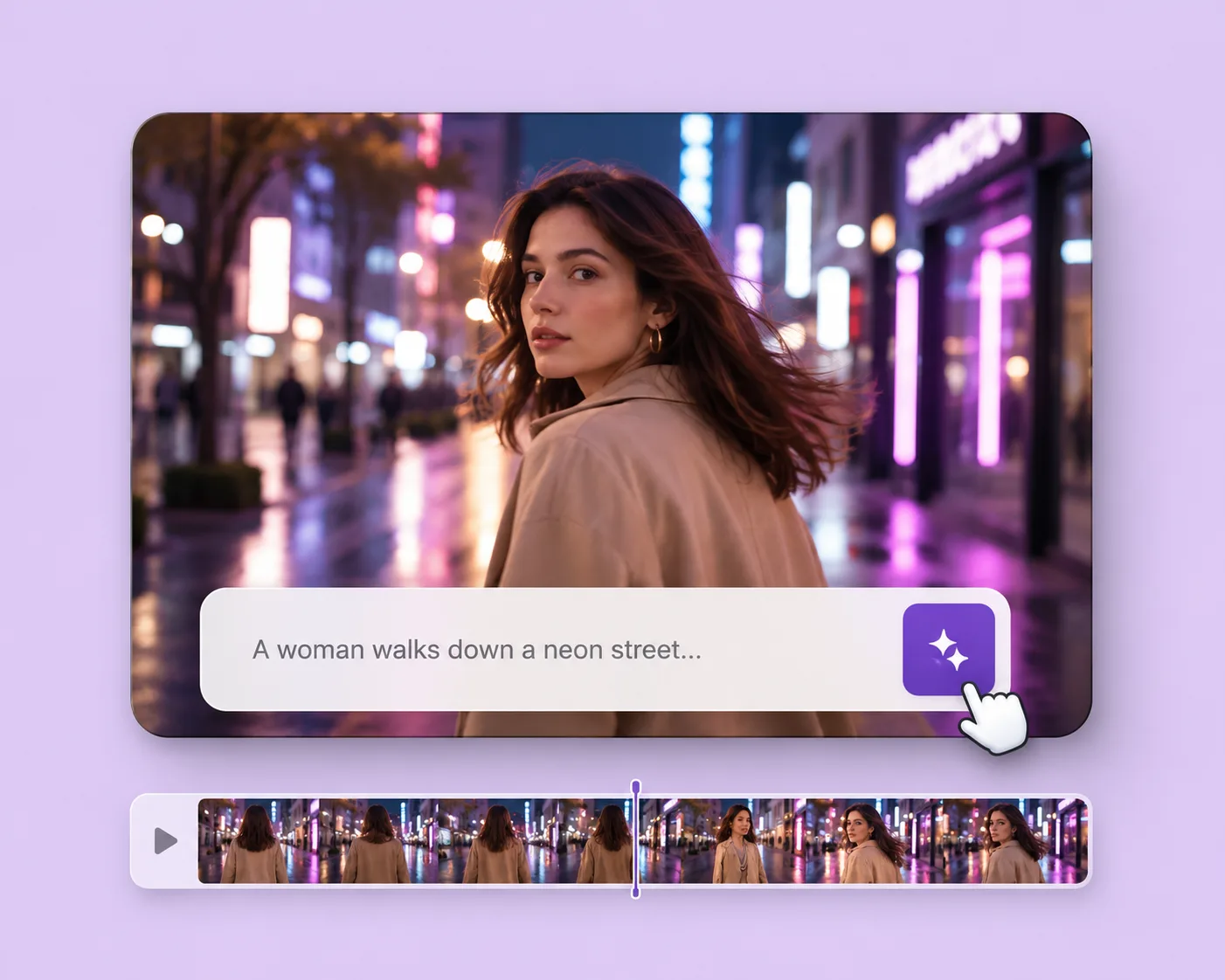
Write the subject, action, setting, and camera movement. Direct an original shot with your selected VideoAny version.
Explore solutionBring your prepared clips together, review the order, and turn them into one downloadable video.
Prepare my merge