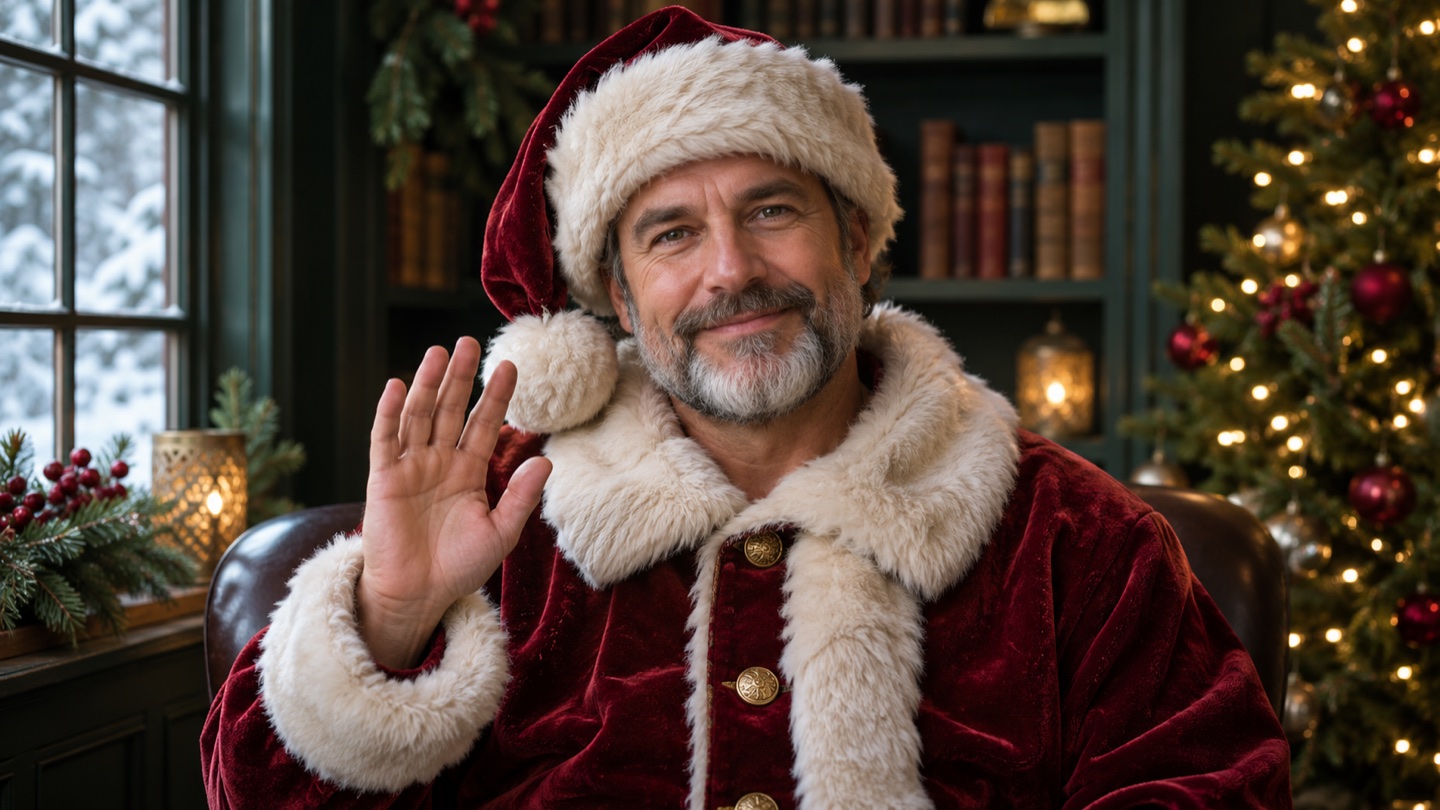
Plan one quiet Christmas greeting
A useful first Santa video starts with one clear portrait and a small action: a gentle smile and a slow wave. This guide expands the existing Santa effect into a preparation and review checklist. The image editor makes the Christmas still; image-to-video animates a file you upload separately.
Any Santa artwork shown with this guide is a concept still or style reference, never a verified result from these prompts. The prompts are starting examples and have not been tested by generating a clip. A single portrait and restrained motion can still produce an unusable result.
Prepare a portrait the tools can use
Choose one adult in a photo you have permission to edit. Use a sharp, unobstructed face, even lighting and room around the shoulders and hands. A hand already visible near the chest gives a wave a clearer starting position; avoid crossed fingers, sunglasses and a crowded background.
For the linked image editor, keep the upload within 4 MB. Use JPEG, PNG, WebP or BMP for this workflow. The later Wan 2.5 image-to-video upload accepts these formats up to 10 MB; a renamed extension does not convert a file. A local preview does not guarantee provider acceptance.
- Keep one subject and a simple background.
- Leave space above the hat and beside the raised hand.
- Inspect the actual downloaded image, not just its thumbnail.
Follow the manual image-to-video handoff
1. Open the portrait editor. The link selects Nano Banana Pro (model pro) and fills the portrait prompt. Upload your photograph, adjust the costume or background words and review the displayed settings and cost before choosing to generate.
2. Inspect the edited still at a useful size. Compare eyes, mouth, facial proportions and skin detail with the source. Check the hat edge, beard, fingers and shoulder outline. If the still is already wrong, revise it before paying to animate the same defect.
3. Download the portrait you accept and open that file locally. Confirm it is the intended image and that it decodes correctly. Keep track of its save location so you can choose it in the next tool.
4. Open image-to-video and MANUALLY upload that saved portrait. Nothing is attached or transferred automatically. The link preselects Wan 2.5, the motion prompt, 5 seconds and 480P. Review the controls; the existing studio also offers 10 seconds, 720P and 1080P. Check the displayed cost before submitting.
5. Watch the whole resulting clip, including the final frame. Look for changing facial features, melting fingers, a drifting hat and unwanted background movement. Download only material you accept; add any written greeting, soundtrack or finishing edits in a separate editor.
Copy the prompt for your current stage
The same English starting prompts are used by the existing Santa effect. They request a look or movement, without guaranteeing it.
Image to Image · upload a portrait
Restyle the portrait for Christmas
Use the adult reference photo you prepared.
Edit the uploaded adult portrait into a warm Christmas portrait: red Santa coat and hat, softly lit Christmas tree, natural skin texture. Keep one adult, a clear face and visible relaxed hands in a medium shot. Try to retain the facial features of the reference. No text or logos.
- Review resemblance before moving on.
- Choose image settings in the editor itself.
Image to Video · upload the saved still
A small wave with a fixed camera
Use the reviewed Christmas portrait as the source.
Animate the single adult in this Christmas portrait with subtle breathing, a gentle smile and one small, slow hand wave. Keep the camera fixed and the background calm. One continuous shot, no scene cuts, no speaking.
- Keep the motion gentle and brief.
- If fingers warp, replace the wave with a small nod and still hands.
Text to Image · optional alternative
Create a fictional Santa
Use this if you do not need the likeness of a real person.
A fictional friendly adult Santa in a red coat and hat beside a softly lit Christmas tree. Natural portrait lighting, a clear face, visible relaxed hands, medium shot. No text or logos.
- Open the fictional Santa link below.
- Inspect and download this image before the same manual I2V step.
Open the matching existing tool
Find the cause before another attempt
| What you see | Possible cause | Useful next change |
|---|---|---|
| The face changes under the hat or beard | Costume edits can alter facial features. | Reduce costume changes, use a clearer portrait and inspect the still again. |
| Fingers merge or the arm swings too far | The pose or requested movement is too complex. | Use a smaller wave or a small nod with still hands; simplify the source pose. |
| The clip flickers or the background moves | Busy details and competing motion can become unstable. | Use a calmer background and keep one small action with a fixed camera. |
| The saved image will not upload | The file may exceed the limit, use an unsupported format or fail to decode. | Open the local file, export a valid supported image and check its size before upload. |
| The studio reports a generation error | Account, credit, model availability or provider checks may fail. | Read the actual message and correct its stated cause before deciding whether to submit again. |
Set realistic expectations
Identity preservation is not guaranteed in either stage. A prompt asking to retain facial features is an instruction, not an identity lock. Separate generations may also change clothing, lighting and proportions.
This workflow does not provide speech or lip-sync, automatic chaining, subtitles or a finished greeting soundtrack. Do not assume the result contains usable audio. Add any spoken message or music separately using material you are allowed to use.
Before you start
Will opening I2V import my portrait?
No. Save the approved still, open image-to-video and choose the file yourself. The link preselects supported settings and a prompt only.
Can I make Santa say a name?
These steps animate a portrait without a speech or lip-sync stage. Record or add a greeting separately; do not expect the prompt to produce synchronized speech.
Are the prompts or example artwork tested results?
No. The prompts are untested examples, and any artwork is a concept still or style reference. Inspect your own still and the entire video.
Portrait-to-video guide
Prepare the portrait first
Create and inspect the still before opening the animation tool. Keep the saved file ready for manual upload.