Map song sections
Use the track’s intro, chorus, and ending as anchors for visual changes.
AI MUSIC VIDEO GENERATOR
Plan shots for your track, then sync them in a separate timeline editor.
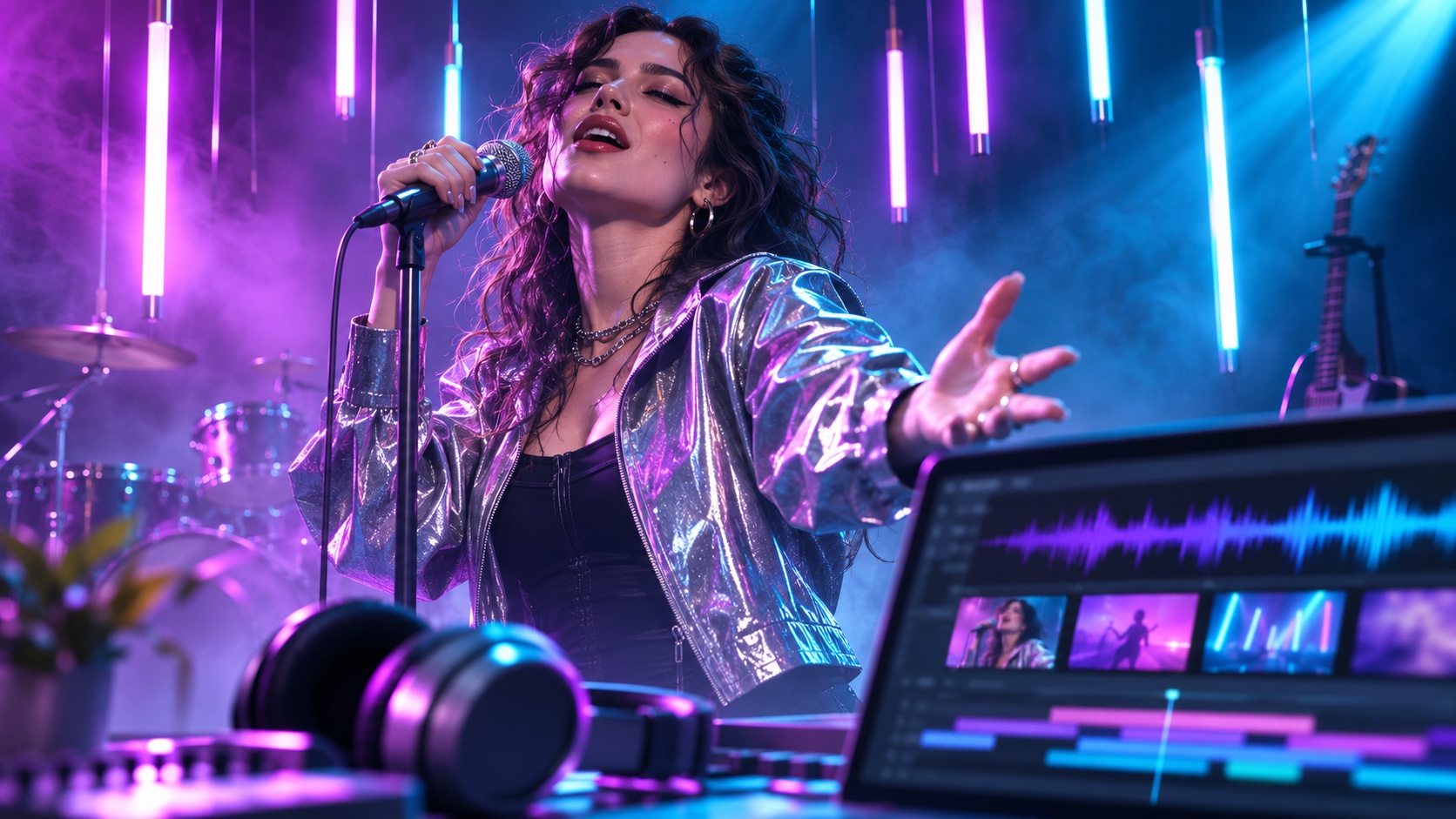
Write a shot prompt for text to video, or open the music workspace to develop a track.
A strong music video follows a track’s structure rather than asking one model for a finished edit.
Mark the intro, verse, chorus, instrumental break, and ending. Give each section a visual motif or a change in scale, light, or movement. Generate short clips around those moments, aiming for clean starts and ends that can be cut on a beat. Keep a consistent palette or recurring subject so the final video feels intentional.
VideoAny provides separate video and music generation workspaces. The visual generator does not automatically synchronize footage to a selected song, and the music workspace does not output a finished video. Export the chosen media, then arrange clips, adjust timing, and mix the audio in a timeline editor.
A simple track map helps every generated shot earn its place.
Use the track’s intro, chorus, and ending as anchors for visual changes.
Repeat a color, performer, object, or location so short clips belong together.
Make several motion options for a chorus or key beat before editing.
Align visual changes to the audio and handle transitions, credits, and final sound there.
These curated stills suggest movement, atmosphere, and a reveal for planning an original music video.
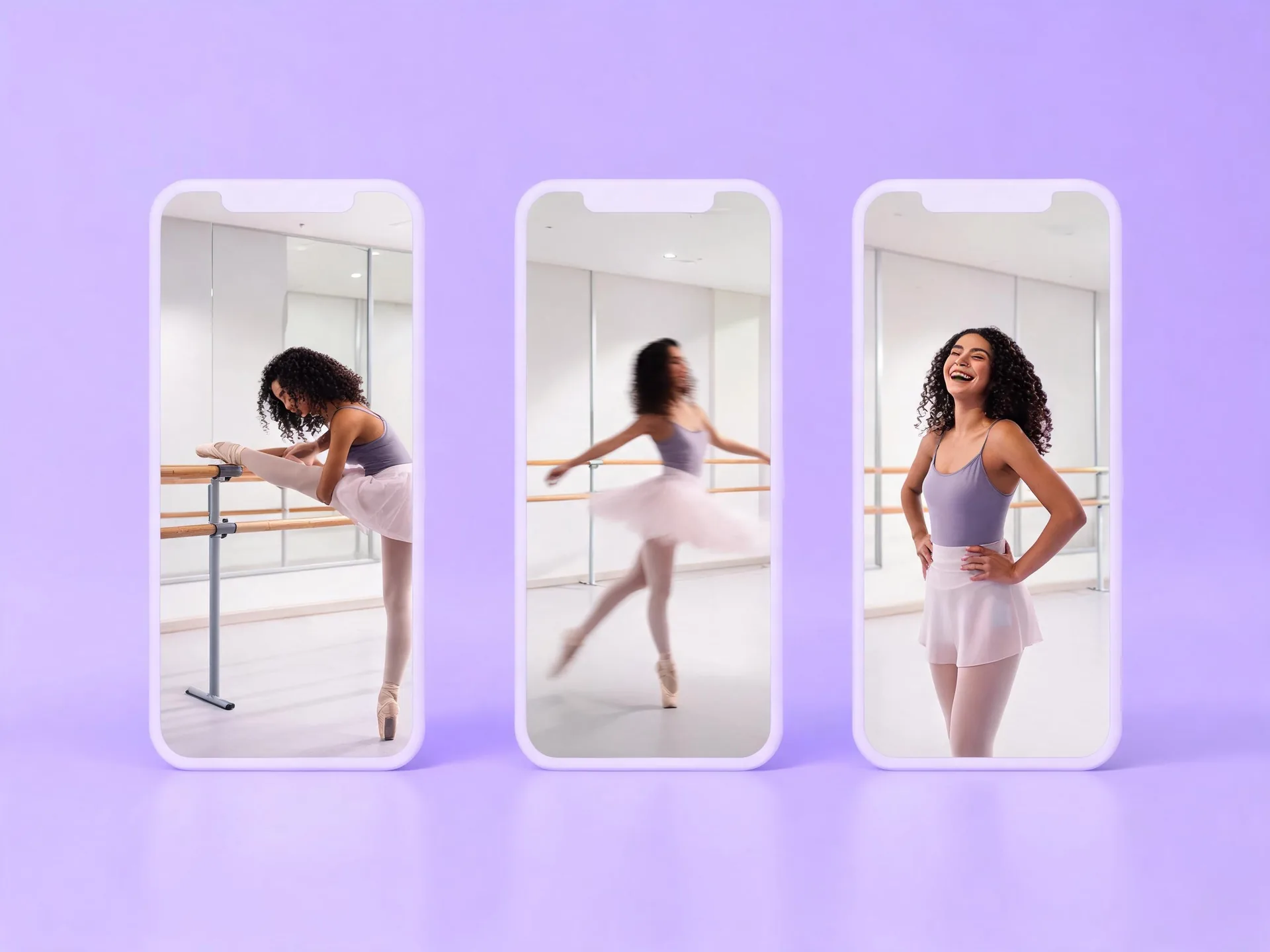
Plan a short run of dance or performance shots around a repeated beat.
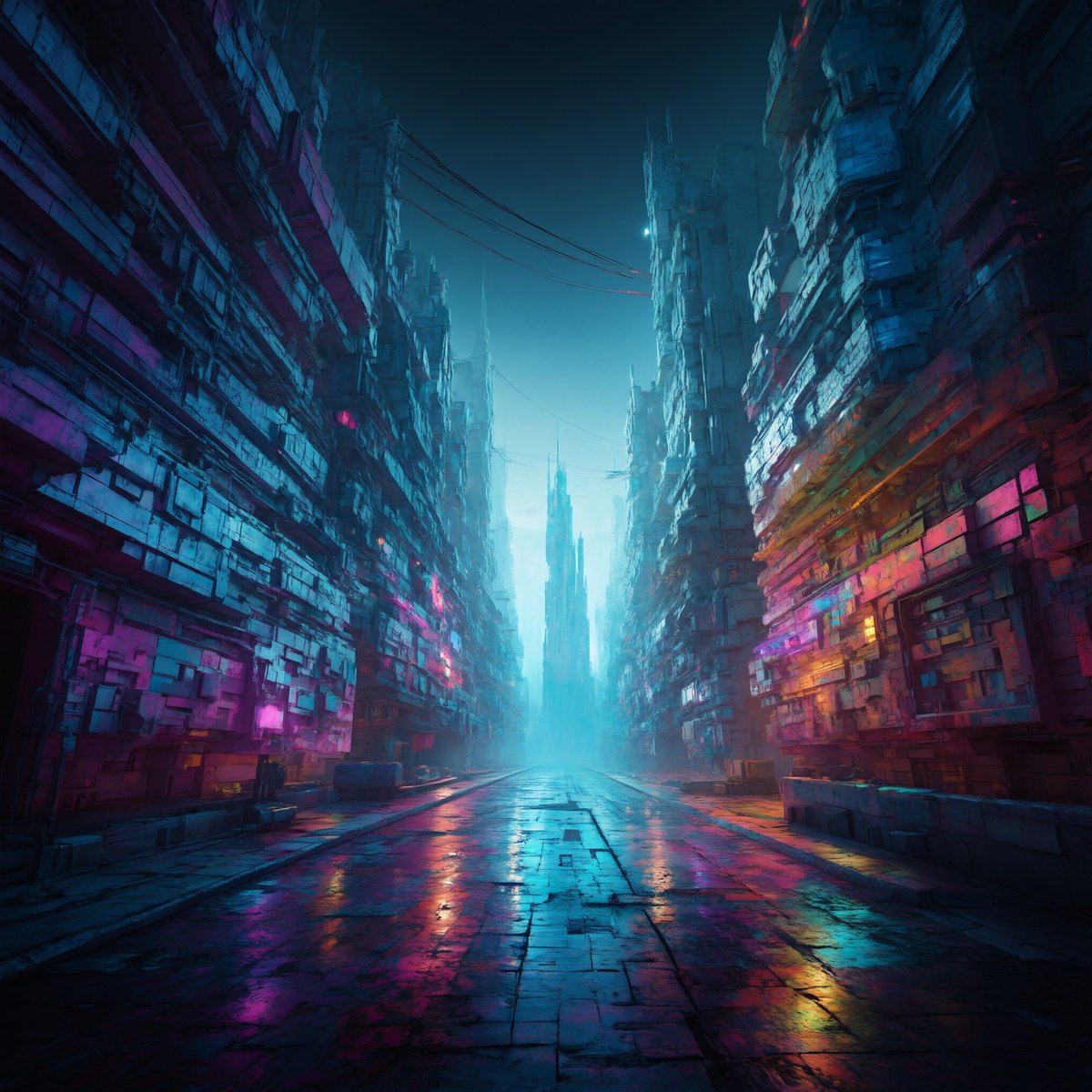
Repeat a color palette or setting to connect different parts of the track.
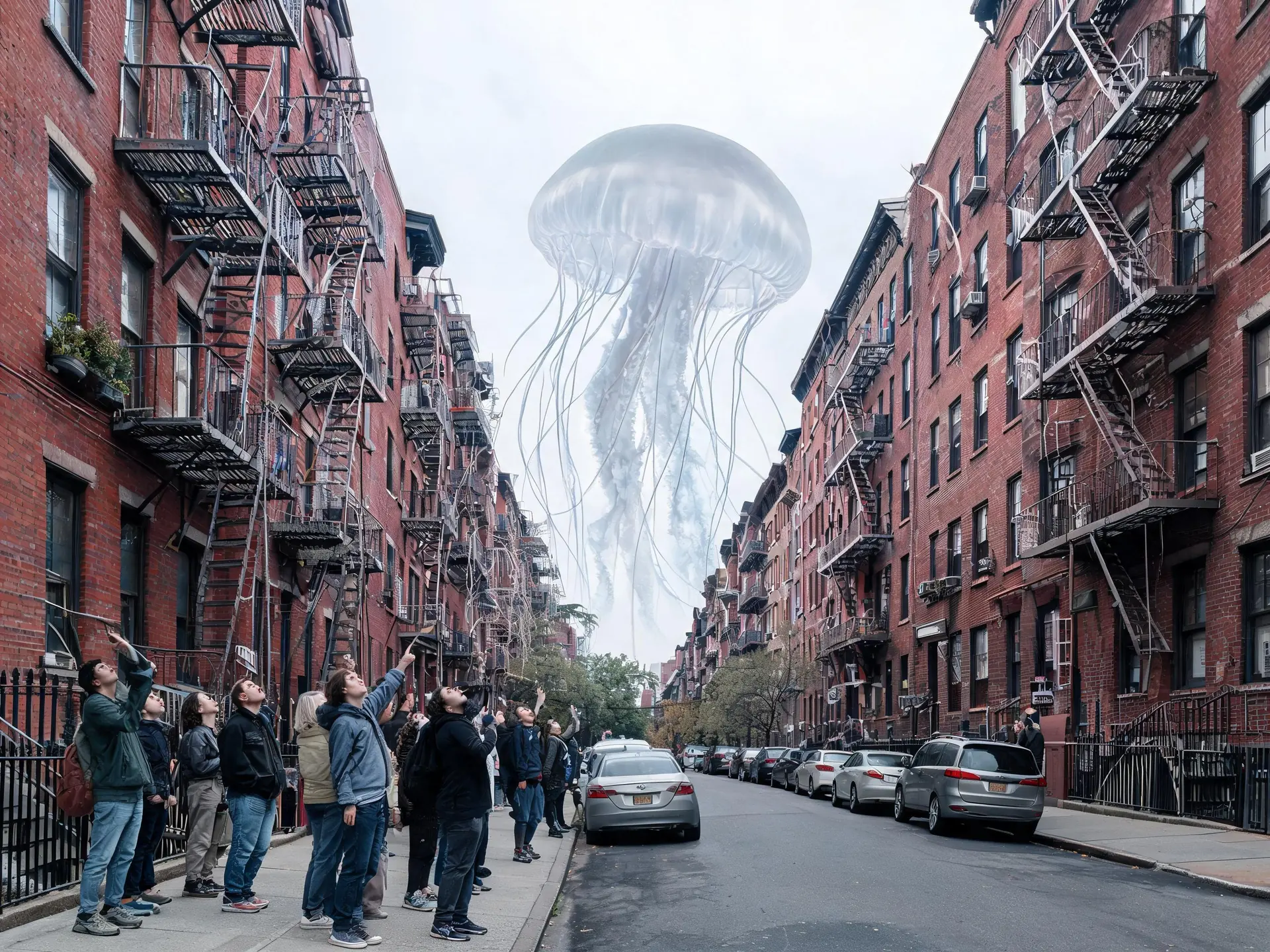
Use a larger visual event when the music expands.
Prepare audio and visuals separately, then make the timing decision in the edit.
Bring music you have rights to use, or create a new instrumental in the music workspace.
Identify section changes and moments where a visual cut or reveal should land.
Write short prompts for the shots and render options in text to video.
Arrange approved footage against the audio in a timeline editor and review the full mix.
Choose the workspace for the asset you need next.
| Situation | Recommended route | What to expect |
|---|---|---|
| Need a new visual shot | Use text to video or image to video. | Describe a short action matched to a song section. |
| Need an original soundtrack | Use text to music. | Describe tempo, instrumentation, and mood. |
| Need beat-perfect cuts | Use a timeline editor. | Place clips against the final audio waveform. |
| Need several clips in one file | Use the merger within its limits. | It does not automatically sync edits to music. |
A single clip should have a job within the audio structure.
Choose movement and camera speed to suit the section.
Slow push-in for the intro; lateral tracking when the chorus arrives.
Keep one visual element stable across separate takes.
The same red scarf appears in the verse and chorus shots.
Ask for a settled beginning or ending when possible.
The dancer ends still at center frame for the next cut.
No. Video and music are created in separate workspaces. Use a timeline editor for beat alignment, cuts, and final audio mixing.
Use music you own or have permission to use, then cut the generated visuals to it in your editor.
Yes, the separate text-to-music workspace can create a track from a description. Download the chosen result for the final edit.
Use recurring subjects, colors, or locations and plan each clip for a specific song section. Review visual continuity before editing.
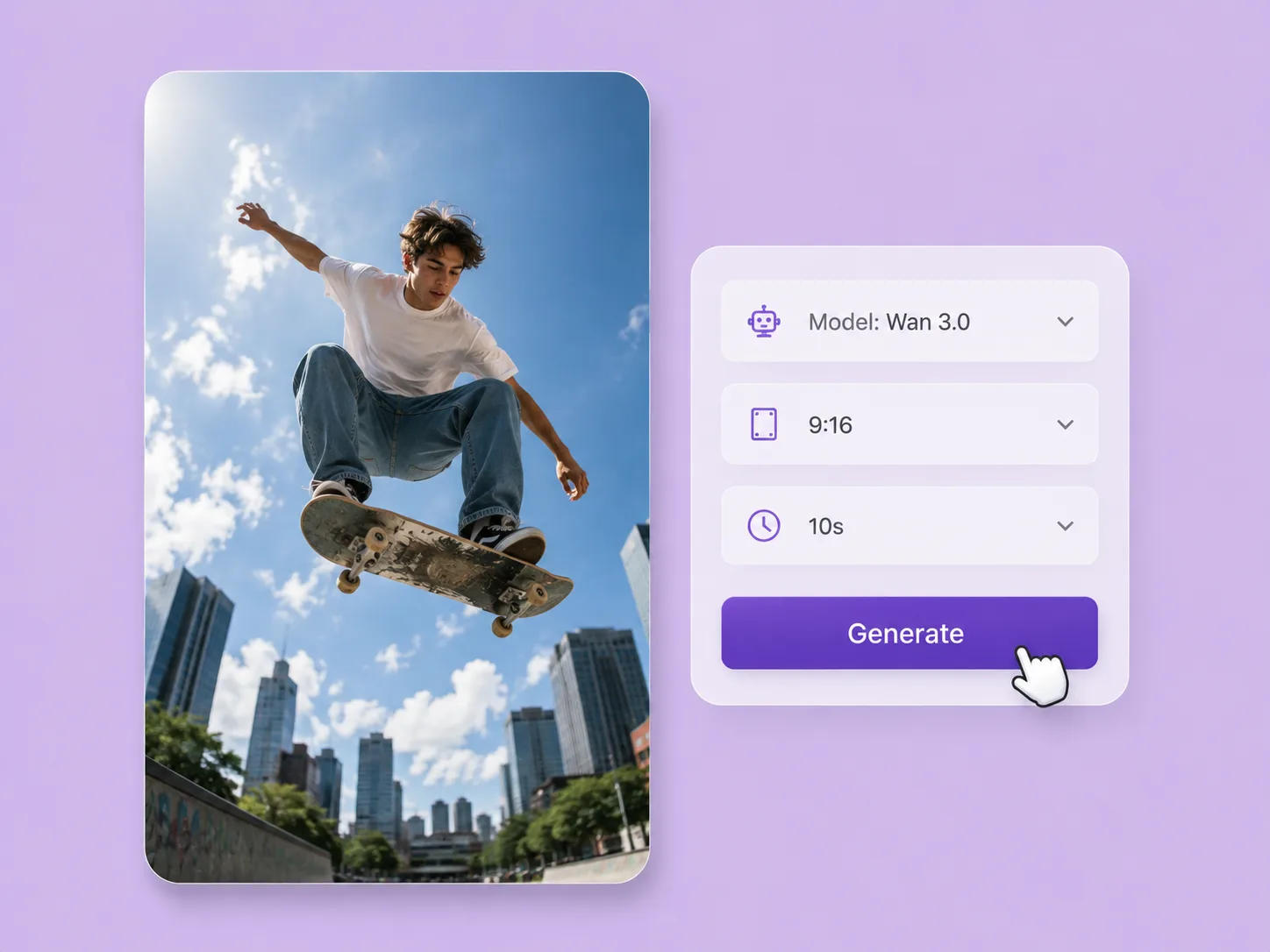
Turn a creative brief into a shot. Start with words or an image and direct motion with VideoAny V5, V4, V3, or V2.
Explore solution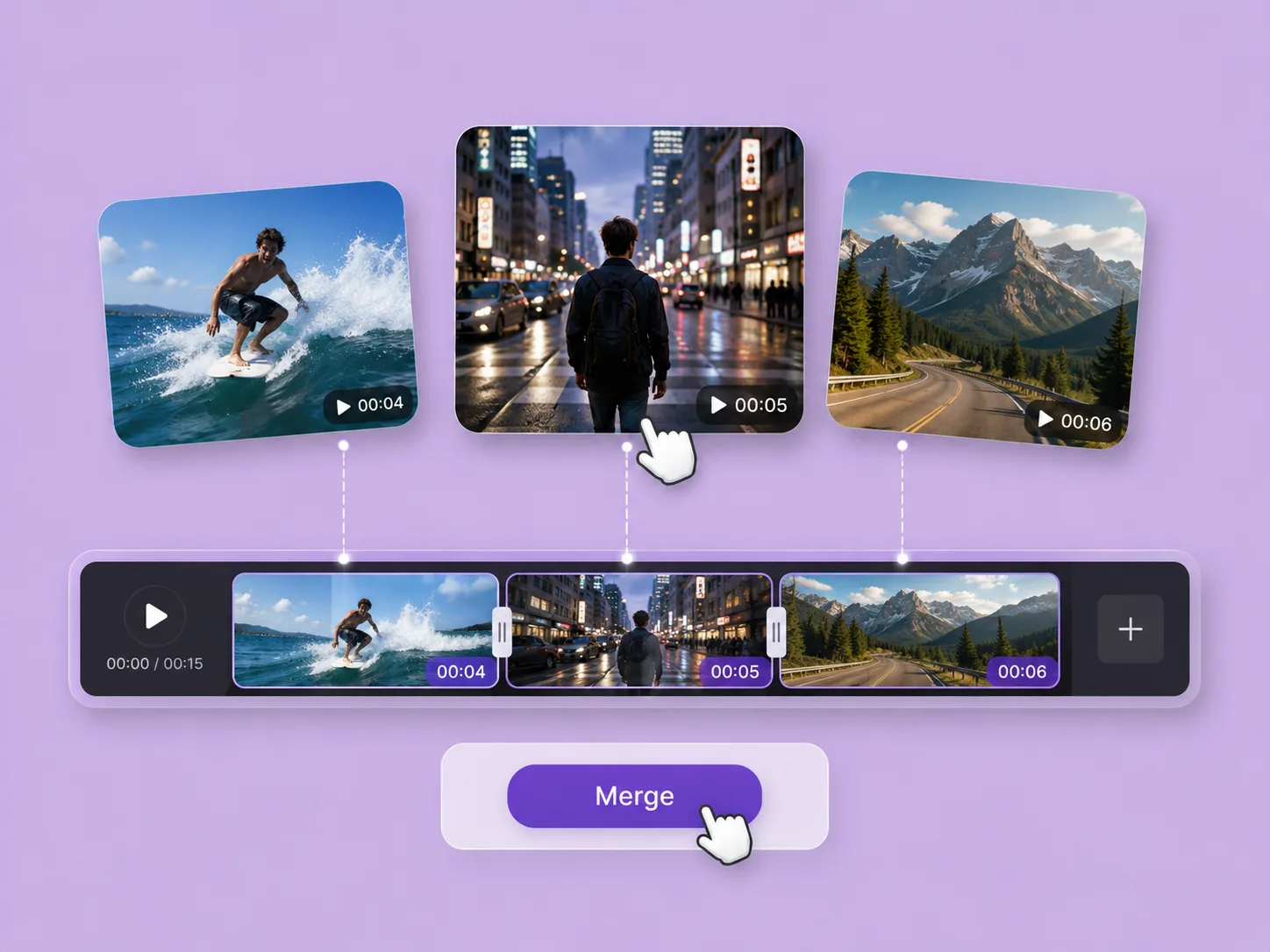
Arrange two to five prepared MP4 clips and combine them into one landscape video after reviewing the processing quote.
Explore solution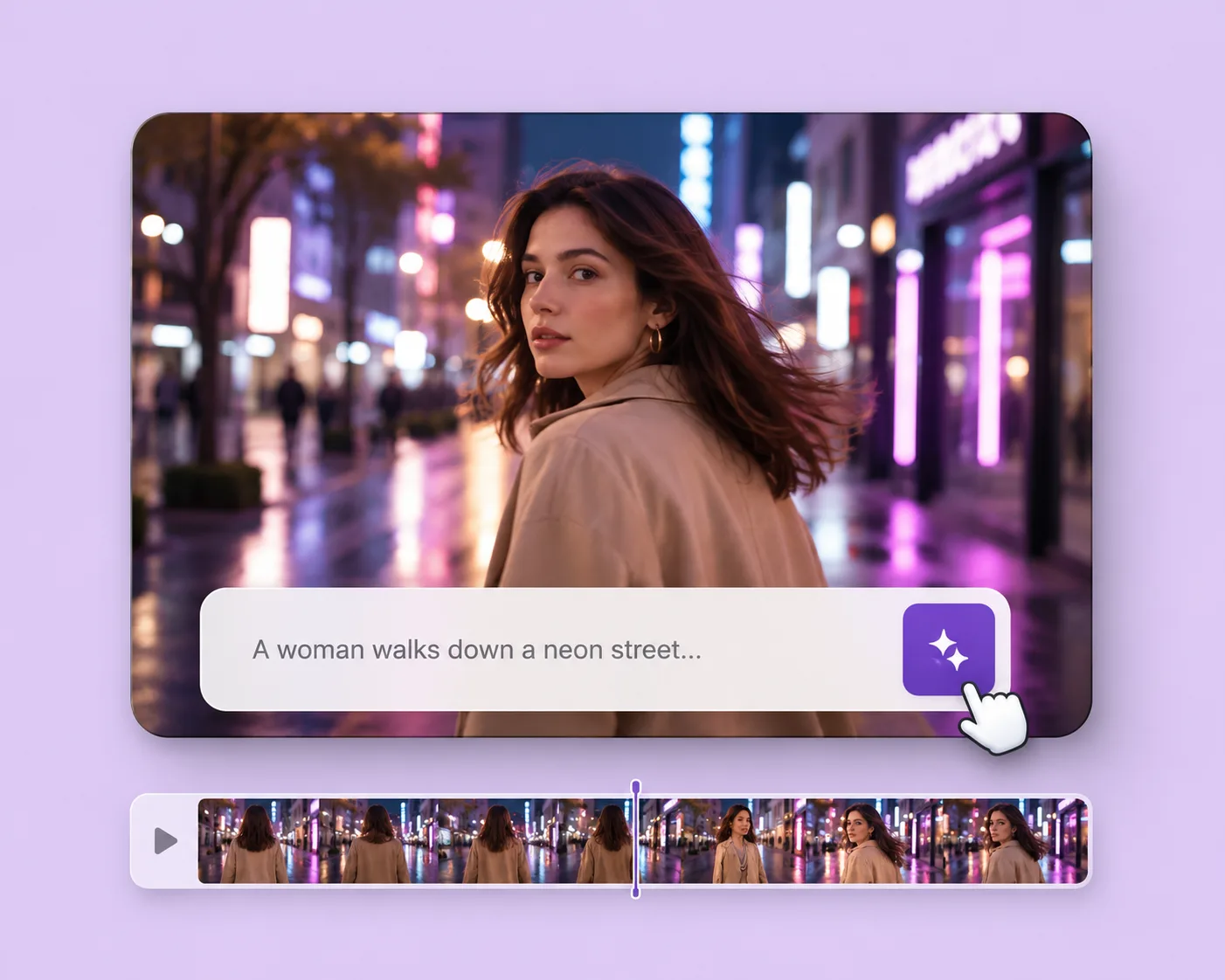
Write the subject, action, setting, and camera movement. Direct an original shot with your selected VideoAny version.
Explore solutionChoose a musical moment, write a visual direction, and bring the generated clip into your edit.
Prepare a music-video shot