Compare three workflows
This comparison uses the public product pages and VideoAny tool settings reviewed in November 2026. It describes available workflows. The test prompts below are for evaluating output with your own files.
| Task | Senzia | VideoAny |
|---|---|---|
| Edit an existing photo | The editor accepts an image and written instructions. Its interface lists subject details that you can ask it to preserve. | The editor opens prompt-based presets and passes the source image, prompt, and selected model into the image workspace. |
| Generate with visual references | The video generator exposes separate start-image and reference-image inputs. | The reference video workspace supports Happy Horse and Seedance workflows. Available image, video, and audio inputs depend on the model. |
| Continue an existing clip | The video extender documents uploading a clip, choosing an extension direction, and directing the next motion with a prompt. | The video extender accepts an uploaded clip or a compatible result from your VideoAny history. Extension options and credit cost depend on the selected model. |
| Plan a sequence of shots | The long-video workspace lists reference assets and a Generate shots step. | The multi-shot tool uses Kling 3 to render an ordered sequence of timed shot prompts. A source image and reference elements can guide the sequence. |
Try the same inputs on both platforms
Use files you own, select comparable output settings, and record the credits charged for each usable result.
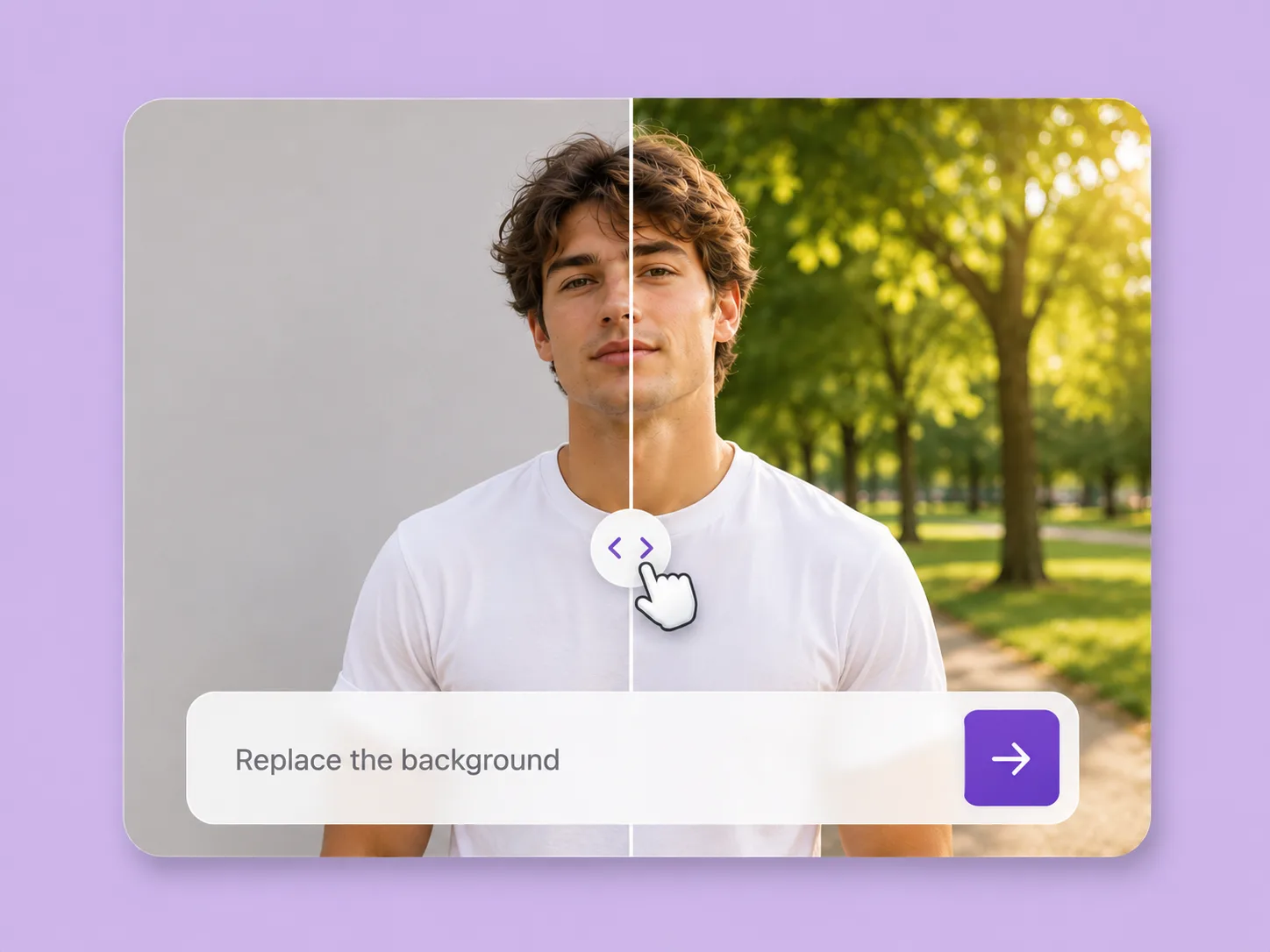
Replace a background
Move the teal kettle onto a light gray studio backdrop. Keep the shape, handle, enamel finish, and viewing angle consistent. Add a soft contact shadow beneath the base.
- Look for changes to the handle and silhouette.
- Check for a convincing contact shadow.
Animate a referenced object
Use the front and side references to preserve the teal kettle and black handle. Start in a three-quarter view and move the camera slowly toward the side, with soft studio light across the enamel.
- Check the handle and finish throughout the move.
- Watch the last second for distortion.
Continue a product shot
Continue the same slow camera move from the last frame. Keep the kettle in the same position and carry the soft light across the handle as the camera settles.
- Play the join at normal speed.
- Check motion direction, brightness, and sound at the boundary.
Compare the cost of a finished result
Senzia’s pricing page lists subscriptions and a one-off credit option. VideoAny offers one-time credit packs. Check each platform’s live pricing and the quote in the editor for the model, duration, and resolution you need.
Keep a record of attempts, credits spent, and whether you kept the output. For video, include the length and whether the clip needs another edit. That gives you a cost per finished asset you can compare across different credit systems.
Senzia alternative FAQ
Can VideoAny edit a photo using a text instruction?
Yes. Choose an edit preset or upload a reference image and write your own instruction in the Image to Image workspace.
Can I try video generation from more than one reference?
Yes. Open Reference to Video and choose a model with the inputs your project needs. The available reference types and counts vary by model.
Do Senzia and VideoAny use the same credit pricing?
Each service has its own credits and model pricing. Compare the quote for the same output length and resolution before generating.
Try the workflow with your own references
Open the reference video workspace to choose a model and start with your own materials.
- Bring a source image or motion reference.
- Check the model limits and credit quote.
- Compare the resulting shot with your reference.