 Source image
Replace the background
Move the scene to a pale blue studio with soft window light. Keep the person, purple shirt, toy figure, and camera framing unchanged.
Use this exampleUpload a photo and describe the edit in plain language. Swap the background, remove a distracting object, or change the lighting. Tell the editor which details to preserve and choose a model for the change you have in mind.
Each sample opens the source image and an editable prompt in Seedream 5.0 Lite. Sign in to run a sample for 12 credits per output.
Source imageMove the scene to a pale blue studio with soft window light. Keep the person, purple shirt, toy figure, and camera framing unchanged.
Use this example Source image
Remove the folded towels beside the soap bottle. Extend the counter naturally into that space and preserve the bottle, label, and lighting.
Use this example Source image
Restyle this room with cool morning daylight. Keep the furniture, layout, and camera angle in the same positions.
Use this exampleStarting with a written idea? Create a new image from a text prompt and bring the result into the editor.
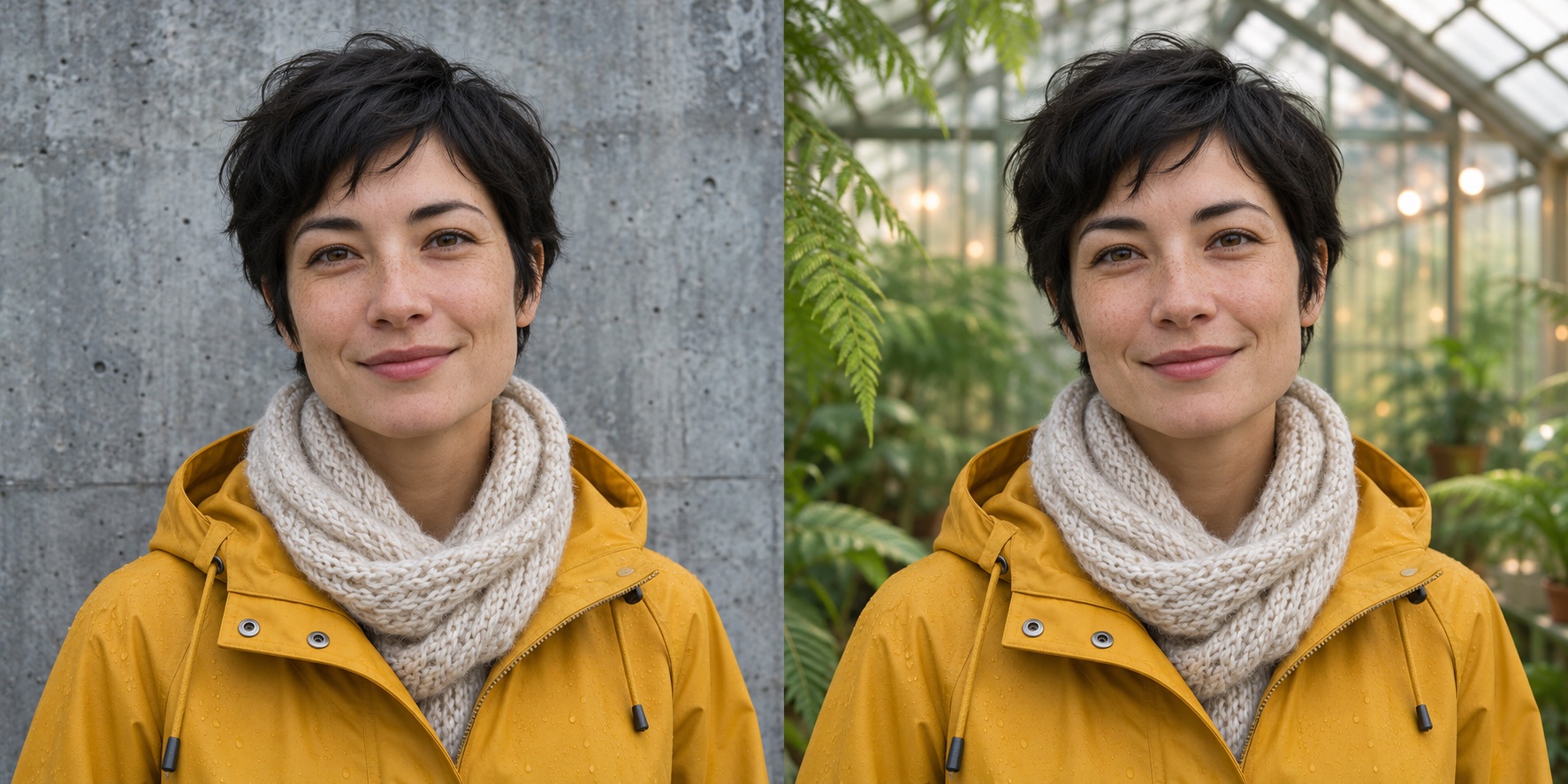
Background replacement concept
This AI illustration shows a concrete wall and a greenhouse behind the same portrait.
Common editing tasks
The editor is most useful when the source image is already close to the goal and you need a controlled change rather than a completely unrelated generation.
Replace the setting while describing the lighting, location, and details that should stay intact.
Move between photographic, illustrated, cinematic, editorial, and product-visual directions.
Tell the editor which subject, composition, identity, colors, or product features must remain.
Explore focused alternatives without rebuilding the source image or masking every region manually.
How it works
A repeatable workflow makes the output easier to evaluate and reduces random prompt changes.
Choose a clear JPG, PNG, WebP, or supported image with enough detail for the intended edit.
State what should change and what must remain unchanged. Short, specific prompts are easier to refine.
Select an image-edit model that fits the task, then compare the generated result with the source.
Adjust one instruction at a time, regenerate, and download the result that best preserves your intent.
Model controls and costs
The studio shows the controls and total credit cost for the selected model before you run an edit.
Prompt edits and reference images
Use one source photo or add references for styling. Choose an output size and compare up to four variations in one run.
12 credits per output
Open Seedream 5.0 LiteA new view of the same subject
Upload one image and adjust camera direction, elevation, and distance for product shots or character views.
Cost varies with output dimensions
Open Qwen Image EditA low-credit first edit
Upload a source image, describe the change, and choose 1K, 2K, or 4K. The model returns one image per run.
1, 3, or 5 credits by resolution
Open GPT-Image 2FAQ
VideoAny accepts written instructions for a wide range of edits, including background changes, object removal, lighting, and restyling. Each model has its own input and content limits, and VideoAny’s Terms of Service apply to every edit.
You can browse the examples without an account. Sign in to run an edit with credits. The 1K GPT-Image 2 option uses one credit per output, so available free credits can cover a trial. The prefilled Seedream 5.0 Lite examples use 12 credits per output.
Many edits can be requested with a full-image prompt. For best results, describe the target change precisely and list the visual details that must remain unchanged.
Use a simple structure: change, preserve, and style. For example, change the background to a bright studio, preserve the person and clothing, and use soft commercial lighting.
Available capabilities depend on the selected model. VideoAny includes models for prompt edits and visual variations; choose the model that matches the transformation rather than expecting every model to handle every task.
Only use images you own or have permission to edit, and obtain consent before using a real person’s likeness. Do not create deceptive, exploitative, or non-consensual material.
Upload a source image, describe one focused change, and check the credit cost before you generate.
Open the AI image editor