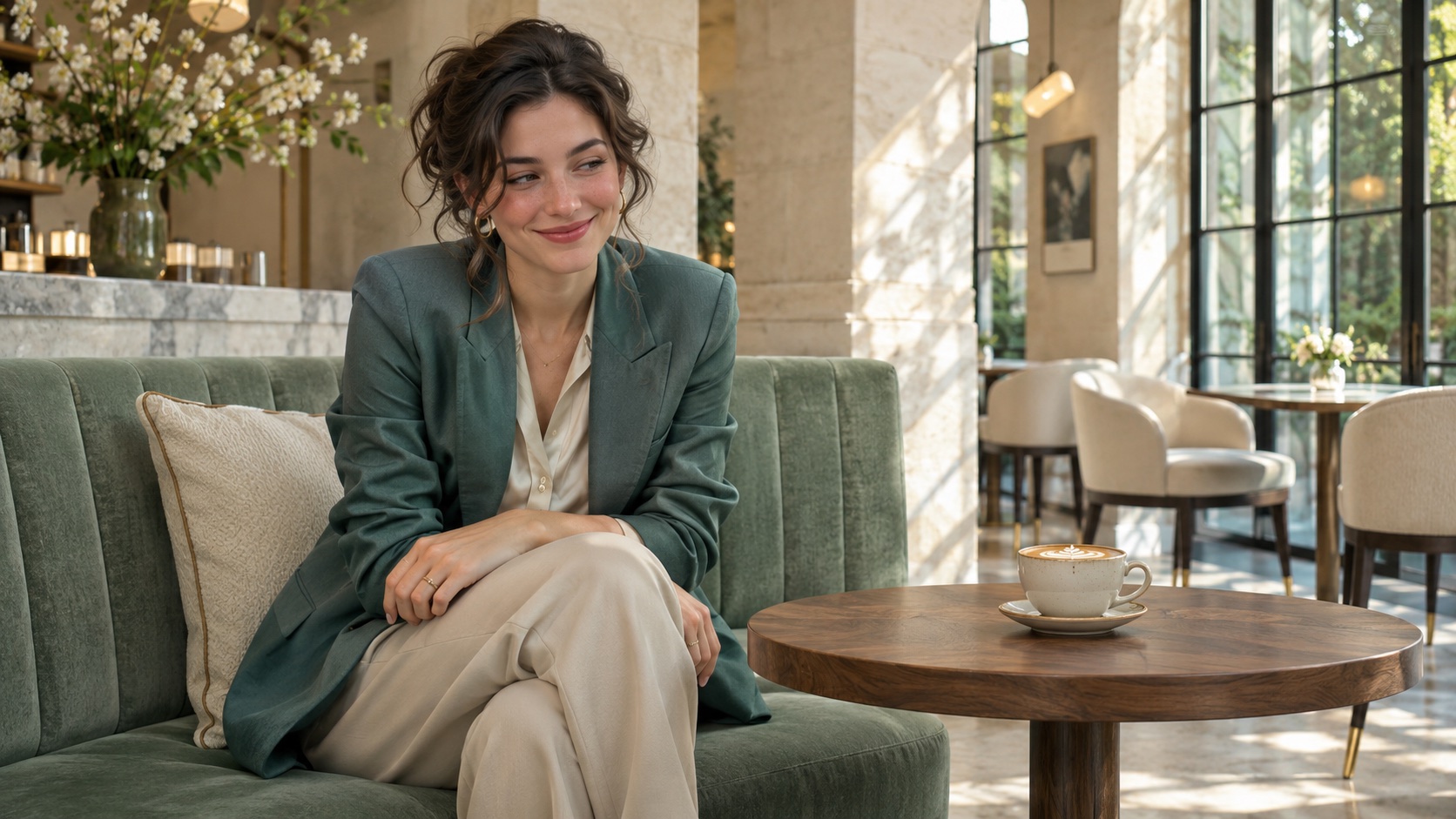
Build a readable cafe moment first
The Fancy Cafe idea is a short visual joke about feeling out of place in an elegant cafe. Start with a single adult and a simple reaction. A small glance or smile gives the model fewer moving parts than a full sequence of mistaking a table for a seat, standing and sitting somewhere else.
The existing effect page remains the main entry. This guide supplies a lower-complexity alternative, preparation instructions and troubleshooting. The prompts here are writing suggestions; no generated result or measured success rate is presented.
You choose the image, review settings and submit generation yourself. Opening a tool only fills the available controls; it does not start a generation or validate the artistic result.
Choose and prepare the input photograph
Use a clear, well-lit photograph of one adult whose image you have permission to use. Face the subject roughly toward the camera, with hands and the intended seating area visible. A medium-wide composition makes the table and bench easier to distinguish than a close-up portrait.
For the linked Veo 3.1 image-to-video route, the upload interface accepts an image and applies a 10 MB upload limit. Use a standard JPEG or PNG below 10 MB as a practical choice; a successful upload does not guarantee that every source format or composition will be accepted by the provider.
A photograph already set in a cafe is the shortest route. If your photo is a portrait in another setting, first open Image to Image, upload it and describe the cafe arrangement. Review and download the edited still, then upload that file in Image to Video. The two tools do not automatically transfer your local file.
Practical checklist
- Keep one face unobstructed; avoid sunglasses, tiny faces and heavy blur.
- Leave clear space between the bench and table; avoid overlapping limbs.
- Crop deliberately for the intended vertical or landscape composition.
- Check the edited face, hands and seat before spending credits on video.
Follow the manual workflow
1. Open the existing Fancy Cafe effect to review its concept, or choose the simpler generator entry above. The effect currently opens Image to Video with Veo 3.1 and a motion prompt. You may replace that prompt before submitting.
2. Upload the cafe image. If the upload fails, check file size and format, wait for the upload to complete and confirm that an input preview is visible. Do not submit repeatedly while the image is still uploading.
3. Review the model and available controls. Veo 3.1 currently uses an eight-second duration and offers 16:9 or 9:16. Choose the ratio in the tool. The links in this guide prefill model and prompt only; they do not set resolution, ratio or audio.
4. Read the displayed credit cost, sign in if required and generate only when you are ready. This step uses the normal generator, including its account, credit, availability and provider restrictions.
5. Review the whole clip before downloading. Look for sliding feet, a changing face, hands passing through a cup, a table bending or an incorrect sitting motion. Save a usable clip; simplify the prompt or source image before any optional retry.
Copy a starting prompt
Select and copy the text, then edit it for your source image. These prompts have not been validated by paid generation.
Image to Image · optional preparation
Prepare the cafe still
For a portrait that needs a new cafe setting. Upload the portrait in the image editor first.
Edit the uploaded photograph into a refined cafe interior. Place the single adult on a cushioned bench beside a separate low round table with one coffee cup. Show their face, hands, knees and the bench clearly in a medium-wide frame. Keep a warm natural atmosphere and remove distracting background people. No logos or text.
- The editor can change identity, clothes or proportions. Review its output.
- This is a still-image instruction, not a video motion prompt.
Image to Video · simpler reaction
A seated glance and smile
Use an image already showing the person seated. This removes the hardest seat transition.
Animate the single adult in the uploaded cafe photograph. The person is already seated on a cushioned bench beside a low round table, notices the coffee cup, then gives a small embarrassed smile. Keep the camera fixed in a medium-wide composition, with the cup, tabletop and bench visible. Gentle natural movement, one continuous shot, no extra people, no text overlays.
- Keep the camera still and the action small.
- A smile, cup or face may still deform; no result is guaranteed.
Image to Video · more demanding variant
A hesitant choice of seat
Try only when the table and bench are clearly separated in the source image.
Animate the single adult in the uploaded photograph in an elegant cafe. With the bench clearly visible beside a low table, the person briefly pauses before choosing the bench and sitting down slowly with a shy smile. One continuous locked medium-wide shot. No other people and no camera movement.
- Sitting and contact with furniture are difficult generative motions.
- If the model changes the furniture or merges limbs, use the seated reaction instead.
Open the matching tool
Common failures and useful changes
| What you see | Likely difficulty | What to change before retrying |
|---|---|---|
| The person sits on the wrong object | Table and bench overlap or the action asks for several changes. | Use a source already showing the person seated and ask only for a glance. |
| Hands merge with the cup | Small objects and contact motion are ambiguous. | Keep hands resting visibly; remove lifting and sipping instructions. |
| The face or outfit changes | Generative motion does not lock identity or clothing. | Use a larger unobstructed face, reduce motion and reject unsuitable results. |
| Furniture bends or the scene drifts | Too many simultaneous movements or a cluttered input. | Use one adult, clearly separated furniture and a fixed camera. |
| Upload or generation fails | File size, account state, credits, availability or provider validation. | Read the tool error; fix the stated issue before resubmitting. |
What this workflow does and does not establish
A prompt describes an intended movement. It does not enforce a timed animation script, correct contact physics or the same face in every frame. Adding a second person increases the difficulty; this workflow does not promise stable two-character choreography.
This is a visual image-to-video workflow. It does not provide controlled dialogue, a verified voice or lip-sync. Review any available audio settings in the generator and use a separate editor if your finished clip needs captions or a particular soundtrack.
No example clip on this guide is claimed as a tested output. Any reference imagery on the linked effect page should be treated according to its label, not as evidence that your upload will reproduce the scene.
Questions before you generate
Can I upload a close-up selfie?
You can begin with a portrait in Image to Image, but a close-up does not show the table and bench needed for a sitting scene. Prepare a medium-wide still and review it before animation.
Will it preserve the same person?
Recognizable features are a prompt objective, not an identity guarantee. Image editing and motion may both change the face, body or clothing.
Why does the link not select every setting?
Only the model and prompt query inputs are used here. Review the actual ratio, duration and audio controls in the generator before submitting.
Does opening the generator charge credits?
The link opens the existing tool. Generation requires your own explicit submission and its usual account and credit requirements.