Portrait → illustration → short video
GTA-inspired portrait to short video
Create an original urban action-poster portrait in the image editor, review the still, then animate it in image-to-video. This tutorial uses two existing tools and a manual image transfer.
Unofficial style exercise. VideoAny is not affiliated with GTA or its publishers. No official game artwork, characters or logos are provided. These English prompt drafts have no tested output or guaranteed likeness or style consistency.
Open portrait editor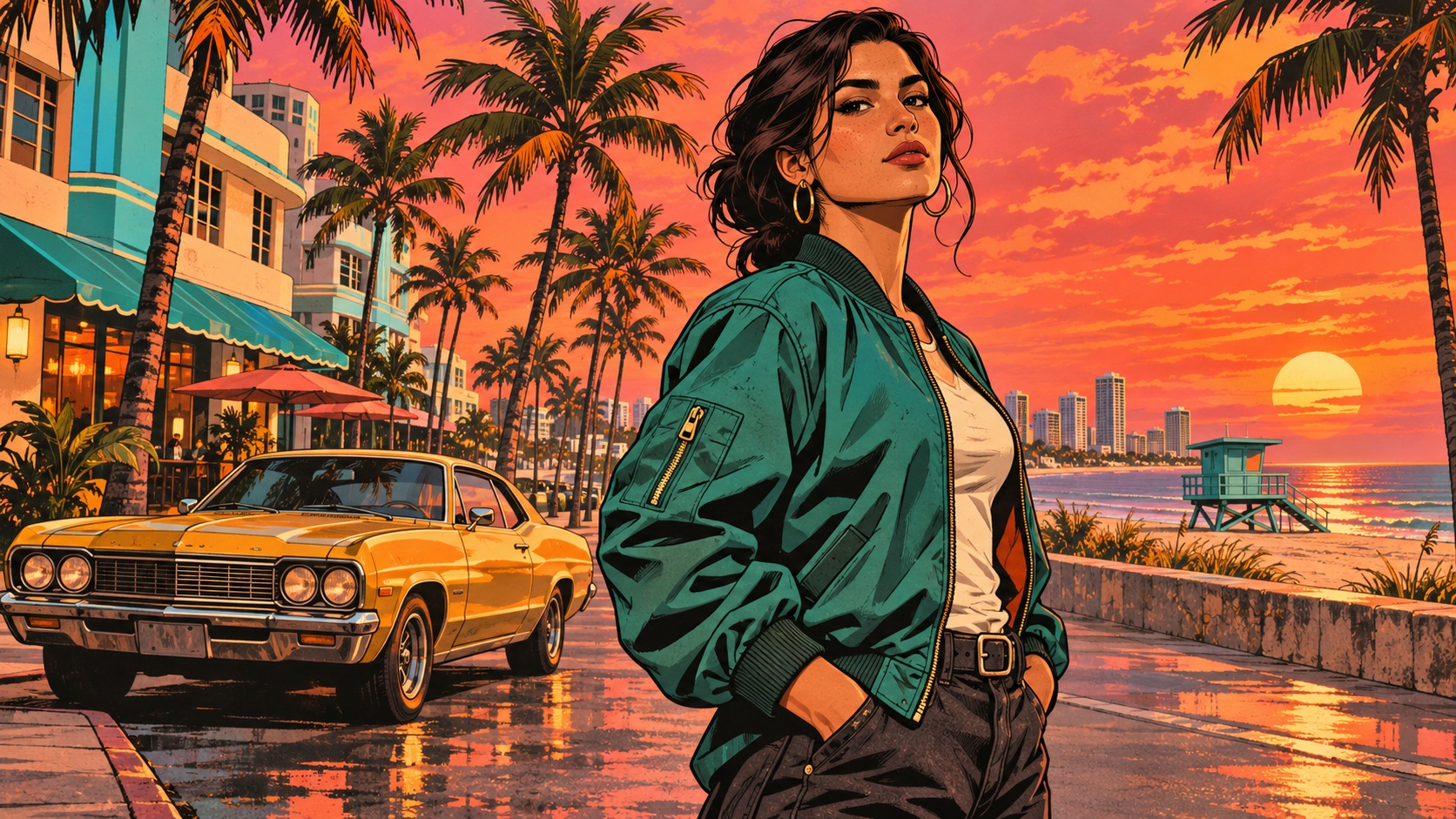
Prepare one clear portrait
- Use a photo you have permission to edit: one fully clothed adult, an unobstructed face and a simple background.
- For the Nano Banana Pro editor: JPG, PNG, WEBP or BMP, up to 4 MB. Inspect the face, edges and hands before saving your chosen image.
- Download the still to your device. For this video workflow, use a readable JPG, PNG, WEBP or BMP up to 10 MB. The checker below stays on your device; upload separately in the studio.
1. Stylize the portrait
Open the editor, upload your portrait and review the prompt. Generate only after reviewing the cost. Choose an image with clean outlines; download it before continuing.
Opens Nano Banana Pro (model pro) with the prompt below. Choose image settings in the editor.
Restyle the uploaded adult portrait as an original illustrated urban action poster: bold ink contours, warm sunset light, saturated teal and orange color blocks, a fictional palm-lined city street and a calm confident pose. Keep one fully clothed adult and try to retain the reference facial features. Keep the face unobstructed and the composition simple. No game characters, weapons, official artwork, titles, text or logos.2. Animate the saved image
Upload the downloaded illustration in image-to-video. Start with subtle movement; review the full clip for face drift and flickering outlines.
Opens Wan 2.5 with the motion prompt, 5 seconds and 480P preselected. You can change to 10 seconds, 720P or 1080P in the studio.
Animate this illustrated portrait with subtle breathing, a small head turn and a very slow camera push-in. Keep the ink outlines and flat color blocks as consistent as possible. One adult, one continuous shot, calm background, no scene cuts, no speaking and no text.Move your finished image to video
- Download the finished image from the image editor and check the face, hands, framing, and any text.
- Optionally check that downloaded file below. Then open the video tool and upload the file yourself; this page does not attach an image.
- Review the prefilled motion prompt, model, duration and resolution in the video tool before starting a generation.
This check stays in your browser and does not upload or store the file. The link carries text and supported settings only. The video tool uses its existing upload flow after you select a file there.
Open video tool, then upload the imageCommon failures and limits
- Face changes: reduce stylization, use a clearer portrait or choose another still. Recognizable identity is not guaranteed.
- Flickering lines or changing backgrounds: simplify the scene and reduce motion. A still image does not guarantee stable illustration style in every video frame.
- Warped hands or extra objects: crop to a simple portrait and remove complex gestures. This workflow does not reproduce game scenes or exact camera sequences.
- No soundtrack, licensed song, speech or lip-sync is supplied. Generation can fail or require another attempt; these prompts have not been tested with paid generations.
Before you start
Is this an official GTA filter?
No. It is an independent tutorial for an original illustrated city portrait. It supplies no official game assets, logos or affiliation.
Does opening the video studio transfer my portrait?
No. Download your chosen still, check the file locally, then upload it yourself in the video studio. Links carry the prompt and supported settings only.