Generated video takes
Choose a successful VideoAny generation before enlargement. Upscaling a flawed take does not fix incorrect motion or a subject that changes shape.
AI VIDEO UPSCALER
Enlarge a supported MP4 clip by 2× with VideoAny’s dedicated AI video upscaler. Upload a short source, review the validated output size and credit quote, then process and download.
Start with the version you actually want to keep, then use upscaling as a separate finishing step.
The video upscaler processes the frames of an existing clip to produce a larger version. It does not invent a new shot from a prompt, change the story, or replace the source with a different VideoAny generation. The current workflow uses a fixed 2× scale, doubling both width and height.
Use a supported MP4 of up to ten seconds, no larger than 50 MB, with source dimensions within 1280×720 or the equivalent portrait orientation and a frame rate of up to 30 FPS. These limits keep this workspace focused on short production shots. AI enhancement can alter small details and cannot reliably recover information that was never visible in the source.
Upscale after reviewing the motion, composition, and content of the original.
Choose a successful VideoAny generation before enlargement. Upscaling a flawed take does not fix incorrect motion or a subject that changes shape.
Inspect contours, materials, and lettering after processing. A larger frame can be useful for layout, but product accuracy still needs review.
Try a suitable short source that needs a larger presentation. Compare fine edges with the original instead of judging only the increased dimensions.
The dedicated processor works on the existing video frames. This is separate from selecting a higher output size for a newly generated video.
The width and height each double. For example, a 640×360 input targets 1280×720; the final size depends on the validated source dimensions.
Upload the source and review the dimensions, frame information, and credit amount before submission. Larger sources and more frames require more processing.
Reference examples help you plan the subject, setting, and intended use of your result.
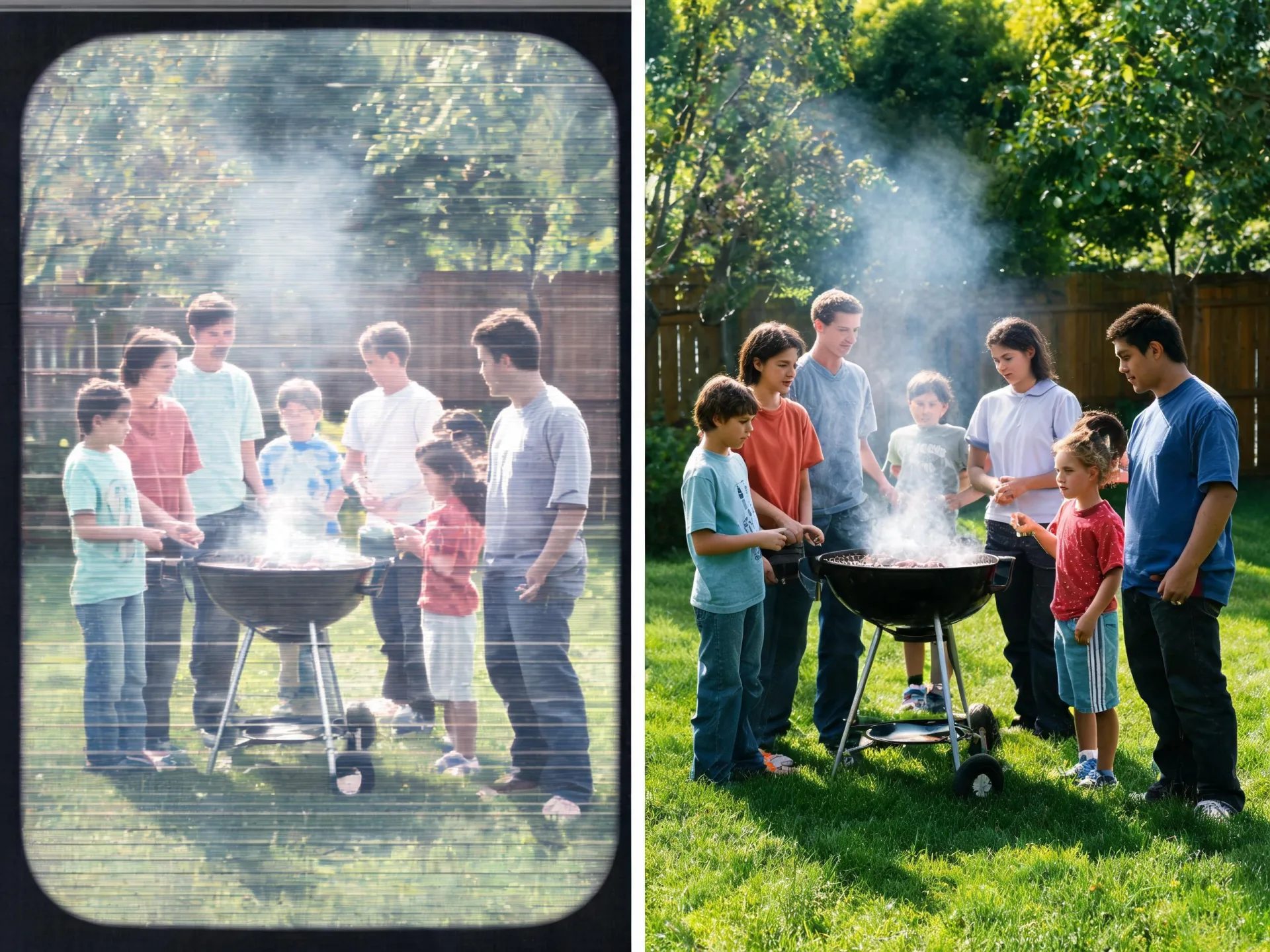
Compare the original appearance with an enhancement direction while checking faces and fine textures.
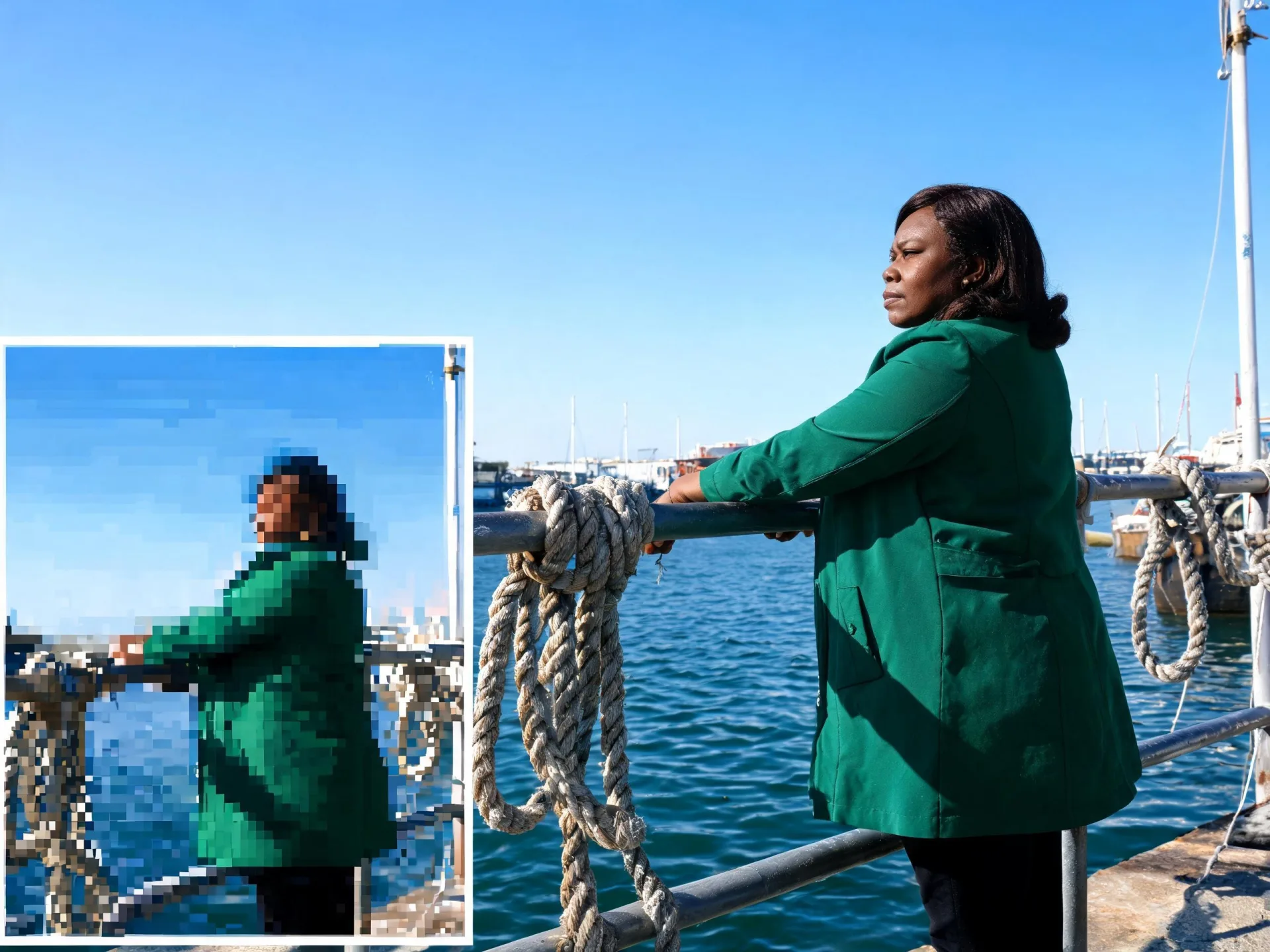
Blocky or missing information can remain imperfect even when the output is larger.

Inspect edges and material detail before placing a processed shot into a larger layout.
The workspace below validates the uploaded file before offering a processing quote.
Use the final take you want to enlarge. Check the visible input limits and remove unwanted material before upload.
Sign in and upload the source. The server checks the actual MP4 rather than relying only on the file extension or a typed duration.
Check the source and target dimensions and the displayed credits. Submit only after the quoted job matches your intended clip.
Play the result and inspect several moments at full size. Download the larger version when the details and motion suit your project.
Upload one supported MP4, validate the source, and review the 2× credit quote before processing.
Upload one MP4 clip up to 50 MB, 10 seconds, 720p and 30 FPS. AI upscaling doubles its width and height while keeping its frame rate. Use standard H.264 or H.265 MP4 files.
Cost: output megapixels × video frames × 0.2 credits, rounded up; minimum 5 credits. A 5-second 720p video at 30 FPS costs 111 credits for 2× upscaling. Check the exact price before starting. Checking files does not spend generation credits.
Checking your saved request…
Choose the operation that addresses the actual problem in the clip.
| Need | AI video upscaler | Another workflow |
|---|---|---|
| Larger dimensions for an existing shot | Apply the fixed 2× scale to a supported short clip. | A basic resize changes dimensions without this AI enhancement step. |
| Different style or scene content | The source shot remains the basis of the enlargement. | Use video to video to request a new visual treatment. |
| A new action or composition | Upscaling does not generate the missing action. | Create a new take with VideoAny text to video or image to video. |
| Several clips in sequence | Upscale a suitable individual shot within the limits. | Use the video merger to assemble prepared clips; its duration limit differs. |
The best review starts with what is already visible in the clip.
Repeated compressed exports can remove information before the upscaler sees it.
Upload the original downloaded take rather than a copy re-saved through several messaging apps.
A plausible reconstructed texture is not proof that it matches the source object.
Compare facial features, fabric patterns, product edges, and lettering at several points in the video.
An attractive paused frame may hide flicker or inconsistent detail during playback.
Watch the full clip at normal speed, then inspect the beginning, middle, and end.
No. This is a dedicated processing operation for a video you already have. VideoAny V5–V2 are generation choices in other workspaces; they are not the scale controls for this upscaler.
The current processor uses a 2× factor for both width and height. A 640×360 source targets 1280×720, while a 1280×720 source targets 2560×1440. The quote uses the validated source dimensions rather than promising a fixed 4K output for every file.
Use a supported, non-fragmented MP4 encoded with H.264 or H.265, up to 50 MB and ten seconds. Source dimensions must fit within 1280×720 or the equivalent portrait orientation, and the frame rate must be no more than 30 FPS.
It can generate a larger, enhanced version, but missing information cannot be recovered with certainty. Heavy motion blur, damaged facial details, and unreadable text may remain imperfect or be reconstructed differently. Compare the output with the source before using it.
Only if that file fits this upscaler’s own limits. The merger accepts a longer total sequence than the upscaler. For longer projects, prepare and process suitable short shots individually rather than assuming every merged export is accepted.
Request a quote after uploading the source and review the displayed credits before submitting. The quote reflects the validated frame size and frame count. The workspace tracks the task and reports processing failures; failed tasks follow the processor’s credit-refund handling.
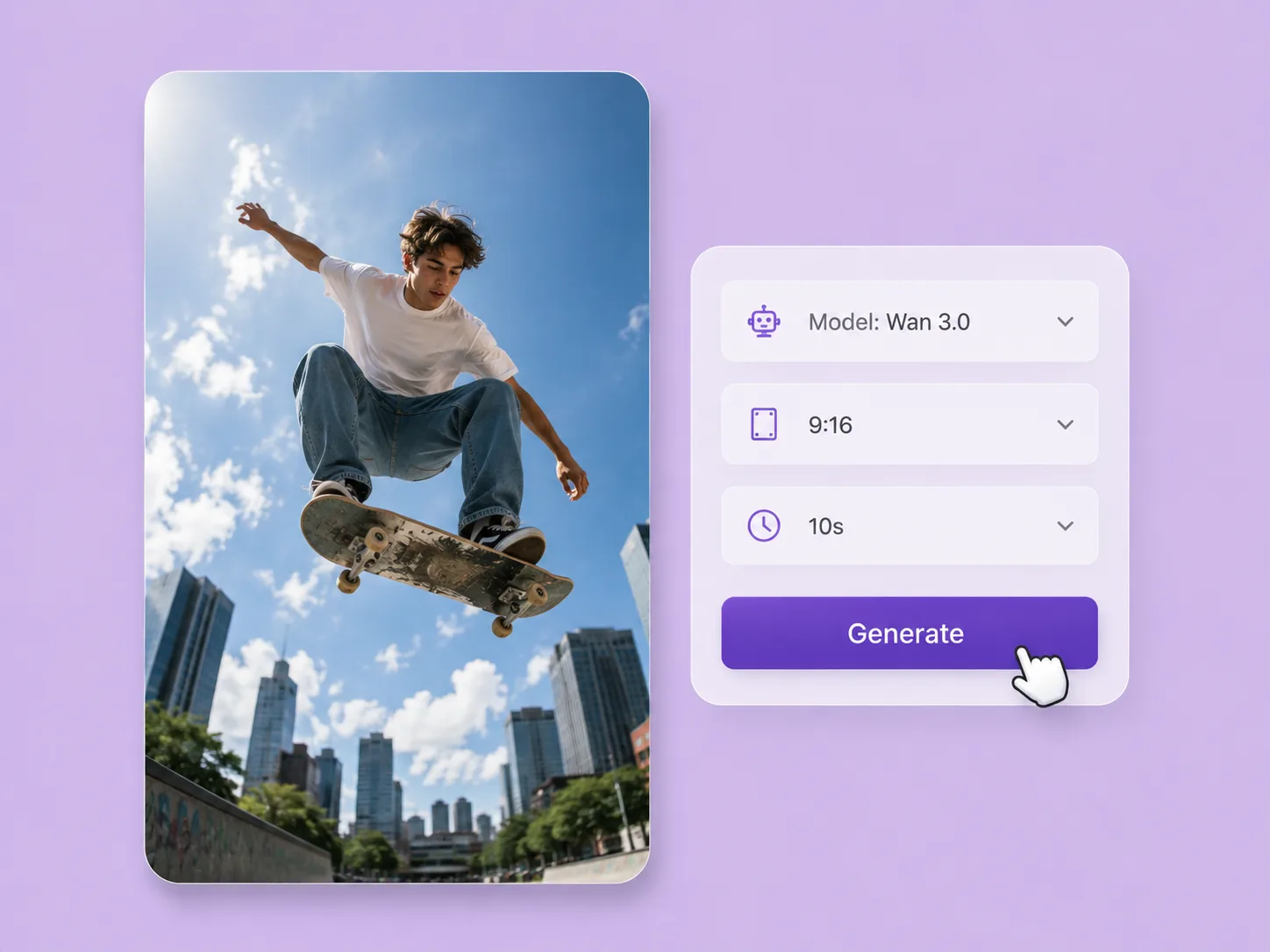
Turn a creative brief into a shot. Start with words or an image and direct motion with VideoAny V5, V4, V3, or V2.
Explore solution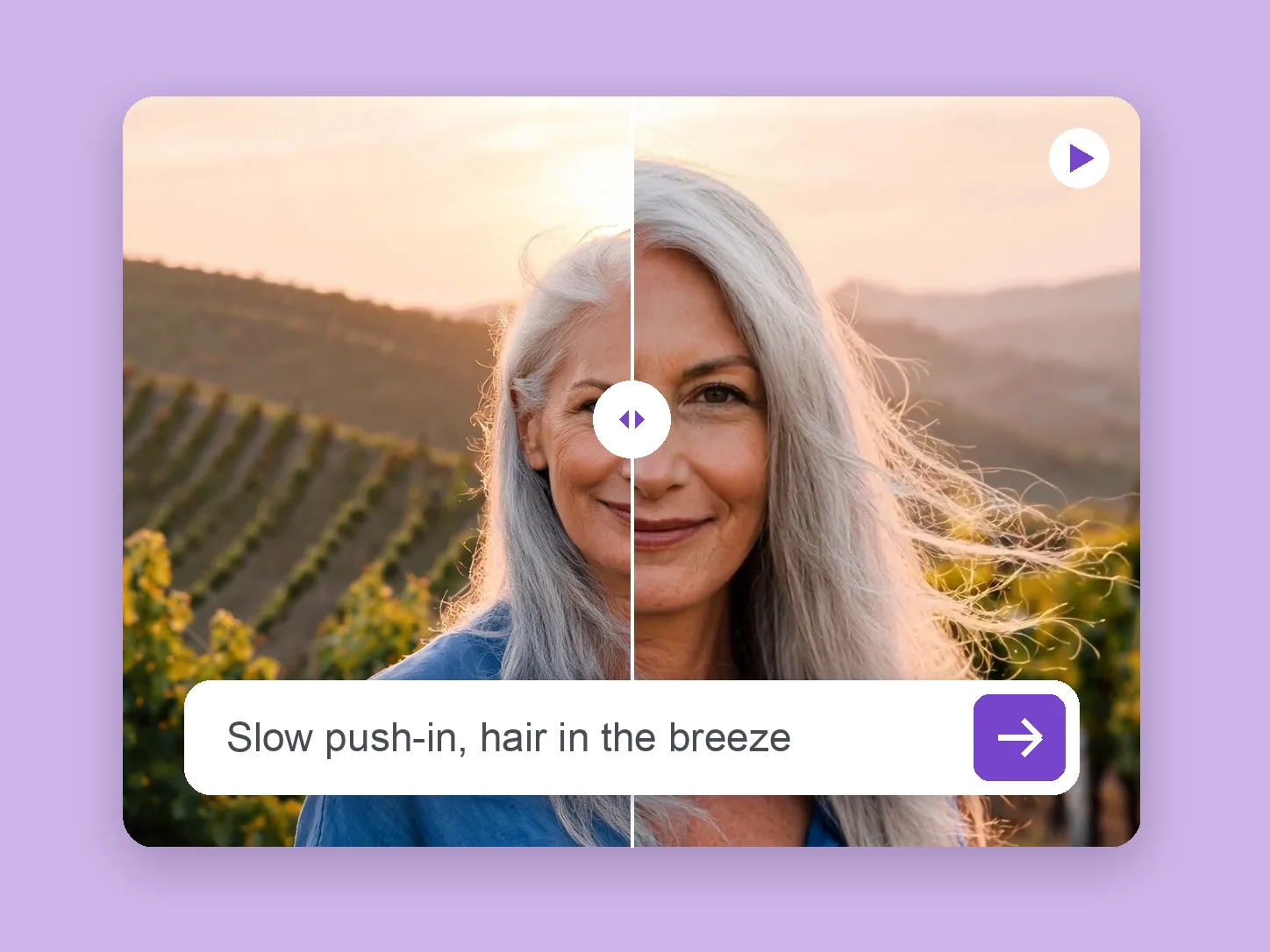
Bring a chosen still into motion. Direct the subject and camera with VideoAny V5, V4, V3, or V2.
Explore solution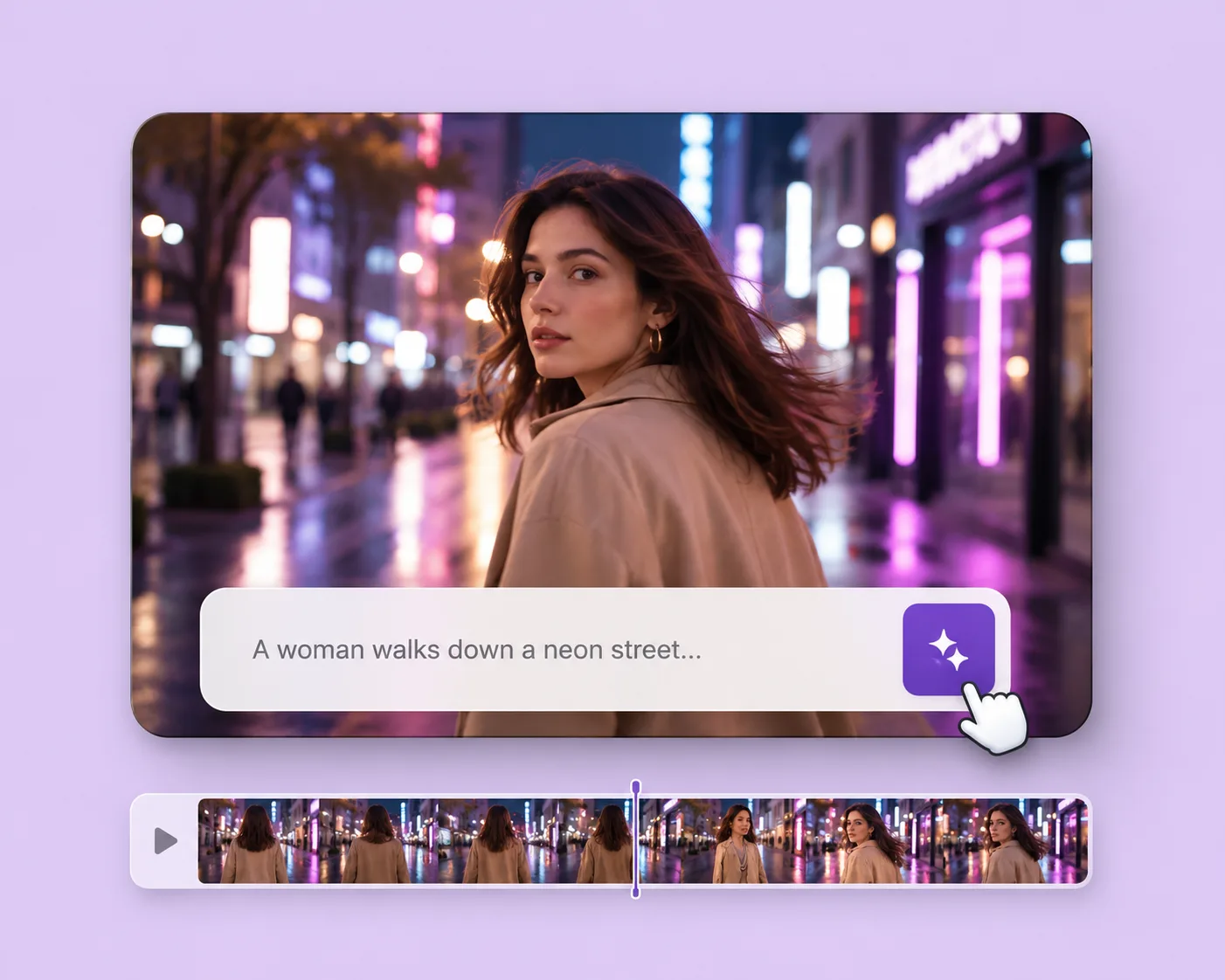
Write the subject, action, setting, and camera movement. Direct an original shot with your selected VideoAny version.
Explore solutionUpload a supported short clip and check the source-specific 2× quote before starting the enhancement.
Prepare my upscale