Design a readable boxed figure before adding motion
The Action Figure workflow makes a digital illustration of a toy-like person inside retail-style packaging. It does not create a printable manufacturing design or a physical product. The existing Action Figure effect opens the same site’s image editor with a boxed-figure prompt.
This guide adds a simple original accessory plan, a fallback prompt and an optional short product-shot video. It is distinct from the broader figurine and palm-sized miniature effects: the goal here is a complete box, an articulated figure and a small accessory tray.
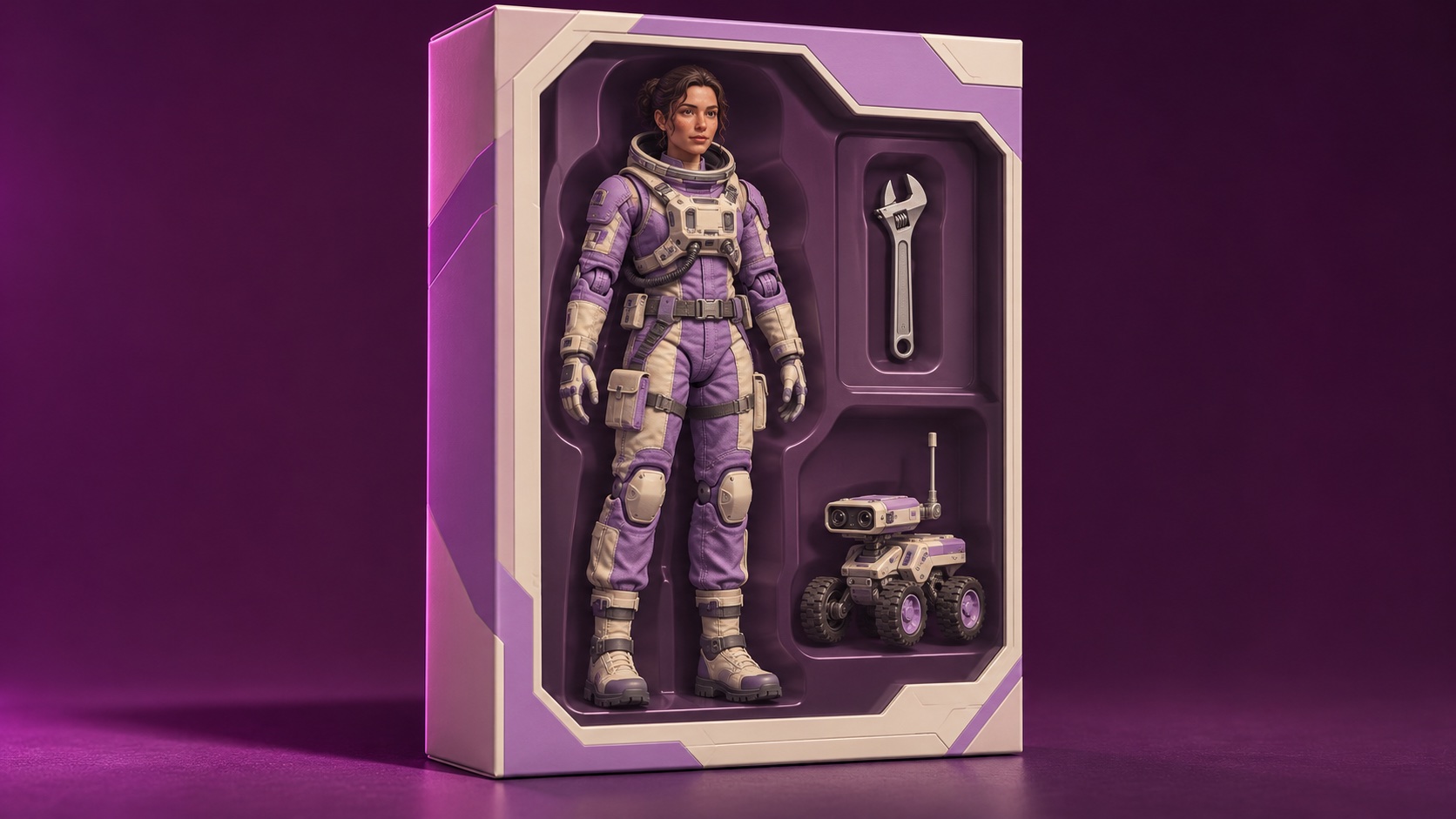
The AI concept cover illustrates a boxed astronaut with separately placed accessories. The prompts below have not been tested by generating a result. Inspect the likeness and packaging in your own output.
Choose the source portrait and prepare the file
Use a clear photograph of one adult whose likeness you have permission to transform. A front or slight three-quarter view, visible hairstyle and recognizable outfit colors provide useful reference details. Avoid tiny faces, heavy filters, occlusions and overlapping people.
The linked Nano Banana Pro editor uses a 4 MB input limit. Choose a standard JPEG, PNG or WebP within that limit. Export HEIC, SVG, GIF or unusual encodings to a still JPEG or PNG, then open the exported file locally to confirm it is intact.
If you plan to animate the result, leave space around the complete box and use a simple background. Download the reviewed output as a supported still within the linked video tool’s 10 MB limit. A successful local format check cannot guarantee provider acceptance.
- Use one adult and one original figure design.
- Describe two simple original accessories at most, then remove them if the tray gets crowded.
- Keep label areas blank; add exact lettering in an editor after generation.
- Request original packaging without official logos or protected character costumes.
Create, review and optionally animate the figure
1. Open the existing Action Figure effect or the starter prompt link below. Both use the current Image to Image editor with model pro, Nano Banana Pro. Upload the portrait yourself and edit the outfit or accessories to fit your idea.
2. Review the selected model, displayed settings and cost before generating. Ask for one front-facing box and a fixed figure pose first. A prompt is an instruction to try, not a control that guarantees joint placement or a face match.
3. Inspect the whole image at a useful size. Check the face, fingers, joint connections, accessory count, tray edges and all four box corners. If the design is cluttered, use the no-accessories fallback instead of adding more instructions.
4. Download the chosen still and inspect the local file. For a video, open the product-shot prompt below and manually upload this reviewed file in Image to Video. Confirm the preview matches; opening the link does not transfer an image.
5. The optional video link selects Wan 2.5 and fills the prompt only. Choose supported duration and resolution in the studio, review cost, then submit deliberately. Check the full clip for changing box text, melting plastic, duplicated props or face changes before downloading it.
Copy an original figure or product-shot prompt
Copy a starting prompt, then adapt it to your own image. These prompts have not been generation-tested.
Image to Image · Nano Banana Pro
Boxed figure with two accessories
Start with a front-facing box, one figure and a simple tray.
Edit the uploaded adult portrait into an original full-body collectible action figure inside a front-facing retail display box. Try to retain the reference facial features, hairstyle and outfit colors. Give the figure a molded-plastic finish and simple articulated joints. Put one small notebook and one plain camera in separate accessory compartments beside the figure. Show the complete box with clean studio lighting and a blank unbranded label area. One figure only. No logos, copied characters or text.
- Replace the notebook and camera with two simple original objects.
- Leave the label blank and add exact text later in your editor.
Image to Image · Nano Banana Pro
Simpler box fallback
Remove accessories if the box, hands or joints are distorted.
Edit the uploaded adult portrait into one original molded-plastic action figure standing upright inside a simple front-facing display box. Try to retain the reference facial features and outfit colors. Show the complete box, clear hands and simple shoulder and knee joints. Clean studio light, plain background, no accessories, no text or logos.
- Inspect every hand and joint before continuing.
- Avoid changing pose, packaging and outfit all at once.
Image to Video · Wan 2.5
Optional subtle product video
Animate the camera and light around the reviewed image with minimal requested object motion.
Animate the uploaded boxed action figure image as a subtle product shot. Keep the figure, packaging and accessories still and try to retain their shapes. Make one very slow camera push toward the front of the box with a gentle lighting change. No unboxing, walking, turning, text changes, extra objects or scene cuts.
- Download, check and manually upload the approved still first.
- A camera prompt can still deform the box or change the face; inspect the whole clip.
Continue in the existing tools
Common failures and practical revisions
| Problem | Likely cause | Next change |
|---|---|---|
| Face loses resemblance | Heavy toy stylization, unclear source or competing outfit changes. | Use a sharper portrait and reduce the number of requested changes. Likeness is not guaranteed. |
| Extra fingers or disconnected joints | Small hands, overlapping accessories or intricate articulation. | Use a simple standing pose and the no-accessories fallback. Inspect all joints. |
| Accessories merge or duplicate | Crowded compartments and too many tiny objects. | Use one or two clearly different props with separate spaces, or remove them. |
| Box edges crop or bend | Tight framing, angled packaging or a complex background. | Ask for the complete front-facing box with extra margin on a plain background. |
| Label text is misspelled | Image synthesis does not provide dependable typesetting. | Leave the label blank and add exact text separately. |
| Video melts the box or makes the toy walk | Large motion, multiple actions or unboxing instructions. | Keep the figure still and request a small camera push only. This still cannot guarantee stable geometry. |
| Image upload fails | Unsupported encoding, corrupt/empty file or excessive size. | Export a fresh JPEG or PNG within the selected tool’s limit and retry the local upload. |
Separate a visual concept from a controlled product render
The editor may alter facial identity, anatomy, accessory count, joints and packaging. The video model may change details between frames even when the prompt asks for a static figure. There is no stable identity, exact layout, animation or manufacturing guarantee.
The workflow does not automatically cut out the figure, build a 3D model, manufacture a toy, add readable labels or create a store listing. Choose and inspect each output manually. Add exact text and final layout in your own editor when needed.
Use original character and packaging ideas. The linked prompts do not include official toy logos, protected franchise characters or an affiliation claim. Review actual model settings, provider availability and cost before submitting any generation.
Action Figure workflow questions
Is the Action Figure effect the same as a figurine effect?
This guide focuses on an articulated full-body figure inside a complete retail-style box. Other miniature or figurine effects can have different compositions. The matching existing entry is /ai-effects/ai-action-figure.
Can I add my name or exact packaging text?
You can request text, but spelling and placement may be unreliable. The supplied prompts leave the label blank so you can add exact lettering in a separate editor.
Can I animate the image immediately?
Download and inspect the chosen still first, then open the video prompt and manually upload that file. The prompt link does not carry a private image or perform an upload.
Does this produce a physical action figure?
No. It produces a digital image and, if you use the optional video tool, a generated clip. It supplies no manufacturing file, physical object or shipping service.
Create a simple box you can inspect
Begin with the existing Action Figure effect. Keep one original figure and a small accessory tray, then add motion only after checking the still.