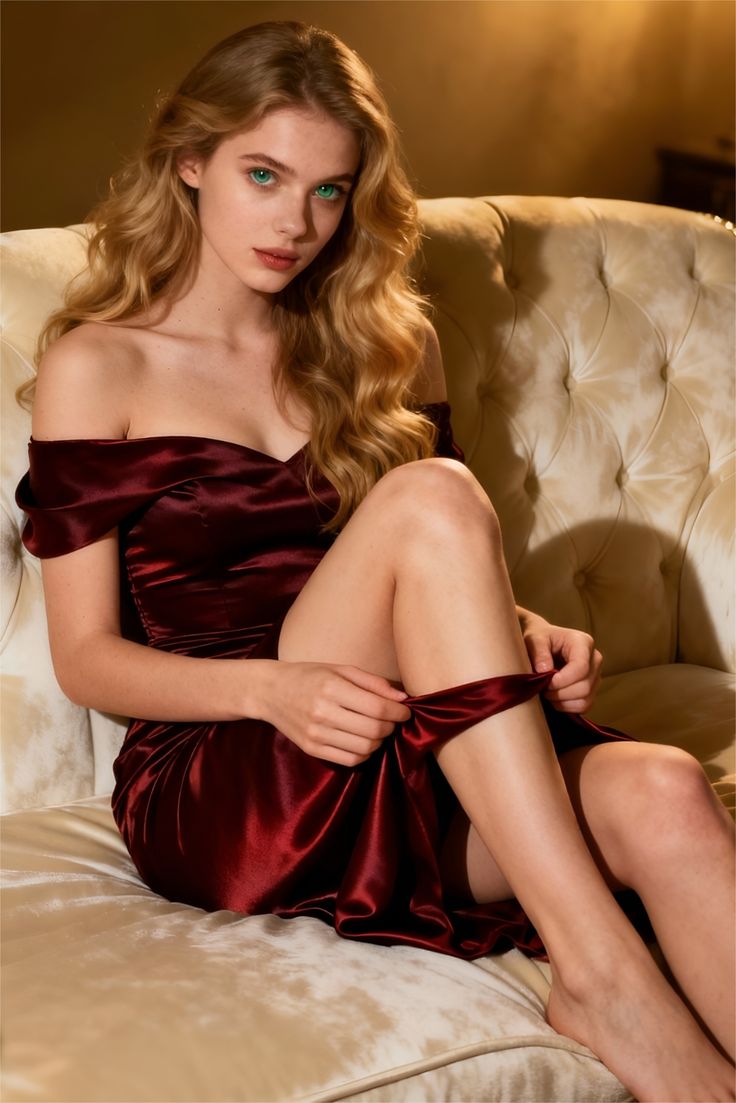
1. Define what the finished clip must preserve
Write a one-sentence brief before generating: “Animate this illustrated character for a vertical teaser while preserving the face, outfit, and background.” Separate the details that must remain unchanged from the elements allowed to move. That gives you a concrete acceptance check instead of judging each draft by novelty.
A still accepted by one image generator may not meet a video generator’s input requirements or content rules. “Uncensored” does not describe a universal format or guarantee that every model accepts the same request. Check the receiving model before investing in a large image batch.
Decide the destination shape, required duration, and whether text must stay readable. Treat these as delivery requirements, then compare them with the settings actually available. If the selected model cannot provide a required output, resolve that mismatch before spending on drafts.
2. Approve and export one reference image
Create a starting frame with Text to Image, refine an existing reference with Image to Image, or use an image you already have permission to use. Save the original separately. Give the selected revision a distinct filename so that a later crop or repair cannot silently replace your baseline.
Inspect the still at full size. Check faces, hands, overlapping objects, edges, and any label that needs to survive animation. A defect already visible in the source is an image-preparation task. Correct it before asking the video model to infer movement around it.
Export a file that the receiving model accepts. Verify the permitted file type, dimensions, file size, and aspect ratio in that model’s current input guidance. Leave room around a moving subject; preview any crop before submission. Reopening the exported file helps catch an accidental low-quality or wrong-version export.
3. Keep an image-to-video handoff record
Copy these fields into your project notes. “Unavailable” is a useful value when a tool does not expose a setting; do not invent one.
| Field | Record before generation | Why keep it |
|---|---|---|
| Source image | Exact filename or stable asset URL; original and approved revision | Find the actual input used for a draft |
| Image preparation | Image generator/model if known; edits, crop, and source prompt if available | Separate a source change from a video change |
| Aspect ratio and dimensions | Exported width × height; destination shape; any crop | Spot framing or compatibility mismatches |
| Video model | Selected model name and version if displayed | Avoid comparing drafts from different models by mistake |
| Seed or reference controls | Value only when exposed; otherwise “unavailable” | Describe the setup without claiming reproducibility |
| Motion instructions | Exact prompt; intended action; details to preserve | Identify what each revision changes |
| Generation settings | Duration, resolution, and other options actually offered | Keep settings comparable within a test |
| Version and export | Draft ID, output filename, delivered dimensions, duration, and format | Connect the reviewed draft to the delivered file |
The same seed does not guarantee identical output across models or services. Inspect the generated file rather than assuming its properties match the request.
4. Give the video model a small motion brief
These are original example instructions to adapt, not prompts associated with measured results or the source-page images. Keep the first draft simple enough to diagnose.
Character reference: camera-only baseline
Slow, subtle push-in toward the illustrated character. Preserve the current pose, face, outfit, and background. One continuous shot.
- Use a still with a clearly visible face.
- Compare the face and outfit at the start, middle, and end.
Product reference: isolate the moving element
The camera stays fixed. A gentle reflection moves across the stationary bottle. Keep the bottle shape, cap, and label consistent. No cuts.
- Inspect the label throughout; a request to preserve it is not a guarantee.
- Add object rotation only after reviewing the simpler draft.
5. Generate a small, comparable first draft
Open Image to Video with the approved reference. Select the receiving model and complete its required inputs. Choose suitable available duration and quality settings for a review draft, then check the displayed cost before submitting. Available controls and costs depend on the selected model.
Record the submitted settings immediately. Watch the whole returned clip once at normal speed, then inspect its opening, middle, and final frames. Compare it against the brief: did identity survive, did the intended element move, and did the composition remain usable?
Mark a draft as usable, needs revision, or failed, with one specific reason. “The sleeve changes color halfway through” gives the next test a target. “Looks wrong” does not. Retain the output alongside its record even when you reject it.
6. Identify the failure before changing the prompt
| Symptom | Inspect first | Next action |
|---|---|---|
| Content request is rejected | The displayed policy or moderation message for that model | Review the applicable rules; revise to a permitted request or choose a suitable permitted project |
| Image upload or validation fails | Accepted formats, dimensions, file size, required fields, and URL access if used | Correct the stated mismatch; export a compatible copy and keep the original |
| Generation fails after submission | Returned error, job state, required inputs, and account balance | Resolve the reported issue before retrying; record whether credits were charged or returned |
| Face, outfit, or object drifts | Source defects and how much movement reveals unseen detail | Repair the source or reduce the action; test one of those changes first |
| Camera moves unexpectedly | Conflicting camera instructions or several sequential actions | Specify one camera behavior and remove competing instructions |
| Framing or delivery format is wrong | Input crop, requested settings, and actual output properties | Adjust the supported framing/settings and inspect a new draft |
A policy rejection and an incompatible image need different responses. Re-exporting a file does not resolve a content restriction; a longer prompt does not fix an unsupported file type.
7. Change one variable and keep a baseline
Name the first draft A. For draft B, change one item: the source crop, motion amplitude, camera instruction, or an available model setting. Keep the other inputs fixed and write down the expected improvement. Compare A and B against the same acceptance check.
If you change the model, treat it as a new baseline because its controls and behavior may differ. Do not attribute an improvement to your prompt when the source image and model also changed. Keep the better draft, note the remaining defect, and choose the next single change.
Set a revision budget before another batch. If several drafts fail the same essential requirement, revisit the source or delivery brief. Repeating a complex prompt without a hypothesis produces more files without explaining what to fix.
8. Count usable clips and verify the final file
Record image-preparation spend, video-generation charges, refunds if any, and the number of clips accepted for use. Within one credit system, divide net credits spent by accepted clips. If none are usable, report the spend and zero accepted clips rather than a misleading unit cost. Do not compare credit totals from different services as though their units have equal value.
Before delivery, reopen the downloaded file and verify its duration, dimensions, playback, and framing. Check the exact face, product detail, or text named in the brief. Keep a copy of the approved source, final prompt, settings record, and selected output together.
For a series, repeat that review on every accepted clip. Similar prompts are not evidence of matching identity or visual continuity. Check the model and asset permissions for the intended use before distributing the final files.
Image-to-video handoff questions
Can I transfer a seed from an image generator to a video generator?
Record a seed when available, but do not assume another model understands it or reproduces the same result. The approved image file is the concrete visual input; check which additional reference controls the receiving model offers.
Should I choose a new generator when a clip fails?
First separate a policy rejection, an input mismatch, and an unsatisfactory generated result. Fix the specific issue or simplify the test. When comparing generator approaches, use the related selection guide below.
How is this different from a motion prompt guide?
This workflow manages the handoff between tools: source versions, input compatibility, comparable drafts, and delivery records. The related motion prompt guide goes further into choosing movement for different scenes.
Test the handoff with one approved still
Keep your reference and settings record together, check the selected model, and inspect one controlled draft before scaling up.