Make an original dance with a clear starting frame
This guide uses the 24K Magic trend as a loose visual reference for an upbeat, sunny cruise-deck clip. It is an unofficial creative exercise with no artist or music-label affiliation. The aim is a new short dance, rather than a replica of a music video.
The existing 24K Magic effect opens Veo 3.1 with its own longer editable dance prompt. The starter links in this guide offer a simpler Wan 2.5 alternative using the tools already present on this site. Choose one route deliberately; the prompts do not provide choreography controls or an audio track.
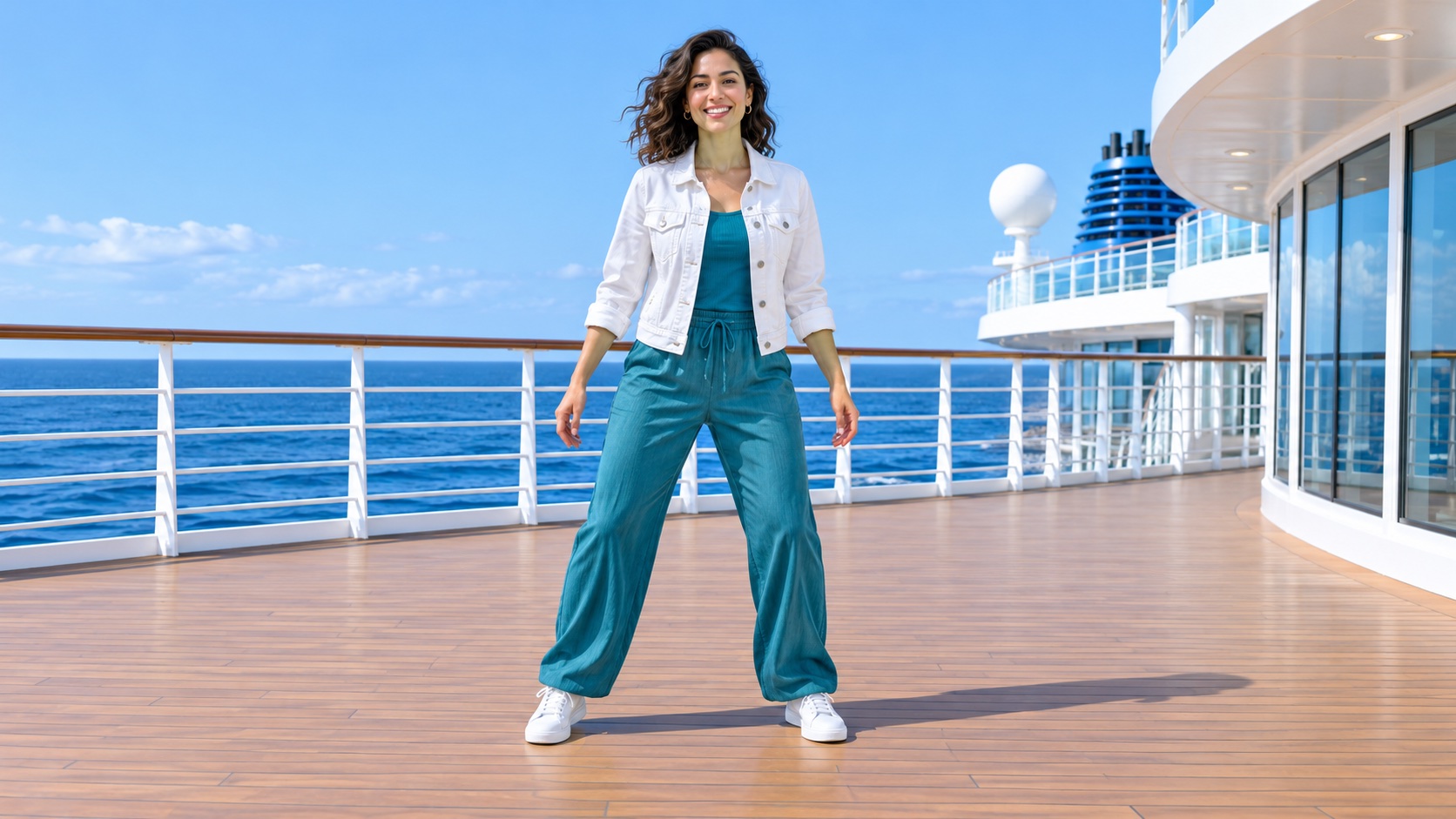
The AI concept cover illustrates a full-body starting pose with both feet visible. The prompts are starting suggestions and have not been tested by generating a clip. Generation remains a separate action after you upload a file and confirm settings in the tool.
Prepare the photo and choose the framing
Use one clearly visible adult whose image you have permission to use. A sharp full-body image should show the face, both legs and both shoes. Leave some empty floor around the feet and avoid a pose where arms, hands or legs overlap.
For the optional Nano Banana Pro editor link, choose a standard JPEG, PNG or WebP within the editor limit of 4 MB. For the linked Wan 2.5 video tool, prepare a JPEG, PNG or WebP within 10 MB. Convert HEIC, SVG, GIF or unsupported files to a still JPEG or PNG, then check the exported file before uploading. Provider acceptance still depends on the selected model.
Pick your final vertical or landscape crop before generating. Stretching a tight portrait into a full-body scene asks the model to invent the missing legs and deck; use a wider source or create and inspect a new still first.
- One adult, clear face, full body and visible shoes.
- Straight horizon, uncluttered background and visible deck floor.
- Use your own or authorized images; avoid recognizable brand marks.
- Keep an untouched source file and review the exported still locally.
Follow the image-editing and video steps
1. If your source already shows the scene you want, skip the editor. Otherwise open the scene prompt below in Image to Image, upload the source and select the existing Nano Banana Pro model. Adjust the wording to your photo, review the displayed cost and submit only when you are ready.
2. Inspect the resulting still for face changes, extra fingers, hidden shoes and a tilted horizon. Download the image you actually want to animate. Re-export it as a supported still format if necessary; a thumbnail or a copied image URL is not the file.
3. Open the dance starter link, which selects Wan 2.5 and fills the motion prompt. Upload the reviewed local image in Image to Video. The link does not carry your image or automatically upload it. Confirm the preview is the same still before continuing.
4. Choose a supported duration and resolution in the studio, then re-check the prompt and displayed cost. Start with the smaller routine, generate deliberately and inspect the whole clip for face drift, foot sliding and background distortion.
5. Download an acceptable clip and add your own or licensed audio in your editor if desired. This workflow does not license or attach the 24K Magic recording, synchronize its beat, or guarantee any particular choreography.
Copy a scene or motion prompt
Copy a starting prompt, then adapt it to your own image. These prompts have not been generation-tested.
Image to Image · Nano Banana Pro
Optional cruise-deck still
Use only when your photo needs a different scene. Review the edited image before animation.
Edit the uploaded full-body adult photo into an original sunny cruise-deck scene. Keep one adult, the entire body and both shoes visible, with clear floor space around the feet. Use a simple ocean horizon and railing, warm golden-hour light, and relaxed arms away from the torso. Try to retain the reference facial features and outfit colors. No text, brand marks or extra people.
- Upload your photo in the editor; the prompt link contains no file.
- Keep the person large enough to inspect the face and shoes.
Image to Video · Wan 2.5
Small original dance
A short routine with two simple actions and a fixed camera.
Animate the single adult in the uploaded full-body cruise-deck image with two small side steps and relaxed shoulder bounces, ending in a comfortable standing pose. Keep both shoes on the deck, hands relaxed, the horizon stable and the camera fixed. One continuous shot with small original movements. No copied choreography, extra dancers, text, logos or requested soundtrack.
- Choose duration and resolution in the video studio.
- Remove a movement if hands or feet distort.
Image to Video · Wan 2.5
Lower-motion fallback
Try a planted-foot sway if stepping introduces too much distortion.
Animate the single adult in the uploaded cruise-deck image with a gentle shoulder sway and a small smile. Keep both feet planted and hands relaxed. Fixed full-body camera, calm ocean background, one continuous shot. No scene cuts, extra people, text or requested soundtrack.
- Begin with a clear full-body still.
- Small motion can still alter the face or clothing.
Open the exact prompt in a real tool
Common problems and changes to try
| Problem | Likely cause | Next change |
|---|---|---|
| Feet slide or merge | Cropped shoes, little floor space, or too many steps in one shot. | Use a wider still and switch to the planted-foot prompt. |
| Face or outfit changes | Stylization, a tiny face or large motion leaves ambiguous details. | Use a sharper source, simplify motion and inspect a new still first. Identity retention is not guaranteed. |
| Arms or hands distort | Overlapping limbs, rapid gestures or a busy routine. | Relax the arms, remove hand gestures and keep one movement. |
| Horizon or railing bends | Camera movement and a complex scene compete with body motion. | Fix the camera and use a simpler deck scene. |
| Upload rejected | Unsupported encoding, empty/corrupt file, or file above the selected tool’s size limit. | Export a fresh JPEG or PNG, check its size and upload the local file again. |
| No expected song or exact steps | A text motion prompt supplies neither music rights nor a reference-choreography control. | Use an original routine; add authorized audio separately after generation. |
Know what this workflow can and cannot control
Facial identity, anatomy, foot contact, outfit details, scene continuity and precise timing may change. A better starting image and a smaller action reduce ambiguity, but they do not establish stable identity or motion guarantees.
Tool availability, provider rejection, cost and supported settings are shown in the studio. Opening a link is not a free generation promise. Do not treat the concept image as evidence of a result from the supplied prompts.
No copyrighted song is supplied or licensed, and no exact dance routine is promised. Review both the image and the full clip before choosing to use them.
24K Magic workflow questions
Does the guide add the 24K Magic song?
No. It supplies image and motion prompts only. Add your own or licensed audio separately; the workflow does not guarantee silence, music synchronization or an exact soundtrack.
Why does the effect use a different model from the starter link?
The existing effect uses Veo 3.1. This guide also offers an optional Wan 2.5 prompt with smaller movements. Each opens a real tool with its selected model; review settings and cost for the route you choose.
Is my edited image transferred when I open Image to Video?
No image is included in these links. Download and inspect the still, then upload the local file in Image to Video and confirm its preview.
Can a headshot produce the same dance?
A headshot leaves the body and feet to be invented. Use a full-body photo or first prepare and review a wider still; neither approach guarantees a particular result.
Start with one person and a small movement
Choose the existing effect or the simpler Wan 2.5 starter. Both require your own image, a settings review and an explicit generation action.