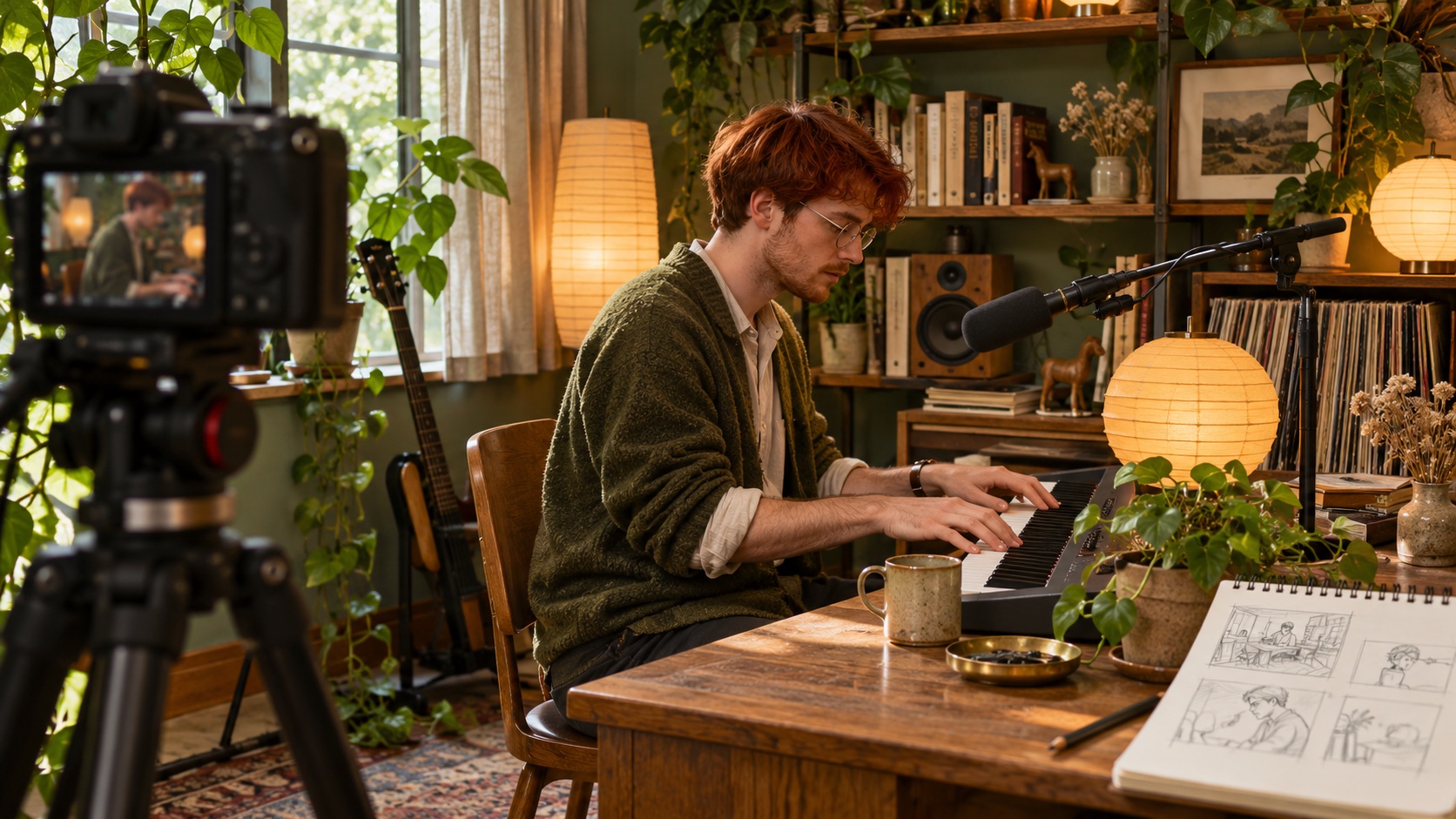
AI-generated concept artwork for planning an original desk-stage performance.
A tiny desk style video works because the setting is instantly readable: a performer, a compact work surface, a few instruments, and the feeling of an intimate live show. You can create that mood with AI without copying a real concert. Design an original stage, generate a small set of shots, and edit them to a music track that you own or have permission to use. VideoAny's tiny desk effect page is a starting point for the visual concept.
This is a shot-by-shot workflow, not a promise that one prompt will produce a finished music video. Treat each generated clip as footage to review and assemble. A clear plan will save more time than repeatedly asking a model for a complete concert.
1. Design an original miniature stage
Start by deciding who performs and what makes the setting distinctive. A wooden desk, two microphones, paper lamps, and a wall of small books give the scene a warm studio feel. You can choose a different combination: a florist's workbench, a radio booth, or a rooftop table. Keep the number of props modest so they remain recognizable across shots.
Create a still image of your performer and stage first. Keep that approved image as the visual reference for later clips. If the performer is a real person, use their image only with permission. Avoid using another artist's name, face, logo, or set design as an unlicensed shortcut to a familiar look.
2. Write a short shot list
Three or four shots are enough for a social clip. Try an opening wide shot that establishes the desk, a medium shot of the singer, a close view of hands on an instrument, and a final pullback. Give every shot one visible action. For example: "The performer taps a rhythm on the desk while the camera slowly pushes in." A single action is easier to judge than a prompt that also asks for a costume change, moving crowd, dramatic lights, and a camera orbit.
Use the multi-shot video workspace to plan a short sequence, or generate each shot separately with image to video. The multi-shot workspace creates a short sequence; a longer edit still needs additional clips and assembly.
3. Prompt for motion and continuity
Describe the frame and action in plain language: "An original singer in a green jacket performs behind a small oak desk, warm table lamps, two compact speakers, camera at seated eye level, gentle head movement, fingers keeping time." For the next shot, repeat the stable facts: jacket, desk, lamps, speaker positions, and lighting. Change only the camera view or the performer action.
Compare each output to your approved still. AI can change hand positions, instruments, facial details, or words on objects from one take to the next. Regenerate the shot that breaks continuity, or cut to a detail view that hides the mismatch. Do not assume a shared prompt makes separate clips identical.
4. Build the soundtrack and final edit
Choose a track you created or licensed for this use. If you need an original starting track, explore text to music, then review the output and usage terms before publishing. Mark a few musical beats and place the wide, medium, and detail shots around them. Use cuts where the performer or camera movement can change naturally.
VideoAny's video merger can join a small set of prepared MP4 clips into one file. For detailed beat cuts, audio mixing, subtitles, or a longer concert montage, finish in a video editor with a timeline. Check lip movement against the soundtrack; generated performance motion is not a guarantee of exact singing sync.
A final review before publishing
Watch the edit with sound and without sound. The silent pass reveals awkward gestures and continuity errors. The sound pass reveals bad timing and abrupt transitions. Check that any visible logos, performer likenesses, voices, and music are yours to use. Credit your collaborators, and describe the result as an AI-created performance rather than footage of a real event.
If the first draft feels generic, revise the stage and the shot list before generating more footage. A distinctive desk, color palette, and camera rhythm give the trend its own identity.