Add subtle portrait movement
Try a slight head turn, natural breathing, or a soft breeze. Small actions are a practical first test when facial appearance matters.
AI IMAGE TO VIDEO
Turn a product photo, portrait, or illustration into a moving shot. Choose VideoAny V5, V4, V3, or V2, then direct the subject and camera from a frame you already like.
Image to video brings a visual developed elsewhere in your project into VideoAny’s video-first workflow.
An image establishes the subject, color, framing, and setting before the first movement happens. Your prompt can then concentrate on the performance: a head turns toward the window, fabric moves in a light breeze, or a camera approaches a product on a table. Separate the subject action from the camera instruction so the shot has a clear rhythm.
Start with a finished still. If the outfit, background, or product arrangement needs a change, make it with ImageAny in image to image first. Download the selected result and upload it to the video workspace. This is especially useful for a creator series or campaign where a visual direction already exists. Review the whole generated clip, because details can shift after the opening frame even when the starting image is accurate.
Choose a restrained action that supports the subject instead of asking every part of the frame to move.
Try a slight head turn, natural breathing, or a soft breeze. Small actions are a practical first test when facial appearance matters.
Keep the object visible while exploring a slow camera move. Check that its outline, material, and important markings remain convincing.
Suggest drifting clouds, rippling water, or gentle foliage movement. Pick a camera direction that fits the depth already present in the photo.
Ask to retain the illustration's visual style while adding restrained motion. Keep the action compatible with the drawing's perspective and shapes.
Select V5, V4, V3, or V2 before opening the workspace. Review the options and credit amount for the chosen model.
If the starting photo needs a new outfit or setting, edit the image before animating it. One clear still gives the video a better-defined brief.
Reference clips show how a product, landscape, and illustration invite different kinds of motion. They are examples for planning your shot, not guaranteed VideoAny results.
A restrained camera move gives a simple object room to remain the focus.
Use the layers of a lake, a wooden jetty, and distant mountains to plan gentle motion.
Keep the drawn style while exploring small movement in a quiet scene.
Prepare a motion prompt here. Upload and generate in the image-to-video workspace.
Use a clear image with the subject, outfit, and framing you want. Avoid expecting the animation to repair a confusing or obstructed source.
Select a VideoAny version below. Write what should move and how the camera should behave, using a preset if helpful.
Open image to video, add your photo, and review the selected model's available options and credit amount before generating.
Check the subject and motion from start to finish. Download a take you like or adjust the prompt and source for another attempt.
Choose a VideoAny model and adapt a motion preset. Continue to the workspace to upload the image you want to animate.
An image is a useful starting point when the visual identity of the shot is already in place.
| Your starting point | Suggested workflow | How to direct it |
|---|---|---|
| A finished still image | Image to video | Describe motion and camera behavior. |
| A scene written in words | Text to video | Describe the subject, setting, action, light, and camera. |
| An image with the wrong setting | Image to image first | Create the intended still before asking it to move. |
| Several images for a story | Plan separate clips | Animate each shot and assemble selected takes in your video editor. |
Your image already describes much of the scene. Use words to explain what changes over time.
A small movement gives you a clear first result to review. Add complexity after the basic shot works.
The leaves sway gently in the breeze; the bench remains still.
Choose a steady frame or one clear move. Avoid asking for a static camera and an orbit in the same prompt.
Slow push-in toward the product, with no abrupt camera movement.
Name important appearance or style details while remembering that a prompt is guidance, not a lock.
Keep the watercolor texture, pastel palette, and original framing.
Use the model and prompt controls here, then open the image-to-video workspace. Upload your photo there before generating. No file is uploaded by selecting a preset on this page.
Choose a sharp image with a readable subject and the composition you want. Heavy blur, obstructed faces, tiny labels, and overlapping shapes can make motion harder to direct. Start with the intended outfit and setting already in place.
Usually focus on motion, camera behavior, and details that must remain recognizable. Rewriting the entire scene can introduce instructions that conflict with the photo. Use a simple description of what changes over time.
Available duration and output options depend on the selected VideoAny model. Check the controls in the image-to-video workspace after choosing V5, V4, V3, or V2. Plan around those options rather than assuming every version supports the same length.
Not necessarily. The model generates motion and may alter small details along the way. Play the entire clip and inspect the parts important to your project. A simpler action and clearer source image can help you direct another attempt.
Plan each photo as its own shot. Generate and review the clips separately, then combine the selected takes in your video editor. This page prepares an individual generation; it does not assemble a slideshow or a multi-clip timeline.
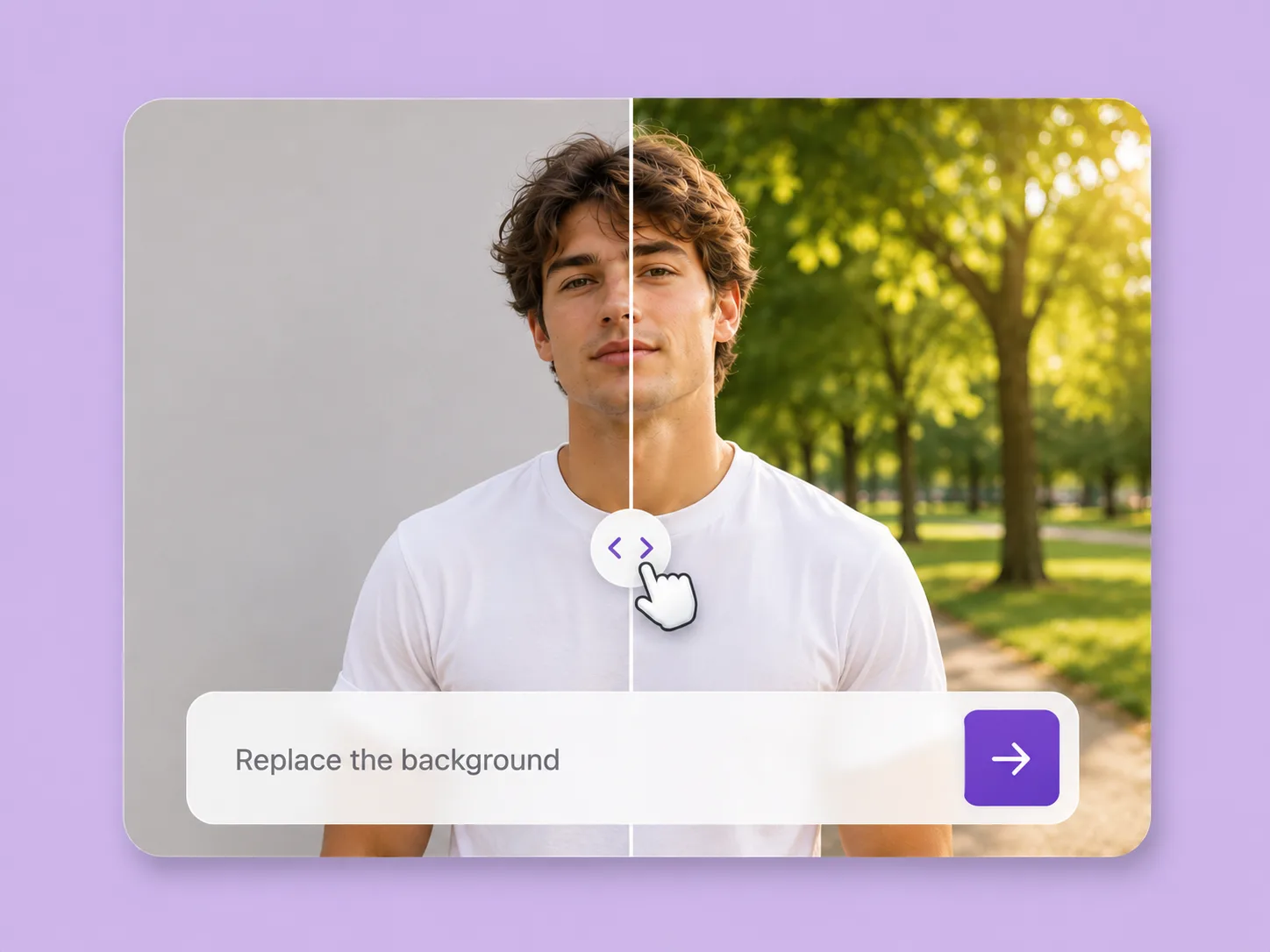
Make an existing image fit the next idea. Direct backgrounds, styling, objects, and light with ImageAny V3 or V2.
Explore solution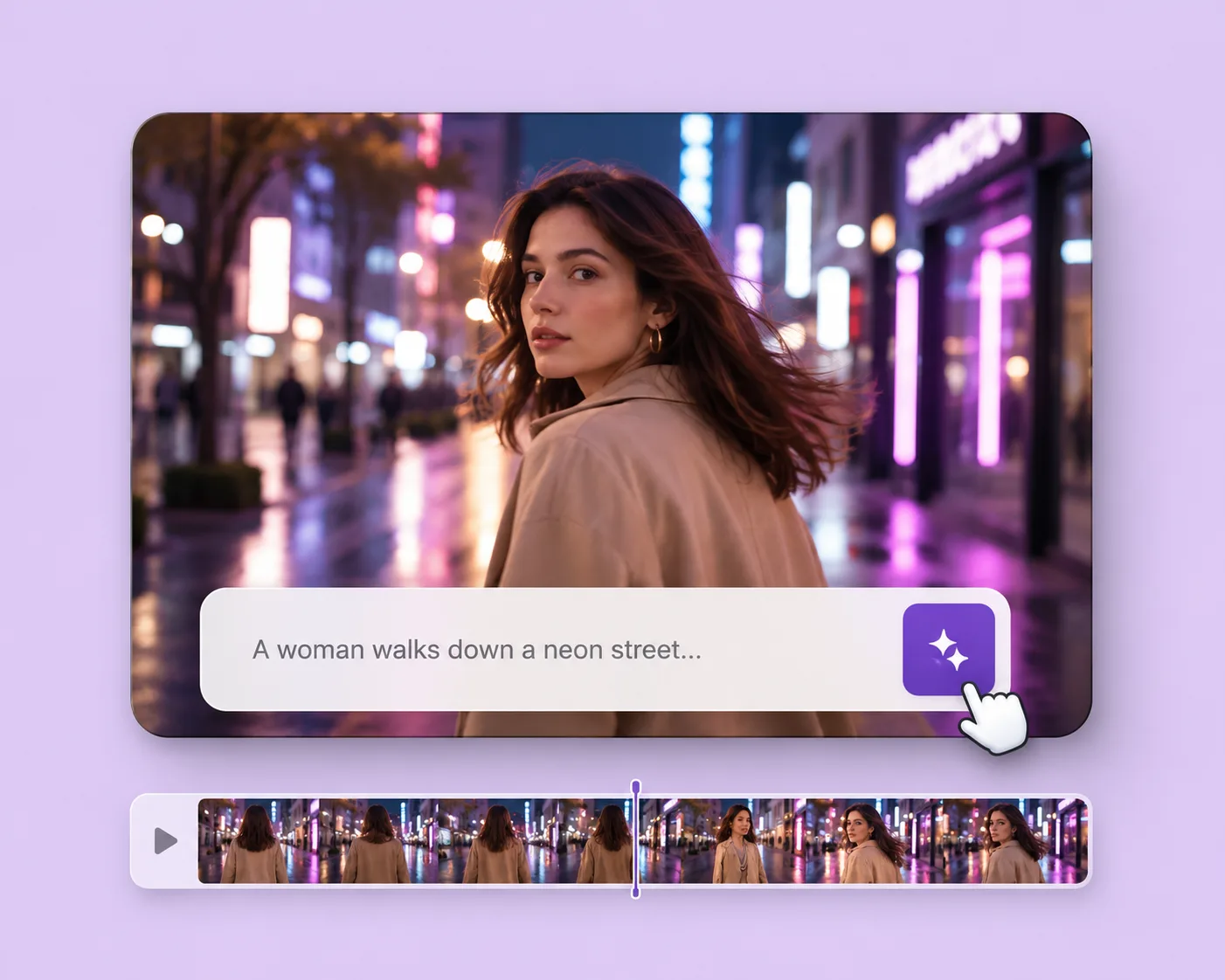
Write the subject, action, setting, and camera movement. Direct an original shot with your selected VideoAny version.
Explore solution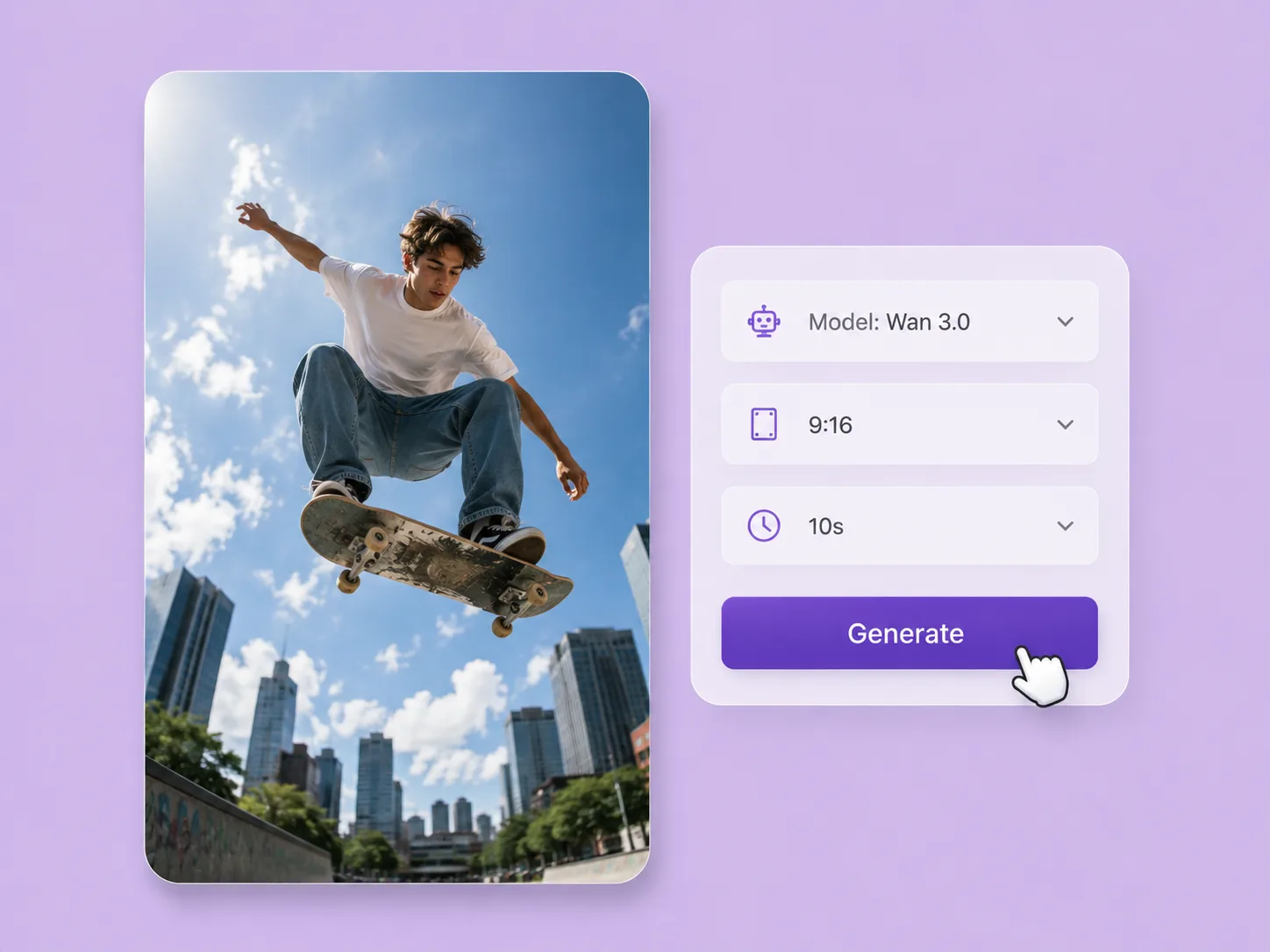
Turn a creative brief into a shot. Start with words or an image and direct motion with VideoAny V5, V4, V3, or V2.
Explore solutionSelect a VideoAny model, describe one action and one camera direction, then bring your image into the video workspace.
Prepare my animation