Introduction
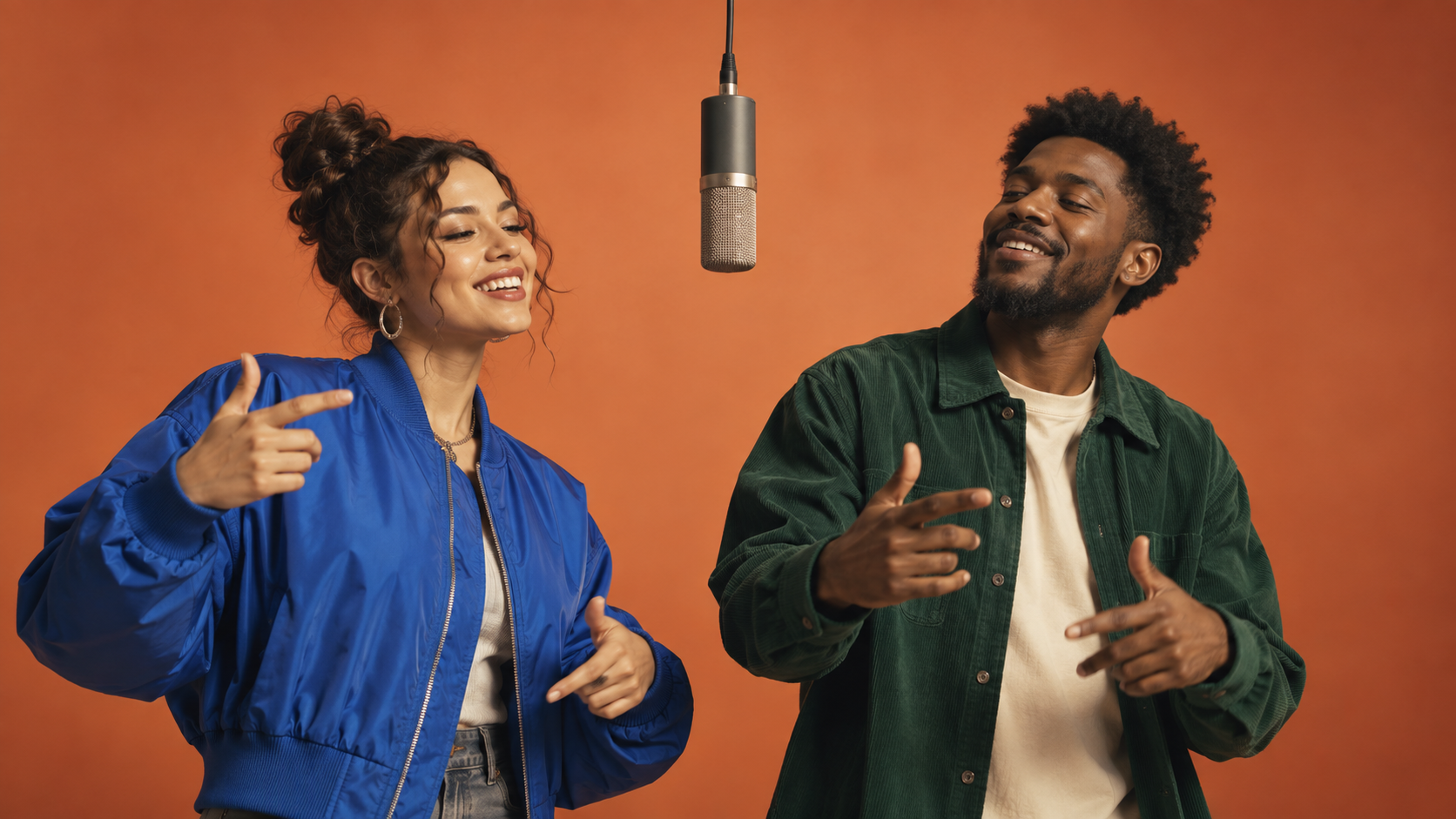
The AI rap duo trend invites creators to remix the familiar format of two performers sharing a stage, often set against a warm, minimalist backdrop with a suspended microphone. This format allows you to pair two consenting adults—such as yourself and a friend or colleague—to create a unique video performance. The process centers on selecting clear portraits, running a manageable test, and carefully reviewing the results for identity accuracy. While a warm-toned stage is common, you are not required to reproduce any specific video or effect. Always obtain permission from both participants, use authorized music or recordings, and clearly identify synthetic performances when sharing.
1. Prepare Portraits
Begin by collecting two separate, high-quality photographs—one for each performer. Each image should feature a single face, with both eyes, nose, and mouth clearly visible. Aim for neutral expressions and similar framing (for example, both waist-up or both head-and-shoulders) to help the AI maintain consistency between the two roles. Avoid sunglasses, heavy filters, strong shadows, or any obstructions such as scarves that might hide key facial features; for instance, a well-lit forehead cannot compensate if a scarf covers the mouth.
Label your images as "left" and "right" to keep roles clear throughout the workflow. If your chosen tool accepts two separate portrait references, a shared photo is unnecessary. However, if only single-image input is supported, you’ll need to create a two-person composition in an image editor, placing each face in the intended position. Keep the original images and your cropped or edited versions organized for later comparison.
2. Choose the Workflow
Next, select the workflow that best fits your project. Some AI video tools offer dedicated duo templates that bundle motion, staging, and instructions for two performers. These templates may allow you to upload two distinct portraits, assign left/right roles, and automatically generate the performance with synchronized motion and audio. Always check whether your chosen tool supports two-identity input, role assignment, and audio generation.
If your tool only accepts a single image, prepare a composite image in an editor: place consenting adult A on the left (for example, wearing a navy overshirt) and consenting adult B on the right (perhaps in a rust jacket), set against a muted apricot seamless stage. Use waist-up framing, position a suspended microphone above the center, and ensure both performers are separated by clear space, especially around the mouths and microphone. For motion, suggest alternate small nods and restrained hand movements, with neither performer crossing the center line. This composition is a starting point for experimentation and does not guarantee perfect identity preservation.
Preview your setup before proceeding by checking that both visible faces are clearly recognized and that your chosen staging matches your intended composition. Ensure your selected service supports two-person animation or effects before moving forward.
3. Set a First Test
Once your portraits and workflow are ready, configure your first test. Request a short video variant—ideally under 30 seconds—to quickly assess the outcome. If the tool offers a choice of resolution, select 720p for a balance of speed and clarity; this is usually sufficient for initial evaluation. Enable audio only if the tool provides it and it fits your project’s needs, but remember that generated audio does not guarantee licensed music or perfect lip sync.
Before submitting, review the visibility or privacy settings to control who can view your test, and check the live cost or credit estimate if applicable. Note that longer durations, higher resolutions, and multiple variants may increase costs, but do not assume specific values unless your tool displays them. Submit your test and wait for processing—timing will vary by tool and workload.
4. Generate and Keep a Comparison Record
After submitting your request, monitor the tool’s status or results area for your completed video. There is no guaranteed processing time, so patience may be required. Once your video is ready, save the input portraits, any intermediate images, the settings you used, and the output file name together. This organized record will help you compare future versions and understand what changes led to improvements or regressions.
Avoid changing multiple settings at once when evaluating your initial result. Keeping variables controlled makes it easier to diagnose issues and refine your workflow.
5. Review Both Performers
With your video in hand, conduct a thorough review. First, watch the full performance to get an overall sense of timing, motion, and staging. Then, inspect each performer separately at key moments: the opening, any head turns, and the ending. Look for signs of identity drift (where one face becomes less recognizable), swapped accessories, duplicated fingers, arms crossing the center line, awkward camera crops, or mismatched mouth movements.
For example, if the left performer’s face remains consistent but the right performer’s face degrades or becomes unrecognizable during a turn, consider replacing only the right portrait or reducing that performer’s motion in the next test—if your tool allows such adjustments. Avoid rerolling unrelated settings, as this can make it harder to isolate the source of any issues. When comparing different versions, always match timestamps to ensure you are evaluating the same moments.
Closing and Sharing
Before sharing your video, double-check that both faces remain unobstructed throughout the full vertical crop and that the audio (if present) is free of clipping or mismatched mouth motion. Select the clearest, most consistent complete take, rather than simply the one with the most attractive opening frame. An original caption such as "Our rehearsal room exists only in pixels." can add context and personality to your post.
Remember: always obtain permission from both people featured, use only authorized music or recordings, and clearly identify any realistic synthetic performances when sharing publicly. While you can control composition and review, you cannot guarantee how your video will be distributed or received.
For more on related workflows, visit image-to-video workflows or lip-sync workflows. Always check current support and capabilities before starting your project.