Soft portrait studies
Ask for more readable eyes and hair while retaining expression and facial proportions. Judge likeness before judging sharpness, especially when the original contains little facial detail.
UNBLUR IMAGE
Use ImageAny V3 or V2 to reinterpret a soft image with more readable detail. Keep the original beside the result and choose a creative revision that works for your VideoAny project.
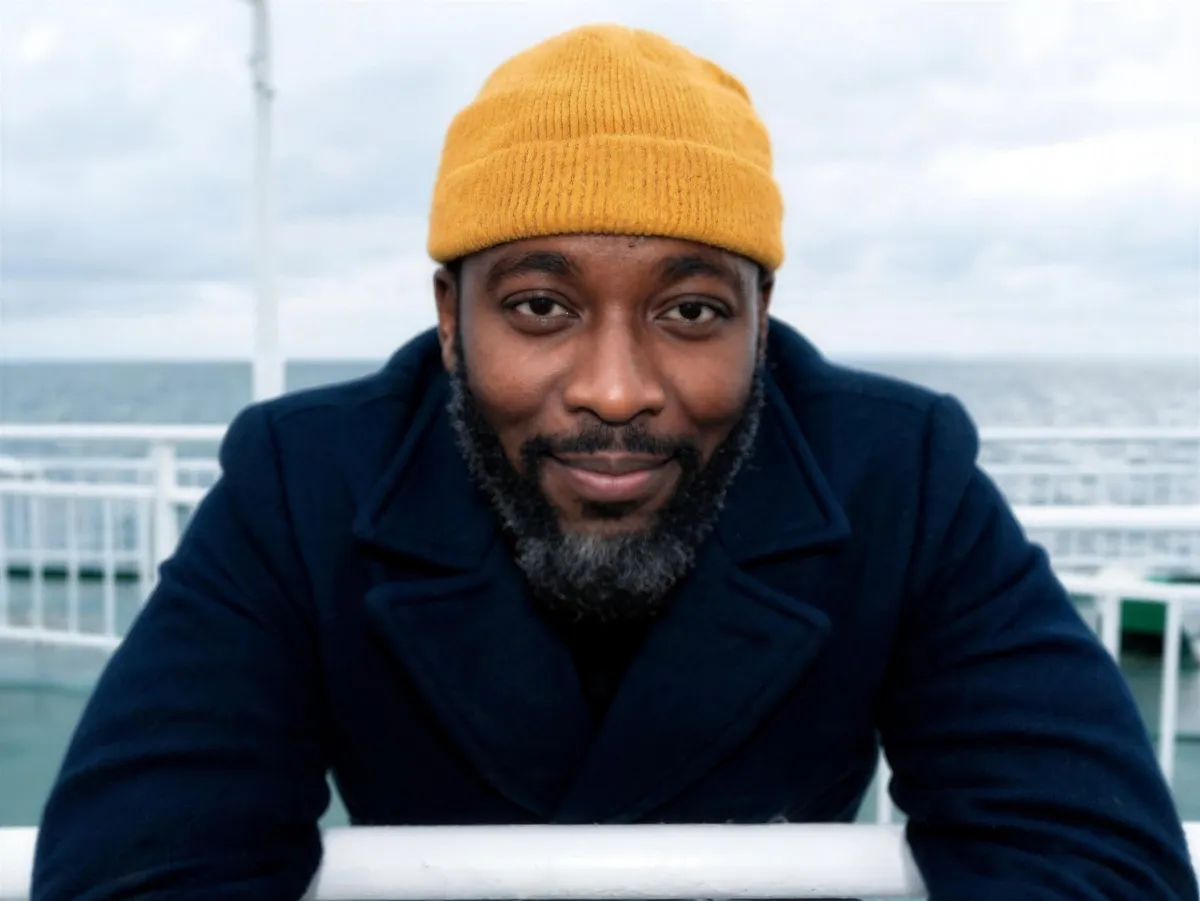
A slightly soft creative image and a photo missing essential information need different expectations.
If the subject is recognizable but the texture looks indistinct, an image-to-image prompt can ask for a more readable interpretation. Describe the visible subject and the kind of detail that belongs there: the weave of a sweater, a crisp object edge, or a face with natural texture. Keep the framing and appearance anchored to the original so you can assess whether the new image still serves the same idea.
ImageAny generates a revised picture; it does not reverse blur to reveal certain historical information. Small writing, obscured faces, and heavily smeared shapes may be reconstructed incorrectly. Use this workflow to develop creative material such as a social visual or a concept frame. If you need exact evidence, identification, or transcription, the original source and a verifiable method matter more than how sharp the output appears.
Keep the goal narrow enough to compare the revision with the source.
Ask for more readable eyes and hair while retaining expression and facial proportions. Judge likeness before judging sharpness, especially when the original contains little facial detail.
Describe a cleaner contour and believable surface texture. Check the product’s real geometry and visible markings because stronger edges can still describe the wrong shape.
Explore better-defined rock, foliage, or distant architecture without changing the overall scene. Avoid demanding individual details that the source never shows clearly.
A softer drawing can guide a version with clearer shapes or more deliberate line work. State the medium and keep its intended texture, rather than forcing a photographic finish.
Evaluate the result in the actual crop and size you need. A version that works as a small concept thumbnail may not hold up as a large portrait.
Once you select a usable still, continue with a separate background edit or upload it to image to video. Keep each step focused so unwanted details are easier to notice.
Source reference examples for planning your brief; these are not presented as ImageAny-generated outputs.
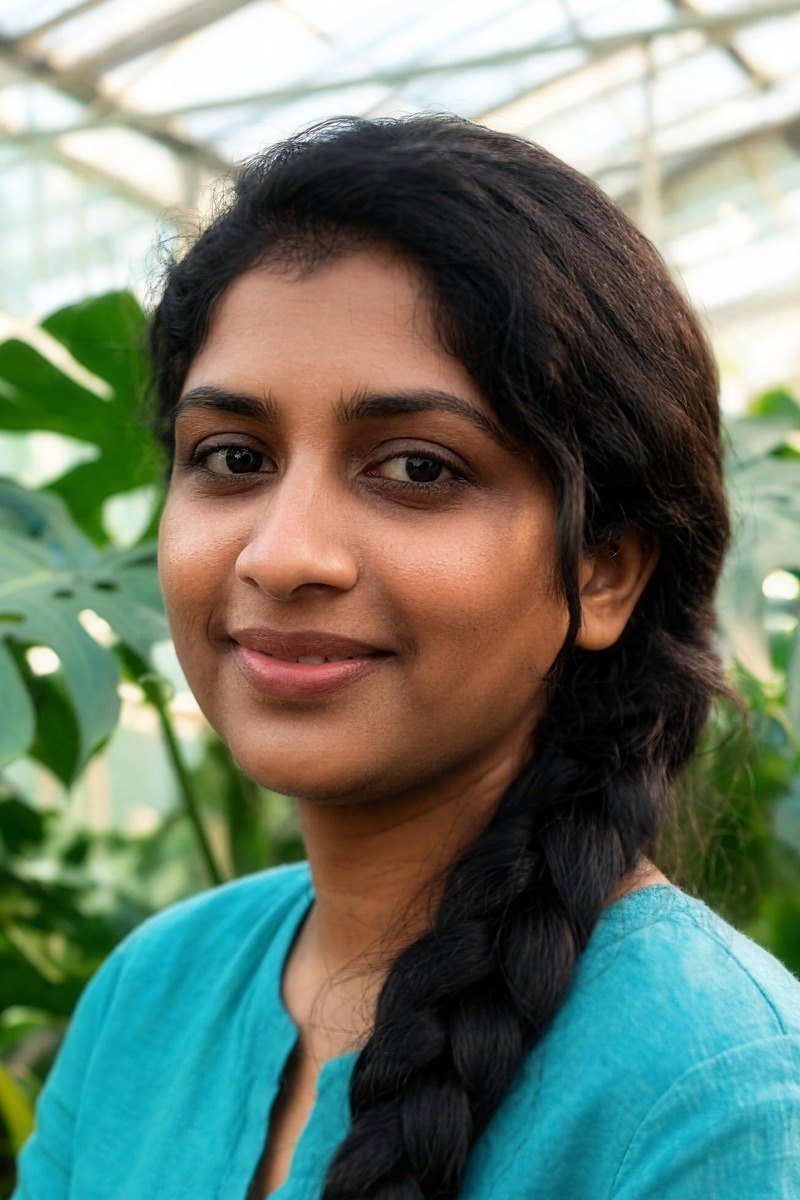
A greenhouse scene contains both a person and fine plant detail. Decide which subject needs clarity so the prompt does not demand equal sharpness everywhere.
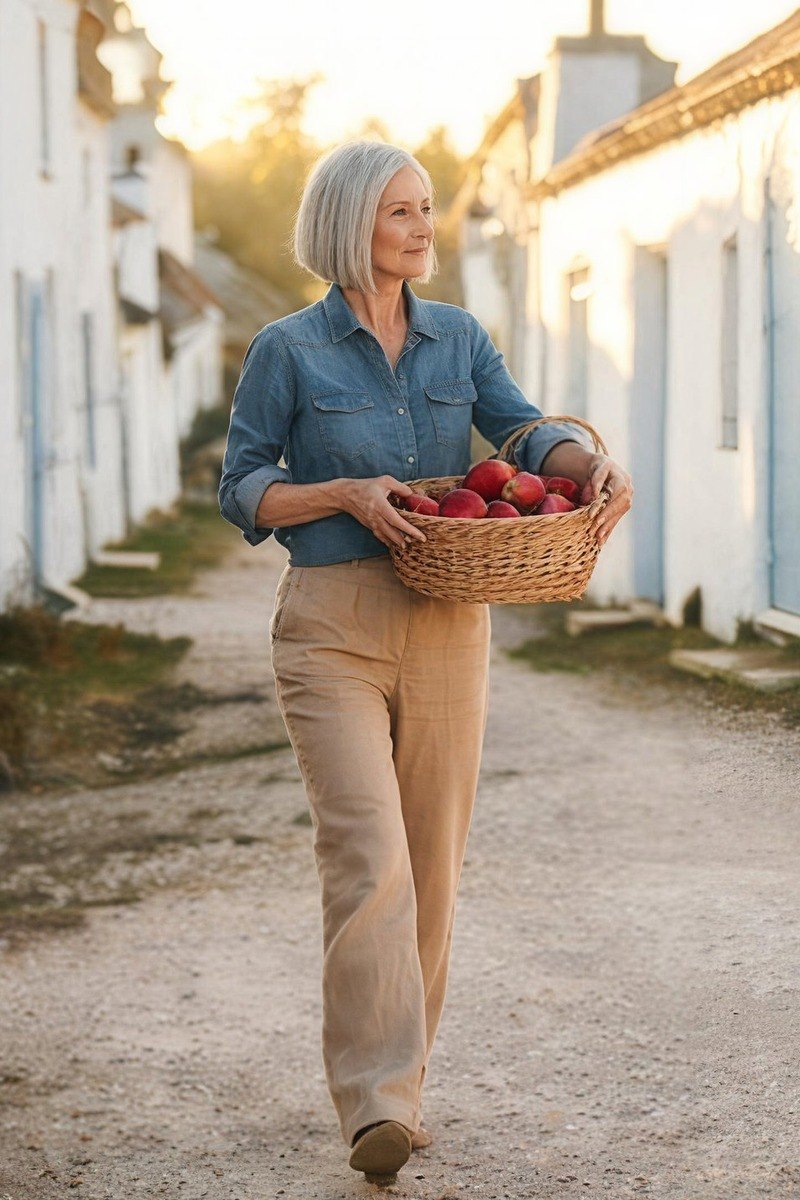
A village portrait combines facial detail, clothing, and environment. Compare the person’s identity and proportions before judging how much texture the revision adds.
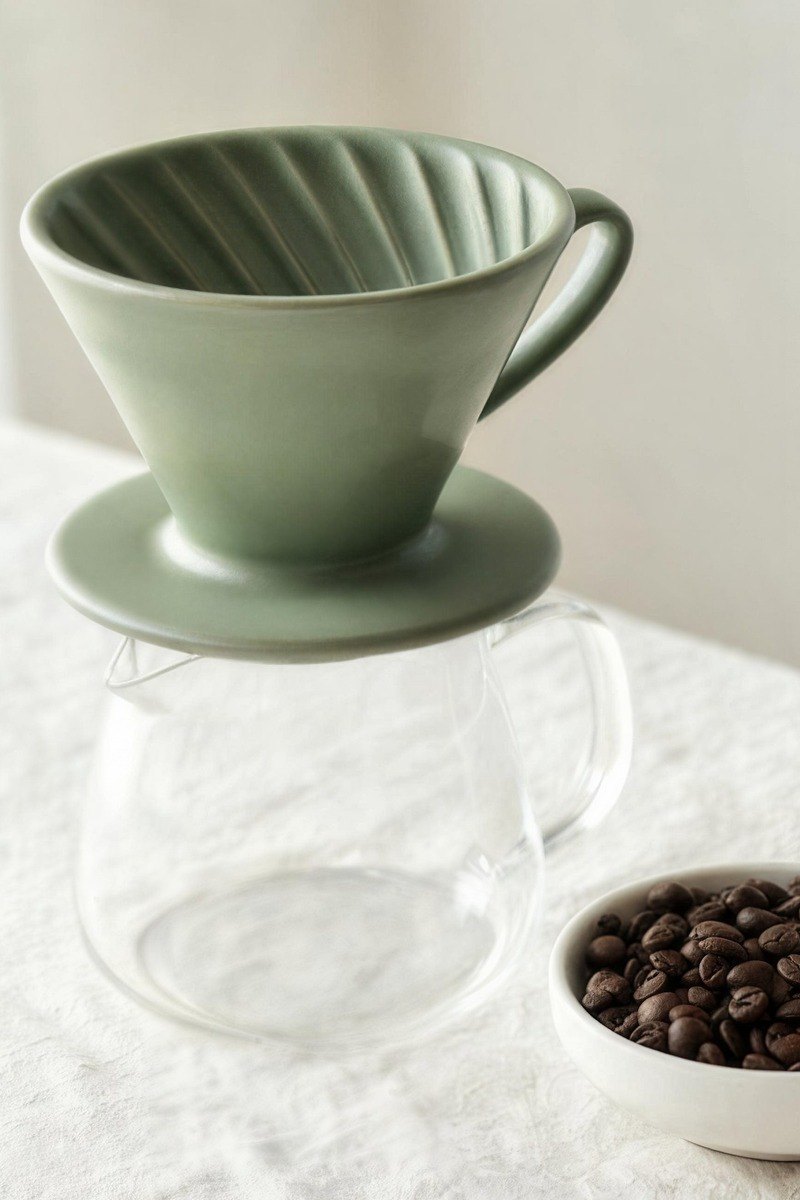
A ceramic dripper and glass server make different kinds of edges visible. Keep the geometry and transparency believable when writing a clarity request.
Prepare your direction, then continue in the workspace.
Use the largest available version instead of a screenshot of a screenshot. Identify the subject details that are still visible and important.
Choose ImageAny V3 or V2 and name a specific clarity goal. Add the expression, shape, colors, and composition that should remain.
Upload the photo in image to image, review the selected model and settings, and check the credit amount before generating.
Review the result beside the original. Reject invented lettering, altered facial features, or changed product geometry even when they appear sharper.
Choose a starting prompt for the visible subject. Treat the output as a generated interpretation and compare it with the source before keeping it.
Match the workflow to your source and final requirements.
| Your goal | Suggested workflow | What to expect |
|---|---|---|
| Visible subject with mild softness | A focused ImageAny revision | Can generate clearer-looking features; compare against the source. |
| Missing text or obscured information | Find a better original | Generated detail is not verified recovery of hidden information. |
| Clear image with too few pixels | Resize or review output size | Enlargement solves a size problem, not necessarily a blur problem. |
| Accurate pixels must remain intact | Conventional editing tools | Use direct controls and preserve the original as your reference. |
Adapt these directions to your image and intended use.
Anchor the prompt to visible evidence instead of inventing a detailed biography for an unclear subject.
Keep the same dark jacket, neutral expression, and three-quarter view.
A restrained target is easier to evaluate than an instruction to make every surface perfectly crisp.
Natural detail and gentle edge definition, with soft background depth.
Decide in advance which details would make a revision unsuitable for your use.
Preserve the bottle silhouette and cap shape; do not add lettering.
This ImageAny workflow cannot guarantee exact recovery. It generates a new image using the visible source and your prompt. The result may look clearer while containing invented details, so sharpness should not be treated as proof that those details were present.
Do not rely on it for that purpose. If the needed information is missing or obscured, a generated reconstruction can be wrong. Look for an original file or another authorized source rather than interpreting plausible generated detail as factual evidence.
A source with a recognizable subject, readable structure, and only moderate softness gives you more to compare. Severe motion smear, tiny faces, and repeated compression leave fewer reliable visual cues. Start from the largest original you have.
No. A clarity request concerns the apparent detail in the image; an output-size choice concerns its dimensions. More pixels do not automatically recover lost information. This solution uses generative editing, and any larger output should still be inspected closely.
Yes. Download the version you choose and upload it to image to video. Keep the first motion request simple, and check the face or product throughout the clip. Review the still first so unwanted reconstructed features do not become the animation’s starting point.
Use the same photo and a similar focused instruction, then inspect the features that matter to your project. The workspace shows each model’s current controls and credit amount. There is no universal choice that guarantees the most accurate reconstruction for every source.
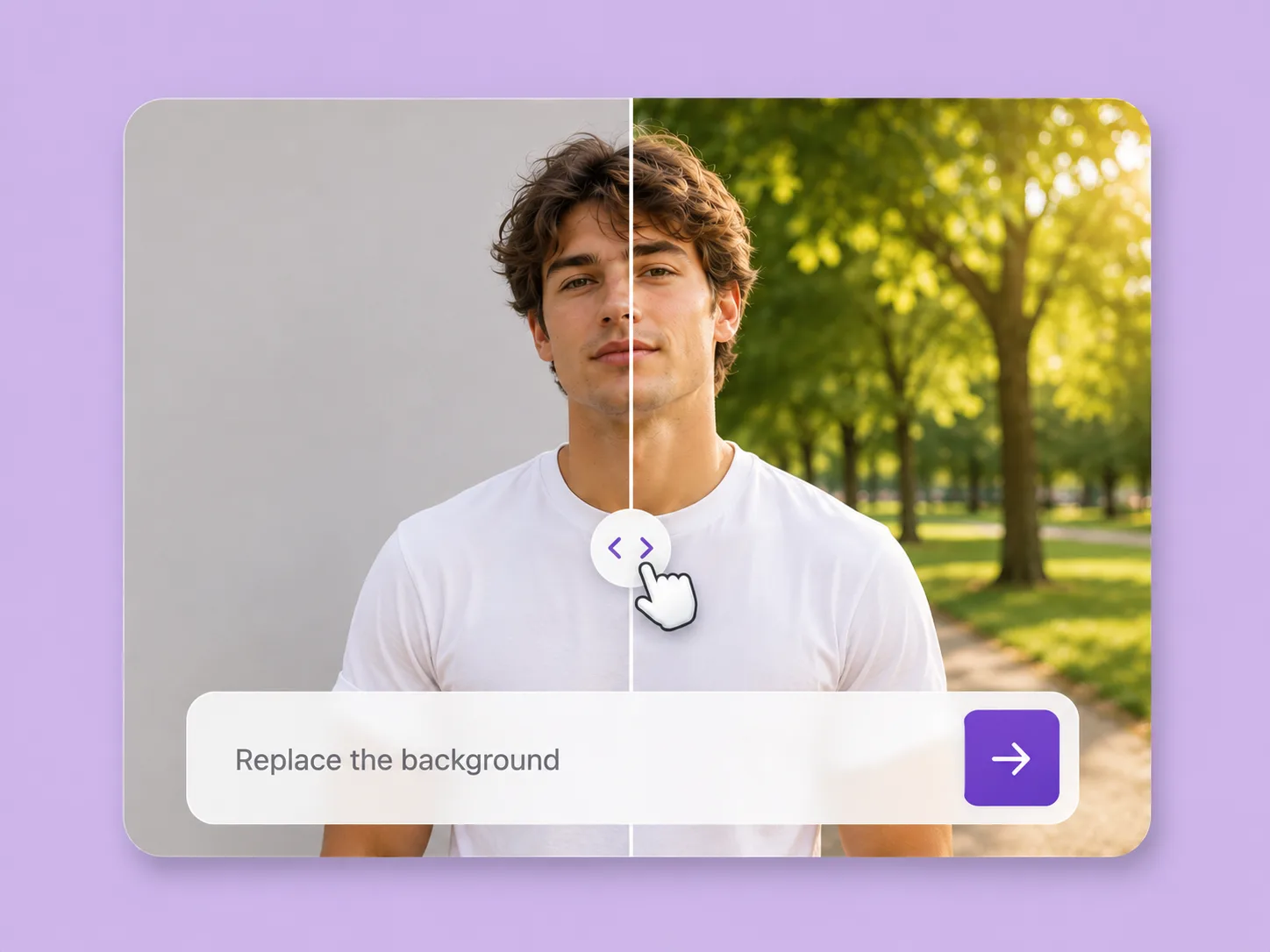
Make an existing image fit the next idea. Direct backgrounds, styling, objects, and light with ImageAny V3 or V2.
Explore solution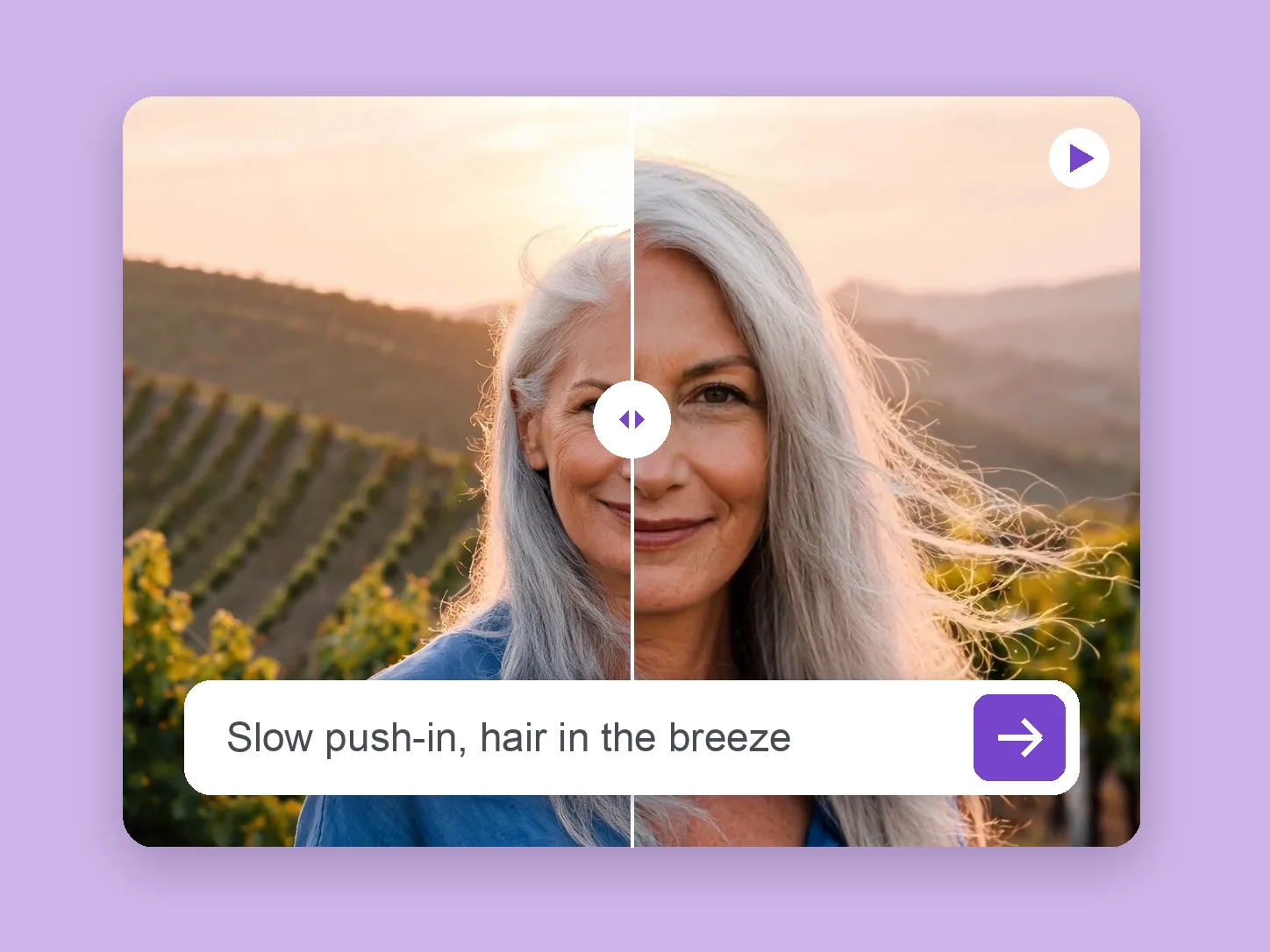
Bring a chosen still into motion. Direct the subject and camera with VideoAny V5, V4, V3, or V2.
Explore solution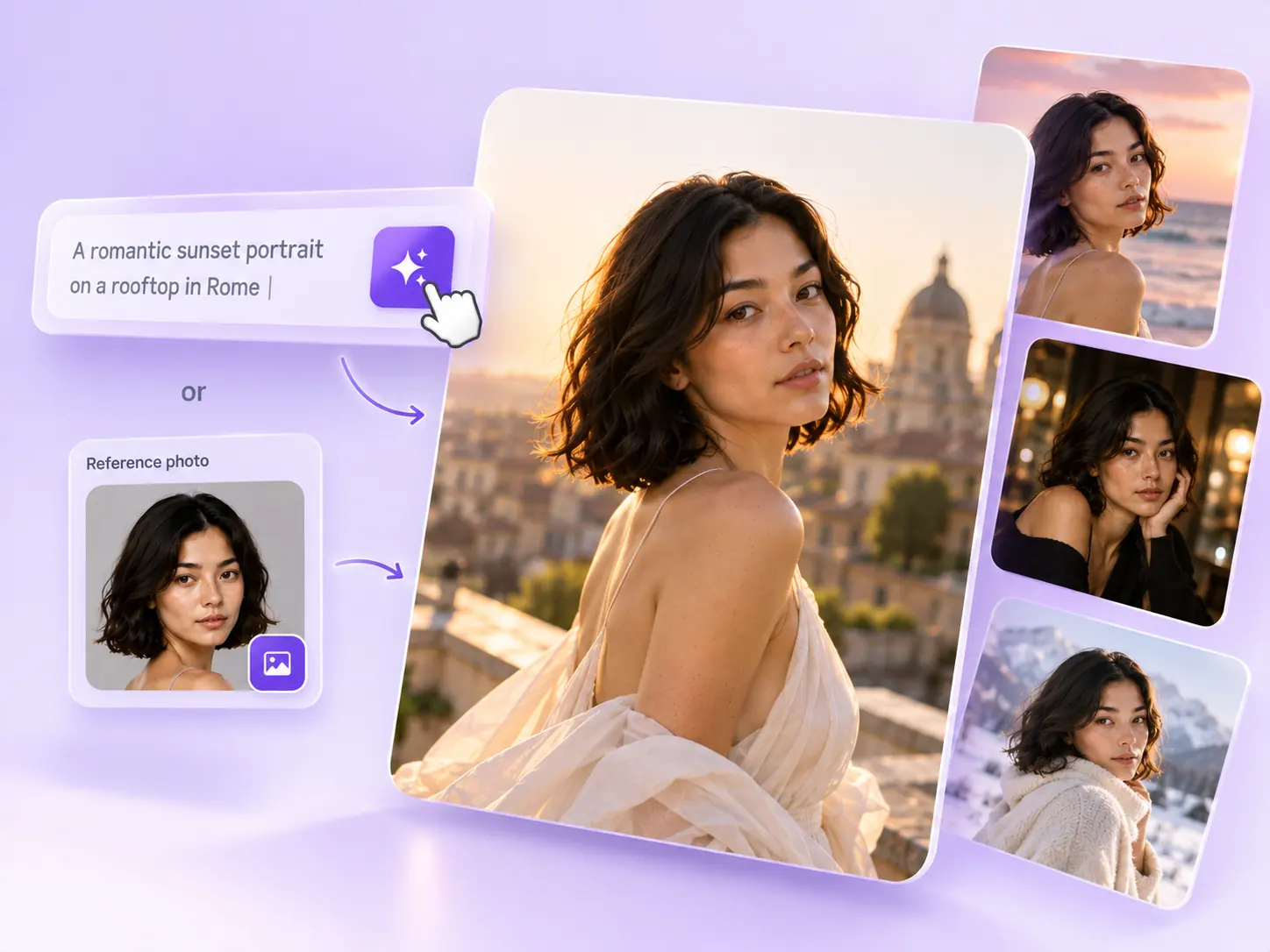
Create the still that starts the story: product concepts, portraits, and campaign photos from a written ImageAny brief.
Explore solutionChoose a focused prompt, open ImageAny, and compare the generated revision with the original before adding it to your project.
Prepare my edit