Campaign moodboards
Combine a hero subject with material, location, and palette references. Explain which image should dominate so the board communicates one direction instead of four competing ideas.
AI COLLAGE MAKER
Build a moodboard, portrait series, or campaign collage with ImageAny V3 or V2. Describe the layout and use up to four references to explore one composed image in VideoAny.
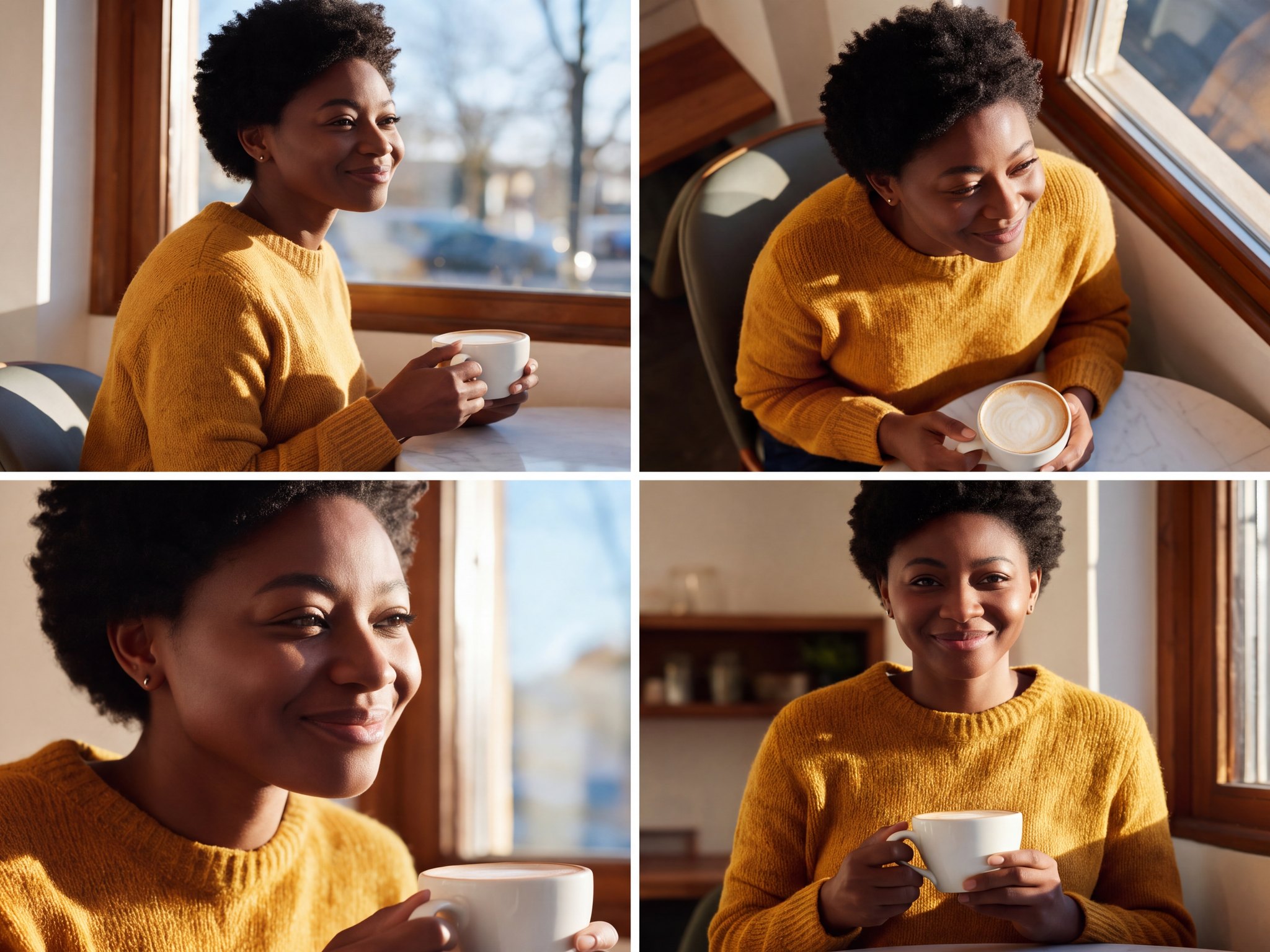
Decide what the images have in common and how the viewer should move through them before asking the model to arrange them.
A product moodboard may organize details around a central hero; a portrait strip may show several expressions; a travel concept may pair an environment with close-up textures. In ImageAny, you describe that arrangement and assign a role to each uploaded reference. Name the panel count, border style, relative sizes, and shared palette so the composition has an intentional structure.
This is a generative collage workflow, not a drag-and-drop layout canvas. The model may redraw the references or interpret the requested grid loosely. Use it when you want a cohesive visual concept and room for creative variation. If the task requires exact original pixels, perfectly measured spacing, or editable text, assemble the selected images in a conventional layout editor. The finished collage can still become part of a wider VideoAny project.
A good collage brief explains both the source material and the arrangement.
Combine a hero subject with material, location, and palette references. Explain which image should dominate so the board communicates one direction instead of four competing ideas.
Explore a series-like arrangement with consistent framing and a shared treatment. Inspect each face because generating a multi-panel image can introduce differences between panels.
Pair a product with supporting visual textures or environment ideas. Keep the real product reference handy when reviewing shapes, labels, and material changes in the generated layout.
Arrange a place, a detail, and a person into a visual narrative. Specify the order and relative size of the panels to guide how the viewer reads it.
Ask for a palette that connects the images while retaining their distinct subjects. Use concrete color and lighting language to explain the relationship.
Use the collage to plan related shots or choose a visual direction. Develop individual frames separately before animating them when each scene needs its own motion.
Source reference examples for planning your brief; these are not presented as ImageAny-generated outputs.

Three travel portraits form a clear reading sequence. Name panel order and spacing when a collage needs to guide the viewer from one moment to another.
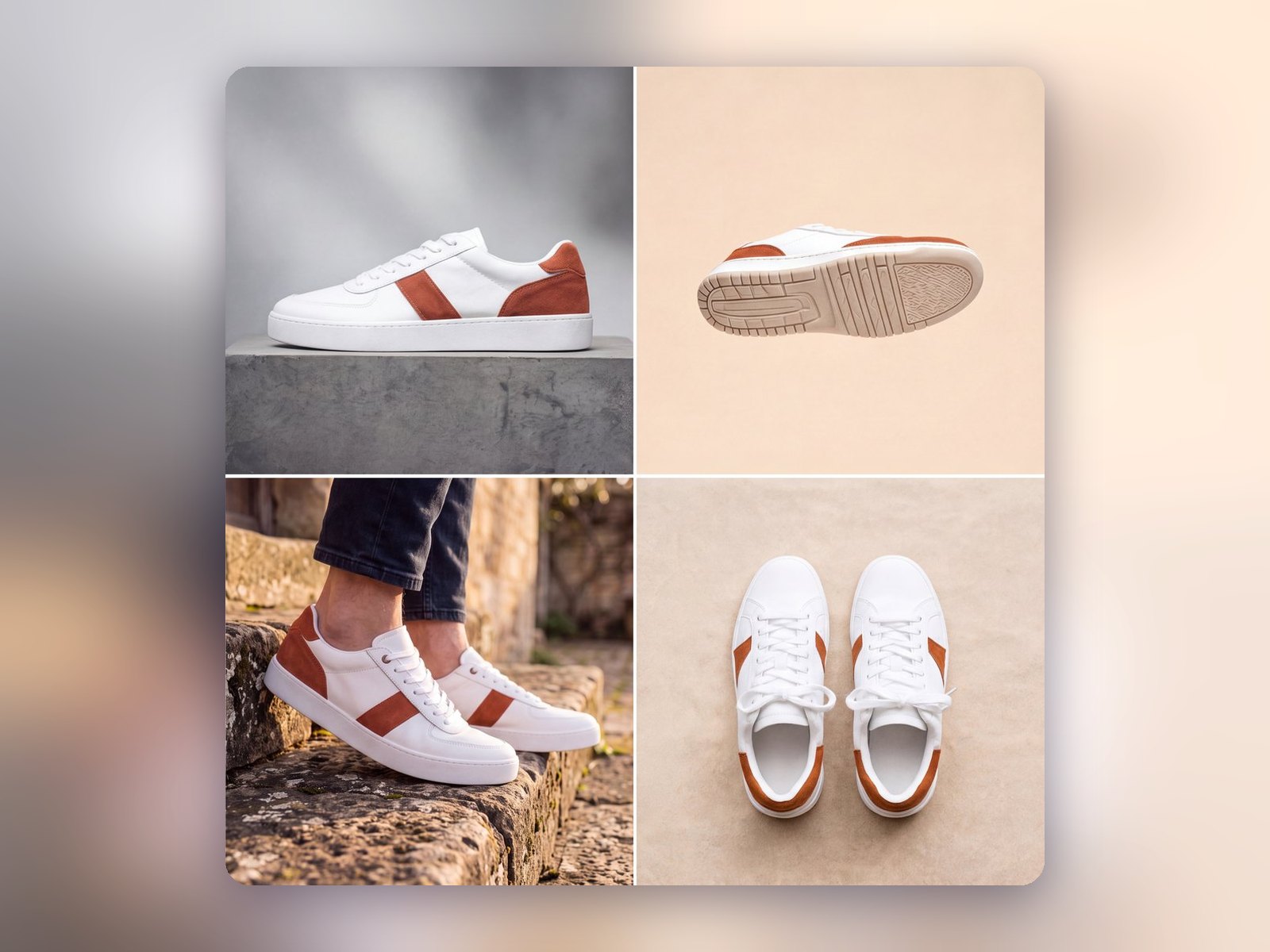
Several sneaker angles explain the value of complementary views. In a generated collage, inspect whether product geometry remains consistent across panels.

Six moments create an even visual rhythm. This is a layout reference; the ImageAny workflow accepts up to four uploaded references and may reinterpret a requested panel arrangement.
Prepare your direction, then continue in the workspace.
Choose up to four images that belong to the same story. Decide which one is the main subject and which ones support it.
Choose ImageAny V3 or V2 and describe panels, order, relative size, spacing, and color treatment. Avoid leaving the relationships to chance.
Open image to image and add the references. Use image numbers in the prompt, then review output settings and credits.
Inspect panel count, image relationships, faces, and any lettering. Keep a promising concept or move exact assembly into a layout editor.
Prepare a layout brief, then add up to four references in ImageAny. The output is one generated composition rather than an editable template.
Match the workflow to your source and final requirements.
| Your goal | Suggested workflow | What to expect |
|---|---|---|
| Explore a cohesive visual concept | ImageAny collage | Interpret the references and arrangement in one generated image. |
| Keep source photos pixel-for-pixel | A template or layout editor | Place the original files into measured frames. |
| Combine subjects into one scene | AI image merger | Describe a shared setting without separate collage panels. |
| Create several individual outputs | Separate image edits | Generate and review each asset before assembling the selection. |
Adapt these directions to your image and intended use.
Tell the model which panel should attract attention first and how supporting images relate to it.
One large portrait on the left, with three smaller detail panels stacked on the right.
Panel shape and spacing communicate whether you want a grid, strip, or more open moodboard.
Equal square panels with narrow white borders and no overlap.
A clean generated board is easier to finish when typography can be placed precisely afterward.
No added words, labels, dates, or decorative lettering.
Yes. ImageAny V3 and V2 accept up to four reference images in image to image. Identify them by order and explain the role of each. The model uses the references to generate one composition; it does not create a separate job for each uploaded photo.
Not necessarily. ImageAny generates the composition and can redraw faces, objects, or backgrounds. Use a conventional collage editor if preserving the exact source pixels is required. This workflow is intended for a generated visual interpretation.
You can describe a two-by-two grid, a horizontal strip, a dominant panel, or another arrangement. The model interprets that instruction, so inspect the number of panels, spacing, and proportions. It is not a precision layout canvas with movable frames.
A single reference can guide a prompt for a multi-panel composition, such as subtle expression or framing variations. Check likeness across all panels. If each portrait needs independent approval, create separate edits and assemble the selected results afterward.
A collage keeps multiple views visibly separated by panels or borders. A merge aims to bring people, products, and surroundings into one shared scene. Tell ImageAny which outcome you want, because the same references can support either direction.
You can upload a downloaded collage to image to video, but a multi-panel layout adds complexity to motion. For a sequence of distinct scenes, develop each still separately and animate it with its own brief. Use the collage as the planning board for that sequence.
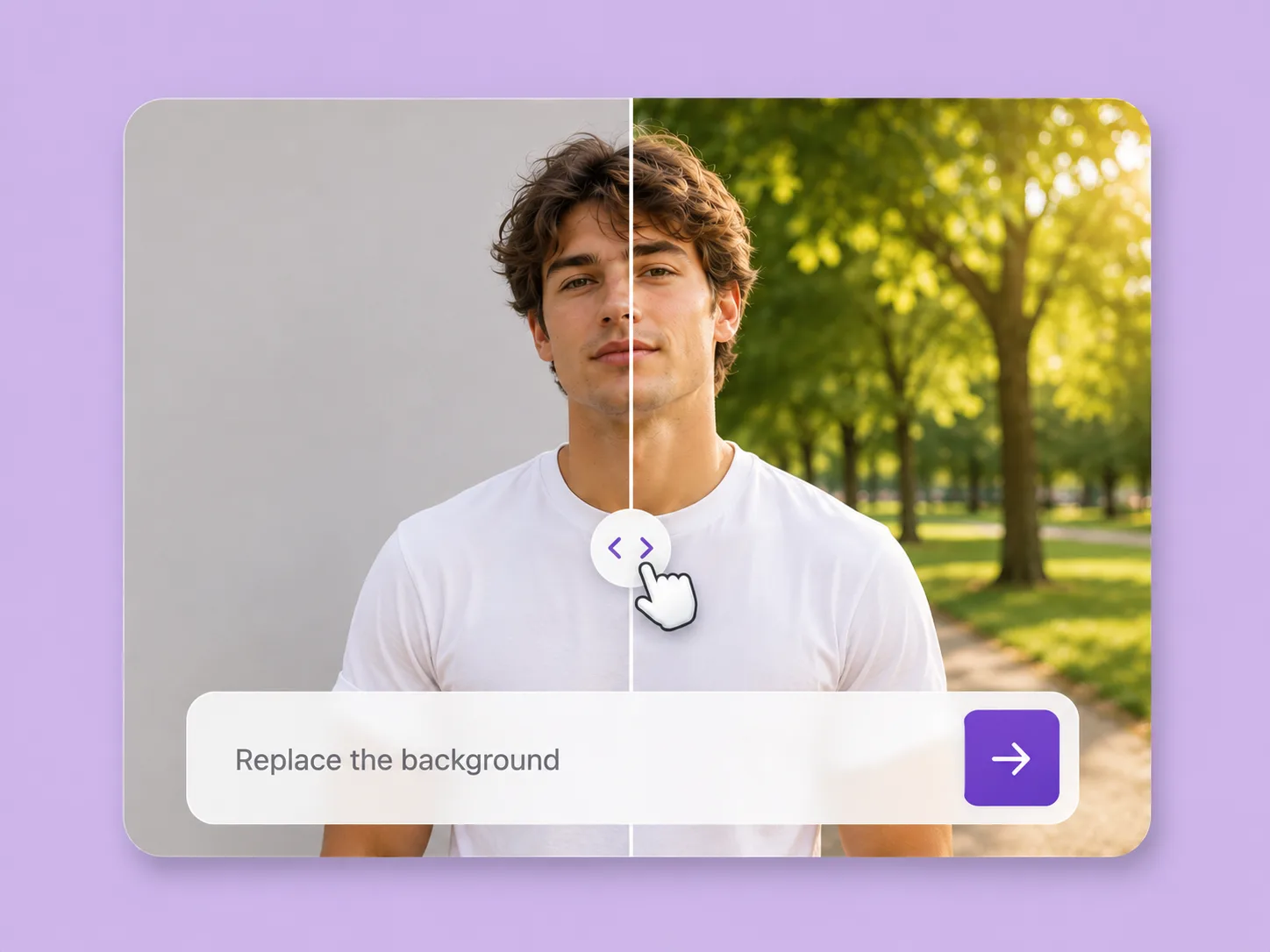
Make an existing image fit the next idea. Direct backgrounds, styling, objects, and light with ImageAny V3 or V2.
Explore solution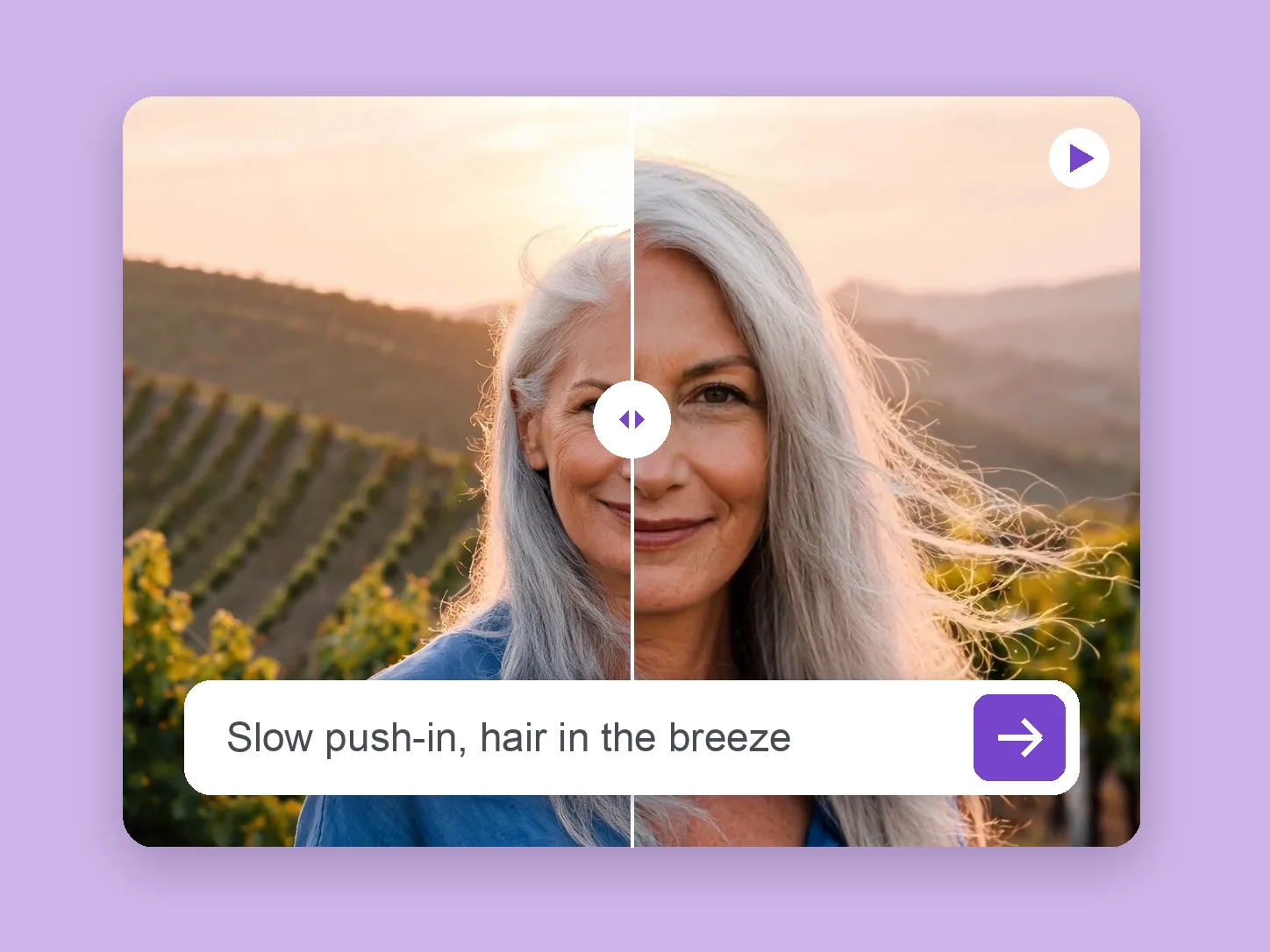
Bring a chosen still into motion. Direct the subject and camera with VideoAny V5, V4, V3, or V2.
Explore solution
Create the still that starts the story: product concepts, portraits, and campaign photos from a written ImageAny brief.
Explore solutionChoose the story, define the panels, and open ImageAny to build a composed visual from your selected images.
Prepare my edit