Clean product scenes
Place an object on a plain backdrop with a believable surface and contact shadow. A simple scene makes proportions and small product details easier to inspect.
AI BACKGROUND EDITOR
Replace a distracting background with a clean studio scene or a new location. Use ImageAny V3 or V2 to build a setting that fits your product, portrait, or next VideoAny shot.
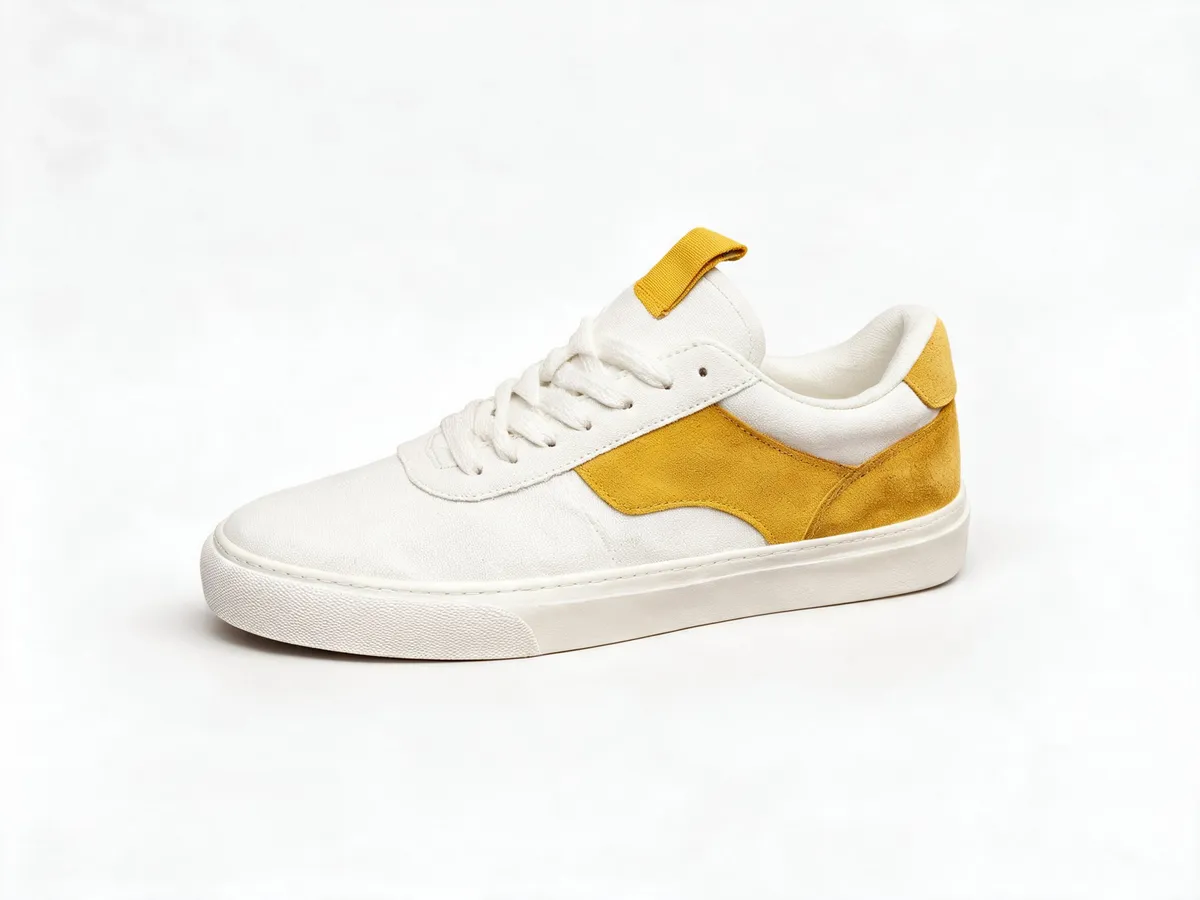
A useful background supports the subject through light, depth, scale, and the right amount of visual space.
Start with the person or product you want to keep, then name the replacement setting. A simple white backdrop can support a catalog concept; a textured tabletop can establish a product mood; a garden can give a portrait a different atmosphere. Describe how the subject sits in the new scene, including the surface, contact shadow, and light direction, rather than only asking the old background to disappear.
This solution uses generative background editing in ImageAny. The result is a newly generated image with a clean or replacement background, not a pixel-exact cutout or a guaranteed transparent PNG. Hair, fine edges, lettering, and product geometry can change. If a transparent layer is the deliverable, use a dedicated masking tool. If the deliverable is a finished scene, this workflow helps you direct it inside VideoAny.
Choose the visual context before deciding how much of the original background to retain.
Place an object on a plain backdrop with a believable surface and contact shadow. A simple scene makes proportions and small product details easier to inspect.
Try a softer interior, an outdoor setting, or a neutral studio wall. Match the light to the person’s position so the new image reads as one scene.
Develop a setting that supports a season, palette, or story. Describe tangible details such as stone, linen, foliage, or warm window light rather than a vague premium mood.
Request uncluttered space beside or above the subject when a later design needs text. Add exact typography in your layout tool after selecting the image.
Add a location reference to the source photo and explain each image’s role. Up to four references can guide a single composition in the image workspace.
Choose the background before animating a product or portrait. Download the finished still and upload it to image to video with a focused camera or subject movement.
Source reference examples for planning your brief; these are not presented as ImageAny-generated outputs.
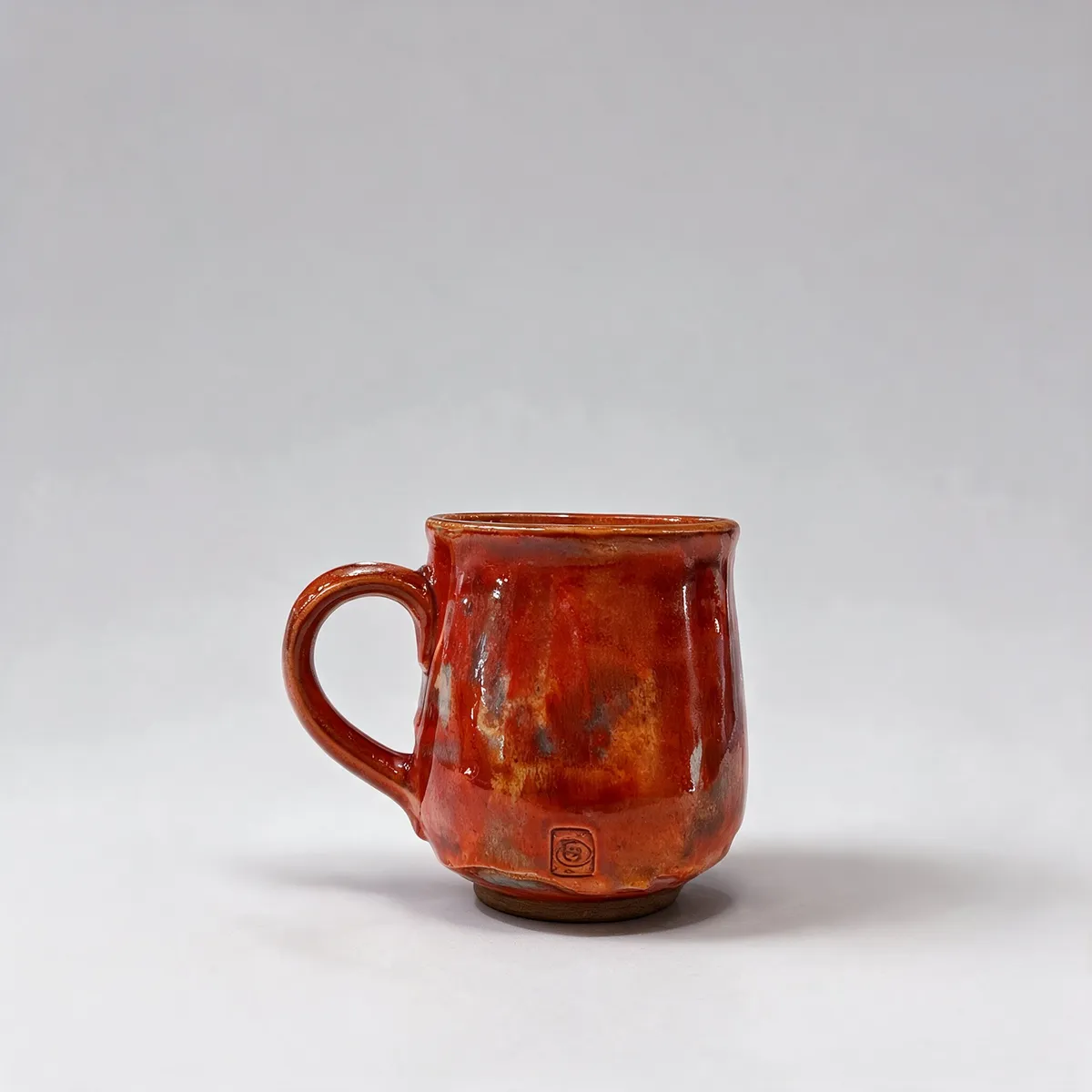
A red mug against gray keeps attention on shape and glaze. Specify the support surface and shadow when creating a similar studio direction.
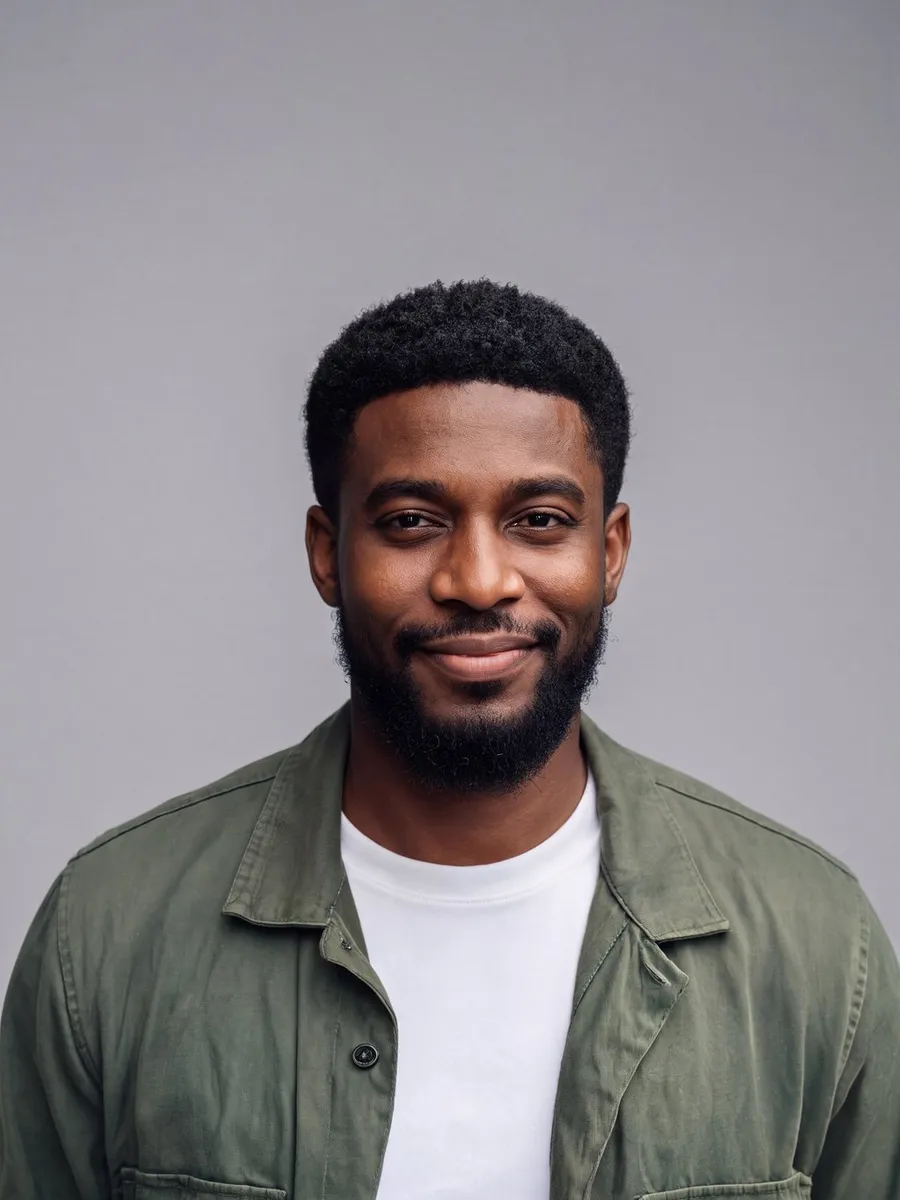
A neutral background gives a person’s face and clothing room to read. Inspect hair edges and the relationship between the subject and the new light.

A bright cafe adds context to a portrait. Describe the setting and match its light to the person instead of treating the background as a flat replacement.
Prepare your direction, then continue in the workspace.
Start with visible subject edges and enough detail to judge the result. Decide which parts of the original composition should remain.
Pick ImageAny V3 or V2 and write the new surface, background, and light. Include specific preservation instructions for the person or product.
Open image to image, upload the source and any setting reference, then review the output settings and credit amount.
Check edges, shadows, perspective, and important subject details. Keep the result that fits the project, then download it for layout or animation.
Choose a scene direction and adapt it to your source. The editor creates a new image with the requested background; it does not provide a transparent cutout here.
Match the workflow to your source and final requirements.
| Your goal | Suggested workflow | What to expect |
|---|---|---|
| A new environment around the subject | ImageAny background editing | Generate the setting, light, and subject relationship together. |
| A transparent PNG for a layout | Dedicated masking or cutout tools | Create and inspect an alpha edge around source pixels. |
| A plain white product concept | A clean background prompt | Ask for a solid setting and realistic shadow; inspect product accuracy. |
| An animated product or portrait | Edit the still, then image to video | Establish the background first and direct movement afterward. |
Adapt these directions to your image and intended use.
Products look more grounded when you define what they rest on and how the shadow behaves.
A pale concrete pedestal with a soft contact shadow beneath the bottle.
A new setting should have a light direction that makes sense for the subject.
Soft window light from the left, with gentle shadows falling to the right.
Explain where the subject belongs when the image will become a designed asset.
Keep the person on the right third; leave the left side simple and uncluttered.
This page offers prompt-guided background replacement through ImageAny. It creates a new image with a clean solid-color setting or another scene. It does not promise a transparent PNG, alpha mask, or an exact cutout of the original pixels.
Yes, a white studio setting is a useful prompt direction. Include the surface, contact shadow, and lighting you want. Review the product’s shape, markings, and fine edges because the model generates a new version instead of simply deleting surrounding pixels.
You can provide a source subject and an additional setting reference in the image-to-image workspace. Explain which image supplies each element and how they should be arranged. References guide the composition; they do not guarantee an exact pasted background.
Exact edge preservation is not guaranteed in a generative edit. Inspect hair, translucent materials, fabric details, and gaps around the subject. A dedicated masking workflow is more appropriate when the source boundary itself must remain unchanged.
Yes. Develop and review the still in ImageAny, download it, and upload it in image to video. Direct a small camera move or subject action there. A coherent background and light direction give you a clearer starting point for evaluating motion.
Describe a shared perspective, believable scale, contact shadows, and a consistent light direction. Keep the first scene simple and compare the subject against the new surroundings. If several things look wrong, adjust one relationship at a time instead of adding more scenery.
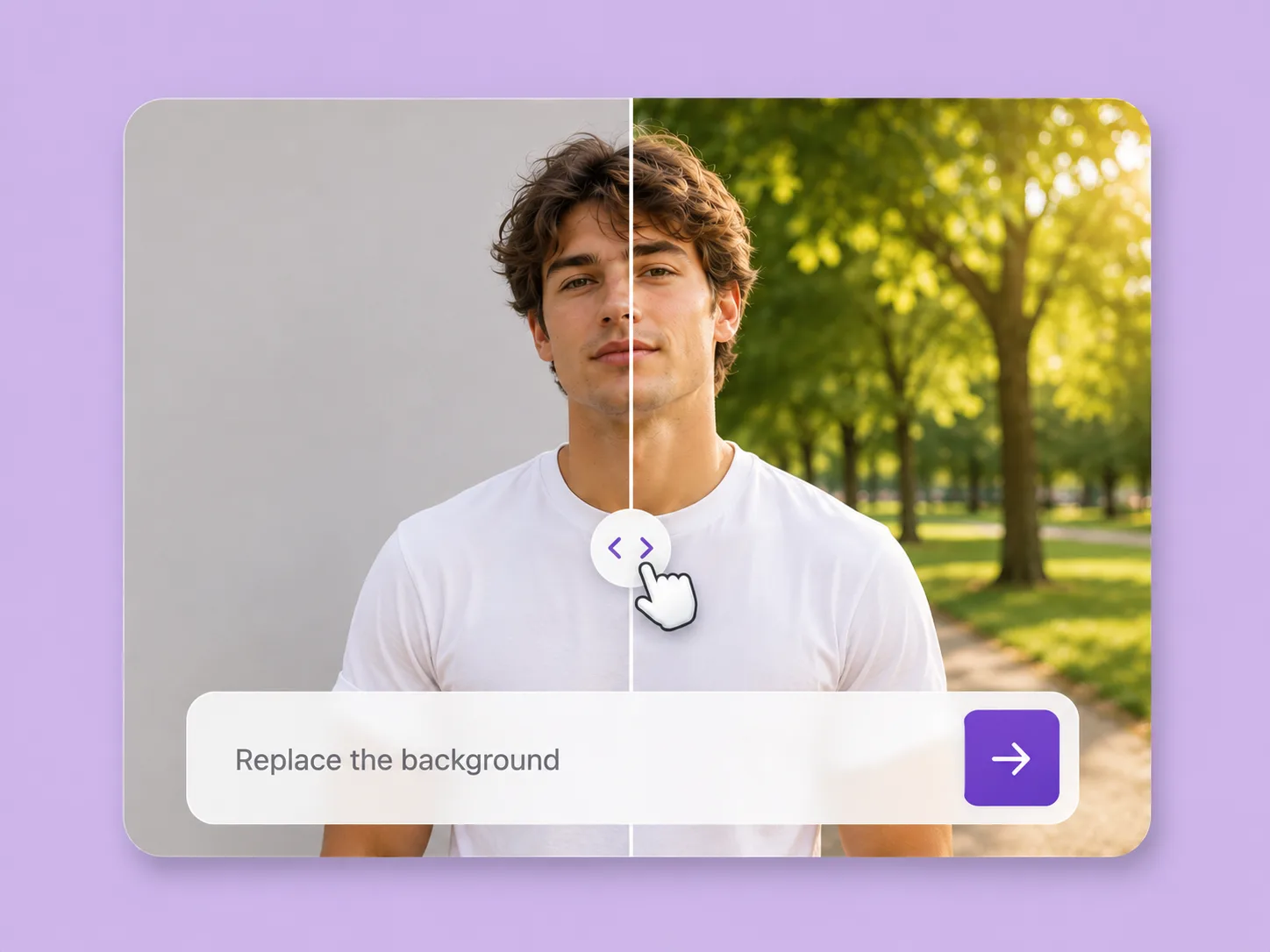
Make an existing image fit the next idea. Direct backgrounds, styling, objects, and light with ImageAny V3 or V2.
Explore solution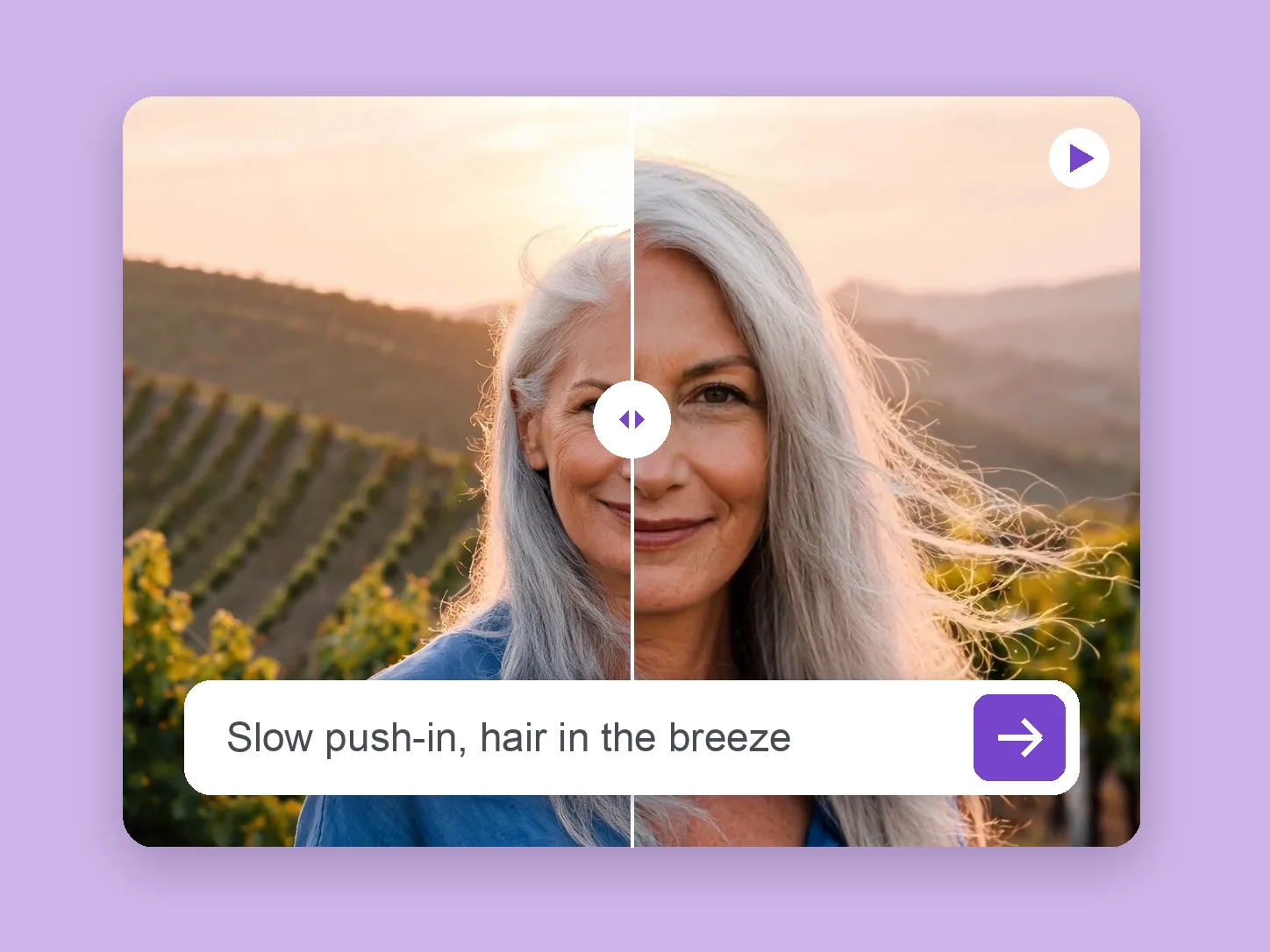
Bring a chosen still into motion. Direct the subject and camera with VideoAny V5, V4, V3, or V2.
Explore solution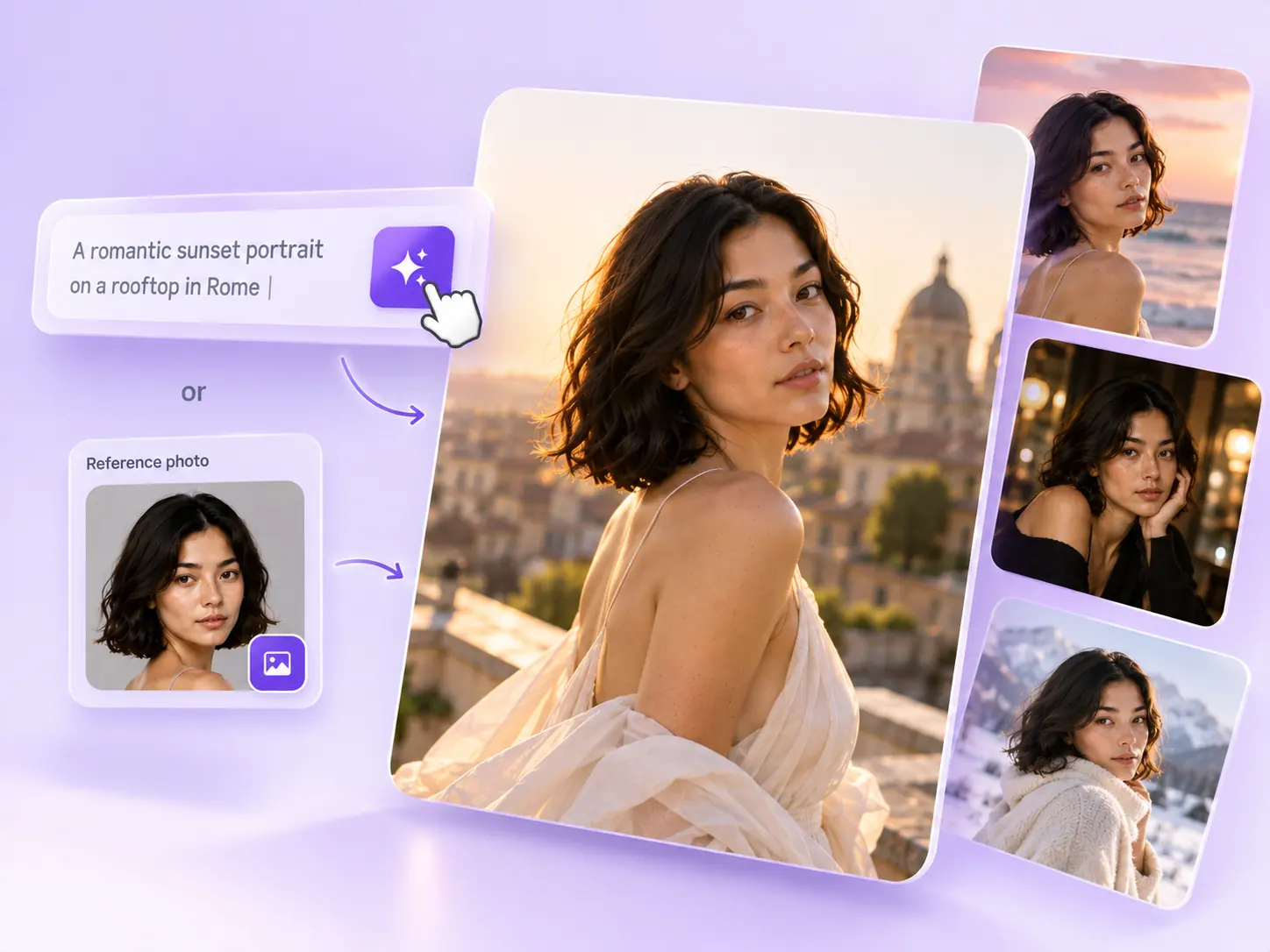
Create the still that starts the story: product concepts, portraits, and campaign photos from a written ImageAny brief.
Explore solutionWrite the new background, surface, and light. Open ImageAny with your source photo and build a scene ready for the next stage.
Prepare my edit