Lighting alternatives
Compare morning light, soft studio light, or an evening atmosphere while keeping the subject and composition anchored. Evaluate how each treatment supports the project’s tone.
AI IMAGE VARIATION GENERATOR
Use a promising image as the reference for another treatment, mood, or composition. Guide each variation with ImageAny V3 or V2 and choose the direction that fits your VideoAny project.
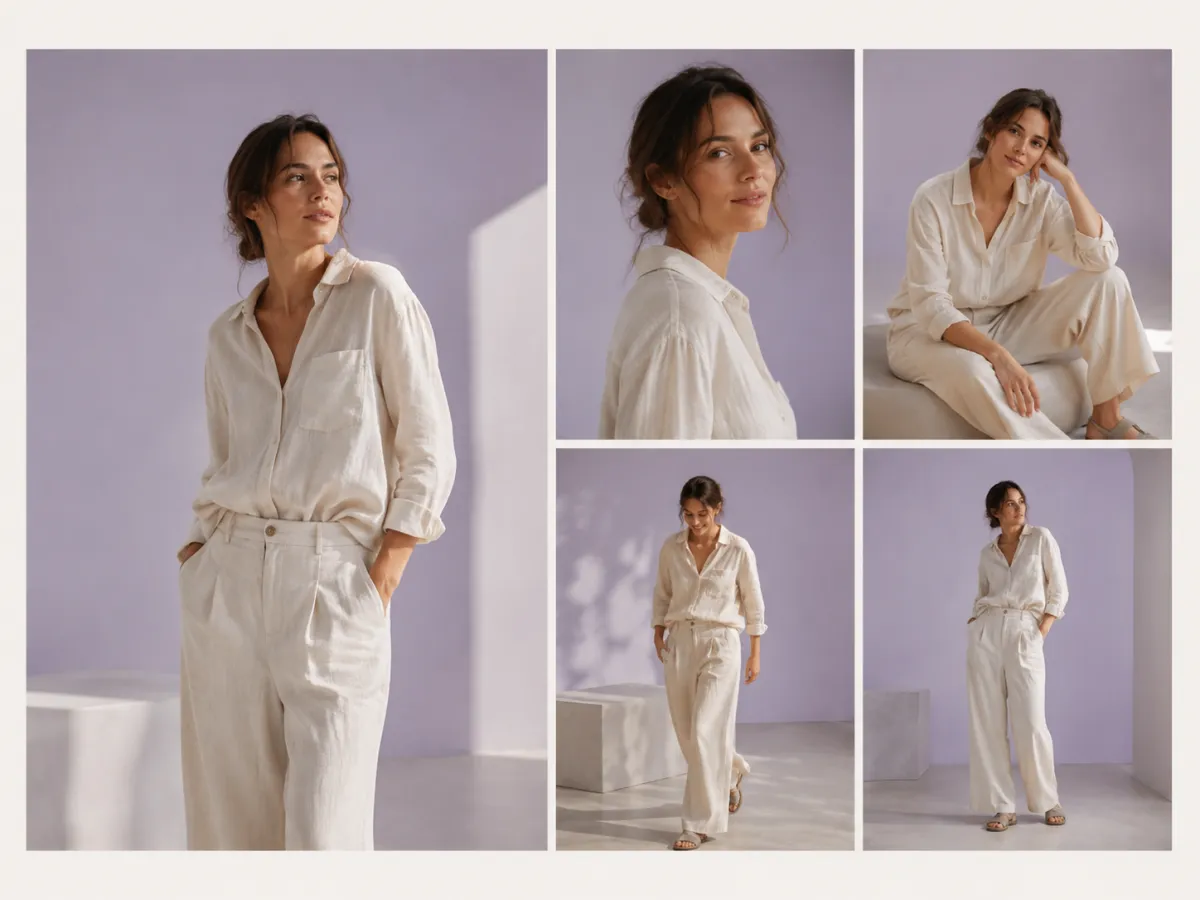
When the subject and general direction already work, variations help you compare the creative decisions that are still open.
Start with a selected image and decide which variable to explore. A portrait might need a warmer light treatment; a product concept might need a calmer background; an illustration might need a different palette. Keep the reference stable and name the change so each result answers a useful question. This makes the selection process more deliberate than repeatedly asking for something different.
VideoAny’s variation workflow uses the regular ImageAny image-to-image editor and a written prompt. It is not a separate no-prompt variation mode or an automatic contact-sheet generator. Make and review separate versions, keeping the original reference available. Once you choose a direction, refine it as a still or take the downloaded image into image to video to develop the corresponding shot.
Choose one main variable so the differences tell you something useful.
Compare morning light, soft studio light, or an evening atmosphere while keeping the subject and composition anchored. Evaluate how each treatment supports the project’s tone.
Explore restrained warm, cool, or muted color treatments. Describe which object colors must remain accurate so a palette experiment does not obscure product or character details.
Try a different outfit, material, or surface treatment from the same reference. Keep the core subject explicit and compare the visual role of the changed element.
Ask for a different framing or subject placement when the final layout is still undecided. Review the reconstructed scene because moving the camera can require new visual information.
Use a selected portrait as the reference for a related expression or setting. Inspect distinguishing features across versions rather than assuming perfect continuity.
Use the still-image alternatives to decide which look deserves animation. A chosen reference gives the video stage a clearer direction than trying every unresolved idea in motion.
Source reference examples for planning your brief; these are not presented as ImageAny-generated outputs.
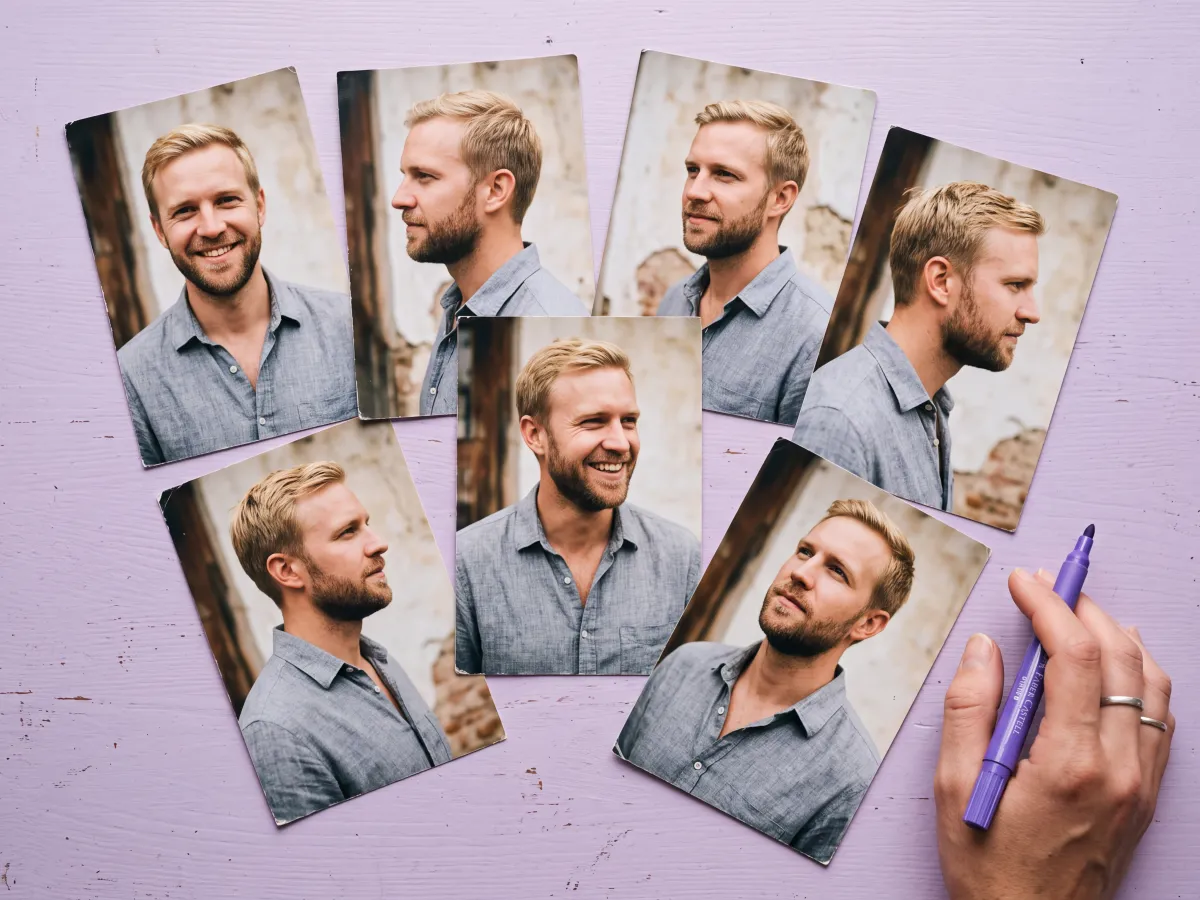
A character study compares the effect of different views. Keep a clear source reference when exploring pose or framing, and inspect identity in every version.
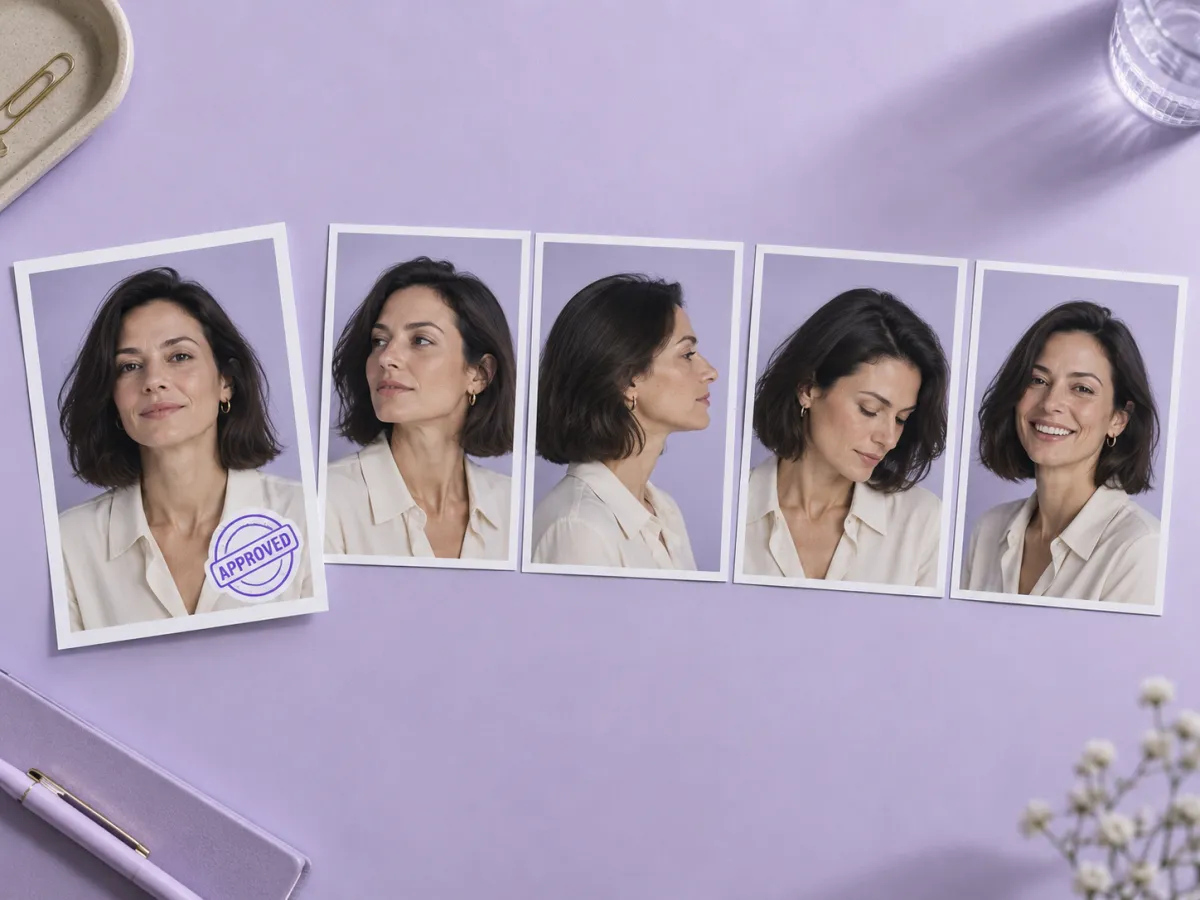
A row of alternatives helps make expression and head angle easier to compare. Generate deliberate options that each answer a specific creative question.
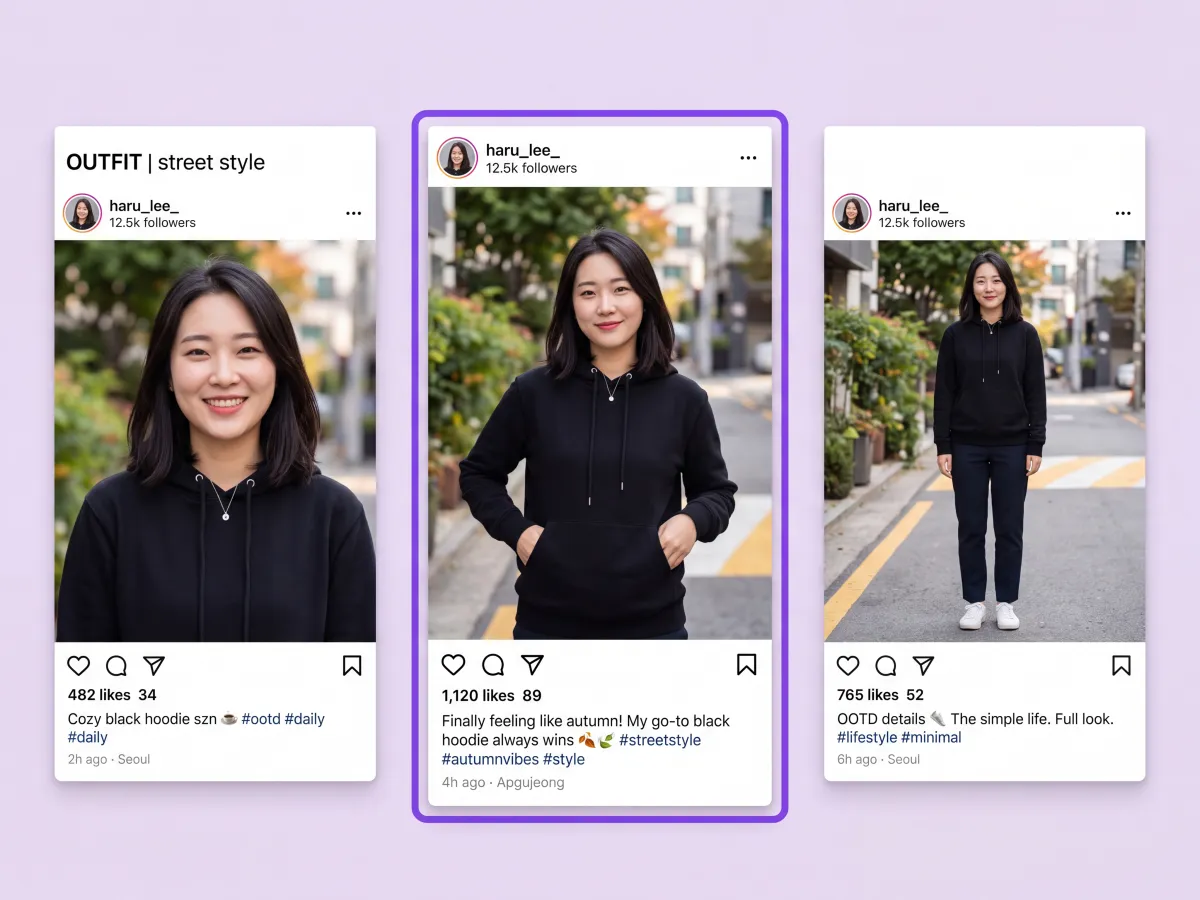
Tight, medium, and full-length crops serve different placements. Decide what the final post needs before changing the composition of your reference.
Prepare your direction, then continue in the workspace.
Pick an image whose subject and broad direction already work. Keep that original available so you can return to it between variations.
Choose ImageAny V3 or V2 and describe a new light, palette, background, or framing while naming the details to retain.
Open image to image, upload the reference, and review output settings and credits. The prompt is required for this guided variation workflow.
Review versions against the same project brief. Keep the strongest direction, make a focused refinement if needed, and download the selected image for its next use.
Use a preset to change one aspect of the reference. Generate and compare separate versions in ImageAny rather than treating multiple inputs as an automatic variation batch.
Match the workflow to your source and final requirements.
| Your goal | Suggested workflow | What to expect |
|---|---|---|
| The direction works but a choice is open | ImageAny variation prompt | Change a defined variable while retaining the reference as the starting point. |
| One specific element is wrong | Focused image editing | Correct the element and explicitly preserve the rest of the scene. |
| No existing image fits the idea | Text to image | Invent the visual from a new written brief. |
| Several approved versions need comparison | A separate selection or layout step | Save the outputs and review them together at the intended size. |
Adapt these directions to your image and intended use.
Distinct alternatives are easier to evaluate when each prompt asks a clear question.
Keep the scene and composition; change only the lighting to soft early morning.
Name the subject features and relationships that make this the same creative direction.
Retain the face, jacket, camera angle, and position beside the window.
Repeatedly editing an edited output can accumulate changes beyond the variable you intended.
Use the original reference again for a separate cool-light variation.
No. This workflow uses ImageAny’s image-to-image editor with a reference and a written instruction. The presets help you describe a meaningful variation, and you can edit them before opening the workspace. There is no separate automatic no-prompt variation mode here.
This page does not provide a dedicated variation contact-sheet tool. Generate and review versions using the options available in the image workspace, then save the ones you want to compare. For a generated multi-panel concept, use the collage solution with a layout brief.
A clear reference and preservation instructions help establish continuity, but ImageAny can change faces, small text, objects, and framing. Decide which details are essential and compare each result. More dramatic variations generally require more reinterpretation of the source.
Uploaded images act as references for one result; they are not automatically separate variation jobs. Start with the main reference and describe the change. Add another input only when it supplies a useful style, object, or setting direction.
Keep the source and most of the prompt stable while changing one major variable. Compare lighting versions separately from composition versions, and view the results at the intended display size. Return to the original reference if successive edits begin to drift.
Yes. Download the selected still and upload it in image to video. Choose a VideoAny model and describe motion that suits the chosen treatment. Resolve the visual direction before animation so you can judge movement without also comparing several different image ideas.
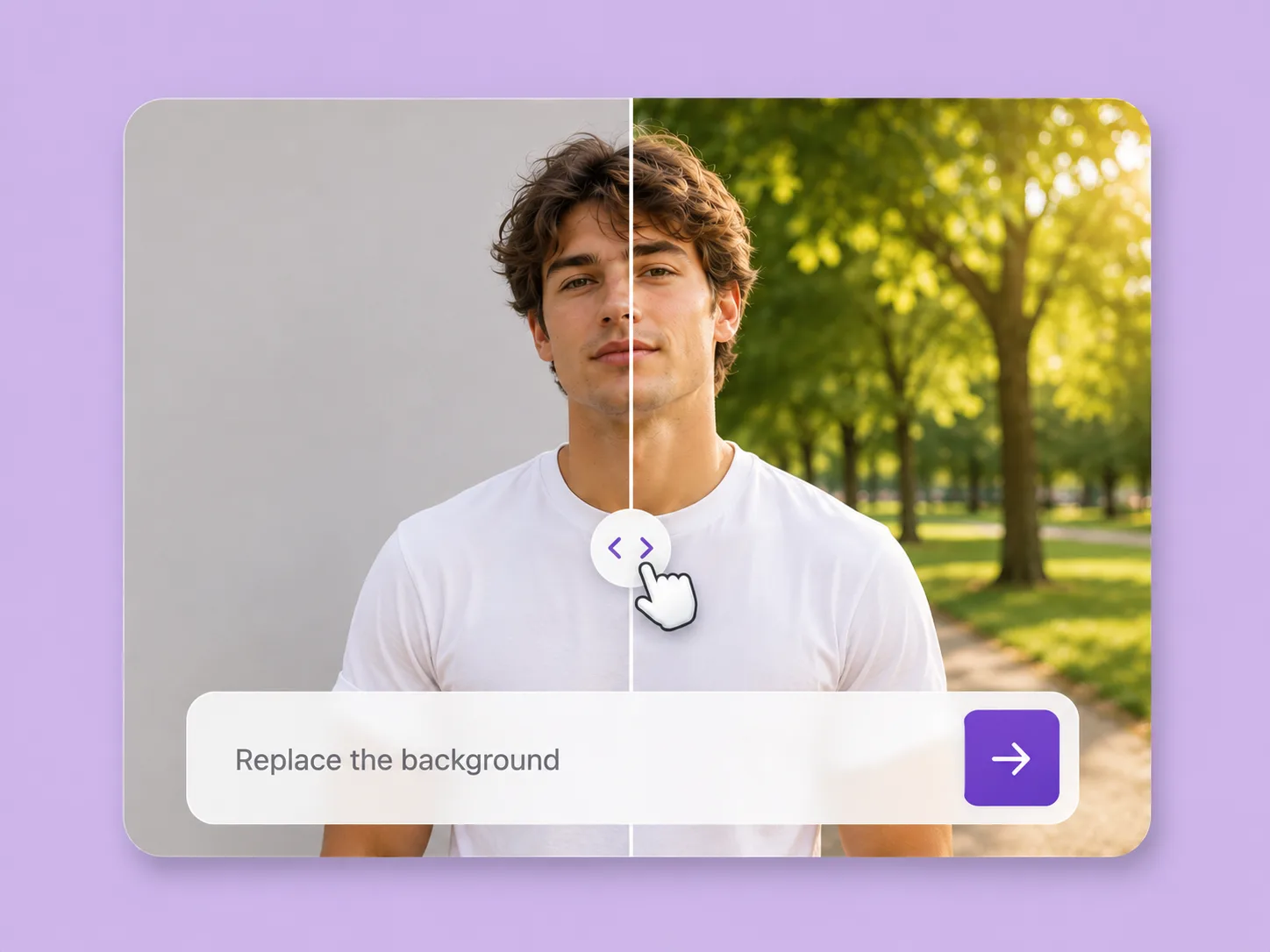
Make an existing image fit the next idea. Direct backgrounds, styling, objects, and light with ImageAny V3 or V2.
Explore solution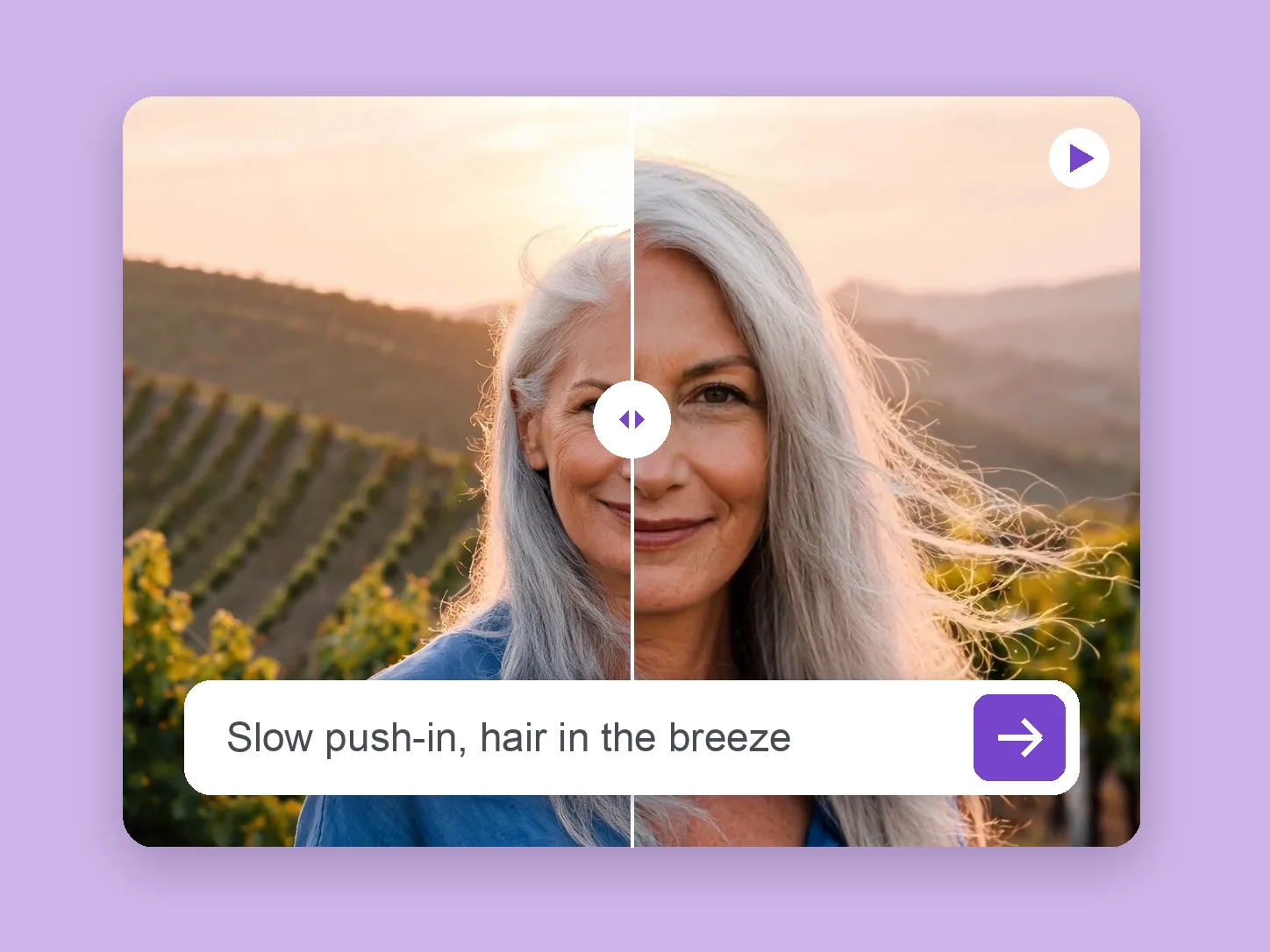
Bring a chosen still into motion. Direct the subject and camera with VideoAny V5, V4, V3, or V2.
Explore solution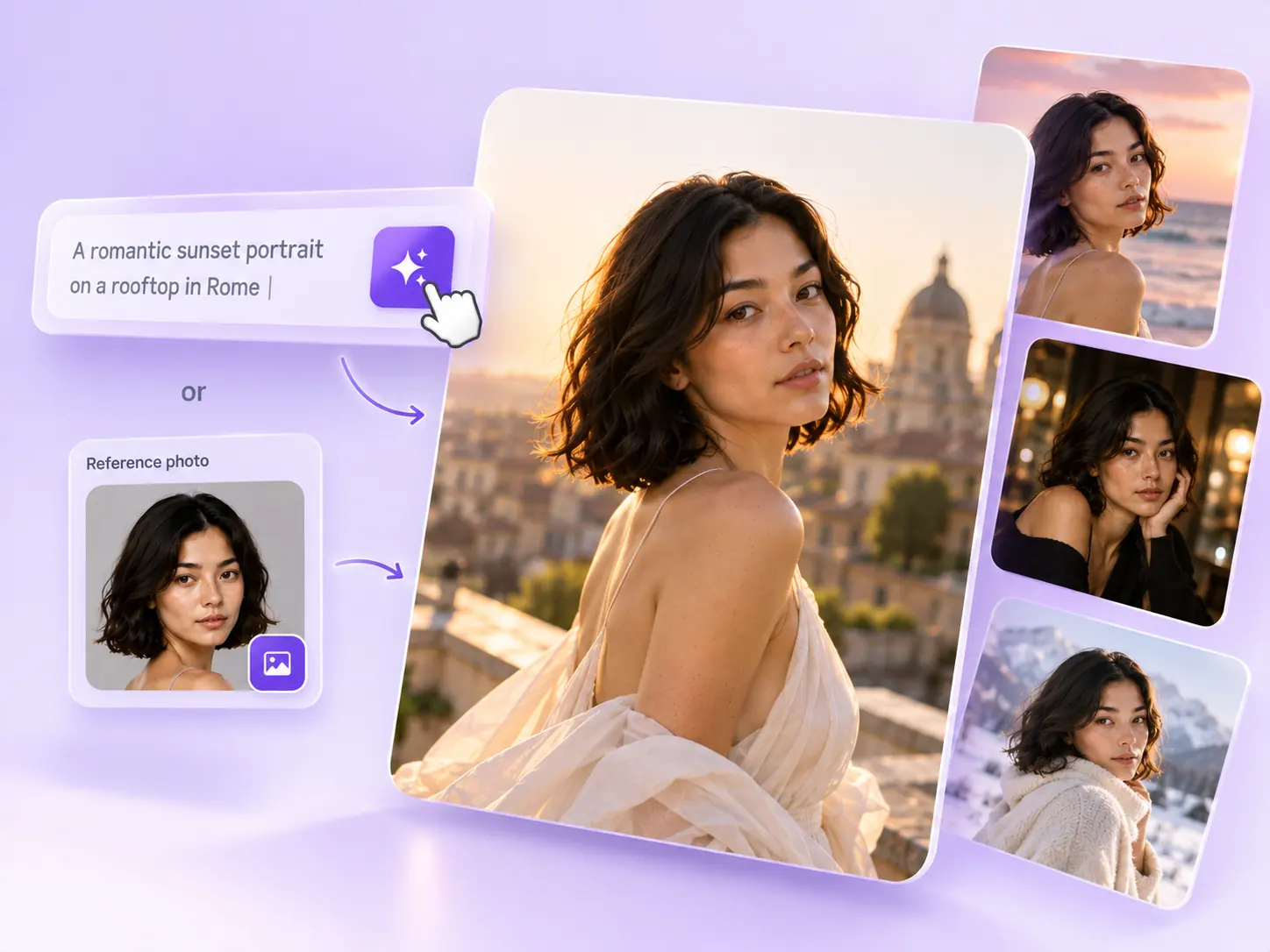
Create the still that starts the story: product concepts, portraits, and campaign photos from a written ImageAny brief.
Explore solutionChoose one variable, keep the reference clear, and use ImageAny to explore a deliberate alternative before taking the next step.
Prepare my edit