Photo-led scene changes
Keep a recognizable subject while exploring a different environment, outfit, or lighting treatment. A focused instruction makes the result easier to compare with the starting photo.
AI IMAGE GENERATOR FROM IMAGE
Give ImageAny V3 or V2 a photo, sketch, or product reference and a clear direction. Develop a new scene, style, or composition as part of your VideoAny creative workflow.
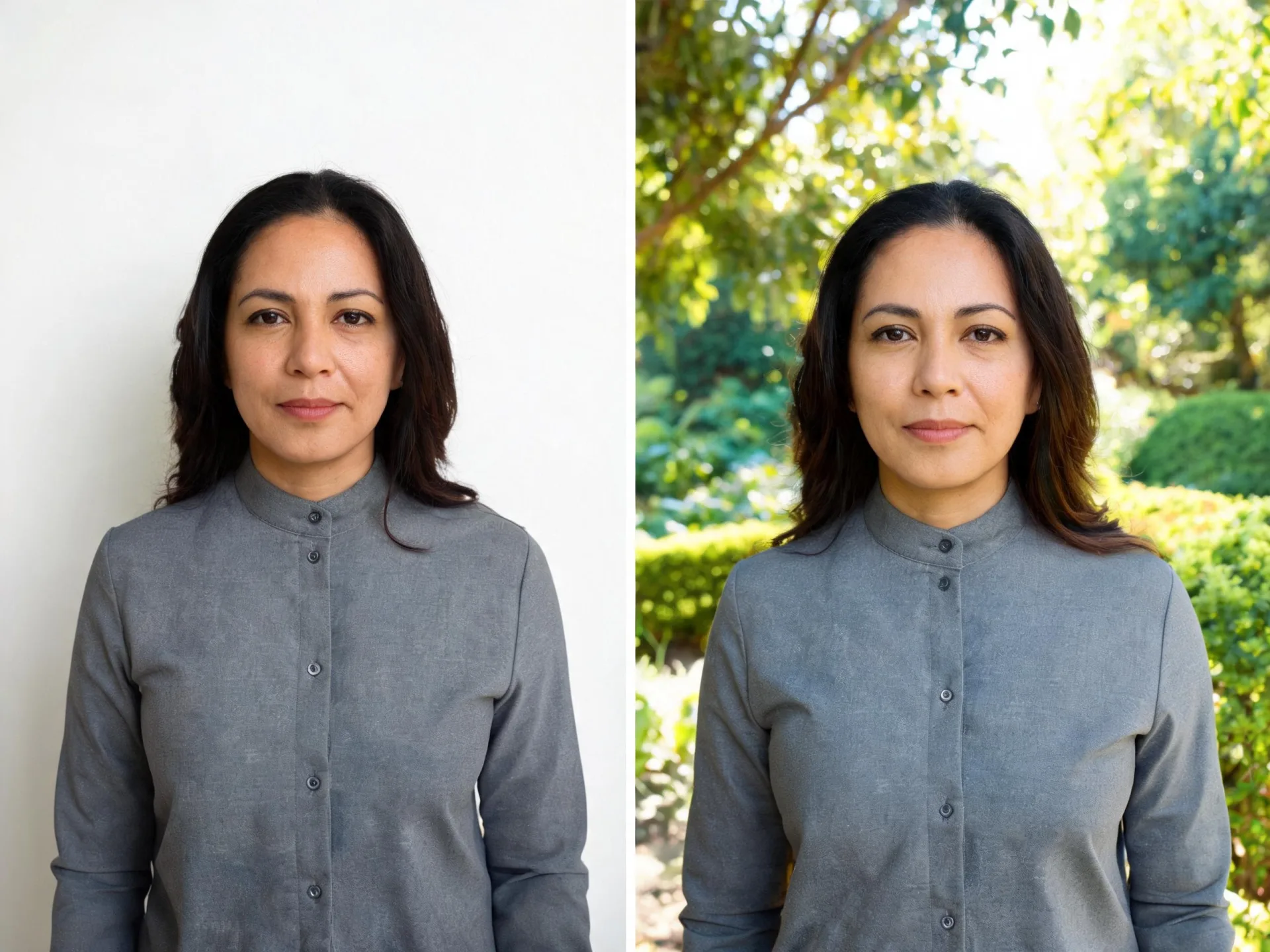
Use an existing image when words alone do not fully explain the subject, layout, material, or character you want to develop.
The reference provides visible information, while the prompt explains the change. You might keep a portrait’s pose and alter the clothing, keep a room’s layout and change the mood, or use a sketch to establish the composition of an illustration. State both sides of that relationship: what the new image should do differently and what the source already gets right.
ImageAny accepts up to four reference inputs for one generated result. Each can have a distinct role, such as subject, garment, location, or style. This is a generative process, so it can reinterpret more than the requested detail. Compare the output with the references, refine the useful direction, and bring the selected still into VideoAny’s image-to-video workspace when the project calls for movement.
Explain what each image contributes instead of asking the model to infer every relationship.
Keep a recognizable subject while exploring a different environment, outfit, or lighting treatment. A focused instruction makes the result easier to compare with the starting photo.
Use a sketch to suggest a composition or object arrangement. Describe the intended medium, materials, and finish so the model knows how to interpret the loose structure.
Bring an existing product photo into a new concept setting. Review the actual product shape and details before treating the result as a finished product representation.
Use a chosen character image or art treatment to guide the next frame. Name distinctive features and compare them across every new generation.
Combine up to four inputs with a written assignment for each one. Separate the person, object, and location roles so the generated scene has a clear hierarchy.
Resolve appearance and framing in the still before you direct action. Download the chosen image and upload it in the video workspace as the starting point for motion.
Source reference examples for planning your brief; these are not presented as ImageAny-generated outputs.
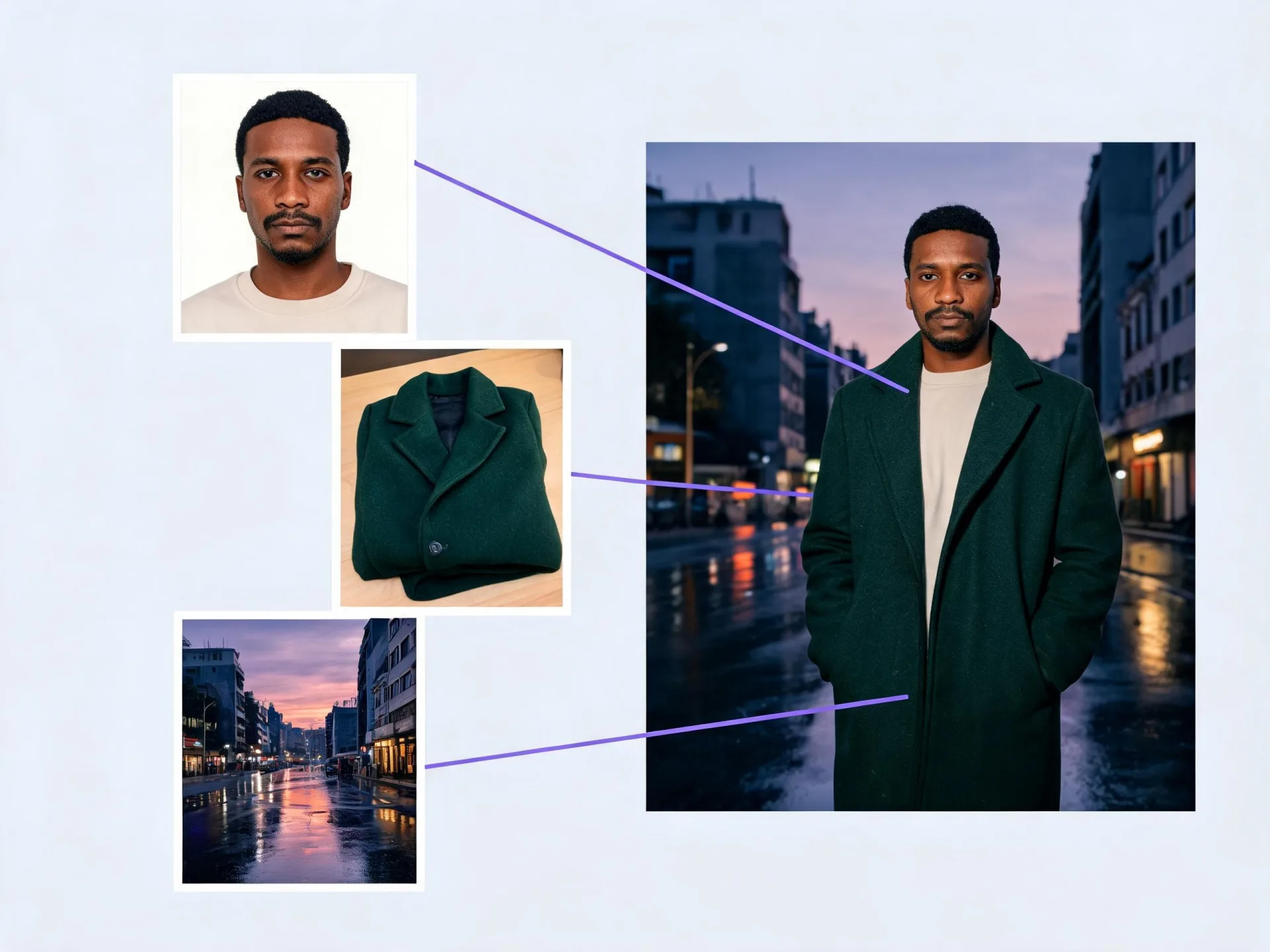
Person, coat, and street references explain different parts of a scene. Use the upload order to tell ImageAny which role each image should play.
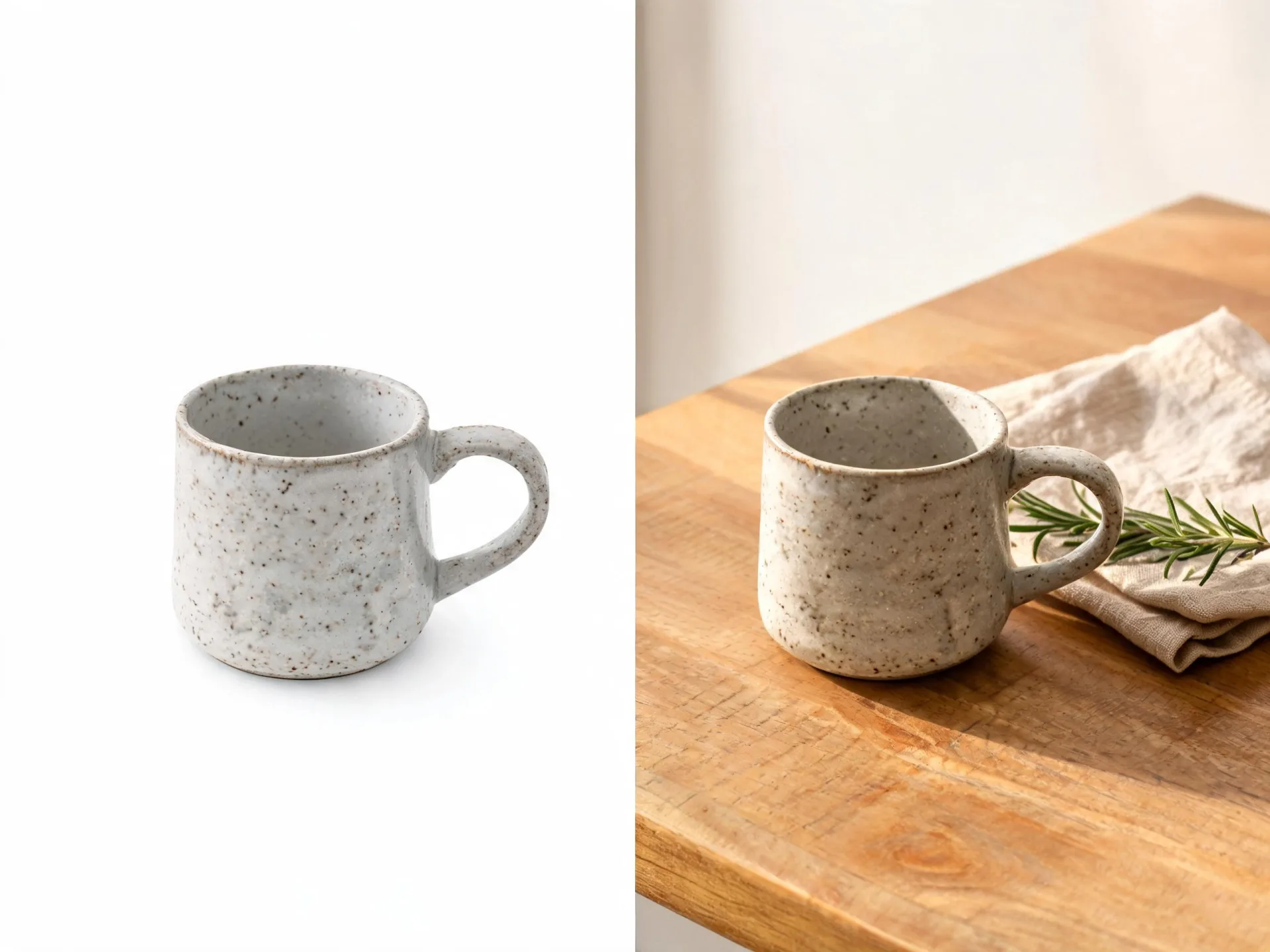
A mug moves from a plain reference into a styled counter scene. Review material, shape, and support shadows when creating a similar concept.
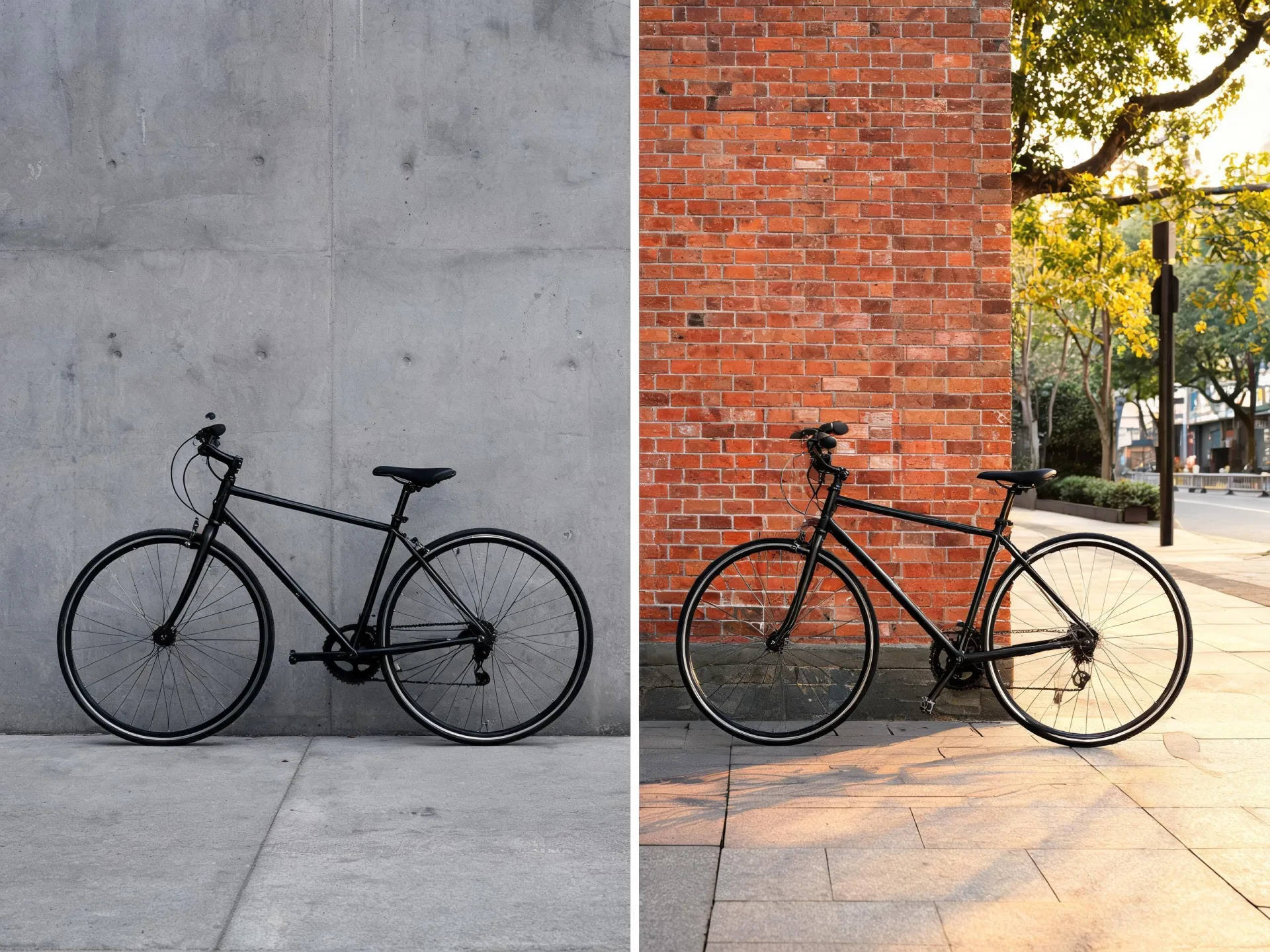
A bicycle in a new street setting illustrates a broader scene revision. Preserve the important object structure while directing the location and light.
Prepare your direction, then continue in the workspace.
Decide whether the image supplies the subject, composition, style, or setting. Choose the clearest source for that particular role.
Select ImageAny V3 or V2 and write the change alongside the details you want to retain. Assign roles when using several references.
Open image to image, upload up to four references, and check that image numbers in the prompt match their order. Review settings and credits.
Compare the generated result with the source and project brief. Refine one remaining issue or download the selected still for its next use.
Choose an editing direction and explain the source’s role. Open ImageAny to add the actual image or images before generating.
Match the workflow to your source and final requirements.
| Your goal | Suggested workflow | What to expect |
|---|---|---|
| A subject or composition already exists | Image to image | Bring the reference and explain the new direction. |
| The visual exists only in words | Text to image | Describe the scene without supplying an image input. |
| Several sources should share one scene | Image merger brief | Assign a specific role to each reference and define their relationship. |
| The still is ready to move | Image to video | Upload the chosen image and describe action and camera movement. |
Adapt these directions to your image and intended use.
State which visual information should carry forward from each input.
Use image 1 for the person and image 2 for the jacket.
A prompt should explain both the new direction and what already works.
Change the room lighting to evening while preserving the furniture layout and camera angle.
Several major changes can make it hard to judge why the result missed the brief.
Keep the current scene and change only the coat to a cream linen blazer.
Text to image invents a scene from your written description. Image to image also uses one or more visual references to guide the subject, composition, or style. Your prompt still matters because it explains how the references should influence the result.
Yes. ImageAny V3 and V2 support up to four input references in this workspace. Use image numbers to identify the person, object, setting, or style source. All inputs guide one generated result rather than becoming separate batch jobs.
No exact match is guaranteed. ImageAny generates a new image and may alter faces, text, materials, or layout. State the details that matter and compare the output with the source. Choose a manual process when exact pixels or measurements must remain intact.
A sketch can guide composition or shape when the prompt explains the intended finish. Describe whether you want an illustration, a product concept, or a photographic-looking scene. The model interprets the drawing, so inspect both the structure and the new details.
Yes. Download or use the selected result as a new reference and write a deliberate variation instruction. Keep an original reference available so repeated edits do not gradually drift away from the intended subject or composition.
Download the still you want to animate and upload it in image to video. Select VideoAny V5, V4, V3, or V2 there and describe a focused movement. Your still defines the initial visual direction; the video generation should be reviewed as a separate creative step.
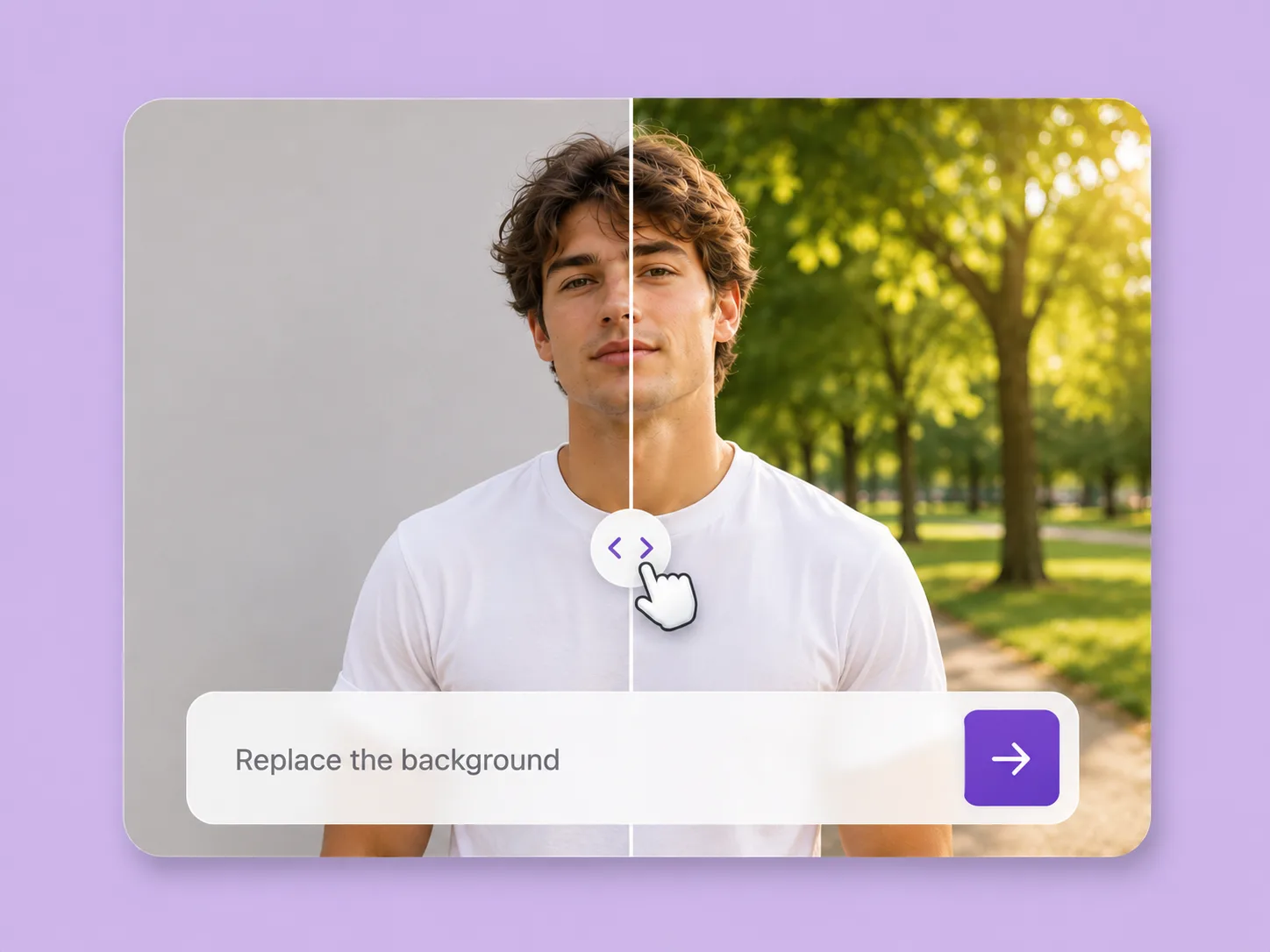
Make an existing image fit the next idea. Direct backgrounds, styling, objects, and light with ImageAny V3 or V2.
Explore solution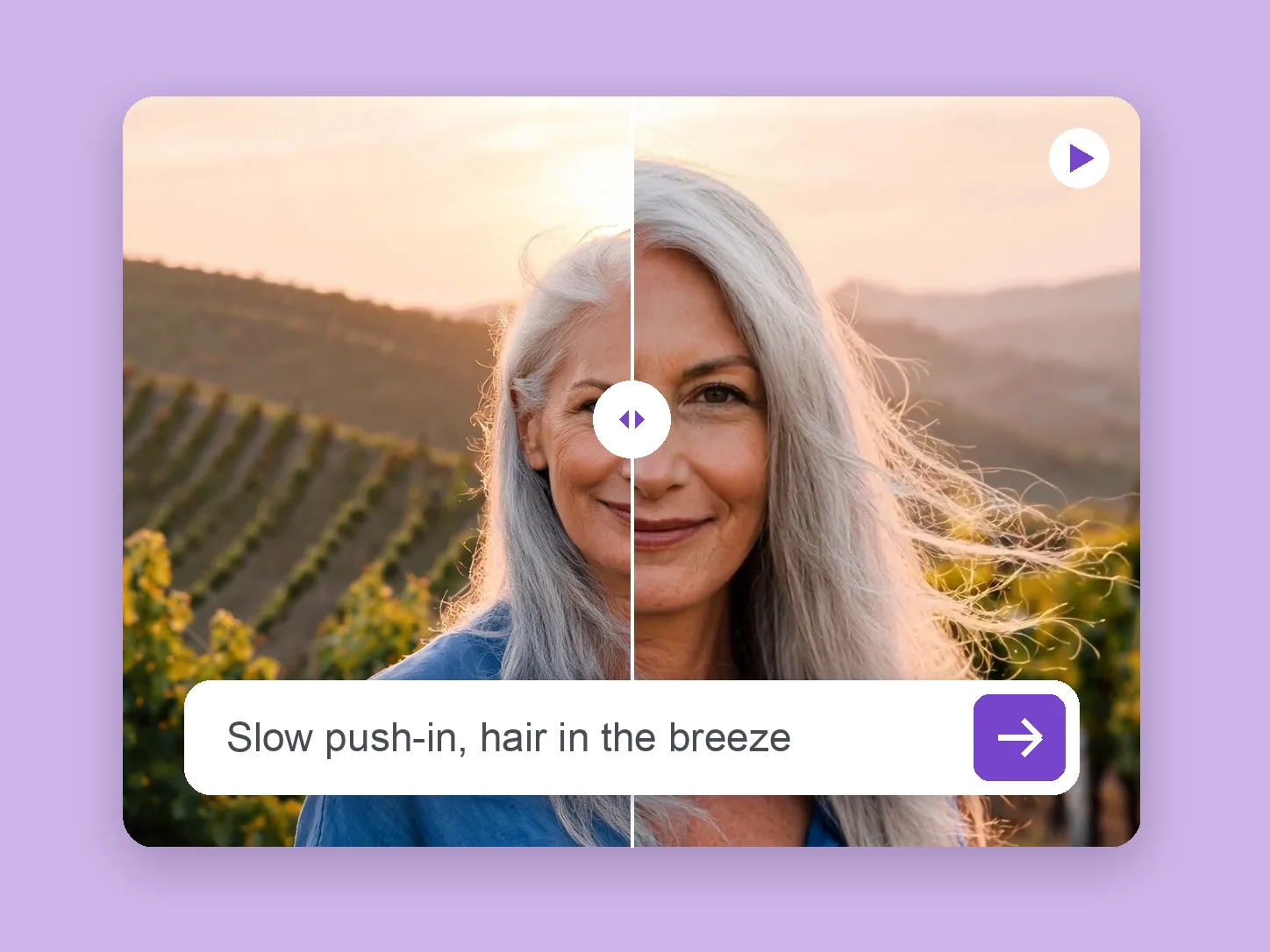
Bring a chosen still into motion. Direct the subject and camera with VideoAny V5, V4, V3, or V2.
Explore solution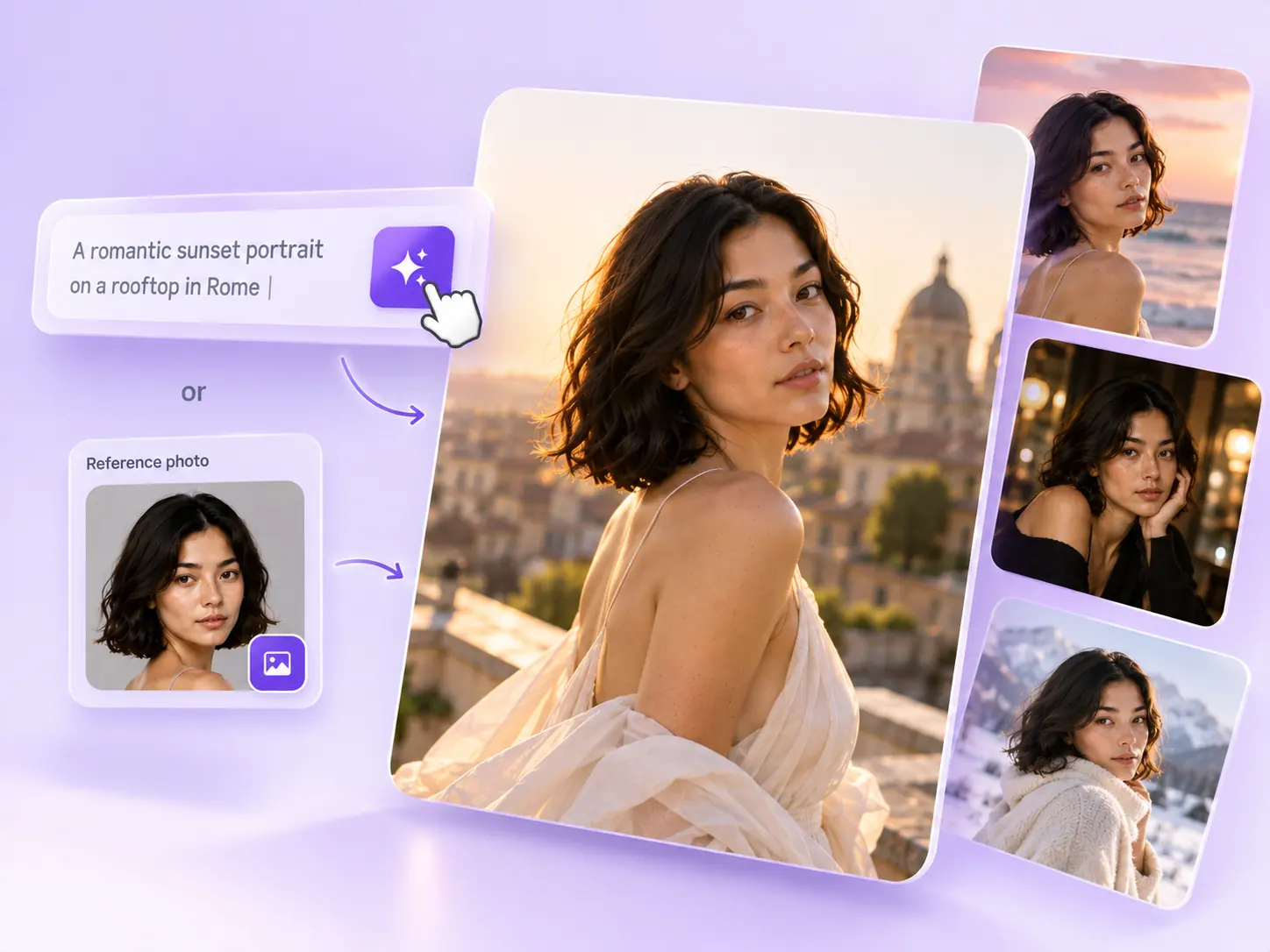
Create the still that starts the story: product concepts, portraits, and campaign photos from a written ImageAny brief.
Explore solutionChoose ImageAny V3 or V2, describe the next version, and open image to image to add the references that define it.
Prepare my edit