Portrait definition
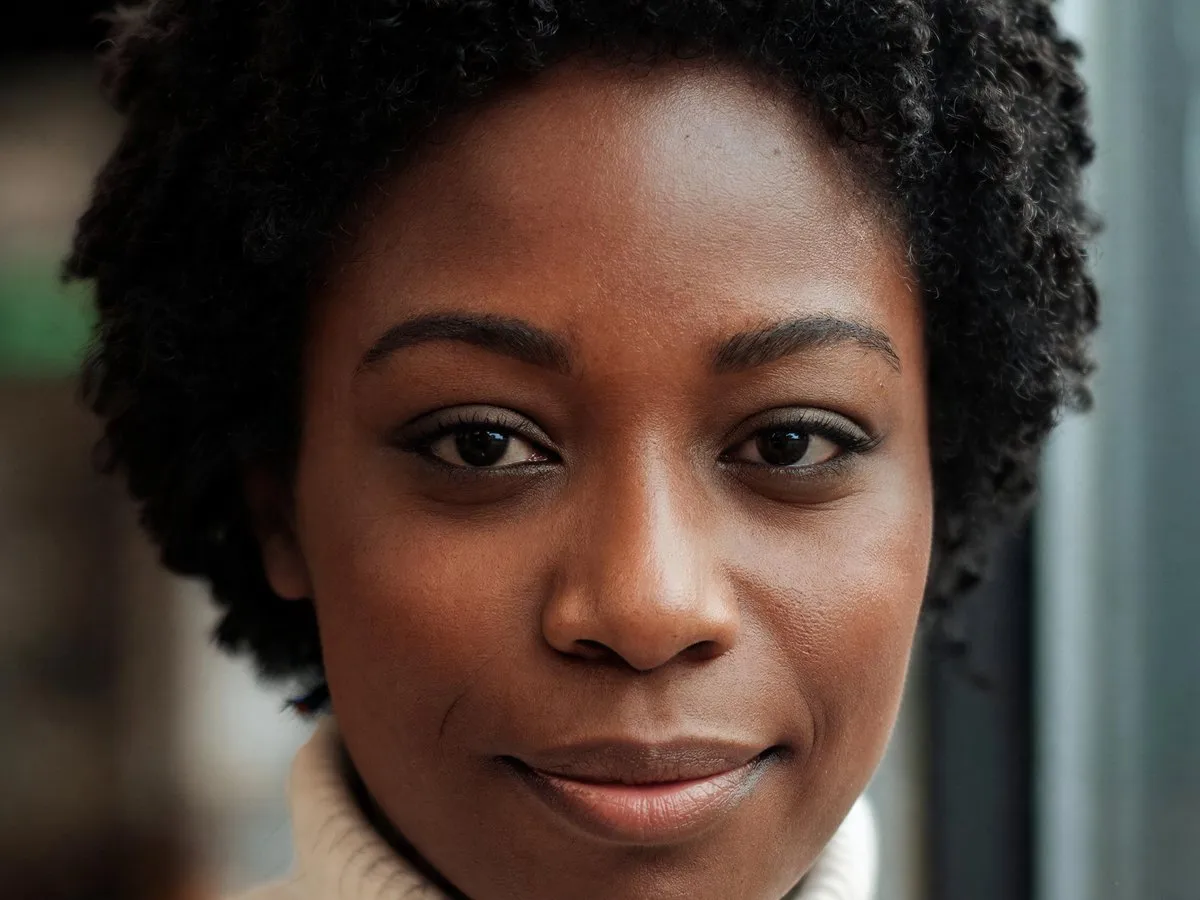
Ask for readable eyes, natural skin texture, and gentle contrast. Keep the expression and facial structure explicit in your preservation instructions instead of asking for a different-looking person.
AI IMAGE ENHANCER
Refine light, texture, and visual clarity with ImageAny V3 or V2. Prepare an existing photo for a creator post, product concept, or starting video frame in VideoAny.
A photo can have the right composition and still need a clearer subject, calmer lighting, or a more coherent finish.
Begin by naming the visible issue. A portrait with flat light calls for a different instruction from a product scene with muddy materials or a landscape with indistinct foliage. Use ImageAny to generate a revised interpretation of the source, keeping the composition and subject as references. A focused edit is easier to compare than a request to make everything sharper, brighter, and more dramatic at once.
This is VideoAny’s prompt-guided image editing workflow. It can create clearer-looking texture and a more intentional finish, but new details may be invented. It is not a dedicated restoration engine and cannot recover an original scene with certainty. For a creative asset, judge the revision against your visual brief. For a record that must remain factual, retain the original and use a process that preserves source information.
Choose a specific visual improvement before you open the editor.
Ask for readable eyes, natural skin texture, and gentle contrast. Keep the expression and facial structure explicit in your preservation instructions instead of asking for a different-looking person.
Describe the surface you expect to see, such as matte ceramic or brushed metal. Compare the returned shape, markings, and reflections against the source before using it as a product visual.
Direct softer highlights, an open shadow, or a more even exposure across the subject. Name the existing light direction when it should remain part of the image’s mood.
Try a restrained revision of distracting grain or compression-like artifacts. Inspect the result closely because generated texture can replace genuine small detail as well as unwanted noise.
Bring a chosen still closer to the palette and lighting of the rest of your project. Keep the subject stable while adjusting the treatment one decision at a time.
Finish the still before animation. Download the chosen version and upload it to image to video, where a simple motion brief can build on the revised image.
Source reference examples for planning your brief; these are not presented as ImageAny-generated outputs.
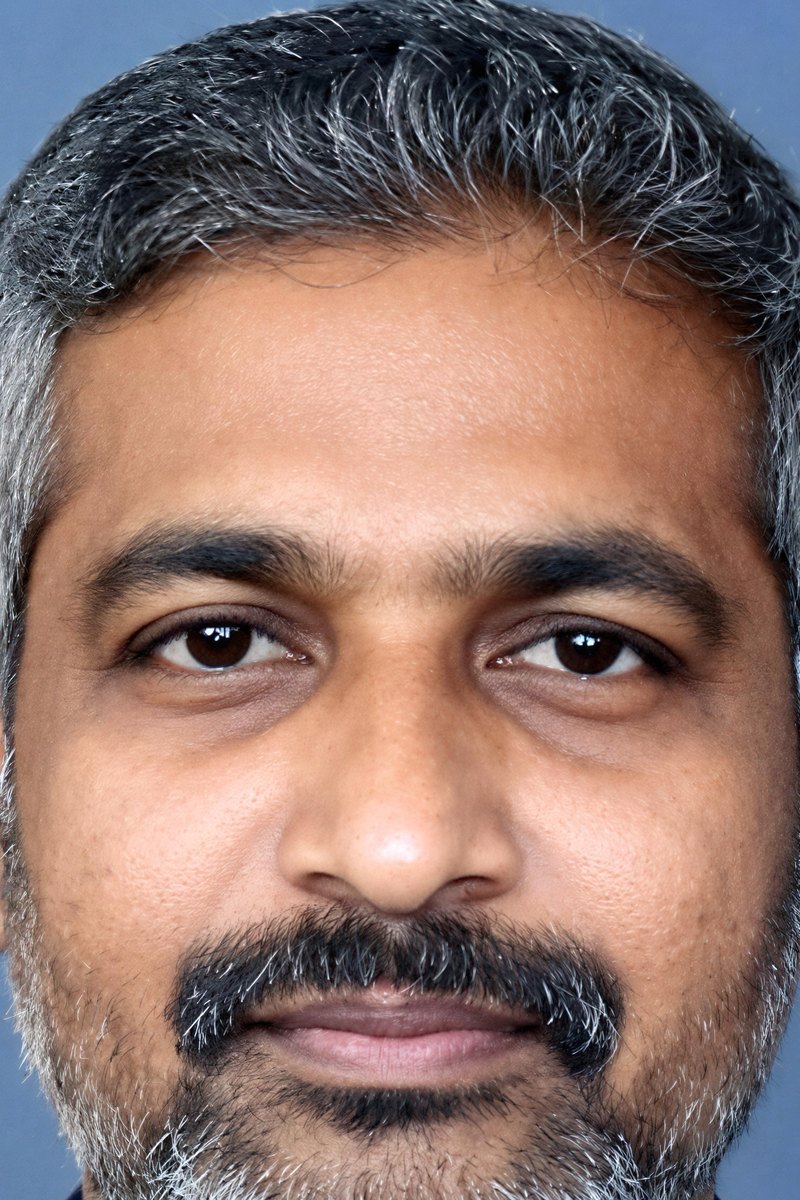
A close headshot makes facial detail easy to inspect. In your own edit, compare likeness and natural skin texture before deciding that stronger definition is an improvement.
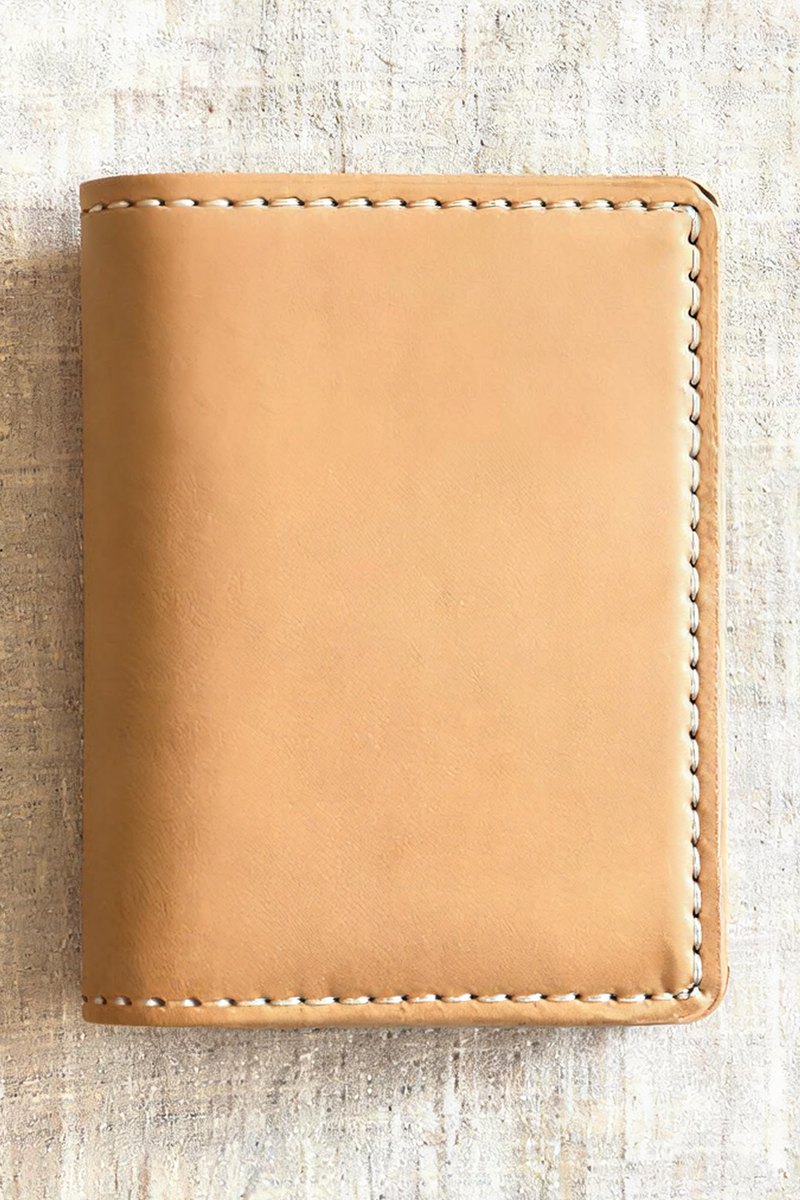
A leather wallet shows why surface texture and fine edges need separate attention. Inspect the construction and shape alongside the visual finish.
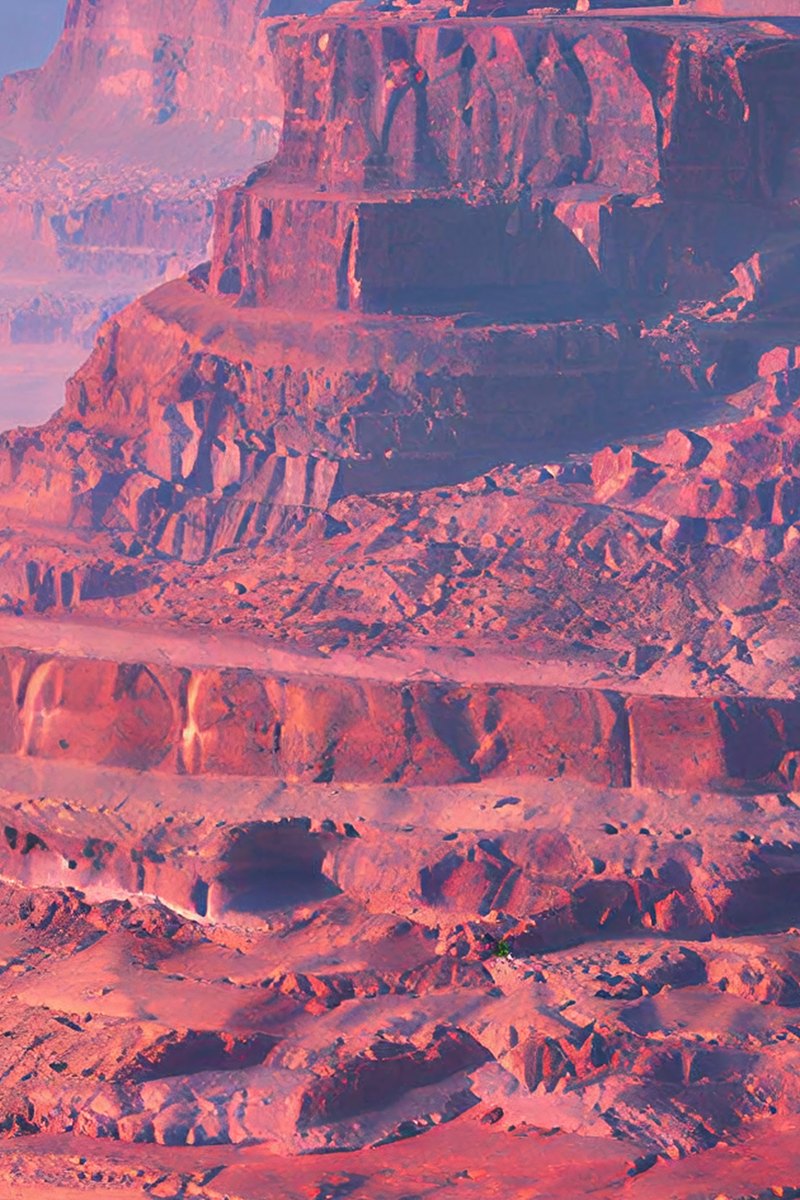
Layered canyon rock offers a useful reference for restrained texture and contrast. Keep the large landforms and natural color relationships central to the brief.
Prepare your direction, then continue in the workspace.
Compare the source at the size you will use it. Decide whether the main issue is light, distracting texture, or an indistinct subject.
Choose ImageAny V3 or V2 and adapt a preset. State the visual improvement alongside the composition, identity, and colors that should remain.
Continue to image to image with the prompt, upload the best available source, and inspect the current output controls and credit amount.
Generate a revision, compare important details with the original, and keep the version that supports the project without introducing distracting new features.
Choose a focused improvement and add preservation instructions. Open ImageAny to upload the source and review the generation settings.
Match the workflow to your source and final requirements.
| Your goal | Suggested workflow | What to expect |
|---|---|---|
| Flat light or weak visual definition | ImageAny enhancement edit | Describe the appearance you want; the model generates a revised image. |
| Exact exposure or color correction | A conventional photo editor | Adjust measured parameters while retaining direct pixel control. |
| A source that is too small | Review output size or resizing tools | More pixels and more accurate original detail are different outcomes. |
| A still that already works | Image to video | Keep the selected image and add movement in a separate step. |
Adapt these directions to your image and intended use.
Identify the part of the source that limits its usefulness, rather than stacking general quality words.
Bring more readable detail to the ceramic surface while retaining its matte finish.
Ask for restrained detail that fits the material or subject; strong sharpness everywhere can look artificial.
Preserve natural skin texture and soft transitions in the cheek shadows.
Explain what already works so the edit concentrates on its intended purpose.
Keep the same camera angle, object positions, background, and warm color palette.
This solution uses ImageAny’s generative image-to-image editor. It creates a new version guided by the photo and your prompt. It can help explore a clearer-looking creative asset, but it does not provide a separate restoration algorithm or a guarantee of recovered source detail.
No. A heavily compressed or very small source may not contain enough information to guide a convincing result. Use the largest available original and judge changes against what is actually visible. An attractive reconstruction can still be inaccurate.
Usually, decide whether the still works before animating it. Unwanted facial features, product shapes, or textures can carry into motion. Download the chosen still and upload it in image to video; this page does not automatically send a generated result there.
Preservation instructions help communicate the goal, but generated text and fine branding can drift. Check them against the original at full size. If exact lettering is essential, keep it in a separate layout layer or use a manual editing workflow.
The launcher starts with ImageAny V3 and also offers V2. Review the output controls and credit amount after opening the workspace. Compare results using the same source and brief when you want to understand which version fits your image.
The editor returns a generated result for review and download. Keep your original file as the reference and compare it with the output before replacing an asset in your project. This also gives you a clean starting point for a different treatment.
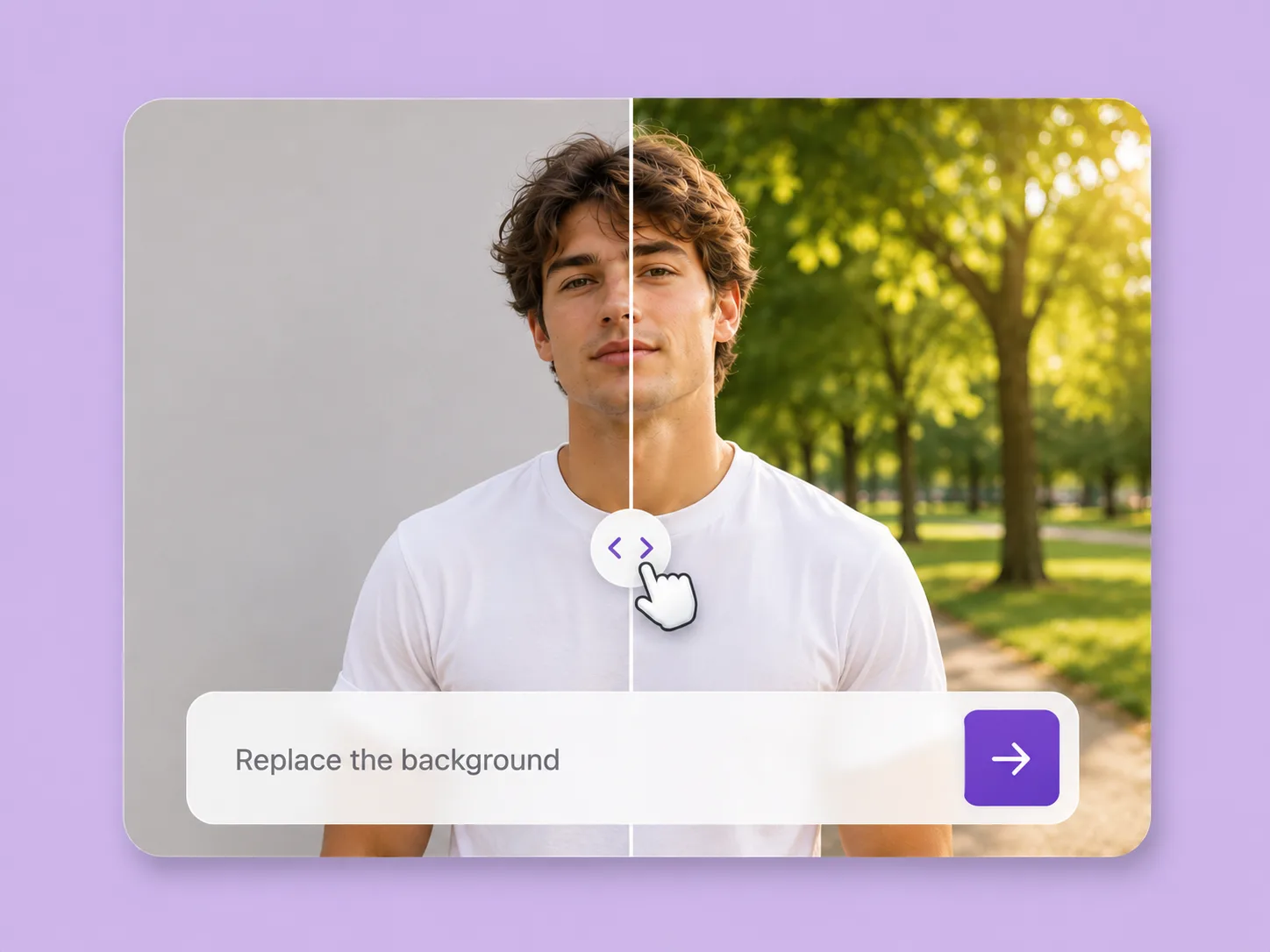
Make an existing image fit the next idea. Direct backgrounds, styling, objects, and light with ImageAny V3 or V2.
Explore solution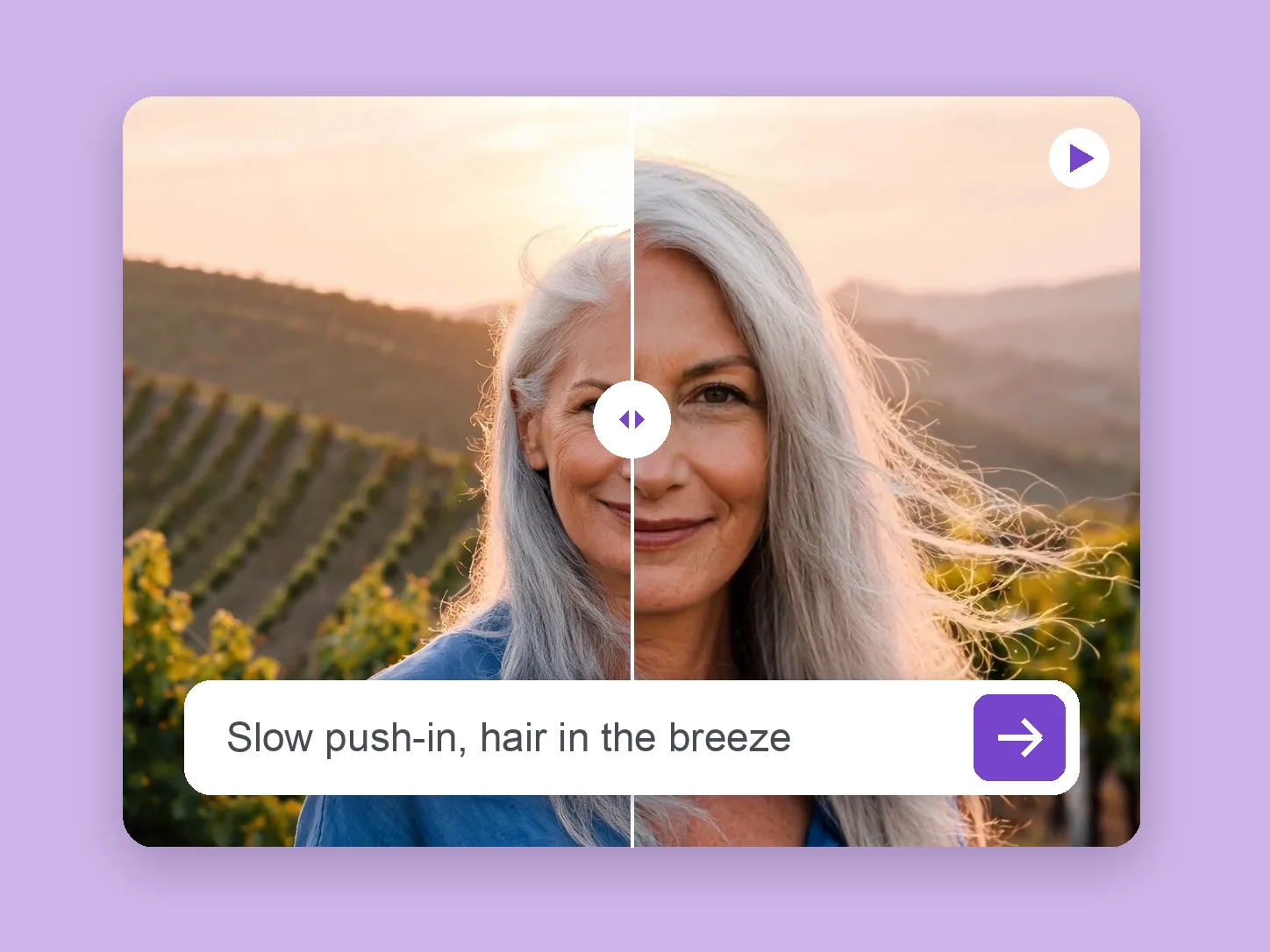
Bring a chosen still into motion. Direct the subject and camera with VideoAny V5, V4, V3, or V2.
Explore solution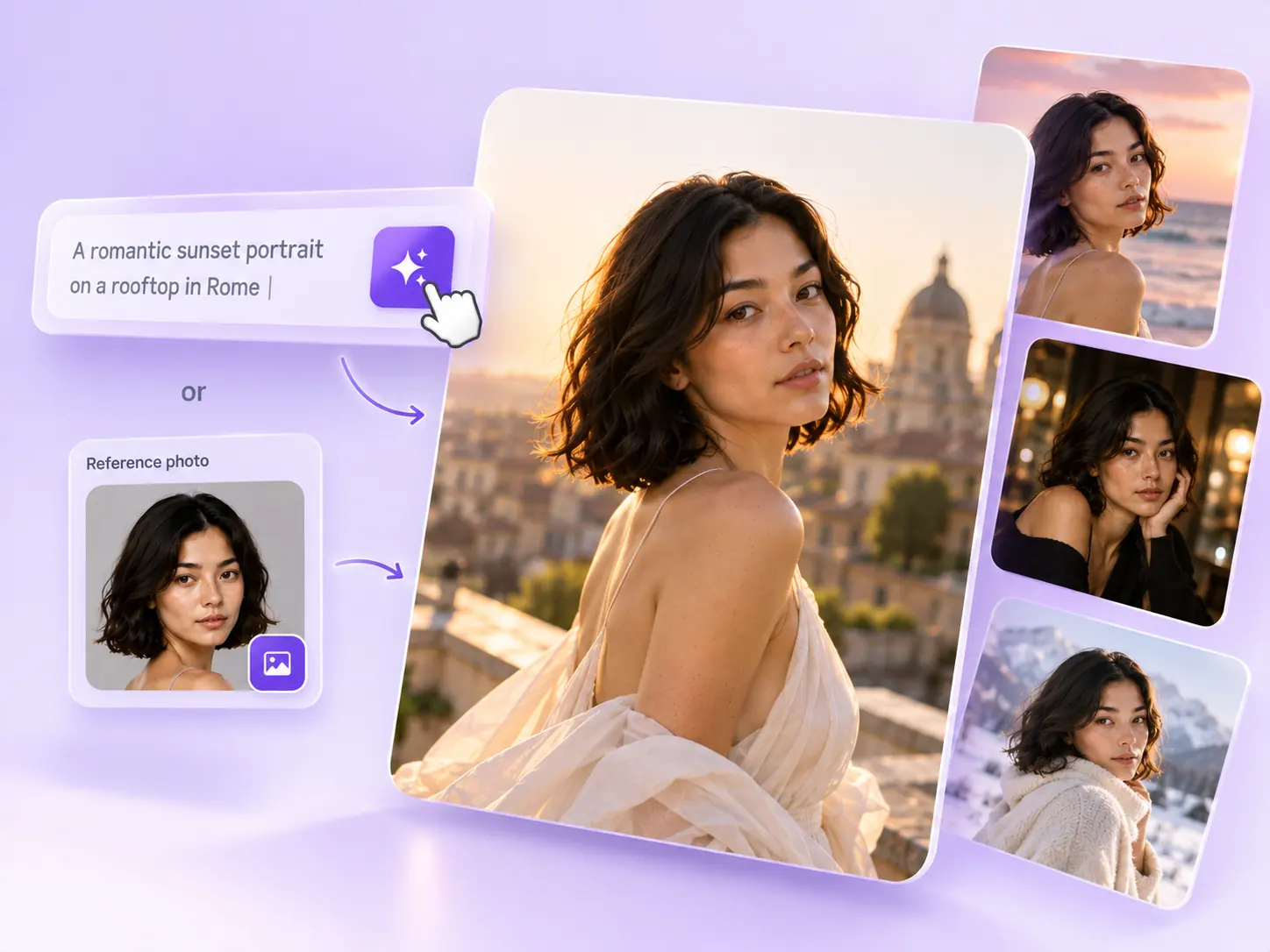
Create the still that starts the story: product concepts, portraits, and campaign photos from a written ImageAny brief.
Explore solutionChoose the improvement that matters, open ImageAny, and compare a new version against the original before taking it into the next stage.
Prepare my edit