Shorter silhouettes
Preview a cropped style or a bob with a clearly described edge and length. Check the new outline against the face rather than assuming a shorter cut changes every facial proportion.
AI HAIRSTYLE CHANGER
Try a different length, texture, or color on a portrait with ImageAny V3 or V2. Develop a personal style idea or a character look that can continue into your next VideoAny scene.
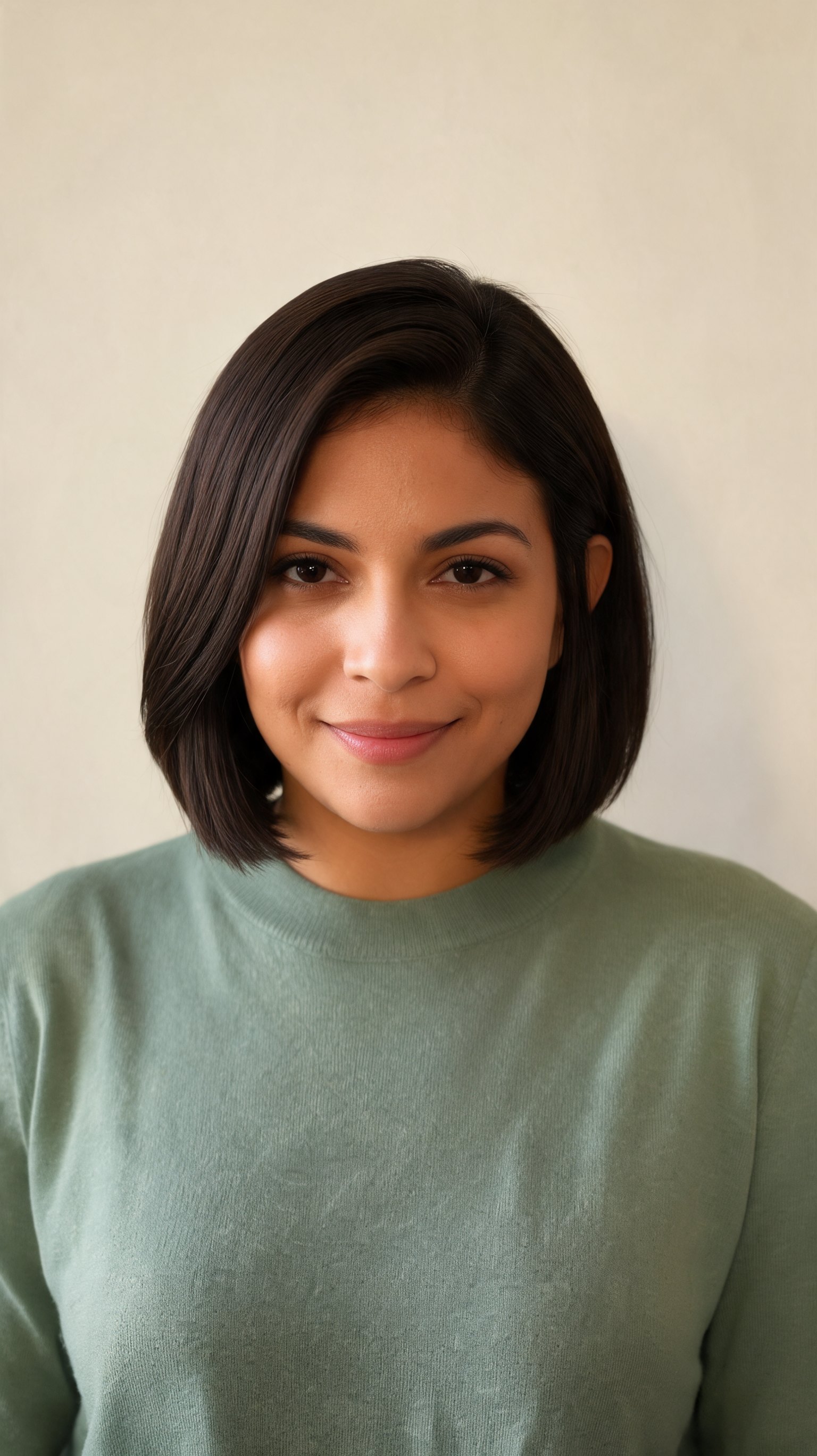
A hairstyle changes the silhouette of a face and the visual identity of a character. Explore that decision in a still image first.
Upload a clear portrait where the hairline, face, and shoulders are visible. Describe the new cut with observable qualities: jaw-length, side-parted, close-cropped, softly curled, or shoulder-length with a blunt edge. Include the color and finish when they matter. Keep the same expression, pose, outfit, and setting in your instruction so the hairstyle remains the main variable you compare.
ImageAny produces a generated preview, not a physical hair consultation or an exact simulation of your own hair. Growth patterns, density, styling products, and real-world maintenance affect an actual haircut. Use the result to communicate a visual direction. For character or creator work, select the look that fits your project, review the likeness, and carry the chosen still into VideoAny’s image-to-video workspace if you want motion.
Separate cut, texture, and color when you want to understand what gives the look its character.
Preview a cropped style or a bob with a clearly described edge and length. Check the new outline against the face rather than assuming a shorter cut changes every facial proportion.
Explore shoulder-length or longer styles while preserving the pose and outfit. Give the model space to show the new shape and inspect where strands meet clothing.
Try soft waves, tighter curls, or a smoother finish. Describe the curl size and volume so the prompt communicates a specific texture rather than simply asking for stylish hair.
Compare a warm brown, cool dark tone, or a lighter color using the same portrait. Keep the light consistent, because lighting can change how the color appears.
Focus on bangs, a side part, or a center part without requesting a complete restyle. These smaller choices can be easier to discuss and compare side by side.
Develop a hair direction before generating additional scenes. Reuse the selected portrait as a visual reference and check every later image for changes in the face and hairline.
Source reference examples for planning your brief; these are not presented as ImageAny-generated outputs.
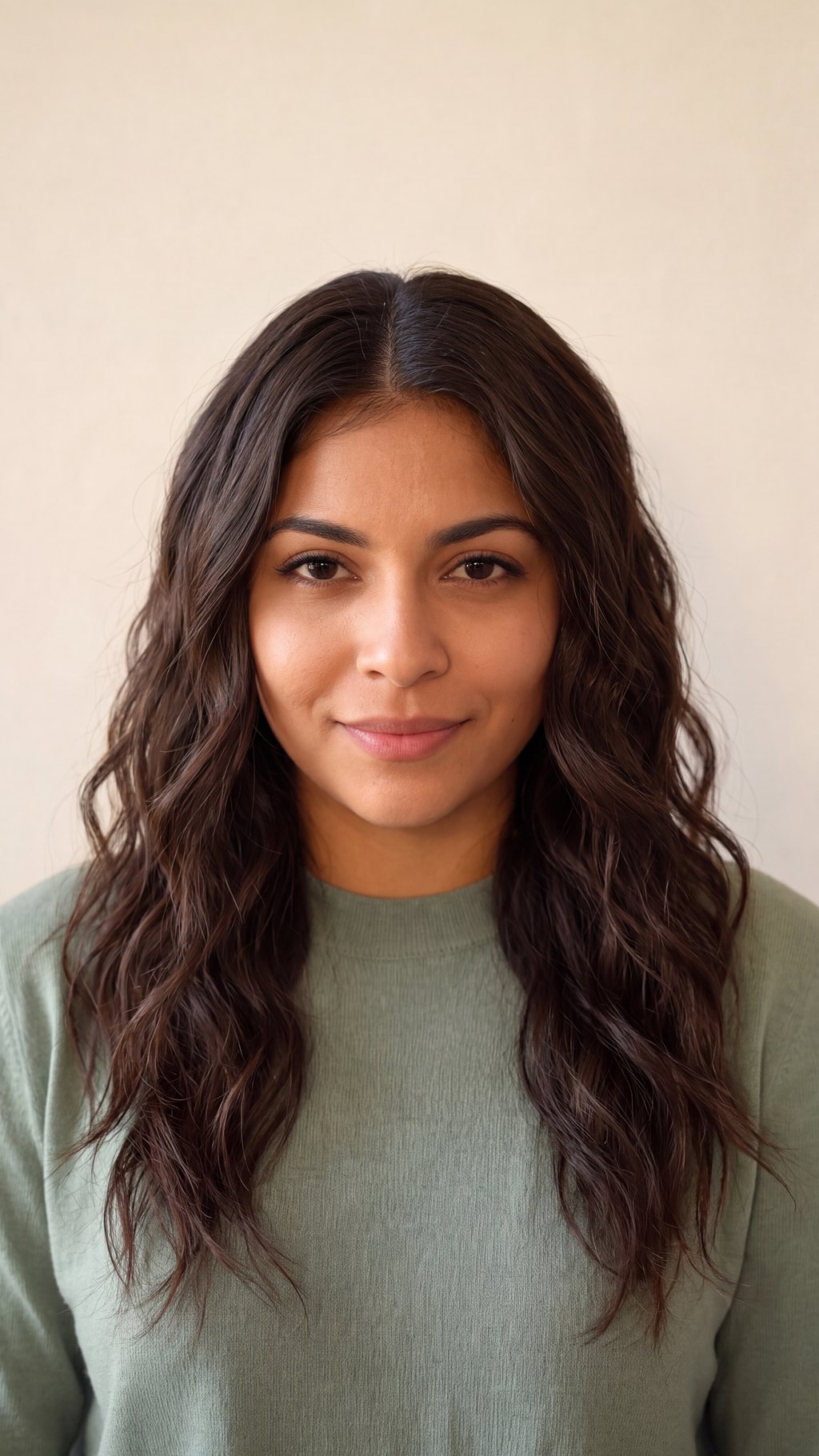
Long, softly waved hair changes the silhouette around the face. Compare length, parting, and volume as separate styling choices in your own brief.
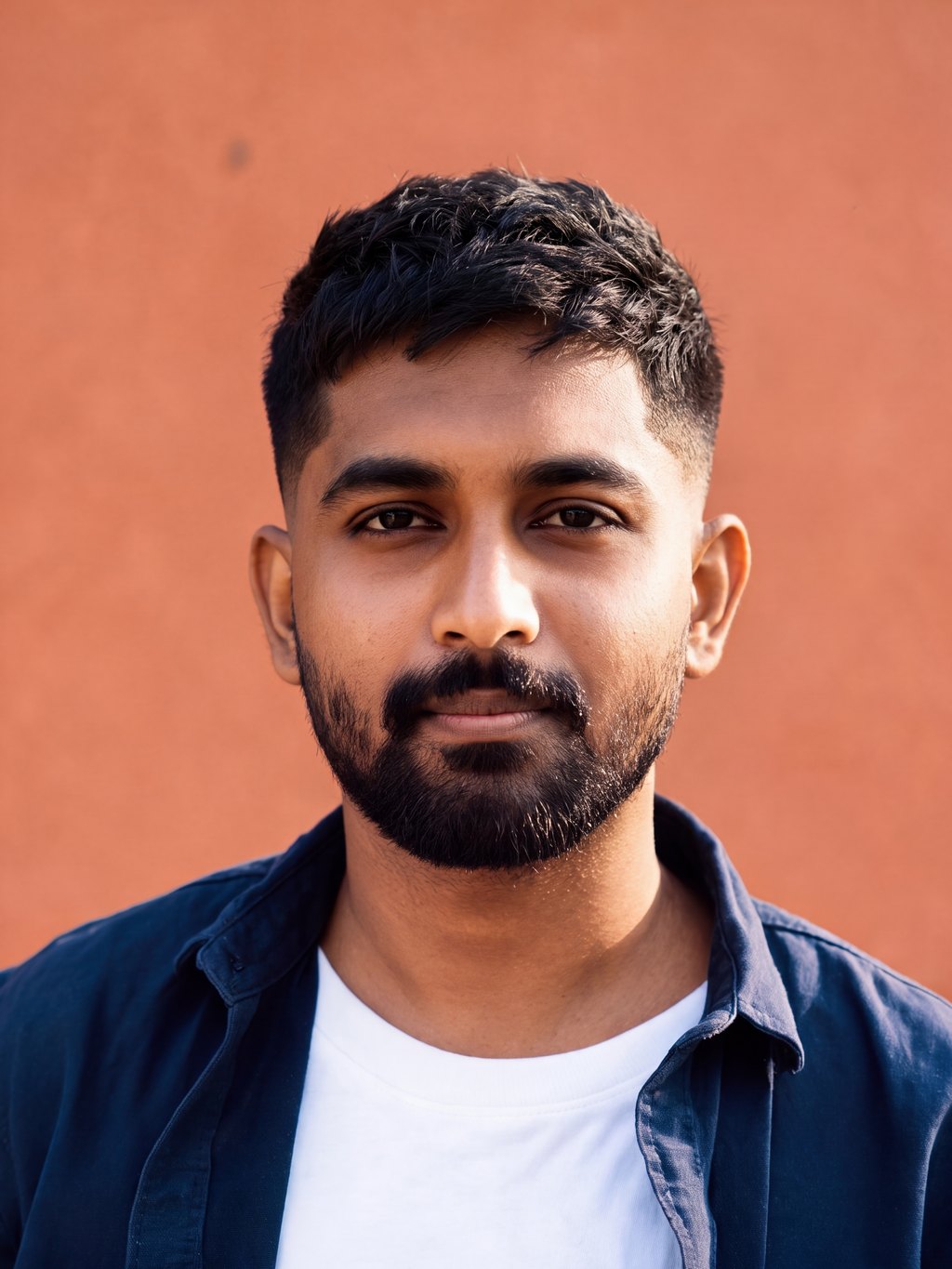
A cropped style with a taper gives the prompt a clear shape to describe. Keep facial proportions and expression stable while comparing the outline.
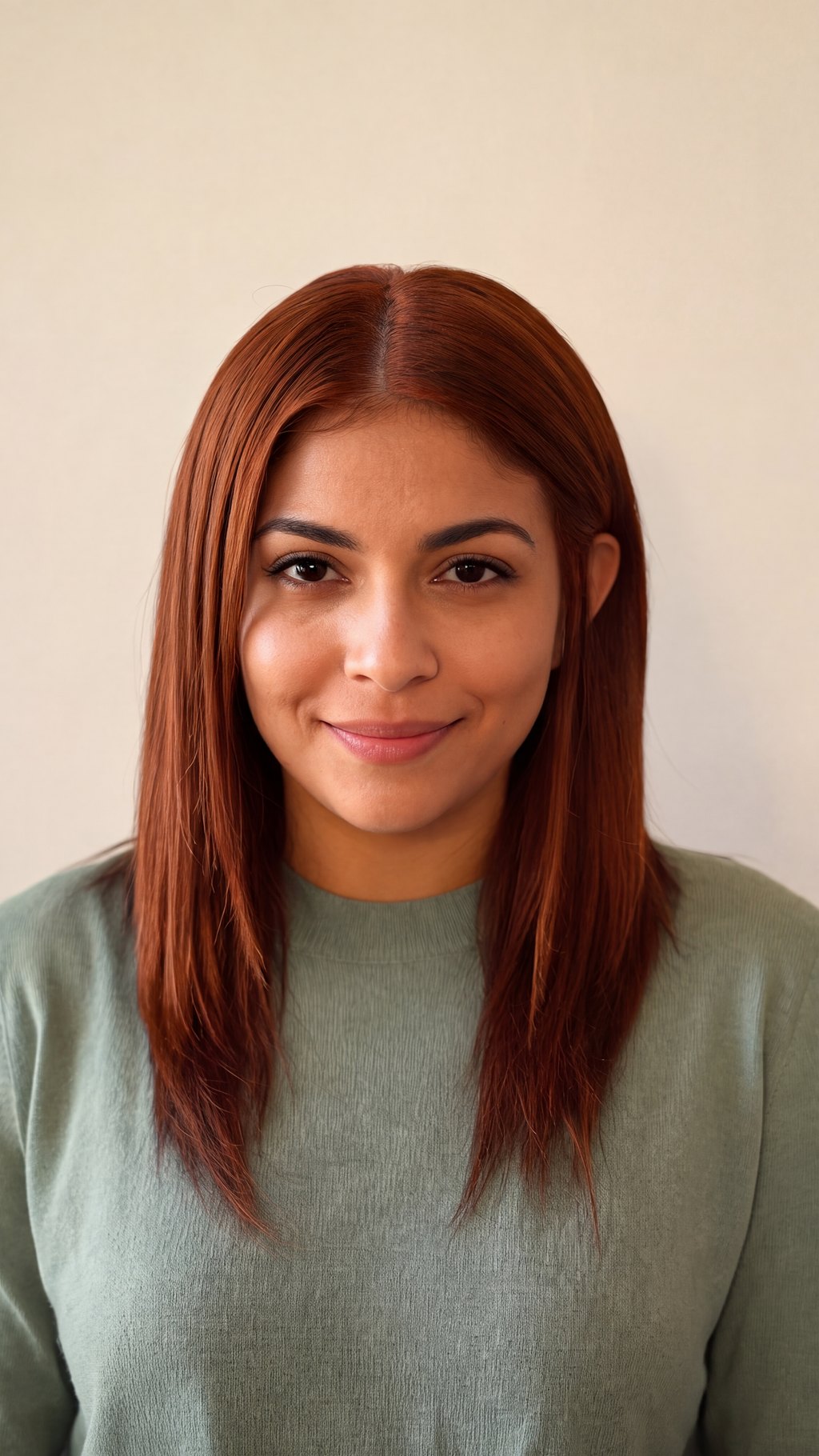
Copper hair provides a color-focused reference. Use consistent lighting to compare tones and explicitly retain the cut when color is the only intended change.
Prepare your direction, then continue in the workspace.
Use a front or three-quarter view with visible hair and an unobstructed face. Pick a source close to the framing you want to keep.
Choose ImageAny V3 or V2 and describe length, shape, parting, texture, and color. State which personal features and scene details should remain.
Continue to image to image, upload your photo, and add a hairstyle reference if it helps explain the goal. Review settings and credits.
Generate and inspect the face, hairline, and silhouette. Return to the original portrait for a different direction so earlier changes do not accumulate.
Adapt a preset to your portrait. For a useful comparison, keep the same face, pose, and lighting while changing one main styling choice.
Match the workflow to your source and final requirements.
| Your goal | Suggested workflow | What to expect |
|---|---|---|
| Preview a new haircut or color | Hairstyle editing with ImageAny | Generate a styling interpretation from your existing portrait. |
| Create a fictional person | AI face generation | Describe a new character rather than preserving a real likeness. |
| Build a work profile photo | Headshot editing | Coordinate hair, clothing, lighting, and framing for a profile context. |
| Judge physical feasibility | Discuss with a stylist | Hair type and maintenance require real-world assessment. |
Adapt these directions to your image and intended use.
Describe where the hair ends relative to visible features instead of using only short or long.
A blunt bob ending at the jaw, with the ears partially visible.
Separate a new color from a major cut when you want a useful comparison.
Change only the color; retain the same curl pattern and silhouette.
Preservation language should cover the identity cues that make the portrait recognizable.
Keep the same facial proportions, eyebrows, expression, and skin tone.
No. It is a generated visual interpretation guided by your photo, not a measurement of your hair or a physical simulation. Use it to communicate an idea and discuss the practical cut, texture, and maintenance with a stylist.
Yes, use a focused color instruction and explicitly retain length, texture, parting, and volume. Review the result because generative editing can still alter other details. Keeping the same source and lighting makes color comparisons easier.
You can add another image in the image-to-image workspace and identify it as the hair reference. Tell the model to take the style from that image while preserving the person in the main portrait. Up to four references guide one edit.
A clear source and explicit preservation instructions can guide likeness, but exact identity is not guaranteed. Check the hairline, face shape, eyes, and expression before choosing a result. Return to the original portrait if repeated edits begin to drift.
Make separate edits from the same starting photo and change the hairstyle instruction for each. Multiple uploaded images are references for one generation, not an automatic salon-style comparison set. Save the results you want to review side by side.
Yes. Download the selected hairstyle edit and upload it to image to video. Choose a VideoAny model and begin with subtle motion. Watch the hairline and face throughout the clip because those details may change as the scene moves.
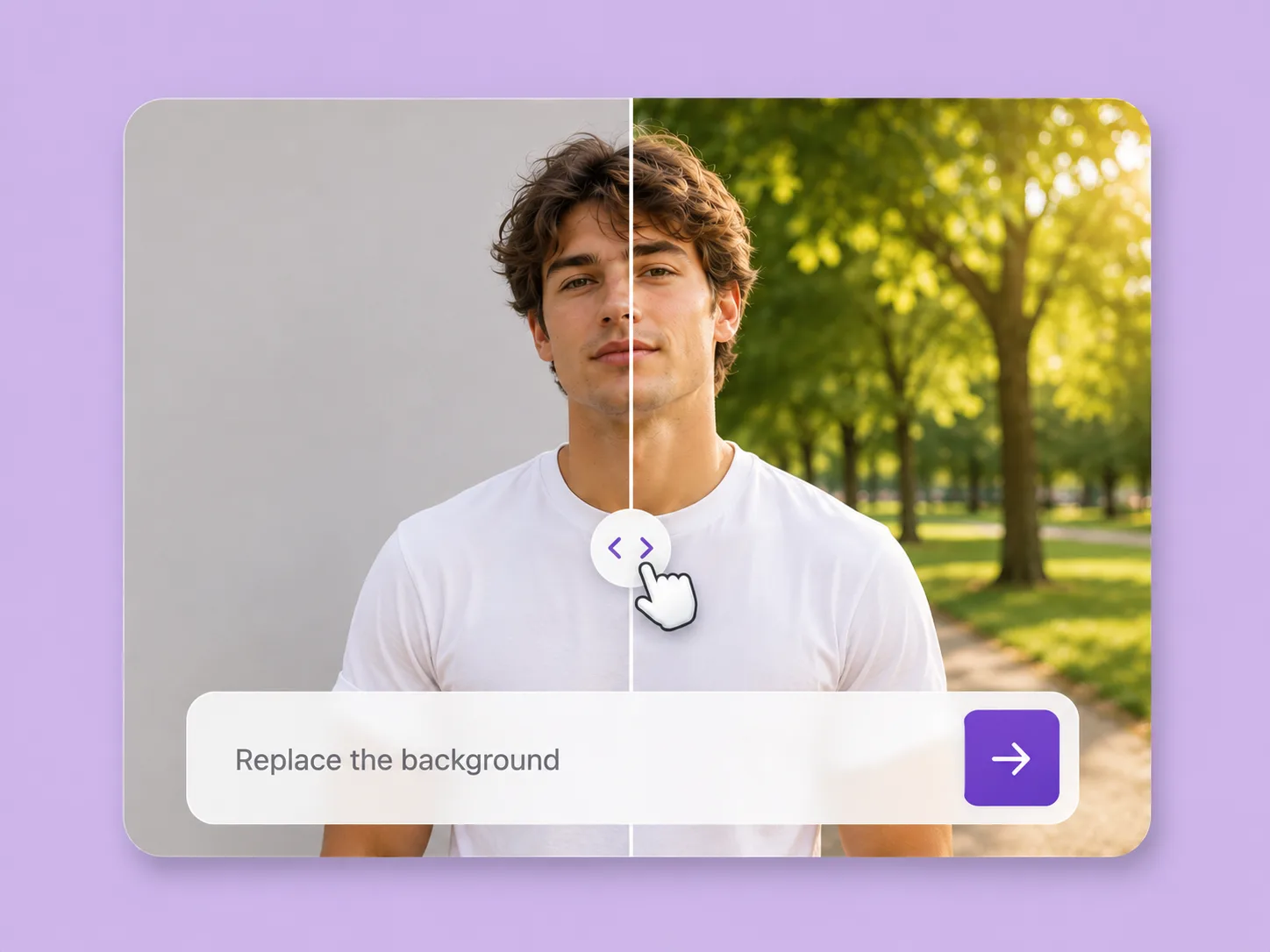
Make an existing image fit the next idea. Direct backgrounds, styling, objects, and light with ImageAny V3 or V2.
Explore solution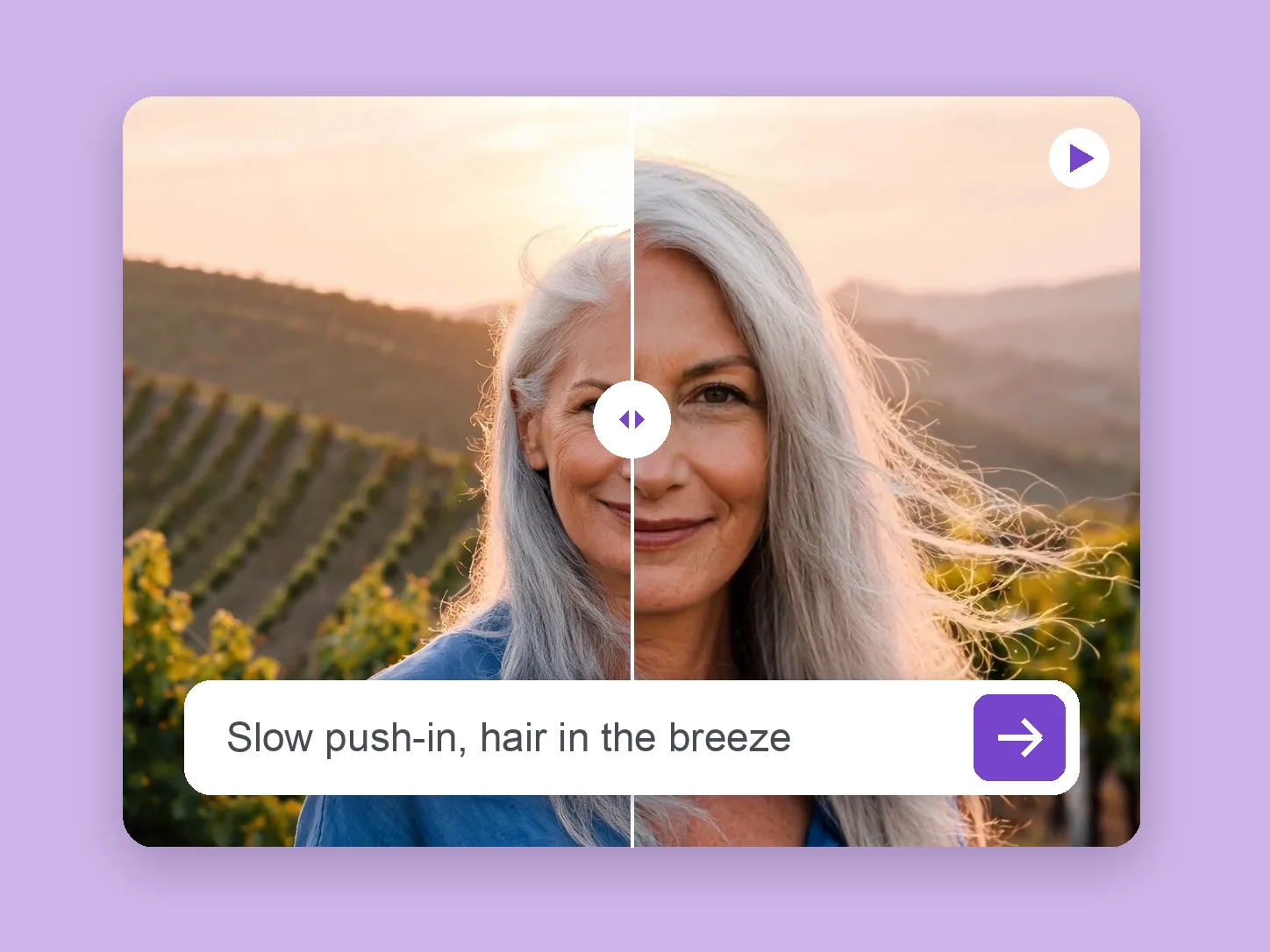
Bring a chosen still into motion. Direct the subject and camera with VideoAny V5, V4, V3, or V2.
Explore solution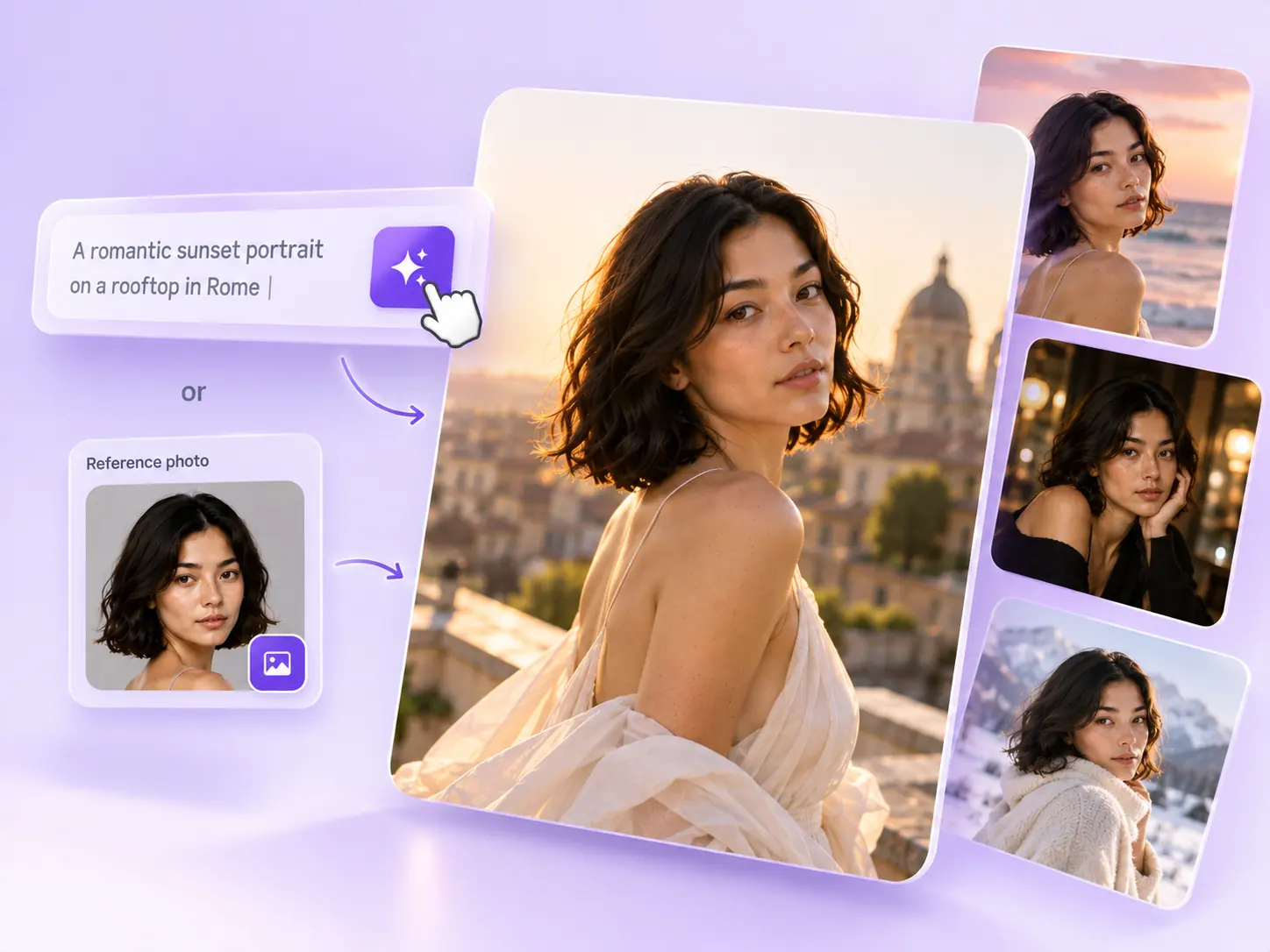
Create the still that starts the story: product concepts, portraits, and campaign photos from a written ImageAny brief.
Explore solutionChoose a cut, color, or texture and bring a clear portrait to ImageAny. Keep the source beside the result as you compare the look.
Prepare my edit