Portrait variations
Try an approved face reference in a different portrait composition. Look closely at the hairline, jaw, ears, and skin tone before choosing an output.
AI FACE SWAP
Use VideoAny’s dedicated face swap workspace to combine a face reference with a target photo, then review and download your result. Video and GIF workflows are also available.
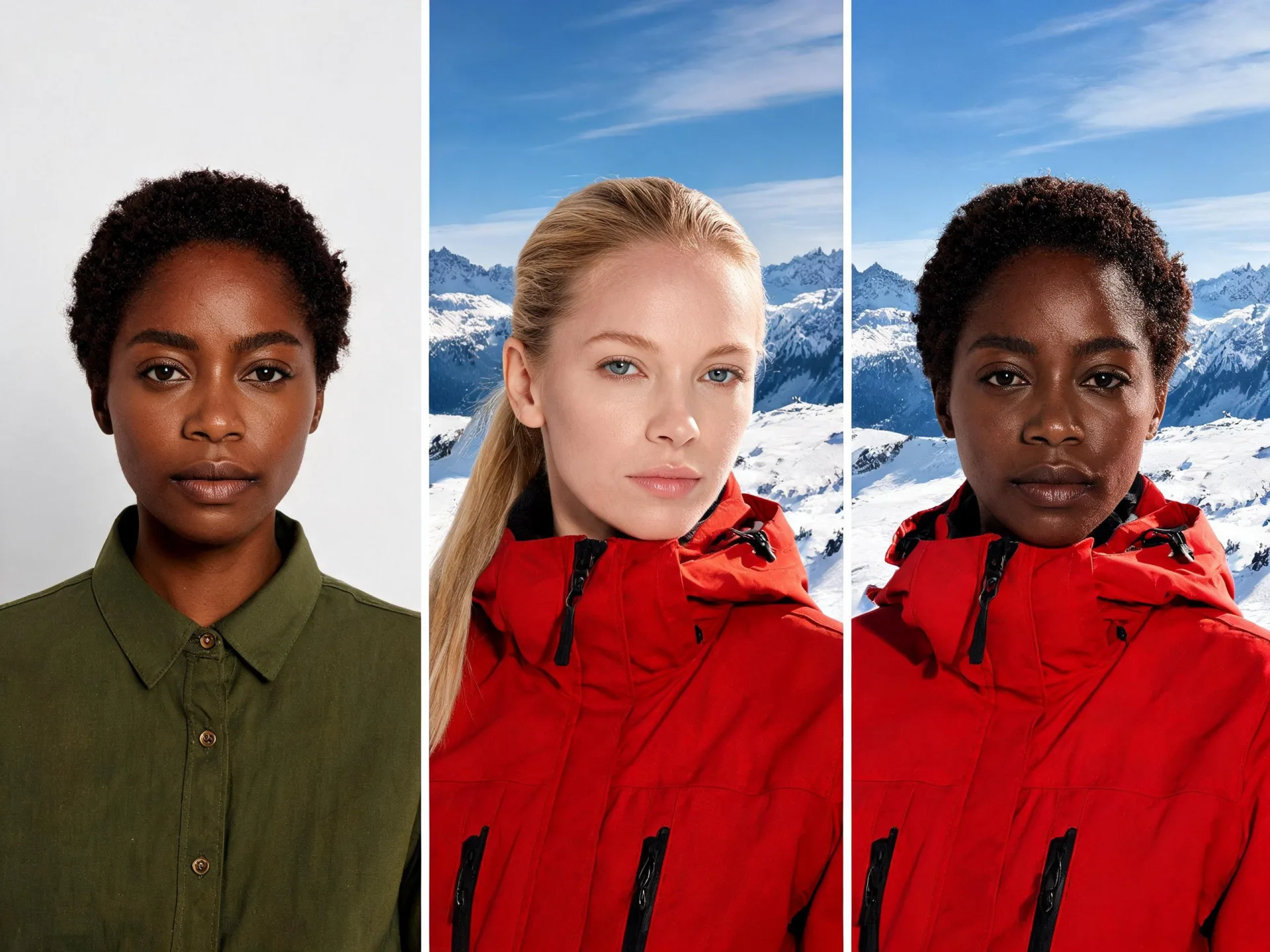
Prepare casting concepts, character studies, or a new version of an approved portrait without rebuilding the whole visual brief.
Face swap starts with two different inputs. The face reference defines whose appearance to use; the target defines the surrounding image, pose, clothing, and composition. Keeping these roles clear makes it easier to choose suitable source material and evaluate the result. Use photos with visible facial features and compatible angles.
VideoAny brings face swapping into the same production flow as image creation and video generation. Create a scene, choose a target frame, and prepare a face swap in the photo workspace. For an existing clip, use the video face swap tool directly. Work with people who have agreed to the use of their likeness, and review the output before presenting it as part of a project.
A clear reference and an appropriate target do more than a long list of instructions.
Try an approved face reference in a different portrait composition. Look closely at the hairline, jaw, ears, and skin tone before choosing an output.
Explore how an agreed character appearance fits a visual direction. Use the result as a concept for discussion rather than evidence of a real event.
Prepare a visual draft around a target outfit or setting. Check that any product, logo, or background detail remains appropriate for the campaign.
Start with a still when the face angle or lighting needs evaluation. Comparing a single frame makes small blending problems easier to notice.
Open video face swap when you already have a clip. Review changes over time, especially head turns, occlusion, and the first and last frames.
Use the GIF face swap workspace for an animated GIF target. Choose the tool that matches the input instead of treating every moving format as a photo.
Reference examples help you plan the subject, setting, and intended use of your result.
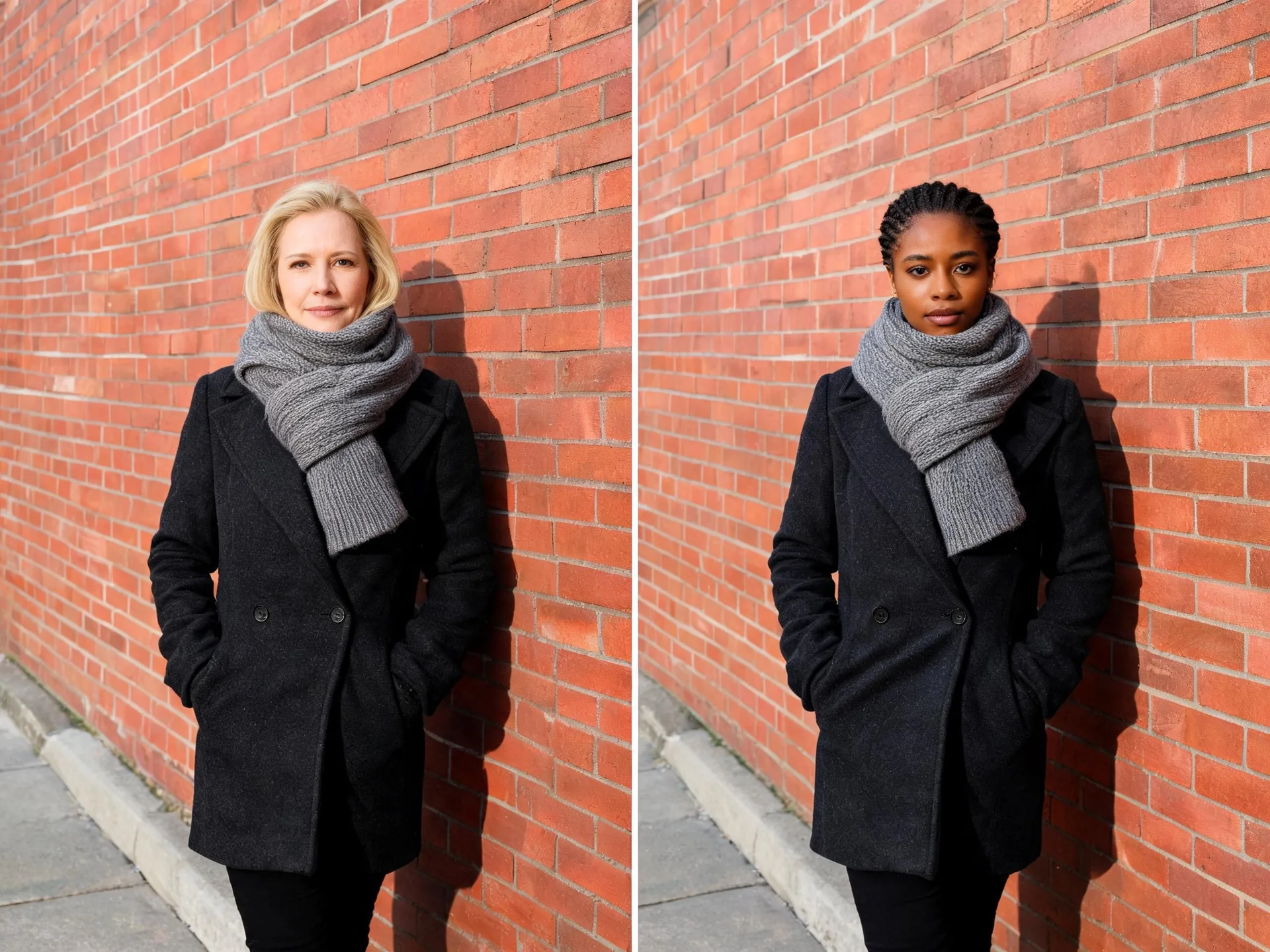
Compare the facial blend with the target’s coat, scarf, and brick-wall setting.
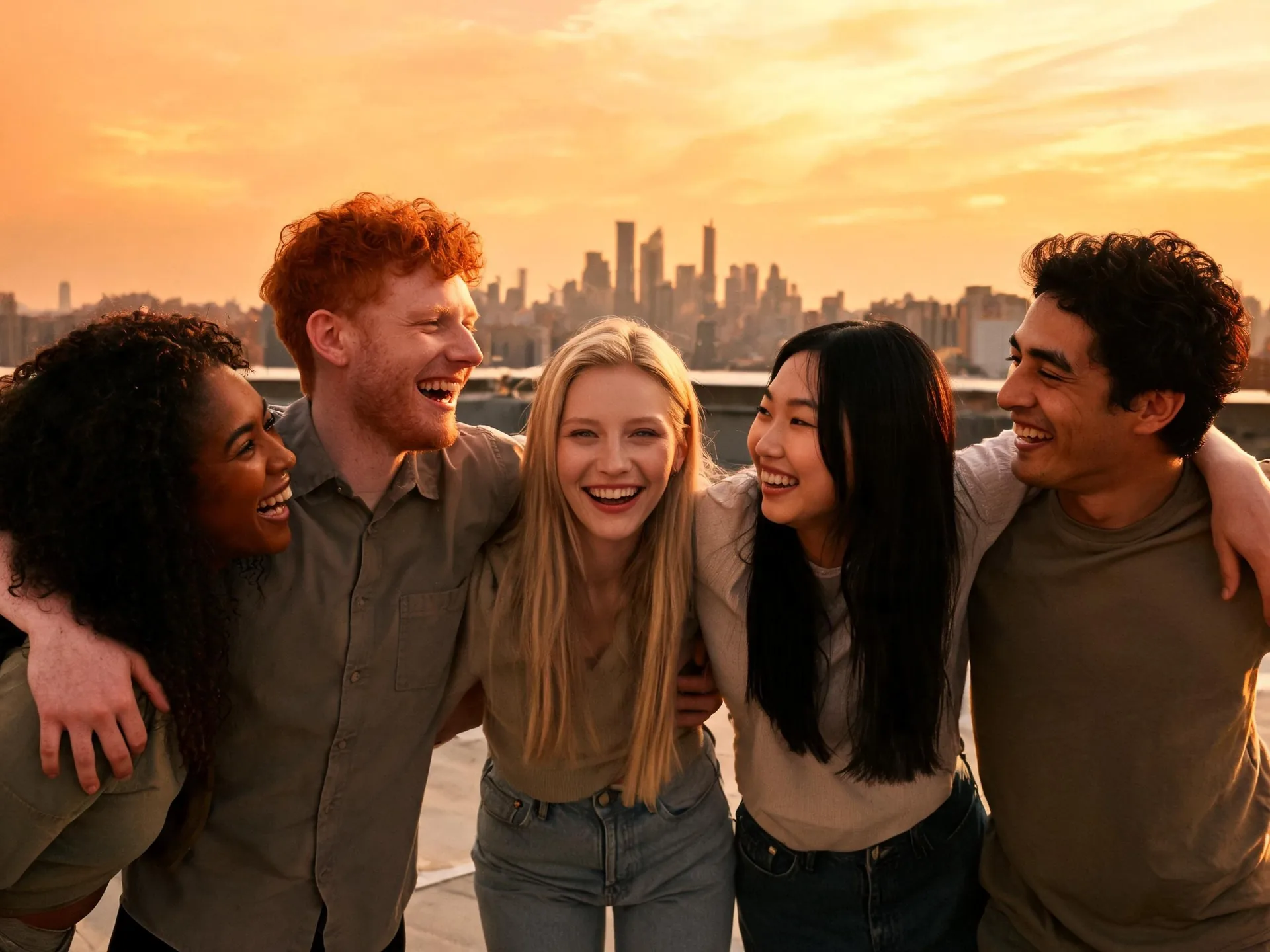
Review the individual face alongside the surrounding people and shared light.
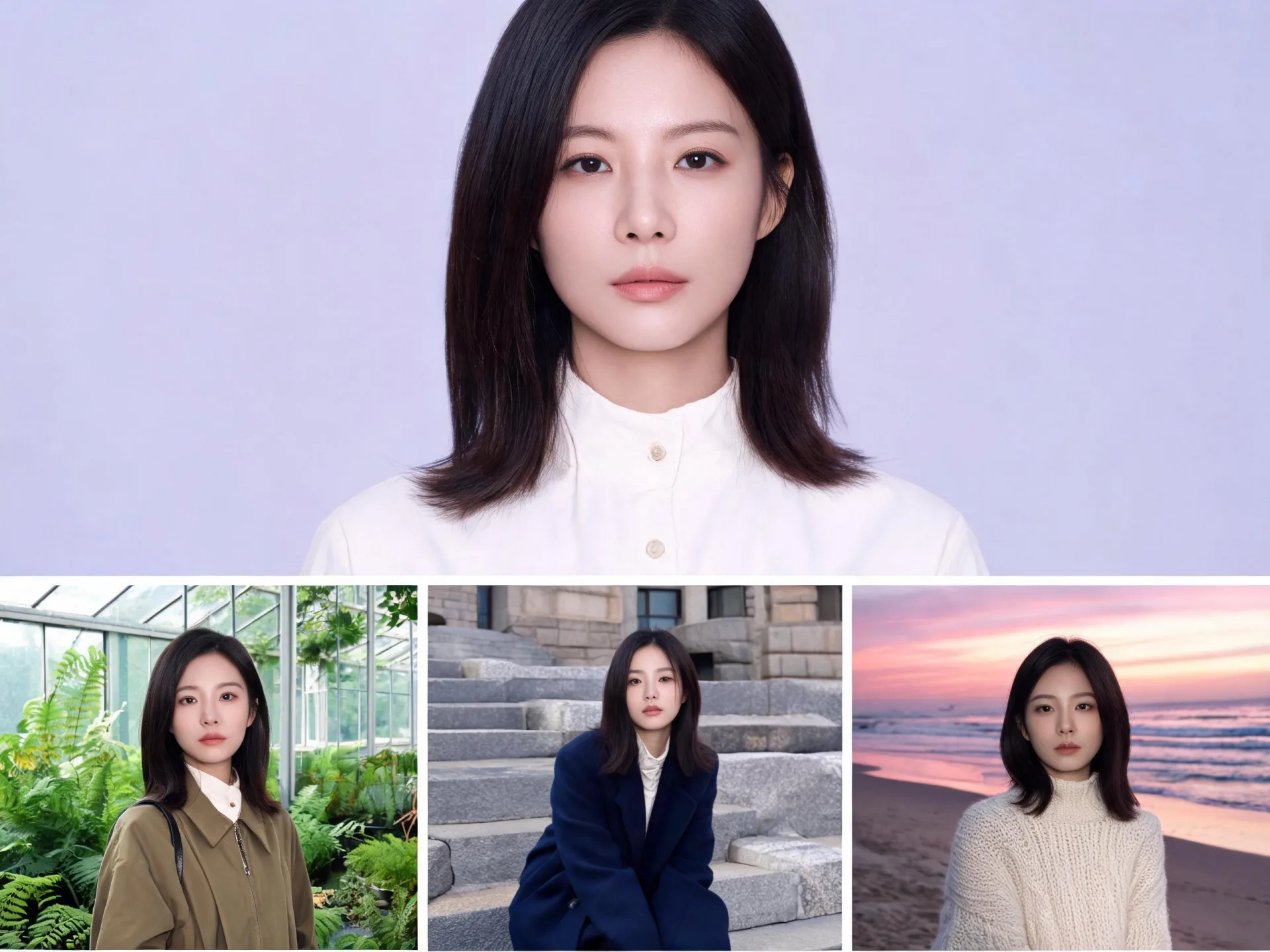
Compare a character portrait with several scene concepts and review the face in each composition.
The photo workspace handles uploads, account access, credit checks, and the generated output.
Use a sharp image with an unobstructed face. Avoid heavy filters and angles that hide the features needed for the target.
Select the image whose setting and composition you want to retain. A visible, well-lit target face gives you a clearer starting point.
Add the face and target to their labelled upload fields. Review the current credit cost before submitting the task.
Compare the blend with both inputs. Check the result at full size and download the version that suits your project.
Photo face swap opens the dedicated two-image workspace. Use video face swap for an existing clip.
Choose according to the part of the image you need to change.
| Task | Face swap workspace | ImageAny editing |
|---|---|---|
| Use a specific face reference | Provide separate face and target inputs. | Explain the role of each reference in a broader editing prompt. |
| Change the setting or clothes | Start from a target that already has the desired scene. | Describe a new background, garment, or lighting direction. |
| Work with an existing clip | Use the dedicated video face swap route. | Create a still first, then animate it separately. |
| Evaluate the result | Check blending, likeness, and temporal consistency for video. | Check the full scene for changes introduced by the edit. |
These preparation notes belong in your creative brief; face swap itself uses the dedicated upload fields.
A similar head angle makes it easier to compare facial structure and spot distortions.
Choose a forward-facing reference for a forward-facing target.
Hands, hair, sunglasses, and strong shadows can obscure the parts needed for a convincing blend.
Use a clear portrait with visible eyes, cheeks, and jaw.
Decide how the image will be labelled and shared before running the edit.
An approved casting mockup for an internal creative review.
No. Face swap has a dedicated processing workflow, separate from image and video generation versions. Open the appropriate photo, video, or GIF workspace and review the options shown there.
The face reference supplies the appearance you want to use. The target supplies the composition and surrounding scene. Put them in the correct fields rather than combining both into a single upload.
Yes. Use the video face swap workspace for a clip. The photo route is for still images. For moving footage, review the entire result because a frame that looks good at the beginning may change during a turn or an obstruction.
For a broader scene edit, prepare the target with ImageAny first, review that still, and then use it in the photo face swap tool. Keeping the stages separate helps you see which step introduced an unwanted change.
No. Lighting, angle, occlusion, expression, and source quality affect the result. Inspect characteristic features, skin transitions, and proportions instead of judging only a small preview.
The workspace shows the credit requirement before submission and provides the output when processing completes. Sign in there to upload your files and run the task. Current limits and options are shown alongside the inputs.
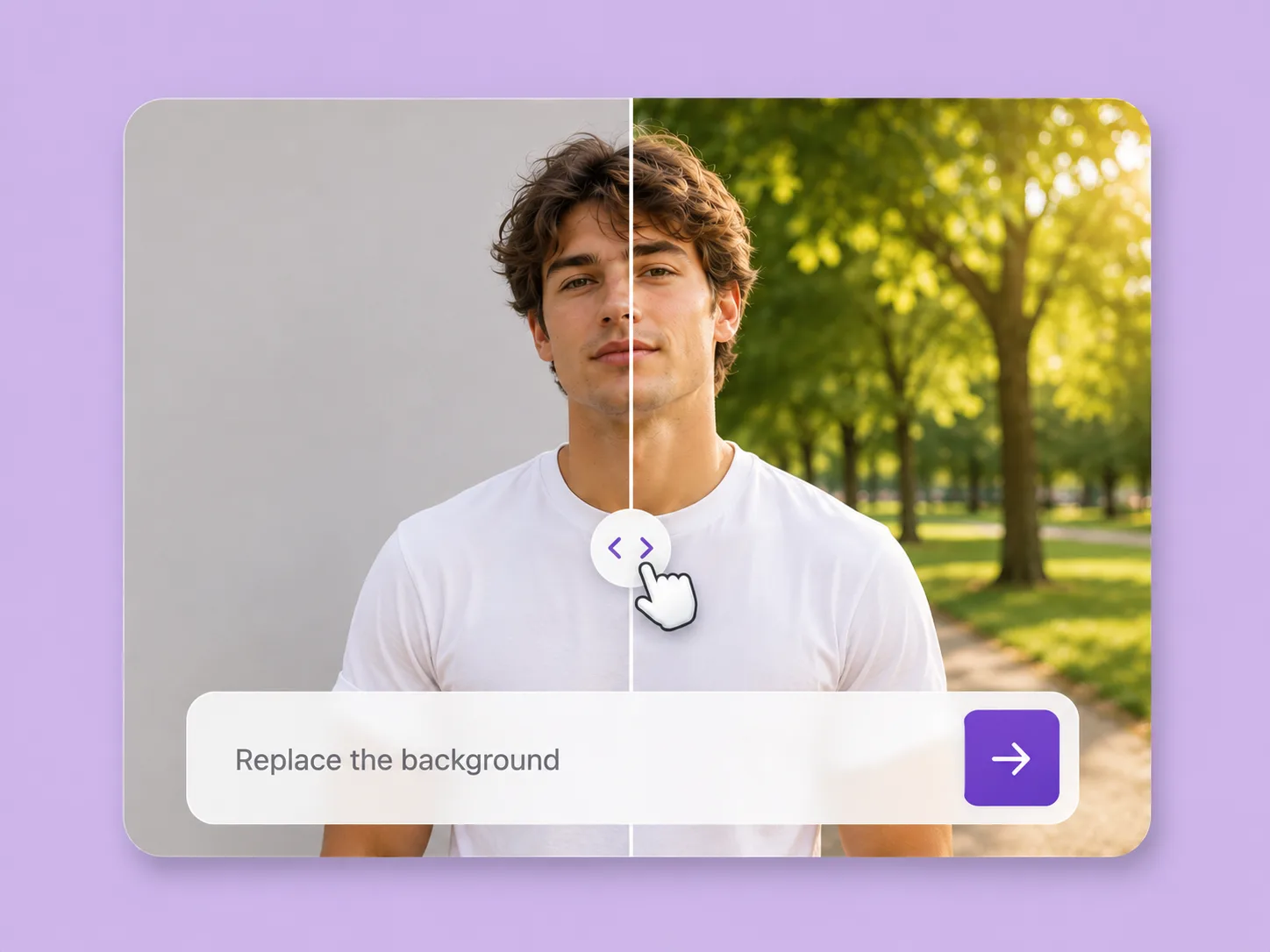
Make an existing image fit the next idea. Direct backgrounds, styling, objects, and light with ImageAny V3 or V2.
Explore solution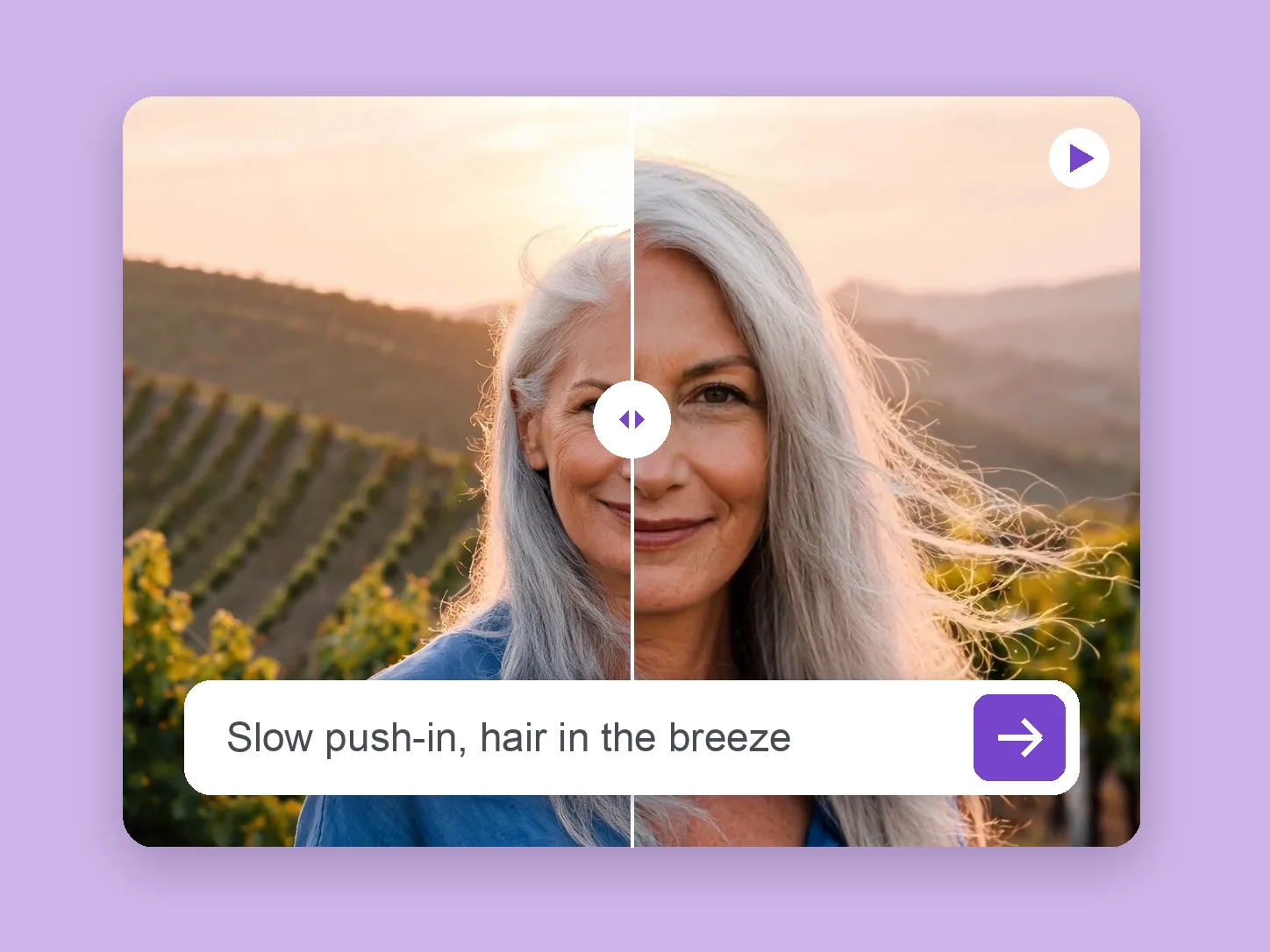
Bring a chosen still into motion. Direct the subject and camera with VideoAny V5, V4, V3, or V2.
Explore solution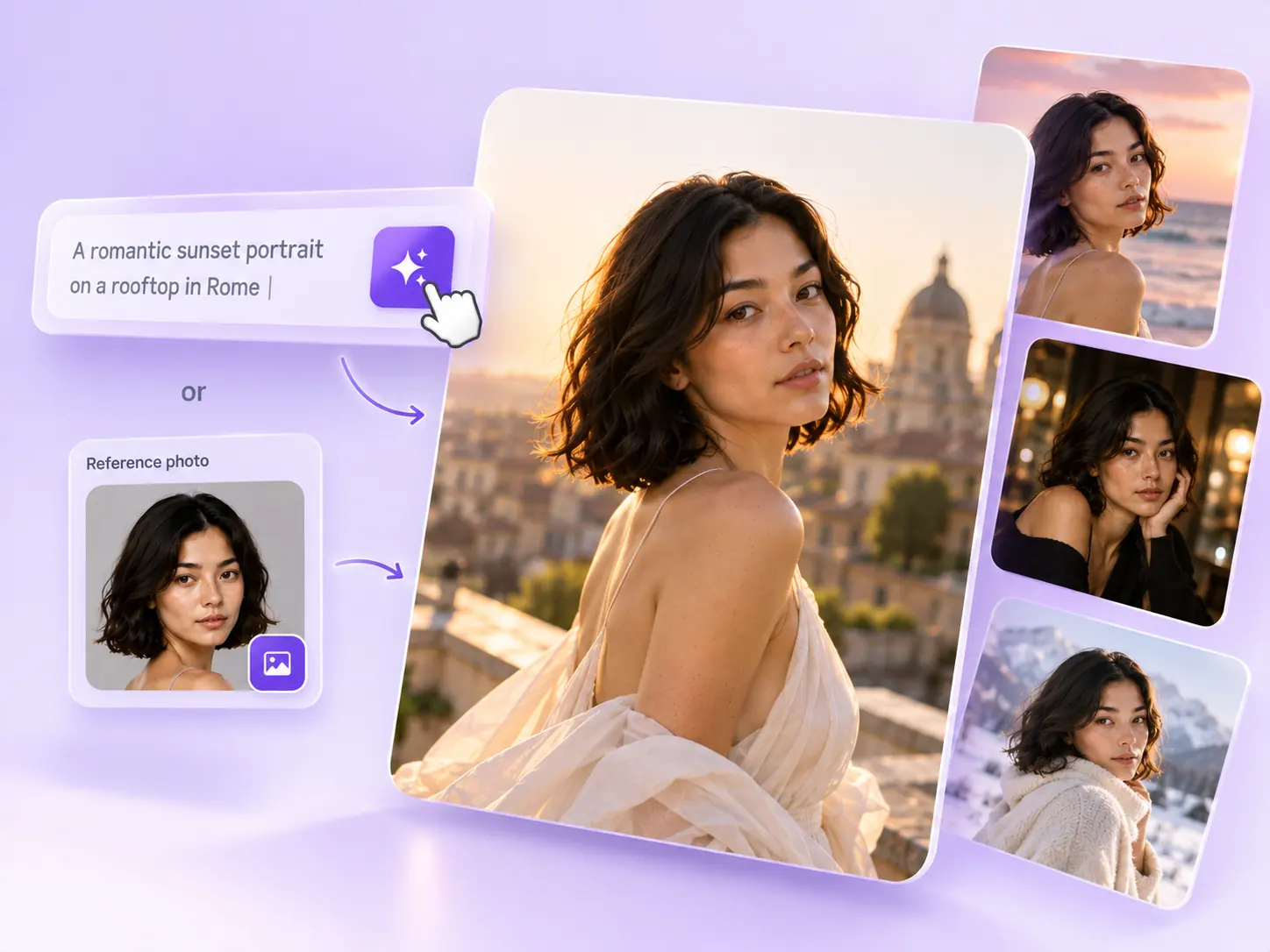
Create the still that starts the story: product concepts, portraits, and campaign photos from a written ImageAny brief.
Explore solutionOpen the dedicated workspace and bring together references that belong in the same creative brief.
Open photo face swap