Illustration from a brief
Describe the subject, activity, and intended framing for a story, cover concept, or editorial image. Choose a style that helps the idea remain readable at its final size.
AI ART GENERATOR
Create an illustration, painting, or stylized scene with ImageAny V3 or V2. Develop art from a written idea, refine it from references, and bring selected frames into VideoAny motion.
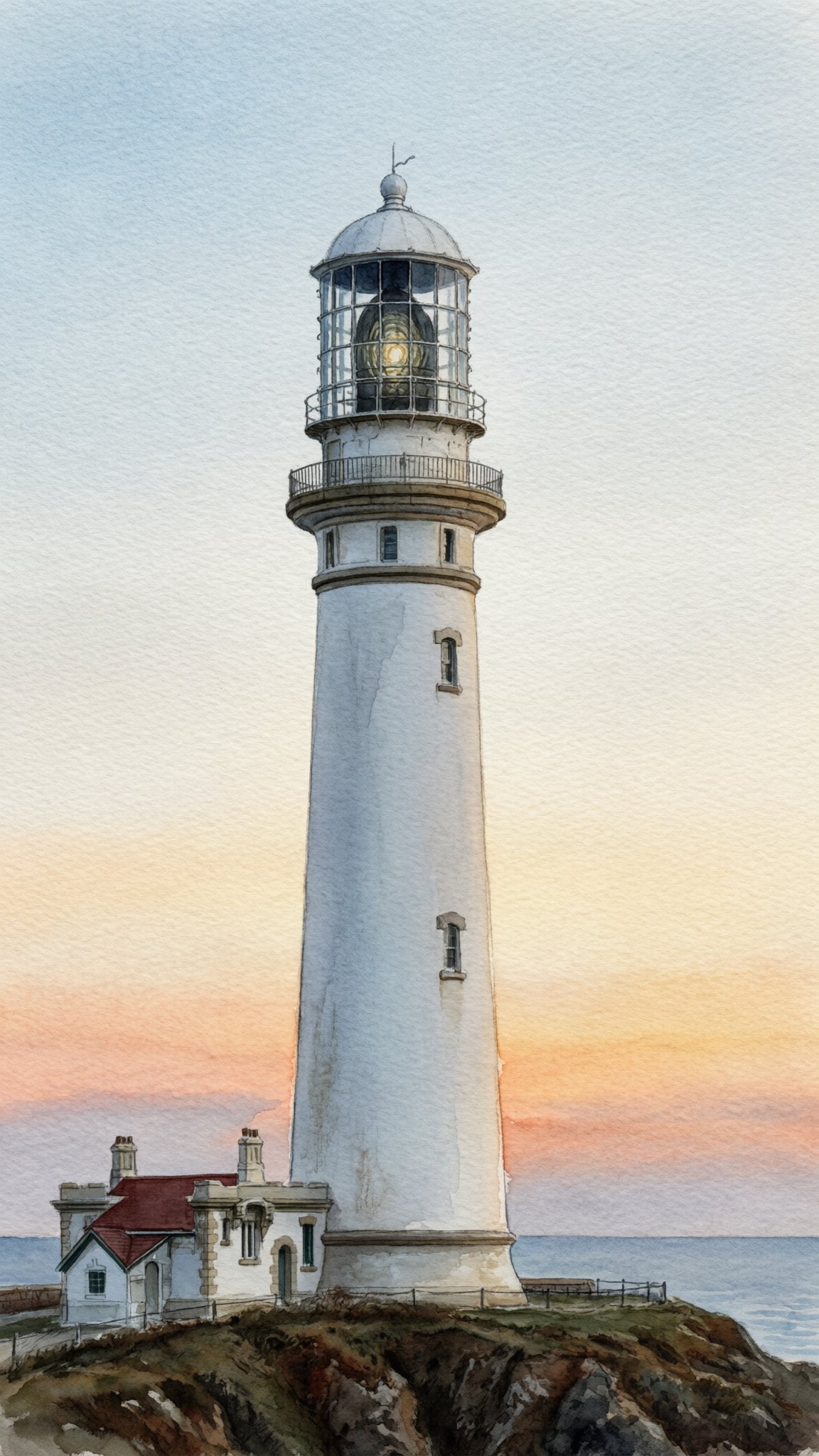
A useful art brief explains what the image shows and how that idea should feel through material, color, composition, and mark-making.
Start from text when the work has no source image yet. A fox reading beneath a lamp becomes a different piece when rendered as a loose watercolor, a graphic screen print, or a softly lit three-dimensional scene. Describe the medium and its visible qualities instead of relying on a long string of style labels. Give the composition a focal point and leave enough room for the subject to read clearly.
Start from a reference when a character, setting, or composition is already established. Use image to image to reinterpret that material with a defined treatment. VideoAny keeps these stages connected: create the still with ImageAny, refine a chosen direction, then upload it to image to video for a moving illustration. Review the artwork as a whole and in detail before deciding which version belongs in the project.
Explore the artistic decisions that make a scene coherent.
Describe the subject, activity, and intended framing for a story, cover concept, or editorial image. Choose a style that helps the idea remain readable at its final size.
Explore watercolor washes, visible brushwork, layered color, or textured pigment. Name the physical appearance of the medium so the treatment reaches beyond a generic filter.
Build compositions with strong silhouettes, limited palettes, and simple shapes. Leave exact type and brand marks for a design stage where their placement can be controlled.
Develop an original character’s clothing, expression, and environment. Select a useful reference image before asking for more scenes, and review consistency in each new version.
Bring a photo or sketch into image to image and describe the artistic interpretation. State which composition or identity cues should survive the change in medium.
Choose a clear focal point and readable layers of depth in the still. Those choices give you a more focused starting point when directing a later image-to-video shot.
Source reference examples for planning your brief; these are not presented as ImageAny-generated outputs.
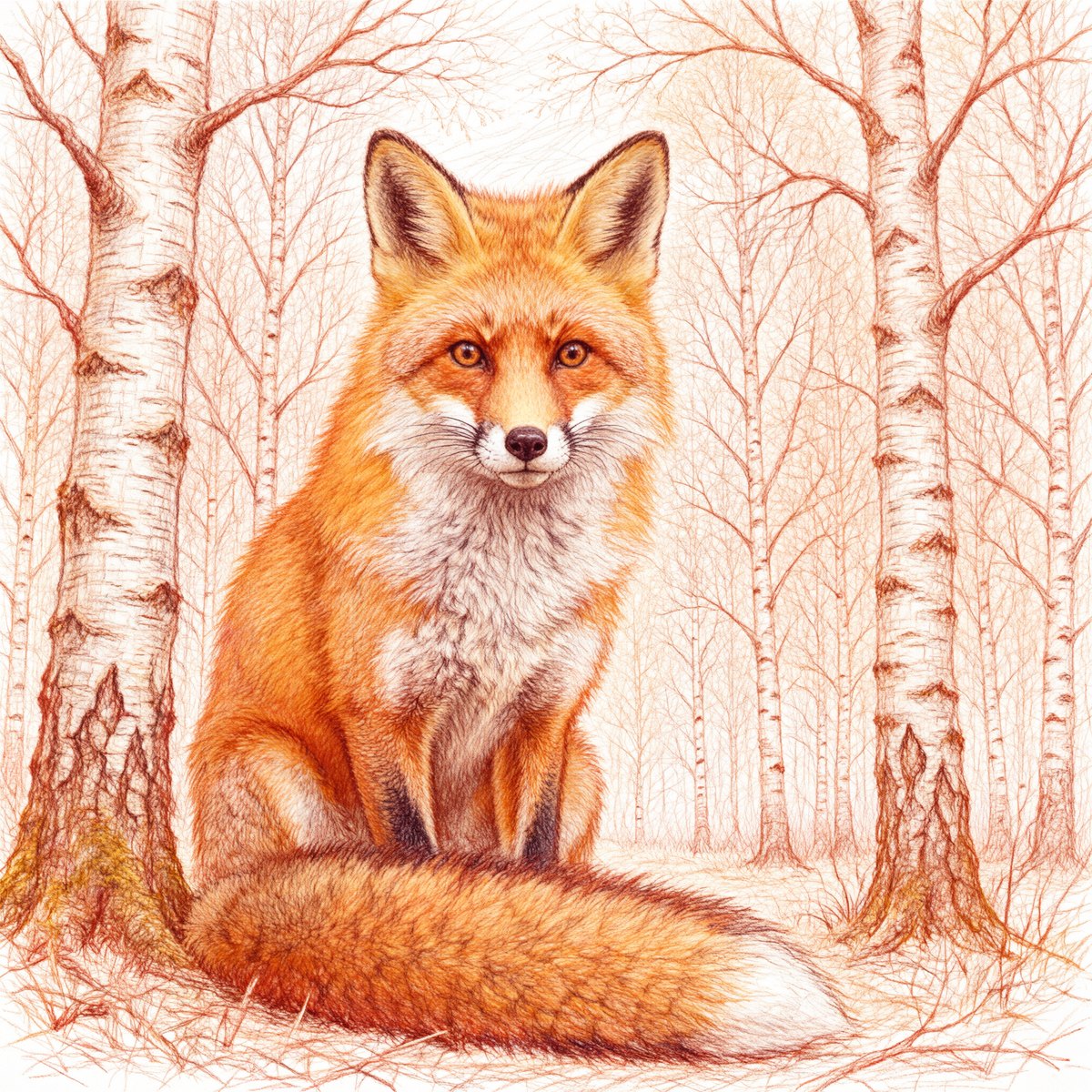
A fox in a birch forest shows how marks and paper-like texture contribute to the scene. Describe those qualities when choosing a drawing treatment.
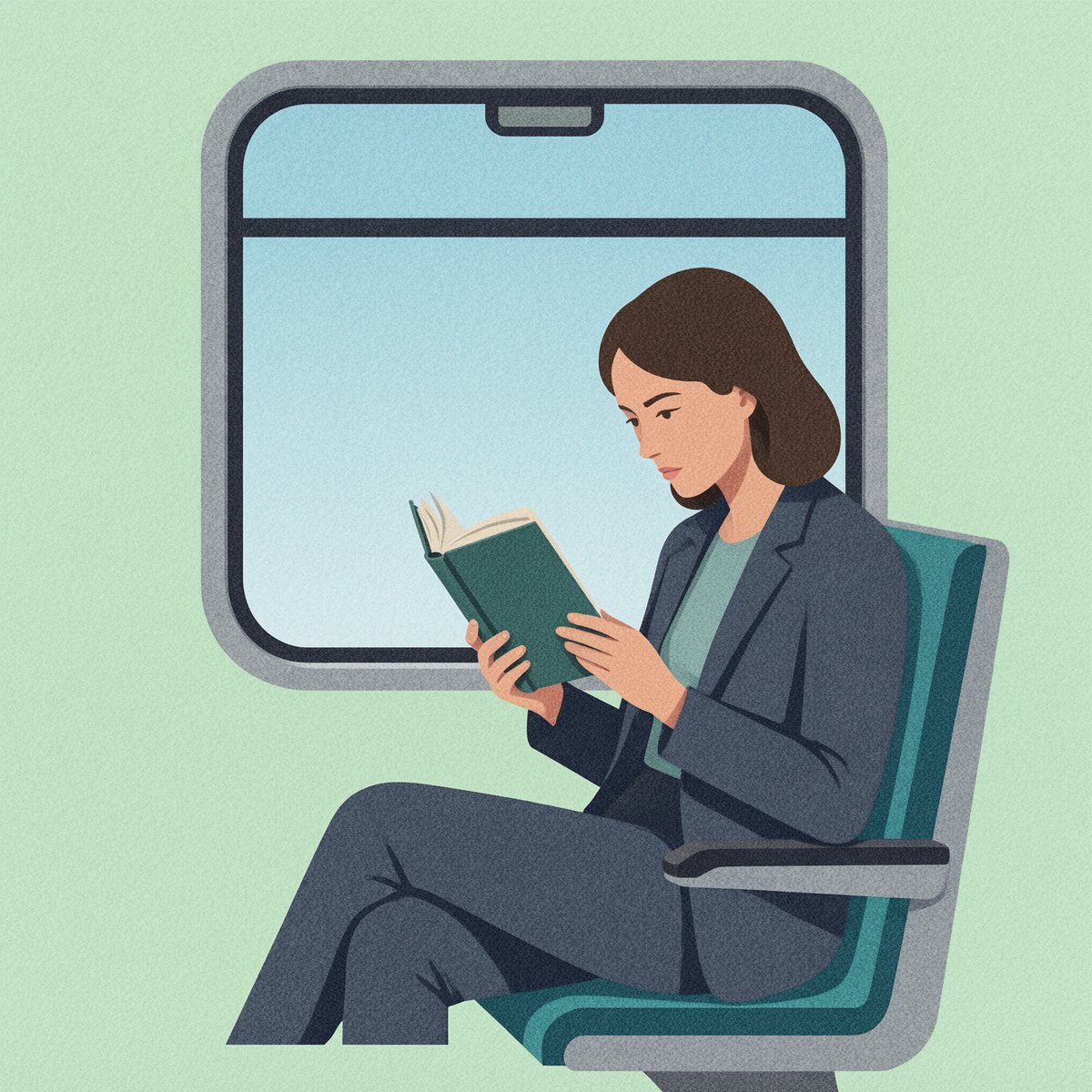
A train-reading scene uses simplified forms to keep the subject readable. Plan the focal point and palette together when writing an illustration brief.
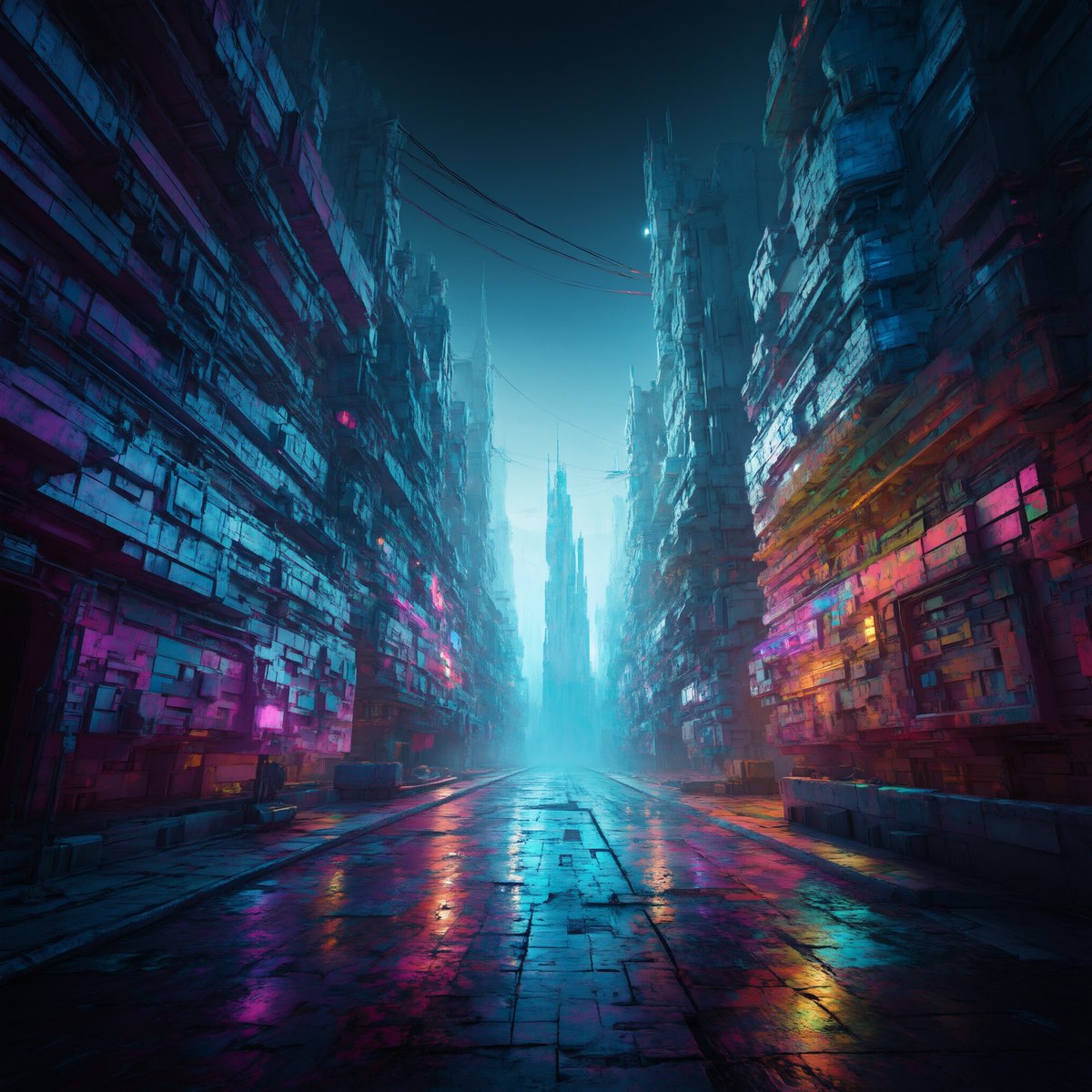
Neon reflections establish a futuristic street atmosphere. Choose a controlled relationship between bright accents and dark areas so the scene remains coherent.
Prepare your direction, then continue in the workspace.
Define the main subject and what it is doing. Decide whether the image should read as a drawing, painting, graphic composition, or another visual treatment.
Select ImageAny V3 or V2 and add framing, palette, light, and texture. Keep the most important artistic choices clear and compatible.
Use text to image for a new concept or image to image for an existing reference. Review the model’s output options and credit amount.
Inspect the composition, anatomy, and small details. Refine the chosen image or download it for use as a starting frame in a separate video workflow.
Choose a starting art brief and make it your own. Create from text, or take the same direction into image to image when you have a visual reference.
Match the workflow to your source and final requirements.
| Your goal | Suggested workflow | What to expect |
|---|---|---|
| Invent a new scene | Text to image | Supply the subject, medium, palette, composition, and mood. |
| Restyle an existing photo or sketch | Image to image | Provide the source and explain what should carry into the new treatment. |
| Keep exact vector shapes or editable layers | A drawing or design application | Build and adjust the artwork with direct control over its structure. |
| Bring a selected artwork into motion | Image to video | Upload the chosen still and describe a focused movement. |
Adapt these directions to your image and intended use.
Explain the texture and marks you want rather than adding unrelated style names.
Loose watercolor washes, visible paper grain, and softly bleeding color edges.
A small set of colors makes a complex idea easier to organize.
Deep indigo shadows, muted coral highlights, and warm off-white paper.
Decide where the viewer should look first and what supports that subject.
A small lit doorway at the end of a winding path, surrounded by dark trees.
Yes. Text to image starts from your written description. Include the subject, medium, palette, composition, and lighting that matter most. ImageAny V3 is selected initially, and you can choose V2 before opening the workspace.
Yes. Use image to image, upload the source, and describe the new artistic treatment. State which subject, pose, or layout should remain recognizable. The model reinterprets the image, so fine details may change with the medium.
This workflow returns a generated image. It does not provide a layered painting file or an editable vector construction. If the project needs precise paths, separate objects, or production typography, finish the chosen image in an appropriate design application.
Establish a clear reference and reuse it when developing related images. Describe distinctive clothing, features, and palette, then compare every result. Reference-guided generation can help maintain direction but does not guarantee identical character details across scenes.
Yes. Download the chosen still and upload it in image to video. A restrained movement, such as drifting clouds or a slow camera push, is a useful first brief. Review the result for changes to line work, faces, and the intended style.
Use source material you have the right to upload and review the result for recognizable marks, unwanted resemblance, or other details that do not fit your brief. The applicable service terms and rights in your source material still matter for the final use.
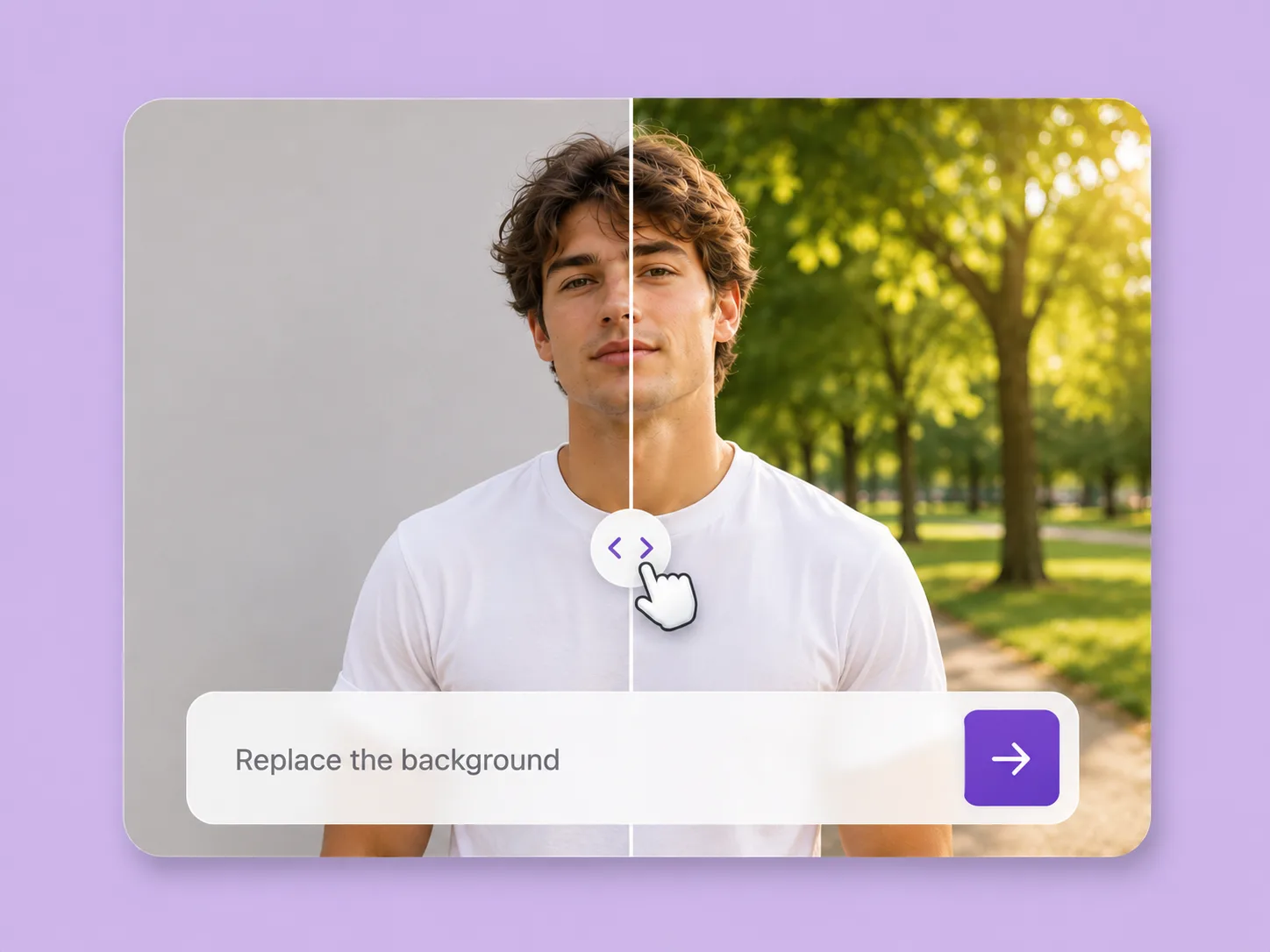
Make an existing image fit the next idea. Direct backgrounds, styling, objects, and light with ImageAny V3 or V2.
Explore solution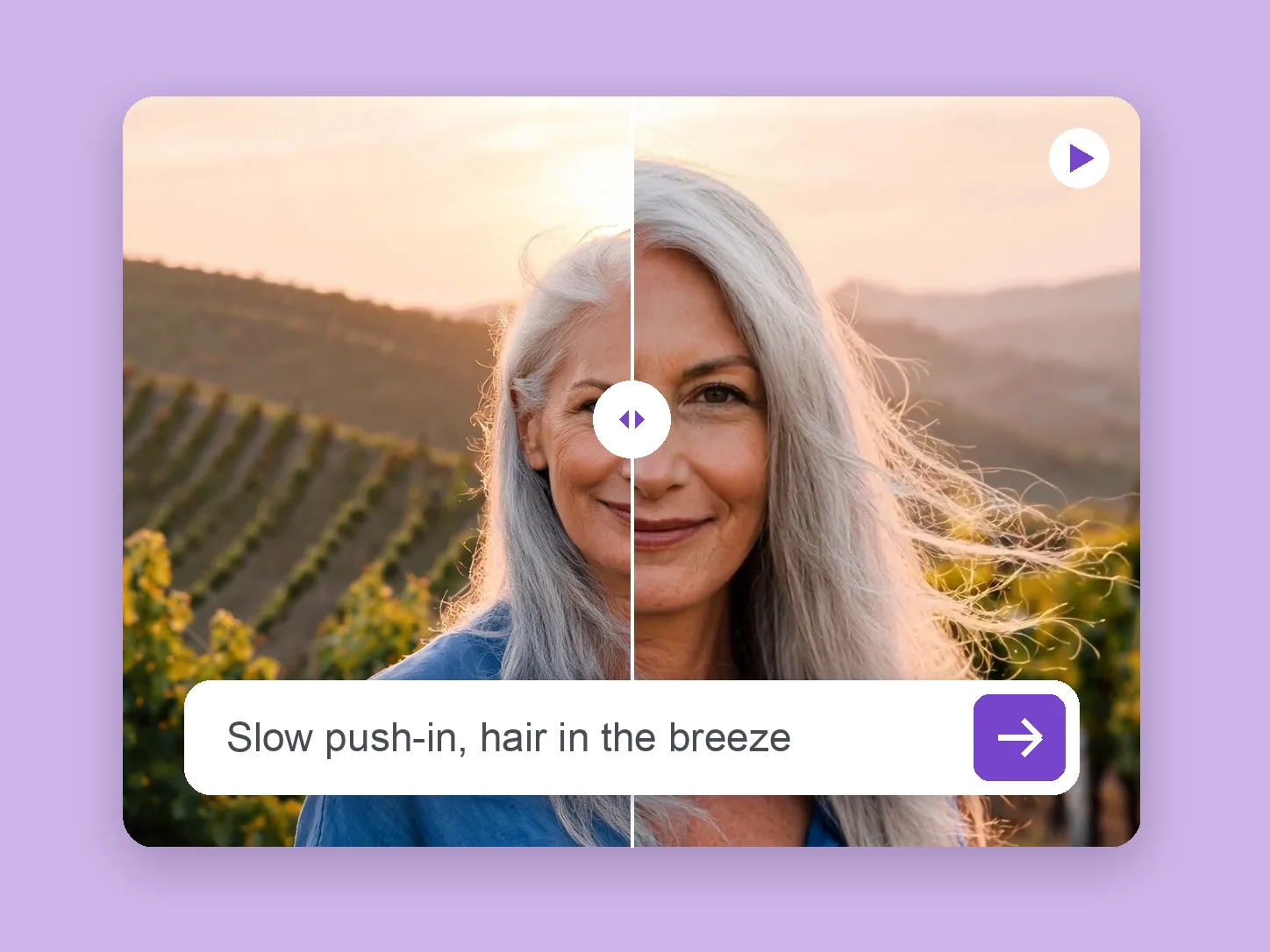
Bring a chosen still into motion. Direct the subject and camera with VideoAny V5, V4, V3, or V2.
Explore solution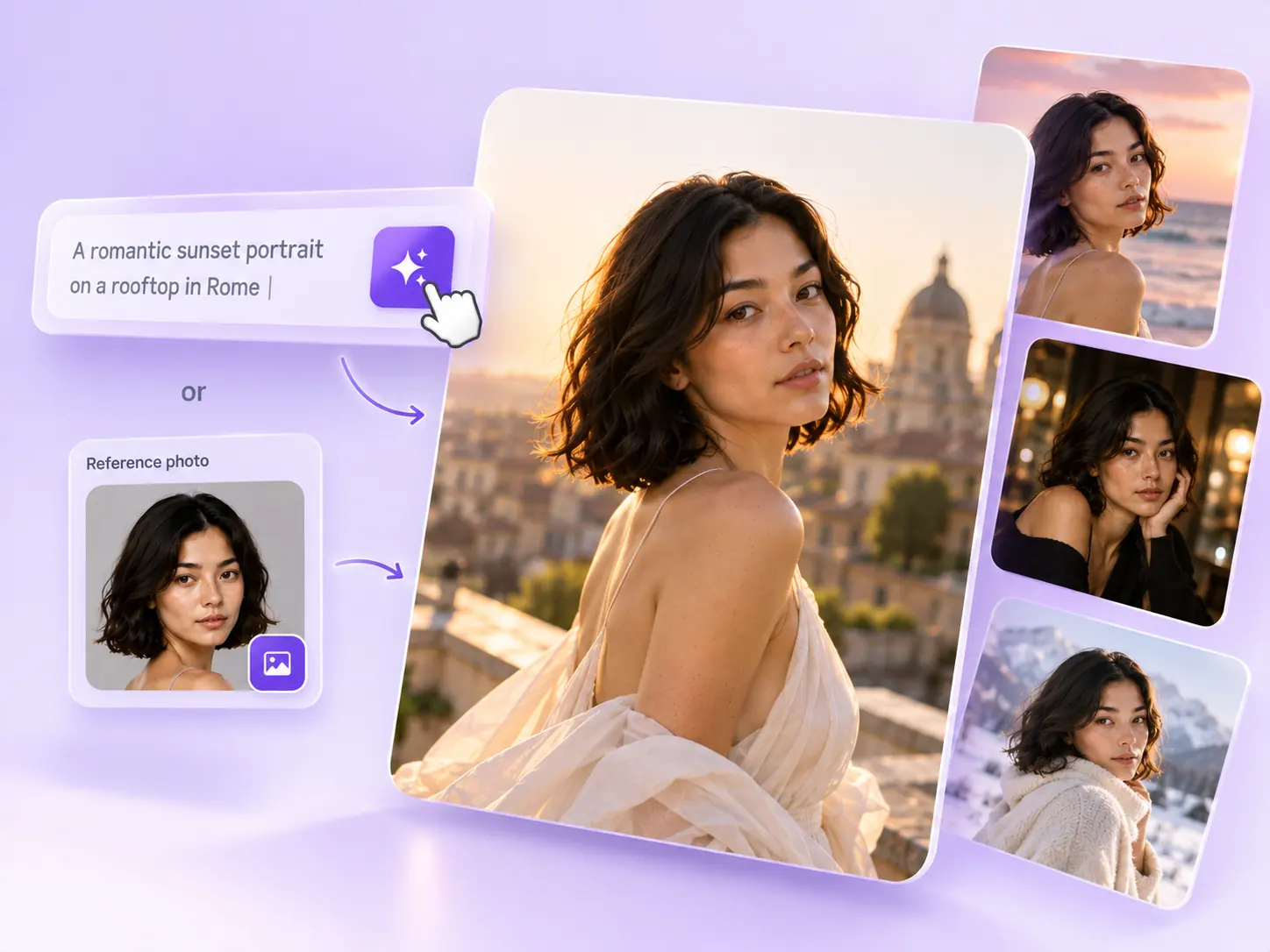
Create the still that starts the story: product concepts, portraits, and campaign photos from a written ImageAny brief.
Explore solutionChoose a subject, medium, and palette. Open ImageAny to create the still, then decide where your VideoAny project takes it next.
Prepare my image