Invent a scene from text
Describe a location and a single action when you have no source footage. Establishing shots, atmosphere studies, and visual concepts are useful starting projects.
AI VIDEO GENERATOR
Create footage for a product story, a social post, or an imagined world. VideoAny brings text-led and image-led video into one studio, with V5, V4, V3, and V2 ready for your next take.
Decide what the audience needs to see, then choose the material that gives that shot its strongest starting point.
For a new scene, open text to video and describe the subject, setting, action, and camera. For a visual you have already developed, open image to video and build motion around it. A product still, campaign portrait, or illustrated character can supply the appearance while your prompt supplies the performance. This lets the same creative brief move from an image idea to a moving shot inside VideoAny.
Treat generation as part of production: write a shot, review the take, and keep the moments that serve the project. Create or refine a starting frame with ImageAny before animation when the still needs work. Generate separate shots for a longer story, then assemble the chosen clips. The model selector carries your choice into the workspace, where you review the actual controls and credits before generating.
Use the same studio for the first concept, the starting frame, and the moving take.
Describe a location and a single action when you have no source footage. Establishing shots, atmosphere studies, and visual concepts are useful starting projects.
Bring an approved still into image to video. Describe movement instead of trying to describe the entire picture again.
Start with V5 or select V4, V3, or V2. Review the available settings after switching, because controls and credit costs depend on the model.
Specify a steady frame, a slow push-in, or a gentle pan. One deliberate camera instruction is easier to evaluate than several competing moves.
Explore a product in a setting, a mood for a launch, or an opening shot. Compare each result against the visual brief before using it.
Keep the scene description stable while changing the action, lighting, or camera. This makes it clearer which instruction improved the take.
Visual references for planning a lifestyle scene, a product moment, or an imagined world. These examples illustrate shot ideas, not a guaranteed result from the selected model.
A breakfast scene uses warm light, a clear setting, and everyday action to establish its mood.
A turntable presentation keeps a white sneaker visible while revealing its shape from different angles.
A giant floating jellyfish gives a city street a surreal focal point for a concept shot.
Prepare your direction here, then generate in the full video workspace.
Choose a written scene or an image-led idea. If the appearance of the subject is already decided, use the image route.
Select a VideoAny version below and adapt a starting prompt. Name one subject, one action, and a camera direction.
Open the workspace, add your image when needed, and review the options and credit cost shown for the selected model.
Sign in to generate, play the returned clip through, and check the opening, movement, and final frame before downloading a take.
Choose a model and edit a starting prompt. Continue with text to video, or use the image route if you already have a frame to animate.
The best starting point is usually the one that makes the fewest visual decisions twice.
| Your situation | Suggested workflow | What you provide |
|---|---|---|
| The scene exists only as an idea | Text to video | A subject, action, setting, and camera description. |
| You have an approved photo | Image to video | The image plus a focused motion prompt. |
| The starting image needs changes | Image to image, then image to video | Edit the still first, then upload the chosen result to animate it. |
| You need a finished sequence | Generate individual shots, then edit | Plan separate clips and assemble the selected takes in your video editor. |
Replace broad adjectives with visible decisions that you can check in the result.
Give the subject something simple to do, instead of requesting an entire story.
A cyclist rolls slowly past a brick wall in afternoon light.
Say whether the subject moves, the camera moves, or both. Avoid contradictory directions.
The cup stays still while the camera makes a slow push-in.
Start with one location and a continuous shot. Save transitions and additional actions for separate clips.
One continuous wide shot; gentle rain falls on the empty street.
Start from text when you want the model to invent the scene. Start from an image when you already have the subject and composition you want to use. An image guides the result, but it does not guarantee that every detail stays identical.
The workflow offers VideoAny V5, V4, V3, and V2, with V5 selected initially. The destination workspace shows the settings and credit amount for your chosen version. Switching versions can change the available options.
No. The primary button opens text to video with your selected model and scene prompt. The image route opens a motion starting prompt instead. Add any required image, review settings and credits, and start a generation only when you are ready in the workspace.
Plan around individual shots. A longer piece usually needs separate generations followed by selection, trimming, and assembly in a video editor. Use a consistent shot brief to help the clips belong together.
Use the controls displayed by the selected model in the workspace. Availability varies by version and workflow, so check those controls before planning a specific output. A prompt alone does not add a setting the model does not support.
Watch the entire result and inspect faces, hands, object shapes, reflections, and text. Check whether the camera follows your direction and whether the ending remains usable. If one part misses, simplify that instruction and try another take.
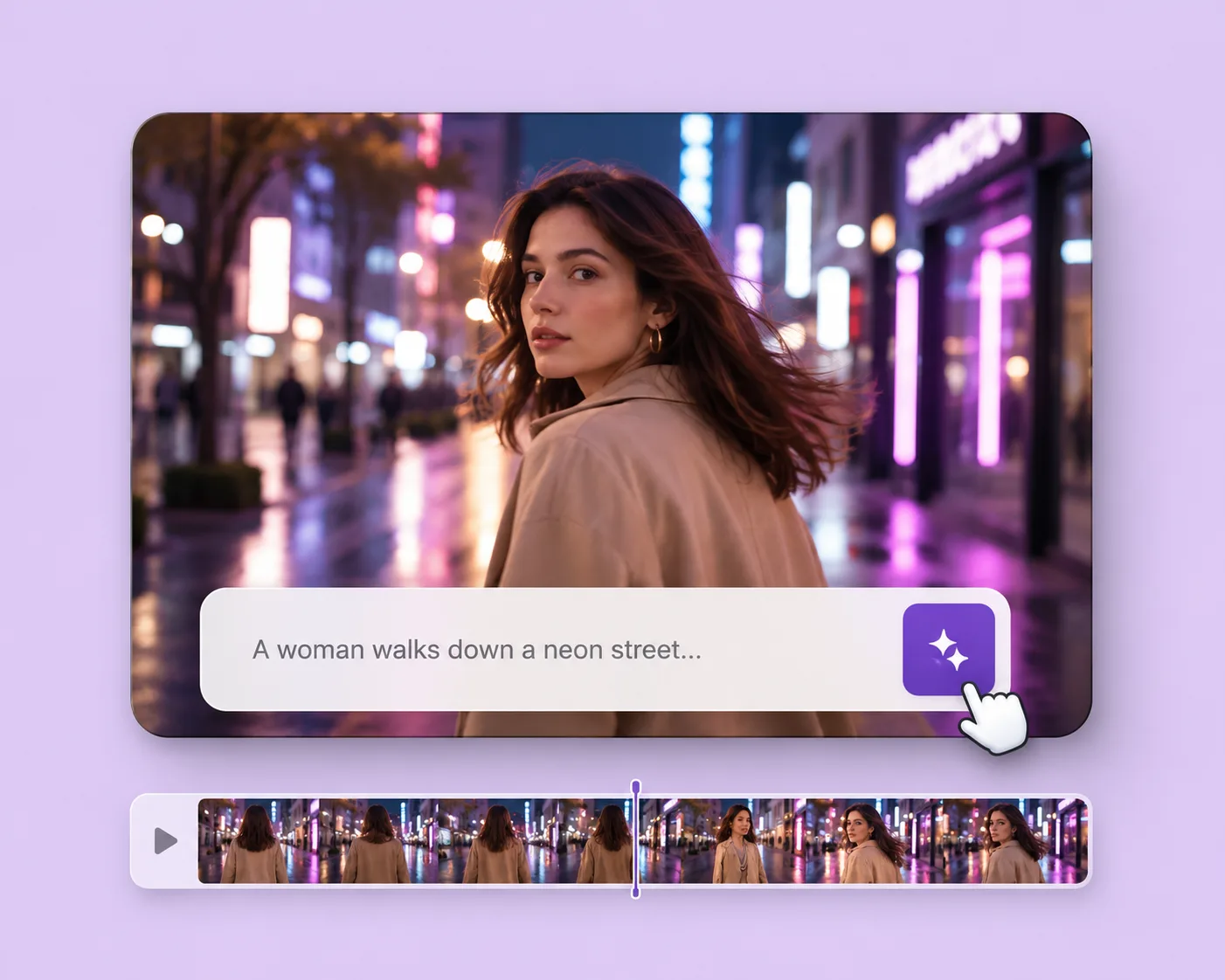
Write the subject, action, setting, and camera movement. Direct an original shot with your selected VideoAny version.
Explore solution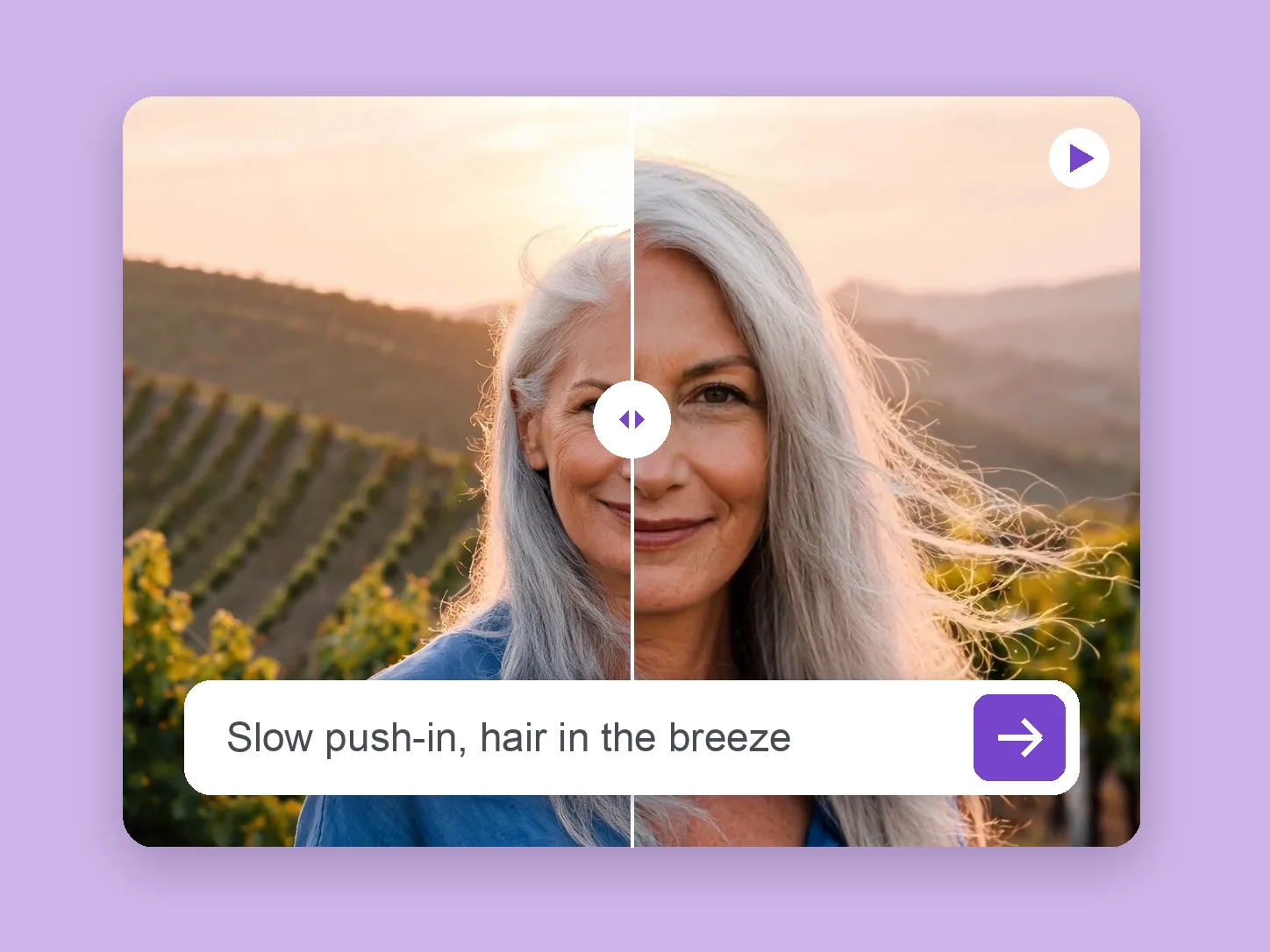
Bring a chosen still into motion. Direct the subject and camera with VideoAny V5, V4, V3, or V2.
Explore solution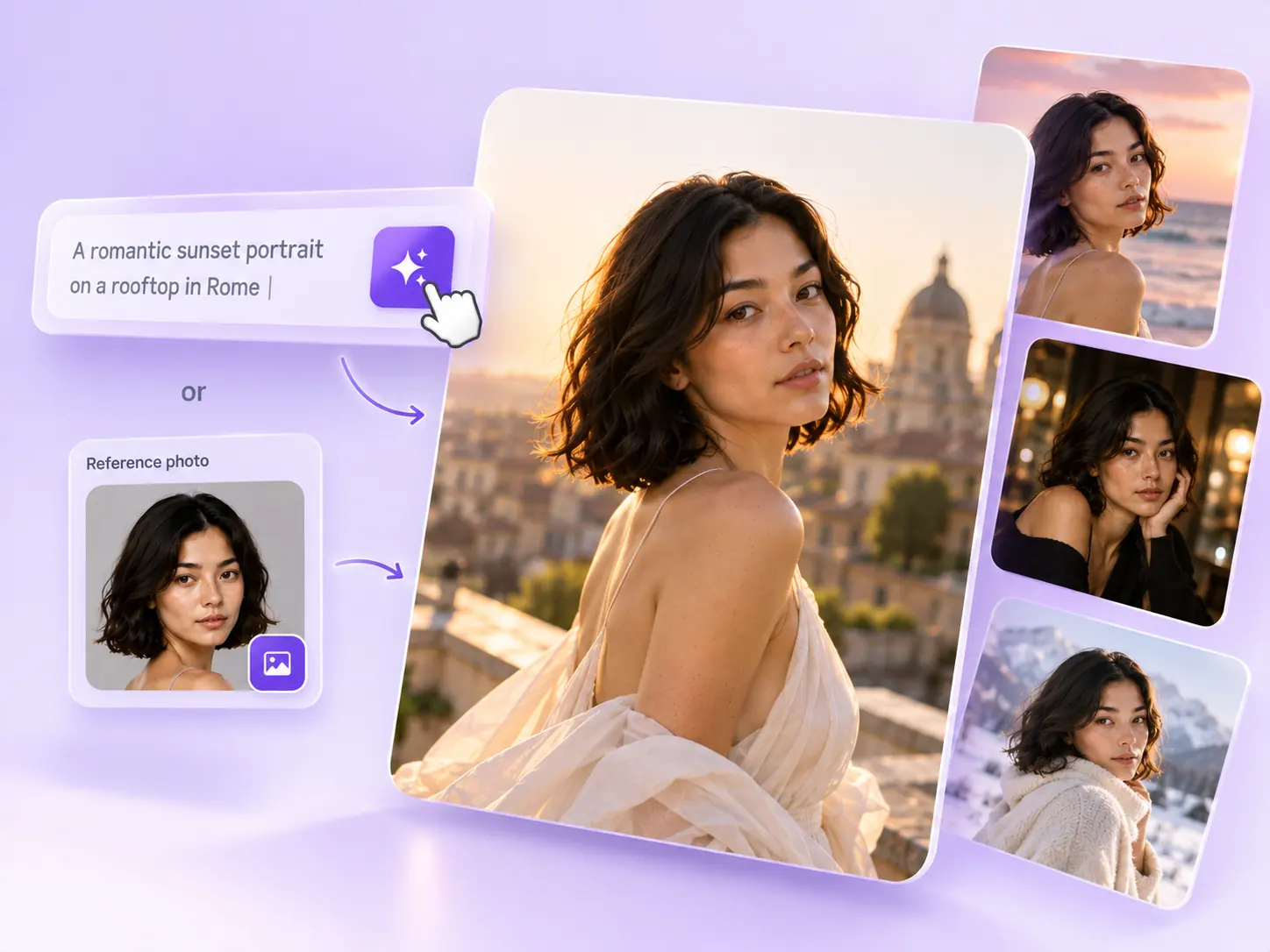
Create the still that starts the story: product concepts, portraits, and campaign photos from a written ImageAny brief.
Explore solutionStart with VideoAny V5 or choose V4, V3, or V2. Bring a focused brief into the workspace and create a take you can review.
Prepare my video