Invent a scene without a photo
Describe a place, a subject, and an action from scratch. Use this route when no existing image needs to determine the composition.
AI TEXT TO VIDEO
Create an original shot from a visual brief with VideoAny V5, V4, V3, or V2. Describe what appears, what moves, and where the camera goes for a social clip, concept film, or product story.
Text to video works best when the prompt describes a shot someone could see and follow.
Begin with a subject in a place, then add a single action. A coffee bag on a table needs a different direction from a person walking through a city. Establish the framing and light before adding the camera movement. This turns a broad idea such as a launch film into a specific take you can inspect, revise, and build around.
Use text to video to explore a scene before you have a starting image. When a particular appearance becomes important, develop the frame with ImageAny and continue in image to video. Both routes belong to the same VideoAny studio. For a longer piece, write several short shot briefs with a shared palette and visual language, generate the takes separately, and assemble the selections in your editing workflow.
Write for the subject, setting, and action that will carry this particular shot.
Describe a place, a subject, and an action from scratch. Use this route when no existing image needs to determine the composition.
Create an atmosphere-setting scene for a concept or campaign. Keep the action readable so the viewer can understand the shot quickly.
Describe the object and its surroundings, then specify a restrained camera move. Use an image reference workflow when a real product must guide the look.
Choose an eye-level view, a wide establishing frame, or a close detail. Add a light source and one compatible camera movement.
Choose V5, V4, V3, or V2. Keep your prompt stable when comparing versions and check the controls available in each workspace selection.
Write separate briefs for the opening, action, and detail shots. Generate individual takes and assemble the chosen footage in your video editor.
These reference clips illustrate three kinds of shot brief. They are visual examples, not a benchmark or a guarantee of the selected VideoAny model's output.
A defined outfit, wet pavement, and neon reflections make a city scene more specific than a general cinematic request.
Describe the package, surface, and light before choosing how the camera should reveal them.
Keep wardrobe and framing clear while using the harbor and evening light to establish the mood.
Use this page to prepare the shot, then generate in the full text-to-video workspace.
Name the subject, action, and location. Add the camera and light only after the main idea is clear.
Select V5, V4, V3, or V2 below. Adapt a preset to your brief rather than adding unrelated actions to it.
Open text to video with the selected prompt and model. Review the options and credit amount, then sign in when ready to generate.
Compare the whole clip with the brief. Keep a usable take or change the instruction responsible for the part that missed.
Choose a VideoAny model and write a scene you can picture clearly. Continue to text to video, or switch to the image route if you have a reference frame.
Choose a workflow that matches the part of the scene you already know.
| Your goal | Start with | Why it fits |
|---|---|---|
| Create a scene that does not exist yet | Text to video | The prompt establishes the subject, composition, and action. |
| Animate a chosen photo or illustration | Image to video | The reference supplies a visual starting point for motion. |
| Approve the appearance before animation | Text to image, then image to video | Review the still before generating movement from it. |
| Produce a multi-shot story | Separate shot prompts, then editing | Review individual takes before assembling the sequence. |
Describe a shot that someone else could picture without needing the rest of your brief.
A genre or mood is not a complete scene. Give the model a visible subject doing something specific.
A cyclist pauses beside a cafe window and looks toward the street.
A request for an advertisement leaves many decisions open. Specify the product's appearance and surroundings.
A plain amber bottle on pale stone, soft side light, slow camera push-in.
Choose one framing and camera move. Consistent details help when you later write another shot for the same concept.
Wide static shot, gray hoodie, soft evening light, a single slow turn toward the water.
No. Text to video creates a clip from a written prompt and the selected model's settings. If you want a particular photo or illustration to guide the starting appearance, use image to video instead.
This workflow generates footage from a scene description. It does not automatically turn a long article into a narrated, captioned, edited sequence. Break the visual idea into shot briefs and plan any narration or assembly separately.
Include enough detail to establish the subject, action, setting, light, and camera. Keep those details compatible and focus on one continuous shot. More words do not necessarily improve a prompt if they introduce competing directions.
V5 is the initial selection, and V4, V3, and V2 are also available. Review the settings and credit amount for each version in the workspace. A useful comparison keeps the prompt and any shared settings similar while changing the model.
Check the controls displayed for your selected VideoAny version. Those options depend on the model and workflow. Writing a duration or an audio request in the prompt does not replace the supported settings in the workspace.
Repeat the important appearance and wardrobe details, and inspect every take. Separate text generations can still change identity. When a visual match matters, approve a reference image first and consider image to video for the motion step.
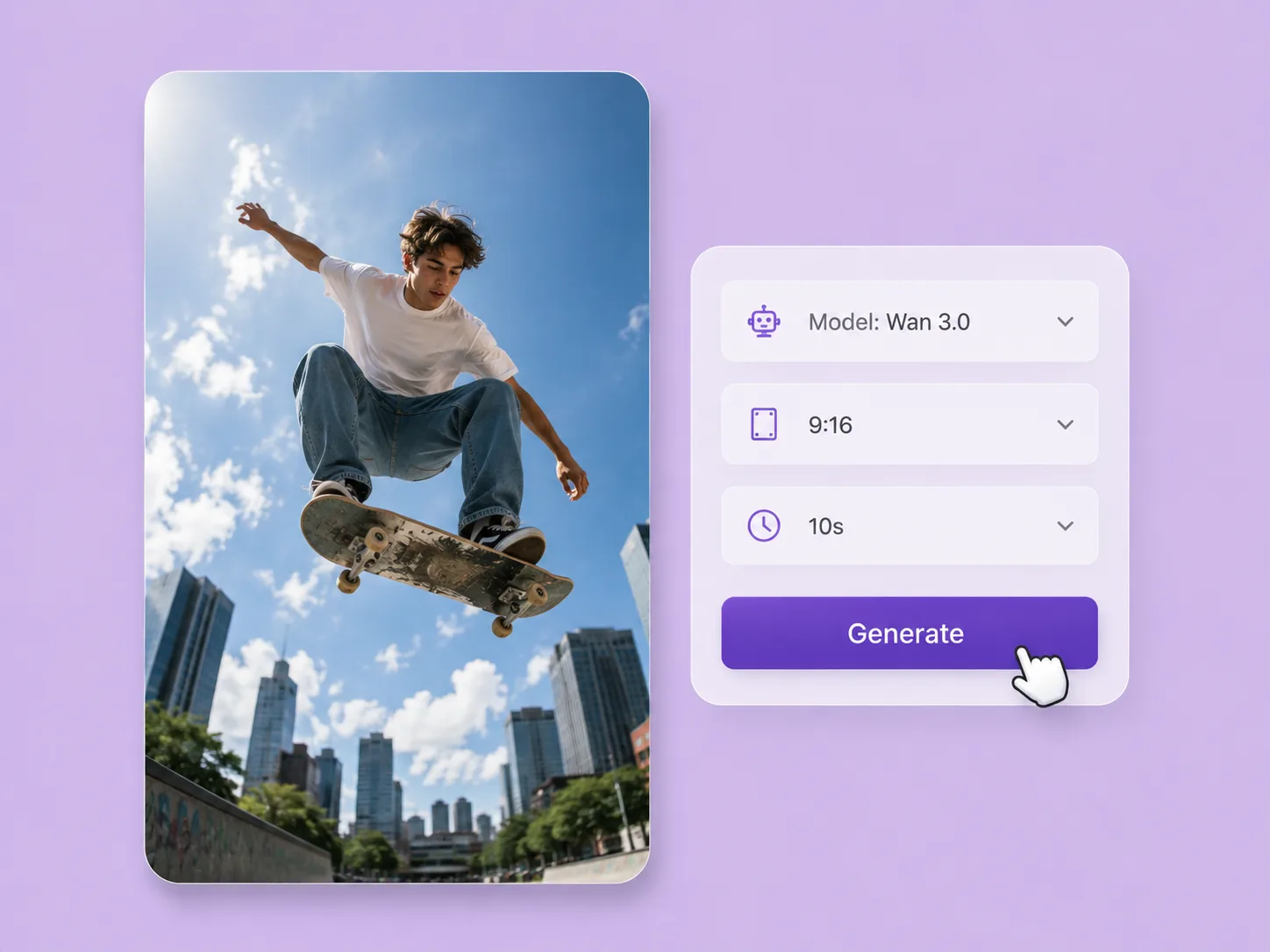
Turn a creative brief into a shot. Start with words or an image and direct motion with VideoAny V5, V4, V3, or V2.
Explore solution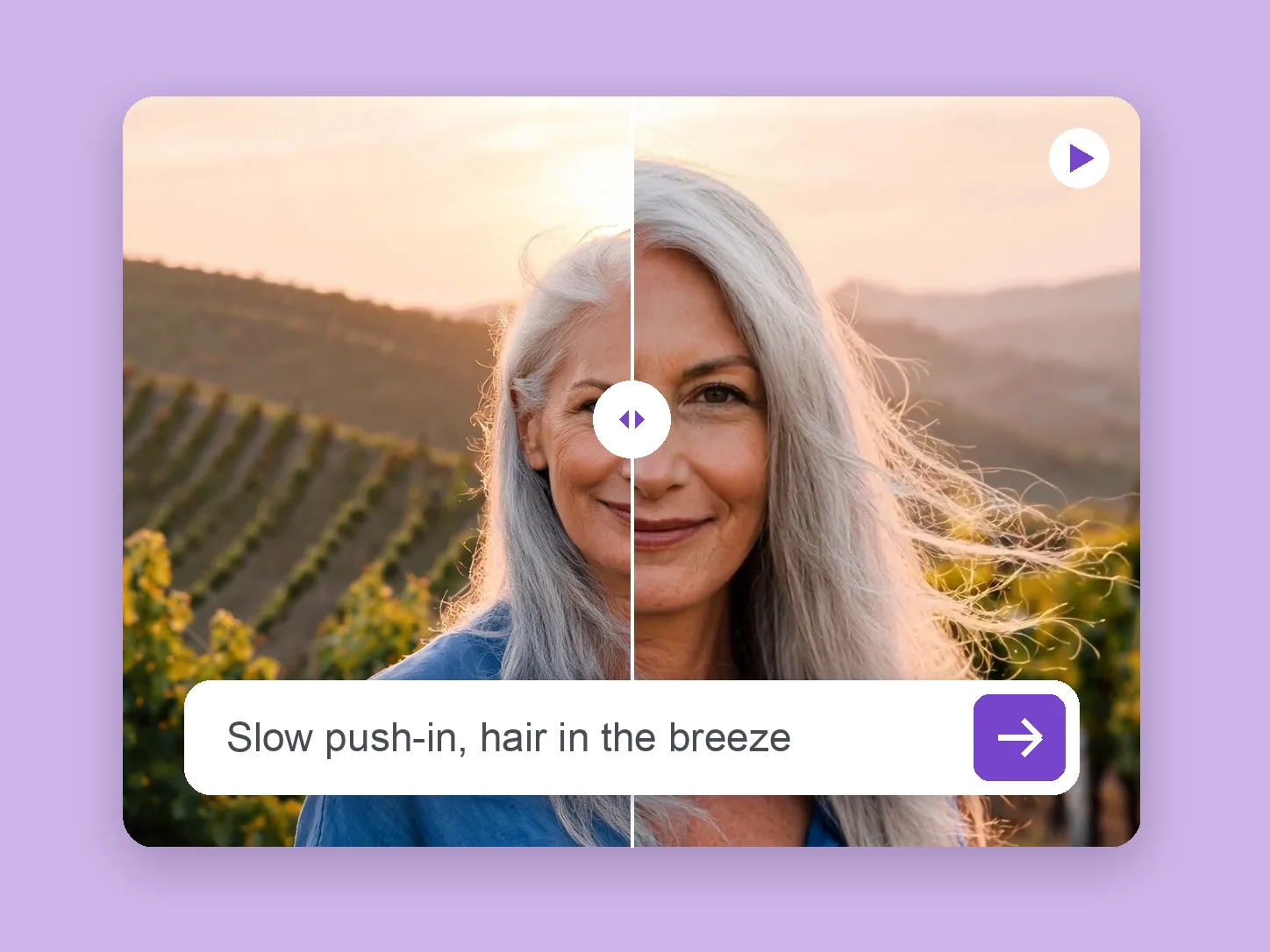
Bring a chosen still into motion. Direct the subject and camera with VideoAny V5, V4, V3, or V2.
Explore solution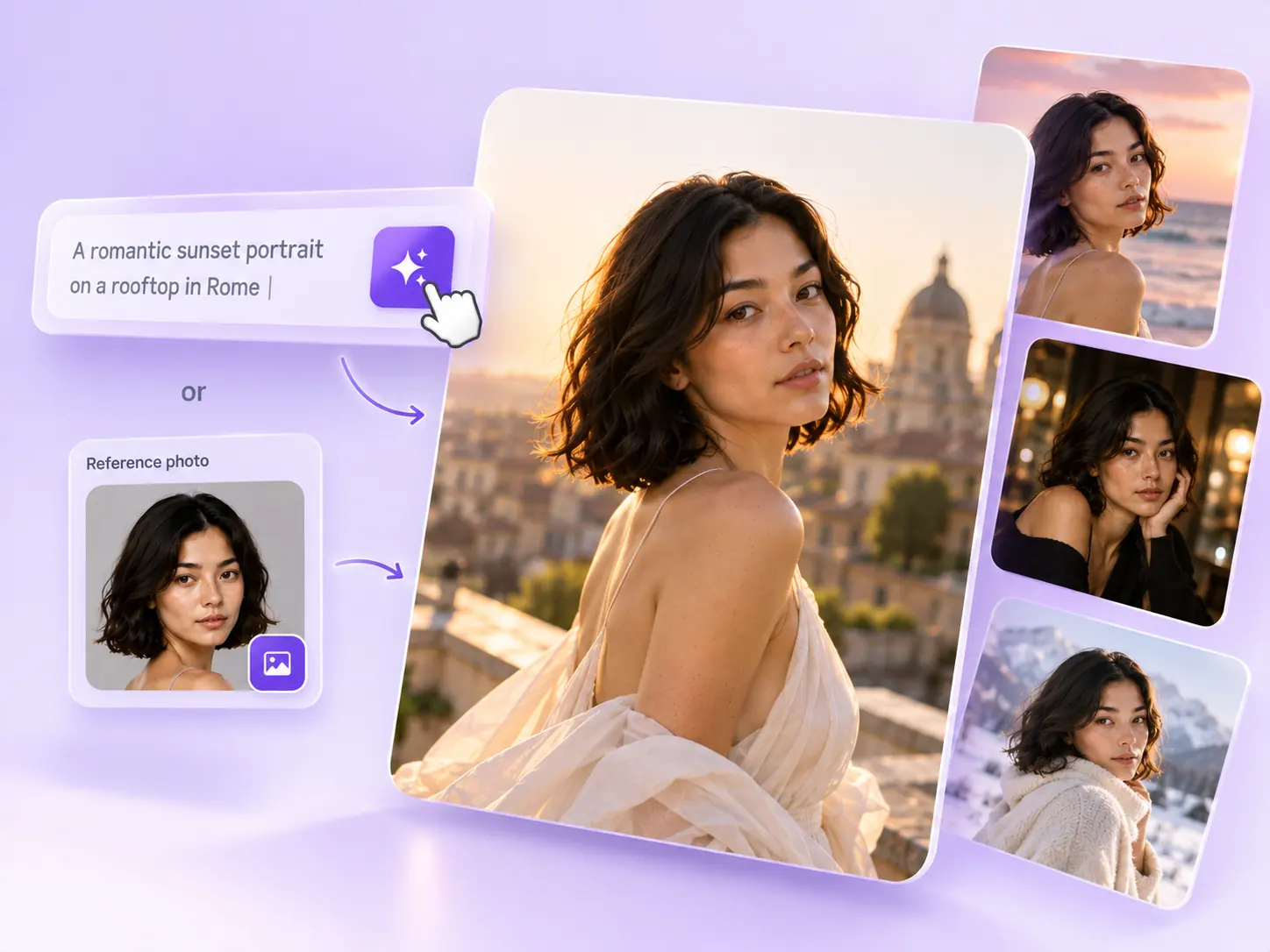
Create the still that starts the story: product concepts, portraits, and campaign photos from a written ImageAny brief.
Explore solutionChoose VideoAny V5, V4, V3, or V2 and prepare a scene with one clear action. Continue to text to video to generate the first take.
Prepare my scene