Product introductions
Pair an approved presenter portrait with a concise product line. Keep brand claims in the recorded script accurate and review the generated delivery.
AI LIP SYNC
Turn a portrait and an audio recording into a speaking video in VideoAny’s lip sync workspace. Prepare a clear face, a clean voice track, and a focused performance direction.
A talking portrait connects the person on screen with the words your audience hears.
Start with the audio you intend to use: a product introduction, a short explanation, or a character line. Then select a portrait with a clearly visible face and framing that suits the delivery. VideoAny’s lip sync workflow accepts an image and audio; it is not a replacement-dubbing editor for an existing video.
The workspace offers its own lip sync models and output controls. Choose among the options shown there, add a motion prompt when the selected model requests one, and review the credit amount before generation. You can create the starting portrait with ImageAny or use an image you already have the right to animate.
Keep the visual brief and audio performance aligned.
Pair an approved presenter portrait with a concise product line. Keep brand claims in the recorded script accurate and review the generated delivery.
Use a clear voice track for one idea at a time. A direct sentence and a stable portrait make the resulting shot easier to assess.
Animate a fictional character portrait around a prepared line. Check whether the face style and framing suit the selected workspace model.
Use the final spoken recording rather than expecting the tool to translate a script. Review pronunciation in the audio before producing the video.
Where a model accepts a prompt, describe a restrained expression or pose. Keep the requested movement compatible with the portrait and tone of voice.
Prepare the portrait, record or obtain the audio, generate a speaking shot, and review it before combining it with other clips.
Reference examples help you plan the subject, setting, and intended use of your result.
A home-studio setting gives a speaking portrait a familiar context. This reference clip is silent and illustrates visible mouth movement only.
A steady office portrait is a useful starting point for planning an explainer. This silent reference does not demonstrate audio alignment.
A stylized character can be the basis of a voice-led scene. This silent clip illustrates the visual direction; add your own audio in the workspace.
Prepare both inputs before opening the workspace.
Use a face that is visible and framed with enough room for the intended motion. Review the still for distortions before animation.
Use the recording you want the viewer to hear. Check noise, clipping, pronunciation, and pauses before upload.
Open the workspace, add the image and audio, and choose the supported model and output settings. Enter a motion prompt if requested.
Play the full result with sound. Look for mouth timing, facial changes, and awkward motion before downloading.
Upload the image and audio in the dedicated lip sync workspace. Model-specific controls and credit requirements are shown there.
Choose the input pair that matches the result you need.
| Your starting point | Lip sync | Another VideoAny workflow |
|---|---|---|
| A portrait and a spoken recording | Generate a speaking portrait from those two inputs. | Use image to video for a broader motion scene without this specific voice-driven workflow. |
| An existing video needing a different voice | This image-and-audio route does not edit that video. | Use a dedicated dubbing workflow that supports the source clip. |
| A music track and a visual concept | A speaking portrait may not match the creative brief. | Explore audio to video for a different audio-led production workflow. |
| A new presenter image | Prepare or upload the portrait before lip sync. | Use ImageAny to create or edit the starting still. |
Prompt support depends on the selected lip sync model; the actual words come from the audio.
Keep the expression compatible with the recording rather than requesting multiple conflicting moods.
A relaxed speaker with a calm expression and subtle natural head movement.
A steady portrait is easier to review for mouth timing than a large camera move.
Maintain the portrait framing and a still camera throughout the line.
Changing the words after generation means returning to the audio stage.
One clean take with a brief natural pause before and after the sentence.
The current VideoAny lip sync workspace uses a still image and an audio file. It produces a speaking video from those inputs. It does not take an existing source video in place of the portrait.
Lip sync uses its own dedicated model choices in the workspace. The VideoAny generation versions shown on text-to-video and image-to-video pages are a different workflow.
The uploaded audio determines the spoken content. Some models accept a prompt to guide appearance or performance, while others do not need one. Write and record the intended words before uploading.
Yes. Download a selected image and upload it as the portrait input. Check the mouth, teeth, eyes, and overall facial structure first, because defects in the starting image can affect the animation.
Listen to the audio and watch the full clip together. Check mouth alignment, facial consistency, unwanted movement, and the beginning and end of the shot. Keep the input recording so you can revise the workflow if necessary.
No. Supported output settings and credit requirements depend on the model and current workspace controls. Review them before submitting rather than assuming the settings from another VideoAny tool apply.
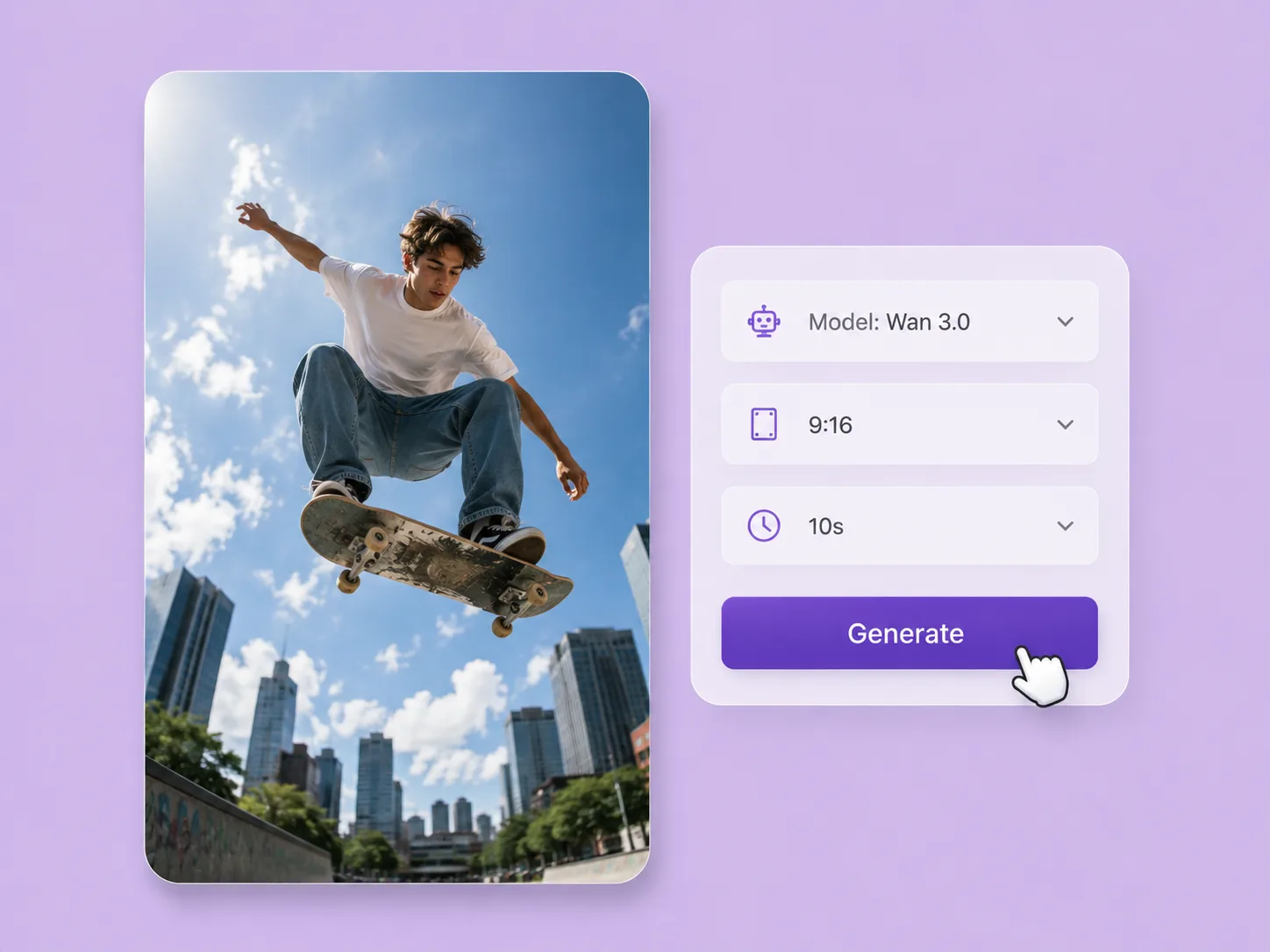
Turn a creative brief into a shot. Start with words or an image and direct motion with VideoAny V5, V4, V3, or V2.
Explore solution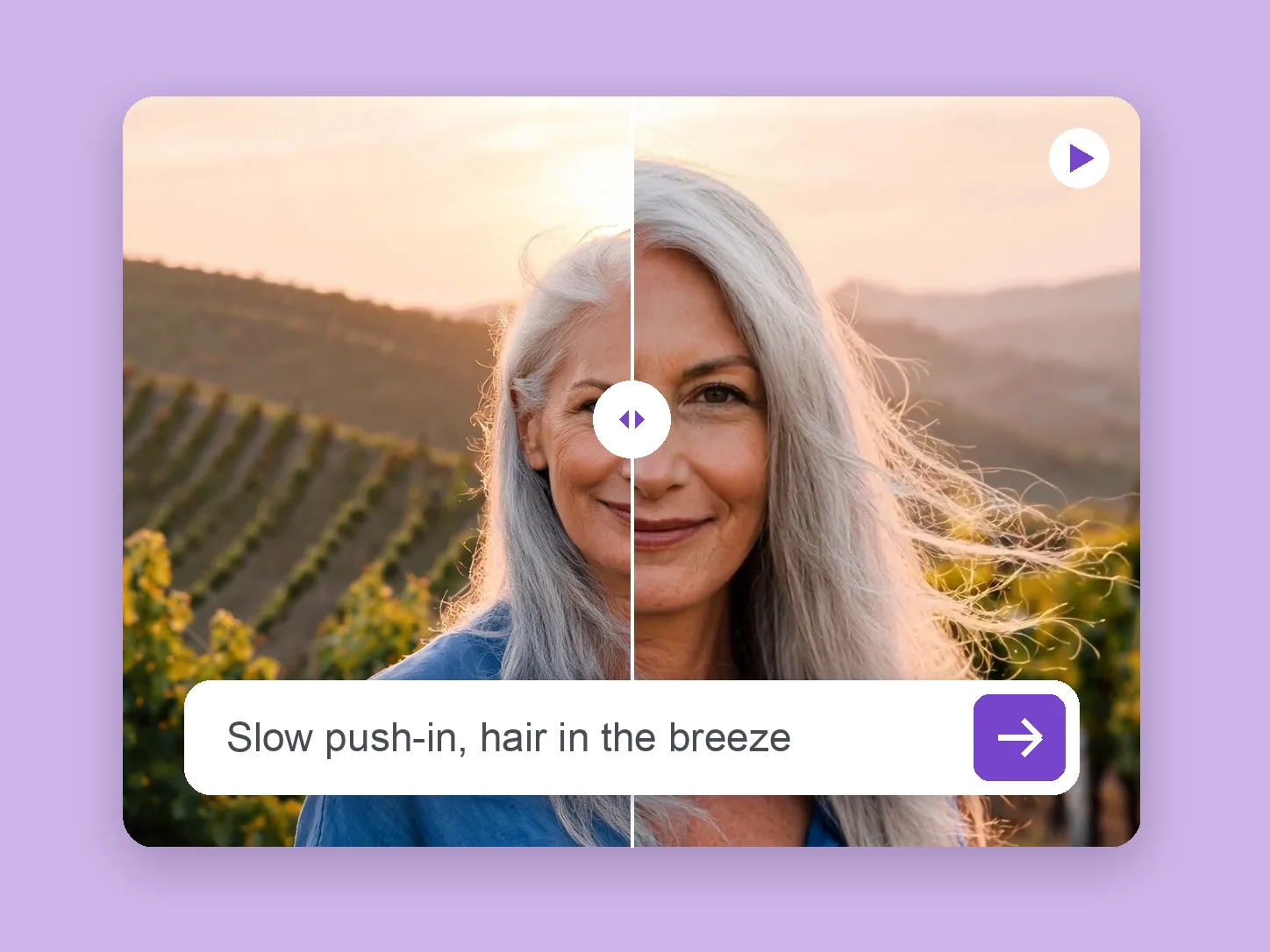
Bring a chosen still into motion. Direct the subject and camera with VideoAny V5, V4, V3, or V2.
Explore solution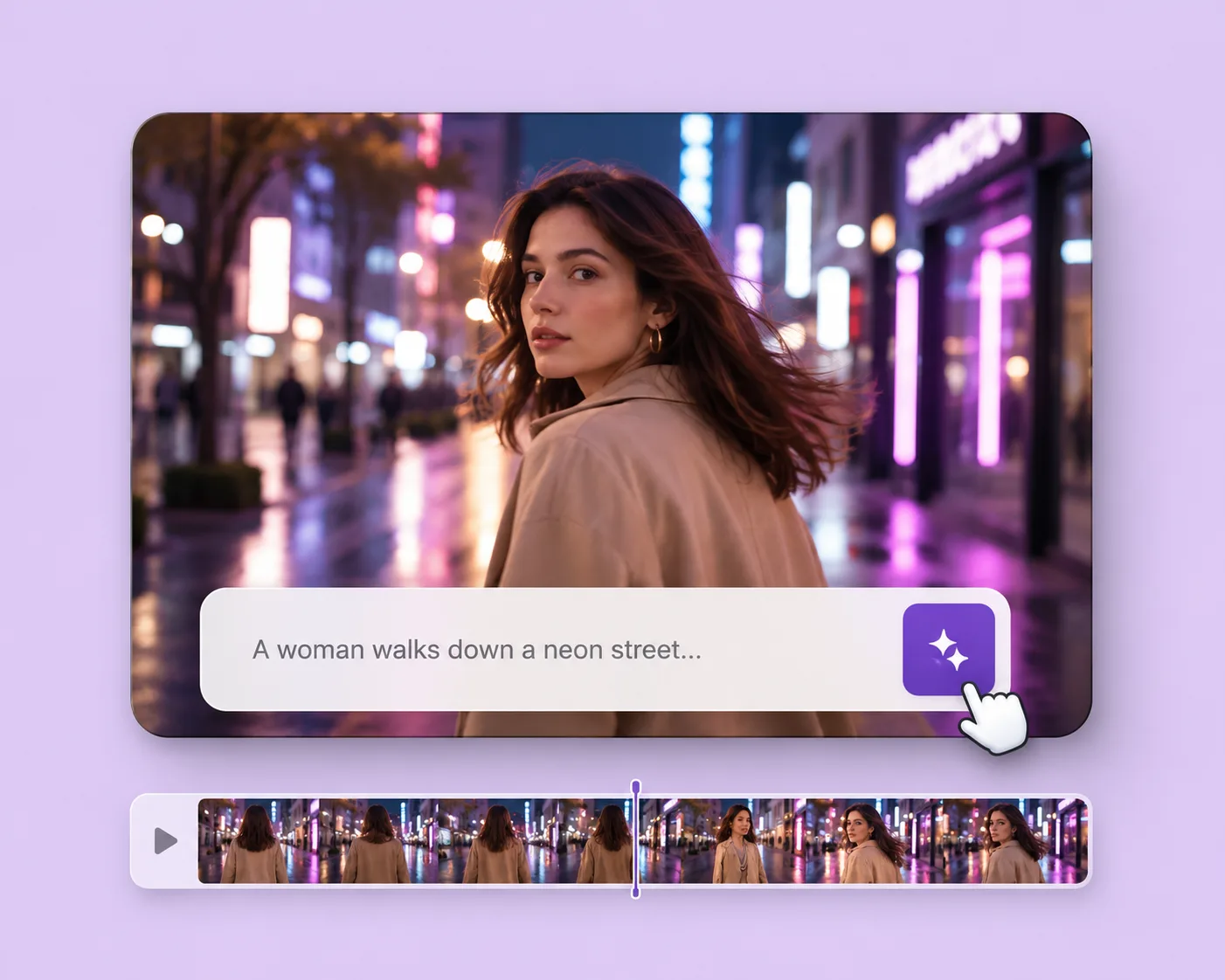
Write the subject, action, setting, and camera movement. Direct an original shot with your selected VideoAny version.
Explore solutionOpen lip sync, add your portrait and recording, and choose the performance settings that suit the line.
Open lip sync workspace