What “unrestricted” means for an image workflow
People searching for an unrestricted AI image generator often want room to describe an unusual character, a particular artistic style, or a composition that a simpler tool cannot follow. The useful question is whether a specific model supports your intended workflow and returns an image you can use.
“Unrestricted” and “uncensored” are labels, not a promise that every model accepts every request. Different providers and models have different controls and content rules; an accepted prompt can still produce an inaccurate image. VideoAny brings several image models into one interface, but it does not make their output quality or request handling identical.
Use the generator for a new composition. If a face, product, layout, or color scheme already exists, start in Image to Image and tell the editor what to preserve.
Choose the input that matches your goal
| Your goal | Start here | What to prepare |
|---|---|---|
| Create a completely new scene | Text to Image | A description of the subject, setting, composition, lighting, and style |
| Restyle or revise an existing image | Image to Image | A clear reference plus one focused change and a preservation instruction |
| Explore another angle of one image | Image to Image with an angle-control model | One source image; check the available camera controls |
| Animate an image you already like | Image to Video | The finished still and a short description of subject and camera motion |
Generate a first draft in five steps
1. Open Text to Image and sign in when you are ready to generate. Start with a single visual task, such as a product on a studio background or an illustrated landscape. Avoid combining several unrelated concepts in the first prompt.
2. Choose a model from the tool. Review the settings it exposes rather than assuming every model has the same resolution, batch size, or quality options. If you have a source image to preserve, switch to Image to Image before spending credits.
3. Write the prompt in a concrete order: subject, composition, setting, lighting, and visual style. Use an aspect ratio that fits the intended placement when that option is available. For a banner, specify space for a headline rather than asking the model to fill every part of the frame.
4. Read the displayed credit cost and generate a first draft. Credits vary with the model and supported settings. A free or promotional balance, when available in your account, does not make every model or every batch free.
5. Inspect the result at a useful size. Check anatomy, object edges, readable text, background consistency, and whether important details were omitted. Change one part of the prompt at a time so you can tell what improved the output.
Prompts to adapt to your project
Example prompts to adapt to your own project. The prompts are starting points for experiments, not claims of measured output quality.
Product image with room for copy
Use this when you need a clean composition rather than a busy decorative scene.
A matte navy reusable water bottle on a pale gray studio surface. Place the bottle in the left third of the frame and leave the right half as clean negative space. Soft window light from the left, a subtle grounded shadow, realistic material texture, restrained commercial photography. No labels or added text.
- Replace the object and colors with details from your project.
- Add typography later if exact spelling is essential.
Street portrait with a restrained palette
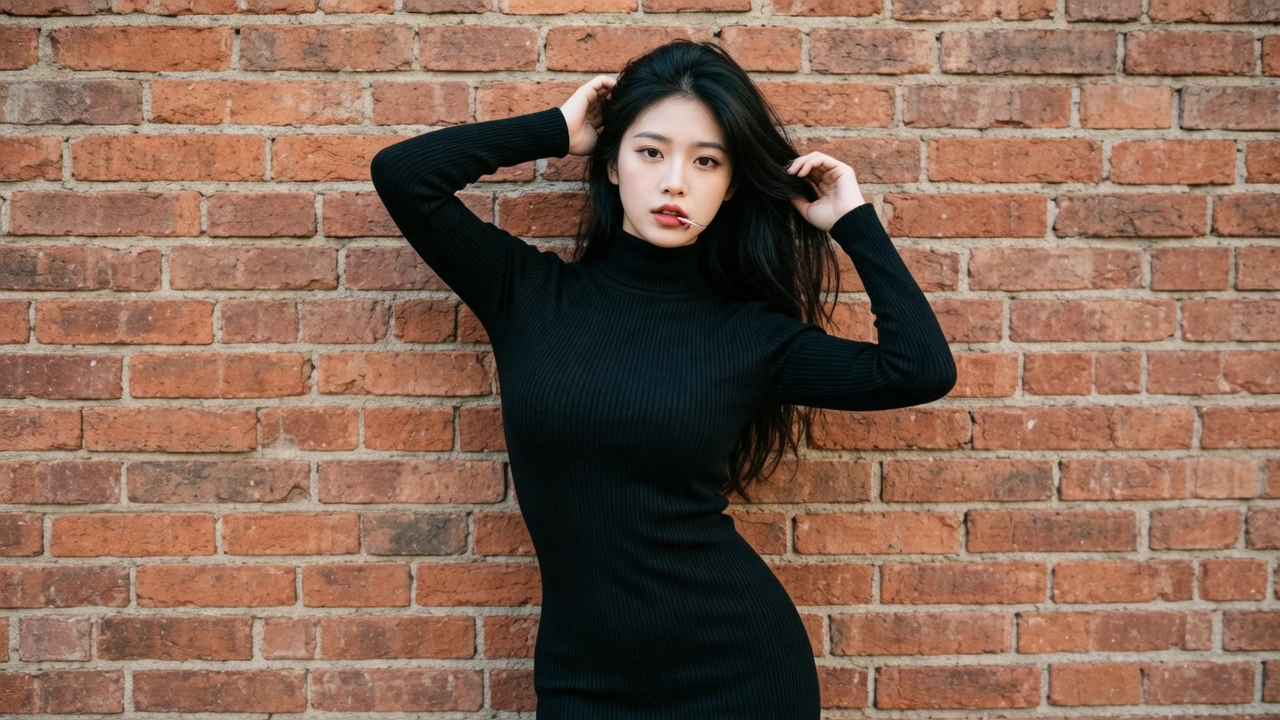
A composition exercise inspired by the reference above: separate a dark-clothed subject from a textured background. This prompt was not used to produce the displayed Senzia image.
An adult fashion model in a black ribbed turtleneck standing in front of a warm red brick wall. Waist-up framing, natural daylight, relaxed posture, dark hair clearly separated from the background. Editorial street portrait, realistic fabric and masonry texture, no text or logos.
- Check hands and the separation between hair and clothing.
- Change the pose or lighting in a separate iteration rather than rewriting the whole scene.
Refine an existing product image
Use in Image to Image after uploading your own product reference.
Change the background to a softly lit warm-white studio. Preserve the bottle shape, cap, logo placement, proportions, and camera angle from the reference. Add only a subtle contact shadow. Keep the product color unchanged and avoid adding new objects.
- Model edits may alter details even when asked to preserve them.
- Compare the output against the reference before using it in a campaign.
Diagnose a weak result before generating again
| What you see | Likely issue to investigate | Next adjustment |
|---|---|---|
| The image ignores several requested objects | The prompt may contain too many competing instructions | Reduce it to one subject and one setting, then add secondary details later |
| The layout has no room for your headline | Composition was left open to interpretation | Specify subject placement and negative space; check the aspect ratio |
| A reference subject changes too much | The editing request may be broad or the model may not preserve that detail reliably | Use a clearer source, list essential details, and request one change |
| Text contains mistakes | The result did not reproduce the lettering accurately | Use a shorter exact phrase or add final text with a conventional editor |
| Generation cannot start | Account balance, missing input, or model settings may need attention | Read the tool message, sign in, and check credits and required fields |
| A request is rejected | The selected model or provider did not accept it | Read the error and use a permitted request or a model suited to the legitimate task; do not assume another model will accept it |
Review the image against its intended use
Choose the best draft based on the job it needs to do. A striking illustration can still be unsuitable for a product page if it changes the product shape. A portrait can look polished while introducing identity or anatomy errors. Compare important features directly with your brief and any reference image.
For a repeatable series, reuse the same core description and record the chosen model, aspect ratio, and other settings shown in the tool. This helps you evaluate variations; it does not guarantee identical characters or perfectly consistent outputs.
When a still is ready, you can use it as the source for Image to Video. Check motion on a short draft before using more expensive settings. Keep the original still so you can return to a clean source if the animation needs another attempt.
Questions before you generate
Is an unrestricted image generator the same as an image editor?
No. Text to Image creates a new image from a prompt. Image to Image starts with one or more supported references and a requested transformation. Use the latter when preserving an existing subject or layout matters.
Can I generate without signing in?
The current VideoAny generation flow asks you to sign in. You can review the available tools first, then check your account balance and the displayed cost before generating.
Is generation unlimited or completely free?
No unlimited allowance is promised here. Available credits and promotions depend on your account, while costs depend on the selected model and settings. Review the amount shown in the tool before each generation.
Does VideoAny guarantee that every prompt will be accepted?
No. Models and providers differ in their controls and content rules. The word unrestricted does not guarantee request acceptance or output quality.
Which model should I choose?
Start with a model that supports the input and controls your task needs. Use a small first draft to inspect detail, instruction following, and cost. This guide does not claim that one model wins every image task.
Can I use the result in another VideoAny tool?
Yes. You can use an image as a reference in Image to Image or as the starting frame in Image to Video. The Image to Image result area includes an Image to video action that carries the selected image into that workflow.
Put the workflow into practice
Create one clear image draft
Start with a focused prompt, review the model settings and credit cost, and refine the result against your brief.