
Übersicht
Uneingeschränkte KI-Bildbearbeitung: Was dieser Leitfaden abdeckt
Viele KI-Bildbearbeitungsprogramme schränken die kreative Freiheit ein, indem sie Bearbeitungen, die als „sensibel“ eingestuft werden, ohne klare Begründung blockieren. Dieser Leitfaden stellt den Editor von VideoAny vor, der ohne solche Inhaltsfilter arbeitet und eine vollständige Palette kreativer Workflows ermöglicht.
Herkömmliche KI-Bildeditoren blockieren oft kreative Bearbeitungen, insbesondere beim Kombinieren von Charakteren, Anpassen der Kleidung oder beim Komponieren von Szenen, die als „sensibel“ eingestuft werden könnten. Dies kann für Kreative eine große Frustration sein.
Der Editor von VideoAny wurde entwickelt, um diese Einschränkungen zu umgehen. Er arbeitet mit weniger unnötigen Einschränkungen bei zulässigen Inhalten und stellt sicher, dass die Bearbeitungswerkzeuge bei allen Arten von Inhalten, ob SFW oder NSFW, konsistent funktionieren. Dieser Leitfaden zeigt Ihnen, wie Sie seine vollen Möglichkeiten nutzen können. Weniger restriktiv bedeutet nicht regelfrei: Illegale, ausbeuterische oder nicht einvernehmliche Inhalte bleiben unzulässig; Rechte und Einwilligungen sind zu beachten.
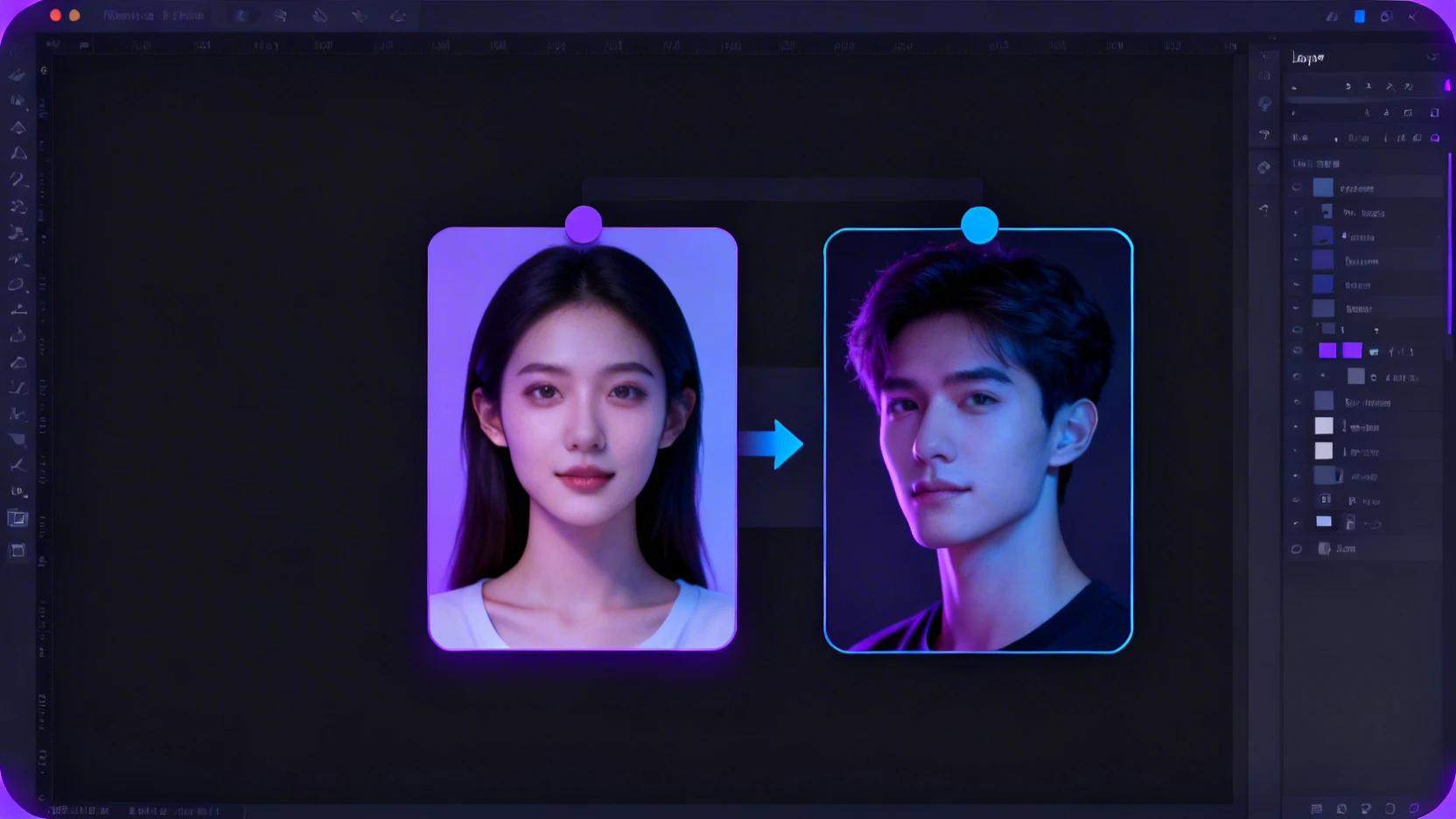
Der VideoAny Editor brilliert bei Aufgaben, die die meisten eingeschränkten Tools nicht bewältigen können: das Komponieren mehrerer Motive in einem einzigen Frame, das Hinzufügen oder Entfernen von Elementen aus generierten Bildern und das manuelle Nachbearbeiten ohne Auslösen von Sicherheitsprotokollen.
Hauptfunktionen des VideoAny-Editors
- Mehrere KI-Charaktere in einer einzigen Szene zusammenführen
- Elemente in jedem Bild hinzufügen oder entfernen
- Manuelle Nachbesserungen mit weniger unnötigen Einschränkungen bei zulässigen Inhalten durchführen
- Funktioniert mit hochgeladenen Fotos, KI-generierten Standbildern oder Ausgaben anderer VideoAny-Tools
Der VideoAny Editor bietet mehr kreativen Spielraum für zulässige Bildbearbeitungen; Plattformregeln gelten weiterhin.
Editor-Funktionen
Was können Sie im VideoAny Editor tun?
Der VideoAny Editor ist auf maximale Flexibilität ausgelegt und bewältigt komplexe Compositing- und Bearbeitungsaufgaben, die auf anderen Plattformen oft blockiert werden. Er lässt sich nahtlos in andere VideoAny Tools integrieren.
| Funktion | Beschreibung | Vorteil | Anwendungsfall |
|---|---|---|---|
| Mehrzeichen-Komposition | Zwei oder mehr KI-generierte Charaktere in einem Bild kombinieren. | Erstellen Sie komplexe Gruppenszenen oder Paarfotos. | Generierung von Social-Media-Inhalten mit mehreren Themen. |
| Elemente hinzufügen/entfernen | Fügen Sie Kleidung, Accessoires oder Hintergründe hinzu oder entfernen Sie unerwünschte Artefakte. | Bilder präzise verfeinern, ohne sie neu zu generieren. | Anpassen von Charakter-Outfits oder Bereinigen von KI-generierten Inhalten. |
| Uneingeschränkte Bearbeitungsmöglichkeiten | Manuelle Anpassungen vornehmen, ohne Sicherheitsfilter auszulösen. | Behalten Sie die kreative Kontrolle über alle Inhaltstypen. | Bearbeitung sensibler oder künstlerischer Aktstudien. |
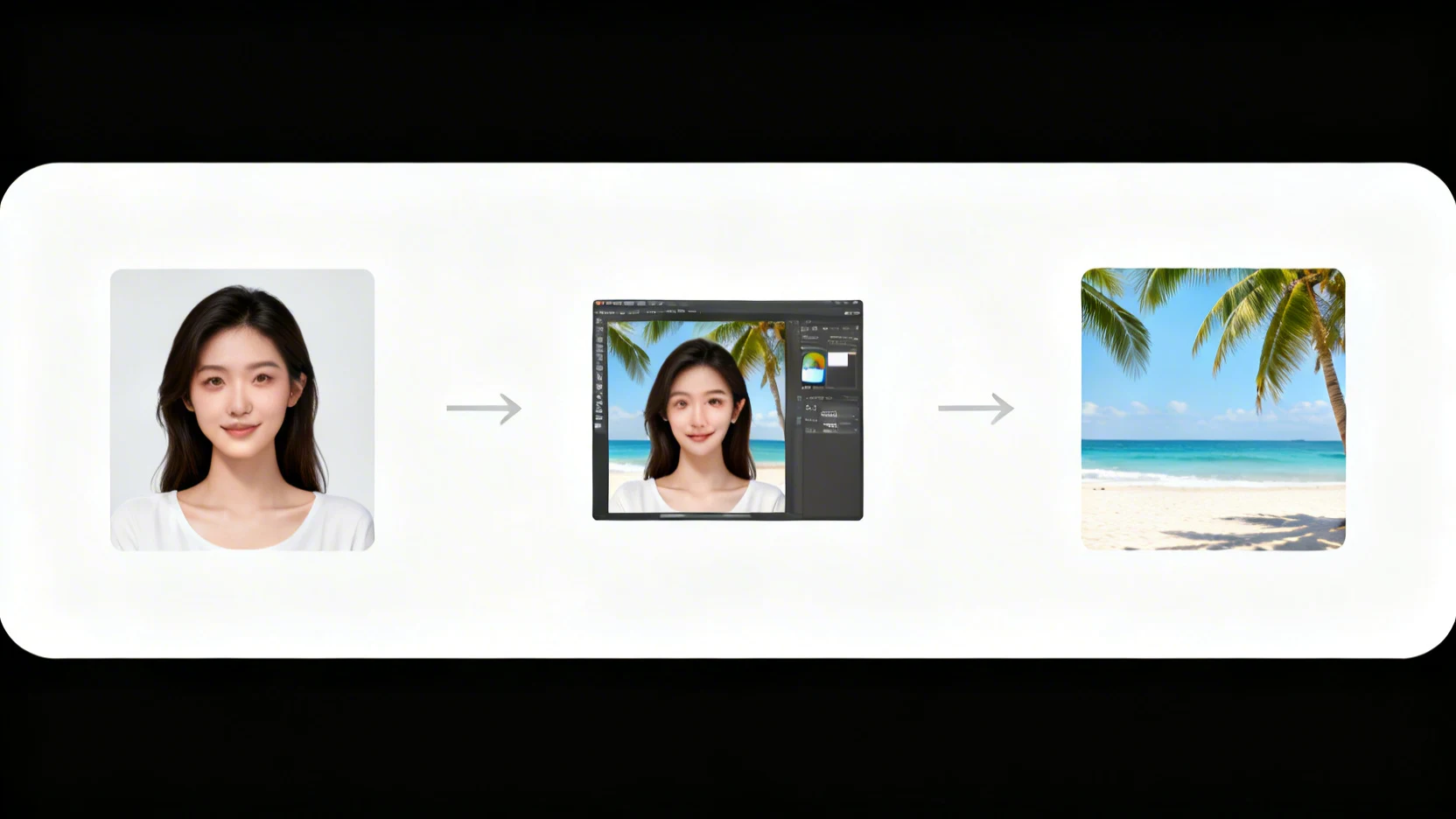
| Hintergrund austauschen | Ersetzen Sie bestehende Hintergründe durch neue Szenen oder Umgebungen. | Ändern Sie die Einstellungen jedes Bildes mühelos. | Platzieren von Charakteren an verschiedenen virtuellen Orten. |
Der VideoAny Editor unterstützt eine Vielzahl kreativer Aufgaben, von einfachen Retuschen bis hin zu komplexen Szenenkompositionen, und das alles mit breiteren kreativen Spielräumen für zulässige Inhalte.
Zugriff auf den Editor
Wie öffnet und verwendet man den Editor in VideoAny?
Der Zugriff auf und die Nutzung des VideoAny Editors ist unkompliziert und erfordert keine Softwareinstallation. Er funktioniert vollständig in Ihrem Browser und bietet ein nahtloses Bearbeitungserlebnis.
Zugriff auf den Editor
Der VideoAny Editor ist ein webbasiertes Tool, das direkt über Ihren Browser zugänglich ist. Es sind keine Downloads oder Installationen erforderlich.
Erste Schritte
- Navigieren Sie zum Editor-Bereich in VideoAny.
- Keine Desktop-Software erforderlich.
- Läuft vollständig in Ihrem Webbrowser.
- Gutes Gleichgewicht zwischen Geschwindigkeit und Ausgabequalität
- Pricing model
- In allen VideoAny-Tarifen enthalten.
- Trade-offs
- Benötigt eine aktive Internetverbindung.
- Best fit
- Nutzer, die cloudbasierte Tools und nahtlose Integration bevorzugen.
Schnittstellenübersicht
Die Editoroberfläche verfügt über eine Hauptleinwand für Ihr Bild und eine Seitenleiste für alle Bearbeitungssteuerungen.
Schlüsselkomponenten
- Leinwand: Hier werden Ihre Bilder geladen und bearbeitet.
- Seitenleiste: Enthält alle Bearbeitungswerkzeuge und Steuerelemente.
- Unterstützt Zoom, Schwenken und Ebenen für präzise Positionierung.
- Kann herausragende Einzelergebnisse liefern
- Pricing model
- N/A
- Trade-offs
- Kenntnisse von Schichtkonzepten sind vorteilhaft.
- Best fit
- Sowohl für Anfänger als auch für erfahrene Editoren.
Bildeingabe
Sie können jedes Bild hochladen oder direkt aus Ihren vorherigen VideoAny-Generierungen ziehen.
Unterstützte Eingabeformate
- Laden Sie Fotos von Ihrem Gerät hoch.
- Bilder aus anderen VideoAny-Tools (z. B. Text-zu-Bild, Fotoshooting) per Drag & Drop hinzufügen.
- Kompatibel mit KI-generierten Standbildern und bestehenden Bildern.
- Einfache Aufgabenverteilung über Teams hinweg
- Pricing model
- N/A
- Trade-offs
- Für Uploads können Dateigrößenbeschränkungen gelten.
- Best fit
- Integration mit bestehenden Inhalten und neuen Generationen.
Typischer Arbeitsablauf
Eine typische Bearbeitungssitzung ist schnell und effizient, wobei gängige Aufgaben oft in weniger als zwei Minuten erledigt werden.
Beteiligte Schritte
- Basisbild hochladen oder auswählen.
- Zusätzliche Elemente hinzufügen und positionieren.
- Ebenen anpassen (Größe ändern, drehen, neu anordnen).
- Führen Sie die KI-Zusammenführung für nahtloses Blending aus.
- Pricing model
- N/A
- Trade-offs
- Komplexe Kompositionen können länger dauern.
- Best fit
- Ersteller, die eine schnelle, iterative Bearbeitung benötigen.
Workflow-Details
Wie sieht der Bearbeitungsworkflow Schritt für Schritt aus?
Der VideoAny Editor vereinfacht komplexe Bildbearbeitungen in wenigen Schritten, sodass Sie Elemente effizient kombinieren und Kompositionen verfeinern können. Es ist keine Prompt-Eingabe erforderlich.
Der Bearbeitungsprozess in VideoAny ist intuitiv und schnell gestaltet, wobei die meisten Aufgaben typischerweise in weniger als zwei Minuten abgeschlossen werden. Im Gegensatz zu vielen anderen KI-Tools müssen Sie zu keinem Zeitpunkt Prompts eingeben; die KI fügt Elemente intelligent basierend auf ihrer visuellen Platzierung zusammen.
Die KI interpretiert automatisch die auf der Arbeitsfläche platzierten Elemente und übernimmt das Mischen, die Anpassung von Beleuchtung und Perspektive, um ein kohärentes Endergebnis zu erzielen. Dieser visuell orientierte Ansatz vereinfacht den kreativen Prozess erheblich.
1. Kamerajargon nutzen: Begriffe wie „langsames Dolly-In“, „Handheld-Tracking“, „Whip Pan“, „Kran-Enthüllung“ und „Rack Focus vom Vordergrund zum Motiv“ werden von Kling verstanden und umgesetzt.
Schritt-für-Schritt-Bearbeitungsprozess
- **Schritt 1: Wählen Sie Ihr Basisbild.** Laden Sie ein beliebiges Foto hoch oder wählen Sie ein in VideoAny generiertes Bild (z.B. aus Text-zu-Bild oder PhotoShoot).
- **Schritt 2: Elemente zum Kombinieren hinzufügen.** Laden Sie ein zweites Bild hoch (einen weiteren Charakter, eine Requisite, einen neuen Hintergrund) und platzieren Sie es auf der Arbeitsfläche.
- **Schritt 3: Ebenen und Komposition anpassen.** Ändern Sie die Größe, drehen Sie Elemente und ordnen Sie sie neu an, bis die gewünschte Komposition erreicht ist.
- **Schritt 4: KI-Zusammenführung ausführen.** Die KI verschmilzt alle Ebenen nahtlos zu einem einzigen, einheitlichen Bild.
Der visuelle Ansatz des VideoAny Editors macht Prompts überflüssig und ermöglicht so komplexe Bearbeitungen, die zugänglich und schnell sind.
Uneingeschränkte Bearbeitung
Warum blockieren andere KI-Bildbearbeitungsprogramme Bearbeitungen?
Viele cloudbasierte KI-Editoren moderieren Eingaben und Ausgaben zusätzlich. Der VideoAny Editor kann bei zulässigen kreativen Bearbeitungen mehr Spielraum bieten; Modell- und Plattformregeln gelten weiterhin.
Die meisten gängigen cloudbasierten KI-Editoren wie Canva AI, Adobe Firefly und Fotor leiten jede Bearbeitung durch einen Sicherheitsklassifikator. Wenn dieser Klassifikator das Eingabebild, die Ausgabeprompt oder sogar eine Kombination aus beidem kennzeichnet, wird die Bearbeitung ohne Erklärung abgelehnt.
Dies führt häufig dazu, dass nicht-explizite Inhalte blockiert werden, darunter Bilder von Dessous-Marken, künstlerische Aktstudien, Bademodenfotos oder romantische Paarszenen. Der Klassifikator von VideoAny kann oft nicht zwischen legitimen kommerziellen oder künstlerischen Werken und Richtlinienverstößen unterscheiden.
VideoAny bietet für zulässige kreative Bearbeitungen mehr Spielraum als manche stark eingeschränkten Editoren. Dennoch gelten weiterhin Plattformregeln, Rechte Dritter und Einwilligungsanforderungen; ob eine Eingabe verarbeitet wird, kann außerdem vom gewählten Modell abhängen.
Häufige Gründe für die Inhaltsblockierung in anderen Editoren
- Sicherheitsklassifikatoren kennzeichnen Eingabebilder, Ausgabeprompts oder deren Kombination.
- Ablehnungen erfolgen auch bei nicht-expliziten Inhalten wie künstlerischen Studien oder kommerziellen Fotos.
- Mangelnde Unterscheidung zwischen kreativer Arbeit und Richtlinienverstößen.
- Frustration aufgrund unerklärter Ablehnungen und fehlender Umgehungslösungen.
Der VideoAny Editor soll unnötige Ablehnungen bei zulässigen Bearbeitungen reduzieren. Die tatsächliche Verarbeitung hängt vom Modell und den aktuellen Plattformregeln ab.
Integration
Wie fügt sich der Editor in eine umfassendere Content-Pipeline ein?
Ist der Editor typischerweise der erste oder letzte Schritt?
Der Editor ist selten der absolut erste oder letzte Schritt. Die meisten Kreativen nutzen ihn als entscheidende Kompositionsebene zwischen der anfänglichen Generierung und der finalen Veröffentlichung und integrieren ihn so in einen umfassenderen Arbeitsablauf.
Wie lässt sich VideoAny in andere Tools integrieren?
Sie können ein bearbeitetes Bild in weiteren VideoAny-Workflows wie Bild-zu-Video oder Face Swap verwenden. Ob ein erneuter Upload oder eine Formatkonvertierung nötig ist, hängt von der jeweiligen Tool-Übergabe und dem Dateiformat ab.
Benötigt der Editor Schreibanweisungen?
Nein. Sie positionieren Elemente visuell auf einer Leinwand, und die KI übernimmt das Blending. Prompt-basierte Bearbeitung ist in **VideoAny**s separatem Bild-zu-Bild-Tool verfügbar, falls Sie diese Methode bevorzugen.
Kann ich mehr als zwei Bilder kombinieren?
Ja. Die Arbeitsfläche unterstützt mehrere Ebenen, sodass Sie drei oder mehr Elemente – Charaktere, Requisiten, Hintergründe – zu einem einzigen Frame zusammenfügen können.
Welche Dateiformate akzeptiert der Editor?
Der Editor akzeptiert PNG-, JPG- und WebP-Formate. Die Ausgabe ist in allen drei Formaten verfügbar, mit Auflösungen bis zur Ihrer Eingabebilder.
Häufig gestellte Fragen
Häufig gestellte Fragen zur uneingeschränkten Bearbeitung
Hier finden Sie Antworten auf häufig gestellte Fragen zur Nutzung des uneingeschränkten VideoAny-Editors für vielfältige kreative Anforderungen.
Der Editor von VideoAny wurde entwickelt, um Kreativen maximale Flexibilität zu ermöglichen. Egal, ob Sie mehrere Elemente kombinieren oder mit spezifischen Dateitypen arbeiten, der Prozess ist optimiert und filterfrei.
Ziel ist es, ein robustes Tool bereitzustellen, das Ihre kreative Vision unterstützt, ohne die üblichen Frustrationen von Inhaltsbeschränkungen.
Halten Sie Ihre kreative Richtung stabil, während Sie nur die Variablen iterieren, die die Ergebnisse wesentlich verbessern.
Schnelle Antworten für häufige Szenarien
- **Prompt-basierte Bearbeitung:** Für den Editor nicht erforderlich; die visuelle Platzierung steuert die KI-Mischung.
- **Mehrbildkomposition:** Ja, kombinieren Sie drei oder mehr Elemente mithilfe von Ebenen.
- **Unterstützte Dateiformate:** PNG, JPG und WebP für Eingabe und Ausgabe.
- **Integration mit anderen Tools:** Nahtlose Übertragung zu Bild-zu-Video oder Face Swap ohne erneute Uploads oder Filterprüfungen.
Der Editor von VideoAny legt Wert auf kreative Freiheit und effiziente Arbeitsabläufe.
Fazit
Bereit, dies in die Praxis umzusetzen?
Erleben Sie die Freiheit uneingeschränkter KI-Bildbearbeitung mit VideoAny. Kombinieren Sie Charaktere, tauschen Sie Szenen aus und verfeinern Sie Ihre Bilder, ohne auf Inhaltsfilter zu stoßen. Beginnen Sie noch heute grenzenlos zu gestalten.
- Komplexe Szenen mit mehreren Elementen zusammensetzen
- Bilder mit breiteren kreativen Spielräumen für zulässige Inhalte bearbeiten
- Nahtlose Integration mit anderen VideoAny-Tools
Jetzt starten