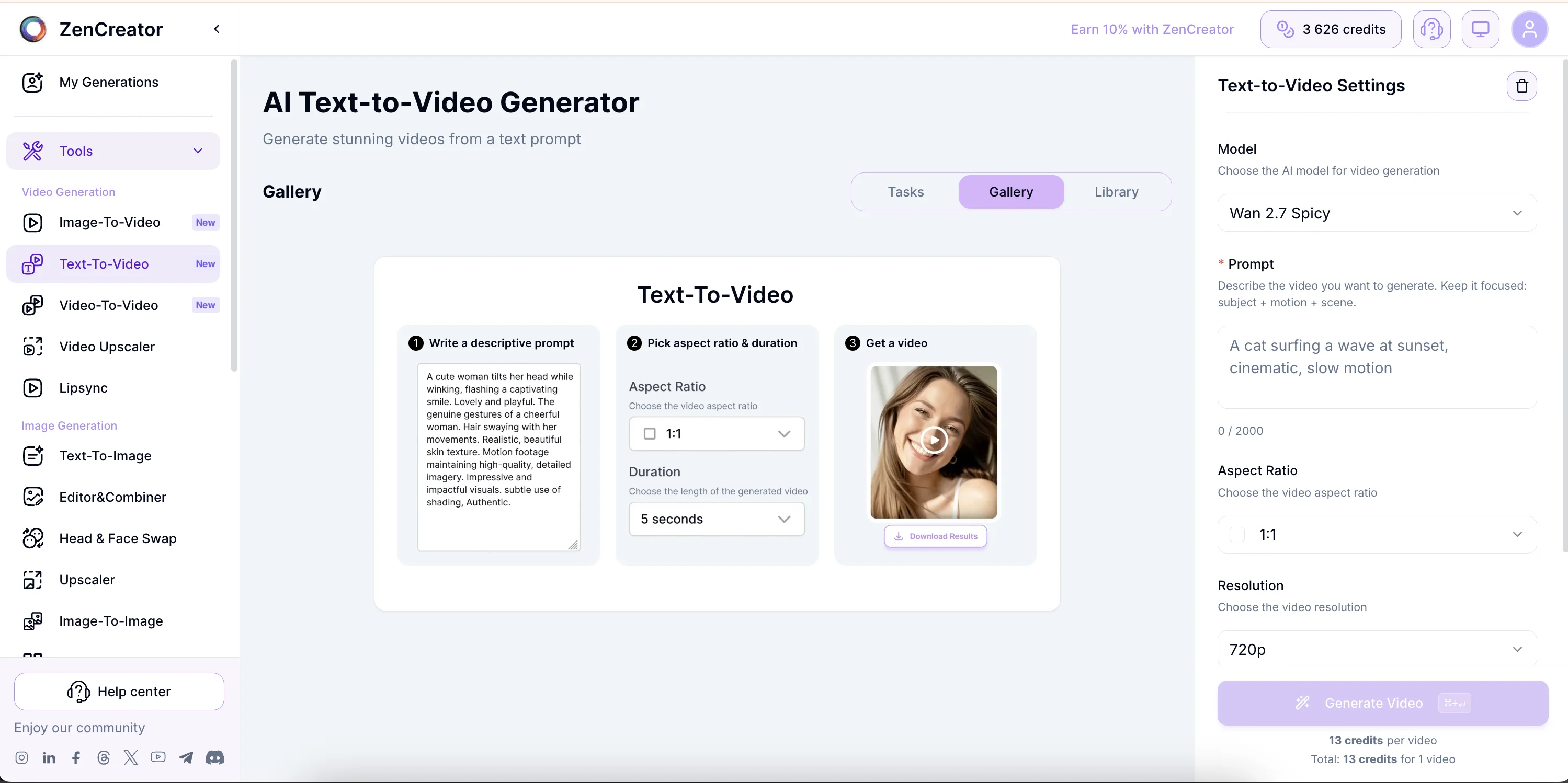
The workflow
What does a text-to-video generator create?
VideoAny can begin from an empty canvas, interpreting both the opening composition and its motion from the same written shot brief.
VideoAny lets you describe a scene and render a short moving clip without first sourcing or generating a reference image. Skipping that preparation step makes the workflow useful for fresh compositions, quick concept tests, ads, reels, and atmospheric inserts.
The model must infer the starting frame and how it changes over time. That is why the prompt needs to function like a compact shot brief rather than a caption: it should establish the visual subject, environment, action, camera behavior, and light.
A text-only start offers more room for discovery, but it can also invent a different identity or layout on every run. Switch to image-to-video when a particular face, pose, product arrangement, or approved composition must remain fixed.
The 6-part prompt formula
- Subject: The main character or object
- Action: What is happening in the scene
- Setting: The environment or background
- Camera: Specific movement like orbit or dolly
- Lighting: Real-world sources like golden hour
- Mood: Genre or stylistic atmosphere
Missing one of these elements often leads to off-brief results.
Comparison
When should you use text-to-video instead of image-to-video?
While both live in the same panel, they serve different creative needs.
| Feature | Text-to-Video | Image-to-Video |
|---|---|---|
| Starting Point | Text prompt only | Source image upload |
| Identity | New face every time | Preserves source identity |
| Speed | Faster for new ideas | Slower due to prep |
| Best For | Atmosphere & discovery | Consistency & portraits |
| Explore a new visual style quickly | Text to Video | Detailed art-direction cues can generate multiple fresh interpretations. |
| Animate an existing portrait or product frame | Image to Video | The original composition remains the foundation of the clip. |
Use Text-to-Video when you want to explore; use Image-to-Video when the face or specific composition is non-negotiable.
Prompt engineering
How do you write a Text-to-Video prompt that actually works?
Since the model starts from zero, your prompt must be highly descriptive to avoid drift.
The model cannot see until you tell it what to look at. A successful prompt provides a concrete subject, a clear verb of motion, and a specific setting.
Camera grammar is essential. Explicitly name the movement—dolly, track, orbit, or crane—to avoid static, lifeless clips. Use only one camera verb per shot to avoid confusing the AI.
Atmosphere is best captured through specific light sources rather than vague adjectives. Instead of 'moody,' specify 'single overhead bulb' or 'neon storefront reflection.'
Three effective prompt patterns
- Pattern 1: Subject + Action + Setting (e.g., A runner sprints through a rain-slicked city alley at night)
- Pattern 2: Camera grammar (e.g., Orbiting shot around a vintage car parked in a desert landscape)
- Pattern 3: Atmosphere + Mood (e.g., Film noir style, harsh shadows, cigarette smoke curling in a dim office)
Use these templates as a foundation and swap the subject or setting to maintain consistent quality.
Step by step
How do you generate a text-to-video clip in VideoAny?
Follow this workflow to move from an idea to a finished clip in about a minute.
Open VideoAny's Text to Video workflow and choose a model suited to the speed, fidelity, and creative range you need. No source-image preparation is required.
Construct your prompt using the six-part formula. Be as specific as possible regarding wardrobe, pose, and light.
Select your aspect ratio and duration. Use 3 or 5 seconds for a single beat; choose 10 seconds when the shot needs a longer camera move or reveal.
Hit generate and wait for the render. If the result isn't perfect, tweak your prompt and try again.
Pro tips for cinematic results
- Always pick your aspect ratio before prompting to ensure proper framing.
- Use 3–5 seconds for quick atmosphere and 10 seconds only when the action needs room to develop.
- Be specific with light—'golden hour' is more effective than 'warm'.
- Review the selected model's current content settings and generation options before running sensitive creative concepts.
If the clip feels static, you likely missed the camera move or action verb.
Settings
What aspect ratios and clip lengths are supported?
Choose the format that matches your target platform for the best results.
| Format | Best for | Planning note |
|---|---|---|
| 16:9 | YouTube, horizontal ads, displays | Use the extra width for environments, lateral motion, and establishing shots. |
| 9:16 | TikTok, Reels, and Shorts | Keep the subject central and write motion for a tall, close composition. |
| 1:1 | Social feeds and flexible embeds | Works well for centered products, portraits, and one-subject action. |
| 4:3 | Editorial, educational, and classic framing | Choose it when the story benefits from a less panoramic horizontal frame. |
| 3–5 seconds | Atmosphere, one action, or a quick product moment | Keep the brief focused on one visible change. |
| 10 seconds | Camera move plus reaction, lighting shift, or payoff | Give the scene a clear beginning and ending instead of stacking unrelated actions. |
For longer stories, chain several focused clips in a video editor.
Creative range and responsibility
How do you approach less-restricted text-to-video creation?
A broader prompt range still benefits from precise art direction and still requires lawful, consensual use.
Model availability and content controls can vary, so confirm the current options in VideoAny before choosing a workflow. When a model supports mature or unconventional themes, direct visual language usually performs better than vague euphemisms.
Describe wardrobe, pose, framing, physical action, and the source of light instead of stacking generic adjectives. Concrete instructions are easier to reproduce and less likely to drift into an unintended composition.
Only generate material for which you have the necessary rights and consent. Never create sexual content involving minors, non-consensual scenarios, exploitation, or unauthorized intimate likenesses.
Important reminders
- Check the selected model's current capabilities and controls.
- Use specific visual direction instead of euphemisms.
- Respect consent, likeness rights, law, and destination-platform rules.
- Keep prompts and generation settings for repeatable revisions.
Creative access does not remove the creator's responsibility for safe and lawful use.
Quality checklist
Four small decisions that make motion feel intentional
Cinematic results usually come from clearer constraints rather than longer prompts.
Name a single camera move such as track, orbit, crane, handheld follow, or slow dolly. If no movement is requested, many generations settle into an almost static composition.
Replace generic lighting labels with a visible source: sunlight through paper screens, a single overhead bulb, storefront neon reflected in rain, or a low sunset from camera left.
Select the delivery ratio first and write the action for that frame. A vertical portrait needs different blocking from a wide landscape shot, even when the subject is identical.
Fast diagnostic rules
- Static clip: add a physical action verb and one camera move
- Weak mood: name a genre and a concrete source of light
- Crowded motion: reduce the shot to one visual beat
- Subject drift: specify identity, wardrobe, and defining features earlier in the prompt
Use a shorter clip for one beat and a longer clip only when the action includes a genuine reveal or transition.
FAQ
Text-to-video questions creators ask most
How is text-to-video different from image-to-video?
Text-to-video invents the whole scene and its motion from a written brief. Image-to-video begins with an uploaded frame, so it is the better choice when you must preserve a face, pose, product composition, or exact aesthetic.
Which aspect ratio should I choose?
Use 16:9 for horizontal video and environmental shots, 9:16 for Reels, TikTok, and Shorts, 1:1 for centered feed content, and 4:3 for a classic standard frame. Decide before writing the prompt.
Why does my generated clip look almost static?
The prompt probably describes appearance without describing time. Add one physical action and one camera verb, such as a subject turning while the camera slowly tracks from the side.
How should I make a video longer than one generated shot?
Generate several short clips, each with one clear beat, then assemble them in an editor. Reuse camera, lighting, wardrobe, and setting language to keep the sequence coherent.
Can text-to-video maintain the same character across many clips?
It can approximate recurring descriptions, but a new scene may create a new face each time. For dependable identity continuity, start with a reference image and use image-to-video or an identity-preservation workflow.
Can I use generated clips commercially?
Usage rights depend on the plan, model provider, inputs, and destination platform. Check the current VideoAny terms, avoid unauthorized likenesses or protected assets, and follow local AI-content disclosure requirements.
Put the framework to work
Turn your next shot brief into motion
Start with subject, action, setting, camera, light, and mood—then iterate one instruction at a time inside VideoAny.
- Create an original scene without preparing a source frame
- Choose framing for the final channel before generation
- Move to image-to-video whenever identity continuity matters