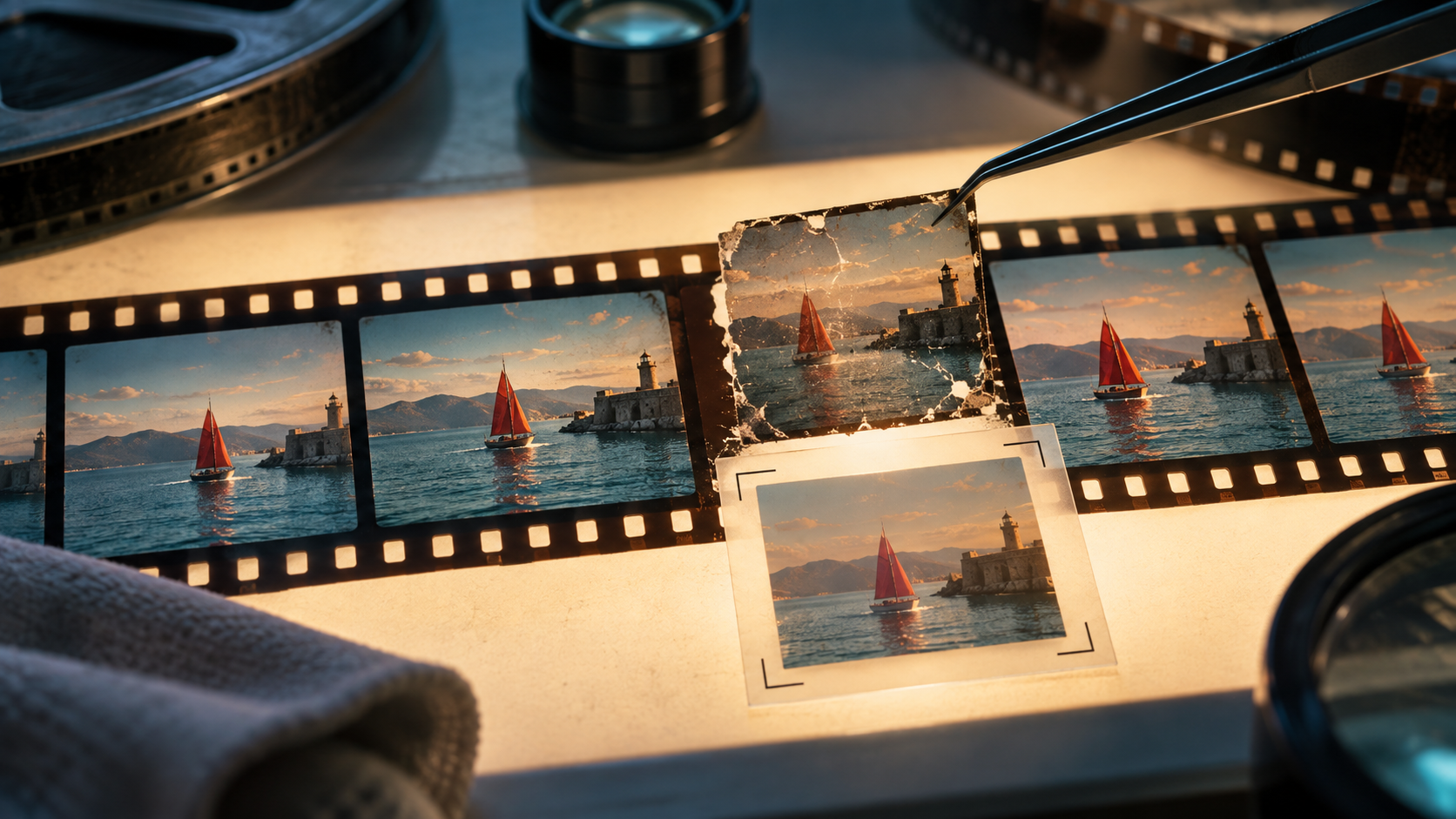
Elara reaches toward a glowing orb in a generated scene—most frames look fine, but her fingers briefly distort during the pickup. Before regenerating the entire shot, consider that many frames remain usable. Targeted editing can often address isolated problems more efficiently than starting over, preserving the successful portions of your footage while correcting specific moments.
This guide explores a systematic repair approach: diagnose precisely, isolate the problem, and apply the least invasive fix before considering regeneration.
The Diagnostic Imperative
Before attempting any fix, identify the specific visible problem. A flawed eight-second clip might contain four excellent seconds. Knowing exactly where and why it fails lets you preserve the good parts.
Common AI Video Failures:
- Identity: Face, hair, clothing, or body changes inconsistently; props or background elements alter unexpectedly.
- Motion: Action appears incomplete, unnaturally floaty, or physically implausible.
- Composition: Subject drifts out of frame or important details are obscured.
- Continuity: Props, direction, lighting, or object states conflict with adjacent shots.
- Timing: Action starts too late, ends too early, or lasts too long.
- Sound: Dialogue is garbled, ambient sound inconsistent, synchronization off, or unwanted noise present. (For re-recorded dialogue or identity references, ensure appropriate rights and consent.)
- Artifacts: Localized warping, extra objects, text glitches, flickering, or background mutations.
A clear diagnosis guides the most efficient repair path.
Repair Hierarchy: Least to Most Invasive
1. Trim to Usable Action
Many clips fail at their beginning or end when models "invent" motion before or after the intended action.
Repair: Identify the first stable frame and the last believable frame. Trim everything outside these points. A shorter, clean shot is almost always stronger than a longer, flawed one.
Worked Example: A character, "Elara," picks up a glowing orb. The generation starts with her hand already in unclear motion, she picks up the orb cleanly, but the shot ends with her hand shaking slightly.
- Diagnosis: Motion artifact (shaking hand) at end; awkward start.
- Repair: Trim initial unclear frames and final shaking frames. The core pickup action remains perfectly usable.
- Stop Condition: Shot begins and ends cleanly, focusing only on intended action.
2. Crop or Reframe
If the defect is confined to frame edges, a strategic crop can eliminate it or improve composition.
Repair: Crop to remove the problematic area. Consider reframing a wide shot into a tighter close-up if it enhances narrative and hides a defect.
Considerations:
- Resolution: Ensure remaining resolution is sufficient. Cropping does not recover lost detail.
- Framing: Avoid awkward cuts through joints or important information.
- Aspect Ratio: Test if action remains clear in new aspect ratios.
Example (continued): A minor flicker artifact appears in the top-right corner, away from Elara and the orb.
- Diagnosis: Artifact (flicker) in compositionally unimportant area.
- Repair: Subtle crop from top and right edges removes flicker without impacting subject.
- Stop Condition: Flicker gone; composition remains strong.
3. Hide Defects with Motivated Coverage
When trimming or cropping isn't enough, a cutaway can conceal a problematic section while adding narrative value.
Repair: Use an insert shot, reaction shot, or relevant object/environment shot to bridge the gap.
Strategy: Build a library of versatile cutaways: hands, props, environmental details, silent reactions.
Example (continued): After Elara picks up the orb, her face distorts briefly before returning to normal. This distortion is too central to crop.
- Diagnosis: Identity artifact (face distortion) during critical moment.
- Repair: Insert a close-up of the glowing orb in Elara's hand during distorted frames.
- Stop Condition: Facial distortion hidden; cutaway adds visual interest.
4. Repair Sound Independently
Visual and audio problems can be addressed separately.
Repair:
- Visual with bad audio: Replace ambient sound, rebuild effects, re-record dialogue (with consent), or use silence.
- Audio with bad visual: Use clean audio to bridge over visual cutaways.
- Room Tone: Always match room tone between clips. Abrupt background changes make edits feel jarring.
Example (continued): The sound includes an odd metallic clang as Elara picks up the orb, unsuitable for the magical context.
- Diagnosis: Sound artifact (unsuitable clang).
- Repair: Remove clang; replace with subtle ethereal sound effect matching the glowing orb. Maintain consistent ambient tone.
- Stop Condition: Sound design supports visual narrative without distraction.
5. Use Speed Changes Carefully
Subtle speed adjustments can refine timing or smooth awkward movement.
Repair: Apply minor speed adjustments (95% or 105%) to specific sections.
Cautions:
- Extreme Slow Motion: Exposes artifacts or makes motion unnatural.
- Aggressive Acceleration: Makes movement weightless or jerky.
- Optical Flow: Can introduce new distortions around hands, hair, or fine details. Review frame-by-frame.
Example (continued): Elara's movement to pick up the orb feels slightly too fast.
- Diagnosis: Timing issue (action too fast).
- Repair: Apply 90% speed adjustment to frames where she reaches for the orb. Review for new artifacts.
- Stop Condition: Action feels more deliberate and impactful.
6. Replace a Small Section (Patching)
If a localized problem persists and your tools support it, replace only the affected region. Some models or editors may offer inpainting, start/end frame controls, or video-to-video editing on small patches.
Repair: Isolate the smallest problematic region. Use a stable frame before the failure as reference. The instruction should be highly specific, focusing only on the correction needed.
Example Instruction: "Locked medium shot, Elara's fingers maintain consistent form as they approach the orb; the orb's spherical shape remains stable throughout contact."
Example (continued): A single frame during Elara's orb pickup shows severe thumb distortion.
- Diagnosis: Localized identity artifact (thumb distortion) on single frame.
- Repair: If your editor supports it, target only that frame with a prompt like "Elara's left hand holding the glowing orb, thumb correctly positioned."
- Stop Condition: Thumb distortion corrected without affecting surrounding frames.
7. Regenerate Only the Failed Shot
When all other methods fail and the core action, identity, or continuity is fundamentally flawed throughout, regeneration becomes necessary. However, regenerate only the specific shot, not the entire scene.
Repair: Keep accepted neighboring clips. Generate the new shot to match the actual start and end states of adjacent clips. Maintain careful attention to continuity in character position, lighting, and environment.
Diagnostic Table
| Symptom | Repair Strategy | Stop Condition |
|---|---|---|
| Artifact at start/end | Trim to stable frames | Clean beginning and end |
| Edge defect, weak framing | Crop or reframe | Defect removed, composition improved |
| Central defect during action | Motivated cutaway | Defect hidden, narrative enhanced |
| Bad audio, good visual | Replace sound, match room tone | Audio supports visual |
| Action timing off | Subtle speed adjustment | Timing feels natural |
| Localized single-frame flaw | Patch (if supported) | Flaw corrected, context preserved |
| Core action/identity broken | Regenerate shot only | New shot matches adjacent clips |
Preventing Future Failures
Every failure is a learning opportunity. Document problems and solutions to improve future generation quality.
- Record Diagnosis and Correction: Maintain a log of what went wrong and how it was fixed.
- Identify Patterns: If fast camera orbits break identity, adjust coverage. If complex props fail during hand interaction, generate simpler angles. If shots become unusable after main action, request clear held endings.
- Failure Log: Treat wasted credits as production knowledge.
Frequently Asked Questions
When should I regenerate an AI video shot? Regenerate only when the core action, identity, or continuity is fundamentally incorrect throughout the usable duration, and no editing (trimming, cropping, covering, patching) can salvage a clean section.
Can AI video artifacts be removed in editing? Localized artifacts can often be cropped, covered, or replaced via small patches if your tools support it. Major identity or motion failures usually require targeted regeneration.
Is a shorter shot acceptable? Absolutely. Narrative clarity and impact are paramount. A concise, clean shot is always better than a longer, flawed one. Reaction shots and sound design maintain rhythm and pacing.
Should I keep failed generations? Yes, keep them until the scene is locked. They might contain usable frames, ambient sound, or insights into what prompts or parameters to avoid.
Conclusion
Effective AI video editing blends technical skill and editorial restraint. By diagnosing precisely, applying the least invasive repair first, and documenting findings, you transform imperfect generations into polished footage. The goal is informed decisions that preserve narrative integrity.
Creators can experiment with VideoAny's video-to-video feature at Transform Your Existing Videos, which accepts existing footage alongside a descriptive prompt. Testing on a duplicate clip lets you explore adjustments without overwriting originals. Results depend on the model you select and always require manual review, as outcomes vary and may not address every issue.