Categories: AI Video, Tool Comparison, Creator Workflow
Tags: uncensored ai image to video, image to video nsfw, uncensored image to video, text to video, creator workflow
Introduction
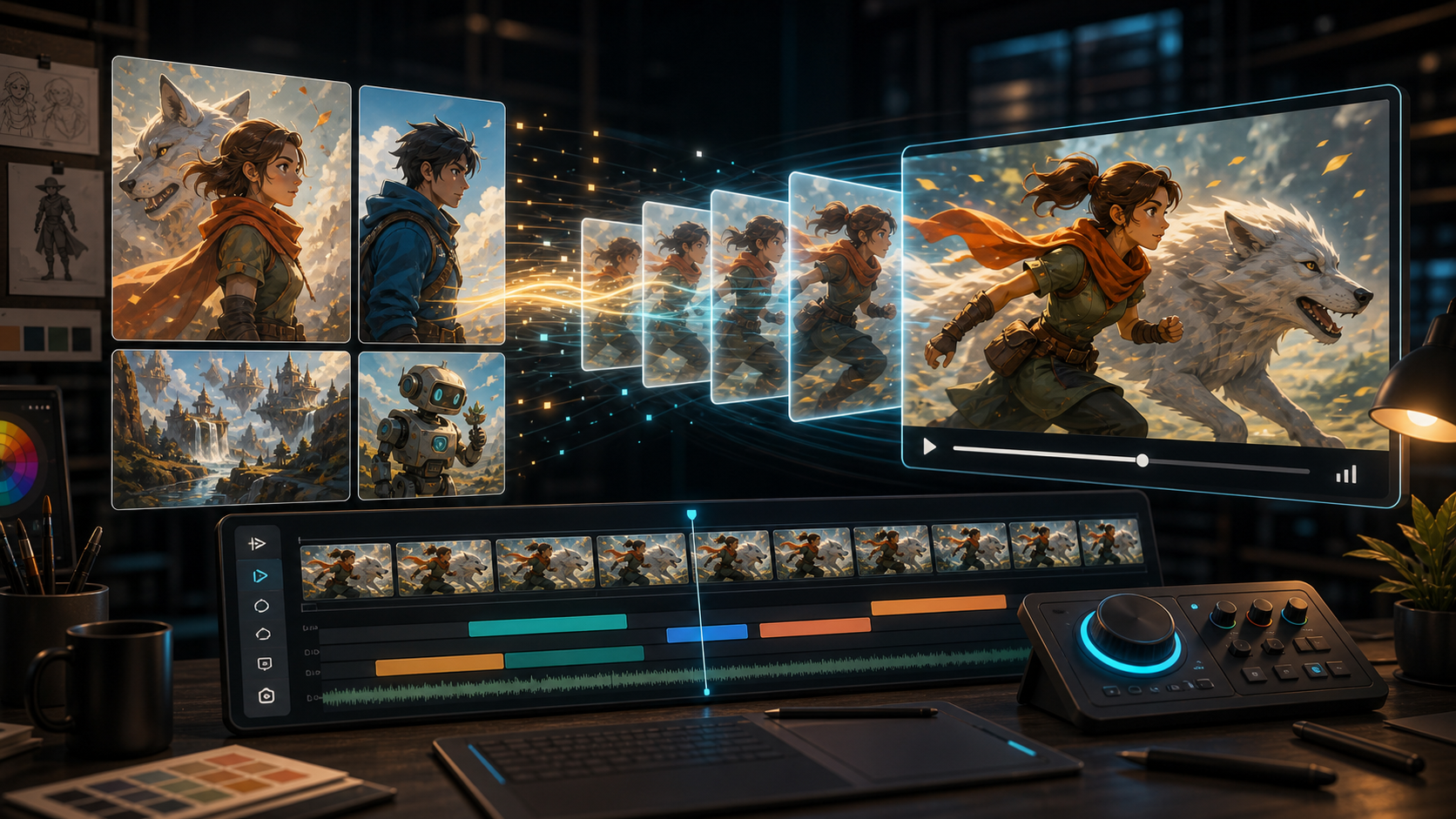
While text-to-video has gained massive popularity, professional creators often find that their visual ideas are best initiated through static imagery. The primary challenge arises when trying to animate these assets; standard platforms frequently flag custom character models, stylized fantasy drawings, or gothic artwork as policy violations. This is where uncensored ai image to video tools become essential, giving creators the freedom to bring any visual design to life with fluid motion and no filter blockages.
Whether you are working with an AI-generated seed image, a hand-drawn illustration, or a 3D character render, choosing an unrestricted engine ensures your workflow remains uninterrupted.
Why Image-to-Video Outperforms Text-to-Video for Control
Relying on text alone leaves a massive amount of composition and character detail up to the model's imagination. Image seeds act as a rigid blueprint:
- Character Continuity: Keeps faces, hair, clothing, and background layout exactly consistent across frames.
- Compositional Precision: Ensures your subject is positioned precisely where you want it.
- Style Fidelity: Preserves the color scheme, textures, and brush strokes of the original artwork.
"For animation pipelines, text prompts are too abstract. Starting with an image seed and using an unrestricted physics/motion controller is the only way to achieve predictable character movement." — Hiroshi Tanaka, Lead Animator at Tokyo Synth Studios
The Image-to-Video Animation Pipeline
Moving from static pixels to dynamic cinematic frames requires a clear understanding of the motion translation process.
The layout below represents the workflow pipeline:
- Seed Image Preparation: Ensure the base image has a clear focal point and clean lighting.
- Unrestricted Motion Engine: Feed the image into a tool that doesn't filter elements based on context.
- Motion Vector Settings: Adjust the pan, zoom, roll, and intensity scales.
- Generation & Rendering: Run the generation, then optimize the timing.
- Post-Processing & Audio: Extract or combine soundscapes using tools like the Video to Audio Tool.
Top Uncensored Image-to-Video Tools
1. VideoAny (Best Web App)
VideoAny provides an advanced, seamless image-to-video interface with zero content filters. Simply upload your graphic to the Image to Video Tool and command the motion parameters. If you need to generate a seed image first, use the Text to Video Tool to establish your scene.
2. Stable Video Diffusion (SVD - Local Node)
An open-source checkpoint that can be run locally using ComfyUI. Because it runs on your own hardware, it is completely uncensored. However, it requires a high-end GPU with at least 16GB of VRAM and complex pipeline configuration.
3. Seedance Pro
A cloud-based option that permits high-motion scaling. It is excellent for hyper-action animation, but paid credits are required for watermark-free rendering.
Motion Tuning Settings for Natural Results
When animating an image seed, configure these parameters:
- Motion Scale (1-10): Keep it low (2-4) for realistic gestures or cinematic slow pans. Turn it up (7-10) for action scenes.
- Camera Pan & Zoom: Use subtle camera instructions to guide focus without warping the character's facial features.
- Resolution Scaling: Render at 720p for fast previews, then upscale to 4K once the motion paths are finalized.
Conclusion
Using uncensored ai image to video technology enables digital artists to turn still creations into professional cinematic outputs. By choosing direct-access platforms like VideoAny, creators can bypass generic restrictions and maintain absolute control over their art.
FAQs
1) Does the platform censor the uploaded images?
No. Uncensored engines do not analyze your uploaded graphics for arbitrary content flags, allowing you to animate fantasy designs, stylized portraits, and conceptual art freely.
2) Can I animate vertical images?
Yes. Platforms like VideoAny support multiple aspect ratios, including 9:16 (vertical for social channels) and 16:9 (widescreen).
3) How do I prevent character morphing?
Keep the motion scale under 5 and write positive prompts describing the motion clearly (e.g., only hair blowing in the wind, static pose) to guide the engine.