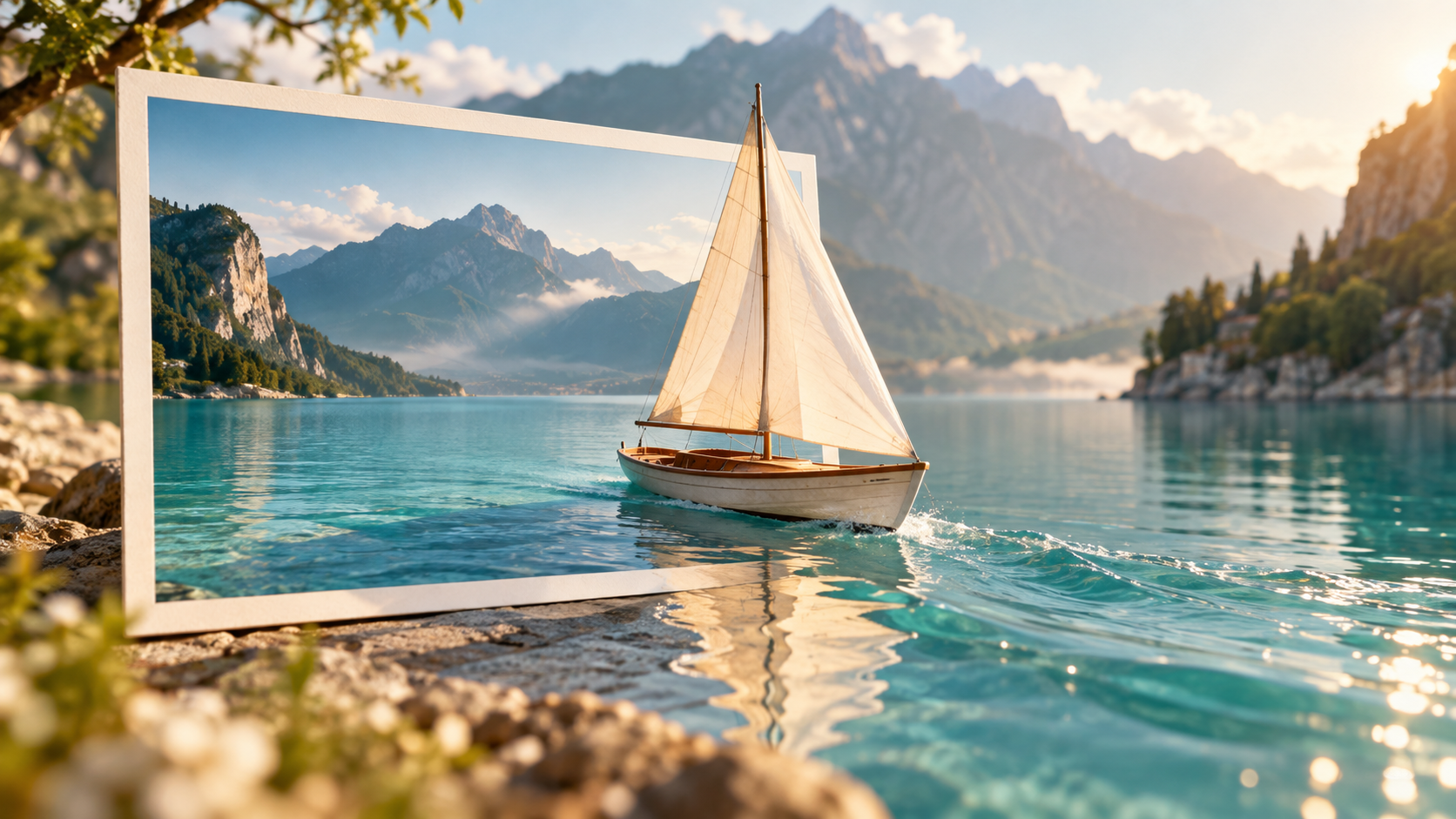
To animate a still image with AI, you typically upload your chosen picture to a specialized platform, then define the desired motion using text prompts, directional controls, or motion brushes. The AI interprets these instructions to generate short video clips, inventing missing visual information to create the illusion of movement. This process often requires iterative adjustments to achieve the intended effect.
Understanding Image Animation with AI
Animating a still image with artificial intelligence involves more than just adding a filter; it's a sophisticated process where AI models generate new frames to depict movement that was never present in the original photograph. This technology excels at creating short, dynamic clips from static visuals, but it operates under certain inherent limitations. The AI must invent visual information for unseen parts of objects, backgrounds, and follow-through motions, which can introduce ambiguity and unexpected results.
The core challenge for AI is that a single still image provides only one perspective. When an object moves, or the camera shifts, new surfaces and backgrounds become visible. The AI must infer what these unseen areas look like, often based on its training data. This inference can be highly effective for common scenarios but can lead to distortions or illogical elements when the AI's assumptions don't match the desired outcome or the image's context. Understanding this generative aspect is crucial for setting realistic expectations and effectively guiding the AI.
The Generative Nature of AI Animation
AI image animation works by analyzing the content of your still image and then, based on your instructions, generating a sequence of frames that simulate motion. This isn't simply warping the existing pixels; it's creating new pixels and even entirely new elements to fill in the gaps as objects or the camera move. For instance, if a person turns their head, the AI must generate the side or back of their head, which was not visible in the original image. Similarly, if the camera pans, the AI generates the parts of the background that would come into view.
This generative capability is powerful but also the source of common challenges. The AI's "imagination" is guided by its training data, which means it will tend to produce results consistent with patterns it has learned. This can be beneficial for natural movements but can also lead to issues like "facial drift" (where a face subtly changes identity over the animation) or "unstable architecture" (where background elements warp unnaturally). Effective prompting and careful image selection are key to mitigating these issues.
Preparing Your Source Image for Animation
The quality and composition of your source image significantly impact the success of AI animation. Not all images are equally suitable, and some require specific preparation to yield the best results.
Image Suitability and Composition
The ideal source image for AI animation is typically clear, well-lit, and has a distinct subject. Images with simple backgrounds often perform better, as they reduce the complexity for the AI when generating new visual information.
- Portraits: For animating faces, clear, front-facing or slightly angled portraits work well. Avoid extreme angles or obscured features. Be mindful of the "unseen anatomy" problem; if a head turns significantly, the AI must invent the back of the head, which can sometimes lead to less convincing results.
- Full-Body Artwork: Similar to portraits, full-body images benefit from clear poses. Complex clothing or dynamic poses might be harder for the AI to animate naturally without distortions.
- Packaging and Text: Images containing critical text or intricate logos on packaging can be challenging. As the image animates, text can warp, shimmer, or become illegible. If text clarity is paramount, post-production might be necessary to stabilize or re-add text.
- Landscapes: Landscapes with clear foreground, midground, and background elements can be animated effectively, especially with camera movements like pans or tilts. However, overly busy scenes with many small, distinct objects might lead to visual clutter or artifacts during motion generation.
Images with high ambiguity, such as those with blurry elements, heavy shadows, or complex, overlapping objects, tend to produce less predictable or coherent animations. The AI struggles to invent missing details when the original image provides insufficient context.
Aspect Ratio and Clarity
Most AI animation tools work best with standard aspect ratios like 16:9, 1:1, or 9:16. Using unusual aspect ratios might lead to cropping or black bars. High-resolution images are generally preferred, as they provide more detail for the AI to work with, resulting in sharper animated outputs. However, extremely large images might exceed platform limits or increase processing time. Ensure your image is sharp and free from compression artifacts before uploading.
Defining Motion: Layers, Styles, and Controls
Once your image is ready, the next step is to instruct the AI on how to animate it. This involves understanding different types of motion, applying specific styles, and utilizing camera controls.
Types of Motion
Motion in AI animation can be broken down into several categories, each serving a different purpose:
- Main Action: This refers to the primary movement of a subject within the frame, such as a person walking, an object rotating, or a flag waving. This is often the most prominent motion you want to achieve.
- Follow-Through Motion: These are secondary movements that occur as a consequence of the main action, like a character's hair swaying after they stop moving, or ripples spreading in water after an object falls in. These add realism.
- Viewpoint Motion: This involves changes in the camera's perspective, such as zooming in or out, panning across the scene, or tilting up or down.
- Ambient Motion: Subtle, continuous movements in the background or environment, like flickering lights, gentle wind rustling leaves, or distant smoke rising. This adds life to a scene without drawing too much attention.
When planning your animation, consider which of these motion types are essential for your desired effect. Over-animating can lead to a chaotic or unnatural look.
Motion Styles and Directional Prompts
AI animation tools often provide various ways to define motion:
- Text Prompts: You can describe the desired motion using natural language. For example, "gentle waves on the lake," "leaves rustling in a light breeze," or "a subtle head turn."
- Directional Controls: Many tools offer arrows or sliders to indicate the direction and intensity of motion for specific areas of the image. You might draw a mask over water and apply a "downward" motion for a waterfall, or select a character and apply a "left-to-right" motion.
- Motion Brushes: Some advanced interfaces allow you to "paint" areas of motion directly onto the image, defining regions that should move and how.
- Pre-set Styles: Platforms may offer pre-defined motion styles like "cinematic pan," "subtle zoom," or "object bounce," which can be applied with minimal input.
When using text prompts, be specific and concise. Negative constraints can also be useful, such as "no movement in the background" or "keep the face still."
Camera Controls: Pan, Tilt, and Translation
Understanding camera controls is vital for creating dynamic and professional-looking animations. It's important to distinguish between camera rotation (pan, tilt), physical camera translation (sideways, vertical, forward/backward), and optical focal-length changes (zoom).
- Pan (Yaw Rotation): This is the camera rotating horizontally around its vertical axis, as if turning its head left or right while staying in the same spot. The scene appears to sweep horizontally.
- Sideways Camera Translation (Trucking/Dollying): This is the camera moving linearly left or right, parallel to the subject, without rotating. The perspective shifts, revealing new parts of the scene from the side.
- Tilt (Pitch Rotation): This is the camera rotating vertically around its horizontal axis, as if nodding its head up or down. The scene appears to sweep vertically.
- Vertical Camera Translation (Booming/Craning): This is the camera moving linearly up or down, without rotating. The perspective shifts, revealing new parts of the scene from above or below.
- Zoom and Dolly: These are two distinct camera movements, often confused but achieved through different techniques. Optical zoom changes the focal length of the lens, making the subject appear closer or further without physically moving the camera. Dolly/Push-in/Pull-out involves physically moving the camera closer to or further from the subject.
Choosing the right camera movement can dramatically alter the mood and focus of your animation. A subtle pan can reveal more of a landscape, while a gentle push-in can draw attention to a subject's expression. However, aggressive camera movements, especially those that expose significant unseen areas, can increase the likelihood of artifacts or distortions.
Worked Example: Sailboat on a Lake
Let's animate a serene image of a sailboat on a calm lake, with distant mountains under a partly cloudy sky. Our goal is to create subtle, natural motion without exposing unseen parts of the boat or background.
Image Description: A watercolor painting of a small sailboat with a white sail, gently floating on a blue lake. In the background, soft green mountains rise, and above them, a sky with scattered white clouds. The sun is not visible, but the scene is bright.
Desired Motion:
- Gentle ripples on the water around the sailboat.
- A slight, almost imperceptible sway of the sailboat.
- Very slow, subtle movement of the clouds.
- A completely locked camera (no pan, tilt, or zoom).
Prompting Strategy:
- Main Prompt: "Animate a watercolor painting of a sailboat on a lake."
- Motion Instructions (Text/Directional):
- "Water: gentle, undulating ripples, slow movement."
- "Sailboat: subtle, gentle sway, minimal movement."
- "Clouds: very slow, drifting motion from left to right."
- "Camera: locked, no movement, no zoom."
- Negative Constraints: "No full rotations of the sailboat," "no distortion of mountains," "keep the horizon stable."
Expected Outcome: A short video where the water subtly moves, the sailboat bobs slightly, and the clouds drift, maintaining the peaceful aesthetic of the original painting. A locked camera reduces the need for generating unseen background geometry and minimizes the risk of introducing problematic elements, though the generation process can still introduce changes. This approach minimizes ambiguity and focuses on enhancing the existing scene with natural, contained movements.
Iterative Production Workflow
Creating compelling AI animations is often an iterative process of testing, reviewing, and refining. A systematic approach helps in achieving desired outcomes efficiently.
Test, Review, and Record
- Start Small: Begin with short animation durations (e.g., 2-4 seconds) and minimal motion parameters. This allows for quick generation and evaluation cycles.
- Archive Settings: For every successful or promising generation, meticulously record the prompt, motion settings (e.g., intensity, direction, camera movements), and any other parameters used. This creates a valuable library of working configurations.
- Vary One Factor: When refining an animation, change only one parameter at a time (e.g., increase motion intensity slightly, adjust camera pan speed, or modify a single word in the prompt). This helps isolate the effect of each change and understand its impact.
- Evaluate Critically: Review the generated animation for:
- Identity Preservation: Does the subject maintain its identity (e.g., facial features, distinct object characteristics)?
- Physical Mechanics: Do movements appear natural and physically plausible?
- Camera Behavior: Does the camera move as intended, without jarring shifts or unintended rotations?
- Continuity: Are there any sudden jumps, flickering, or inconsistencies between frames?
- Looping (if applicable): If aiming for a loop, do the start and end frames blend seamlessly?
- Refine and Repeat: Based on your evaluation, adjust the parameters and generate again. Continue this cycle until you achieve the desired quality or identify a limitation of the current image/tool.
This systematic approach minimizes wasted effort and helps in building an intuitive understanding of how different controls influence the AI's output.
Addressing Specific Image Types and Considerations
Certain types of images and artistic styles present unique challenges and opportunities for AI animation.
Animating Anime and Cartoon Characters
Anime and cartoon characters, with their often simplified forms and distinct visual styles, can be excellent candidates for AI animation. Their clear lines and defined features can sometimes make it easier for AI to maintain consistency. However, preserving the specific "identity" of a well-known character requires careful prompting and attention to detail. Subtle facial expressions or characteristic movements are often key. The AI might struggle with highly stylized or exaggerated movements that fall outside its typical training data.
Historical Photos and Dignity
Animating historical photographs, especially those depicting real people, requires sensitivity. While adding subtle motion can bring a new dimension to these images, it's crucial to consider the dignity of the subjects. Excessive or unnatural movements, or any distortions that alter their appearance in an undignified way, should be avoided. The goal should be to enhance, not to caricature or misrepresent. Consent and rights considerations are particularly important when dealing with images of identifiable individuals, living or deceased.
Paintings: Preservation vs. Reinterpretation
Animating classical paintings can offer a fascinating new perspective on art. However, a key consideration is whether the goal is to "preserve" the original artistic intent by adding subtle, respectful motion, or to "reinterpret" it with more dynamic, transformative animation. For preservation, gentle ambient movements (e.g., rustling leaves in a landscape, flickering candlelight) are often preferred. For reinterpretation, more dramatic character movements or camera shifts might be explored, but with the understanding that this fundamentally alters the artist's original static vision. The AI's generative nature means it will always be a reinterpretation to some degree, as it invents details not present in the original brushstrokes.
Troubleshooting Common Animation Issues
Even with careful planning, you may encounter issues during AI animation. Here are some common problems and troubleshooting tips:
- Under-Motion or Lack of Movement:
- Cause: Motion intensity too low, prompt too vague, or conflicting instructions.
- Fix: Increase motion intensity parameters. Be more specific in your prompt (e.g., "vigorous waves" instead of "waves"). Ensure no negative constraints are inadvertently canceling out desired motion.
- Facial Drift or Identity Change:
- Cause: AI struggling to maintain consistent facial features during movement, especially with head turns or strong expressions.
- Fix: Use a "face lock" or "identity preservation" feature if available. Reduce the intensity of facial motion. Keep head movements subtle. Add negative constraints like "maintain original facial features."
- Contradictory Camera Instructions:
- Cause: Prompting for both a "locked camera" and a "slow zoom," or conflicting directional movements.
- Fix: Review all camera controls and prompts to ensure they are consistent. Prioritize one type of camera movement per animation.
- Unstable Architecture or Warping Backgrounds:
- Cause: AI struggling to maintain structural integrity of buildings or complex backgrounds, especially with camera movements that expose new areas.
- Fix: Reduce camera movement, particularly aggressive pans or tilts. Use a "background lock" feature if available. Simplify the background in the original image if possible.
- Mismatched Loop Endpoints:
- Cause: When creating a looping animation, the final frame doesn't seamlessly transition back to the first.
- Fix: Many tools have a "looping" option that helps the AI generate a smooth transition. If not, experiment with shorter animation durations and very subtle, continuous motions.
- Hand Contact Issues:
- Cause: Hands interacting with objects often look unnatural or distorted during animation due to the complexity of human anatomy and object interaction.
- Fix: Avoid animating scenes where hands are performing complex actions or are partially obscured. Keep hand movements minimal.
- Changing Typography:
- Cause: Text on signs, packaging, or clothing warps or flickers during animation.
- Fix: Reduce overall motion in areas with text. Consider animating the image without text and then adding stable text in post-production.
Rights and Consent Considerations
When animating images, it's crucial to be aware of intellectual property rights and consent.
- Copyright: Ensure you have the right to use the image you are animating. This means it's either your original work, you have purchased a license, or it's in the public domain. Animating copyrighted material without permission can lead to legal issues.
- Consent for Identifiable Individuals: If your image features identifiable people, especially if they are not public figures, consider whether you have their consent to animate and potentially publish their likeness. This is particularly important for sensitive content or commercial use.
- Platform Terms of Service: Always review the terms of service of the AI animation tool you are using. These terms often outline how your generated content can be used, stored, and whether the platform retains any rights to it.
Frequently Asked Questions
What kind of images are most suitable for AI animation?
Images with clear subjects, good lighting, and relatively simple backgrounds tend to yield the best results. Portraits, still life, and landscapes with distinct layers are often good starting points. Avoid overly complex, blurry, or ambiguous images.
How much movement can I expect from an AI-animated image?
The amount of movement can vary from subtle, ambient effects (like gentle ripples or swaying leaves) to more dynamic actions (like a character turning or a camera panning). However, AI struggles with extreme movements that require inventing significant unseen geometry or complex, multi-stage actions.
Can I specify what not to animate?
Yes, many AI animation tools allow for negative constraints or masking features. You can often specify areas or elements that should remain static, or describe motions you want to avoid (e.g., "no movement in the background," "keep the face still").
Does image clarity and aspect ratio matter?
Absolutely. High-resolution, clear images provide more detail for the AI to work with, leading to sharper animations. Standard aspect ratios (e.g., 16:9, 1:1) are generally preferred to avoid cropping or awkward framing.
Are there free trials available for AI image animation tools?
Many AI animation platforms offer free trials or limited free tiers, allowing users to experiment with the technology before committing to a subscription. The features and generation limits during these trials vary significantly between providers.
What about commercial rights for animated images?
Commercial rights depend on the terms of the AI tool you use and the licensing of your original source image. Always check the platform's terms of service regarding commercial use of generated content. If you use a copyrighted source image, you must have appropriate commercial licenses for both the original image and its animated derivative.
Conclusion
AI image animation offers a powerful way to transform static visuals into engaging video content. By understanding the generative nature of AI, carefully preparing your source images, and mastering the various motion and camera controls, you can achieve impressive results. The process is often iterative, requiring patience and systematic refinement, but the ability to bring still moments to life opens up new creative possibilities for artists, marketers, and storytellers alike.
To explore tools and models for transforming your images into dynamic video, you can browse relevant options on the VideoAny image-to-video page.