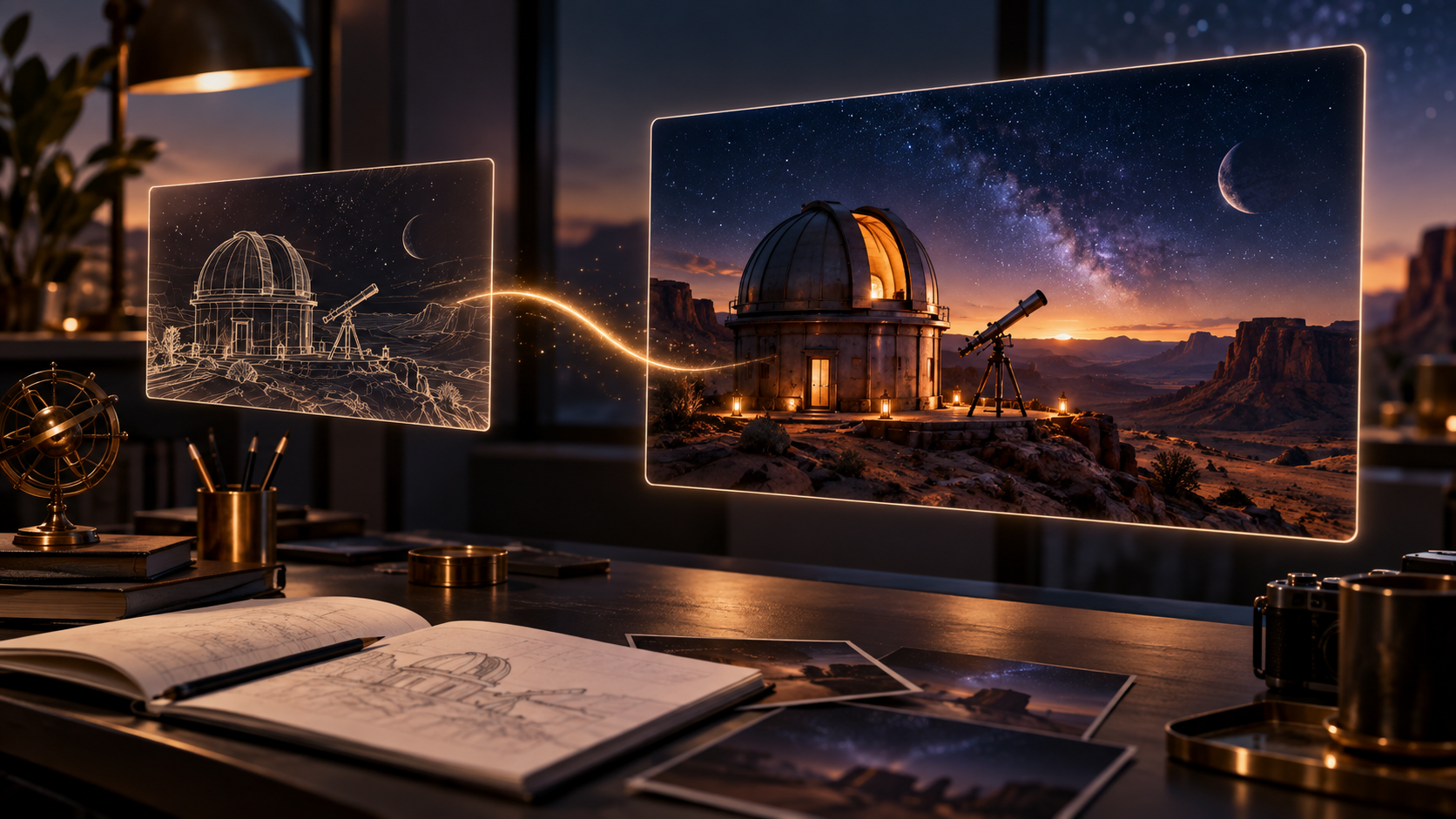
To use Grok AI's video generator, known as Imagine, access it via grok.com or its mobile apps. You can initiate video creation from either a text prompt or an existing image. The process involves defining your scene, action, and camera, then refining your input based on the generated output to achieve desired results.
Accessing Grok Imagine for Video Generation
Grok AI's video generation capabilities, branded as Imagine, are accessible through the primary Grok platform. Users can typically sign in via the web interface at grok.com or through the dedicated Grok applications available on iOS and Android devices. Upon successful login, the Imagine feature is usually integrated within the chat interface or a dedicated creative section.
It's important to understand that access to video generation features, including the specific allowances and capabilities, can vary. A free Grok account, for instance, does not automatically guarantee universal free Imagine video entitlement. Usage is often tied to account tiers and may operate under a shared weekly allowance for consumer users. This allowance typically resets periodically, and users can monitor their current usage and reset times within their account settings. For detailed information on access, pricing, and specific terms, it is advisable to consult the official FAQs and pricing pages directly, such as those found at x.ai/legal/faq and x.ai/pricing. (Information checked September 21, 2026).
A distinction also exists between consumer-facing access and developer API access. While this guide focuses on the consumer interface, developers might interact with Imagine through separate API endpoints, which come with their own specific rate limits, duration parameters, resolution options, and per-second fee structures. These developer-specific parameters do not apply to the consumer interface.
Understanding Grok Imagine's Core Modes: Text-to-Video and Image-to-Video
Grok Imagine offers two primary methods for generating video content: starting from a text prompt (text-to-video) or animating an existing image (image-to-video). Each mode serves a distinct creative purpose and influences the generation process differently.
Text-to-Video: Exploring Composition and Movement
The text-to-video mode is ideal when you have a clear concept or narrative idea but no specific visual starting point. In this mode, your text prompt acts as the sole blueprint for the AI, guiding it to construct the scene, characters, actions, and camera movements from scratch. This approach allows for greater creative freedom in defining the initial composition and overall aesthetic.
For example, if you want to visualize a specific scenario, such as: > "A weathered lighthouse keeper, standing on a rocky outcrop at dusk, scans the turbulent sea with a brass telescope. Waves crash against the cliffs below, and a single distant ship's signal light blinks through the mist."
The AI will interpret this description to generate a video that attempts to match the framing, atmosphere, and action described. This mode is excellent for brainstorming visual ideas and seeing how different descriptive elements translate into motion.
Image-to-Video: Animating a Visual Foundation
Conversely, the image-to-video mode is used when you have a specific visual you wish to bring to life. Here, you provide an initial image, and the AI then animates elements within that image based on a supplementary text prompt. The image acts as a strong constraint, anchoring the visual style, composition, and often the main subject of the video.
This mode is particularly useful for:
- Adding subtle motion to still photography.
- Creating dynamic backgrounds from static images.
- Animating characters or objects within a predefined scene.
For instance, if you have a high-resolution image of a coastal watchtower overlooking a calm sea, you might provide that image along with a prompt like: > "An old lighthouse keeper emerges from the watchtower, looking out at the sea. The sea begins to churn, and a storm gathers on the horizon. Camera slowly zooms out."
In this case, the AI will attempt to animate the keeper and the sea while maintaining the core visual elements and style of your provided image. The success of the animation will depend on how well the AI can interpret the image's depth and segment its elements for movement.
Choosing between text-to-video and image-to-video depends on your starting point and creative goals. If you're exploring ideas, text-to-video offers flexibility. If you have a strong visual foundation you want to animate, image-to-video provides a more controlled starting point.
Crafting Effective Prompts for Video Generation
The quality of your AI-generated video heavily relies on the clarity and detail of your prompt. A well-constructed prompt guides the AI to produce a more accurate and visually compelling result. When writing prompts for Grok Imagine, consider the following components:
Key Prompt Components
- Framing and Composition: Describe the shot type (e.g., wide shot, close-up), angle (e.g., low angle, eye-level), and overall composition.
- Example: "A wide shot of a rugged coastline, a solitary watchtower perched on a cliff."
- Initial State: Set the scene and describe the starting conditions or appearance of subjects.
- Example: "The sky is overcast, the sea a deep, calm blue. The watchtower's light is off."
- Primary Action: Clearly state the main movement or event you want to occur. Keep it concise and focused.
- Example: "A lighthouse keeper steps out onto the watchtower's balcony, scanning the horizon."
- Camera Movement: Specify how the camera should move (e.g., pan, zoom, dolly, static).
- Example: "The camera slowly pans from the keeper to the distant, darkening horizon."
- Physical Response/Environment: Describe how elements in the scene react to the action or changes in the environment.
- Example: "The wind picks up, rustling the keeper's coat. Waves begin to swell and crash against the rocks."
- Pacing and Continuity: Hint at the speed of actions or the flow of events.
- Example: "The scene unfolds with a sense of growing tension."
- Optional Sound: If the active mode supports sound generation, you can describe ambient sounds or specific audio cues. This capability is conditional and may not be available in all generation modes or account tiers.
- Example: "Sound of distant thunder and the mournful cry of gulls."
Original Prompt Examples
Let's apply these components to our coastal watchtower scenario.
Text-to-Video Prompt Example: > "A cinematic wide shot captures a weathered stone watchtower standing sentinel on a jagged cliff face. The sky is a dramatic canvas of swirling grey clouds, hinting at an approaching storm. Below, the turbulent sea churns with white-capped waves crashing against the base of the cliffs. A solitary, elderly lighthouse keeper, clad in a thick, dark oilskin coat, emerges from the watchtower's heavy wooden door. He walks to the edge of the balcony, raising a tarnished brass telescope to his eye, scanning the tumultuous horizon with a look of deep concern. The camera slowly pushes in on his face, revealing the lines etched by years of vigilance. The wind whips his hair, and the distant rumble of thunder can be heard. A single, faint signal light from a ship blinks intermittently through the heavy mist far out at sea."
Image-to-Video Prompt Example (assuming an image of a watchtower on a cliff is provided): > "An existing image of a coastal watchtower on a cliff. An elderly lighthouse keeper, dressed in a heavy coat, steps out onto the balcony, raising a telescope to scan the sea. The calm sea in the image transforms into a rough, stormy ocean with large waves. The sky darkens, and mist rolls in. The camera slowly zooms out to reveal the vastness of the turbulent ocean."
When constructing your prompts, be specific but avoid overly complex sentences that might confuse the AI. Break down your vision into distinct, actionable descriptions. Experiment with different phrasing and levels of detail to understand how the AI interprets your input.
The Video Generation Workflow: From Idea to Clip
Generating video with Grok Imagine typically follows a structured workflow, whether you're starting from text or an image. Adhering to these steps can help you achieve more predictable and desirable outcomes.
Seven Steps for Effective Video Generation
- Assign the Shot a Narrative Purpose: Before writing any prompt, consider what this specific video clip needs to convey. Is it setting a mood, showing an action, or revealing a character's emotion? For our watchtower example, the purpose might be to establish a sense of impending danger and the keeper's vigilance.
- Pick One Primary Action: Focus on a single, clear action for the AI to animate. Overloading the prompt with multiple, complex actions can lead to confusing or poorly executed results. In our example, the primary action is the keeper scanning the horizon and the sea becoming turbulent.
- Separate Subject, Camera, and Environment: Clearly define these three elements in your prompt.
- Subject: The lighthouse keeper, the ship.
- Camera: Wide shot, slow pan, push in, zoom out.
- Environment: Rugged coastline, stormy sea, overcast sky, mist. Explicitly separating these helps the AI understand what to animate and how to frame it.
- Protect a Few Identity Details: If your prompt involves characters, decide which core visual identity details are crucial and include them. For instance, "elderly lighthouse keeper, clad in a thick, dark oilskin coat." Be mindful of rights and consent when generating content that depicts identifiable individuals or copyrighted material. Always ensure you have the necessary permissions or are creating original, non-identifiable content.
- Choose Available Duration, Aspect Ratio, and Resolution: Before generation, you'll typically select these parameters.
- Duration: Grok Imagine may generate clips up to a certain length, for example, up to 15 seconds.
- Resolution: Output resolution can vary. While some plans might offer up to 720p, and a Plus plan might offer 1080p (as observed on September 21, 2026), generated media may drop to 480p after a specific tier's 720p cap is reached (Source).
- Aspect Ratio: Common aspect ratios like 16:9 (widescreen) or 9:16 (vertical) are usually available. Select the one best suited for your final output platform. It's important to note that all generated media from Grok Imagine will include a Grok watermark, and there is no setting to remove it (Source).
- Test Recognition, Action, Camera, and Ending: After the first generation, critically evaluate the output.
- Did the AI recognize all key elements (keeper, watchtower, sea)?
- Was the primary action executed as intended?
- Did the camera movements follow your instructions?
- Does the clip have a natural beginning and end, or does it cut abruptly?
- Change Only the Failing Variable: If the output isn't right, resist the urge to rewrite the entire prompt. Identify the specific element that failed (e.g., the keeper's action was weak, the camera zoomed too fast) and adjust only that part of the prompt. This iterative refinement process is more efficient for troubleshooting.
Diagnosing and Troubleshooting Common Issues
AI video generation is an iterative process, and you'll frequently encounter issues that require prompt adjustments. Here are common problems and strategies for addressing them:
Common Generation Problems
- Facial Drift or Inconsistency: Characters' faces may change appearance or distort over the duration of the clip, especially with complex movements or longer durations.
- Troubleshooting: Simplify the character's action. Try to keep the face less prominent or at a consistent angle. If using image-to-video, ensure the initial image has a clear, well-defined face.
- Unwanted Zoom or Camera Movement: The AI might introduce unexpected camera movements, such as an aggressive zoom when you intended a subtle pan.
- Troubleshooting: Be very explicit about camera instructions. Use terms like "static camera," "slow pan," or "gentle push in." If you want no camera movement, state "fixed camera."
- Weak or Unclear Action: The primary action described in your prompt might appear subtle, incomplete, or not as dynamic as envisioned.
- Troubleshooting: Use stronger verbs and more descriptive adverbs. Instead of "keeper moves," try "keeper strides purposefully." Break down complex actions into simpler steps if necessary.
- Added or Missing Objects: The AI might hallucinate objects not mentioned in the prompt or omit crucial elements you described.
- Troubleshooting: Review your prompt for ambiguity. If an object is missing, emphasize it. If an unwanted object appears, try adding negative prompts (e.g., "no birds," "without debris") if the interface supports them, or rephrase the surrounding description to exclude it.
- Contact or Anatomy Errors: Characters might interact with objects unnaturally, or their anatomy might appear distorted (e.g., extra limbs, unnatural poses).
- Troubleshooting: Simplify the interaction. Focus on the core action rather than intricate details. For anatomical issues, try different angles or less dynamic poses.
- Clips Without Usable Edit Endpoints: The generated video might start or end abruptly, making it difficult to seamlessly integrate into a larger project.
- Troubleshooting: Try adding phrases like "The scene begins calmly" or "The action slowly fades" to guide the AI towards smoother transitions. Generate slightly longer clips than needed to allow for trimming.
General Troubleshooting Tips
- Iterate Small Changes: As mentioned, change only one variable in your prompt at a time. This helps you isolate what's causing the issue.
- Experiment with Keywords: Different synonyms or descriptive words can yield varied results. "Turbulent sea" might be interpreted differently than "choppy ocean."
- Check Your Allowance: If generations are failing or taking excessively long, verify your account's generation allowance and ensure you haven't hit any caps.
- Review Official Documentation: The official Grok documentation (e.g., docs.x.ai/grok/overview) and FAQs are valuable resources for understanding current capabilities and limitations.
Integrating AI-Generated Clips into Larger Projects
While AI video generators like Grok Imagine are powerful tools for creating short, dynamic clips, they are typically part of a broader production pipeline rather than a standalone solution for complete projects. Integrating these clips effectively requires additional steps and traditional video production techniques.
Workflow for Larger Projects
- Reference Gathering and Storyboarding: Even with AI, starting with a clear vision is crucial. Gather visual references and create a basic storyboard to outline the sequence of shots, camera angles, and key actions. This helps you generate clips that fit together cohesively.
- Generate Multiple Takes: For each desired shot, generate several variations by slightly altering your prompts. This increases your chances of getting a usable clip and provides options during editing.
- Clip Comparison and Selection: Review all generated clips critically. Look for the best execution of the action, consistent visual style, and minimal artifacts. Don't be afraid to discard clips that don't meet your standards.
- Traditional Video Editing: AI-generated clips will often need to be cut, trimmed, and arranged in a video editing suite. This is where you stitch together your selected takes, adjust pacing, and ensure smooth transitions between scenes.
- Sound Design: While some AI models can generate basic ambient sound, comprehensive sound design—including dialogue, music, sound effects, and foley—is almost always handled in post-production using dedicated audio tools. This adds depth and emotional resonance to your video.
- Color Grading and Visual Effects: To achieve a consistent look and feel across all clips, apply color correction and grading. You might also use traditional visual effects (VFX) software to enhance elements, mask imperfections, or add layers that the AI couldn't generate.
- Rights and Consent: When using AI-generated content, especially if it involves recognizable elements or individuals, always consider the rights and consent implications. Ensure that any content you create and use respects intellectual property and privacy laws. If you are generating content that depicts individuals, ensure you have appropriate consent or that the depiction is entirely fictional and non-identifiable.
By treating AI-generated clips as valuable raw material rather than final products, you can leverage their unique capabilities within a robust production workflow to create more polished and professional video content.
Frequently Asked Questions (FAQ)
Can I only use text to generate videos, or can I use images too?
Grok Imagine supports both text-to-video and image-to-video generation. You can start with a descriptive text prompt to create a scene from scratch, or you can provide an existing image and use a text prompt to animate elements within that image.
Does the generated video include sound?
The inclusion of sound is conditional and depends on the specific generation mode and features available at the time of use. Some modes may generate basic ambient sounds based on your prompt, while others might produce silent video clips. For comprehensive sound design, post-production audio editing is typically required.
What resolution can I expect for my generated videos?
Output resolution can vary based on your account tier and usage. While some generations might reach up to 720p, and a Plus plan may offer 1080p (as observed on September 21, 2026), the resolution can drop to 480p after a certain cap for 720p generations is reached within your allowance. All generated videos will include a Grok watermark.
How long does it take to generate a video?
Generation wait times are variable. They depend on factors such as the complexity of your prompt, the current system load, and your specific account's processing priority. Simple prompts might generate quickly, while more detailed or longer clips could take more time.
How consistent are characters or styles, especially for specific aesthetics like anime?
Maintaining perfect consistency for characters, objects, or specific artistic styles (like anime) across multiple clips or even within a single longer clip can be challenging with current AI video generation. While prompts can guide the style, minor variations and "drift" are common. Iterative prompting and careful selection of generated clips are often necessary to achieve a desired level of consistency.
Is there a way to remove the Grok watermark from generated videos?
As of September 21, 2026, all media generated through Grok Imagine includes a Grok watermark, and there is no setting or option within the consumer interface to remove it.
Conclusion
Grok AI's Imagine video generator offers accessible tools for transforming text and images into dynamic video clips. By understanding the nuances of prompt engineering, distinguishing between text-to-video and image-to-video modes, and employing a systematic workflow, you can significantly improve the quality and relevance of your generated content. While AI video generation is a rapidly evolving field with its own set of limitations, an iterative approach to prompting and a willingness to troubleshoot common issues will help you harness its creative potential.
If you're curious about other AI-powered video creation methods, consider exploring how to transform images into videos with AI for your next project.