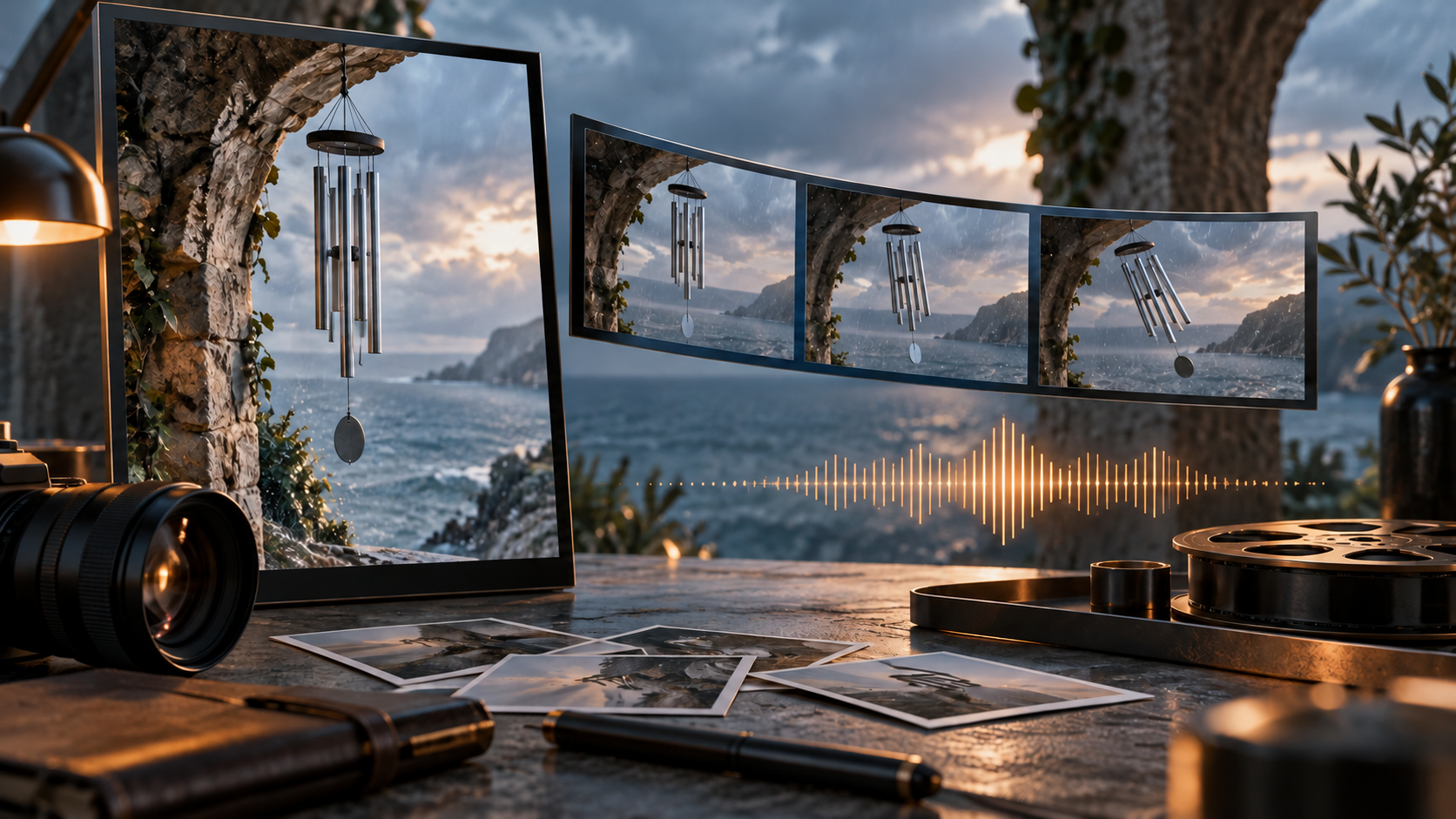
Grok Imagine produces video clips from text prompts, still images, and reference collections. It does not assemble a finished film; it generates individual shots that you select, arrange, and edit. Understanding which inputs each model accepts, how resolution and duration vary by mode, and where identity or audio continuity breaks down will help you plan realistic production workflows and avoid expecting a single generation to deliver a complete narrative.
This guide explains Grok's text-to-video, image-to-video, reference-guided, editing, and extension capabilities as documented in xAI's official developer resources, distinguishes the consumer web and mobile experience from the direct API, and outlines a four-layer prompt structure and shot-by-shot production discipline that treats the generator as one tool in a larger filmmaking process.
What Grok Imagine Does—and What It Doesn't
Grok Imagine is available through the Grok consumer web and mobile apps and as a separate Imagine developer API. According to the official Grok overview and the June 16, 2026 Video 1.5 launch announcement, these are distinct access surfaces; they do not guarantee identical models, controls, subscription entitlements, or output behavior. Independently check which model versions, controls, limits, and billing terms a third-party integration actually exposes; developer API maxima and consumer subscription entitlements do not establish third-party parity.
The video model overview distinguishes three API models: grok-imagine-video-1.5 supports text-to-video, image-to-video, and reference-guided generation with native audio and pinned-frame controls; grok-imagine-video-1.5-lite offers text and image generation with upscaled 1080p output; and the classic grok-imagine-video handles existing-video editing and extension. Not every capability is shared across all models or interfaces.
Each generation supplies a bounded shot, while automatic consistency of cast, props, lighting or sound across separate clips is not guaranteed. If your project requires a potter to carry the same blue bowl through five consecutive angles, or wind chimes to ring with identical timbre in adjacent takes, supply approved reference images, review each actual take individually, maintain continuity state records, and edit the accepted clips together in your timeline.
Core Generation Modes and Their Inputs
Text-to-Video
Describe the subject, action, camera movement, lighting, and atmosphere in a single prompt. The model interprets your description and generates a new clip. Text-to-video is useful for concept tests and establishing shots where you want to explore visual ideas quickly, but it offers no guarantee that a character's face, costume, or environment will match a previous generation.
Image-to-Video
Supply a still image as the opening frame and write a prompt describing the subsequent motion. According to the image-to-video documentation, the output inherits the input image's aspect ratio, and an aspect_ratio request field is ignored. Prepare your still in the intended framing rather than expecting the API to crop or stretch it. Image-to-video reduces visual ambiguity because the subject, composition, and lighting are already approved; your prompt then directs the action.
Reference-Guided Video
The 1.5 model's reference-to-video mode accepts up to fourteen reference images per request, up to three preset voice references, and pinned frames for the opening, closing, and up to four interior keyframes. The reference-to-video documentation specifies these limits and notes that user-supplied audio-file voice references are restricted to trusted partners on request. Reference-guided generation is capped at 720p, while 1.5 text-to-video and image-to-video support native 1080p. Do not combine the fourteen-reference ceiling and native 1080p into a single promised mode.
Reference inputs and pinned frames provide control; they do not guarantee perfect character continuity, accurate hands, flawless lip sync, or seamless transitions in every output. Review each generation and accept only the takes that meet your quality and continuity standards.
Editing and Extension
The classic grok-imagine-video model supports prompt-directed editing and extension. Video editing takes a source clip and a description of the requested change; the model attempts to keep other content close to the source, but this is not pixel-level preservation or a face-lock guarantee. Video extension takes a source clip and a prompt describing what happens next; the extension duration refers to the newly generated portion, not the combined length. Input and extension durations are bounded, and repeated extension does not establish unlimited length or guaranteed continuity.
Audio, Resolution, and Duration by Model and Mode
The 1.5 model supports native audio with lip-synced speech, dialogue, ambience, and sound effects, as listed in the video overview. This is a capability, not a guarantee of perfect speech or sync in each output. Listen to every generation and verify that dialogue matches your script, that lip movement aligns with speech, and that background sound supports rather than distracts from the scene.
According to the video generation documentation, 1.5 text-to-video and image-to-video support native 1080p and up to fifteen seconds per generation. Reference-to-video is capped at 720p. Lite's 1080p is upscaled from 720p. Editing inherits source properties, and the classic model rejects 1.5's pinned last-frame and keyframe inputs. Do not reduce these model-specific ceilings to a single "Grok resolution" or "Grok duration" claim.
The consumer FAQ notes that a requested 720p video can fall back to 480p after an account's 720p cap, and upload limits vary by platform or subscription. Check your current interface and account settings for the actual resolution, duration, and usage limits that apply to your session.
A Four-Layer Prompt Structure for Controlled Shots
Effective prompts separate subject, action, camera, and sound into distinct layers, giving the model clear filmmaking guidance without expecting it to infer unstated details.
Layer one: subject and initial state. Describe who or what appears and their starting condition. A firefighter in full gear stands at the base of a burning apartment building at night, helmet visor down, holding a coiled hose.
Layer two: one visible action. Choose a single motion that advances the story or reveals character. She lifts the visor, looks up at flames in a third-floor window, then signals to her crew off-screen.
Layer three: camera behavior. Specify the framing and movement. Handheld medium shot, slight upward tilt following her gaze, shallow depth of field blurring the background crew.
Layer four: intended sound. Describe dialogue, effects, or atmosphere. Distant sirens, crackling flames, her radio static, then a calm voice: "Third floor, west side, we're going in."
This structure does not guarantee that the model will render every detail perfectly, but it reduces ambiguity and makes it easier to diagnose why a generation missed your intent. If the camera movement feels wrong, adjust layer three and regenerate. If the dialogue is unclear, refine layer four or consider recording separate audio.
Production Workflow: Shot Lists, Tests, and Iteration
Treat Grok as a shot generator within a disciplined production process. Before you request a single clip, prepare a shot list that identifies which moments require dialogue, which depend on a specific character's face, which involve difficult actions like hand gestures or object manipulation, and which need a particular final frame to bridge into the next shot.
Approve reference images for recurring characters, props, and locations. Run a representative test generation to confirm that the model interprets your prompt as intended, that the resolution and duration meet your needs, and that the audio quality is acceptable. Change one variable—prompt wording, reference image, or pinned frame—and compare the new output to the previous take. Save precise records of the prompt, model, reference set, and output for every accepted clip.
Place accepted shots beside their neighbors in a rough timeline early. This reveals continuity gaps, audio mismatches, and pacing problems while you still have time to regenerate or adjust the edit. A shot that looks strong in isolation may fail when it follows a different camera angle or lighting condition.
Limits and Continuity Challenges
Identity drift is common across separate generations. A character's face, costume, or posture may shift even when you supply the same reference images. Props can change color, size, or position. Camera angles and lighting may not match your previous shot's exit frame. Audio generated in one clip will not automatically align with the next clip's dialogue or ambience.
Treat continuity problems as issues to diagnose and review. Maintain approved references, shot state records, settings logs, and accepted takes; inspect adjacent clips for alignment. Production discipline—approved designs, shot IDs, and a maintained timeline—addresses consistency challenges across requests.
Rights, Consent, and Output Review
Verify that you have permission to use every face, voice, music track, and source asset in your reference inputs. If you are generating a clip that features a real person's likeness or voice, obtain their explicit consent. If you are using copyrighted music or footage, confirm that your license covers AI-assisted derivative works.
Review every generated clip for unintended speech, visible text, brand logos, or other details that could create legal or editorial problems. Record the generation date, model version, prompt, and reference set for each output so that you can document your workflow for clients or collaborators. Do not assume that generated content is automatically free of rights obligations or that a model's training data establishes a blanket license.
Frequently Asked Questions
Does the Grok consumer app offer the same models and controls as the developer API?
No. The consumer web and mobile experience and the direct Imagine API are separate surfaces. The developer documentation distinguishes models by their supported inputs, resolution ceilings, and audio capabilities. Do not assume that a feature available in the API is automatically present in the app, or that a consumer subscription grants equivalent developer access.
Can I generate a ten-minute film in one request?
No. The documented generation durations are bounded by model and mode. Extension adds new footage to an existing clip, but repeated extension does not establish unlimited length or guaranteed continuity. A ten-minute film requires planning multiple shots, accepting individual takes, and editing them together.
Will the model preserve a character's face across five separate shots?
Not automatically. Reference images and pinned frames provide control, but identity drift, costume changes, and lighting shifts are common across separate generations. Approve each take individually and use editing to smooth transitions.
Is the generated audio final, or do I need to replace it?
Listen to every clip. Native audio with lip-synced speech is a model capability, not a guarantee of perfect dialogue, sync, or sound quality in each output. If the speech is unclear, the sync is off, or background noise distracts, consider recording separate audio and using lip-sync or dubbing tools.
How do I choose between Grok and other video generators?
Run a representative test that matches your project's motion complexity, identity requirements, audio needs, and budget. Compare the output quality, generation speed, cost per clip, and available controls. Do not rely on universal rankings or promotional benchmarks; test the specific model and mode you plan to use.
Conclusion
Grok Imagine's supported modes generate individual shots from text, images, and reference collections. A complete film still needs planning, selection, and assembly; automatic identity, prop, and sound consistency between clips is not guaranteed. Effective use requires a shot list, approved reference images, iterative testing, precise settings records, and disciplined editorial review.
Treat the model as one input-aware tool in a larger production process. Verify permissions for faces, voices, and source assets. Review generated clips for unintended content. Save accepted takes and place them in a timeline early to catch continuity gaps while you still have time to regenerate or adjust the edit.
If you are exploring AI-assisted video workflows and want to compare multiple generation models in one workspace, visit the VideoAny model catalog to see which text-to-video, image-to-video, and editing tools are currently available.