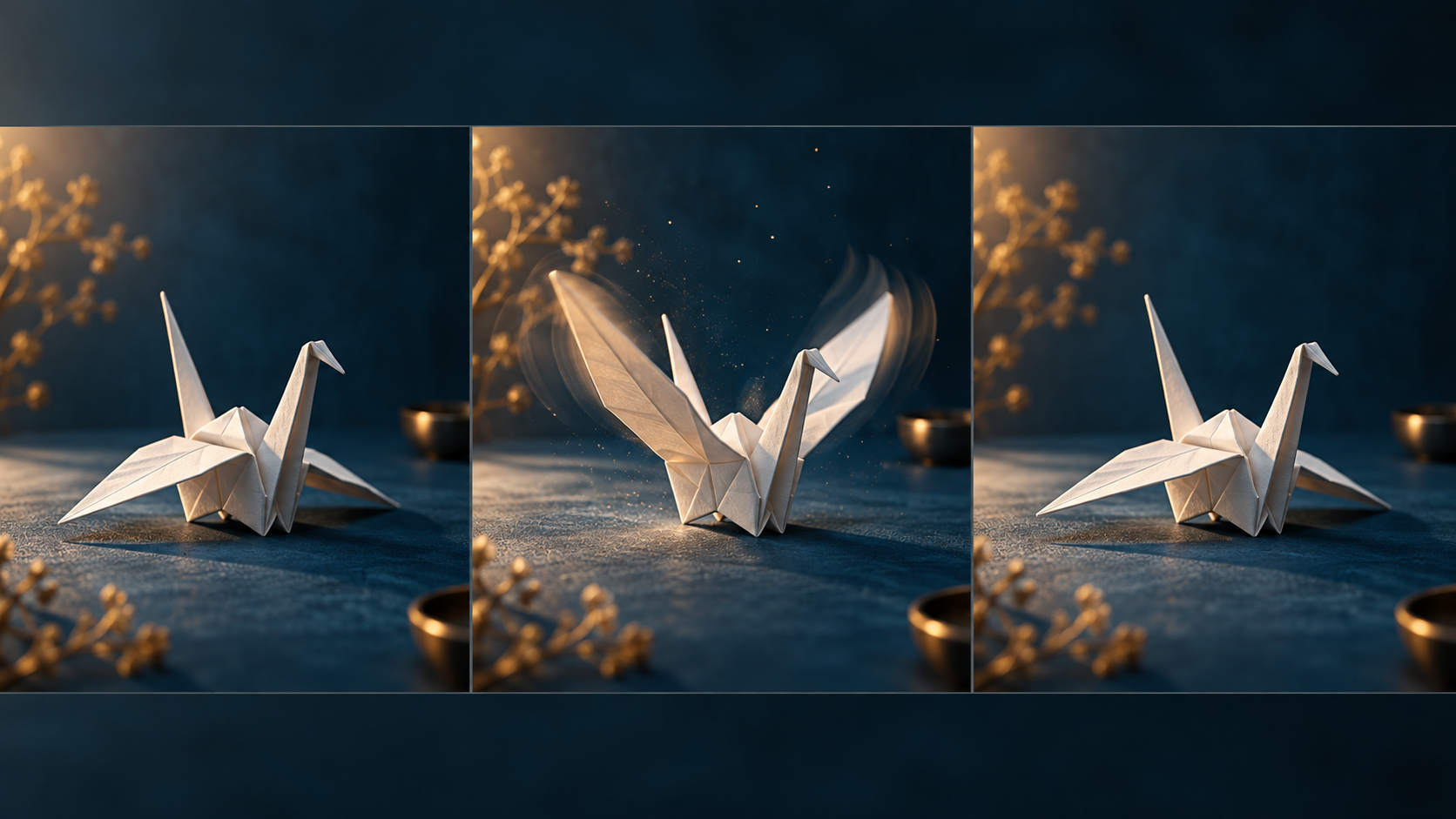
To generate video from an image using Grok Imagine, upload your chosen static image and provide a detailed text prompt. This prompt should describe the desired motion, camera movements, and any changes you want to see in the scene or subject over time, guiding the AI to animate your visual input.
Grok Imagine offers a powerful way to bring static images to life, transforming them into dynamic video clips. This guide explores how to effectively use Grok's image-to-video capabilities, focusing on preparing your source material, crafting precise prompts, and diagnosing common issues. Whether you're aiming for subtle animations or dramatic scene transformations, understanding the nuances of prompt engineering and motion control is key to achieving your creative vision.
Understanding Grok Imagine's Image-to-Video Capabilities
Grok, available on grok.com and via iOS/Android apps, includes an "Imagine" feature that allows users to generate both images and videos. This functionality bridges the gap between static visuals and moving narratives, enabling creators to animate their ideas with text-based instructions.
When engaging with Grok Imagine for video generation, it's important to understand the underlying mechanisms. The system interprets your initial image and combines it with your textual prompt to synthesize a video sequence. This process involves analyzing the visual content of your image and then applying the described motion and transformations.
Consumer Access and Allowances
Access to Grok Imagine's video generation features can vary. Users should check their specific account settings and subscription details to understand their generation allowance. As of observations made on September 21, 2026, paid consumer usage typically operates on a shared weekly allowance, which can be monitored within account settings, where the scheduled reset time is also displayed. The allowance resets automatically according to the plan. For detailed information on access and pricing, users are encouraged to consult the official Grok FAQ and pricing pages directly.
It's also worth noting that the resolution of generated videos may vary. While product pages might mention up to 15 seconds at 720p, and a Plus plan could offer 1080p, these are plan-specific observations and not universal guarantees. The official FAQ indicates that output resolution can drop from 720p to 480p after a tier's 720p cap is reached. Additionally, all generated media includes a Grok watermark, and there is no setting available to remove it (https://docs.x.ai/grok/faq).
API Capabilities vs. Consumer Interface
While this guide primarily focuses on the consumer interface, it's helpful to be aware of the broader capabilities available via the API, as these often inform the underlying model behavior. For developers, the Grok Imagine API offers distinct functionalities:
- Image as Opening Frame (Image-to-Video): The
grok-imagine-video-1.5 I2Vmodel, when accessed via API, can use an image directly as the opening frame of a video, capable of native 1080p output (https://docs.x.ai/developers/model-capabilities/video/image-to-video). - Reference Images (Reference-to-Video): Another API mode allows for "reference images" that guide the identity, objects, or style of the video without necessarily becoming the first frame. This "reference mode" typically caps output at 720p (https://docs.x.ai/developers/model-capabilities/video/reference-to-video).
- Audio Generation: By default, generated videos include audio. However, API users can explicitly disable this with a
generate_audio=falseparameter. While preset voice references exist in specific API modes, custom uploaded voice references are not generally available, meaning arbitrary voice cloning is not a standard feature (https://docs.x.ai/developers/model-capabilities/video/generation).
These API details, verified on September 21, 2026, illustrate the advanced controls available, some of which may eventually influence or be reflected in the consumer interface.
Preparing Your Source Image for Optimal Results
The quality and composition of your initial image significantly impact the outcome of your video generation. A well-prepared image provides the AI with a clear foundation, making it easier to interpret your prompt and execute the desired motion.
Choosing Motion-Ready Input
Select images that are inherently suitable for animation. Look for:
- Clear Subject and Anatomy: The main subject should be well-defined, with distinct limbs or features if it's a character. Ambiguous forms can lead to distorted or "rubbery" movements.
- Visible Face/Limbs: If animating a person or animal, ensure their face and limbs are clearly visible and not obscured. This helps the AI maintain identity and natural movement.
- Depth Separation: Images with clear foreground, midground, and background elements allow for more dynamic camera movements and object interactions. Flat images can limit perceived depth.
- Room for Motion: Ensure there's sufficient space around your subject for the intended movement. If a character is meant to walk, there should be clear ground ahead of them.
- Stable Lighting: Consistent and well-distributed lighting helps the AI maintain visual coherence throughout the video. Dramatic, shifting light in the source image can sometimes lead to flickering or inconsistent rendering.
- Clean Source: High-resolution, artifact-free images are always preferred. Noise or compression artifacts in the source can be amplified in the generated video.
Avoiding Common Pitfalls
Certain image characteristics can hinder effective video generation:
- Occlusion: Avoid subjects partially hidden by other objects, as the AI may struggle to "imagine" the obscured parts consistently.
- Complex Crowds or Reflections: Intricate scenes with many overlapping elements or highly reflective surfaces can confuse the AI, leading to visual instability or unexpected distortions.
- Cropped Walking Feet: If a character is meant to walk, ensure their feet are fully visible in the initial frame. Cropped feet often result in unnatural or "sliding" locomotion.
- Intricate Contact: Scenes where subjects are making delicate or complex contact with objects (e.g., holding a small, detailed item) can be challenging to animate without visual glitches.
- Unclear Geometry: Images with ambiguous spatial relationships or distorted perspectives can lead to illogical movements or warped environments.
Input Geometry and Aspect Ratios
The aspect ratio of your input image will generally dictate the aspect ratio of your output video. If your image is square (1:1), the video will likely be square. A widescreen image (16:9) will produce a widescreen video. Consider the final platform for your video and choose an input image that aligns with the desired output aspect ratio. While the AI can sometimes "fill in" missing areas, starting with the correct geometry often yields more predictable and higher-quality results.
Crafting Effective Prompts for Motion Control
The prompt is your primary tool for directing the AI. It allows you to specify not just what you want to see, but how it should move and how the camera should capture that movement.
The Role of the Prompt: Opening, Change, and Hold
Think of your prompt as a mini-script for a short film. It should ideally describe:
- The Opening Scene: What does the initial image represent, and what is its immediate context?
- The Change/Action: What movement or transformation occurs? This is where you specify object motion, character actions, or environmental shifts.
- The Final State (Hold): How does the scene conclude? Does the action resolve, or does the camera settle on a new perspective?
Avoid repeating appearance descriptions unnecessarily. Focus on the core elements that need to be preserved and the single, intentional change you wish to see, along with its physical aftermath.
Defining Preserved Details vs. Intentional Change
Clearly delineate what aspects of the image should remain static or consistent, and what elements should undergo transformation. For example, if you want a character to wave, specify "the character waves their hand" rather than "the character waves their hand, which is wearing a blue glove and has five fingers." The AI should infer the glove and fingers from the image; your prompt should focus on the action.
Motion Mapping Concepts
Effective prompting involves guiding the AI on how different elements in the scene should behave.
- Locked Elements: These are parts of the image you want to remain completely static. While you can't explicitly "lock" elements in a prompt, describing them as "motionless," "still," or "fixed" can help.
- Example: "The ancient stone statue remains perfectly still as..."
- Moving Elements: Direct specific objects or characters to move. Be precise about the direction, speed, and nature of the movement.
- Example: "...a single leaf slowly drifts from the tree branch to the ground."
- Responding Elements: Describe how elements react to other movements or environmental changes. This adds realism and complexity.
- Example: "As the character walks past, the curtains gently sway in the disturbed air."
Camera Direction and Movement
Controlling the camera is crucial for cinematic effect. Be specific with your camera instructions, but avoid contradictory commands (e.g., a locked camera cannot simultaneously pan).
- Camera Zoom: This changes the focal length of the lens, altering the field of view and image magnification, making subjects appear closer or further away without physically moving the camera. While it affects framing, it does not change the underlying perspective, which is determined by camera position.
- Prompt Example: "The camera slowly zooms in on the intricate details of the carving."
- Camera Push/Pull: This refers to the physical translation of the camera forward (push) or backward (pull) through space. It changes the perspective and relationship between foreground and background elements.
- Prompt Example: "The camera slowly pushes forward, moving closer to the subject."
- Camera Pan/Tilt: These are rotational movements. A pan rotates the camera horizontally (left or right) from a fixed point. A tilt rotates the camera vertically (up or down).
- Prompt Example: "The camera pans slowly to the right, revealing the hidden pathway."
- Prompt Example: "The camera tilts upwards, following the flight of the bird."
Important: Do not mix a locked camera instruction with a simultaneous camera movement. If you specify "static camera," it should not also "pan" or "zoom."
Timing and Duration
While you can't set exact frame counts in the consumer interface, you can use descriptive language to suggest timing and pace. Words like "slowly," "rapidly," "gradually," "suddenly," "briefly," or "over time" can guide the AI's interpretation of motion duration. Remember, these are creative directions, not exact model guarantees.
Six Original Prompt Patterns
Here are six distinct prompt patterns, each designed to achieve a specific type of animation, using original subjects:
Restrained Portrait with Subtle Animation: Focus on minimal, internal movement within a static frame.
- Subject: An origami crane.
- Prompt: "A meticulously folded white origami crane, centered on a dark, reflective wooden table. The crane's paper wings subtly unfurl and refold, a soft, almost imperceptible motion, as if catching a faint breeze. The camera remains static, focused on the crane."
Anime Action Preparation: Capture the anticipation of movement, emphasizing a character's readiness.
- Subject: An adult anime mapmaker.
- Prompt: "An adult anime-style mapmaker, with intricate silver hair and a focused expression, leans over a vast, ancient scroll spread across a wooden desk. Their gloved hand hovers just above the parchment, a quill clutched lightly, preparing to make the first stroke. Subtle steam rises from a nearby tea cup. The camera slowly zooms in on the mapmaker's hand, highlighting the tension."
Fixed Product with Restrained Camera Reveal: Keep a central object static while the camera slowly reveals its environment.
- Subject: A ceramic mug.
- Prompt: "A handcrafted ceramic mug, deep blue with a subtle glaze, sits on a sunlit wooden windowsill. Wisps of steam curl gently from its rim. The camera slowly pans right, revealing a bustling, rain-slicked cityscape outside the window, blurring slightly in the distance, while the mug remains in the foreground."
Environmental Movement: Animate natural elements within a largely static scene.
- Subject: A misty orchard.
- Prompt: "A serene, misty apple orchard at dawn. Thick fog swirls lazily between the gnarled trees, obscuring and revealing branches. A gentle breeze rustles the dew-kissed leaves, causing a few apples to sway. The camera remains static, capturing the atmospheric movement of the mist and foliage."
Silent Listening Reaction: Focus on a character's subtle, internal reaction to an unseen stimulus.
- Subject: A seated violinist.
- Prompt: "A young violinist, seated in a dimly lit concert hall, eyes closed in contemplation, holding their instrument. Their expression is serene. After a moment, their eyelids flutter open slightly, a subtle shift in focus, as if reacting to a faint, distant melody. The camera is locked on the violinist's face, capturing this subtle change."
First-and-Last-Frame Generation: This advanced technique allows users to provide both an initial image and a desired final image, with the model generating a continuous transformation between them. This 'endpoint pinning' requires specific controls exposed by the selected interface or model, and cannot be achieved solely through prompt text.
- Subject: A flower bud opening.
- Example Setup (API):
- Initial Image: Upload an image of a tightly closed rosebud.
- Final Image (
last_frameparameter): Upload an image of a fully bloomed rose. - Prompt: "Generate a continuous, graceful unfurling of the rose petals from the initial bud to the final bloom. The camera remains static, observing the transformation."
- Technical Note: As of September 21, 2026, the
grok-imagine-video-1.5API supports this functionality via theimageandlast_frameparameters, while the classicgrok-imagine-videoAPI rejectslast_frame. Consumer interfaces may or may not expose these specific controls. For API details, refer to the Video Reference-to-Video documentation.
Diagnosing and Troubleshooting Common Generation Issues
Even with carefully crafted prompts and well-prepared images, you might encounter unexpected results. Understanding common issues and how to diagnose them is crucial for refining your approach.
Common Problems and Their Manifestations
- Identity Drift: The character or object's appearance subtly (or dramatically) changes over the course of the video. A person's face might alter, or an object's details might shift. Cause/Fix: Ensure the subject's face is clear and large in the initial frame, minimize rotation, and reduce occlusion to maintain consistency.
- Rubbery Anatomy: Movements appear unnatural, distorted, or overly fluid, especially with human or animal figures. Limbs might stretch or bend in impossible ways. Cause/Fix: Focus on simpler actions and ensure visible joints or clear body structure in the prompt to guide movement.
- Unintended Zoom/Camera Movement: The camera moves when you intended it to be static, or executes a different movement than specified (e.g., a pan instead of a zoom). Cause/Fix: Explicitly request fixed framing and remove any conflicting camera movement cues from the prompt.
- Weak or Absent Motion: The desired movement either doesn't occur at all, or is so subtle it's barely perceptible, despite clear instructions in the prompt. Cause/Fix: Describe a single, measurable action with clear timing, avoiding vague or multiple simultaneous movements.
- Unstable Backgrounds: Background elements flicker, warp, or shift inconsistently, detracting from the main subject. Cause/Fix: Reduce aggressive camera movement and emphasize preserving background structure.
- Failed Hand/Prop Contact: When a character interacts with an object, the contact appears unnatural; hands might pass through objects, or objects might detach from where they should be held. Cause/Fix: Simplify the interaction, or consider splitting the action into separate setup, contact, and result shots.
- Unusable End Frames: The video concludes with a distorted, blurry, or otherwise undesirable final image, making it difficult to use for seamless transitions or loops. Cause/Fix: Request a stable final hold for the subject and preserve planned screen direction to ensure a clean conclusion.
Cross-Shot Consistency
If you're generating multiple clips that need to appear continuous, maintaining consistency is a significant challenge. The AI doesn't inherently "remember" previous generations. To improve consistency:
- Canonical Reference: Establish a "canonical" reference image or video for your character/object/scene. Refer to this constantly.
- Detailed Descriptions: Use consistent and highly detailed descriptions for recurring elements across all prompts.
- Record Details: Keep a log of specific wardrobe, props, screen direction, and camera angles used in successful generations.
- New Starting Image for New Angle: If you need a different camera angle, it's often more effective to generate a new starting image from that angle rather than trying to prompt the AI to dramatically shift perspective from an existing image.
Economical Drafting and Iteration
Generating videos consumes your allowance, so an efficient workflow is important:
- Draft Short: Start with shorter video durations (if adjustable) to quickly test concepts.
- Test One Variable: In each iteration, try to change only one aspect of your prompt or image. This helps isolate the cause of any issues.
- Approve Movement First: Prioritize getting the core motion right at a lower resolution or shorter duration before investing in higher-quality, longer generations.
- Refine Iteratively: If a generation isn't quite right, analyze what went wrong, adjust your prompt or image, and try again. This iterative process is key to mastering the tool.
Targeted Diagnosis
When a generation fails, consider these diagnostic questions:
- Is the prompt clear and unambiguous? Could the AI have misinterpreted a term?
- Is the source image suitable? Does it have any of the pitfalls mentioned earlier?
- Are camera movements conflicting with object movements? (e.g., "camera pans" and "subject remains still" might be fine, but "camera pans" and "subject also pans" could be confusing).
- Have I provided enough context for the desired action? Sometimes, adding a sentence about the reason for a movement can help.
- Is the desired motion too complex for a single prompt? Break down intricate actions into simpler steps if possible.
Advanced Considerations and API Insights
While the consumer interface simplifies many aspects, understanding some of the underlying model behaviors, often revealed through API documentation, can enhance your prompting strategy.
Reference Images vs. Starting Frames
As verified on September 21, 2026, the API differentiates between using an image as an opening frame and using it as a reference.
- When an image serves as the opening frame (as in
grok-imagine-video-1.5 I2V), the video directly begins with that visual, and the AI animates it forward. This mode can achieve native 1080p resolution. - When an image is used as a reference (as in
reference-to-video), it guides the AI on identity, objects, or style throughout the video, but the video doesn't necessarily start with that exact image. This mode is typically capped at 720p.
For consumer users, this distinction implies that if you want your video to begin with your uploaded image, your prompt should focus on animating from that image. If you're trying to maintain a character's look across different scenes, think of your initial image as a strong reference for identity.
Audio Generation
For the developer API, Grok Imagine generates audio by default with its videos. API users can disable audio generation by setting generate_audio=false if a silent video is preferred, which is useful for adding custom soundtracks or voiceovers. (Refer to the Video Generation API documentation). Consumer interface defaults and controls for audio generation must be checked within the active consumer mode, as they are not necessarily inferred from API behavior.
Regarding voices, the API supports preset voice references in specific documented modes. However, custom uploaded voice references for arbitrary voice cloning are not generally available, meaning you cannot typically upload a voice sample and have the AI generate new speech in that exact voice.
Resolution and Duration
As observed on September 21, 2026, consumer-facing generations can typically produce videos up to 15 seconds in length at 720p. Some premium plans might offer 1080p, but this is subject to specific subscription tiers. It's important to remember that these are observations and not guarantees for all users or future versions. Always check your current plan details.
Watermarks
For media generated through the consumer Grok interface, including paid consumer plans, all videos generated by Grok Imagine include a watermark. As of September 21, 2026, there is no setting or option to remove this watermark. This is a standard branding element for the platform's output, as noted in the Grok FAQ. The developer API's watermark policy is not established by this consumer FAQ and must be checked separately if relevant.
Rights and Consent
When using images of real people, copyrighted artwork, or private locations, ensure you have the necessary rights and consent. Generating content without proper permissions can lead to legal issues. Always respect intellectual property and privacy.
Frequently Asked Questions (FAQ)
What role does the initial image play in Grok Imagine video generation?
The role of an initial image depends on the generation mode selected.
- Image-to-Video Mode: In this mode, the supplied image serves as the direct opening frame of your video, dictating the starting composition, subject, and style. The AI then animates this specific image according to your text prompt.
- Reference-to-Video Mode: Here, reference images guide the identity, objects, and style throughout the generated clip without necessarily appearing as the first frame. Users must choose the supported mode or control for their desired outcome; a prompt alone cannot switch the function of an input image. Availability of these modes may vary between consumer interfaces and the developer API.
How much appearance description is needed in the prompt?
Generally, you should define the preserved details and the single, intentional change you want to see. Avoid redundant descriptions of elements already clear in the image. Focus your prompt on the action and motion, letting the image handle the static appearance. For example, if a character wears a red hat in the image, simply prompt "the character waves" rather than "the character wearing a red hat waves."
Does Grok Imagine support custom audio or voice cloning?
For the developer API, Grok Imagine generates audio by default with its videos. API users can request silent output by setting generate_audio=false. Consumer audio availability, defaults, and controls depend on the active interface or mode being used.
While specific API modes might offer preset voice references, custom uploaded voice references for arbitrary voice cloning are not generally available. This means you cannot typically upload your own voice sample and have the AI generate new speech in that voice. When using any voice generation features, ensure you have the necessary permissions for any voice references used.
Can I remove the Grok watermark from my generated videos?
No. As of observations on September 21, 2026, all videos generated through the consumer Grok interface include a watermark, and there is no setting or option available to remove it. This conclusion does not extend to the developer API, whose output policy must be verified independently.
What are the typical video duration and resolution limits?
For consumer users, videos are typically up to 15 seconds long at 720p. Some premium plans may offer 1080p output, but this varies by subscription tier. The resolution can also drop to 480p after a certain usage cap is reached within a tier. API capabilities, particularly for the grok-imagine-video-1.5 I2V model, can achieve native 1080p when using an image as the opening frame.
How do I manage my generation allowance?
Your generation allowance, especially for paid consumer usage, is typically managed through your account settings. This often involves a shared weekly allowance that resets periodically. You can usually monitor your current usage and see when your allowance will reset within the Grok platform. Refer to the official Grok FAQ and pricing pages for the most up-to-date information.
What about identity changes or artwork permissions?
When generating videos, especially those involving human subjects or distinct artistic styles, it's crucial to consider identity consistency and intellectual property. The AI may sometimes struggle to maintain a consistent identity across a video, leading to "identity drift." Always ensure you have the necessary rights and permissions for any images or artwork you use as input, particularly if they are copyrighted or feature identifiable individuals.
Conclusion
Mastering Grok Imagine's image-to-video capabilities involves a blend of careful image selection, precise prompt engineering, and an iterative approach to troubleshooting. By understanding how to prepare your visual inputs, articulate desired movements, and interpret the AI's responses, you can unlock the creative potential of transforming static images into compelling video narratives. Experiment with different prompt patterns, pay close attention to camera controls, and refine your technique to achieve the dynamic results you envision.
For more resources on AI-powered video creation, you can explore the various tools and models available, such as those found on the VideoAny image-to-video page.