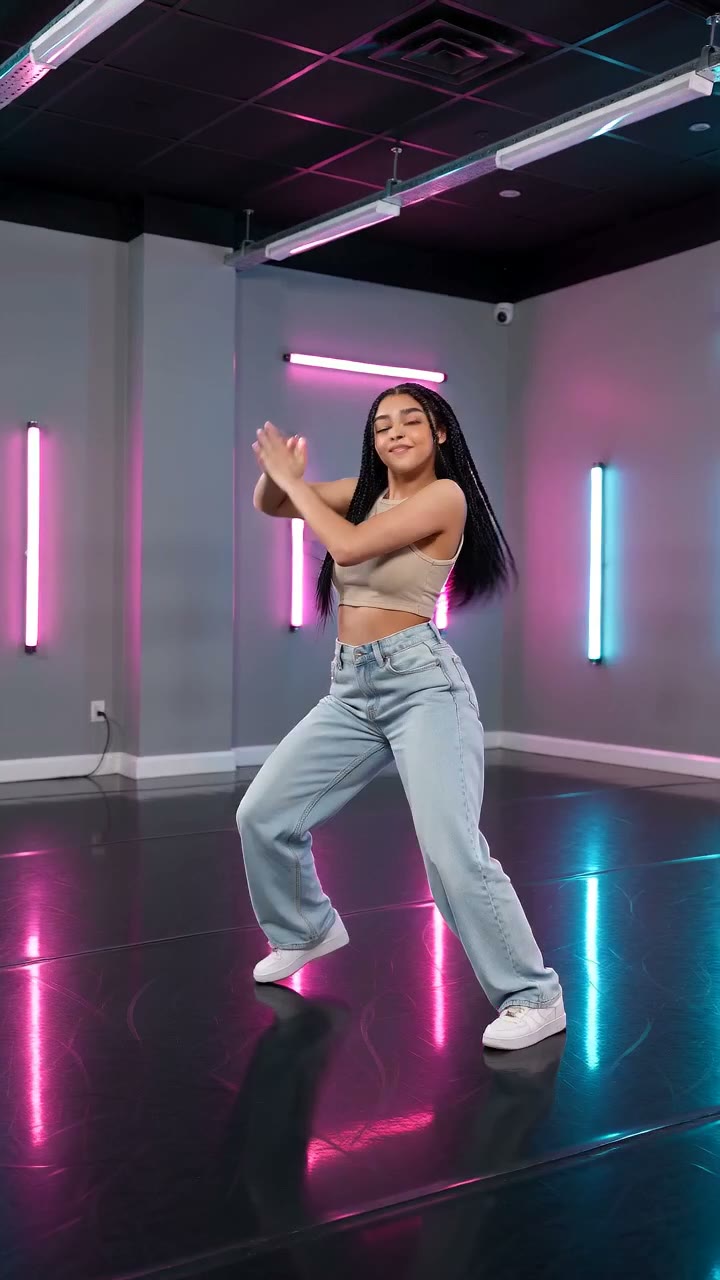
Neon light, visible footwork and a clear finishing pose can make a short dance clip easy to read. The AI Neon Glow Dance effect turns one full-body photo into a solo dance with pink, purple and cyan lighting.
The preset uses Seedance 2.5 to create a silent, 5-second, 720p clip for 568 credits. The aspect ratio follows your source photo. Check the price displayed on the effect page before generating. The external references in this guide illustrate framing and lighting, not verified output from this preset.
What the dance is designed to do
The scene direction starts from your photo and gradually introduces a neon studio with subtle floor reflections and soft light on the face. The short phrase has three parts: a rhythmic hip-and-shoulder sway while both arms rise diagonally; one controlled low forward kick; then a balanced wide stance with slightly bent knees.
The camera is meant to stay steady with the whole body and both shoes in view. Only the kicking foot briefly lifts; the supporting foot stays planted. The preset avoids high kicks, full spins, jumps, split lunges and deep squats. It is an independent K-pop-inspired visual effect, not an official artist routine or an included song. Exact timing, anatomy and motion can vary.
Step 1: Choose a standing full-body photo
Use one sharp, evenly lit photo of one person standing on a visible floor. Include the head, hands, legs and both shoes. Leave space around the arms and on either side of the legs so the arm lift and low kick have room.
Avoid seated poses, crossed limbs, group shots and crops that end at the knees. Loose framing is more useful than a tightly cropped fashion portrait. Clothes with a clear outline can make the movement easier to assess. Choose a photo you have permission to use.
If your goal is a vertical social edit, prepare a vertical source crop that still contains the full body. The effect follows the source aspect ratio rather than providing a separate format selector.
Step 2: Upload and review the preview
Open AI Neon Glow Dance and sign in.
- Upload one JPG or PNG smaller than 20 MB.
- Confirm the correct photo appears and neither shoe is cut off.
- Check the space around the arms and legs before generating.
The dance and neon scene are preset. You do not enter choreography instructions, choose a song or upload a motion reference on this page.
Step 3: Generate one test
Check the displayed cost and at least 568 credits in your balance, then select Generate once. Processing can take several minutes. The five-second label describes the finished clip, not the waiting time.
If the page times out or cannot confirm progress, check your generation history and balance before starting again. Contact support if the task or credit status remains unclear. Each new generation uses credits, so review a completed result before deciding on another attempt.
Step 4: Review footwork, hands and landing
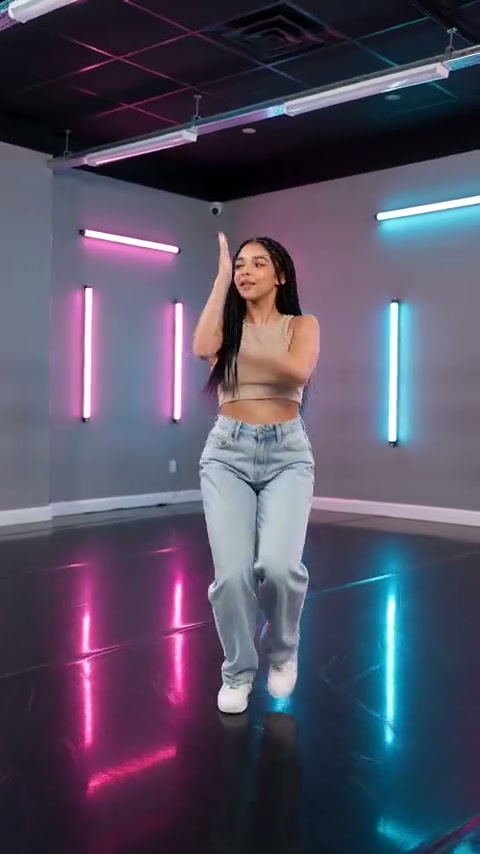
Watch the complete clip, then replay the low kick and finish. Check for:
- A face that remains coherent as the neon lighting appears.
- Hands that stay separate from the face and body during the arm lift.
- A stable supporting leg and a kicking foot that returns to the floor.
- Shoes that remain inside the frame, without floor sliding or impossible joints.
- A balanced final pose rather than a sudden cut or unfinished movement.
If a completed take cuts off the shoes, try a source photo with more room around the body. If limbs merge, use a simpler standing pose with separated arms and legs. These changes can improve the input but cannot guarantee exact choreography or unchanged facial details.
Step 5: Download and add music
Download the take you want to keep. The output is silent, so add music or a beat in an editor using audio you can share. Trim the sound to the five-second timeline and align a beat with the motion you actually received. The generated motion is not automatically synchronized to a song.
For a side-by-side dance edit, create separate clips and align them manually. This preset is designed for one person, and each generation costs credits. Preview the final crop at phone size, keep captions away from the face and feet, and disclose the AI animation when sharing.
FAQ
Does this effect generate music?
No. Add music after downloading the silent clip.
Is the choreography official or tied to a specific artist?
No. It is an independent short neon dance phrase with K-pop-inspired styling.
Can I use a close-up or a photo of two people?
The preset is designed for one standing person with the entire body and both shoes visible.
Can I make the video longer?
This preset produces five seconds. Extend a finished edit with other shots if needed; changing the source photo does not change the preset duration.
What if my task looks stuck?
Review generation history and your balance before another submission. Contact support if the status remains unclear.
Make your clip
Choose a clear standing photo with both shoes visible and open AI Neon Glow Dance. Review the full dance before adding sound. For other motion styles, explore AI Moonwalk Dance or AI Storm II.